How to Build a GitHub MCP Integration for Autonomous Agents
Use a GitHub MCP integration to connect autonomous agents with your repositories. They can read code, open pull requests, and manage issues. Learn how to install and configure the official GitHub MCP server to automate development workflows.

What is a GitHub MCP Integration?
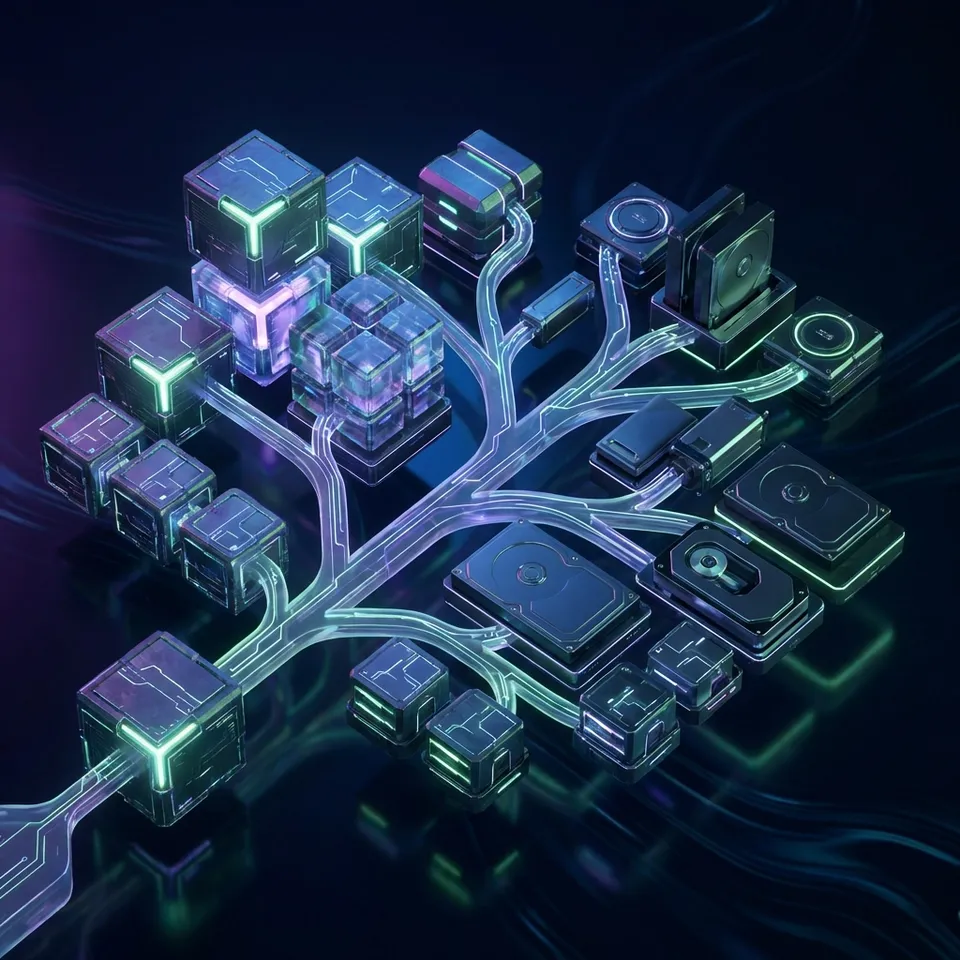
A GitHub MCP integration connects autonomous AI agents and your version control system. It links agents directly to your code repositories through the Model Context Protocol (MCP). Large Language Models (LLMs) write good code snippets, but they can't touch your dev environment. They can't clone repos, browse files, make branches, or open PRs. The GitHub MCP server fixes this. It gives them a safe way to do all that.
Running a GitHub MCP server gives your agent tools to act like a developer on your team. It can:
- Search repositories to understand existing code context and architectural patterns.
- Read file contents directly without requiring manual copy-pasting from a human operator.
- Create and manage branches to perform isolated development work without disrupting the main codebase.
- Open pull requests with detailed descriptions, linking to relevant issues.
- Comment on issues and review code changes, participating in the collaborative process.
This integration makes the AI an active collaborator instead of just a code generator. It handles development tasks, from issue triage to pull request creation, instead of just generating isolated functions.
Helpful references: Fastio Workspaces, Fastio Collaboration, and Fastio AI.
The Agency vs. Automation Distinction Traditional automation (like GitHub Actions) relies on triggers: "If code is pushed, run tests." MCP-enabled agents operate based on intent: "Refactor the authentication module to support OAuth." The agent must explore the codebase, plan the changes, execute them, and verify the result. The GitHub MCP integration provides the "hands" for this intent-driven workflow.

Related guides
- How to Set Up an MCP Server for GitHub ActionsMost GitHub MCP guides stop at repo management. This guide covers the Actions-specific surface: connecting an MCP...
- How to Integrate Fastio MCP with OpenAI SwarmFastio MCP integration provides OpenAI Swarm agents with a unified, persistent workspace to share context, lock files...
- How to Build Interactive MCP Apps for AI AgentsMCP apps transform how humans work with AI agents by replacing text-only chat with interactive visual interfaces. When...
- Best MCP Servers for Automation in 2026MCP servers for automation let AI agents trigger workflows, schedule tasks, and coordinate actions across external...
- How to Set Up an MCP Server for LinkedInAn MCP server for LinkedIn lets AI agents read profiles, search jobs, send messages, and publish posts through the...
- MCP Resources vs Tools: When to Use Each in the Model Context ProtocolUnderstanding the difference between resources and tools is essential for building efficient MCP servers. Resources...
More on this subject: MCP and Model Context Protocol (238 guides)
Prerequisites for Agent Integration
Check your environment and credentials before you start. You need a runtime for the MCP server and the right GitHub permissions.
Required Components:
- Node.js (v18 or higher): The official GitHub MCP server is built on Node.js. Make sure your environment matches this version to prevent syntax errors during startup.
- GitHub Personal Access Token (PAT): You need a token to authenticate the agent. While "Classic" tokens are easier to generate, "Fine-grained" tokens provide better security.
- MCP Client: An interface like Claude Desktop, Cursor, or a custom agent built with the MCP SDK (Python or TypeScript).
- Fastio Workspace: A storage layer where your agent can keep its context, logs, and intermediate files before committing to GitHub. This separates "scratchpad" work from "production" code.
Permissions and Scopes
For the integration to work, your PAT must have specific scopes. If using a Classic Token, ensure repo (Full control of private repositories) and user (Update all user data) are selected. For Fine-grained tokens, you will need Read/Write access to "Contents", "Pull Requests", and "Issues" for the specific repositories the agent will access.
Set clear rules so agents fail safely if a tool breaks. This makes production workflows more reliable.
Step-by-Step Installation Guide
You can set up the GitHub MCP server using npx for a quick start or Docker for a more isolated environment. The npx method is better for local testing with desktop clients like Claude or Cursor.
1. Generate a GitHub Personal Access Token (PAT) Go to your GitHub Developer Settings.
- Select Personal access tokens > Tokens (classic).
- Click Generate new token (classic).
- Name it something descriptive, like "MCP-Agent-Access".
- Select the
reposcope. This gives the agent full control over private repositories. - Copy the token immediately. You won't see it again.
2. Configure the Server via NPX
You can run the server using the official @modelcontextprotocol/server-github package. The command generally looks like this:
npx -y @modelcontextprotocol/server-github
However, the server requires your PAT to be set as an environment variable (GITHUB_PERSONAL_ACCESS_TOKEN). You do not run this command manually in your terminal; instead, you configure your MCP client to run it.
3. Alternative: Docker Installation If you prefer containerization, you can run the server via Docker. This keeps the environment consistent and stops Node.js version conflicts.
docker run -e GITHUB_PERSONAL_ACCESS_TOKEN=your_token_here mcp/server-github
Note: Verify the exact image name in the official MCP registry, as community images vary.
4. Verify the Installation If you are building a custom client, try spawning the process programmatically. If using a standard client, check the logs upon startup. You should see a "Server connected" message or a list of loaded tools. If the token is invalid, the process will exit immediately with an authentication error.
Configuring Your Agent Workspace
To give your agent the GitHub tools, add the server configuration to your MCP client settings. For Claude Desktop users, this involves editing the claude_desktop_config.json file in your application support directory.
Configuration for Claude Desktop
Add the following entry to your mcpServers object:
"github": {
  "command": "npx",
  "args": [
    "-y",
    "@modelcontextprotocol/server-github"
  ],
  "env": {
    "GITHUB_PERSONAL_ACCESS_TOKEN": "ghp_your_actual_token_here"
  }
}
Configuration for Cursor In Cursor, navigate to Settings > Features > MCP.
- Click "Add New Server".
- Name: "GitHub".
- Type: "Command".
- Command:
npx -y @modelcontextprotocol/server-github. - Environment Variables: Add
GITHUB_PERSONAL_ACCESS_TOKENwith your value.
Save the file and restart your agent client. You should now see a set of GitHub-related tools available, such as search_repositories, read_file, and create_pull_request. Your agent is now ready to interact with your codebase.
Exploring the GitHub MCP Toolset
The GitHub MCP server includes a set of tools. Knowing what each tool does helps you prompt your agent better.
Core Tools Overview:
search_repositories: Allows the agent to find repos based on a query. Useful for "Find the repo where we handle authentication."list_files: Lists the files in a specific directory. The agent uses this to find its place in the project structure.read_file: Retrieves the full content of a file. This is the main way the agent "sees" code.search_code: Code search within a repository. "Find all calls to the deprecated API."create_branch: Creates a new git branch. Used for the "Fork & Pull" workflow.create_or_update_file: Writes content to a file. The agent uses this to fix bugs or add features.create_pull_request: Opens a PR from the current branch to the base branch.list_issues/create_issue: Manages project tracking.create_issue_comment: Allows the agent to reply to human feedback on issues or PRs.
Prompting Strategy When asking an agent to use these tools, be explicit about the sequence.
- Bad Prompt: "Fix the bug in the login page."
- Good Prompt: "Search for 'LoginPage.tsx', read the file, identify the validation logic error, create a new branch named 'fix/login-validation', apply the fix, and open a PR."
The more specific your intent, the better the agent can use the MCP tools.
Tutorial: Building an Autonomous PR Reviewer
A useful workflow for a GitHub agent is the "First Pass" PR reviewer. This agent runs automatically (or on demand), reads the diff, and comments on potential issues before a human reviewer looks at it.
Step 1: Context Gathering
The agent starts by listing open pull requests using list_pull_requests.
- Tool Call:
list_pull_requests(owner="fast-io", repo="core-platform", state="open") - The agent identifies a PR that hasn't been reviewed yet (e.g., PR #402).
Step 2: Diff Analysis
The agent needs to see what changed. It calls get_pull_request_files or reads the specific files involved.
- Tool Call:
get_pull_request_files(owner="fast-io", repo="core-platform", pull_number=402) - Tool Call:
read_file(path="src/auth/Login.ts")(reading the new version).
Step 3: Evaluation against Guidelines You prompt the agent with your specific engineering guidelines: "Check for console.log statements, ensure all functions have types, and verify that no secrets are hardcoded." The agent processes the code in its context window against these rules.
Step 4: Submitting Feedback If issues are found, the agent posts a review comment.
- Tool Call:
create_issue_comment(owner="fast-io", repo="core-platform", issue_number=multiple, body="Review: Found a console.log on line 45. Please remove before merging.")
Step 5: Approval If no issues are found, the agent can approve the PR (if permissions allow) or tag a human reviewer.
- Tool Call:
create_review(pull_number=402, event="APPROVE")
This workflow saves senior engineers time by catching trivial mistakes early.
Security Best Practices for Agents
Giving an autonomous agent write access to your repository has risks. If an agent hallucinates or is prompt-injected, it could delete code or push malicious changes. Follow these security principles to reduce risk.
1. Least Privilege Scoping
Do not use a "Classic" PAT with full access to every repo you own. Use Fine-grained Personal Access Tokens. Scope the token only to the repositories the agent needs to access. If the agent only needs to fix bugs in frontend-web, do not give it access to backend-payments.
2. The "Fork & Pull" Model
Even if the agent works on the main repo, instruct it (or enforce via permissions) to always work on side branches. Never allow the agent to push directly to main or master. Enforce branch protection rules on GitHub that require at least one human review before merging. This ensures a human always verifies the agent's work.
3. Secret Management
Never hardcode the PAT in your agent's system prompt or code files. Always inject it as an environment variable (GITHUB_PERSONAL_ACCESS_TOKEN). If you are using a cloud-based agent platform, ensure their secret storage is encrypted.
4. Rate Limiting Awareness Agents can be fast. If an agent gets into a loop (e.g., "Read file -> Error -> Read file -> Error"), it can exhaust your GitHub API rate limits in seconds. Implement retry logic with exponential backoff in your client, or monitor the agent's tool usage logs.
Why Agents Need Fastio Workspaces
GitHub is the main record for your code. But it is not designed to be the memory for an autonomous agent. Agents generate a lot of temporary data before they commit. They create logs, reasoning traces, diff comparisons, and draft code. Storing this "thought process" in git fills the repository and messes up the history.
The Role of Fastio: Fastio provides the intelligent workspace where the agent "thinks" and works.
- Persistent Context: Store the agent's plan, research notes, and intermediate files in a Fastio workspace. This helps the agent remember what it was doing if the session crashes or if it needs to switch tasks.
- Intelligence Mode: Enable Intelligence Mode to make all these working documents searchable by the agent via RAG. The agent can search its own past logs to see how it solved a similar problem last week.
- Version History: Every file keeps its full version history, so if two agents draft in the same place at once, you can see what changed and restore an earlier version instead of losing work.
- MCP Integration: Fastio has its own MCP server. You can run the GitHub MCP server and the Fastio MCP server side-by-side. The agent reads code from GitHub, thinks and drafts in Fastio, and pushes the final result back to GitHub. For the connection details and auth setup, see this guide to the Fastio MCP server.
Use GitHub for code and Fastio for agent memory. This lets agents work on their own for days without losing context or messing up your repo.



Give Your AI Agents Persistent Storage
Stop cluttering your git history with agent logs. Use Fastio workspaces for agent context, state, and intermediate files. Built for github mcp integration agents workflows.
Troubleshooting Common Issues
Integrations can fail. Here are the most common errors users encounter when setting up the GitHub MCP server and how to fix them.
Error: "Bad Credentials" or 401 Unauthorized
- Cause: The
GITHUB_PERSONAL_ACCESS_TOKENis missing, expired, or incorrect. - Fix: Regenerate the token. Ensure there are no leading/trailing spaces in your config file. If using a fine-grained token, check that it hasn't expired (they often have shorter lifespans).
Error: "Resource Not Found" or 404
- Cause: The agent is trying to access a private repo, but the token lacks the
reposcope. Or, the repo name is misspelled. - Fix: Check the token scopes in GitHub settings. Verify the agent is using the
owner/repoformat correctly.
Error: "Mismatched Node.js Version"
- Cause: You are running an old version of Node (e.g., v14 or v16). The MCP server requires modern features.
- Fix: Run
node -vin your terminal. Update to at least v18 (LTS) or v20.
Error: Agent loops on "list_files"
- Cause: The agent is overwhelmed by a massive repository and keeps trying to list files to understand the structure.
- Fix: Prompt the agent to be more specific. Instead of "Read the code," say "Read the file at src/index.ts". Or, use
.gitignoreto hide large build directories from the agent's view if the MCP server supports it.
Error: "Tool execution failed"
- Cause: Generic network timeout or GitHub API outage.
- Fix: Check GitHub Status. If GitHub is up, check your local internet connection. Restart the MCP client to refresh the connection.
Sources
References used to verify factual claims in this guide.
-
GitHub hosts over 420 million repositories.
Frequently Asked Questions
Can I use the GitHub MCP server with private repositories?
Yes, the GitHub MCP server works with private repositories as long as the Personal Access Token (PAT) you provide has the correct permissions. For classic tokens, this is the 'repo' scope. For fine-grained tokens, you must explicitly grant access to the specific private repositories.
Does this integration work with local LLMs?
Yes. Because MCP is an open protocol, you can connect the GitHub MCP server to local LLMs running via tools like Ollama, LM Studio, or LocalAI, provided they support tool use. This is great for privacy-conscious teams that want to keep code analysis local.
Is there a cost for the GitHub MCP server?
The official GitHub MCP server software is open source and free to use. You still have to follow GitHub's standard API rate limits. For heavy usage, especially with multiple agents, you might hit the multiple requests/hour limit for personal accounts. Enterprise accounts have higher limits.
How does this differ from GitHub Copilot?
GitHub Copilot is an AI assistant *inside* your IDE that suggests code as you type (autocompletion). A GitHub MCP integration allows an autonomous agent to perform actions *on your behalf* asynchronously, like opening PRs, managing issues, or refactoring entire directories, often without you even being present.
Can the agent trigger GitHub Actions?
Indirectly, yes. If the agent pushes code to a branch or opens a PR, that event will trigger any GitHub Actions workflows you have configured (like CI/CD pipelines). The agent itself can also be given tools to explicitly dispatch workflows if you extend the MCP server capabilities.
What happens if the agent deletes a file?
Since the agent interacts via git, file deletions are just commits. You can easily revert the commit using standard git commands. This is why we recommend forcing agents to work on separate branches, it makes rolling back mistakes trivial.
Related Resources

Give Your AI Agents Persistent Storage
Stop cluttering your git history with agent logs. Use Fastio workspaces for agent context, state, and intermediate files. Built for github mcp integration agents workflows.