How to Integrate Dify AI with External File Storage
Dify is an open-source platform for building AI applications with visual workflows. Its built-in file handling works for simple uploads, but agents that generate reports, archive data, or share documents need persistent external storage. This guide shows you how to connect Dify to Fastio using Custom Tools and OpenAPI so your agents can upload, retrieve, and share files across sessions.


Why Dify Agents Need External File Storage
Dify (50,000+ GitHub stars) makes it easy to build AI apps with a drag-and-drop workflow builder. But file management is one of the first pain points developers hit when moving from prototypes to production. The default file handling in Dify is designed for user uploads during a chat session. Files are temporary inputs that feed the LLM's context window. Once the session ends or the container restarts, those files are gone. This is fine for a "chat with your PDF" demo. It breaks down fast when your agent needs to:
- Generate and store reports that users download hours or days later
- Maintain a running log of processed data across multiple sessions
- Share deliverables with clients or teammates who are not in the Dify interface
- Access a knowledge base that grows over time as the agent collects more documents
External file storage solves these problems by giving your agent a dedicated, persistent location to read and write files. Think of it as giving your agent a hard drive that survives between conversations.

Related guides
- How to Add Persistent File Storage to Dify AI AgentsDify AI file storage connects the Dify open-source LLM platform to persistent cloud storage. This lets agents read,...
- AI Automation Storage API: Persistent Storage for Autonomous AgentsAn AI automation storage API provides programmatic access to persistent file storage that autonomous agents can use to...
- How to Integrate Dify File Storage for AgentsDify defaults to local file storage, which limits scalability and agent capabilities.
- Best File Storage for Multi-Agent SystemsFile storage for multi-agent systems gives AI agents a shared file layer with concurrent access controls. Agents can...
- How to Handle File Storage in n8n AI Agent Workflowsn8n AI agents need persistent storage to save files between workflow runs.
- How to Set Up File Storage in FlowiseFlowise is a drag-and-drop UI for building LLM-powered applications, but it doesn't include persistent file storage out...
More on this subject: Agent Memory and Storage (261 guides)
What You Need Before Starting
This integration uses Dify's Custom Tool feature, which lets you connect any REST API via an OpenAPI specification. You control which endpoints your agent can call and what data it can access.
Requirements:
- A Dify instance running version 0.6.0 or later. This works on both Dify Cloud and self-hosted Docker deployments.
- A Fastio account with an API key. Create a key in Settings > Devices & Agents > API Keys, or with
POST /current/user/auth/key/. The AI Business Trial is built for programmatic access. Every authenticated call usesAuthorization: Bearer {api_key}. Workspace IDs are 19-digit numeric strings. - Basic familiarity with OpenAPI/Swagger. You will paste a JSON schema into Dify's tool editor. No coding required. Dify Custom Tools call Fastio over HTTP at
https://api.fast.io/current/. If you later attach an MCP client, Fastio's server is athttps://mcp.fast.io/mcp/tools(with your API key in a Bearer header).
Step 1: Create the Fastio Custom Tool in Dify
Custom Tools are how Dify connects to external APIs. You define an OpenAPI schema that describes the available endpoints, and Dify exposes those endpoints as callable actions within your agent's toolbox.
Setup instructions:
- Open your Dify dashboard and navigate to Tools > Custom in the top navigation. 2. Click Create Custom Tool. 3. Name it
fastio_storage. This name is how your agent will reference the tool in prompts. 4. In the Schema field, paste the following OpenAPI definition:
{
  "openapi": "3.0.0",
  "info": {
    "title": "Fastio Agent Storage",
    "version": "1.0.0",
    "description": "Upload and retrieve files from Fastio cloud storage"
  },
  "servers": [
    {
      "url": "https://api.fast.io/current"
    }
  ],
  "paths": {
    "/upload/": {
      "post": {
        "operationId": "uploadFile",
        "summary": "Upload a small file to cloud storage",
        "requestBody": {
          "required": true,
          "content": {
            "multipart/form-data": {
              "schema": {
                "type": "object",
                "required": ["name", "size", "chunk", "action", "instance_id", "folder_id"],
                "properties": {
                  "name": {
                    "type": "string",
                    "description": "Filename"
                  },
                  "size": {
                    "type": "integer",
                    "description": "File size in bytes"
                  },
                  "chunk": {
                    "type": "string",
                    "format": "binary",
                    "description": "File bytes"
                  },
                  "action": {
                    "type": "string",
                    "description": "Use create for a one-request upload"
                  },
                  "instance_id": {
                    "type": "string",
                    "description": "Workspace ID (19-digit numeric string)"
                  },
                  "folder_id": {
                    "type": "string",
                    "description": "Destination folder node ID, or root"
                  }
                }
              }
            }
          }
        },
        "responses": {
          "201": {
            "description": "Upload created. Body includes result, id (upload id), and new_file_id (node id)."
          }
        }
      }
    },
    "/workspace/{workspace_id}/storage/{parent_id}/list/": {
      "get": {
        "operationId": "listFiles",
        "summary": "List files in a folder",
        "parameters": [
          {
            "name": "workspace_id",
            "in": "path",
            "required": true,
            "schema": { "type": "string" },
            "description": "Workspace ID (19-digit numeric string)"
          },
          {
            "name": "parent_id",
            "in": "path",
            "required": true,
            "schema": { "type": "string" },
            "description": "Folder node ID to list"
          }
        ],
        "responses": {
          "200": {
            "description": "Folder listing. Pagination includes has_more, next_cursor, and page_size."
          }
        }
      }
    }
  }
}
This schema exposes two operations: a one-request upload (POST /current/upload/) and a folder listing (GET /current/workspace/{workspace_id}/storage/{parent_id}/list/). Keep the trailing slashes. You can extend it later with download (GET /current/workspace/{workspace_id}/storage/{node_id}/read/), delete (DELETE /current/workspace/{workspace_id}/storage/{node_id}/delete/), and search (GET /current/workspace/{workspace_id}/storage/search/ with search_in=filename|content|both). Agent-native stacks can also attach Fastio's MCP server at https://mcp.fast.io/mcp/tools (with your API key in a Bearer header). Named tools include upload, storage, ai, and find. 5. Under Authentication, select API Key. 6. Set the Header name to Authorization. 7. Enter your Fastio API key in the format: Bearer your_api_key_here. 8. Click Save and run the built-in connectivity test. Dify encrypts and stores your API key securely. It gets attached automatically to every request your agent makes through this tool.
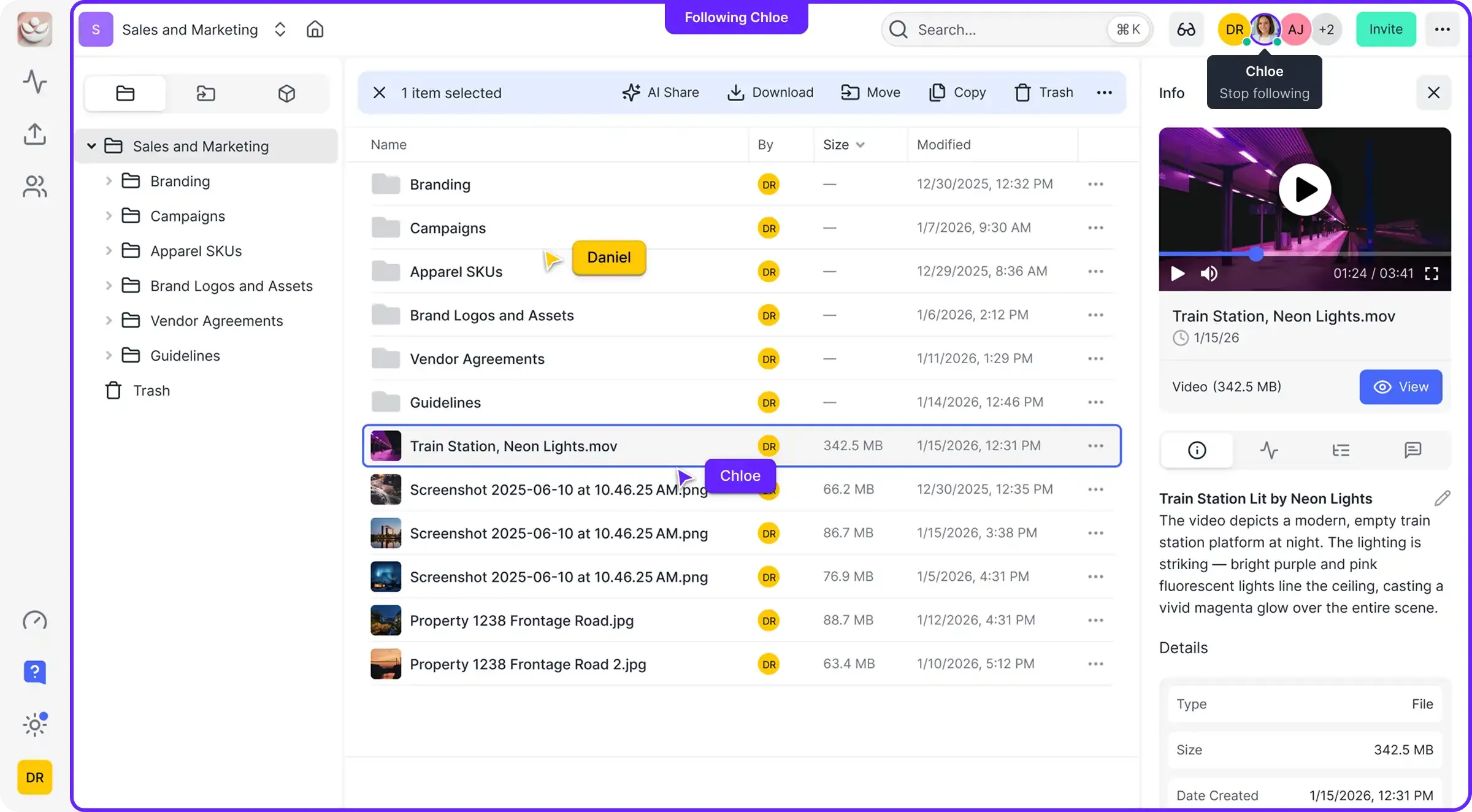


Connect Your AI Stack to Fastio
Fastio gives teams shared workspaces, MCP tools, and searchable file context to run dify ai file storage integration workflows with reliable agent and human handoffs.
Step 2: Wire the Tool into a Workflow
With the Custom Tool created, you can drop it into any Dify workflow or chatflow. The tool works like any other node on the canvas, with typed inputs and structured outputs.
For a workflow that generates and stores a report:
- Open the Dify app builder and create a new Workflow (or edit an existing one). 2. Add your processing nodes first. For example: an LLM node that summarizes input data, followed by a Code node that formats the summary as a PDF. 3. Add a Tool node after the processing step. Search for
fastio_storageand select theuploadFileaction. 4. Map the inputs:
- chunk: Connect the file bytes from the PDF generation node.
- name: Set the filename, for example
summary.pdf. - size: Pass the byte length of that file.
- action: Set to
create. - instance_id: Your workspace ID.
- folder_id:
root, or an existing folder node ID. 5. Connect a final LLM or Answer node that readsnew_file_idfrom the 201 response and returns it to the user.
For an agent-style chatflow:
If you are building a conversational agent rather than a fixed workflow, add fastio_storage to the agent's tool list in the app configuration. The agent will decide when to call the upload or list tools based on the user's request. For example, a user could say "save this analysis to my project folder" and the agent would call uploadFile with name, size, chunk, action=create, instance_id, and folder_id. The key difference between workflows and chatflows: workflows call the tool at a fixed step, while agents call it dynamically based on conversation context.
Retrieving and Sharing Stored Files
Uploading is half the story. The real value comes when your agent can pull files back, search through stored documents, and generate shareable links for people outside the Dify interface.
Retrieving files in a workflow:
Use the listFiles tool with workspace_id and parent_id (the folder node ID), then pass a node_id to GET /current/workspace/{workspace_id}/storage/{node_id}/read/ for bytes or GET /current/workspace/{workspace_id}/storage/{node_id}/details/ for metadata. You can chain this with an LLM node that picks the right file based on natural language. For example: "Find the most recent invoice for Acme Corp" lists a known invoices folder, then the LLM selects the newest entry. Filename or content search is GET /current/workspace/{workspace_id}/storage/search/ (search_in=filename|content|both).
Sharing files with external users:
Fastio files live in workspaces with configurable access controls. You have three sharing options:
- Send, Receive, or Exchange shares: Create a branded share with
POST /current/workspace/{workspace_id}/create/share/. - Durable single-file links: Create a fileshare with
POST /current/workspace/{workspace_id}/create/fileshare/. - Workspace invitations: Add human collaborators with
POST /current/workspace/{workspace_id}/members/{email_or_user_id}/so they can browse, preview, and comment on files through the Fastio web interface. Files are available as soon as the upload call returns 201 withnew_file_id. Your agent can upload a file in São Paulo, and a user in Tokyo can open the share right after that response lands.

Going Further: RAG, Webhooks, and Multi-Agent Setups
Once the basic integration works, you can add more advanced patterns that turn your Dify agent from a simple file mover into an intelligent document worker.
Built-in RAG with workspace intelligence
Turn on Intelligence for the workspace, and Ripley, Fastio's built-in AI agent, can answer questions about the files in that workspace. Your Dify agent can start a Ripley chat with POST /current/workspace/{workspace_id}/ai/agent/, then send a message with POST /current/workspace/{workspace_id}/ai/agent/{chat_id}/message/. For a single cited answer, attach Fastio MCP and call the ai_manage tool with action ask (profile_type required). Semantic search is GET /current/workspace/{workspace_id}/storage/search/. Ask "find the contract clause about termination penalties" and you get the passage with a citation. This keeps retrieval in the storage layer, so you do not have to stand up a separate vector database. No Pinecone setup, no embedding pipeline, no chunk-size tuning.
Activity events for event-driven workflows
Point a Dify HTTP node at Fastio activity so a workflow can start when new files land. GET /current/activity/poll/{entityId}?wait=95&lastactivity={timestamp} waits for the next event. GET /current/events/search/ reads the audit log. When a teammate adds a document to an inbox folder, Dify can list that folder and begin processing. This creates a reactive pipeline: humans upload files through the web interface, and AI agents process them without anyone clicking a button.
Concurrency, file locks, and version history for multi-agent access
If you run multiple Dify agents that share the same workspace (common in team setups), Fastio provides advisory file locks so agents can coordinate safely. An agent can acquire an advisory lease with POST .../storage/{node_id}/lock/ or the MCP storage_manage tool's lock-acquire action before updating a file, heartbeating it while working and releasing it when finished. If concurrent writes land without a lock, Fastio maintains full per-file version history with restore capabilities. The activity log records every agent action, and granular permissions ensure agents only modify their assigned directories. Agents can poll the activity feed or monitor the WebSocket events feed to react to changes safely.
Sources
References used to verify factual claims in this guide.
-
Dify (50,000+ GitHub stars) makes it easy to build AI apps with a drag-and-drop workflow builder.
-
A Dify instance running version 0.6.0 or later supports Custom Tool integration. Step 1: Create the Fastio Custom Tool in Dify
-
Fastio authenticated REST calls use https://api.fast.io/current/ with Authorization Bearer api_key. Small uploads are POST /current/upload/ and return result, id, and new_file_id. Agent-facing Fastio integrations can use the MCP server at https://mcp.fast.io/mcp/tools, with a Bearer header for headless connections. Named mode exposes a consolidated toolset including upload, storage, ai, and find. Small file upload is POST https://api.fast.io/current/upload/ with multipart fields name, size, chunk, action=create, instance_id, and folder_id. Folder listing is GET /current/workspace/{workspace_id}/storage/{parent_id}/list/.
Frequently Asked Questions
How do I add file storage to Dify?
Create a Custom Tool in Dify using an OpenAPI schema that points at https://api.fast.io/current/. Paste the schema, add your API key as an Authorization Bearer token, and the tool becomes available in any workflow or agent. You can also attach Fastio's MCP server at https://mcp.fast.io/mcp/tools, with your API key in a Bearer header.
Can Dify agents save files to cloud storage?
Yes. By connecting Fastio through Custom Tools or MCP, Dify agents can write files to persistent cloud storage. Without this, files are temporary and disappear when the session ends. Create an API key in Settings > Devices & Agents > API Keys, then POST to https://api.fast.io/current/upload/ with multipart fields name, size, chunk, action=create, instance_id, and folder_id.
What file storage works with Dify AI?
Any storage service with a REST API can work with Dify through Custom Tools. Fastio is a strong fit for AI agents because the REST API under https://api.fast.io/current/ maps cleanly to OpenAPI, the MCP server at https://mcp.fast.io/mcp/tools exposes a consolidated toolset for file operations, and Ripley provides built-in RAG so you do not need a separate vector database.
How do I persist Dify agent outputs?
Add a Tool node at the end of your Dify workflow that uploads the output with POST /current/upload/. Use name and folder_id to keep files organized. The 201 response includes new_file_id. Your agent can then create a Send, Receive, or Exchange share with POST /current/workspace/{workspace_id}/create/share/, or a durable single-file link with POST /current/workspace/{workspace_id}/create/fileshare/.
Does this work with self-hosted Dify?
Yes. The Custom Tool integration uses standard HTTP API calls against https://api.fast.io/current/, so it works identically on Dify Cloud and self-hosted Docker deployments. Your Fastio API key handles authentication regardless of where your Dify instance runs. Agent runtimes that speak MCP can use https://mcp.fast.io/mcp/tools instead.
Related Resources

Connect Your AI Stack to Fastio
Fastio gives teams shared workspaces, MCP tools, and searchable file context to run dify ai file storage integration workflows with reliable agent and human handoffs.