Copilot Oversharing: Why AI Assistants Leak Files and How to Fix It
Copilot oversharing occurs when an AI assistant returns sensitive files or summaries to unauthorized employees because underlying cloud sharing links were configured too broadly. The assistant does not bypass permissions; it exposes years of accumulated SharePoint permission sprawl in seconds. Eliminating this risk requires moving beyond tedious tenant audits to container-isolated retrieval boundaries that partition what AI agents and users can search.


The Root Cause of Copilot Oversharing
On average, 10% of a company's Microsoft 365 data is open to all employees, according to research published by Varonis. That unmanaged exposure sits quietly in corporate storage repositories for years until an organization deploys an AI assistant. Once active, the assistant indexes the tenant and turns dormant access into an immediate corporate security issue.
Copilot oversharing is an AI data leak scenario where an assistant returns sensitive files or summaries to unauthorized employees because underlying cloud storage sharing links were configured too broadly. The assistant does not break encryption or bypass access control lists. It reads files the prompting user is technically permitted to view, synthesizes the text, and returns direct answers to conversational prompts.
The Search Friction Paradox
Before generative AI entered the workplace, enterprise data security relied heavily on search friction. A confidential spreadsheet tracking executive bonuses or severance packages might have been stored in a SharePoint folder with company-wide read access, but nobody outside HR knew the URL or folder path. Locating the file required deliberate navigation through deeply nested document libraries or guessing exact file naming conventions.
Microsoft Copilot removes that friction completely. Because large language models operate on semantic embeddings rather than exact keyword matches, employees do not need to know file names, folder paths, or document structures. A user who asks Copilot to summarize upcoming departmental restructuring, list executive compensation bands, or surface internal merger notes receives synthesized excerpts from documents scattered across the tenant.
Technical Access Versus Business Intent
The root cause of Copilot oversharing is the gap between technical access permissions and actual business intent across sprawling cloud repositories. When an AI assistant indexes an entire tenant, broadly scoped sharing links and inherited access allow employees to retrieve sensitive summaries from files they should never see.
To contain oversharing immediately, security teams must execute a three-step containment plan:
- Audit and restrict tenant-wide default sharing links to eliminate unmanaged organization-wide exposure.
- Partition sensitive business data into dedicated container boundaries rather than relying on nested folder trees.
- Scope AI retrieval engines strictly to verified workspaces that correspond to authorized team roles.
Related guides
- Top OpenClaw Skills for Executive AssistantsOpenClaw skills handle scheduling, emails, and logistics automatically. This shifts the EA role from gatekeeper to...
- Top OpenClaw Integrations for Enterprise AI AssistantsOpenClaw shipped without enterprise security controls, and researchers found over 30,000 instances exposed to the...
- How Copilot File Search Works and How to Fix Missing ResultsCopilot file search retrieves documents from OneDrive and SharePoint by combining lexical matching with semantic vector...
- How to Connect Copilot to SharePoint Files via Fast.io WorkspacesA Copilot SharePoint integration connects Microsoft Copilot and GitHub Copilot agents to SharePoint document libraries,...
- How to Manage Microsoft Copilot SharePoint Permissions and Prevent OversharingCopilot SharePoint permissions determine what internal data AI agents and employees can surface through natural...
- Microsoft Copilot vs GitHub Copilot: Same Brand, Different JobsMicrosoft Copilot and GitHub Copilot share a brand but solve different jobs: general productivity assistance versus...
More on this subject: GitHub Copilot (148 guides)
The Three Flaws in Cloud Drive Permission Inheritance
Enterprise cloud drives like SharePoint and OneDrive were built for human file sharing, not autonomous retrieval-augmented generation. Three structural flaws make their legacy permission models vulnerable to AI oversharing.
1. Organization-Wide Sharing Links
The fastest way for an employee to collaborate on a draft is to generate a link set to "People in your organization" or "Everyone except external users." These links bypass team boundaries to avoid permission request emails.
Over years of everyday work, thousands of organization-wide links accumulate across departmental sites. While human workers rarely stumble across those links, retrieval models parse and embed every accessible document. Once embedded, that content enters the semantic search pool for every employee in the tenant.
2. Broken Permission Inheritance
SharePoint structures content in hierarchical sites, document libraries, and folders. By default, child items inherit permissions from their parent container. When an administrator or site owner needs to grant temporary access to a single subfolder, SharePoint breaks inheritance on that folder.
Over time, document libraries develop hundreds of unique permission assignments. Subfolders remain accessible to former project members, vendor contractors, and adjacent teams long after the original initiative ends. Native reports give only limited visibility into this at scale. SharePoint Advanced Management's site permissions report shows how many items in each site have unique permissions, which tells security teams where inheritance has broken, but deciding whether each exception is still justified remains a manual review.
3. Stale Group Memberships and Dormant Access
Enterprise collaboration platforms create security groups across team chat environments and cloud suites. Employees change roles, transfer between divisions, or leave project teams, but their historical group memberships often remain intact.
When Microsoft Copilot processes a query, it evaluates the user's active Entra ID tokens and group memberships. A marketing manager who worked in corporate finance three years earlier retains access to historical budget libraries. An AI assistant will happily surface those financial forecasts during a routine query about quarterly performance.
Cloud Permissions Compared to Retrieval Realities
The operational mismatch between human file navigation and AI retrieval becomes clear when comparing access controls against semantic search behavior:
Why Tenant-Wide Permission Cleanups Are Hard to Finish
When security teams discover Copilot oversharing, the conventional recommendation from consultants and software vendors is to clean up SharePoint permissions across the entire organization. IT departments are advised to run SharePoint Advanced Management reports, deploy Microsoft Purview sensitivity labels, and require site owners to review every shared link.
Microsoft includes SharePoint Advanced Management with Copilot licenses: once at least one user has a Copilot license, SharePoint administrators get controls such as Restricted Content Discovery, which keeps high-risk sites from surfacing in Copilot, restricted access control, data access governance reports, and site access reviews that delegate review to site owners. These tools narrow the problem, but a tenant-wide cleanup still runs into organizational complexity and administrative friction.
The Remediation Bottleneck
An enterprise tenant can hold a very large number of SharePoint sites and stored files. Expecting central IT administrators to evaluate the sensitivity and legitimate business audience of each document is unrealistic. IT lacks the business context to know whether an unreleased product brief is still confidential or ready for company-wide distribution.
Delegating remediation to departmental site owners creates an equally severe bottleneck. Business managers view permission reviews as administrative burdens that distract from primary job responsibilities. When site owners do participate, they hesitate to revoke legacy links because removing access risks breaking ongoing cross-departmental workflows.
The Limitations of Automated Sensitivity Labels
To bypass manual reviews, many organizations turn to automated classification rules in Microsoft Purview. Automated labeling scans documents for predefined patterns, such as credit card numbers, national identification numbers, or specific regulatory strings.
This approach fails on unstructured strategic files. Executive salary discussions, merger negotiations, customer pricing concessions, and proprietary algorithms rarely follow rigid regex patterns. If an automated policy fails to identify a document as sensitive, that file remains unlabeled and fully exposed to tenant-wide AI retrieval.


Stop Copilot Oversharing with Container-Isolated Workspaces
Isolate sensitive files in dedicated workspaces where role-based permissions strictly control AI retrieval. Connect your agents via the Fastio MCP server. Monthly plans start with a 14-day free trial.
Container-Based Retrieval: Hard Boundaries for AI Workspaces
The difficulty of tenant-wide cleanups shows how hard it is to protect sensitive information from AI retrieval by managing file-level and folder-level access control lists across a single shared repository. The alternative is container-based retrieval: establishing hard organizational boundaries where access is defined strictly at the container level.
Fastio implements this container model through intelligent workspaces. Permissions are set per organization, workspace, and share, strictly by member role. Inside a workspace, there are no folder-level or file-level permissions. Every member of a workspace accesses all material in that workspace according to their assigned member role.
Tenant-Wide Search (Vulnerable)
[ User Query ] ---> [ Tenant-Wide Graph Index ] ---> Surfaces any accessible file across all sites

Container-Based Retrieval (Isolated)
[ User Query ] ---> [ Workspace Container Boundary ] ---> Searches ONLY files in active workspace membership
Workspace Isolation as a Retrieval Firewall
Because Fastio has no folder-level or file-level permissions, there is no broken inheritance to track and no hidden sharing link to discover. If confidential material requires protection, it lives in a dedicated workspace accessible only to verified members.
Search and Intelligence Mode operate strictly within these container boundaries. When an employee or automated agent asks a question, semantic search, document summaries, and conversational answers draw only on the workspaces and shares where that asking user or agent is an active member. A share's AI answers exclusively from that specific share's files. The AI engine cannot index or retrieve documents from adjacent workspaces, preventing cross-departmental data leaks by design.
Neutralizing Legacy Links with Cloud Sync
Organizations do not need to discard their existing cloud storage tools to secure AI retrieval. Cloud Sync keeps Google Drive, Dropbox, Box, and OneDrive folders in sync with a workspace, one-way or two-way, on a schedule or on demand. SharePoint document libraries connect via the OneDrive connector.
When Cloud Sync syncs folders into a Fastio workspace, the source drive's sharing settings do not carry over. The incoming files take the Fastio workspace's permissions. Legacy "Company-wide" links, anonymous URLs, and broken inheritance rules from the source drive are discarded at the container boundary. What an employee or AI agent can retrieve is determined solely by workspace membership, eliminating tenant-wide data leakage without manual file-by-file remediation.
Designing a Zero-Exposure Retrieval Architecture for AI Agents and Teams
Implementing container-based retrieval requires structuring workspaces around distinct business domains rather than maintaining a single shared dumping ground. Security teams can establish a zero-exposure retrieval architecture across four operational phases.
Phase 1: Establish Domain-Isolated Workspaces
Divide corporate files into discrete workspaces aligned with business confidentiality tiers:
- Public Knowledge Workspace: Product documentation, published marketing materials, and standard operating procedures open to all employees.
- Departmental Operations Workspaces: Team-specific projects, client deliverables, and working assets restricted to department personnel.
- Restricted Strategy Workspaces: Executive leadership briefings, financial audits, board materials, and legal correspondence restricted to named principals.
Phase 2: Configure Scoped Agent Access via MCP
AI assistants and autonomous software agents should never possess broad administrative keys to enterprise storage. In Fastio, agents connect to workspaces through the remote Model Context Protocol (MCP) server over Streamable HTTP (see the Fastio MCP setup documentation and storage for agents overview).
For interactive applications and general assistants, agents connect at https://mcp.fast.io/mcp/tools. Interactive clients sign in with OAuth in the browser, choosing Read Only or Read & Write access and which organizations and workspaces the connection reaches.
For coding agents running in IDEs or developer environments, connections use https://mcp.fast.io/mcp/code. Headless server agents and background pipelines connect using a scoped API key passed as an authorization header:
POST /mcp/tools HTTP/1.1
Host: mcp.fast.io
Authorization: Bearer <api key>
Content-Type: application/json
Accept: application/json
Because the agent is a member only of its assigned workspaces, search answers only from those workspaces. An agent answering customer support inquiries cannot view, index, or retrieve files stored in the finance workspace.
Phase 3: Extract Structured Data with Metadata Views
Unstructured text search across entire file libraries increases exposure risk. When teams need to analyze high volumes of business documents, such as customer contracts, vendor agreements, or invoices, they can use Metadata Views.
Metadata Views extract typed fields, including text, integers, decimals, booleans, URLs, JSON objects, and timestamps, directly from documents into a filterable database view. Agents can query specific structured columns via MCP without exposing entire unredacted document texts to global conversational search.
Phase 4: Monitor Governance Changes with the Detailed Activity Log
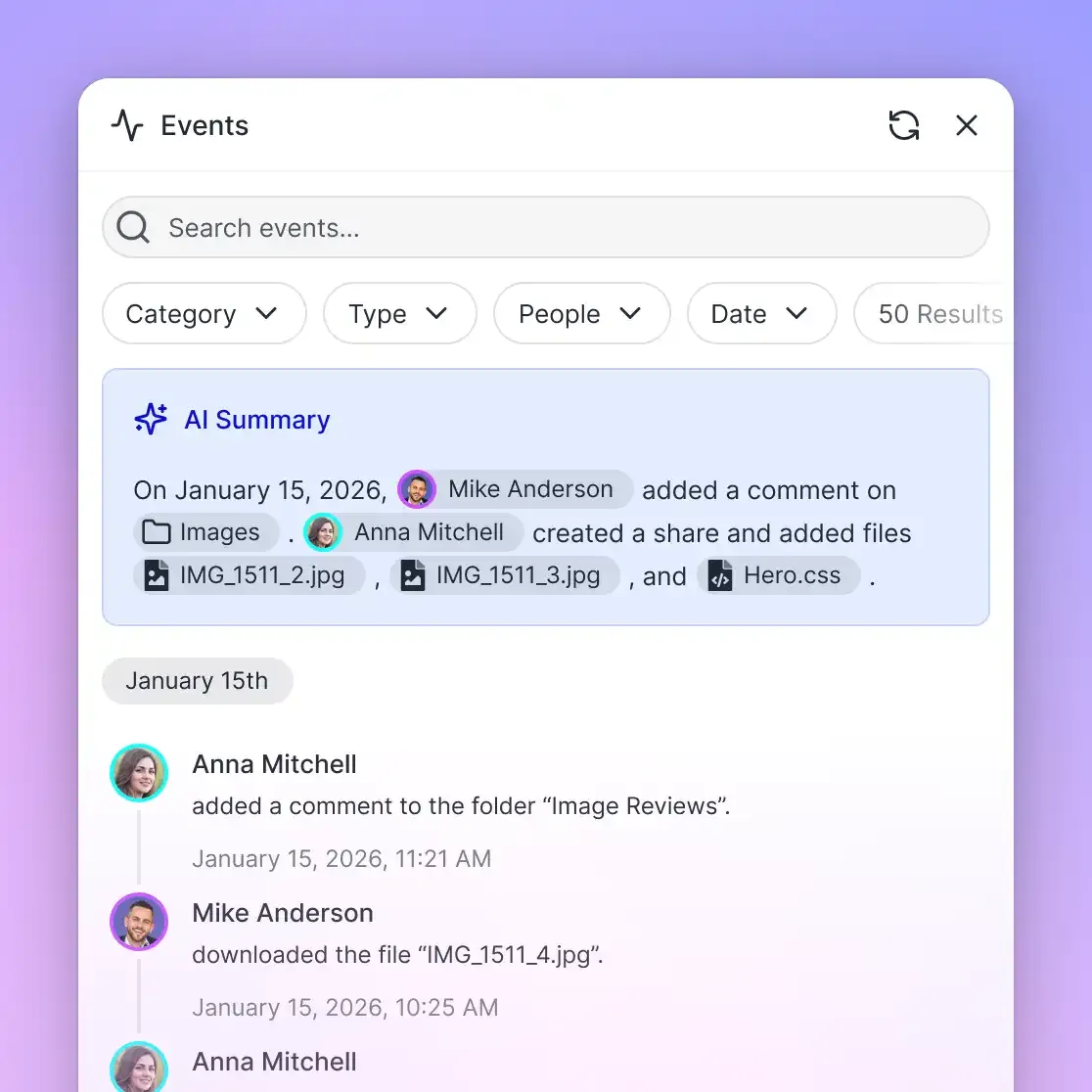
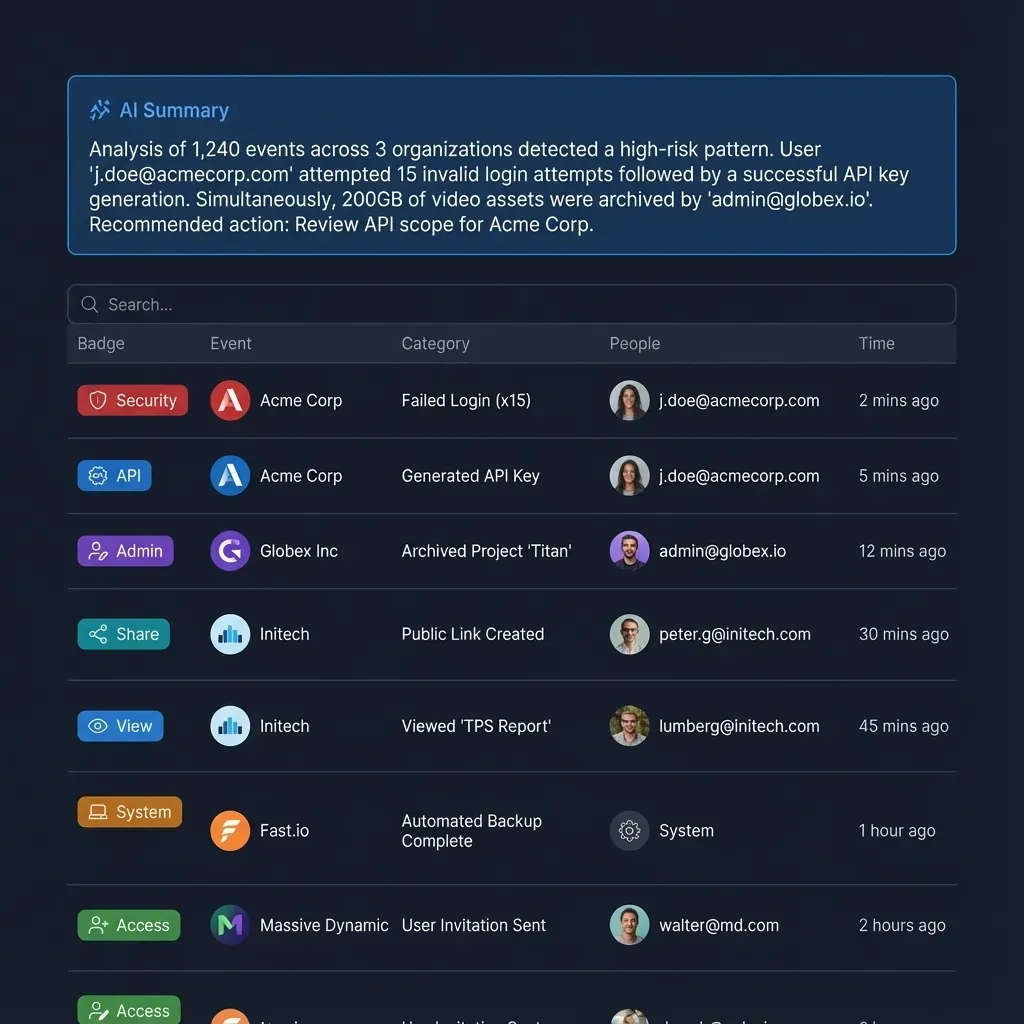
While preventing read-time leakage requires container isolation, tracking administrative changes requires accountability. Fastio maintains a detailed activity log that records changes across the organization, including file uploads, edits, moves, deletions, membership updates, permission role adjustments, and share creation.
The activity log focuses on state modifications rather than tracking passive views or file downloads. Administrators can inspect precisely who added an agent to a workspace, which files were updated, or which user modified a share configuration.
Incident Response and Verification Checklist for AI Retrieval
Before activating AI search or expanding assistant licenses across an organization, platform engineers and IT security leads must verify retrieval boundaries. Use this testing and governance checklist to ensure data isolation.
Retrieval Verification Checklist
- Execute Adversarial Prompt Audits: Use standard employee test accounts to prompt the AI assistant with high-risk conversational queries, such as "List all unannounced executive salaries" or "Summarize confidential board discussions." Verify that the engine returns zero retrieved passages.
- Validate Synchronization Ingestion: Confirm that files brought in from external drives via Cloud Sync take the target workspace's role-based permissions and that source-system sharing links are stripped.
- Review Agent Connection Scopes: Audit active MCP connections and API tokens. Ensure no agent holds universal workspace access across distinct organizational boundaries.
- Configure Controlled External Shares: When collaborating with outside partners or clients, use branded shares rather than granting external users full workspace membership. Configure share settings to disable file downloads where sensitive documents must remain view-only.
- Monitor Workspace Role Changes: Inspect the detailed activity log weekly for unauthorized workspace membership grants or unexpected permission modifications.
Architecture Comparison
Sources
References used to verify factual claims in this guide.
-
On average, 10% of a company's Microsoft 365 data is open to all employees.
Frequently Asked Questions
What causes Copilot oversharing?
Copilot oversharing is caused by loose cloud drive permissions, such as organization-wide sharing links, broken folder permission inheritance, and outdated group memberships. The AI assistant does not bypass security controls; it searches every file the user technically has permission to open, surfacing buried documents that were never intended for company-wide distribution.
How do I stop Microsoft Copilot from sharing confidential files?
Stopping oversharing requires isolating sensitive files in dedicated container boundaries rather than relying on folder-level permissions across a shared tenant. By syncing critical files into container-isolated workspaces, organizations strip source sharing links and restrict AI retrieval strictly to authorized members of that specific workspace.
Does AI indexing respect cloud drive permissions?
Microsoft Copilot respects existing permissions, so it only surfaces content the user already has access to. The security problem is that permissions in most enterprise repositories are far looser than administrators realize. When files are shared with broad groups like Everyone except external users, the AI indexes those files and returns their contents to any employee who asks.
Why does SharePoint permission inheritance cause data leaks in AI search?
SharePoint allows administrators and site owners to break permission inheritance on individual subfolders and files to grant temporary access. Over years of collaboration, these broken permissions accumulate into large numbers of item-level exceptions. SharePoint Advanced Management reports count them per site, but reviewing each one is slow work, and AI search engines can pull data from forgotten subfolders in the meantime.
How does container-based retrieval differ from document-level access control?
Document-level access control assigns individual permissions to every file and folder, creating an unmanageable web of inheritance rules. Container-based retrieval sets permissions strictly at the workspace and share level by member role. AI assistants search only within the workspaces the user belongs to, preventing cross-repository leakage.
Does Cloud Sync preserve source drive sharing permissions when syncing files?
No. When Cloud Sync connects Google Drive, Dropbox, Box, or OneDrive to a workspace, the source drive's sharing settings do not carry over. Files inherit the destination workspace's role-based permissions, stripping away legacy organization-wide links and broken inheritance.
What permissions do AI agents have when connecting through the MCP server?
AI agents connecting through the Fastio MCP server operate under scoped permissions. Interactive clients sign in with OAuth in the browser, choosing Read Only or Read & Write access and which organizations and workspaces the connection reaches. Headless agents authenticate via scoped API keys restricted to designated workspaces.
Related Resources

Stop Copilot Oversharing with Container-Isolated Workspaces
Isolate sensitive files in dedicated workspaces where role-based permissions strictly control AI retrieval. Connect your agents via the Fastio MCP server. Monthly plans start with a 14-day free trial.