Best MCP Clients for 2026: Connect Your AI to Any Tool
MCP clients are AI interfaces like Claude Desktop, Cursor, or specialized IDEs that implement the Model Context Protocol to communicate with standardized tools and data sources. This guide evaluates the top options for developers.


What is an MCP Client?
An MCP (Model Context Protocol) client is any application that implements the Model Context Protocol specification. It connects AI assistants to external tools, databases, and services through a standardized interface. Think of MCP clients as the bridge between large language models and the real world. Anthropic introduced the protocol in late 2024. Numerous open-source MCP servers were soon available, with rapidly growing developer adoption. The protocol standardizes how AI systems discover capabilities, invoke tools, and handle responses.
An MCP client must support:
- Server discovery and connection management
- Tool invocation with type-safe parameters
- Streaming responses via SSE or HTTP transports
- Session state management across interactions
- Resource fetching from connected servers
MCP clients range from desktop applications like Claude Desktop to full IDEs like Cursor and Devin Desktop (formerly Windsurf), and even custom command-line tools built by developers for specific workflows.
Related guides
- MCP Server Examples: Practical Implementations for AI AgentsThe Model Context Protocol ecosystem has grown past 1,000 public servers, but finding the right implementation for your...
- Neovim MCP Setup: Integrating Model Context Protocol in NeovimNeovim MCP integrates the Model Context Protocol into Neovim using client plugins like mcphub.nvim, letting in-editor...
- Roo Code MCP Setup: Connecting Coding Agents to Cloud WorkspacesRoo Code MCP connects the Roo Code autonomous coding extension in VS Code to local tools and remote Model Context...
- Best MCP Clients for Developers: 2026 GuideMCP clients connect to MCP servers to add external tools and data to AI assistants. This guide compares 9 clients for...
- How to Validate MCP Tool Inputs: Best Practices for Reliable AgentsGuide to validating mcp tool inputs: Input validation prevents AI agents from crashing or performing unsafe actions....
- How to Connect AI Agents to Google Docs with MCPAn MCP server for Google Docs exposes document read, write, and search capabilities to AI agents through the Model...
More on this subject: MCP and Model Context Protocol (238 guides)
How We Evaluated MCP Clients
We tested each client across key criteria that matter for real-world development:
Setup complexity - How hard is it to configure and add MCP servers? One-click installation earns higher marks than manual JSON editing.
Tool execution reliability - Does the client correctly trigger MCP actions? We tested common operations like file reads, database queries, and API calls.
Developer experience - Quality of autocomplete, error messages, debugging tools, and documentation.
Ecosystem compatibility - Which MCP servers work out of the box? How many require workarounds?
Performance - Latency from tool invocation to response, especially for streaming operations.
Client-facing file sharing reflects your brand. A white-label portal with your logo and colors creates a professional impression that generic download links cannot match. This matters especially for creative agencies and professional services firms where presentation is part of the deliverable.
Top MCP Clients Comparison
Key findings: Claude Desktop offers the smoothest onboarding with one-click extension installation, while Cursor provides the most accurate tool execution in testing. Devin Desktop hits a middle ground with its server directory but encountered reliability issues. For developers who need complete control, building a custom client with the Python or TypeScript SDK is still the best option.
1. Claude Desktop
Claude Desktop is Anthropic's official desktop application, designed as a reference implementation of MCP. It's the most straightforward way to get started with Model Context Protocol.
Key strengths:
- One-click extension installation from a reviewed directory
- MCP servers with verified functionality
- Automatic updates for installed extensions
- Native integration with Claude's latest models
- Zero configuration for basic setups
Limitations:
- Limited to Claude models (no GPT-4, Gemini, etc.)
- Extension directory is selective, not all MCP servers available
- Less customization than IDE-based clients
Setup process: Navigate to Settings → Extensions → Browse extensions. Click install on any server in the directory. For advanced users, the Developer tab allows manual JSON configuration.
Best for: Non-developers or developers who want AI chat with tool access without the configuration work. Good for quick prototyping with MCP servers.
Pricing: Free tier available. A Claude Pro subscription removes rate limits; see vendor pricing for details.

2. Cursor
Cursor is a VSCode fork built for AI-native development. It supports MCP through manual configuration and offers the strongest tool execution reliability in our testing.
Key strengths:
- Most accurate MCP action triggering
- Full VSCode compatibility with extensions
- Flexible agent vs. assistant modes
- Multi-file editing with AI awareness
- Active development community
Limitations:
- MCP setup requires editing JSON config manually
- Higher monthly cost than competitors
- Forces you into the Cursor IDE (can't use JetBrains, Vim)
- MCP integration is less mature than Claude Desktop's
Setup process: Navigate to MCP section in settings, add server via URL or local path. Restart Cursor to apply changes.
Best for: Professional developers writing code who need precise, reliable tool execution. Worth the premium if AI code generation is core to your workflow.
Pricing: Free tier available with limited AI usage; team and pro plans available on the vendor's pricing page.
3. Devin Desktop (formerly Windsurf)
Devin Desktop (formerly Windsurf, originally Codeium and now developed by Cognition) is an AI-powered IDE competing directly with Cursor. It defaults to an agent-first philosophy where AI executes tasks autonomously.
Key strengths:
- MCP servers in settings for one-click setup
- Broader IDE support (plugins for JetBrains, Vim, NeoVim, XCode)
- Lower pricing than Cursor ($30 vs. $40 for teams)
- Strong at navigating large, multi-module codebases
- Agent mode handles complex multi-step tasks
Limitations:
- MCP action reliability issues in testing (failed to execute some tools)
- Agent mode can be overly autonomous for simple tasks
- Newer to MCP ecosystem, fewer battle-tested integrations
Setup process: Open settings, browse MCP servers, click to enable. More accessible than Cursor's manual JSON.
Best for: Teams managing large services or monorepos. Strong for onboarding new developers mid-sprint where exploration matters more than precision.
Pricing: Free tier available, with paid per-user team plans; see the vendor's pricing page.



Give Your AI Agents Persistent Storage
Fastio provides a remote MCP server with a consolidated toolset for file operations, workspace management, and RAG-powered document search.
4. VS Code with MCP Extensions
Visual Studio Code supports MCP through community extensions. This approach gives you the flexibility of the world's most popular editor with MCP capabilities.
Key strengths:
- Free and open source
- Massive extension ecosystem
- Works with any LLM provider
- Highly customizable
- No vendor lock-in
Limitations:
- Requires installing and configuring extensions manually
- MCP support varies by extension quality
- Less integrated than purpose-built AI IDEs
- May need multiple extensions for full MCP workflow
Setup process: Install an MCP-compatible extension from the marketplace. Options include GitHub Copilot (with MCP support coming), Continue.dev, and custom MCP client extensions. Configure server connections in extension settings.
Best for: Developers who prefer VS Code's ecosystem and don't want to switch to a new IDE. Works well if you already use Copilot or another VS Code AI extension.
Pricing: Free. Extensions may have subscription costs (e.g., GitHub Copilot; see vendor pricing).
5. Goose CLI
Goose is an open-source command-line MCP client optimized for terminal workflows. It brings MCP capabilities to shell scripting and automation.
Key strengths:
- Built-in MCP servers for common tasks
- Scriptable and automatable
- Fast startup and execution
- No GUI overhead
- Open source and extensible
Limitations:
- Command-line only (not beginner-friendly)
- Smaller community than desktop clients
- Requires comfort with terminal workflows
- Documentation is developer-focused
Setup process: Install via npm or pip, configure servers in CLI config file. Run goose --help to see available commands.
Best for: DevOps engineers, automation specialists, and developers who live in the terminal. Perfect for CI/CD pipelines and server-side agent workflows.
Pricing: Free and open source.
6. Custom MCP Client (Python or Node.js SDK)
For developers who need complete control, building a custom MCP client using the official SDKs provides maximum flexibility.
Key strengths:
- Full control over UI and UX
- Embed in any application
- Choose any LLM provider
- Custom error handling and retry logic
- No external dependencies or subscriptions
Limitations:
- Requires significant development time
- You maintain the codebase
- No GUI unless you build one
- Debugging MCP issues is on you
Setup process: Install the SDK (@modelcontextprotocol/sdk for TypeScript or mcp for Python). Implement server discovery, tool invocation, and response handling. works alongside your chosen LLM API.
Best for: Building MCP capabilities into a product, creating specialized workflows, or scenarios where existing clients don't meet requirements. Essential for production agent systems.
Pricing: Free (open source SDKs), but requires developer time.
Which MCP Client Should You Choose?
If you're new to MCP: Start with Claude Desktop. The one-click extension installation makes it the fast way to understand what MCP can do.
If you're a professional developer: Cursor delivers the most reliable tool execution and best integrates AI into your coding workflow. The subscription cost pays for itself if you ship code faster.
If you work in large codebases: Devin Desktop's agent mode and multi-module navigation work well when onboarding or exploring complex projects. The team pricing is competitive.
If you love VS Code: Stick with what you know. Install an MCP extension and keep your existing setup. You won't get the same polish as purpose-built AI IDEs, but you keep your muscle memory.
If you're building automation: Goose CLI or a custom SDK implementation. Terminal workflows and scripting need command-line clients.
If you're building a product: Build a custom client. The SDKs are mature, documented, and well tested. You'll need the control for production reliability.
Setting Up Your First MCP Server
Regardless of which client you choose, the basic workflow is the same:
1. Find an MCP server - Browse mcpservers.org or the awesome-mcp-servers list on GitHub. Common servers include filesystem access, database connectors, web search, and API integrations.
2. Install the server - This varies by server. Some run via npx, others require Docker, and some install as local packages. Check the server's documentation.
3. Configure your client - Add the server connection details to your client. For Claude Desktop and Devin Desktop, this is done through settings UI. For Cursor and custom clients, edit the JSON config file.
4. Test the connection - Ask your AI client to use a tool from the server. Example: "List files in my home directory" (for a filesystem server) or "Search for MCP documentation" (for a web search server).
5. Explore - MCP servers expose multiple tools. See what's available using your client's tool discovery features.
MCP Clients for File Storage and Document Management
Many developers need MCP clients that work well with file operations and document storage. Fastio provides an official remote MCP server with a consolidated MCP toolset specifically designed for this use case. The Fastio MCP server uses the Streamable HTTP transport. This makes it compatible with all major MCP clients listed above.
Key capabilities:
- File CRUD operations (upload, download, move, delete)
- Workspace and folder management
- Share creation with branded portals
- RAG-powered document search (when Intelligence Mode is enabled)
- File versioning and audit trails
- Ownership transfer (agent builds, human receives)
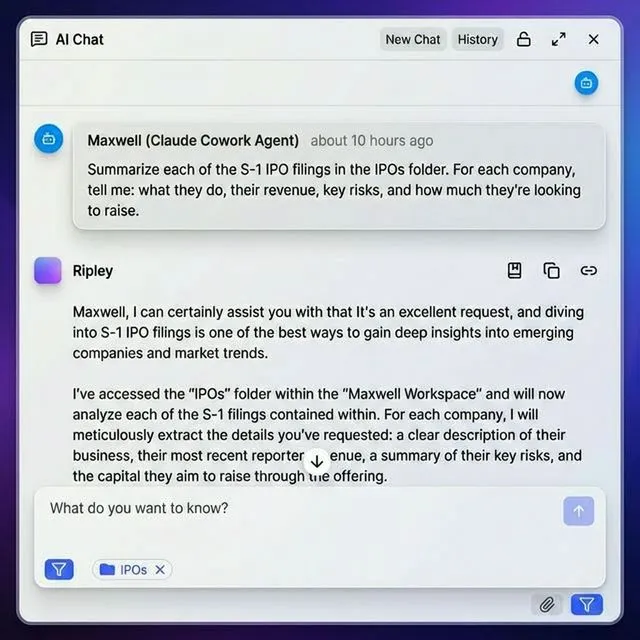
Integration example: Connect Claude Desktop to Fastio's MCP server, then use natural language to organize files, create client deliverables, or search through project documentation. Intelligence Mode provides built-in RAG once enabled for the workspace, so you can ask questions across your files and get cited answers. Fastio offers a 14-day Business Trial, card required (see pricing).
Common MCP Client Issues and Solutions
"Server connection failed": Verify the server is running. For local servers (filesystem, database), check that the process is active. For remote servers, confirm network access and authentication.
"Tool not found": The MCP server may not expose the tool you're requesting. Use your client's tool discovery feature to list available tools. Some clients cache tool lists; restart to refresh.
"Permission denied": MCP servers often require explicit permissions for sensitive operations (file writes, database mutations). Check the server's authentication configuration and your client's permission grants.
"Timeout on tool execution": Large operations (uploading big files, running complex queries) may exceed default timeouts. Adjust timeout settings in your client config or break operations into smaller chunks.
"Streaming stopped mid-response": SSE transport issues. Switch to HTTP transport if supported, or check for network proxies interfering with long-lived connections.
Sources
References used to verify factual claims in this guide.
-
Anthropic introduced the protocol in late 2024 Claude Desktop limited to Claude models (no GPT-4, Gemini) Claude Desktop only supports Claude models, custom clients can use GPT-4 Gemini LLaMA local models
-
A consolidated MCP toolset for file operations and workspace management Fastio provides an official MCP server with a consolidated toolset specifically designed for this use case
-
Windsurf pricing $30 vs Cursor $40 for teams Lower pricing than Cursor ($30 vs. $40 for teams)
-
14-day Business Trial requiring a credit card
-
Streamable HTTP transport for remote MCP access
Frequently Asked Questions
What is the difference between an MCP client and an MCP server?
An MCP server exposes tools and data sources (like a filesystem, database, or API). An MCP client is the AI interface (like Claude Desktop or Cursor) that invokes those tools on behalf of the user. Servers provide capabilities; clients consume them.
Can I use multiple MCP servers with one client?
Yes. All modern MCP clients support connecting to multiple servers simultaneously. Each server exposes its own set of tools, and the client aggregates them into a single interface. You can have a filesystem server, a database server, and a web search server all connected at once.
Do MCP clients work offline?
Partially. The AI model itself requires internet connectivity (unless you're running a local LLM). However, local MCP servers (like filesystem or local database servers) will continue to work offline. Remote servers and cloud-based tools require network access.
Which MCP client is best for developers?
Cursor has the most accurate tool execution and best code editing integration. For terminal workflows, Goose CLI is unmatched. For quick prototyping, Claude Desktop offers the fast setup. If you need complete control, build a custom client with the Python or TypeScript SDK.
How do I connect Claude Desktop to MCP servers?
Open Claude Desktop, navigate to Settings → Extensions, click Browse extensions, and select any server from the curated directory. For advanced setups, go to Settings → Developer → Edit Config to manually add server connection details in JSON format.
Are there open source MCP clients?
Yes. Goose CLI is fully open source. VS Code extensions for MCP are also open source. You can build your own client using the official Model Context Protocol SDKs for Python and TypeScript, both of which are open source and maintained by Anthropic.
What LLMs work with MCP clients?
MCP works with any LLM. While Claude Desktop only supports Claude models, custom clients can use any LLM (GPT-4, Gemini, LLaMA, local models). Cursor and Devin Desktop support multiple model providers. The protocol itself doesn't require a specific LLM.
How many MCP servers are available?
Numerous open-source MCP servers were available, with the ecosystem growing rapidly. Popular categories include filesystem access, database connectors, web search, API wrappers, and specialized tools for code analysis, data processing, and file management.
Related Resources

Give Your AI Agents Persistent Storage
Fastio provides a remote MCP server with a consolidated toolset for file operations, workspace management, and RAG-powered document search.