How to Share ZBrush Sculpt Files with Clients and Teams
ZBrush sculpt files (.ztl) often reach multiple gigabytes, so email and regular cloud storage don't work. Pros need better ways to share detailed models fast. This guide shows how to optimize, organize, and send them without losing quality.


The Challenge of Sharing High-Detail ZBrush Assets
ZBrush powers most professional VFX pipelines. It handles meshes with millions of polygons for realistic looks in movies and games. But that detail means large files.
High-res character sculpts often reach multiple gigabytes. With subtools, layers, and undo history, projects can reach tens of GB. Freelancers and small studios deal with slow uploads, failed transfers, and low-res proxies to get reviews going.
Start by understanding ZBrush file structure. Optimize before sending so clients get clean files that load fast.
Helpful references: Fastio Workspaces, Fastio Collaboration, and Fastio AI.
Related guides
- How to Share Procreate Files with ClientsSharing Procreate files with clients can be tricky. The files are large and use a layered format only available on...
- How to Share Figma Prototypes with ClientsSharing a Figma prototype should be simple, but permission settings, feedback collection, and version tracking add...
- How to Set Up Remote InDesign Collaboration for TeamsInDesign collaboration remote lets design teams review layouts from anywhere without chasing file versions through...
- How to Choose Marketing Project Management Software for Creative TeamsMarketing teams juggle campaigns, creative assets, and client feedback across dozens of tools. This guide breaks down...
- How to Set Up Packaging Design File Approval WorkflowsPackaging approval ensures print files meet production specs. Solid workflows avoid costly errors and keep projects on...
- 7 Best UI/UX Asset Management Tools for Designers (2026)UI UX asset management tools organize icons, components, and prototypes for team reuse. Designers use these platforms...
More on this subject: Creative and Marketing Teams (27 guides)
ZTL vs ZPR: Choosing the Right Format for Delivery
One of the most common mistakes in ZBrush file sharing is choosing the wrong save format. ZBrush offers two primary options: the ZBrush Tool (.ztl) and the ZBrush Project (.zpr). Choosing correctly can reduce your file size by half before you even begin optimizing.
The ZBrush Tool (.ztl) A .ztl file only contains the active tool and its associated subtools. This is the preferred format for sharing individual characters, props, or environment assets. It stores all your subdivision levels, polypaint data, and masking, but it excludes scene-wide settings like lighting, materials, and render properties. For most client deliveries, the .ztl is the professional choice because it is leaner and focused entirely on the model.
The ZBrush Project (.zpr) A .zpr file saves the entire workspace, including every tool in the Tool palette, document settings, lighting setups, and your entire Undo History. While useful for internal work-in-progress.zpr files are heavier than .ztl files. Unless your client specifically requests the entire scene setup, stick to the .ztl format to keep transfer times low and ensure the focus remains on your sculpting work.
How to Optimize ZBrush Files Before Sharing
Reducing size is just part of optimization, it makes reviews easier too. Files that take minutes to load slow everything down. Follow these steps to prep your sculpt.
1. Clear the Undo History The Undo History is often the biggest contributor to file bloat. ZBrush can save thousands of steps per subtool, which can add several gigabytes to your file size. Before saving your final version for delivery, go to Preferences > Undo History and ensure "Enable Saving" is turned off, or use the "Delete Undo History" button in the Tool menu for each subtool.
2. Manage Subdivision Levels Always save your file with all subtools set to their lowest subdivision level. This does not delete your high-resolution data; it means the file will load much faster when the recipient opens it. The client can then step up to the higher levels as needed. This simple step can prevent ZBrush from crashing on the client machine if they have less RAM than your workstation.
3. Delete Unused Data Professional artists "clean" their files before delivery. This includes deleting unused Morph Targets (Tool > Morph Target > DelMT), baking or deleting unnecessary Layers (Tool > Layers > Bake All), and removing any "junk" tools from the Tool palette. Use the "Delete Unselected" macro to quickly clear out extra tools that aren't part of the final asset.
Establishing a Professional Client Delivery Workflow
Sending a raw .ztl file is rarely enough for a professional delivery. A complete package helps the client review the work even if they don't have ZBrush open or installed. This builds trust and reduces the number of back-and-forth emails.
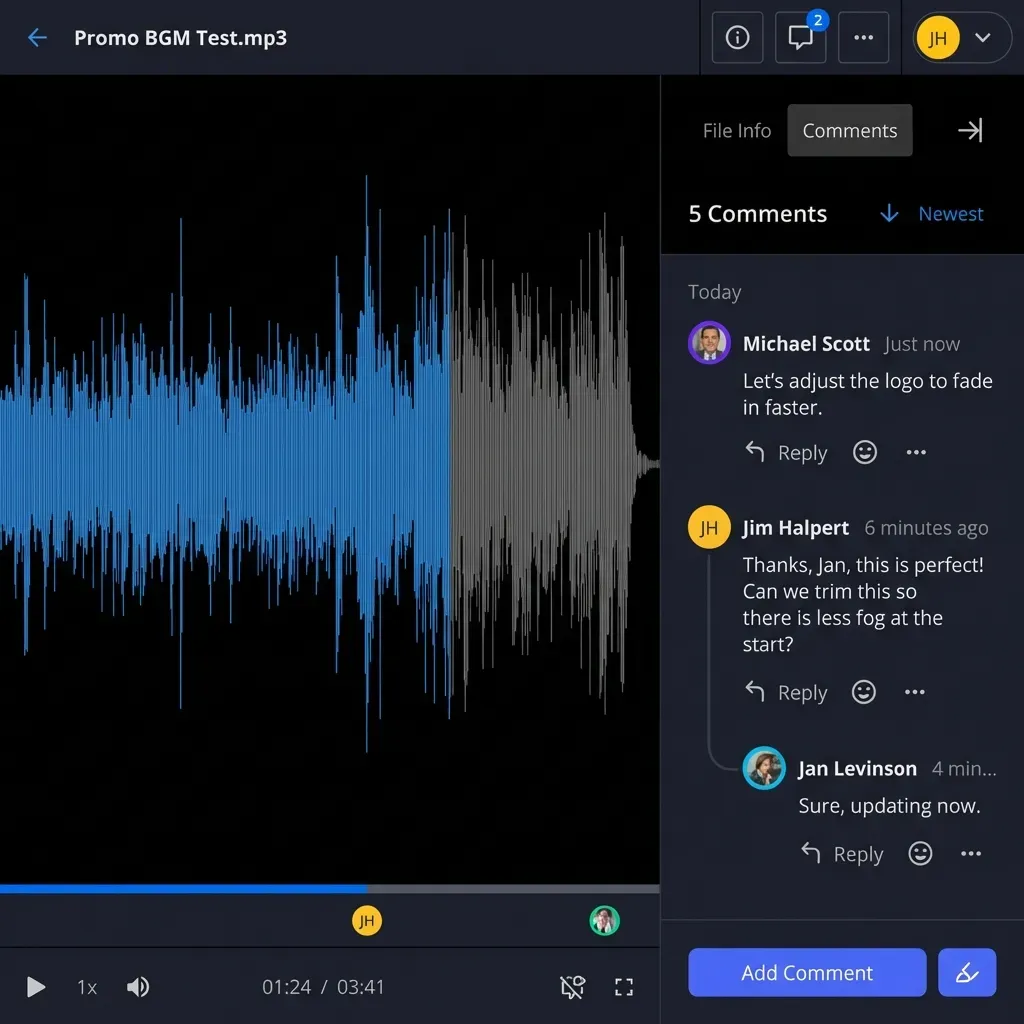
The Review Package Provide high-quality renders from multiple angles (Front, Side, 3/4, Back) and a 360-degree turntable video. This allows the client to provide immediate feedback on the silhouette and forms without needing to navigate a 3D viewport. For web-based reviews, consider using a decimated version of the model on a 3D viewer platform, which allows the client to inspect the model in their browser.
The Production Package Your actual ZBrush file should be organized and named . Use Folders to group related subtools, such as "Armor," "Body," and "Accessories." Rename every subtool (e.g., Shoulder_Guard_High) so the client doesn't have to guess what "Subtool_24" is. This level of organization is the hallmark of a senior artist.


Stop Wrestling with Large ZTL Files
Get generous storage for creatives. Share ZBrush sculpts in pro workspaces with clients. Built for zbrush sculpt file sharing workflows.
Security and Version Control for 3D Freelancers
High-value work needs strong security. Sharing a .ztl file gives away your master copy. Protecting it in transit and storage is key for pros.
Freelancers risk issues with generic links lacking passwords or expiration. Pros pick workspaces with detailed access controls. Let clients view renders only, keep source files private until paid.
Version control is equally important. In a traditional folder structure, it is easy to lose track of which file is the most recent. By using a workspace that automatically indexes and tracks your uploads, you create an audit trail of your delivery. If a client asks for a revision based on an older version of the sculpt, you can quickly locate and restore that specific iteration without digging through dozens of external hard drives.
Advanced Collaboration: Managing Shared Asset Libraries
In modern production pipelines, artists rarely work in isolation. A character artist might need to share a base mesh with a rigger, or a creature designer might need to provide high-poly details to a texture artist. Managing these shared assets across a team requires a central source of truth.
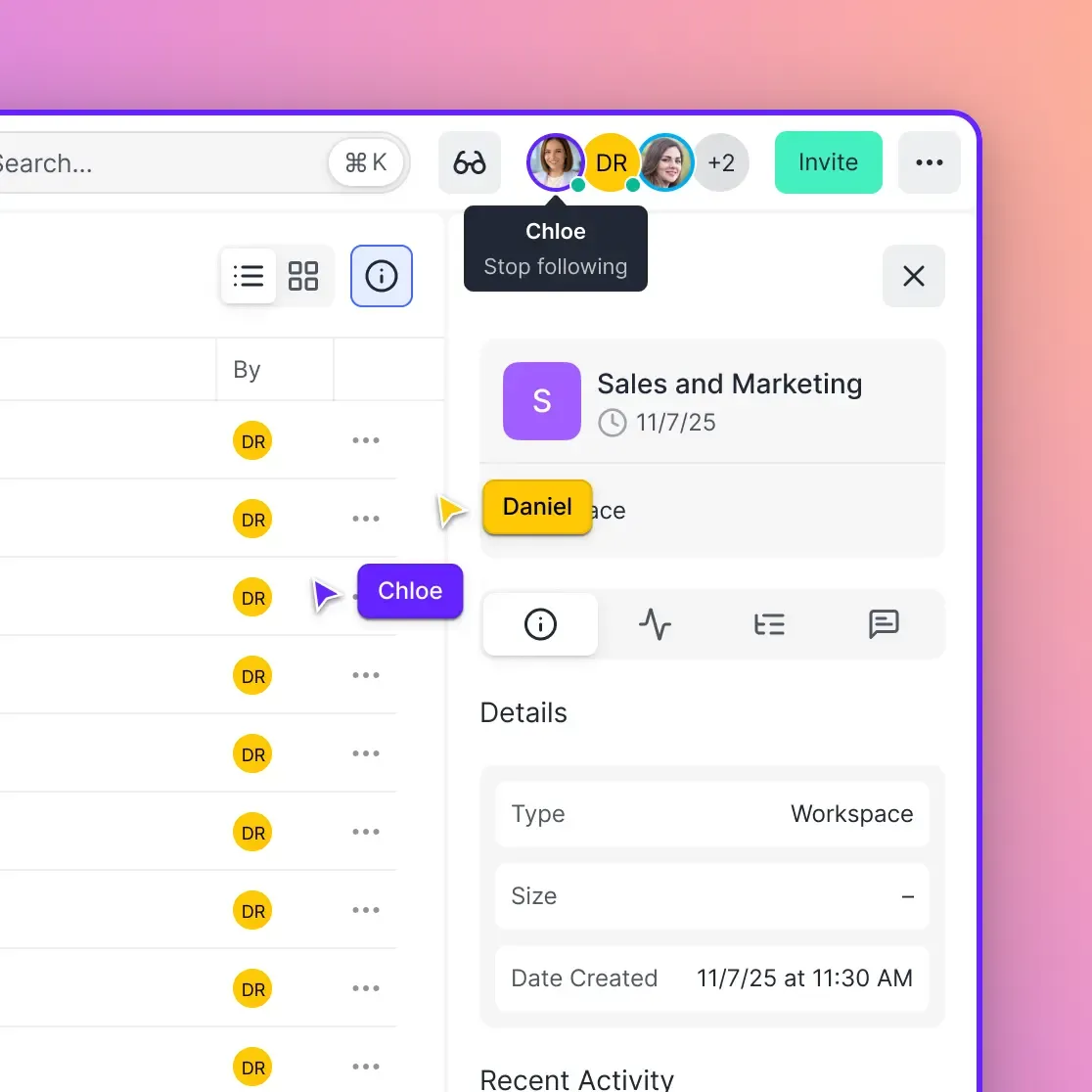
Fastio helps teams with project workspaces. A lead upload notifies the team. Once Intelligence is enabled for the workspace, auto-indexing lets a rigger search for the "A-Pose" character by tag, no folder knowledge needed.
This avoids silos with files stuck on desktops. Store ZBrush libraries in a searchable cloud, and teams work faster with less errors. Remote studios across time zones get steady, quick access to files.
Why Fastio is the Better Choice for 3D Artists
Common file services cap sizes or slow big uploads. Fastio handles large files for 3D artists using ZBrush. Unlike plain storage, Fastio makes workspaces searchable once Intelligence is enabled. Upload large ZBrush sculpts, and files are indexed for name or metadata search. Build asset libraries you find fast, and share branded portals with clients. Fastio helps teams collaborate with shared workspaces for artists, painters, and riggers to access the latest sculpts, supported by a 14-day Business Trial requiring a credit card.
Data Points and Industry Benchmarks
Evidence from professional pipelines shows that file optimization and the right sharing platform can reduce production bottlenecks. In high-pressure environments like film and game development, every minute spent waiting for a file transfer is a minute lost to creative iteration.
- Transfer Efficiency: Artists using dedicated creative workspaces report faster client feedback due to faster asset access and integrated review tools.
- Pipeline Adoption: Major studios prioritize artists who can deliver "production-ready" files, which includes proper naming conventions and optimized subdivisions.
In practice, this means that a character artist delivering an optimized file via a professional portal will likely receive approval faster than an artist sending a raw large file via a generic link that takes an hour to download.
Frequently Asked Questions
How can I share large ZBrush files without losing detail?
The best way is to save your work as a .ztl file, clear the Undo History, and use a dedicated creative workspace like Fastio. This allows you to share multi-gigabyte files at full resolution without needing to decimate the model or use lower-quality proxies.
Should I use .ztl or .zpr when sending files to a client?
Use .ztl for delivering individual assets. It only saves the active tool and its subtools, making the file smaller than a .zpr project file, which saves the entire workspace including lighting and materials.
How do I reduce ZBrush file size before sharing?
Go to Preferences and disable Undo History saving, delete unused Morph Targets, bake unnecessary layers, and save the file with all subtools at their lowest subdivision level. These steps can reduce file size while keeping high-res data intact.
What is the industry standard for 3D client delivery?
A professional delivery package includes optimized source files (.ztl), high-resolution turnaround renders, a 360-degree turntable video, and organized subtools within named folders.
How much does Fastio cost for sharing ZBrush files?
Fastio's monthly plans start with a trial of up to 14 days that requires a credit card; annual plans have no trial. Plans are Starter at $9.99/mo, Business at $49.99/mo, and Enterprise at $199.99/mo for sharing large 3D sculpts.
Related Resources

Stop Wrestling with Large ZTL Files
Get generous storage for creatives. Share ZBrush sculpts in pro workspaces with clients. Built for zbrush sculpt file sharing workflows.