How to Automate Video Transcoding with MCP Server Workflows
Guide to video transcoding mcp server workflows: Using MCP for video transcoding lets AI agents read file metadata and run complex FFmpeg commands based on plain English instructions. By bringing agents into the media workflow, video teams can skip the command line and automate hours of manual export tasks.

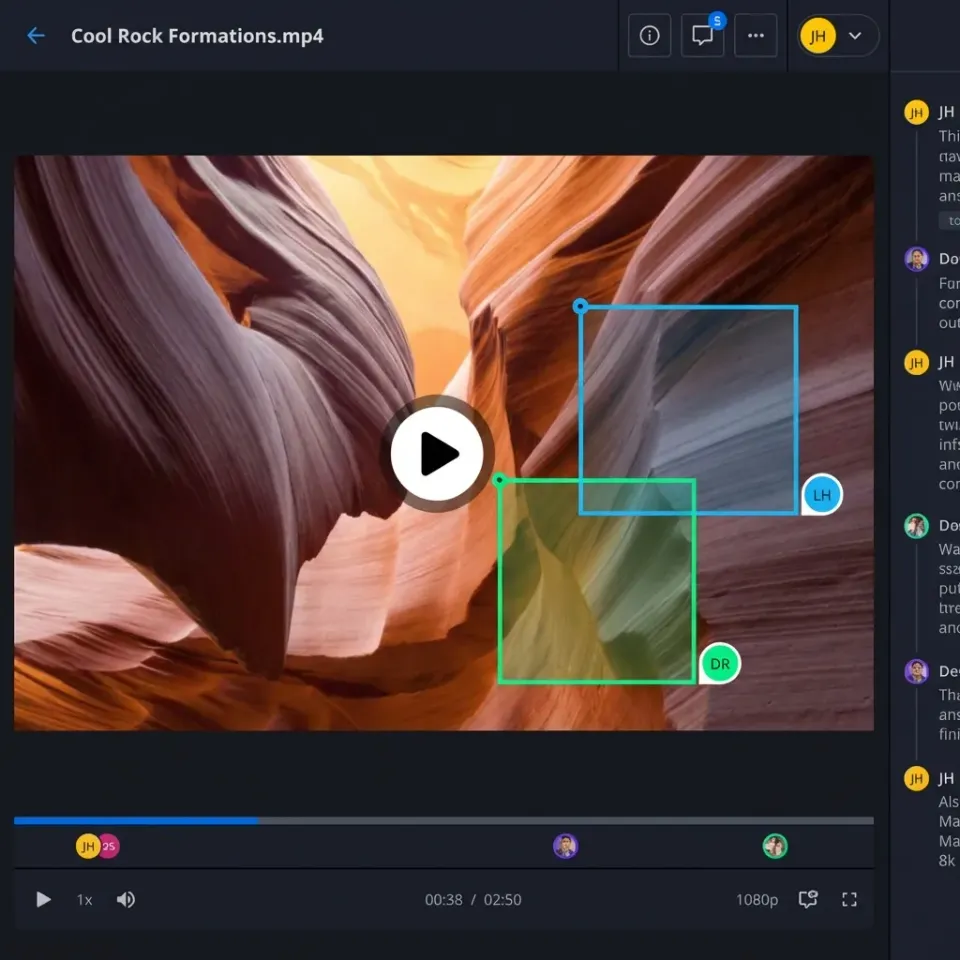
The Growing Complexity of Video Delivery
Video delivery requirements change as fast as the social platforms themselves. A single project might require master files for archival, proxies for remote editing, and a dozen different versions for TikTok, Instagram, and YouTube. In the past, this meant video editors spent hours manually tweaking settings or building rigid presets in tools like Adobe Media Encoder or Handbrake.
According to Gearshift.tv, post-production editors spend an average of six hours editing for every one hour of footage shot. Much of this time goes into technical setup and waiting for files to transcode. When editors have to manage these tasks manually, they are forced to step away from the creative work. This bottleneck gets worse as file sizes grow and deadlines get tighter.
While tools like FFmpeg are powerful, they are notoriously difficult to master. FFmpeg provides hundreds of command-line options to control media processing, making it a "Swiss Army Knife" that requires a deep technical understanding to operate effectively. For many creative professionals, the barrier to entry for this level of automation has been too high, until the arrival of the Model Context Protocol (MCP).
Helpful references: Fastio Workspaces, Fastio Collaboration, and Fastio AI.
Related guides
- How to Integrate Fastio MCP Server With Agent WorkspacesHow to integrate Fastio MCP server with agent workflows starts with understanding its role as a bridge between AI...
- 8 Best MCP Servers for Video Processing in 2026MCP servers for video processing let AI agents transcode, analyze, edit, and stream video through Model Context...
- How to Deploy MCP Server on RenderLearn how to deploy MCP servers on Render with git-based updates and zero downtime. This guide covers Docker setup,...
- How to Deploy the Fastio MCP Server on Fly.ioDeploying the Fastio MCP server on Fly.io gives your AI agents faster access to their file workspaces. Moving your...
- How to Troubleshoot the Fastio MCP Server: A Complete GuideThe Fastio MCP server gives AI agents file system access, but connection and tool errors can disrupt your workflow....
- How to Test Fastio MCP Server Tools with PlaywrightTesting Fastio MCP server tools with Playwright lets developers verify AI agent integrations in a browser environment....
More on this subject: MCP and Model Context Protocol (244 guides)
How MCP-Enabled Video Transcoding Works
MCP-enabled video transcoding lets you use Large Language Models (LLMs) as the interface for complex media tasks. Instead of writing code, you describe what you need in plain English. The AI agent then uses a dedicated MCP server to translate that request into a precise FFmpeg command.
"MCP-enabled video transcoding lets AI agents read file metadata and run complex FFmpeg commands based on plain English instructions."
This approach brings the power of FFmpeg to everyone, regardless of their technical background. Because the agent can "see" the file metadata through the MCP server, it knows the resolution, frame rate, and codec before you even ask it to make a change. This context ensures the commands are accurate and efficient for each specific file. For example, if an agent detects that a source file is encoded with the HEVC codec, it can automatically decide whether to maintain that codec for efficiency or switch to H.264 for broader compatibility based on your stated goal.


Manage Your Video Production on Fastio
Stop wasting time on manual exports. Use Fastio's MCP-enabled workspaces to transcode, resize, and manage your media files with simple AI commands.
How MCP Servers Run FFmpeg
This workflow relies on a communication layer between the AI and your local machine. The Model Context Protocol (MCP) provides a standard way for an agent to access tools on a remote or local server. In the case of video transcoding, the MCP server hosts a set of tools that wrap the FFmpeg executable. These tools are typically exposed via Streamable HTTP or Server-Sent Events (SSE), allowing for real-time progress updates.
When you issue a command, the agent first calls a "metadata" tool to inspect the file. It receives a JSON payload containing every technical detail: stream counts, pixel formats, color space information, and bitrates. With this data in its context window, the agent then constructs an FFmpeg command. It doesn't just guess the flags; it uses its knowledge of FFmpeg's hundreds of parameters to choose the most efficient path.
For instance, if the goal is to reduce file size without losing visible quality, the agent might choose the Constant Rate Factor (CRF) encoding mode. It might set the -crf flag to 23 and select the medium preset. These are technical details that most video editors understand conceptually but might struggle to run correctly from a command line. The MCP server ensures that the final command is syntactically perfect before it ever reaches the shell.
Why Use Agents for Video Transcoding?
Moving from manual presets to agentic transcoding offers three primary advantages: speed, accuracy, and context. Manual transcoding is rigid; if your source file changes resolution, your preset might not adapt correctly. AI agents, however, are contextual. They can analyze the source and adjust the command to ensure high quality without file bloat. This adaptability is particularly useful in multi-camera shoots where different cameras might use different recording formats.
The technical options available through this method are vast. FFmpeg supports over 100 video and 100 audio codecs, covering almost every possible media format used today. An AI agent can look through this library of codecs and pick the right one for your project, whether it's a web delivery codec or ProRes for high-end editing. It can even manage complex audio mapping, such as downmixing surround sound to a stereo track for social media while maintaining the original audio's dynamic range.
In practice, this automation leads to measurable gains. AI tools can save time each month even for businesses producing just two videos monthly. For high-volume production houses, these savings scale dramatically. Automated transcoding saves hours each week for remote editors who would otherwise be stuck managing export queues and checking file compatibility across different devices and operating systems.
How to Set Up an MCP Video Transcoding Workflow
Setting up an agentic transcoding workflow is straightforward if you have the right tools. The process involves connecting an LLM to a system where FFmpeg is installed via an MCP server. This can be done on a local machine for individual work or on a cloud server for team-wide collaboration.
Step-by-Step: How to ask an agent to transcode your footage
- Connect Your Workspace: Ensure your video files are stored in a Fastio workspace where your agent has access. Fastio provides the persistent storage needed for these large media assets.
- Initialize the MCP Server: Use an MCP server that includes the FFmpeg toolset. This server must have access to the directories where your media is stored.
- Describe the Task: Provide a natural language prompt. For example: "Transcode all .mov files in the 'Dailies' folder to 1080p MP4 files at 5Mbps bitrate. Also, add a small semi-transparent watermark of the company logo to the bottom right corner."
- Review the Plan: The agent will typically output the exact FFmpeg command it intends to run, including the complex filter chains required for watermarking.
- Execute and Verify: Once you approve, the agent runs the command. You can watch the progress through the agent's interface as it reports back from the MCP server.
This workflow removes the need to remember complex flags like -vf "scale=<width>:<height>,overlay=<x>:<y>" or -b:v <bitrate>. You state what you need, and the agent handles the technical heavy lifting.
Advanced Workflows for Video Teams
Beyond simple format changes, MCP workflows allow for advanced tasks that used to require a technical director. For example, a creative lead can ask an agent to "Find the loudest part of this clip and create a short highlight for Instagram." The agent can analyze the audio levels, find the peak, and execute the trim and transcode in one motion. This type of "intelligent clipping" can save social media managers hours of scrubbing through raw footage.
Another powerful use case is automated proxy generation. When high-resolution footage arrives in a Fastio workspace, polling the activity feed or monitoring the WebSocket events feed can notify an agent to automatically generate low-resolution proxies. This ensures that the editing team can start working immediately, even before the massive master files have fully synchronized across the network. The agent can even organize these proxies into a specific folder structure, keeping the project directory clean and organized.
Dynamic watermarking and "burn-ins" are also easily handled by agents. If you need to send a proof to a client, you can ask the agent to "Burn the client's name and today's date into the top left corner of the video." The agent calculates the font size, color, and position, then executes the FFmpeg filter string. This automation turns your workspace into an active part of the production pipeline, rather than just a place to store files. By offloading these technical chores to an agent, the team is free to focus on the story and the final polish that makes a video stand out.
Why Fastio is Built for Transcoding Workflows
Fastio provides the underlying infrastructure that makes these agentic workflows possible. Unlike commodity cloud storage, Fastio workspaces are designed for high-performance media collaboration. When an agent executes a transcode via an MCP server, it needs fast, reliable access to the files. Fastio's direct-to-cloud architecture ensures that I/O bottlenecks don't slow down the processing.
Also, once Intelligence is enabled for the workspace, files are indexed and searchable. If you ask an agent to "Convert all footage to MP4," you can immediately search for those new files by their technical properties or content. Fastio's 14-day Business Trial allows teams to experiment with these workflows, backed by scalable cloud storage and usage-based credits.
The ability to transfer ownership is another important feature for video production. An agent can build a transcoding pipeline for a client, set up the workspaces and shares, and then transfer the entire organization to the human owner while maintaining admin access for future updates. This creates a professional, hands-off experience for the end user while keeping the powerful automation intact.
Sources
References used to verify factual claims in this guide.
-
FFmpeg supports over 100 video and 100 audio codecs.
-
Post-production editors spend an average of six hours editing for every one hour of footage shot.
Frequently Asked Questions
Can AI agents transcode video files?
Yes, AI agents can transcode video files using MCP (Model Context Protocol) servers that talk to FFmpeg. The agent takes your plain English instructions, writes the technical command, and runs the transcode right in your workspace.
How do you use MCP for video processing?
To use MCP for video processing, you need an LLM connected to an MCP server that has FFmpeg installed. You provide instructions in plain English, such as 'reduce this file size', and the agent uses the MCP server to perform the operation on the file.
Is FFmpeg required for MCP transcoding?
Yes, FFmpeg is the underlying engine used by most MCP video servers. The MCP server acts as a bridge, allowing the AI agent to send commands to FFmpeg without the user needing to know the complex command-line syntax.
What video formats are supported?
Since these workflows rely on FFmpeg, they support over 100 video and 100 audio codecs. This includes common formats like MP4, MOV, and AVI, as well as professional formats like ProRes and DNxHR.
How much time can I save with automated transcoding?
Businesses producing even two videos per month can save time each month through automation. High-volume professional editors often save hours each week by offloading these technical tasks to AI agents.
Related Resources

Manage Your Video Production on Fastio
Stop wasting time on manual exports. Use Fastio's MCP-enabled workspaces to transcode, resize, and manage your media files with simple AI commands.