How to Add File Storage to Smolagents
Smolagents is a fast way to build AI agents, but it lacks persistent storage by default. This guide shows you how to add a cloud layer so your agents can save artifacts, handle large documents, and share results with your team.


Why Smolagents Need External Storage
Smolagents is a lightweight library from Hugging Face that focuses on logic and code rather than complex infrastructure. But in the real world, agents need to handle files that last longer than a single script execution. Without external storage, an agent that makes a chart or writes a report has nowhere to put it except the local disk. This is a problem in production because local disks are usually temporary (like in a Docker container or a serverless function) and users can't easily reach those files anyway. If the container restarts, that data is gone. You've wasted tokens and time, and debugging becomes a nightmare because you can't see the intermediate files or logs the agent made before it crashed or finished. Adding a cloud storage layer lets your agents:
- Save artifacts: Keep images, CSVs, and reports in a cloud space that stays alive even if the agent container stops.
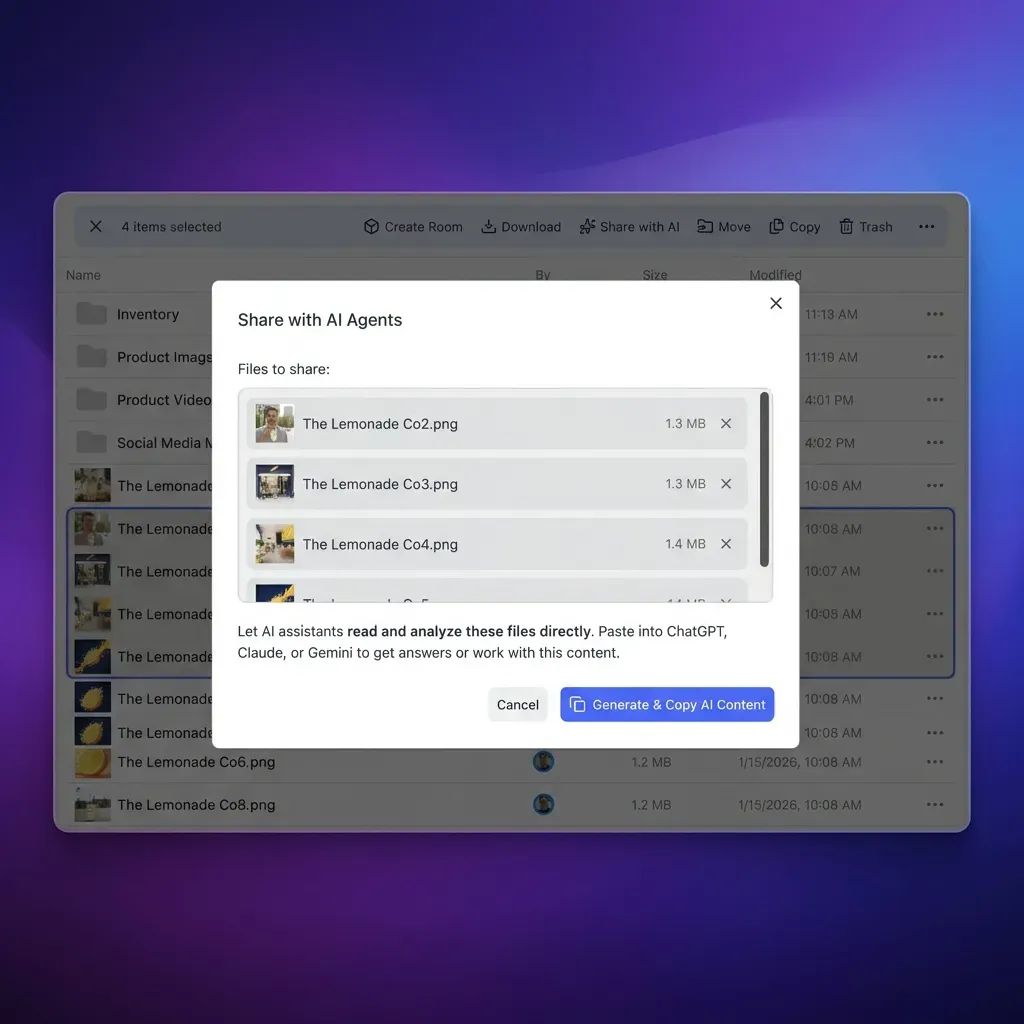
- Share with humans: Give users a link they can actually click, rather than a local file path they can't reach.
- Work together: Let multiple agents read and write to the same shared folder so they can pass data back and forth and keep track of project state.
Helpful references: Fastio Workspaces, Fastio Collaboration, and Fastio AI.
Related guides
- How to Add Persistent File Storage to Dify AI AgentsDify AI file storage connects the Dify open-source LLM platform to persistent cloud storage. This lets agents read,...
- How to Add Persistent File Storage to Discord AI BotsDiscord bots are growing into capable AI agents that generate images, write code, and process documents. But they often...
- How to Add Persistent File Storage to Relevance AI AgentsRelevance AI is a great no-code platform for building agent workflows. But its built-in storage has limits. You get a...
- How to Give AI Agents Secure Cloud File StorageAutonomous agents need more than vector memory. They need actual file storage to read documents, generate reports, and...
- How to Integrate Langflow File StorageLangflow agents delete files when sessions end. This guide shows three ways to add permanent storage: native local...
- How to Migrate AI Agent File Storage: The Complete GuideAgent file storage migration moves AI agent data, outputs, and workspaces between storage systems without disrupting...
More on this subject: Agent Memory and Storage (261 guides)
What to check before scaling smolagents file storage
The easiest way to add storage is via the Model Context Protocol (MCP). Smolagents supports MCP, so you can use pre-built tool servers without writing new code. Fastio hosts an MCP server with a consolidated MCP toolset, including storage, upload, download, find, and ai.
Prerequisites:
- A Fastio account and an API key from Settings > Devices & Agents > API Keys. 2. The
smolagentsPython library installed. Point the agent at Streamable HTTPhttps://mcp.fast.io/mcp/toolswithAuthorization: Bearer {api_key}. Every JSON-RPC message is a POST that accepts a JSON or SSE reply. The session opens withinitializeand thenotifications/initializednotification, and later requests echo theMcp-Session-Idheader and sendMCP-Protocol-Version. Save this helper asfastio_mcp.pyso each@toolwrapper only names a tool and its arguments.
# fastio_mcp.py
import json
import requests


class FastioMCP:
    """Minimal Streamable HTTP client for the Fastio MCP server."""

    def __init__(self, api_key, url="https://mcp.fast.io/mcp/tools"):
        self.url = url
        self.next_id = 0
        self.http = requests.Session()
        self.http.headers.update({
            "Authorization": f"Bearer {api_key}",
            "Accept": "application/json, text/event-stream",
        })
        result = self._request("initialize", {
            "protocolVersion": "2025-06-18",
            "capabilities": {},
            "clientInfo": {"name": "smolagents-fastio", "version": "0.1.0"},
        })
        self.http.headers["MCP-Protocol-Version"] = result["protocolVersion"]
        self._send({"jsonrpc": "2.0", "method": "notifications/initialized"})

    def call_tool(self, name, arguments):
        return self._request("tools/call", {"name": name, "arguments": arguments})

    def _send(self, message):
        self.http.post(self.url, json=message).raise_for_status()

    def _request(self, method, params):
        self.next_id += 1
        request_id = self.next_id
        payload = {"jsonrpc": "2.0", "id": request_id, "method": method, "params": params}
        with self.http.post(self.url, json=payload, stream=True) as response:
            response.raise_for_status()
            session_id = response.headers.get("Mcp-Session-Id")
            if session_id:
                self.http.headers["Mcp-Session-Id"] = session_id
            for message in self._messages(response):
                if "method" in message:
                    # A notification or a server request, not our reply; answer a ping
                    if message["method"] == "ping":
                        self._send({"jsonrpc": "2.0", "id": message["id"], "result": {}})
                    continue
                if message.get("id") == request_id:
                    if "error" in message:
                        raise RuntimeError(message["error"])
                    return message["result"]
        raise RuntimeError(f"No reply to {method}")

    @staticmethod
    def _messages(response):
        # A JSON reply is one message; an SSE reply is a stream of events
        if not response.headers.get("Content-Type", "").startswith("text/event-stream"):
            yield response.json()
            return
        response.encoding = "utf-8"
        data = []
        for line in response.iter_lines(decode_unicode=True):
            if line.startswith("data:"):
                data.append(line[5:].removeprefix(" "))
            elif not line:
                # A blank line ends the event; its data lines join with newlines
                text, data = "\N{LINE FEED}".join(data), []
                if text.strip():
                    yield json.loads(text)
Then wrap the tools the agent needs:
import json
from smolagents import CodeAgent, HfApiModel, tool
from fastio_mcp import FastioMCP

fastio = FastioMCP("YOUR_API_KEY")

@tool
def list_workspace(workspace_id: str) -> str:
    """
    Lists files in a Fastio workspace.
    Args:
        workspace_id: The 19-digit workspace ID
    """
    return json.dumps(fastio.call_tool("storage", {
        "action": "list",
        "profile_type": "workspace",
        "profile_id": workspace_id,
    }))

@tool
def import_file(url: str, workspace_id: str) -> str:
    """
    Imports a file from a URL into a Fastio workspace.
    Args:
        url: Public URL of the file to import
        workspace_id: The 19-digit workspace ID
    """
    return json.dumps(fastio.call_tool("upload_manage", {
        "action": "web-import",
        "url": url,
        "profile_type": "workspace",
        "profile_id": workspace_id,
    }))

agent = CodeAgent(
    tools=[list_workspace, import_file],
    model=HfApiModel()
)

agent.run(
    "Import https://example.com/sales.csv into workspace 1234567890123456789 and list the files"
)
In this setup, the agent lists the workspace with MCP storage (list) and imports a file with MCP upload_manage (web-import). The files show up in your web dashboard. For a local artifact the agent just wrote, stage the bytes at the MCP POST /blob sidecar (100 MB cap, five-minute expiry, single use), then pass the returned blob_id to upload_manage. This approach means you don't have to write boilerplate code for S3 buckets, IAM roles, or local folders. The MCP server handles the communication between the agent and the storage, so you can scale across different environments without making the codebase messy.


Give Your AI Agents Persistent Storage
Stop losing agent artifacts. Connect your smolagents to persistent cloud storage with built-in RAG and sharing.
Building a Custom Python Tool
If you want more control or want to limit the agent to specific actions (like "save only"), wrap a single Fastio MCP tool with the fastio_mcp.py helper from the previous section. This is useful if you need to add custom logic, like checking a file's format before importing. You can also add your own error handling, then hand the result to teammates through a branded Send, Receive, or Exchange share. Confirm the write in the workspace activity log.
import json
from smolagents import CodeAgent, HfApiModel, tool
from fastio_mcp import FastioMCP  # the helper from the previous section

fastio = FastioMCP("YOUR_API_KEY")

@tool
def save_artifact(source_url: str) -> str:
    """
    Imports a file from a URL into cloud storage.
    Args:
        source_url: Public URL of the file (e.g., https://example.com/report.md)
    """
    return json.dumps(fastio.call_tool("upload_manage", {
        "action": "web-import",
        "url": source_url,
        "profile_type": "workspace",
        "profile_id": "1234567890123456789",
    }))

agent = CodeAgent(tools=[save_artifact], model=HfApiModel())

Using Intelligence Mode for RAG
Storage isn't just about saving output; it's about reading input. When you connect smolagents to a Fastio workspace with Intelligence Mode enabled, Ripley (the built-in RAG agent) becomes part of the workflow. Instead of just reading raw bytes, your agent can ask questions about the files. This is helpful when dealing with large datasets or long documents that are too big for the model's context window. This "chat with your files" capability means the agent only grabs the info it needs for the current task.
How it works:
- Auto-Indexing: Any file uploaded to the workspace (PDFs, docs, spreadsheets) is automatically indexed.
- Semantic Search: The agent calls MCP
ai_managewith actionaskfor a cited answer, or MCPfindto search across the workspace. - Citation: Ripley returns a cited answer, so the agent can show where it got its information. This gives your agent long-term memory without a separate vector database like Pinecone. The storage handles the indexing, which keeps your setup simple and costs down for your team.
Comparison: Local vs. S3 vs. Fastio MCP
The right storage depends on where you're deploying your agent.
For local prototypes, the filesystem works fine. For production agents that need to work with humans or other agents, a cloud storage service designed for agents is usually the easiest way to go.
Sources
References used to verify factual claims in this guide.
-
Fastio hosts an MCP server with a consolidated MCP toolset, including storage, upload, download, find, and ai. MCP upload_manage web-import takes a url plus profile_type workspace and a 19-digit profile_id.
-
Agent clients POST JSON-RPC tools/call to https://mcp.fast.io/mcp/tools with an Authorization Bearer API key.
Frequently Asked Questions
How do I authenticate smolagents with Fastio?
Create an API key in Settings > Devices & Agents > API Keys. Send it as an Authorization Bearer token to https://mcp.fast.io/mcp/tools on every JSON-RPC tools/call.
Can smolagents read files uploaded by humans?
Yes. If you upload a file to the shared workspace via the web interface, the agent can find and read it right away with MCP `storage` (`list`), `find`, or `download`. This makes it easy for humans to provide input and let agents do the rest.
Is there a cost for agent storage?
Fastio sells flat plans that include storage, with metered overage for extra storage and bandwidth. Create an API key, point smolagents at the MCP server, and start saving artifacts to a workspace.
Does smolagents support MCP natively?
Yes, smolagents has support for the Model Context Protocol (MCP), so it can connect to any standard MCP server, including the Fastio server.
What file types are supported for agent storage?
Fastio supports all file types. For Intelligence Mode (RAG), it supports common formats like PDF, DOCX, TXT, CSV, and Markdown, automatically extracting text for the agent to search.
Related Resources

Give Your AI Agents Persistent Storage
Stop losing agent artifacts. Connect your smolagents to persistent cloud storage with built-in RAG and sharing.