SharePoint MCP Server Authentication: Entra ID and Graph API Guide
SharePoint MCP server authentication establishes secure machine-to-machine or delegated access between an AI agent and Microsoft Graph document libraries using Entra ID credentials. Configuring this connection requires navigating Azure application registrations, admin consent hurdles, and client secret management. Restricting permissions with Sites.Selected or routing libraries through an indexed workspace prevents tenant-wide exposure.


Why SharePoint MCP Server Authentication Requires a Dedicated Identity Boundary
Pointing an AI agent directly at enterprise document libraries creates an immediate security dilemma: granting broad programmatic access exposes every sensitive corporate file, while restricting credentials often breaks automated tool execution. In modern enterprise IT environments, SharePoint Online houses critical project plans, technical specifications, legal agreements, and internal operational guides. When engineering teams deploy Model Context Protocol (MCP) servers to allow tools like Claude, Cursor, or autonomous coding agents to inspect these repositories, establishing the identity boundary is the primary technical hurdle.
SharePoint MCP server authentication establishes secure machine-to-machine or delegated access between an AI agent and Microsoft Graph document libraries using Entra ID credentials.
Understanding this integration requires examining how the Model Context Protocol interacts with Microsoft Entra ID (formerly Azure Active Directory) and the Microsoft Graph API. The Model Context Protocol provides an open specification that allows large language models to interact with external tools and data stores through structured JSON-RPC messages. Instead of embedding custom database drivers or bespoke API clients directly inside an agent runtime, the client connects to an MCP server that advertises capabilities, such as listing document libraries, searching drive items, or reading file content.
In this architecture, four distinct components participate in the security boundary:
- The MCP Client: The interface hosting the AI assistant, such as Claude Desktop, Cursor, VS Code with GitHub Copilot, or an autonomous backend agent framework.
- The MCP Server: A runtime service that exposes tools to the client, parses incoming JSON-RPC calls, and translates them into REST requests directed at Microsoft Graph.
- Microsoft Entra ID: The identity provider and OAuth 2.0 authorization server that authenticates identities, validates application registrations, and issues cryptographically signed JSON Web Tokens (JWTs).
- Microsoft Graph API: The unified REST endpoint (
https://graph.microsoft.com/v1.0/) that governs access to SharePoint Online sites, document libraries, lists, and drive items.
The OAuth 2.0 Trust Boundary
When an AI agent executes a tool call such as sharepoint_read_file, it does not transmit raw Microsoft credentials directly to SharePoint. Instead, the MCP server acts as an OAuth 2.0 resource consumer or resource server, depending on deployment topology. In standard deployments, the MCP server acquires an access token from the Microsoft identity platform token endpoint (https://login.microsoftonline.com/{tenant_id}/oauth2/v2.0/token) and attaches that token as an Authorization: Bearer <token> header to every outbound Microsoft Graph request.
Microsoft Graph inspects the token claims, checks the digital signature against Microsoft Entra ID public keys, evaluates the assigned permission scopes, and enforces tenant conditional access policies before returning any document bytes. If the token lacks the appropriate scope, Graph rejects the request with an HTTP 403 Forbidden error, preventing the MCP server from accessing the library.
Delegated Permissions versus Application Permissions
Selecting the correct OAuth grant type and permission model dictates both the capabilities and the exposure radius of the MCP integration:
- Delegated Permissions (Interactive User Context): The MCP server operates on behalf of a signed-in human user. Token acquisition relies on the OAuth 2.0 Authorization Code flow with PKCE or Device Code flow. The issued token contains both an identity claim (
upnoroid) and a scope claim (scp). Under delegated access, the agent can only read or edit files that the specific human user is authorized to reach within SharePoint. This model suits personal desktop tools like Claude Desktop or Cursor running locally on an employee workstation, where the user can complete an interactive browser authentication prompt. - Application Permissions (Machine-to-Machine Service Principal): The MCP server operates as an autonomous background daemon without an interactive user session. Token acquisition uses the OAuth 2.0 Client Credentials Grant (
grant_type=client_credentials). The issued token contains a roles claim (roles) identifying the application identity rather than an individual person. Under application permissions, the server authenticates using an Application (Client) ID combined with an Application Client Secret or a private X.509 certificate.
Because automated agents, background indexers, and multi-user services run non-interactively, developers frequently configure them with application permissions. However, using application permissions introduces serious administrative hurdles and security risks across the enterprise tenant.
Related guides
- How to Set Up a SharePoint MCP Server for AI AgentsSharePoint MCP servers bridge the Model Context Protocol and the Microsoft Graph API, allowing AI agents to read,...
- SharePoint MCP Servers and Sites.Selected: How to Limit AI to Specific SitesSites.Selected is a Microsoft Graph permission scope that gives an app access only to the SharePoint sites an...
- How to Add OAuth Authentication to Your MCP ServerIf you're running a remote MCP server over HTTP, OAuth authentication isn't optional. The MCP specification (revised...
- How to Set Up MCP Server AuthenticationMCP server authentication is the process of verifying the identity of AI agents and applications connecting to a Model...
- Google Drive MCP Server Authentication: Setup and ArchitectureGoogle Drive MCP server authentication handles the authorization handshake allowing AI agents to securely query and...
- Microsoft 365 MCP Server: Connecting Agents to OneDrive and SharePointA Microsoft 365 MCP server connects AI coding assistants to OneDrive and SharePoint repositories via the Model Context...
More on this subject: MCP and Model Context Protocol (277 guides)
How to Configure Entra ID App Registrations and Microsoft Graph Scopes
Configuring Microsoft Entra ID to support a SharePoint MCP server requires setting up an application registration within the Microsoft Entra admin center. Because Microsoft Graph protects enterprise document libraries with strict role-based access control, administrators must configure exact scopes and grant organizational consent.
Registering the Application in Microsoft Entra Admin Center
Setting up the server identity follows five procedural steps in the Microsoft Entra admin center:
- Create the Registration: Open the Microsoft Entra admin center, navigate to Identity > Applications > App registrations, and select New registration.
- Assign Identity Details: Provide a clear name (for example,
SharePoint-MCP-Connector). Under Supported account types, select Accounts in this organizational directory only (Single tenant) to restrict the server identity to your enterprise directory. Leave the Redirect URI empty for background daemons using client credentials, or configure a public client URI (http://localhostorhttps://login.microsoftonline.com/common/oauth2/nativeclient) for interactive desktop tools. Click Register. - Record Core Identifiers: From the application Overview screen, copy and store the Application (client) ID and the Directory (tenant) ID. Both values are required when requesting OAuth tokens.
- Configure API Permissions: Navigate to API permissions, select Add a permission, choose Microsoft Graph, and select either Application permissions or Delegated permissions based on your execution model.
- Generate Authentication Credentials: Open Certificates & secrets. Under Client secrets, select New client secret, define a descriptive label and an expiration duration, and click Add. Copy the secret Value immediately. Entra ID masks this secret permanently once you leave the view.
The Global Tenant Administrator Consent Requirement
The primary obstacle engineering teams encounter when configuring a SharePoint MCP server is tenant-level administrative consent. Application-level Graph API permissions require global tenant administrator consent.
When an application requests delegated permissions, standard users can often consent to basic profile reads, though tenant-wide SharePoint scopes typically remain restricted. However, when an MCP server requests application permissions such as Sites.Read.All or Files.Read.All, the Microsoft identity platform completely blocks non-admin approval. A standard developer cannot authorize these scopes. A Global Administrator, Privileged Role Administrator, or Cloud Application Administrator must sign in to the Entra admin center, navigate to the application's API permissions tab, and explicitly click Grant admin consent for {Tenant Name}.
In mature enterprises, securing Global Administrator consent involves formal architecture reviews, security evaluations, and ticketing queues. IT security teams routinely reject requests for Sites.Read.All because it grants the application unrestricted read access to every site collection, private group, and sensitive intranet page across the entire enterprise.
Permission Scopes and Access Radius Comparison
Choosing the appropriate permission scope requires balancing developer autonomy with enterprise data governance. The following table details the standard Microsoft Graph permissions evaluated for SharePoint MCP integrations:
For background servers and multi-agent setups, selecting Sites.Selected is the enterprise industry standard for maintaining least privilege.
Security Risks of Exposing Client Secrets in Developer Configurations
Most online guides for setting up SharePoint MCP servers advise developers to create an app registration with Sites.Read.All, generate a client secret, and paste the raw credentials directly into a local JSON configuration file. This pattern introduces critical security vulnerabilities and configuration debt into engineering teams.
The Exposure of Plaintext Client Secrets in Local Configurations
When configuring local AI environments, developers frequently place credentials into configuration files such as claude_desktop_config.json, .cursor/mcp.json, or root .env files:
{
  "mcpServers": {
    "sharepoint": {
      "command": "node",
      "args": ["/path/to/sharepoint-mcp/build/index.js"],
      "env": {
        "TENANT_ID": "<tenant-id>",
        "CLIENT_ID": "<client-id>",
        "CLIENT_SECRET": "<client-secret>"
      }
    }
  }
}
Storing raw client secrets on individual developer laptops creates severe operational risks:
- Accidental Repository Leaks: Developers routinely commit configuration files or dotfiles to public or internal git repositories. A leaked client secret paired with
Sites.Read.Allgives an attacker read access to all corporate SharePoint data, including executive emails archived in libraries, human resources records, financial audits, and proprietary source code. - Lack of Attribution and Auditing: When multiple developers share a single service principal client secret, all Graph API calls appear in the Entra ID sign-in logs under the same application identity. Security teams cannot determine which individual developer or agent prompted a specific document retrieval.
- Credential Expiration and Rotation Outages: Entra ID enforces client secret expiration limits. When the secret expires, every developer MCP server across the engineering department fails simultaneously, requiring manual credential regeneration and distribution.
- Bypassing Workstation Security Controls: Personal laptop configurations rarely enforce credential isolation. If a developer's workstation is compromised by malware or a malicious dependency, plaintext secrets stored in application configuration files are easily exfiltrated.
Restricting Library Access with Sites.Selected
To avoid granting broad tenant-wide access, security teams should mandate the Sites.Selected application scope. Unlike Sites.Read.All, which opens every library across the organization, Sites.Selected grants the application zero access to any SharePoint site upon initial registration.
Even after a Global Administrator grants admin consent to Sites.Selected, the MCP server cannot read or search a single document library. If the server attempts to query a site before explicit authorization, Microsoft Graph returns an HTTP 403 Forbidden response. Access must be granted on a site-by-site basis by an administrator or site owner.
Granting Site-Specific Permissions via Graph API and PowerShell
To authorize the MCP server for a specific SharePoint site collection, an administrator explicitly grants permissions to the application identity using Microsoft Graph or PnP PowerShell.
Method 1: Authorizing via Microsoft Graph REST API
An administrator issues a POST request to the target site's permissions endpoint, specifying the application client ID and the desired role (read or write):
POST https://graph.microsoft.com/v1.0/sites/{site-id}/permissions
Content-Type: application/json
Authorization: Bearer <Admin-Token>

{
  "roles": ["read"],
  "grantedToIdentities": [
    {
      "application": {
        "id": "<client-id>",
        "displayName": "SharePoint-MCP-Connector"
      }
    }
  ]
}
In this payload, {site-id} is the composite SharePoint site identifier (formatted as hostname,spsite-id,spweb-id). The roles array specifies read access, ensuring the agent cannot alter or delete documents in the library.
Method 2: Authorizing via PnP PowerShell
SharePoint administrators who manage environments via PowerShell can bind the application identity without manually constructing Graph HTTP payloads:
Connect-PnPOnline -Url "https://contoso.sharepoint.com/sites/EngineeringSpecs" -Interactive

Grant-PnPAzureADAppSitePermission `
  -AppId "<client-id>" `
  -DisplayName "SharePoint-MCP-Connector" `
  -Site "https://contoso.sharepoint.com/sites/EngineeringSpecs" `
  -Access Read
Once executed, the application can query drives and files within https://contoso.sharepoint.com/sites/EngineeringSpecs, while all other site collections in the tenant remain completely inaccessible to the MCP server.
How Direct Graph API Calls Compare to Synchronized Workspace MCP
Even after resolving Entra ID authentication and permission scoping, organizations encounter significant performance and operational limitations when agents communicate directly with Microsoft Graph endpoints. Understanding these limitations explains why enterprise teams often separate raw cloud storage from their agent context layer.
Throttling and Context Limits of Direct Graph Endpoints
Querying SharePoint directly through Graph API tool calls introduces three primary operational constraints:
- Microsoft Graph Request Throttling: Microsoft Graph enforces strict per-tenant and per-application rate limits. When multiple developers or autonomous multi-agent loops run simultaneous document searches, Graph returns HTTP 429 Too Many Requests responses with Retry-After headers. An agent waiting on a lengthy backoff stalls terminal workflows and frequently causes client execution timeouts.
- The 5,000-Item List View Threshold: By default, the list view threshold is configured at 5,000 items. When document libraries contain thousands of items, unindexed queries that attempt to scan folders or filter files fail at the database level.
- Context Window Bloat and Token Dilution: Native SharePoint connectors typically retrieve raw documents (such as lengthy PDF specifications or heavy DOCX files) and inject the unparsed text into the model's prompt. This brute-force pattern consumes tens of thousands of tokens per query, rapidly exhausting context budgets and increasing inference costs. Furthermore, dumping sprawling documents into context dilutes model attention, leading to hallucinations or missed implementation details.
The Synchronized Workspace Architecture
Instead of burdening every developer machine with raw Graph credentials and streaming heavy files across local connections, engineering teams establish an intermediate workspace architecture. Organizations keep their authoritative files in SharePoint, OneDrive, Google Drive, Box, or Dropbox, while syncing required project documentation into an intelligent cloud workspace.
In this architecture, Cloud Sync connects Google Drive, Dropbox, Box and OneDrive folders to a workspace, one-way or two-way, on a schedule or on demand, and is never continuous, live or real-time. SharePoint document libraries connect directly through the OneDrive connector.
Once synchronized into a Fast.io workspace, Intelligence Mode automatically parses and indexes documents on arrival. Rather than requiring models to parse raw file payloads, the platform builds full-text, semantic, and metadata indexes. When an agent needs information, it performs a focused semantic search across the pre-indexed corpus, retrieving only the precise paragraphs and data points required to answer the prompt.
Connecting AI Agents Through Remote Streamable HTTP
Fast.io provides a hosted remote Model Context Protocol server operating over Streamable HTTP, completely removing the need to manage local background daemons, Node.js bridges, or raw Entra ID client secrets on developer laptops.
Agents connect using dedicated Streamable HTTP endpoints matched to their operational role:
- Coding Agents: Tools such as Claude Code, Cursor, Gemini CLI, VS Code agent mode, Cline, and Devin connect to
https://mcp.fast.io/mcp/code. - General Clients and Chat Applications: Claude Desktop, web interfaces, and custom agent runtimes connect to
https://mcp.fast.io/mcp/tools. - ChatGPT and Codex Custom Servers: Connect to
https://mcp.fast.io/mcp/operations(while the Fastio plugin remains the preferred setup for both environments).
Interactive clients sign in using OAuth in the browser, showing a permissions review screen where users select Read Only or Read & Write access to specific organizations and workspaces. Headless agents, automated pipelines, or server daemons authenticate by transmitting a scoped API key as an Authorization: Bearer <api key> header on the connection. Step-by-step setup guides are documented at https://mcp.fast.io/docs.
Measured Connector Performance
When evaluating storage connectors for AI agents, retrieval speed and cost efficiency dictate developer productivity. The connector comparison is published at https://fast.io/benchmarks/ and Fastio was measured the fastest and the lowest cost of the providers tested. By eliminating full-file downloads and serving concise, citation-backed excerpts directly to the agent, the indexed workspace architecture minimizes token consumption and prevents API throttling.
Organizations evaluating persistence and indexing options can explore dedicated storage for agents and review Fast.io AI capabilities.
Monthly plans start with a 14-day free trial, which requires a credit card. Creating an account is free; doing real work requires an organization on a paid subscription. Plan tiers, storage allowances, and credit structures are detailed on Fast.io pricing.
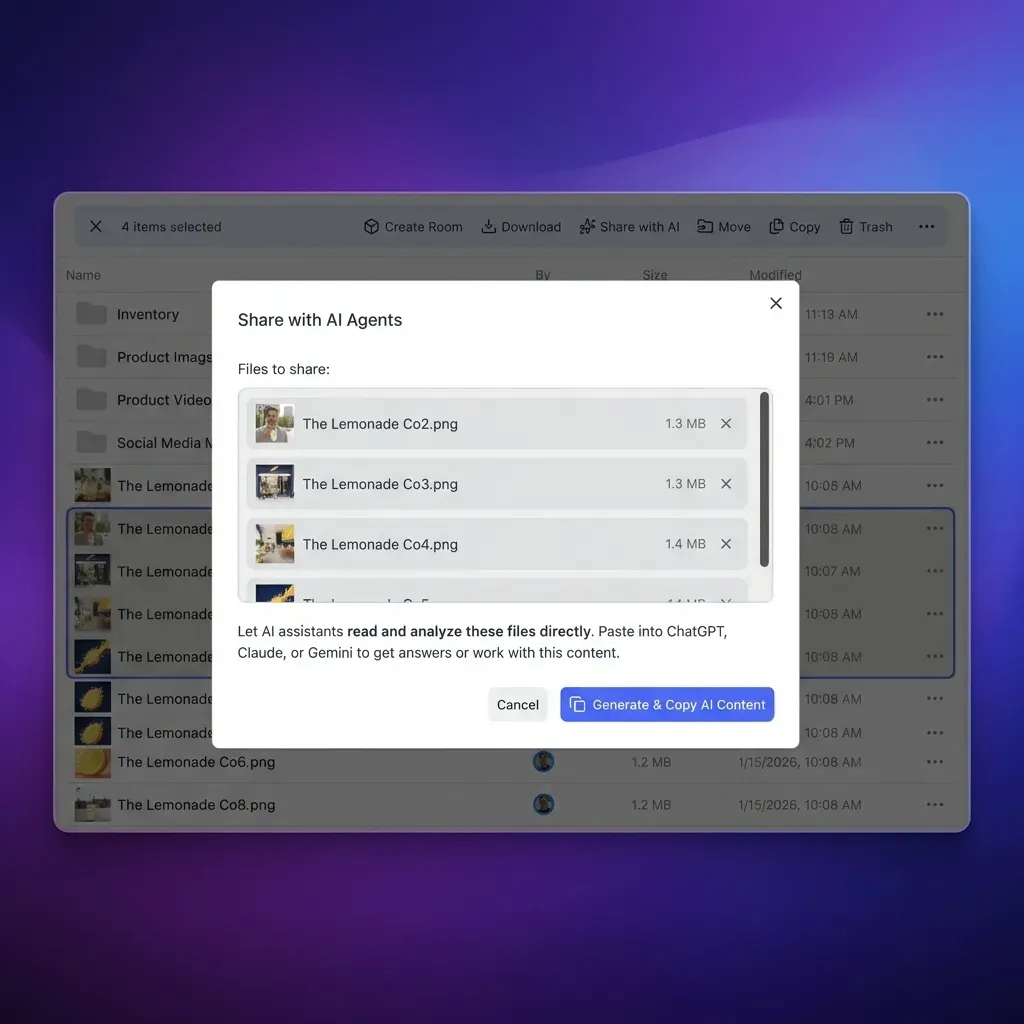


Connect AI Agents to SharePoint Without Leaking Secrets
Sync SharePoint document libraries to an indexed workspace and query enterprise context through a hosted remote MCP server. Starts with a 14-day free trial.
Steps to Verify Tokens, Rotate Secrets, and Diagnose Integration Errors
Deploying a SharePoint MCP server into an enterprise environment requires disciplined verification procedures, secret rotation routines, and clear security boundaries. Before rolling out MCP tools to an entire engineering department, administrators must validate token issuance and diagnose common integration errors.
Verifying Tokens and Role Claims with cURL
Before troubleshooting complex agent behavior in Claude or Cursor, verify that your Entra ID service principal acquires valid tokens and holds the expected permissions.
Step 1: Request an Access Token
Execute a POST request to your tenant's OAuth 2.0 token endpoint using curl:
curl -X POST "https://login.microsoftonline.com/<tenant-id>/oauth2/v2.0/token" \
  -H "Content-Type: application/x-www-form-urlencoded" \
  -d "client_id=<client-id>" \
  -d "scope=https://graph.microsoft.com/.default" \
  -d "client_secret=<client-secret>" \
  -d "grant_type=client_credentials"
A successful response returns a JSON payload containing token type Bearer and the signed access token string.
Step 2: Inspect Token Claims
Decode the returned JWT using a command-line tool or standard JWT parser. Confirm three critical claims:
- Audience (
aud): Must matchhttps://graph.microsoft.com. - Issuer (
iss): Must matchhttps://sts.windows.net/<tenant-id>/. - Roles (
roles): Must contain the assigned application scopes, such as["Sites.Selected"]or["Sites.Read.All"]. If therolesarray is missing or empty, admin consent was not granted.
Step 3: Test Baseline SharePoint Connectivity
Query the target site's root drive using the acquired access token:
curl -X GET "https://graph.microsoft.com/v1.0/sites/<site-id>/drive/root/children" \
  -H "Authorization: Bearer <access-token>" \
  -H "Accept: application/json"
If the call returns a list of drive items, the service principal is properly authenticated and authorized.
Troubleshooting Common HTTP Status Codes
When an MCP server fails to interact with SharePoint, Microsoft Graph returns standard HTTP error codes:
- HTTP 401 Unauthorized: Indicates invalid credentials. Common causes include an expired client secret, a mismatched application ID, or an incorrect tenant ID in the token request URL. Verify credential expiration dates in the Entra admin center.
- HTTP 403 Forbidden: Indicates an authorization failure. If using
Sites.Selected, this error occurs when the application identity has not been explicitly granted access to the specific site collection via the Graph permissions endpoint or PnP PowerShell. If usingSites.Read.All, it indicates that tenant administrator consent was never completed. - HTTP 404 Not Found: Indicates that the target site collection, drive, or file path does not exist, or the site ID format is malformed. Ensure site identifiers follow the
hostname,spsite-id,spweb-idcomposite standard. - HTTP 429 Too Many Requests: Indicates that your application or tenant has exceeded Microsoft Graph rate limits. The response includes a Retry-After header indicating how many seconds the server must pause before retrying.
Setting Organization, Workspace, and Share Boundaries
To maintain long-term security hygiene, enterprise teams should enforce clear boundaries around agent data access:
- Role-Based Access Governance: In Fast.io, permissions are set per organization, workspace, and share through member roles. This clear scoping ensures that agents and human collaborators only access the specific workspaces assigned to their operational domain.
- Detailed Activity Logging: Fast.io maintains a detailed activity log that records changes across the organization, including file uploads, edits, moves, deletions, membership changes, and share creation. Tracking modifications ensures full visibility into what changed and who changed it, whether the action was taken by a human teammate or an autonomous agent.
- Automated Document Extraction: When teams need structured data from technical reports or contracts, Metadata Views turn unstructured documents into queryable tabular data without manual regex or OCR scripts. Teams can review the document data extraction guide for implementation details.
- Client Delivery Controls: When sharing curated documentation or outputs with external partners, teams can create branded shares with expiring links and disabled downloads, maintaining complete control over enterprise data distribution.
Sources
References used to verify factual claims in this guide.
-
By default, the list view threshold is configured at 5,000 items.
Frequently Asked Questions
What permissions does a SharePoint MCP server require in Azure AD?
A SharePoint MCP server requires Microsoft Graph permissions based on its execution model. Background daemons and multi-agent servers typically require Application permissions, ideally Sites.Selected to enforce least privilege, or Sites.Read.All and Files.Read.All for tenant-wide access. Interactive desktop tools for individual developers use Delegated permissions such as Sites.Read.All and Files.Read, which restrict the agent to files the signed-in user is authorized to reach.
How do I authenticate SharePoint for an AI agent via MCP?
You authenticate SharePoint for an AI agent by registering an application in Microsoft Entra ID, generating a client secret or certificate, and configuring the MCP server to request OAuth 2.0 access tokens from login.microsoftonline.com. The server attaches this token as an Authorization Bearer header when calling Microsoft Graph endpoints. Alternatively, teams sync SharePoint libraries into an indexed Fast.io workspace and connect agents using the hosted remote MCP server over Streamable HTTP.
How do I avoid giving broad tenant access when connecting SharePoint to MCP?
To avoid giving broad tenant access, configure your Entra ID application registration with the Sites.Selected application permission instead of Sites.Read.All. Sites.Selected grants the application zero access by default. A tenant administrator or site owner must explicitly authorize the application Client ID for specific SharePoint site collections using the Microsoft Graph site permissions API or PnP PowerShell.
Why do application permissions require global tenant administrator consent?
Application-level Graph API permissions require global tenant administrator consent because they operate as background service principals without a human user in the loop. Scopes like Sites.Read.All grant unrestricted programmatic access to every document library and private intranet page across the entire enterprise directory, representing significant compliance and data security risks that only tenant administrators can approve.
How can AI agents query SharePoint document libraries without storing client secrets locally?
AI agents can query SharePoint without storing local client secrets by using an intermediate indexed workspace. Organizations use Fast.io Cloud Sync to connect SharePoint libraries through the OneDrive connector on a schedule or on demand. Agents then query the indexed workspace via the hosted remote MCP server over Streamable HTTP, authenticating via browser OAuth or scoped API keys without exposing Entra ID application secrets.
Related Resources

Connect AI Agents to SharePoint Without Leaking Secrets
Sync SharePoint document libraries to an indexed workspace and query enterprise context through a hosted remote MCP server. Starts with a 14-day free trial.