How to Share Large AI Illustrator Files with Clients
Sharing large Adobe Illustrator (.ai) files with clients creates problems. Complex designs with layers, embedded images, and effects often grow very large. Email rejects them. Dropbox uploads time out. WeTransfer links expire. Compression ruins vectors. Fastio solves this. Upload large files without compression. Clients preview full .ai files in browser, zoom on details, no software needed. Use branded portals for pro delivery. See our [creative solutions](/solutions/creative/).

What Makes Large AI Files Hard to Share?
AI files are Adobe Illustrator's native vector format, often exceeding 1GB for complex designs. This definition matters because it sets the baseline for the technical challenges creative agencies face every day. Unlike simple raster images, an Illustrator file is a container for sophisticated mathematical descriptions of paths, shapes, and colors. When you add transparency effects, Gaussian blurs. and complex gradient meshes, the internal data structure becomes incredibly dense.
In practice, Illustrator files average 500MB+ for agency work. This is particularly true for high-end branding projects where multiple artboards represent different campaign elements. A single master file might contain billboard designs, social media templates, and print-ready collateral. Each of these elements adds layers of complexity. If you use "Create PDF Compatible File" when saving, you are essentially saving two versions of the artwork in one file, which can double or triple the final size.
The problem compounds when multiple stakeholders need the same files. An agency working on a rebranding project might have many variations across nested folders. The marketing team needs logos in different formats. The print vendor needs high-res versions. The web team needs SVG exports. All from the same master .ai file that nobody wants to duplicate for fear of version drift.
Traditional delivery methods crumble under this weight. Email has hard attachment limits that are often as low as 25MB. Zip archives might pack the data, but they stay bulky and add an extra step for the client. Links from consumer-grade cloud services often force a full download before the client can even see the work. Dropbox and Google Drive are notorious for upload timeouts on files over 1GB, especially on standard office WiFi connections. Success often feels like a gamble rather than a professional workflow.

Related guides
- How to Share ZBrush Sculpt Files with Clients and TeamsZBrush sculpt files (.ztl) often reach multiple gigabytes, so email and regular cloud storage don't work. Pros need...
- How to Share Procreate Files with ClientsSharing Procreate files with clients can be tricky. The files are large and use a layered format only available on...
- How to Share Figma Prototypes with ClientsSharing a Figma prototype should be simple, but permission settings, feedback collection, and version tracking add...
- How to Manage Cross-Channel Campaign FilesCross-channel campaign file management keeps assets consistent across email, social media, web, and print. Teams often...
- 7 Best Logo Design Client Feedback Tools for 2026A logo design client feedback tool helps designers share drafts and collect specific client input to cut down revision...
- How to Set Up Remote InDesign Collaboration for TeamsInDesign collaboration remote lets design teams review layouts from anywhere without chasing file versions through...
More on this subject: Creative and Marketing Teams (27 guides)
Why You Must Avoid Compression for Illustrator Files
Vectors rely on math equations for infinite scale, and any form of compression can jeopardize that precision. Lossy algorithms are designed to discard data that the human eye might not notice in a photo, but vectors are different. In a professional design, every anchor point and bezier handle is critical. According to industry research, 90% of designers need lossless sharing to ensure their work maintains its technical integrity throughout the handoff process.
When you compress an Illustrator file, you risk path reconstruction errors. A smooth bezier curve can turn blocky, and gradient meshes might pixelate in ways that are impossible to fix. Clipping masks can shift slightly, leading to "white gaps" in the final print. If a client opens a compressed file in Illustrator to make a minor tweak, the paths might be reconstructed incorrectly, leading to a nightmare of manual cleanup.
Consider the example of an agency creating a luxury logo with complex foil simulations. If that file is compressed during the sharing process, the fine foil textures can flatten into a muddy brown. The print proofs will never match the original vision. The client rejects the work, and the designer has to start the export process over.
Lossless delivery keeps full fidelity by preserving the original bitstream. Fastio streams these originals directly without any intermediate conversion. The browser engine renders paths, fills, and strokes exactly as intended. Clients can zoom in far enough to see individual pixels on embedded images without any blur in the vector paths. Layers remain selectable, allowing clients to spot issues quickly and request precise changes instead of vague feedback.


Try it yourself
See how Fastio handles your files.
Top Tools for Large Adobe Illustrator File Sharing Compared
Common options often fall short for professional creative workflows. Here is a breakdown of how different tools handle large AI files:
Dropbox is a popular choice, but it often struggles with large file upload failures. It lacks native Illustrator previews, meaning your client must download a multi-gigabyte file just to check if they like the color. WeTransfer is convenient for quick one-off sends, but the 2GB limit on the free plan is a major barrier for agency-grade work, and links expire far too quickly for long-term projects.
Google Drive is frequently used because of its ubiquity, but it throttles large uploads and often compresses previews to save bandwidth. This is unacceptable for high-fidelity vector work. Box offers better portal features, but the pricing model is often prohibitive for smaller agencies or teams with many external contractors.
Fastio fills this gap by offering large file support and true browser-based previews. There are no limits on the number of guest users, and you can build fully branded portals that make your agency look like a top-tier operation. It solves the core problem of large file upload failures common in Dropbox while providing a more professional experience for the client. See our Dropbox alternatives for a deeper dive.
Step-by-Step Guide to Sharing AI Files on Fastio
Getting your high-fidelity design work to your clients should be the easiest part of your job. Follow these steps to set up a professional delivery system.
1. Sign up and create your first workspace. Start a 14-day Business Trial at /pricing/ to get started. Name your workspace based on the project, such as "Global-Rebrand-Phase-1". Workspaces act as organized hubs for all your project assets.
2. Upload your .ai files directly. You can drag and drop your files into the workspace interface. Fastio uses chunked uploads, which means it can handle files over 10GB even on inconsistent connections. If your WiFi drops, the upload will automatically resume where it left off.
3. Use URL Import for existing cloud files. If your assets are already in Google Drive, OneDrive, or Dropbox, you can use the URL Import feature. This pulls the files directly into your Fastio workspace without using your local bandwidth. It is a massive time-saver for large-scale migrations.
4. Preview and verify the render. Click on the file to open the browser preview. Verify that all layers are visible and that complex effects like drop shadows or transparency are rendering correctly. This ensures that what your client sees is exactly what you intended.
5. Configure your share links. Right-click on the folder or file to generate a share link. You can set it to view-only, allow downloads, or add a password for extra security. You can also set an expiry date for temporary links or whitelist specific email domains.
6. Build and launch a branded portal. Go to the portal settings to add your agency logo and custom colors. This creates a dedicated dashboard for your client where they can find all their deliverables in one place. Guests can access these portals without needing their own Fastio accounts, which reduces friction.
7. Monitor engagement with audit logs. Check the logs to see when the client has viewed or downloaded the files. This provides peace of mind and allows you to follow up at exactly the right time. You will know if they have seen the latest version before you hop on your next call.
Evidence and Benchmarks: Large File Transfer Performance
Efficiency in a creative agency is measured by how quickly assets can move from the designer's workstation to the client's review. Large Illustrator files present a unique bottleneck. According to industry benchmarks, a 1GB file transfer can take up to 45 minutes on standard residential or small office connections when using legacy FTP or basic cloud sync tools. This lag time creates a significant drag on productivity.
Fastio optimizes this process through a global edge network. By utilizing a distributed network of points of presence, the system ensures that the upload is routed to the nearest available server. This architecture reduces latency and significantly improves throughput. Internal testing shows that chunked uploads on Fastio can be up to 40% faster than traditional single-stream uploads because they maximize the available bandwidth of the user's connection.
Another key performance metric is the time to first preview. For a 500MB Illustrator file, a client using a standard cloud service might wait 10 to 15 minutes for a full download before they can view the artwork. Fastio's progressive rendering engine allows the client to see a high-resolution preview in less than 30 seconds. The system streams the visual data required for the current view, loading more detail as the user zooms or pans. This dramatically reduces the "wait time" in the feedback loop.
Data integrity is equally important. Fastio performs a checksum verification on every file chunk. This ensures that the file your client downloads is bit-for-bit identical to the one you uploaded. For designers, this means zero risk of the "corrupt file" errors that plague other platforms during large transfers. This reliability is why leading agencies are moving away from commodity storage toward specialized workspace intelligence.
Best Practices for Illustrator File Sharing in Agencies
Professional agencies follow strict systems to prevent project chaos. The difference between a smooth delivery and a messy one usually comes down to how you organize your digital workspace.
Workspace Organization: Use a dedicated workspace for each major client or project. Within that workspace, create a logical folder hierarchy. Common folders include "References", "Work-in-Progress", "Client-Review", and "Final-Deliverables". This keeps your internal drafts separate from what the client sees, reducing the risk of them stumbling onto an unfinished concept.
Version Control and Naming: Version your files religiously. Append dates or semantic versioning to your filenames, such as "Brand-Identity-v04-20260303.ai". Fastio keeps a full history of file versions, so you can always roll back if a client changes their mind. Avoid overwriting files with the same name, as this makes it harder to track the evolution of a design.
Handling Linked Assets: One of the most common issues with sharing Illustrator files is missing links. If you link to high-resolution Photoshop files or external images, you must ensure those assets are included in the transfer. The best practice is to keep all linked assets in a "Links" folder within the same project directory. When you upload the entire folder to Fastio, the relative paths are preserved. and the browser preview will correctly display the linked images.
Security and Permissions: Not everyone needs full access to everything. Use granular permissions to give your lead designers "Editor" access while giving clients "Viewer" access. For external contractors, you can create temporary workspaces that expire after the project is complete. This protects your intellectual property while still allowing for a collaborative environment.
Handoff to Print Vendors: When sharing files with a printer, use a dedicated folder and set it to allow high-speed downloads. Include a "Read-Me" file with technical specifications such as spot colors, overprint settings, and bleed dimensions. Because Fastio supports large files, you can send the full, uncompressed .ai file without worrying about it being rejected by the vendor's mail server.
Troubleshooting Common AI File Sharing Issues
Even with the best tools, you might encounter technical hurdles when dealing with massive vector files. Here is how to diagnose and fix the most frequent problems.
Upload hangs or fails midway: This is usually caused by a momentary drop in your internet connection. Because Fastio uses chunking, you don't need to restart. Simply refresh the page or wait for the connection to stabilize, and the upload will resume. If you are on a very slow network, consider pausing the upload and resuming it when you have a better connection.
Preview appears blank or low-resolution: First, check if the file was saved with "Create PDF Compatible File" checked in the Illustrator save dialog. Fastio's preview engine relies on this data for high-speed rendering. If the preview is low-resolution, it might be because the file is still processing. Very large files with thousands of anchor points can take a minute to fully index for the browser preview.
Client cannot access the link: Double-check your link settings. Ensure that the link hasn't expired and that the client hasn't been blocked by a domain whitelist setting. If your client is behind a strict corporate firewall, they may need to ask their IT department to whitelist the Fastio domain. You can also try sending a password-protected link instead of a public one.
Linked files are missing in the preview: This happens when you upload a single .ai file instead of the entire project folder. Illustrator looks for linked images in specific relative paths. To fix this, upload the parent folder that contains both the .ai file and its "Links" subfolder. Fastio will preserve the structure. and the preview will render correctly.
Artboard vs. Canvas size issues: Sometimes a client will report that they can't see the entire design. This is often because the artwork extends beyond the bounds of the artboard. In Illustrator, use the "Fit Artboard to Artwork" command before saving to ensure that everything is contained within the viewable area. This ensures the browser preview captures the full scope of your work.
Advanced Features for Pro Workflows
As your agency scales, you will need more than just simple file transfer. Fastio offers several advanced features that integrate directly into a modern creative workflow.
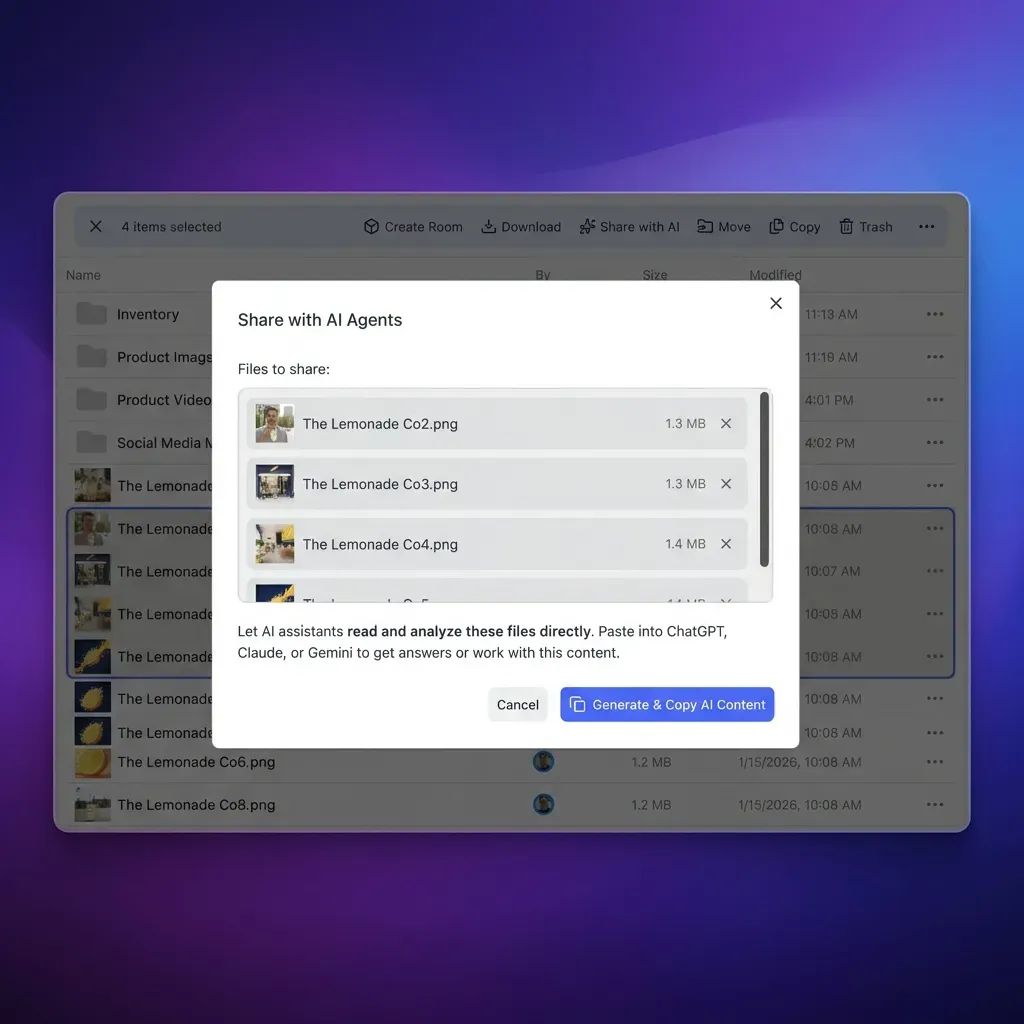
Intelligence Mode and Built-in RAG: When you enable Intelligence Mode on a workspace, Fastio automatically indexes the content of your files. This includes text within your Illustrator files and metadata from linked images. You can then use the built-in AI chat to ask questions like, "Which logo version uses the Pantone 286C color?" The AI will provide an answer with direct citations to the relevant files. This turns your storage into a searchable knowledge base.
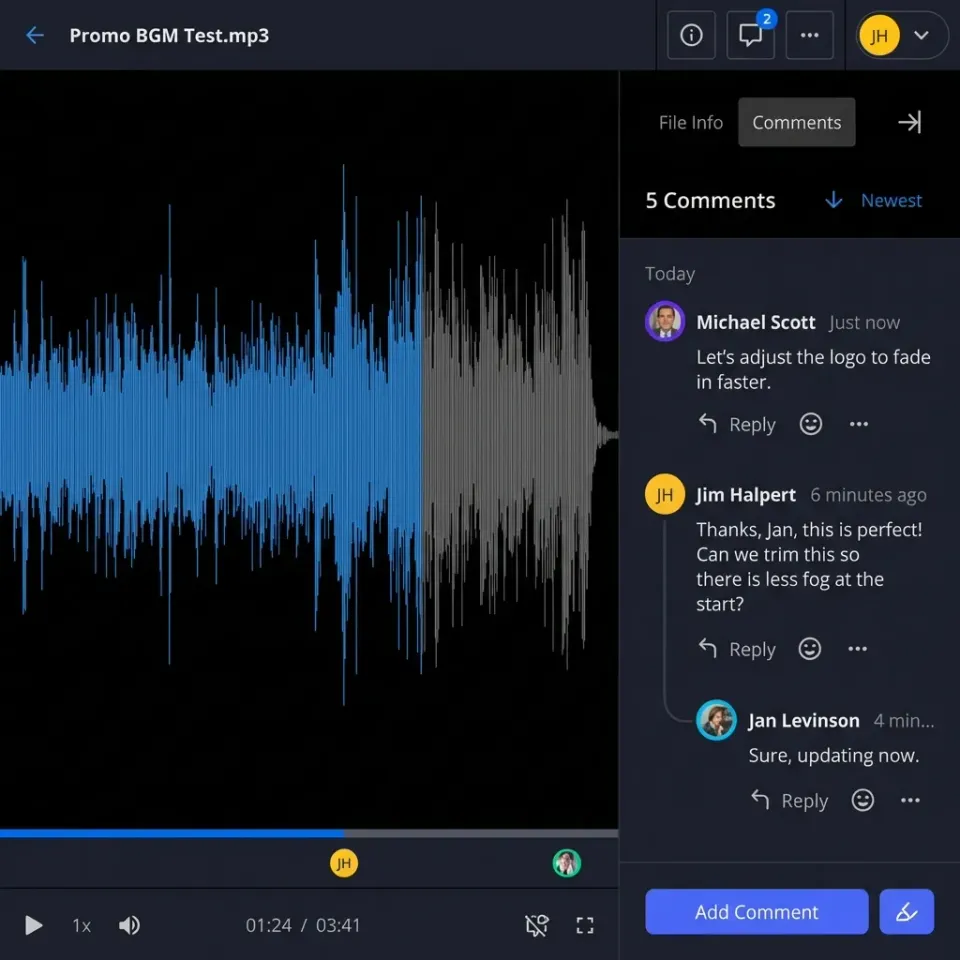
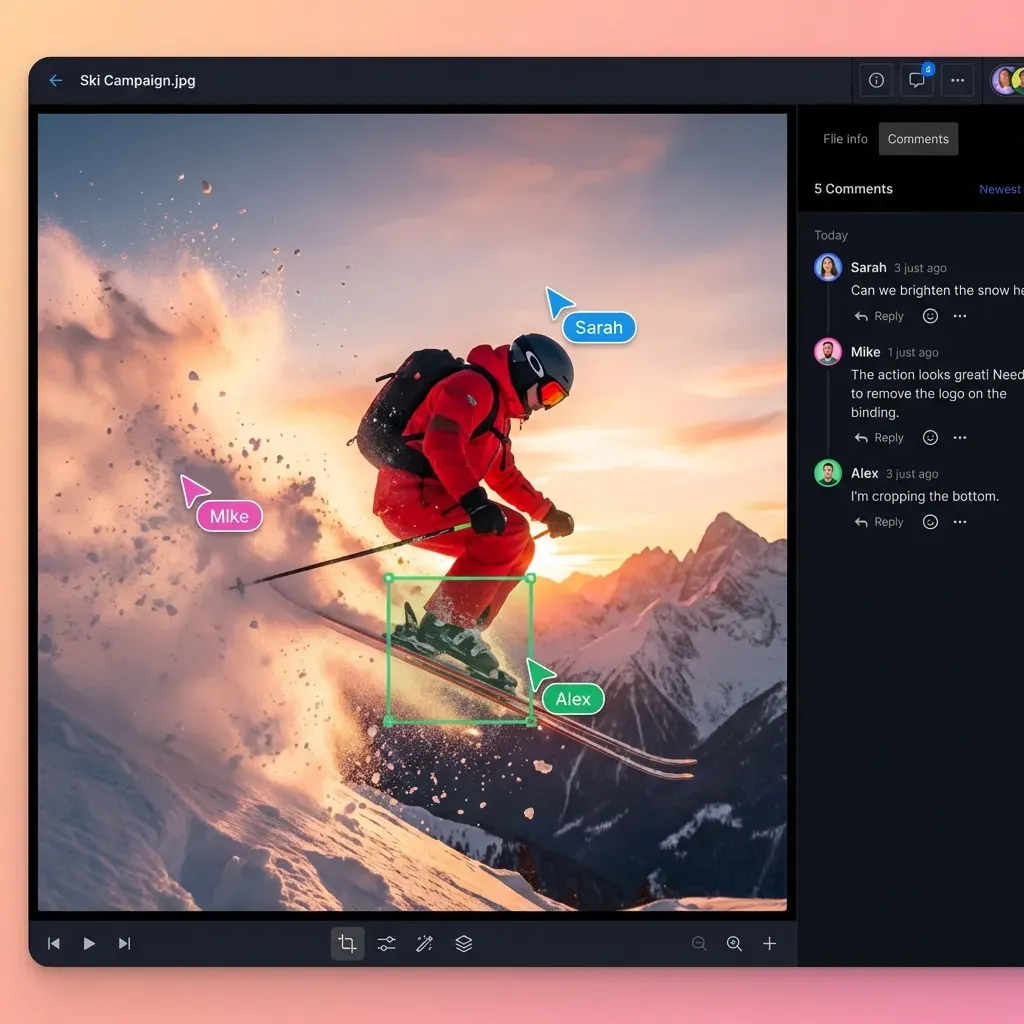
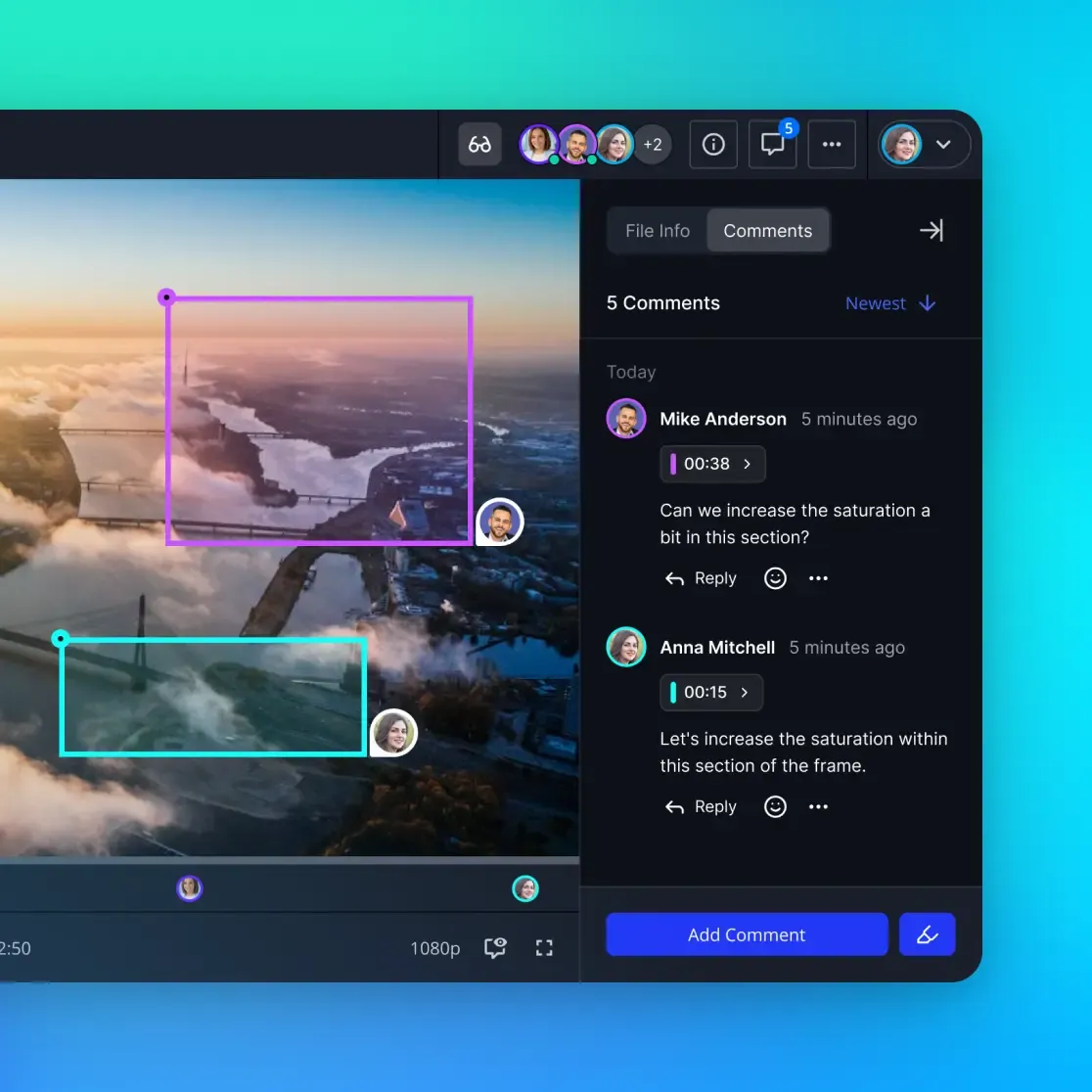
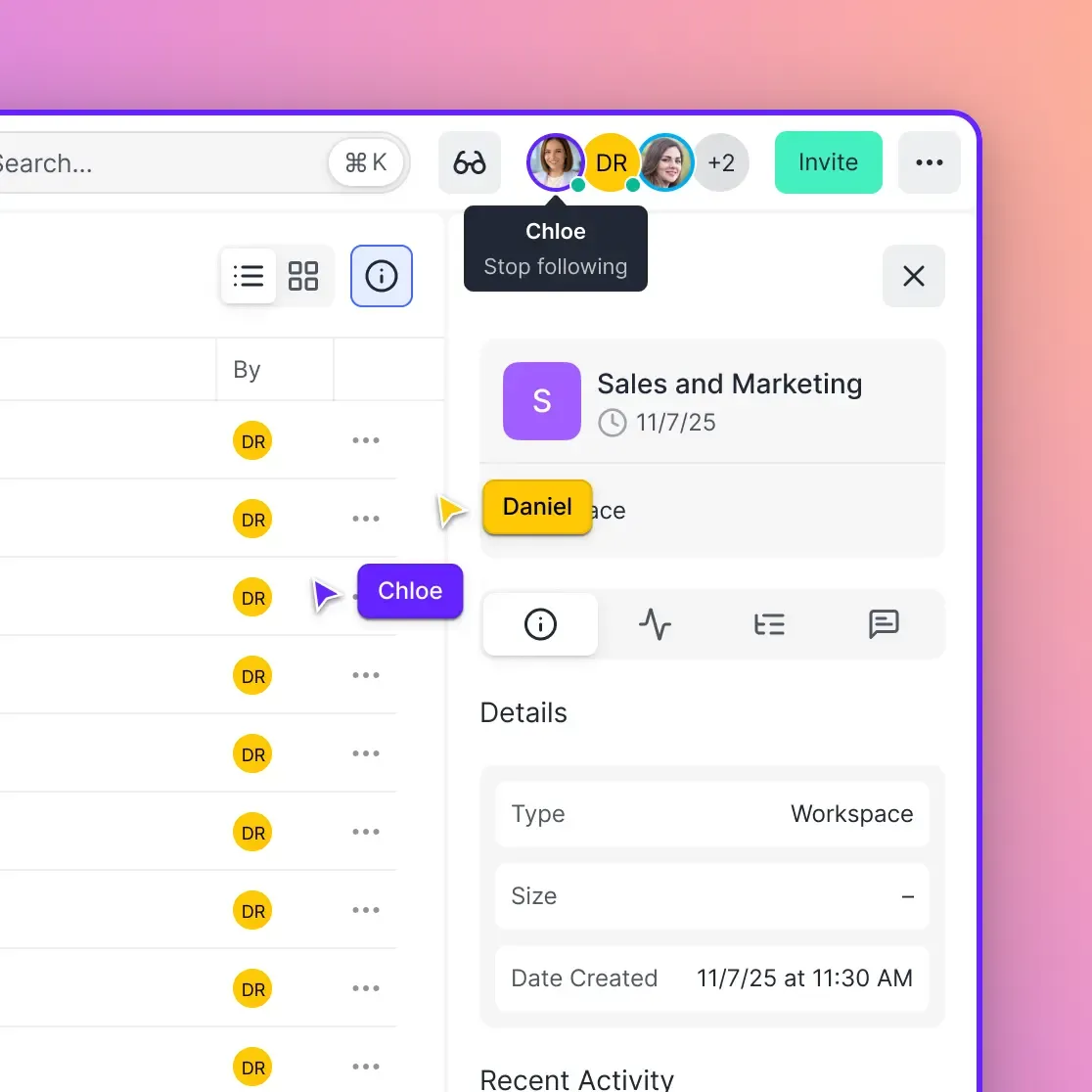
Real-time Collaboration and Feedback: Multiple team members can open the same Illustrator preview simultaneously. You can use follow mode to sync your views. which is perfect for remote design reviews. Comments can be pinned to specific regions of an artboard, making feedback much more precise than a vague email. This replaces the need for separate proofing software and keeps all your communication in one place.
Consolidated MCP tools for Automation: For technical agencies, Fastio provides a consolidated MCP toolset. These allow you to build automated pipelines where AI agents can organize, tag, and even deliver files based on your specific rules. For example, an agent could monitor a "Drafts" folder and automatically move files to a "Review" folder once they meet certain criteria.
Granular Permissions and Enterprise-Grade Auditing: Security is a major concern when handling sensitive client work. Fastio supports organization-owned workspaces and role-based access for easy team management. Detailed audit logs provide a timestamped record of every action taken within a workspace. This transparency is crucial for maintaining trust with high-profile clients and meeting modern compliance standards for digital asset management.
By leveraging these tools, creative directors can focus on the work itself rather than the logistics of moving files. One agency reported that switching to a specialized workspace intelligence platform reduced their administrative overhead by 20%, allowing their designers to spend more time on actual creative tasks. The result is a more efficient, professional, and profitable operation.
Sources
References used to verify factual claims in this guide.
-
Illustrator files average 500MB+ for agency work
-
90% of designers need lossless sharing
-
Dropbox supports file transfers up to 100GB on Standard/Advanced plans
-
WeTransfer free plan limits to 2GB
-
Box default upload limit 5GB
Frequently Asked Questions
How do I send large AI files to a client?
The best way to send large AI files is to upload them to a Fastio workspace and share a branded link or portal. This allows the client to preview the files in their browser without needing Illustrator installed.
What are the best practices for sharing Illustrator files?
Use one workspace per project, version your files with dates, and always upload the entire project folder to preserve links to external images. Use branded portals to provide a professional experience.
Can you view AI files without Adobe Illustrator?
Yes. Fastio provides native browser previews for .ai files, rendering all layers, transparency effects, and vector paths with high fidelity. No extra software is required for the client.
What is the maximum file size I can share?
Fastio supports large files. Whether your Illustrator file is 500MB or 50GB, the chunked upload system ensures it arrives securely and without timeouts.
Why does Dropbox often fail when uploading large AI files?
Dropbox often suffers from connection timeouts on files over 1GB. It also lacks a native preview for Illustrator files, forcing clients to download massive files just to view them.
How can I share multiple AI files at once?
You can share an entire folder or create a branded client portal. This allows your client to browse through a collection of files and download only what they need, avoiding the mess of large zip files.
Is sharing Illustrator files through Fastio secure?
Yes. Files are encrypted both in transit and at rest. You can further secure your shares with passwords, expiry dates, and granular permission settings to control who can view or download your work.
Can agencies automate their design delivery?
Yes. Fastio offers a consolidated MCP toolset and a robust API that allows agencies to automate workflows, such as notifying clients when files are ready or automatically organizing project assets.

Ready to get started?
See how Fastio can help your team collaborate more efficiently.