How to Share Files with Region-Anchored Image Feedback
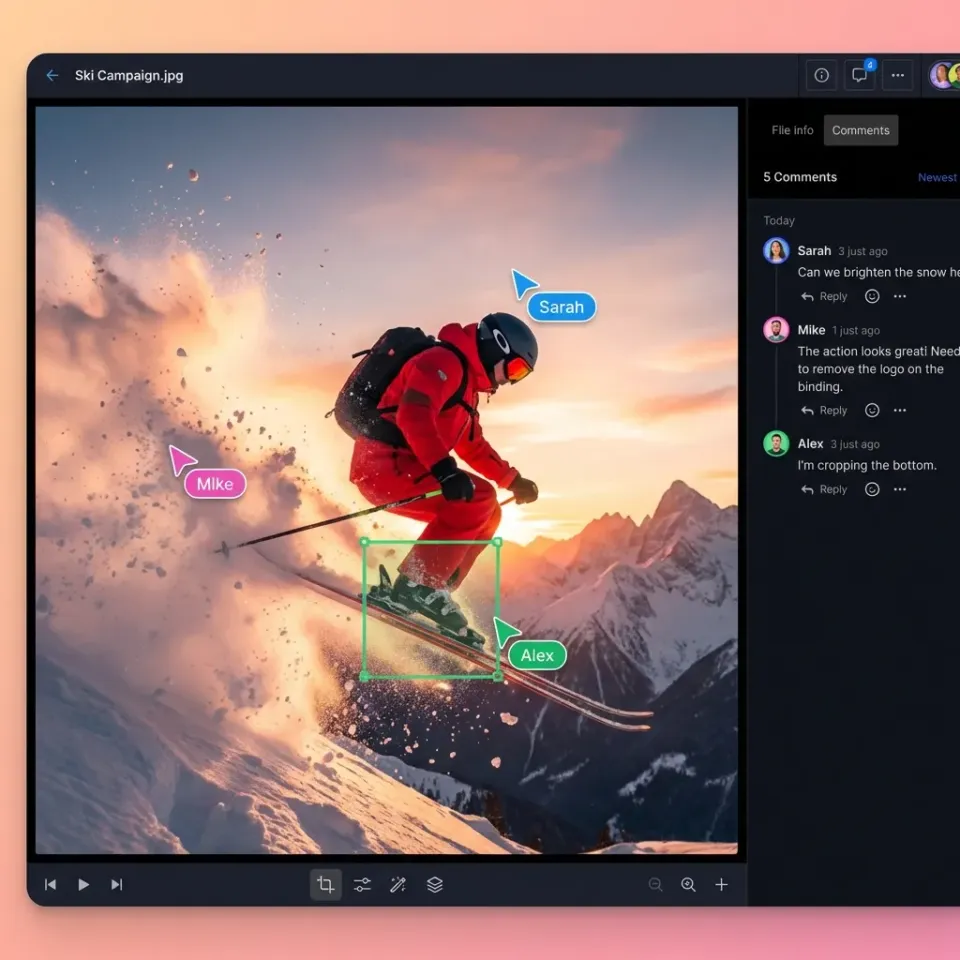
Region-anchored feedback lets you pin comments to specific coordinates on an image or document. Instead of sending vague emails, teams can mark up files directly to show exactly what needs to change. This guide explains how visual feedback workflows help agencies cut down on revision cycles, avoid misunderstandings, and keep projects moving faster without the usual back-and-forth headaches.
The Hidden Cost of Traditional Feedback Loops
Creative teams often juggle a mess of emails, Slack messages, and PDF comments just to get a single asset approved. This scattered approach makes it hard for designers to know which instructions are current. Data shows that agencies often spend multiple% to multiple% of their project hours on unbilled revisions caused by unclear requirements or comments that get lost in translation.
If a client asks to "make the logo bigger" without saying which one, it starts a chain of follow-up questions. These small delays add up quickly, often pushing projects 20% to 30% past their original deadlines.
Old-school PDF comments are slow. They force users to download a file, open it in another app, and re-upload it. Because it’s a hassle, clients often skip the process and send a quick, vague email instead. Switching to a web-based feedback system keeps every comment in context, exactly where it belongs.
Helpful references: Fastio Workspaces, Fastio Collaboration, and Fastio AI.
What is Region-Anchored Feedback?
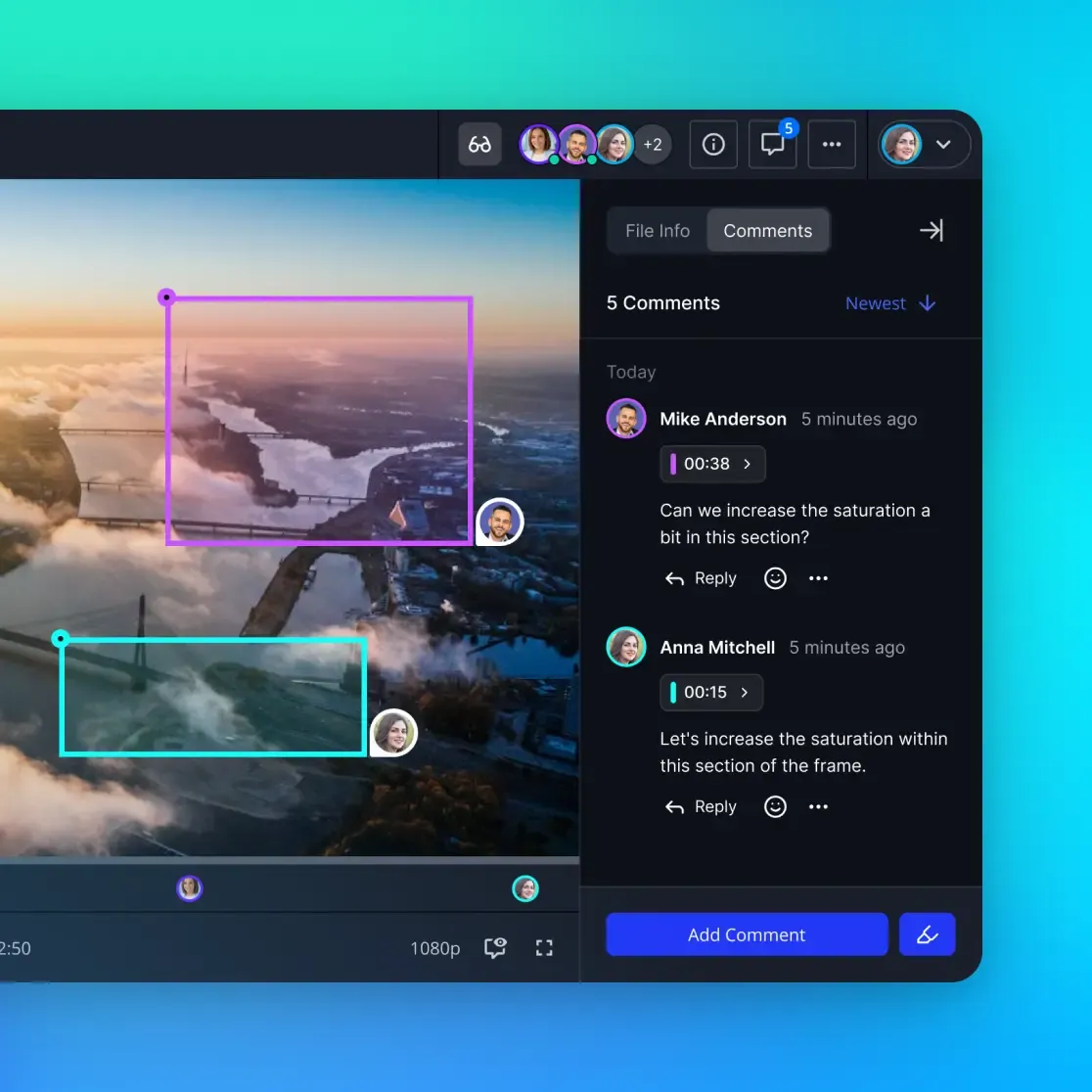
Region-anchored feedback connects comments to specific spots on a file. Unlike a general note, an anchored comment lives at a precise location, usually marked by a pin or a box. This means everyone looking at the work knows exactly which button, image, or line of text is being discussed.
In practice, if a client wants to change a button color, they don't have to describe where it is. They just click the button and type. The tool saves those coordinates and shows a numbered marker. This precision is what makes modern collaboration tools so much faster than email.
For creative reviews, this coordinate system acts as the final word. It stops designers from having to guess what "the blue section near the top" actually means. A designer can just click the comment and jump straight to the relevant pixels. It’s a simple change that makes a huge difference for high-volume agencies.
How Visual Feedback Reduces Revision Cycles
Moving from messy text chains to visual notes makes projects healthier. According to DesignRush, agencies using visual feedback tools spend 88% less time trying to figure out conflicting client comments. This lets teams spend more time on actual creative work and less on administrative tasks.
DesignRush data also shows that top agencies finish projects in just 2 to 3 rounds of revisions, while the industry average is closer to 6. Using image annotation helps you cut that revision count in half. When the first round of feedback is clear, you avoid the "misunderstanding" rounds that usually slow down the middle of a project.
Beyond speed, visual tools make clients happier. When a client can easily mark up an image with sticky notes, they feel more involved and in control. Research shows that multiple% of clients won't return to an agency after a bad feedback experience. Making the review process easy is one of the best ways to keep clients coming back.


Share Files Without Limits on Fastio
Stop guessing what your clients mean. Get generous storage and professional visual collaboration tools with Fastio.
Step-by-Step: How to Leave a Region-Anchored Comment
Setting up your first visual review is easy. Most professional tools are built to be simple for clients while giving the production team the technical data they need.
Upload and Share: Drop your JPG, PNG, or PDF into your workspace. Create a "Review Link" so stakeholders can see the file in their browser without needing to sign up for anything. 2.
Pick a Tool: Choose how you want to mark it up. Use a Pin for specific points, a Box for larger sections, or a Pen for freehand sketching. 3.
Click to Pin: Hover over the element you want to talk about. Click once to drop a pin, or click and drag to draw a box around a whole region. 4.
Type Your Note: A comment box will pop up. Type your instructions, mentioning specific colors or layout changes needed for that exact spot. 5.
Save and Finish: Hit "Save." The comment is now tied to those coordinates. The team gets a notification with a direct link to that specific note.
This keeps the feedback attached to the file itself. When the designer opens the link, they see all the pins as a clear checklist that's hard to miss.
Best Practices for Image Annotation with Clients
The tools make it easy to leave feedback, but the quality of that feedback still matters. To get the best results, follow these simple rules for client communication.
Be Specific and Objective Avoid vague words like "pop." Instead, use a pin to point at an element and give a clear instruction. For example, instead of "make this better," drop a pin on a headline and say "increase the font size to 24px and make it bold."
Batch Your Feedback Ask clients to finish their whole review before sending it over. Getting twenty separate emails can be a distraction. Most tools let users "batch" their comments so they send one full update once the review is done. This keeps the schedule organized.
Use Categories for Big Projects For large files, use tags like "Copy" or "Design." This lets team members filter for the tasks they need to handle. It also helps you see which types of revisions are coming up most often, which is great for planning future projects.
Fastio: A Modern Workspace for Visual Collaboration
Fastio acts as the coordination layer where visual feedback meets secure file management. Unlike basic storage, Fastio workspaces are interactive spaces where teams and agents work on assets together. When you share a file for review, you're inviting clients into a professional production environment.
A big advantage of the Fastio ecosystem is its built-in intelligence. Files are automatically indexed, so you can search them by their content or metadata. This means even after a project is done, all those historical comments and pins remain searchable for future reference.
For teams using AI agents, Fastio provides multiple MCP tools that let agents handle files just like humans do. An agent can grab a file, read the anchored feedback, and even suggest updates based on what the client asked for. This link between human ideas and agent execution is how modern teams get more done.

Frequently Asked Questions
How do I mark up an image for client feedback?
To mark up an image, upload it to a visual collaboration tool and use the 'Pin' or 'Box' tool to click on specific areas. Each click creates an anchored comment box where you can type your instructions. Once finished, share the review link with your client so they can see and reply to your markers directly in their browser.
What tools allow sticky notes on shared files?
Several tools allow sticky notes and pins on shared files, including Fastio, MarkUp.io, and Filestage. These tools provide a 'web-native' experience where users can click anywhere on a visual asset to leave a contextual comment, similar to placing a digital sticky note on a physical document.
Can I use region-anchored feedback on mobile devices?
Yes, most modern visual collaboration platforms are mobile-responsive. Clients can open a review link on their smartphone or tablet and tap specific areas of an image to leave feedback. However, for precise pixel-level annotations, a desktop browser with a mouse or trackpad is generally recommended.
Does region-anchored feedback work for video files?
Yes, advanced tools like Fastio and specialized video proofing software support region-anchored feedback on video. You can pause the video at a specific timestamp and draw a box or drop a pin on the frame. The comment is then tied to both the timestamp and the spatial coordinates on the screen.
How does visual feedback reduce project costs?
Visual feedback reduces costs by eliminating the 'misunderstanding rounds' that occur when text-based instructions are vague. By ensuring that every comment is anchored to a specific region, agencies avoid unbilled rework and finish projects in fewer revision cycles, which preserves profit margins and accelerates delivery.
Related Resources

Share Files Without Limits on Fastio
Stop guessing what your clients mean. Get generous storage and professional visual collaboration tools with Fastio.