How to Set Up a Project Delivery Portal for Client Handoffs
A project delivery portal is a branded platform where agencies and service providers share final deliverables with clients. Instead of emailing ZIP files or scattering links across Slack threads, you give each client a single destination to download approved work, leave feedback, and track what changed between versions. This guide walks through setting one up from scratch.


What Is a Project Delivery Portal?
A project delivery portal is a dedicated space where you present finished work to clients. It sits at the end of your project workflow, after the creative work, revisions, and internal reviews are done. The portal is where the client actually receives what they paid.
This is different from a project management tool. Tools like Asana, Monday, or Basecamp handle task tracking and team coordination during a project. A delivery portal handles what happens after: the organized handoff of final files, approval collection, and download tracking.
Think of it as the difference between a kitchen and a dining room. Your project management tool is the kitchen where the work gets done. The delivery portal is the dining room where you present the finished product.
Most agencies cobble together a delivery workflow from whatever tools they already have. They email a Dropbox link, paste a Google Drive URL into Slack, or attach files directly to a project management comment. Each of these works in isolation, but none of them give the client a clean, professional experience. Files end up scattered across platforms, version confusion creeps in, and nobody can find the final approved version three months later.
A proper delivery portal solves this by giving every project a single URL where the client finds everything: final files organized by category, version history, approval status, and any notes or context they need.

Related guides
- How to Set Up a Client File Sharing Portal That Actually Gets UsedA client file sharing portal is a secure, branded digital space where businesses share files with clients, collect...
- How to Create an Upload Portal for ClientsAn upload portal is a dedicated web page where clients send files directly to your organization without needing an...
- How to Receive Large Files from ClientsReceiving large files means setting up a way for clients or collaborators to upload files to you, often using upload...
- How to Set Up an HOA Document Portal for Board Members and HomeownersAn HOA document portal is a secure online hub where homeowners associations share governing documents, meeting minutes,...
- How to Set Up a Document Upload PortalA document upload portal is a secure web page where external parties submit files directly to your organization without...
- Portal vs Shared Drive: Which One Should You Use for Client Files?Portals and shared drives solve different problems. A shared drive works well for internal teams who already have...
More on this subject: File Sharing (155 guides)
Why Email and Chat Fail for Deliverable Handoffs
The default handoff method at most agencies is email. Finish the work, ZIP the files, send them over. It works until it doesn't, and it stops working faster than most teams realize.
File size limits block real deliverables. Email caps at 25MB for most providers. A single Photoshop file, video export, or CAD drawing exceeds that. So you compress, split, or upload to a third-party service and send a link instead. The client now needs to navigate an unfamiliar tool, remember which link goes to which project, and hope the download link hasn't expired.
Version confusion multiplies with every revision. When you send v2 of a logo via email, the client now has v1 in one thread and v2 in another. Add a third round of revisions and the client is searching through weeks of messages trying to figure out which file is current. Agencies using delivery portals report 35% fewer revision-related emails because the portal always shows the latest version in one place.
There's no confirmation that the client received and reviewed the work. Email gives you a sent timestamp, not a viewed timestamp. You don't know if the client opened the attachment, downloaded the files, or even saw the message. A delivery portal with download tracking and read receipts tells you exactly when the client accessed each file.
Chat tools are worse. Slack and Teams messages scroll past. Files shared in channels get buried under conversations. Six months later, when the client needs to re-download their brand guidelines, nobody can find the original message. Searching through chat history for a specific file version is unreliable at best.
The real cost is trust. When a client can't find their deliverables, they question your organization. When they download the wrong version and print 5,000 brochures with an old logo, that's a real financial loss. A delivery portal prevents these problems by design.

How to Set Up a Project Delivery Portal Step by Step
Setting up a delivery portal doesn't require custom development. Most cloud platforms offer the building blocks. Here's a practical walkthrough.
1. Choose Your Portal Platform
You need a tool that supports branded file sharing with guest access. The client shouldn't need to create an account or install software. Options range from dedicated portal tools like Clinked and SuiteDash to workspace platforms like Fastio that include portal features alongside file management.
Look for these capabilities:
- Guest access without account creation
- Custom branding (logo, colors, domain)
- Download tracking and analytics
- Folder organization with drag-and-drop
- File versioning so old versions don't disappear
- Password protection for sensitive deliverables
2. Create a Workspace Structure
Set up a consistent folder structure that every project follows. Consistency matters because clients learn the layout once and can navigate every future delivery without guidance.
A practical structure looks like this:
Project Name/
├── Final Deliverables/
│   ├── Design Files/
│   ├── Source Files/
│   └── Exports/
├── Brand Assets/
├── Documentation/
└── Previous Versions/
Keep the top level simple. Clients don't want to click through five nested folders to find their logo. Put the most important files, the final deliverables, at the top.
3. Configure Branding and Access
Brand the portal with your agency's logo and colors. This isn't vanity. Clients are 2x more likely to approve deliverables when presented in an organized, branded portal compared to email attachments. A professional presentation signals that the work itself is professional.
Set access permissions based on the client relationship. Some clients need download-only access. Others need the ability to leave comments or request revisions. For sensitive projects like legal work or financial documents, add password protection and set expiration dates on access links.
On Fastio, you create a Content Portal with your branding, then share it via an access link. Clients view and download files without creating an account. The portal tracks every view and download automatically.
4. Upload and Organize Deliverables
Upload your final files and organize them into the folder structure you defined. Add context where it helps: a README file explaining what each folder contains, naming conventions you used, or notes about file formats.
For design deliverables, include both the editable source files and the exported formats the client actually needs. A client who asks for "the logo" usually wants a PNG for their website, an SVG for print, and the original Illustrator file for their own designer. Anticipate these needs and organize accordingly.
5. Set Up Notifications and Tracking
Configure notifications so you know when clients access the portal. Download tracking tells you whether the client has retrieved their files, which matters for billing milestones and project closeout.
On the client side, send them a single link with a brief message explaining what's ready for review. Keep the email short. The portal itself should provide all the context they need.
6. Collect Approval or Feedback
Collect feedback directly in the delivery portal. Instead of asking the client to reply to an email with "looks good," let them leave anchored comments and notes on the specific deliverable.
Fastio's collaborative notes and anchored comments let clients tag feedback directly on image regions, timestamps, and PDF pages. Every comment and revision is preserved in the audit log, giving you a clear record of feedback across versions.


Give your clients a better way to receive deliverables
Set up a branded delivery portal in minutes. Fastio includes generous storage, guest access, download tracking, and anchored comments.
What Your Project Delivery Portal Should Include
The difference between a delivery portal that clients actually use and one they ignore comes down to a few specific features.
Version History That Clients Can See
Clients need to see what changed between versions. When you upload v3 of a website mockup, the portal should show that v1 and v2 exist, with dates and notes explaining what changed. This prevents the "which version are we looking at?" conversation that wastes everyone's time.
Fastio keeps version history for every file. When you upload a new version, the previous one stays accessible. Clients can compare versions side by side without downloading both files.
Download Tracking and Analytics
You need to know whether the client actually downloaded their files. This matters for three reasons: billing (you can confirm delivery), liability (you can prove the client received the work), and follow-up (you know when to check in if they haven't looked yet).
Portal analytics should show who accessed which files, when they accessed them, and whether they downloaded or just previewed.
Organized File Presentation
Dump 47 files into a single folder and clients won't know where to start. Group deliverables logically: final assets in one folder, source files in another, documentation in a third. Use clear, descriptive file names. "Acme_Logo_Primary_RGB.png" tells the client exactly what they're looking at. "final_v3_export_02.png" does not.
Built-in Preview
Clients shouldn't need to download a file just to see what it is. In-browser preview for images, PDFs, videos, and documents lets clients review work immediately. Fastio's media engine previews everything from PSDs to video files directly in the browser, so clients can review without installing specialized software.
Guest Access Without Account Creation
Every extra step between the client and their files reduces the chance they'll actually access the portal. Account creation is the biggest barrier. The best delivery portals let clients access files with just a link, optionally protected by a password. No signup, no app download, no friction.
Comments and Feedback Attached to Files
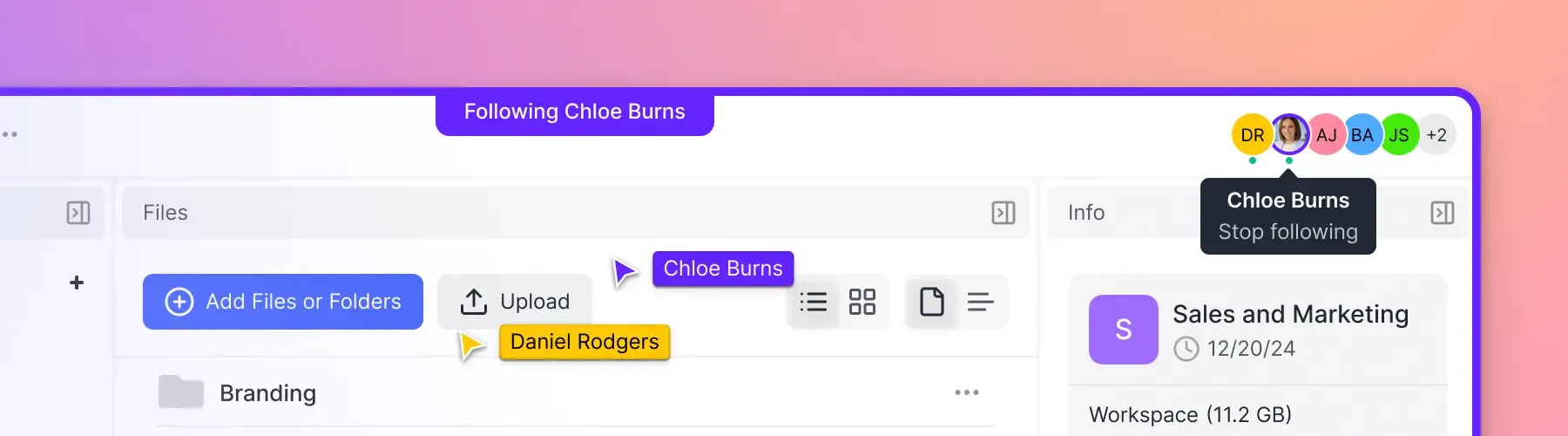
When the client spots an issue, they should be able to leave feedback right on the file. Comments anchored to specific parts of an image, a timestamp in a video, or a page in a PDF are far more useful than a vague email saying "the colors look off." Fastio supports anchored comments on images, timestamps, PDF pages, and text selections.
Best Practices for Client Adoption
Building the portal is half the job. Getting clients to actually use it is the other half.
Send One Link, Not Instructions
Your delivery notification should be one sentence and one link. "Your project deliverables are ready for review: [link]." Don't send a tutorial on how to use the portal. If the portal needs a tutorial, it's too complicated.
Make the First Experience Perfect
The first time a client opens their delivery portal sets their expectation for every future project. Organize the files cleanly, add your branding, include a brief welcome note if appropriate. First impressions compound across the relationship.
Use Consistent Structure Across Projects
When every project follows the same folder structure, clients learn the pattern. By the third delivery, they know exactly where to find their source files, their exports, and their documentation. Consistency reduces support questions.
Set Expectations on Timing
Tell clients how long the portal will remain active. If access expires after 90 days, say so upfront. If files are available indefinitely, mention that too. Uncertainty about access creates anxiety that leads to unnecessary "can you resend the files?" emails.
Follow Up Based on Portal Activity
Instead of blindly following up after a week, check your portal analytics first. If the client downloaded everything the day you sent the link, follow up to ask if they have feedback. If they haven't accessed the portal at all, resend the link with a gentle nudge. Data-driven follow-up respects the client's time.
Add AI Search for Large Deliverable Sets
For projects with dozens or hundreds of files, like a full brand identity package, a website redesign, or a video production library, manual browsing becomes tedious. When you enable Intelligence on a Fastio workspace, clients can ask questions about the files using the portal's AI chat. "Where's the horizontal version of the logo?" gets an instant answer with a direct link to the file.
Choosing the Right Platform for Delivery Portals
Several types of tools can serve as project delivery portals. The right choice depends on what you already use and what your clients need.
Cloud Storage with Sharing Features
Google Drive, Dropbox, and OneDrive all let you share folders with external users. They're free or cheap, and most clients already have accounts. The downside: no branding, limited analytics, and the client sees your tool's interface instead of yours. For small agencies with a handful of clients, this works. For agencies where client experience matters, it falls short.
Dedicated Client Portal Software
Tools like Clinked, SuiteDash, and Moxo are built specifically for client-facing portals. They offer branding, messaging, and task management in one package. The trade-off is that they're often focused on ongoing collaboration rather than discrete project delivery. If you need a portal for continuous client work, they're strong. For one-time deliverable handoffs, they can feel heavy.
Workspace Platforms with Portal Features
Fastio sits in this category. You get workspaces for internal file management, branded Content Portals for client-facing delivery, and granular permissions with file version history in the same platform. The advantage is that your internal workspace and your client delivery portal stay connected. Upload a final file to your workspace, and it's immediately available in the client portal without manual copying.
Fastio's 14-day Business Trial gives agencies full access to test delivery portals, with plans starting at Starter ($9.99/mo for 250 GB). Larger teams can move up to Business (10 seats) or Enterprise (30 seats), and client guests on shares do not count against your seat count.
For agencies already using a project management tool, the delivery portal should complement it rather than replace it. Keep your task tracking in Asana or Monday. Use the delivery portal specifically for the last-mile handoff: presenting finished work, collecting feedback, and giving clients a permanent home for their deliverables.
Sources
References used to verify factual claims in this guide.
-
Agencies using delivery portals report 35% fewer revision-related emails
-
Clients are 2x more likely to approve deliverables when presented in an organized portal vs email attachments
Frequently Asked Questions
How do you deliver project files to clients?
The most reliable method is a project delivery portal, a branded online space where clients download final files, review versions, and approve deliverables. Unlike email attachments or chat messages, a portal keeps everything organized in one permanent location. You upload the finished work, send the client a link, and they access it on their own schedule without needing to install software or create an account.
What is a project delivery portal?
A project delivery portal is a branded platform where agencies and service providers share final deliverables with clients. It includes organized file presentation, download tracking, version history, and approval workflows. The portal serves as the single destination where clients find everything related to their project deliverables, replacing scattered email attachments and chat messages.
How do agencies share deliverables with clients?
Most agencies default to email, but this creates problems with file size limits, version confusion, and no download confirmation. Professional agencies use delivery portals that offer branded presentation, guest access without account creation, download tracking, and built-in approval workflows. The portal gives each client a clean, organized experience while giving the agency visibility into whether deliverables were received and reviewed.
What should a client delivery portal include?
A good client delivery portal needs guest access without account creation, custom branding, organized folder structure, file versioning, download tracking, in-browser preview for common file types, and a way to collect approvals or feedback. Password protection and access expiration are important for sensitive deliverables. Analytics that show who accessed which files help with follow-up and billing confirmation.
How is a delivery portal different from a project management tool?
Project management tools like Asana or Monday handle task tracking, team coordination, and internal workflows during a project. A delivery portal handles the last-mile handoff after the work is done. It presents finished deliverables to clients in an organized, branded format with download tracking and approval collection. The two work best together, with the PM tool managing internal work and the portal managing client-facing delivery.
Can clients access a delivery portal without creating an account?
Yes, the best delivery portals offer guest access through secure links, optionally protected by passwords. This removes the biggest barrier to adoption. On Fastio, clients access Content Portals without signing up. They simply click the link, view or download their files, and leave comments if needed. No account creation, no app installation.
Related Resources

Give your clients a better way to receive deliverables
Set up a branded delivery portal in minutes. Fastio includes generous storage, guest access, download tracking, and anchored comments.