How to Collaborate in Premiere Pro with a Remote Team
Premiere Pro collaboration enables multiple editors to work on the same video project simultaneously, sharing footage, sequences, and assets remotely. Adobe offers built-in tools like Team Projects and Productions, but many teams get better results with a shared storage workflow that avoids the complexity of Adobe's cloud sync. This guide walks through all three methods so you can pick the right one for your team size and budget.

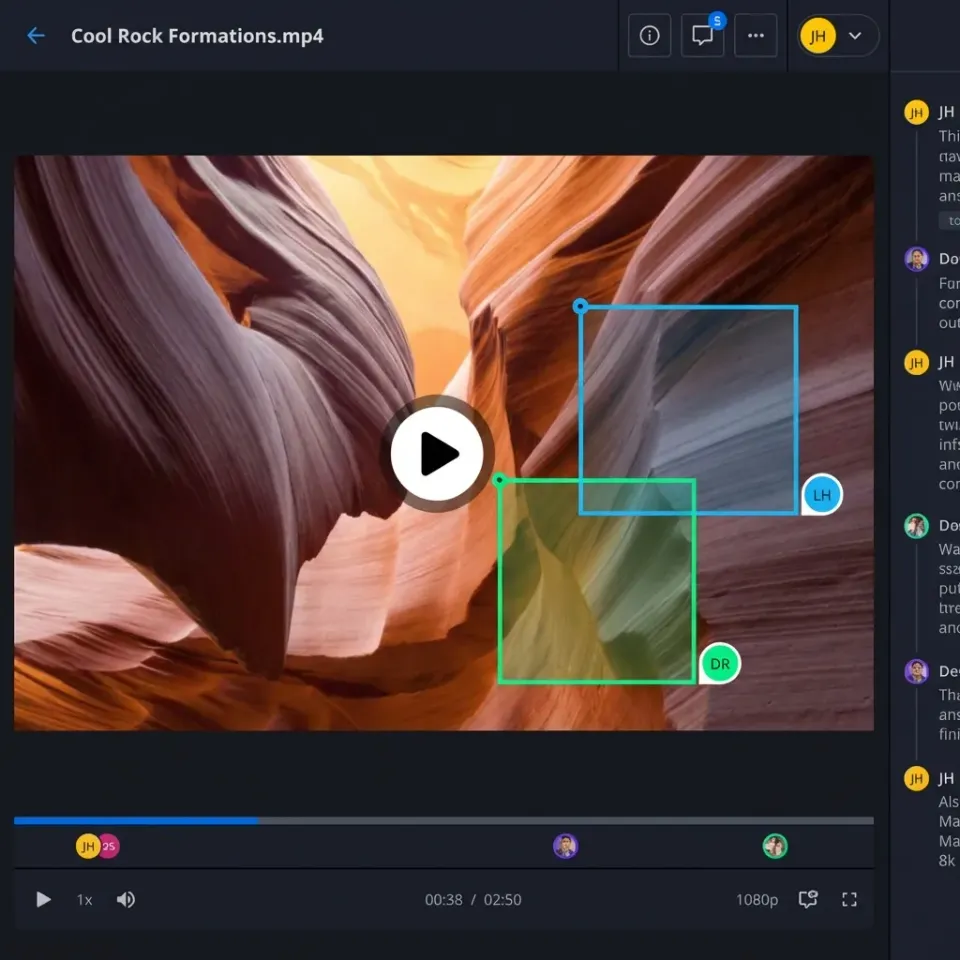
Three Ways to Collaborate in Premiere Pro
Premiere Pro collaboration boils down to three workflows. Each one solves the same core problem: how do multiple editors work on the same project without overwriting each other's changes or breaking media links?
1. Shared storage workflow - You share project files and footage through a cloud platform. Every editor keeps an identical folder structure on their machine. This works with any Premiere version, requires no special Adobe subscription, and gives you the most control.
2. Adobe Team Projects - Adobe's built-in cloud collaboration feature. It syncs the project file (cuts, effects, metadata) through Adobe's servers, but you still handle media separately. Requires a Creative Cloud for Teams or Enterprise subscription.
3. Adobe Productions - Designed for long-form content like TV series or features. It splits a project into smaller linked files so editors can work on different reels simultaneously. Originally built for local NAS setups, though it can work remotely with the right storage. The right choice depends on your team size, budget, and how much footage you are moving. Small remote teams do best with the shared storage approach.
Helpful references: Fastio Workspaces, Fastio Collaboration, and Fastio AI.
Related guides
- How to Collaborate on After Effects ProjectsAfter Effects collaboration means coordinating .aep projects, footage, and comps across designers, editors, and...
- How to Clean Video Metadata and Remove PII for AI Model TrainingGuide to video metadata cleaning: Video datasets for AI model training often contain hidden personal information and...
- Video Editing Storage Solutions: Best Options for EditorsVideo editing storage solutions are specialized systems designed to handle the massive bandwidth and file sizes...
- 5 Best Blackmagic Cloud Alternatives for Video Teams in 2026Blackmagic Cloud works well if your entire team lives in DaVinci Resolve, but its tight ecosystem lock-in creates...
- How to Review and Share Film Dailies During ProductionManaging terabytes of raw footage daily is one of the biggest logistical challenges in film production.
- How to Share and Manage EXR Files in VFX WorkflowsEXR files are the standard for high-end visual effects, but sharing image sequences that total terabytes is a...
More on this subject: Video and Media Production (36 guides)
How to Set Up a Shared Storage Workflow
The shared storage workflow is the most flexible option and the one we recommend for most teams. It treats Premiere Pro projects as standard files that you transfer through cloud storage, with no dependency on Adobe's servers.
Step 1: Lock in your folder structure
Before anyone touches Premiere, agree on a project template. Every editor must use the exact same folder hierarchy, down to the spelling. Premiere Pro resolves media paths relative to the project file, so if your footage lives in a folder called 02_Footage on one machine and Footage on another, you will get "Media Offline" errors. A proven structure:
01_Project_Files/(all .prproj files go here)02_Footage/(organized by shoot day or camera)03_Audio/(music, sound effects, voiceover)04_Graphics/(titles, logos, lower thirds)05_Exports/(final renders and review copies)
Step 2: Transfer the footage first
Premiere Pro project files are small, usually just a few megabytes. The footage is where the storage adds up. A single day of 4K shooting can produce 200GB or more, and Premiere Pro projects with 4K footage regularly exceed 100GB total. Upload all footage to a cloud platform before you start editing. Every editor downloads the complete footage package and places it in the agreed folder structure. This front-loaded approach prevents the constant back-and-forth of "can you send me that clip?"
For large transfers, a platform like Fastio handles large files and uses a global edge network that speeds up uploads compared to standard cloud drives.
Step 3: Share and version the project file
Once everyone has the footage locally, the collaboration starts. Editor A works on the cut, saves the project as ProjectName_v02_EditorA.prproj, and uploads just that small file. Editor B downloads it, opens it, and because the folder paths match, every media link connects automatically. One rule: only one person edits at a time per project file. If you need parallel editing, split the project into separate files by scene or reel and recombine later using Premiere's Import Project feature.

Why Folder Structure Makes or Breaks Collaboration
"Media Offline" is the error that kills remote Premiere Pro workflows. It happens when the project file references a path that does not exist on the current machine. Understanding why it happens is the key to preventing it.
How Premiere resolves media paths
When you open a .prproj file, Premiere first looks for media at the exact file path stored in the project. If that fails, it searches relative to the project file's location. If a clip was originally at /Users/editor-a/Projects/02_Footage/interview.mp4, Premiere will also look in 02_Footage/interview.mp4 relative to wherever the project file sits. This means if your project file and footage share the same parent folder, Premiere can usually find everything, even if the parent folder has a different name or lives on a different drive.
Fixing broken links
If you do hit Media Offline, right-click the offline clip and choose "Link Media." Point Premiere to the correct folder and check "Align File Paths to Media File Names." Premiere will try to reconnect all offline files in that directory at once.
Drive mapping for mixed OS teams
When your team uses both Mac and Windows, absolute paths will always differ. The fix:
- On Windows, map your project folder to a consistent drive letter (e.g.,
P:\Projects\) - On Mac, name your external drive or mounted volume the same thing every time (e.g.,
EditDrive)
This way, everyone's paths look identical to Premiere regardless of operating system.


Collaborate on Video with Your Team
Fastio handles massive video files. Share raw 4K footage, proxies, and Premiere projects with your team from anywhere.
Using Proxies for Remote Editing
Not every editor can download massive raw high-resolution footage. Proxies solve this by creating small, low-resolution copies that editors can cut with, then relinking to the full-quality originals for the final export.
How to generate proxies in Premiere
- Import your footage into a Premiere project
- Select all clips in the Project panel
- Right-click and choose "Proxy > Create Proxies"
- Pick a proxy format (Apple ProRes Proxy or GoPro CineForm at 1/4 resolution works well)
- Choose Adobe Media Encoder to process them in the background
Sharing proxies with your team
Once the proxies generate, upload them alongside the project file. Proxy files are typically much smaller than the originals, making them fast to transfer. Each editor downloads the proxies, opens the project, and toggles the proxy button in the Program Monitor to switch between proxy and original quality.
The handoff for finishing
When the cut is locked, the finishing editor relinks to the original high-resolution footage. In Premiere, go to "Proxy > Reconnect Full Resolution Media" and point to the originals. All your edits, color grades, and effects carry over at full quality. Remote video teams have grown in recent years. Proxy workflows make this growth possible by letting editors in different cities or countries work on the same project without needing identical hardware or bandwidth.
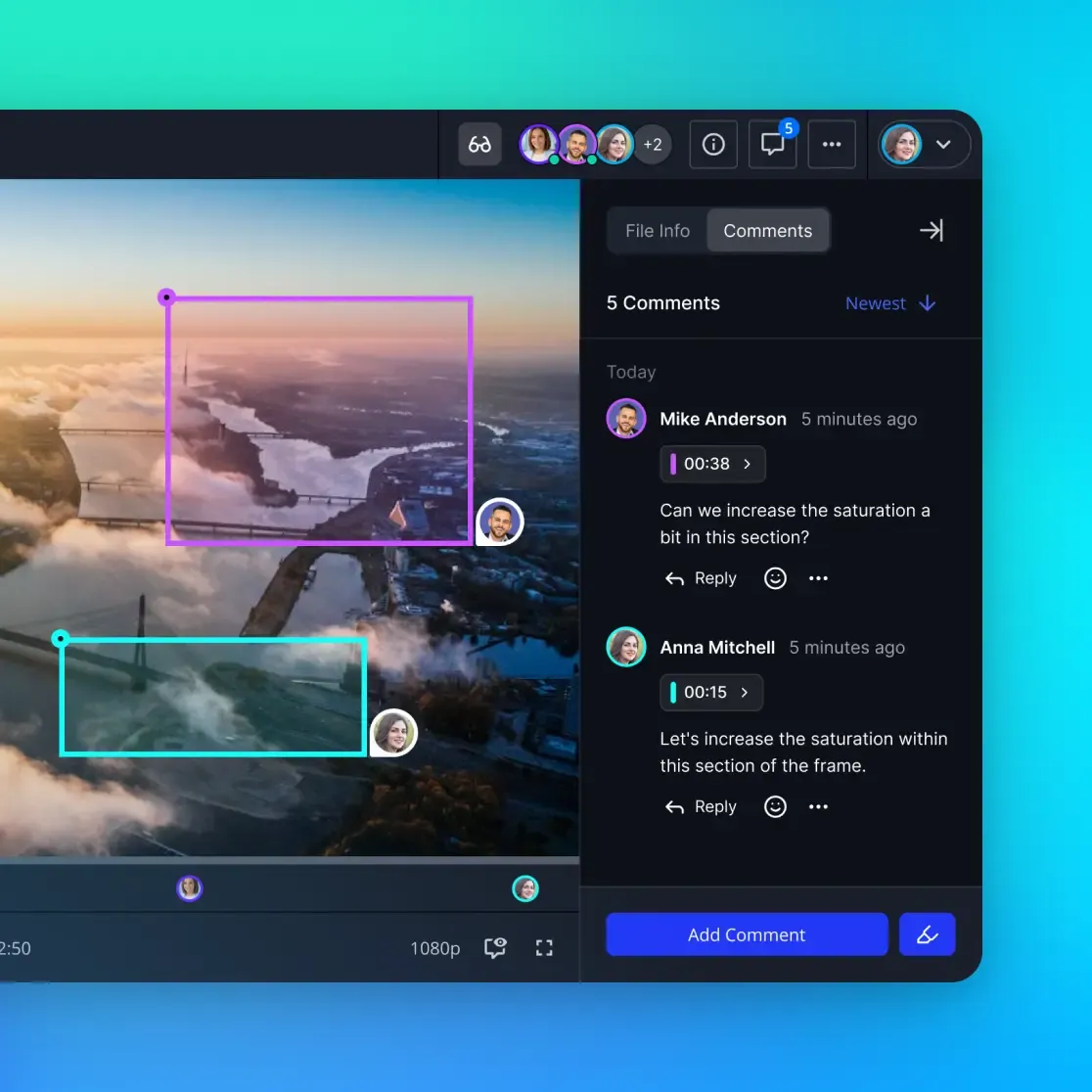
Setting Up Adobe Team Projects
Team Projects is Adobe's native collaboration feature. It stores the project data in Adobe's cloud and handles version control and conflict resolution automatically. It does not sync your media files, only the project file (edits, effects, markers, metadata).
Requirements
- Creative Cloud for Teams or Enterprise subscription (not included in individual plans)
- All collaborators need Adobe IDs on the same team
- Shared access to the media files through a separate method
Step-by-step setup
- Open Premiere Pro and go to File > New > Team Project
- Name your project and invite collaborators by their Adobe ID email
- Each collaborator opens the Team Project from File > Open Team Project
- Premiere shows who is online and which sequences each editor has open
Handling conflicts
When two editors modify the same sequence, Team Projects detects the conflict when one of them publishes changes. You get three options:
- Keep your version
- Accept the other editor's version
- Fork the sequence into two copies so you can compare them side by side
The media problem
Team Projects only syncs metadata, not footage. Every editor still needs local access to the media files. This is the part that trips up most teams. You still need a file sharing solution for the actual footage, and if your media paths do not match across machines, you will hit Media Offline errors just like any other workflow. For teams already paying for Creative Cloud Enterprise, Team Projects is worth testing. For everyone else, the shared storage method gives you the same result with less overhead and no subscription requirement.
Using Adobe Productions for Large Projects
Productions is built for feature films, TV series, and other long-form projects where a single Premiere project file would become unwieldy. It creates a container (a "Production" folder) that holds multiple linked project files.
How it works
Each editor opens their assigned project file within the Production. Premiere creates a lock file next to any project that is currently open, showing a red padlock icon to other editors. This prevents two people from editing the same reel simultaneously. Editors can import sequences from other project files within the Production, so cuts from different reels can reference each other. When one reel needs a clip from another, the editor imports that sequence without duplicating it.
The shared storage requirement
Productions was designed for studios with a central NAS server where everyone accesses the same drive. For remote teams, this means you need either:
- A cloud-mounted drive that gives all editors read/write access at the same time
- A fast file replication tool that keeps identical copies in sync across locations
The lock file mechanism only works if all editors can see the same Production folder in real time. If you are using standard cloud sync (Dropbox, Google Drive), lock files may not propagate quickly enough to prevent conflicts.
When to use Productions vs. shared storage
Productions makes sense for larger teams on projects with multiple reels or episodes. For smaller teams or shorter projects, skip it. A shared storage workflow with versioned project files gives you the same parallel editing capability with less setup.
Sources
References used to verify factual claims in this guide.
-
A single day of 4K shooting can produce 200GB or more, and Premiere Pro projects with 4K footage regularly exceed 100GB total.
Frequently Asked Questions
Can multiple people work on a Premiere Pro project at the same time?
Not on the same .prproj file directly. Adobe Team Projects lets multiple editors work on the same cloud-hosted project with conflict resolution, but it requires a Teams or Enterprise subscription. The more common approach is to split the project into separate files by scene or reel, with each editor working on their own file, then recombining at the end.
How do I share a Premiere Pro project with my team?
Organize your footage and project files into a standardized folder structure, transfer the media to each editor using a cloud storage service, then share the small .prproj file. As long as every editor's folder structure matches, Premiere will automatically link all the media when they open the project.
What is the best way to collaborate on video editing remotely?
A proxy workflow works best for most remote teams. One editor generates lightweight proxy files from the raw footage and shares them through cloud storage. Remote editors cut with the proxies, then the finishing editor relinks to the full-resolution originals for final export. This keeps file transfers manageable while preserving full quality in the final output.
Do I need Creative Cloud for Teams to collaborate in Premiere Pro?
No. Team Projects requires a Teams or Enterprise subscription, but the shared storage workflow works with any version of Premiere Pro, including individual Creative Cloud plans. You just need a reliable way to share footage and project files with your collaborators.
How do I fix Media Offline errors when collaborating?
Media Offline errors happen when Premiere cannot find a file at the path stored in the project. The fix is to right-click the offline clip, choose Link Media, and point Premiere to the correct folder. To prevent the error entirely, make sure all editors use the exact same folder structure relative to the project file.
Related Resources

Collaborate on Video with Your Team
Fastio handles massive video files. Share raw 4K footage, proxies, and Premiere projects with your team from anywhere.