Portal vs Shared Drive: Which One Should You Use for Client Files?
Portals and shared drives solve different problems. A shared drive works well for internal teams who already have organizational accounts. A portal gives external clients a branded, permission-controlled interface without exposing your internal folder structure. This guide breaks down when each option makes sense and where the tradeoffs actually matter.


What Separates a Portal from a Shared Drive
A portal provides a branded, permission-controlled interface for external users to access specific documents. A shared drive is an internal collaboration folder designed for team members who already have organizational accounts.
That distinction sounds simple, but it changes everything about how you handle client files.
Shared drives (Google Drive, OneDrive, Dropbox shared folders) were built for teams working together on the same documents. Everyone has an account in the same organization. Permissions flow from the folder level down, and the folder structure is visible to anyone with access.
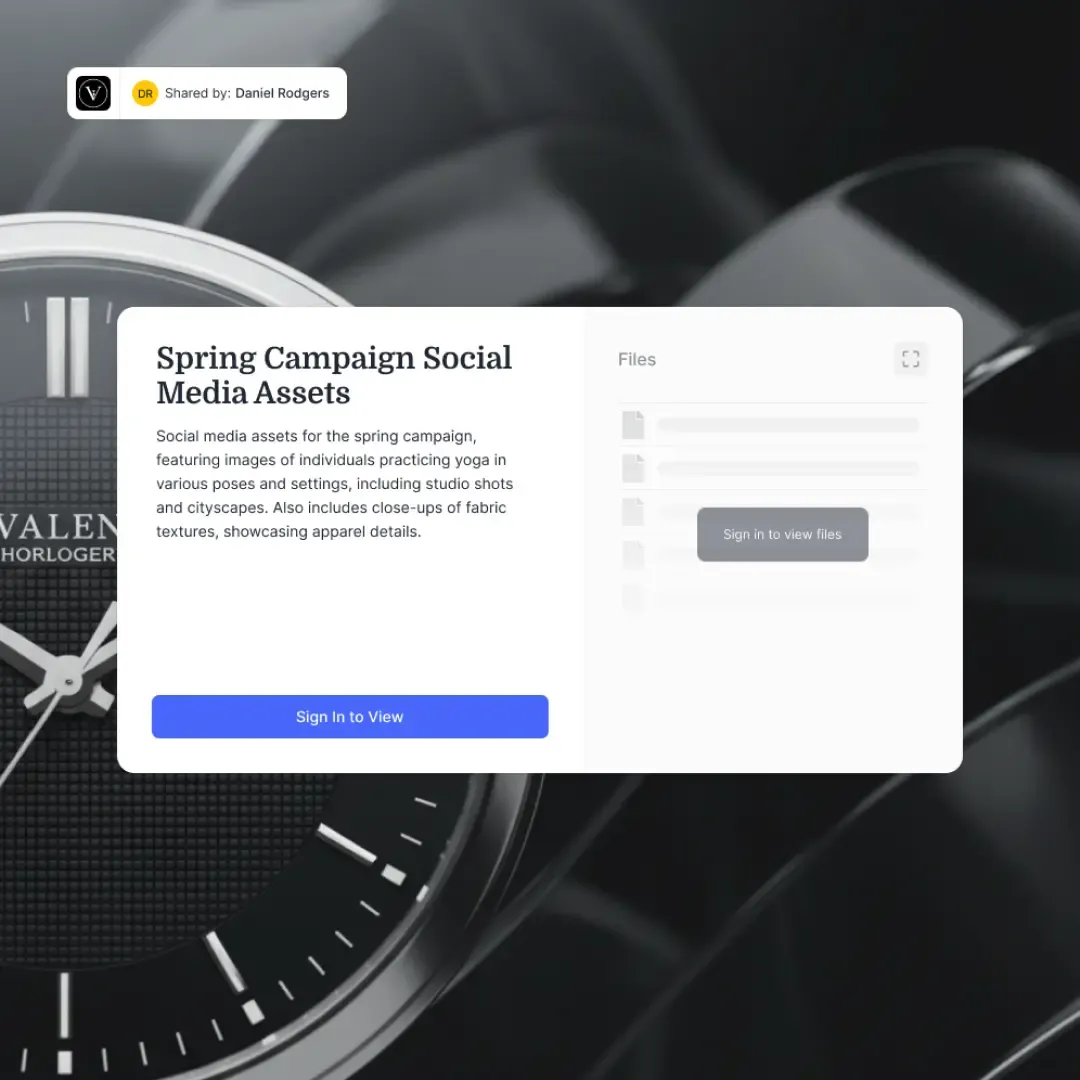
Client portals flip this model. Instead of inviting someone into your internal file system, you create a separate, controlled space where clients see only what you want them to see. There is no organizational account requirement, no visible folder hierarchy beyond what you deliberately share, and the experience carries your branding rather than Google's or Microsoft's.
The core question is not which tool is better. It is whether your audience is internal or external, and what level of control you need over the experience.
Helpful references: Fastio Workspaces, Fastio Collaboration, and Fastio AI.
Related guides
- How to Create an Upload Portal for ClientsAn upload portal is a dedicated web page where clients send files directly to your organization without needing an...
- How to Share Legal Documents Securely: A Complete GuideLegal document sharing requires balancing accessibility with strict confidentiality requirements. Law firms handling...
- How to Transfer Google Drive Files to Another Account or ServiceGoogle Drive transfer is the process of moving files, folders, or entire accounts from Google Drive to another Google...
- How to Set Up a Client File Sharing Portal That Actually Gets UsedA client file sharing portal is a secure, branded digital space where businesses share files with clients, collect...
- How to Set Up a Project Delivery Portal for Client HandoffsA project delivery portal is a branded platform where agencies and service providers share final deliverables with...
- Best Google Drive Alternatives for Business TeamsGoogle Drive dominates cloud storage with 2 billion users, but businesses hit its limits fast: 15GB free storage,...
More on this subject: File Sharing (155 guides)
When Shared Drives Work Well
Shared drives are hard to beat for internal collaboration. If your team already uses Google Workspace or Microsoft 365, shared drives are built into the tools you already pay for. No additional setup, no learning curve, no extra subscription.
They work well when:
- Everyone who needs access has an account in your organization
- You want real-time co-editing on documents, spreadsheets, and presentations
- Version history and change tracking matter more than access control
- The folder structure itself is useful context (project folders, department folders, archive folders)
- You are comfortable with permissions that cascade down from parent folders
For a five-person marketing team working on campaign assets, a shared Google Drive folder is the obvious choice. Everyone can edit, comment, and organize files without leaving the tools they already use.
The problems start when you need to share those same files with someone outside your organization.
Where Shared Drives Break Down for External Sharing
Shared drives were designed for internal use, and it shows the moment you try to use them with clients.
Folder structure exposure. When you share a Google Drive folder with an external user, they can see the folder hierarchy above and around the files you intended to share. This is not a bug. It is how inherited permissions work. A permissive share at a parent level exposes everything beneath it unless you manually correct each subfolder. According to the 2025 Verizon Data Breach Investigations Report, 60% of confirmed data breaches involve a human element, and misconfigured sharing permissions are a common vector.
Account requirements. Most shared drives require the recipient to have a Google or Microsoft account. That creates friction for clients who use different platforms or prefer not to create yet another account just to download a contract.
No branding. A shared Drive link looks like a Google product, not yours. There is no logo, no custom colors, no sense that the client is interacting with your organization. For agencies, law firms, and consultants, that lack of professionalism can undermine the client relationship.
Permission management overhead. Managing external access on shared drives means manually adding and removing email addresses, monitoring "anyone with the link" settings, and hoping nobody forwards a link to the wrong person. Google's own file exposure reports show that link sharing is a persistent trap: people choose "anyone with the link" for speed and forget to revoke it later.
No audit trail for external access. Shared drives track edits and comments, but they provide limited visibility into who viewed, downloaded, or forwarded files from outside the organization.

What a Client Portal Actually Gives You
A client portal addresses the gaps that shared drives leave open when you work with external audiences.
Controlled access without accounts. Clients access a portal through a link, password, or auto-expiring invitation. They do not need to create an account with your cloud provider. This removes the single biggest friction point in client file sharing.
Branded experience. A portal carries your logo, colors, and domain. When a client opens it, they see your organization, not a generic cloud storage interface. According to a McKinsey study, consistent branding can raise revenue by up to 23%, partly because it reinforces trust at every touchpoint.
Intentional file visibility. You decide exactly which files appear in the portal. There is no parent folder hierarchy leaking through. A client reviewing a proposal sees the proposal, not your internal drafts, billing notes, or other client folders.
Audit trails. Portals track who accessed which files, when they accessed them, and what they did. This matters for compliance, for client communication, and for knowing whether a client actually reviewed the documents you sent.
Built-in workflows. Many portals support file requests (collecting documents from clients), comments, and version tracking within the portal itself, rather than requiring email threads alongside the shared folder.
Portals do cost more than a shared drive. If you already pay for Google Workspace, your shared drive storage is included. A dedicated portal platform is an additional expense. The question is whether the security, branding, and client experience improvements justify that cost for your specific use case.


Give your clients a better file experience
Set up a branded client portal in minutes. generous storage. Built for portal shared drive workflows.
Decision Framework: Portal, Shared Drive, or Both
Most organizations end up using both. The decision is not either-or. It is about which tool fits which scenario.
Use a shared drive when:
- All users are internal team members with organizational accounts
- Real-time co-editing is the primary workflow
- You do not need to control the visual presentation of the file-sharing experience
- Permission management is straightforward (one team, one folder, same access level)
Use a portal when:
- External clients, vendors, or partners need file access
- You need to control exactly which files are visible and to whom
- Branding matters for the client relationship
- You need audit trails showing who accessed what and when
- Files are sensitive and access should expire automatically
- Clients should not need to create an account to view documents
Use both when:
- Your team collaborates internally on shared drives, then publishes finished deliverables to a client portal
- Different stakeholders need different levels of access to the same project files
- You want real-time co-editing for your team and controlled, read-only access for clients
The "both" approach is common in agencies, law firms, and consulting. The internal team works in shared drives or collaborative workspaces, then pushes approved content to a portal for client review.

How Fastio Handles the Portal Side
Fastio offers Content Portals as a core feature, designed specifically for the external sharing scenarios where shared drives fall short.
No account required for clients. Portals support guest access with auto-expiring links. Clients click a link, optionally enter a password, and see only the files you have shared. No Google account, no Microsoft account, no signup form.
Custom branding. Each portal supports your logo, colors, and background image. The experience looks like a natural extension of your brand, not a third-party tool.
Portal AI with Ripley. Clients can ask questions about the shared documents directly inside the portal. If you share a 50-page contract, the client can ask "What are the termination conditions?" and get an answer with citations pointing to the relevant pages. This turns a static file dump into an interactive experience.
Granular permissions and audit logs. Fastio tracks who accessed which files, when, and from where. Permissions are set at the portal level, not inherited from a parent folder structure you might not have intended to expose.
Works alongside shared drives. If your team already uses Google Drive, Dropbox, OneDrive, or Box internally, Fastio's Cloud Import feature lets you pull files from those services into a workspace, then publish selected files to a branded portal. Your team keeps working where they are comfortable. Clients get a clean, controlled experience.
Fastio offers a 14-day Business Trial, card required; see pricing. Paid plans start at $9.99 per month with Starter, Business, and Enterprise tiers.
Security Comparison at a Glance
Here is how portals and shared drives compare across the security dimensions that matter most for client file sharing.
Access control. Shared drives rely on email-based permissions and link settings. Portals use purpose-built guest access with expiration dates and optional passwords. Portals give you tighter control by default.
Visibility. Shared drives expose folder hierarchy to anyone with access. Portals show only the files you explicitly include. This is the single biggest security difference and the reason shared drives cause accidental data exposure when used for external sharing.
Audit trail. Shared drives log edits and comments. Portals log views, downloads, and access patterns, which is what matters when the audience is external and you need to prove who saw what.
Branding and trust. This is a security feature in disguise. A branded portal helps clients verify they are accessing files from your organization, not a phishing link. A generic Google Drive link offers no such reassurance.
Expiration. Shared drive links persist until someone remembers to revoke them. Portal links can expire automatically after a set period, reducing the window for unauthorized access.
Neither option replaces proper data classification and access policies. But for external sharing specifically, portals are purpose-built for the job while shared drives are a workaround.
Sources
References used to verify factual claims in this guide.
-
60% of confirmed data breaches involve a human element
-
Consistent branding can raise revenue by up to 23%
Frequently Asked Questions
Is a portal better than a shared drive?
It depends on who needs access. For internal team collaboration, a shared drive is simpler and cheaper. For external client access, a portal is better because it controls visibility, adds branding, and does not require clients to create an account with your cloud provider.
When should you use a portal instead of Google Drive?
Use a portal when sharing files with people outside your organization, especially when you need to control exactly which files are visible, add your branding, track who accessed what, or avoid requiring clients to have a Google account.
What is the difference between a portal and a shared drive?
A shared drive is an internal collaboration folder where team members with organizational accounts work on files together. A portal is a branded, permission-controlled space designed for external users to access specific documents without seeing your internal folder structure.
Can you use Google Drive as a client portal?
You can share Google Drive folders with clients, but it was not designed for that purpose. Clients need a Google account, they may see your internal folder structure, there is no branding, and audit trails are limited. Third-party tools like Softr can add a portal layer on top of Google Drive, but a dedicated portal platform gives you more control.
Do clients need an account to access a portal?
Most dedicated portal platforms, including Fastio, support guest access. Clients can view and download files through a link without creating an account. Some portals offer optional password protection and auto-expiring access links for additional security.
How much does a client portal cost compared to a shared drive?
Shared drives are typically included with Google Workspace or Microsoft 365 subscriptions. Dedicated portal platforms range from trial offerings (Fastio offers a 14-day Business Trial; see /pricing/) to dedicated team tiers for advanced features. The cost depends on storage needs, branding requirements, and the number of portals you need.
Related Resources

Give your clients a better file experience
Set up a branded client portal in minutes. generous storage. Built for portal shared drive workflows.