How to Build an OpenClaw Telegram Bot Agent on Raspberry Pi
A Raspberry Pi running OpenClaw gives you a personal AI agent that responds to Telegram messages around the clock, using cloud LLMs for reasoning and costing pennies per day in electricity. This guide walks through the full setup: creating a bot with BotFather, configuring the OpenClaw Telegram channel with token-based auth, running the gateway as a systemd service, and adding Fastio as a file delivery layer for bot outputs.

What You Need Before Starting
An OpenClaw Telegram bot agent is a lightweight gateway process that sits on your Pi, receives messages from Telegram, routes them to a cloud LLM, and returns the response. The Pi itself does not run the language model. It acts as a relay, which is why even a low-power board can handle the job.
Here is the hardware and software you need:
Hardware:
- Raspberry Pi 5 (8GB RAM recommended). The Pi 4 (8GB) works too, but the Pi 5 offers roughly 2-3x faster CPU throughput and better I/O
- MicroSD card or NVMe SSD for storage. SSD is preferred for reliability on a device that runs 24/7
- Stable internet connection (Ethernet or Wi-Fi)
- USB-C power supply (27W official supply recommended)
Software:
- Raspberry Pi OS Lite (headless, no desktop environment)
- Node.js 22 or later
- An OpenClaw account
- A Telegram account
API keys you will need:
- A Telegram bot token from BotFather
- An API key for your chosen LLM provider (OpenAI, Anthropic, Google, or another supported provider)
At idle, a Pi 5 draws around 2.7W. Running the OpenClaw gateway adds minimal overhead since the actual inference happens on remote servers. Expect total power draw under 5W during normal operation, which translates to roughly $4-5 per year in electricity.
What to check before scaling openclaw telegram bot raspberry pi
BotFather is Telegram's official tool for creating bots. Every Telegram bot needs a token, and BotFather is the only way to get one.
Open Telegram and search for @BotFather. Start a conversation and send /newbot. BotFather will ask for two things:
- A display name for your bot (this can include spaces, like "My OpenClaw Agent")
- A username that ends in "bot" (like
my_openclaw_bot)
After you provide both, BotFather returns an API token. It looks something like 7123456789:AAH1bGc.... Copy this token and keep it safe. Anyone with this token can control your bot.
There are two BotFather settings worth configuring right away:
- Send
/setprivacyand select your bot. Set it to Disabled if you want the bot to see all messages in group chats, not just commands directed at it. If you skip this, the bot only receives messages that mention it by name or start with a/command - Send
/setjoingroupsand choose whether the bot can be added to groups. Disable this if you only want direct messages
Keep the BotFather chat open. You may need to come back for additional configuration later.
Install OpenClaw on the Raspberry Pi
Start with a fresh Raspberry Pi OS Lite installation. Flash the image to your SSD or SD card using Raspberry Pi Imager, enable SSH during the imaging process, and boot the Pi.
SSH into the Pi and update the system:
sudo apt update && sudo apt upgrade -y
Install Node.js 22 from the NodeSource repository:
curl -fsSL https://deb.nodesource.com/setup_22.x | sudo -E bash -
sudo apt install -y nodejs
Verify the installation:
node --version # Should show v22.x.x
Now install OpenClaw using the official installer:
curl -fsSL https://openclaw.ai/install.sh | bash
Run the onboarding wizard, which sets up the daemon process:
openclaw onboard --install-daemon
The onboarding process will prompt you for your LLM provider API key. Enter it when asked. Once complete, verify the gateway is running:
openclaw gateway status
You should see a confirmation that the gateway is active, along with the local dashboard URL at http://<PI_IP>:18789/.

Connect the Telegram Channel
With the gateway running, add Telegram as a channel using the bot token from BotFather:
openclaw channels add --channel telegram --token <YOUR_BOT_TOKEN>
OpenClaw supports several access control policies for direct messages through the dmPolicy setting:
- pairing (default): New users must be approved via a pairing code before the bot responds to them
- allowlist: Only Telegram user IDs you explicitly list can message the bot
- open: Anyone can message the bot (requires setting
allowFrom: ["*"]) - disabled: Blocks all direct messages
For a personal bot on your home network, the default pairing policy works well. When someone messages your bot for the first time, OpenClaw generates a pairing code. You approve it from the Pi:
openclaw pairing list telegram
openclaw pairing approve telegram <CODE>
Pairing codes expire after one hour. Once approved, that user can message the bot freely going forward.
Testing the connection: Open Telegram, search for your bot's username, and press Start. Send a message like "Hello, are you there?" If everything is configured correctly, the gateway routes the message to your LLM provider and returns the response in the chat.
For group chat support, you configure groups separately using their chat ID. Each group can have its own sender allowlist, skill filters, and system prompt. The OpenClaw documentation at docs.openclaw.ai/channels/telegram covers group configuration in detail.


Give Your Telegram Bot a Workspace for File Delivery
Fastio gives your OpenClaw agent 50GB of cloud storage with automatic indexing, granular permissions, and share links. Free forever, no credit card required. Built for openclaw telegram bot raspberry workflows.
Keep the Bot Running 24/7 with systemd
The OpenClaw onboarding wizard typically sets up a systemd service for you. If it did not, or if you want to customize the service, create the file manually.
Create /etc/systemd/system/openclaw.service:
[Unit]
Description=OpenClaw Gateway
After=network-online.target
Wants=network-online.target

[Service]
User=pi
WorkingDirectory=/home/pi
ExecStart=/usr/local/bin/openclaw gateway start
Restart=always
RestartSec=5

[Install]
WantedBy=multi-user.target
Enable and start the service:
sudo systemctl daemon-reload
sudo systemctl enable openclaw
sudo systemctl start openclaw
Now the gateway starts automatically on boot and restarts if it crashes. Check the status any time with:
sudo systemctl status openclaw
A few reliability tips for long-running Pi deployments:
- Use an SSD instead of an SD card. SD cards wear out faster under continuous write loads
- Set up a static IP or use a hostname so you can always SSH in
- Monitor logs with
openclaw logs --followto catch issues early - If your internet connection drops, the gateway reconnects automatically once the connection returns. The
Restart=alwaysdirective in the service file handles process-level failures
Add Fastio for File Delivery
A Telegram bot that only handles text is useful, but many agent workflows produce files: reports, spreadsheets, images, code archives. Telegram has a 50MB file size limit and no built-in versioning or access control. For anything beyond simple text responses, you need a storage layer.
This is where Fastio fits into the workflow. Fastio provides cloud workspaces where your agent can store, organize, and share files. Instead of pushing a raw file through Telegram, the bot uploads to Fastio and sends a share link in the chat.
Why this matters for bot agents:
- No size limits on delivery. Fastio handles files of any size. Your bot can generate a 2GB dataset and share it with a single link
- Access control. Set who can view, download, or edit shared files. Telegram links are either public or private to the chat. Fastio gives you granular permissions at the org, workspace, folder, or file level
- Versioning. If the bot regenerates a report, Fastio keeps previous versions. Telegram would just send another file
- Intelligence Mode. Enable it on a workspace and uploaded files are automatically indexed for semantic search. You can ask questions about your bot's output files through the Fastio chat interface, with citations pointing to specific documents
- Audit trail. Every upload, download, and share is logged. Useful when you need to trace what the bot produced and when
The free agent plan includes 50GB of storage, 5,000 API credits per month, and 5 workspaces, with no credit card required.
For the technical integration, Fastio exposes a MCP server with 19 consolidated tools covering workspace management, file operations, sharing, and AI features. If your OpenClaw agent uses an MCP-compatible LLM, you can connect it directly. For simpler setups, the Fastio API and SDKs (Python, Node.js, Flutter) let you script uploads and share-link generation from any language.
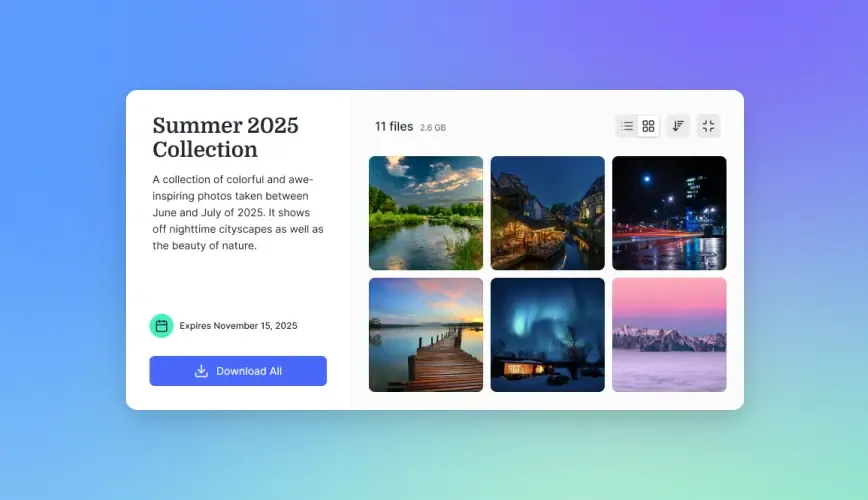
A typical flow looks like this: User sends a request in Telegram. The OpenClaw gateway routes it to the LLM. The LLM produces a file, uploads it to a Fastio workspace via the API, and returns the share link in the Telegram response. The recipient clicks the link and gets a branded download page with no Telegram dependency.
If you want your agent's output to be searchable later, enable Intelligence Mode on the destination workspace. Every file the bot uploads gets indexed automatically. No separate vector database, no embedding pipeline. Just upload and search.
Troubleshooting Common Issues
Bot does not respond to messages
Check that the gateway is running with openclaw gateway status. If it is running, verify the Telegram token is correct by checking the gateway logs with openclaw logs --follow. Send a test message and watch for errors. The most common cause is an expired or mistyped bot token.
If the bot works in direct messages but not in groups, check two things: the BotFather privacy setting (send /setprivacy and set to Disabled), and the group configuration in OpenClaw. Group authorization does not inherit from DM pairing approvals, so you need to configure group access separately.
Gateway starts but immediately crashes
Check the systemd logs with journalctl -u openclaw -n 50. Common causes include missing Node.js dependencies, insufficient permissions on the working directory, or a missing LLM provider API key.
Slow responses
The Pi is not the bottleneck. Response time depends almost entirely on the LLM provider's API latency. If responses take more than 10-15 seconds, check your provider's status page. Also confirm you are using a cloud LLM, not attempting local inference. Running a local model on a Pi is technically possible but impractical for real-time chat.
DNS resolution failures
Some Pi network configurations have issues resolving api.telegram.org. Test with dig api.telegram.org A. If DNS fails, try setting the environment variable OPENCLAW_TELEGRAM_DISABLE_AUTO_SELECT_FAMILY=true to force IPv4, or configure a reliable DNS server like 1.1.1.1 in your network settings.
File delivery links not working
If you are using Fastio for file delivery and recipients cannot access links, verify the share permissions on the workspace. By default, new shares may require authentication. For public download links, create a Send share with public access enabled.
Frequently Asked Questions
How do I connect OpenClaw to Telegram?
Create a bot with Telegram's @BotFather using the /newbot command to get a bot token. Then run `openclaw channels add --channel telegram --token <YOUR_BOT_TOKEN>` on your Pi. The default pairing policy requires you to approve new users with `openclaw pairing approve telegram <CODE>` before the bot responds to them.
Can I run a Telegram AI bot on Raspberry Pi?
Yes. The Raspberry Pi runs the OpenClaw gateway, which relays messages between Telegram and a cloud LLM like GPT-4 or Claude. The Pi does not run the language model itself, so even a Pi 4 with 8GB RAM handles the workload. A Pi 5 is recommended for faster I/O and better overall performance.
How do I keep my Telegram bot running 24/7?
Use a systemd service. Create a service file at /etc/systemd/system/openclaw.service with Restart=always, then enable it with `sudo systemctl enable openclaw`. The service starts on boot and restarts automatically if it crashes. Use an SSD instead of an SD card for long-term reliability.
How much power does a Raspberry Pi 5 use running an OpenClaw bot?
A Pi 5 idles at around 2.7W. Running the OpenClaw gateway adds minimal overhead since inference happens on remote servers, keeping total draw under 5W. That works out to roughly $4-5 per year in electricity depending on your local rates.
Can the Telegram bot send files to users?
Telegram has a 50MB file size limit. For larger files or files that need versioning and access control, use a cloud workspace like Fastio. The bot uploads files to Fastio via its API and sends a share link in the Telegram chat. Recipients click the link for a branded download page.
Related Resources

Give Your Telegram Bot a Workspace for File Delivery
Fastio gives your OpenClaw agent 50GB of cloud storage with automatic indexing, granular permissions, and share links. Free forever, no credit card required. Built for openclaw telegram bot raspberry workflows.