How to Set Up OpenClaw Multi-Agent Workspaces
When multiple OpenClaw agents need to share files and state, you need shared storage, not local disks on each container. This guide explains the options, then walks through setting up a shared workspace with Fastio as the storage layer.

Why single-agent setups don't scale
Most OpenClaw deployments start simple: one agent, one local container. That works fine for solo tasks. The problem shows up when you add a second agent; suddenly you have two processes with separate memory, no shared context, and a real risk of duplicated or conflicting work.
Shared cloud storage solves this by giving agents a single source of truth for files and state. Instead of trying to sync files across multiple agent instances or passing large JSON blobs through chat, every agent reads from and writes to the same workspace.
This guide uses Fastio as the storage layer because it connects directly via remote MCP. If you'd rather use S3 or a shared filesystem, the OpenClaw architecture is the same: swap the storage tools for your preferred backend.
Related guides
- How to Set Up Claude Flow for Multi-Agent Code OrchestrationClaude Flow passed 710,000 lifetime npm downloads by mid-2026, making it the most-installed community orchestrator for...
- How to Set Up Devin AI Desktop App with Persistent WorkspacesCoordinating local files and cloud agent fleets often leads to overwrites and lost context. This guide explains how to...
- How to Set Up OpenClaw Multi Agent WorkspacesOpenClaw agents share files, context, and tasks in Fastio multi-agent workspaces. Access consolidated MCP tools for...
- OpenClaw A2A Protocol: Agent-to-Agent Communication for Multi-Agent WorkflowsThe A2A protocol hit 150 supporting organizations in its first year, but native OpenClaw support was closed as "not...
- How to Build Multi-Agent Workflows in OpenClawOpenClaw multi-agent workflows let multiple agents coordinate on tasks like data processing or report generation....
- How to Build OpenClaw Cloud WorkspacesOpenClaw cloud workspaces give multi-agent teams shared storage with built-in RAG. Agents save files that last,...
More on this subject: OpenClaw Setup and Guides (199 guides)
Prerequisites
You need a running OpenClaw instance. Node.js 24 is recommended; Node 22.16+ (LTS) is also supported. You'll also need:
- A Fastio account (start a 14-day Business Trial at /pricing/)
- A scoped API key from your Fastio organization settings
- OpenClaw configured to connect to remote MCP servers
If you're using a different storage backend, you can skip the Fastio-specific steps and apply the same coordination patterns to your chosen storage service.
Step 1: Connect to Fastio via MCP
Connect your OpenClaw instances to Fastio's remote MCP server:
{
  "mcpServers": {
    "fastio": {
      "url": "https://mcp.fast.io/mcp/tools",
      "headers": {
        "Authorization": "Bearer YOUR_FASTIO_API_KEY"
      }
    }
  }
}
This registers Fastio's consolidated MCP toolset: file and folder operations, workspace management, sharing, and AI queries. Fastio manages concurrent access safely through file version history, granular permissions, and a detailed activity log.
Step 2: Create and configure the shared workspace
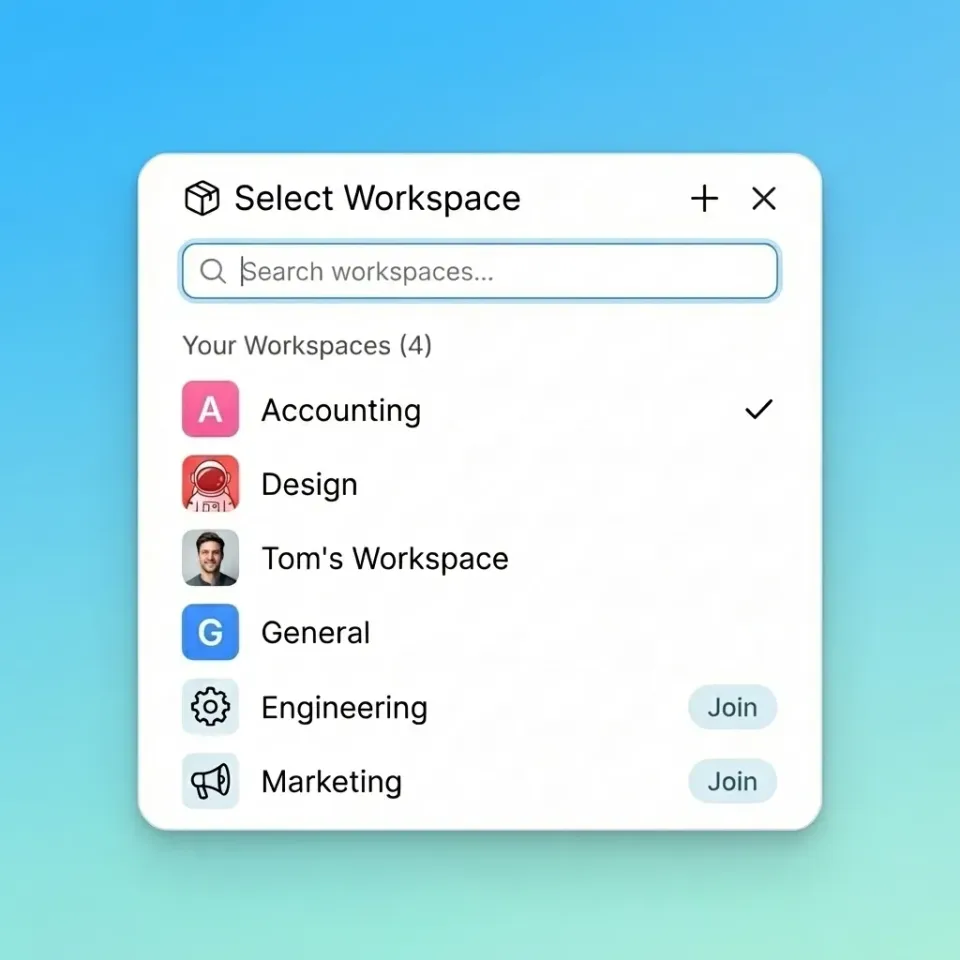
In your Fastio dashboard, create a new workspace for agent operations, something like "agent-ops" or whatever matches your project. Enable Intelligence. This activates the built-in RAG pipeline: once Intelligence is enabled for the workspace, files are indexed automatically. Agents can then query that workspace in natural language and get cited responses without needing a separate vector database.
Note down the workspace ID from the dashboard URL or by calling the workspace tool. Set it as an environment variable in each agent's config:
export FASTIO_WORKSPACE_ID="your_workspace_id_here"
Any agent with this ID and valid credentials can read, write, and query the same workspace.


Give your agents shared storage
Fastio's 14-day Business Trial includes persistent cloud storage with built-in RAG, advisory file locks, and ownership transfer.
Step 3: Coordinate agent writes with version history
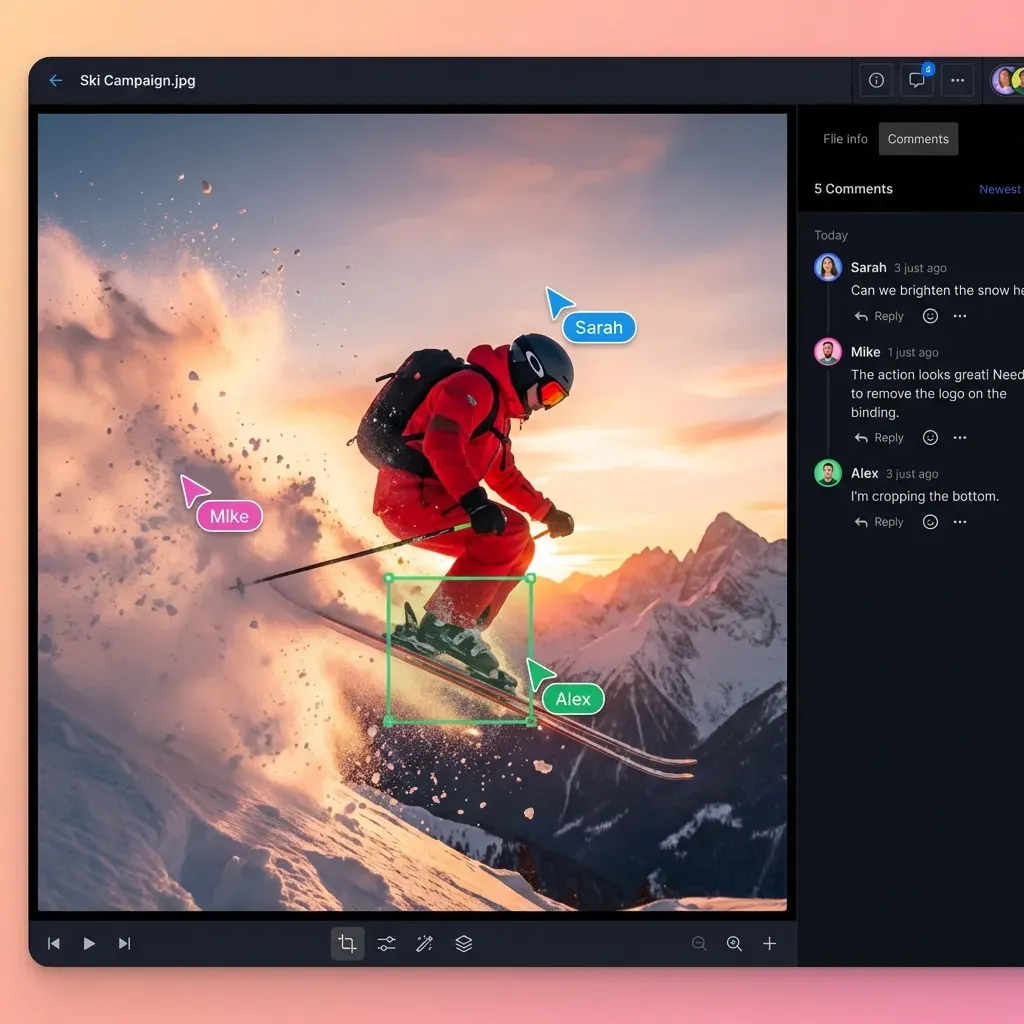
Multiple agents writing to the same files without coordination can overwrite data. Fastio provides file version history with restore, granular permissions, and a detailed activity log to coordinate agent updates safely.
Before writing a file, agents can inspect previous versions and verify who made recent updates. If an overwrite occurs, Fastio's version history lets you restore the previous version immediately:
# Verify current version and audit log before writing
fastio storage get-version --workspace-id $FASTIO_WORKSPACE_ID --file-id $FILE_ID
This ensures pipelines operate smoothly without data corruption. For example, one agent can aggregate news while another compiles a newsletter from the aggregated data, tracking all changes in the audit log.
Step 4: Handle ownership and handoffs
One thing Fastio's workspace model makes easy is transferring ownership. You might have a Builder agent set up a client folder structure, upload initial assets, and configure sharing, then hand the whole workspace to a human when the job is done.
The agent generates an ownership transfer link:
# Agent calls org transfer tool
fastio org transfer-token-create
The human opens the link in their browser and claims the organization. The agent retains its API key credentials for ongoing maintenance, but billing, administrative access, and data ownership belong to the human.

Sources
References used to verify factual claims in this guide.
-
Node 24 recommended, Node 22 LTS (22.16+) still supported
Frequently Asked Questions
Can OpenClaw agents share memory across different servers?
Yes, if you use shared cloud storage. Because the files are in a Fastio workspace (or S3, or any shared backend), agents running on different machines or cloud regions all read from and write to the same location.
How do I prevent agents from overwriting each other's work?
Acquire an advisory file lock before writing, while Fastio's version history, granular folder permissions, and activity logs help protect all revisions.
Does this require a paid OpenClaw license?
No. OpenClaw is open source. Fastio offers a 14-day Business Trial (credit card required), and plans scale with usage-based credits at /pricing/.
Can I use local LLMs with this setup?
Yes. OpenClaw connects to any LLM provider, local or cloud. The storage layer is separate from the inference layer, so swapping models doesn't affect workspace configuration.
Related Resources

Give your agents shared storage
Fastio's 14-day Business Trial includes persistent cloud storage with built-in RAG, advisory file locks, and ownership transfer.