How to Build a Data Analysis Agent with OpenClaw for CSV and Spreadsheet Automation
OpenClaw's data-analyst skill turns your AI agent into a working data analyst that can query databases, process CSV and Excel files, generate visualizations, and deliver automated reports from a chat message. This guide walks through skill installation, CSV and spreadsheet processing workflows, scheduled reporting with cron, and how to persist analysis output in shared workspaces where both agents and humans can access the results.


What the OpenClaw Data-Analyst Skill Does
OpenClaw's data-analyst skill, maintained in the official skills registry as oyi77/data-analyst, gives your agent a set of capabilities that cover the core data analyst workflow: reading data, cleaning it, running analysis, and producing output.
The skill handles six categories of work:
- SQL queries against relational databases and data warehouses like BigQuery and Snowflake
- Spreadsheet processing for CSV, Excel (.xlsx), and Google Sheets files
- Data cleaning including missing value handling, outlier detection, and format standardization
- Statistical analysis with descriptive stats, trend identification, and correlation analysis
- Visualization by generating Python code for matplotlib or plotly charts
- Report generation with formatted Markdown output including key metrics and actionable insights
For Excel-specific work, the xlsx skill by seanphan adds deeper spreadsheet operations: formula application (SUM, VLOOKUP, conditional logic), pivot table creation, cell formatting, and export to XLSX, CSV, or PDF. You can install both skills and chain them together. Use the data-analyst skill for analysis and the xlsx skill for formatted Excel output.
The practical workflow looks like this: point your agent at a CSV file, describe what you want to know, and the agent reads the file, identifies patterns, and returns structured findings. A request like "Analyze the CSV at ~/data/sales_q1.csv and identify the top three product categories by revenue" produces a summary with ranked categories, totals, and percentage breakdowns.
Related guides
- How to Build a Secure Hermes Agent Data RoomAs of 2026, approximately 48% of production AI agents run without adequate security or governance measures, leading to...
- How to Build Claude Cowork Client Portals for AI AutomationA Claude Cowork client portal gives agencies a branded staging area for their autonomous agents. The agents securely...
- How to Build an Image Analysis Agent with OpenClaw Vision ModelsOpenClaw separates text and vision processing into independent model pipelines, letting you pair a fast text model with...
- How to Build a Data Pipeline Agent with OpenClawTraditional ETL pipelines break when data sources change schemas, rotate auth tokens, or serve content behind...
- How to Build an OpenClaw ERP Automation Agent with OdooAutomated invoice processing costs $3.24 per invoice compared to $15.97 when done manually, a 79% reduction that...
- How to Build an OpenClaw Social Media Automation AgentOpenClaw crossed 346,000 GitHub stars before its six-month birthday, yet most social media automation still runs...
More on this subject: OpenClaw Setup and Guides (199 guides)
How to Set Up CSV and Spreadsheet Analysis
Getting the data-analyst skill running takes three steps: install the skill, prepare your data files, and run your first analysis.
Installing the Skill
Install the data-analyst skill from the OpenClaw skills registry. The skill registers its tools with your agent and makes them available in any conversation, whether you are working through a terminal, web UI, or a messenger integration like Slack or Discord.
For Excel-heavy workflows, install the xlsx skill alongside the data-analyst skill. The two complement each other: data-analyst handles analysis and insight generation, while xlsx handles formatted output with formulas, pivot tables, and charts.
Preparing Your Data
Store CSV and Excel files in a directory your agent can access. UTF-8 encoding is recommended for CSV files, and clear column headers make a significant difference in how accurately the agent interprets your data. A file with columns named "revenue," "product_category," and "transaction_date" produces better analysis than one with "col1," "col2," "col3."
For large files (100,000+ rows), consider splitting the data into smaller chunks or sampling before running full analysis. The agent processes data through an LLM context window, so large datasets can hit timeout limits or produce less accurate results.
Running Your First Analysis
Start with a simple request to verify everything works. Ask your agent to read a CSV file and provide a summary: row count, column names, data types, and basic statistics for numeric columns. This confirms the skill is installed correctly and your data is readable.
From there, build up to more specific queries. Trend analysis across time-series data, correlation between numeric columns, anomaly detection in transaction records, and categorical grouping with aggregation all work well out of the box.
Google Sheets Integration
The Google Sheets skill extends spreadsheet analysis to cloud-hosted data. After installing the skill and completing the OAuth authentication flow, your agent can read from and write to Google Sheets directly. This is useful for teams that maintain data in Sheets rather than local files, since the agent can pull the latest data on every run rather than working from a downloaded snapshot.
How to Build Automated Reporting Workflows
Single ad-hoc analyses are useful, but the real efficiency gain comes from workflows that run on a schedule and deliver results without manual intervention.
Chaining Skills for Complex Workflows
A typical reporting workflow chains multiple skills together. The csv-processor skill cleans and aggregates raw data. The data-analyst skill runs analysis and identifies key metrics. The xlsx skill formats the output into a polished Excel report with formulas, conditional formatting, and charts. The spreadsheet-mailer skill delivers the finished report to an email list, Slack channel, or Teams group.
Each skill handles one piece of the pipeline, so you can swap components without rebuilding the whole workflow. Need Google Sheets output instead of Excel? Replace the xlsx skill with the google-sheets skill. Want the report posted to Discord instead of email? Swap the delivery skill.
Scheduling with Cron
OpenClaw's cron system is the built-in scheduler for recurring tasks. It persists jobs, wakes your agent at the configured time, and delivers output back to a chat channel or automation hooks endpoint.
Cron supports three schedule types: "at" for one-shot timestamps, "every" for fixed intervals, and standard five-field cron expressions with optional timezone support. A weekly sales report that runs every Monday at 9am is a straightforward cron job.
Isolated jobs run a dedicated agent turn with a fresh session on each execution. This is the right mode for reports and background analysis, since each run starts clean without leftover context from previous executions.
Custom sessions persist context across runs, which works for workflows like daily standups that build on previous summaries.
Delivering Reports
Two delivery modes handle output routing.
Announce mode sends the agent's final reply to a configured chat channel. This is the simplest option for team briefings and summaries that should land in Slack, Discord, or another messaging platform.
automation hooks delivery posts the completed payload to a URL, which is useful when the cron job needs to trigger a downstream system or feed data into another tool.
The combination of cron scheduling and skill chaining means you can set up a monthly sales report that pulls data from a database, identifies trends, formats an Excel file with charts, and delivers it to your team's Slack channel with a summary. Once configured, it runs without human involvement.


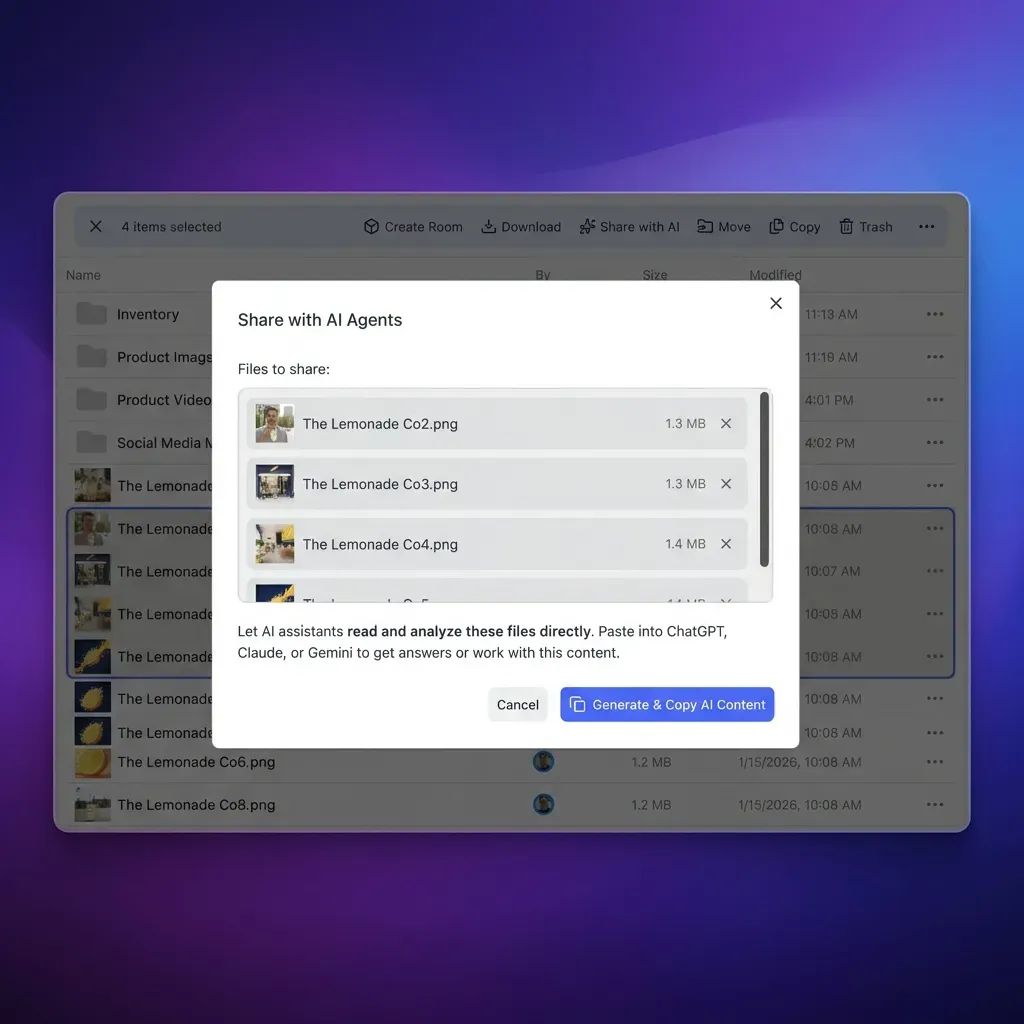
Store and share your agent's analysis output across your team
Generous storage workspace with automatic file indexing, Metadata Views for structured data, and MCP access for your OpenClaw agents.
Practical Workflows for Common Data Tasks
Here are four patterns that cover the most common data analysis scenarios teams automate with OpenClaw.
Monthly Financial Reporting
Consolidate data from multiple sources (CRM exports, accounting CSVs, bank statements), apply expense categorization formulas, create department-level pivot tables, calculate budget variance, and generate trend charts. The finished report exports as a formatted XLSX file with a PDF summary for leadership review.
Sales Pipeline Analysis
Export CRM data as CSV, then ask your agent to calculate conversion rates by stage, probability-weighted forecast values, and close-rate trends over time. The agent identifies which pipeline stages have the largest drop-off and flags deals that have stalled beyond their expected close date.
Data Cleaning and Transformation
Raw data exports rarely arrive in a usable state. The data-analyst skill handles the prep work: removing duplicate rows, standardizing date formats, filling or flagging missing values, normalizing text fields (inconsistent capitalization, trailing whitespace), and merging multiple files on common identifiers. The cleaned output feeds into downstream analysis or gets loaded into a database.
Anomaly Detection
Point the agent at transaction logs, sensor data, or any time-series dataset and ask it to flag values that fall outside expected ranges. The agent identifies statistical outliers, sudden trend changes, and data points that break established patterns. This works well for fraud detection in financial data, quality control in manufacturing metrics, and monitoring operational KPIs.
Each of these workflows can run as a one-off analysis or be wrapped into a scheduled cron job for ongoing automation. The agent handles the repetitive analysis, and humans review the results and make decisions.
Persisting Analysis Output in Shared Workspaces
Analysis results need to live somewhere accessible after the agent finishes processing. The output destination depends on your team's workflow and who needs the data.
Local storage works for individual use. Write CSV or JSON output to a project directory and version it with Git. Simple, but it breaks down when a second agent needs the results or when non-technical team members need to review findings.
Google Sheets works when the team already lives in Google Workspace. The agent writes results directly to a shared spreadsheet, and team members see updates in real time. The limitation is that Sheets is not designed for large datasets or complex file management.
Cloud object storage (S3, GCS) handles scale but requires infrastructure setup, IAM policies, and custom tooling for browsing results.
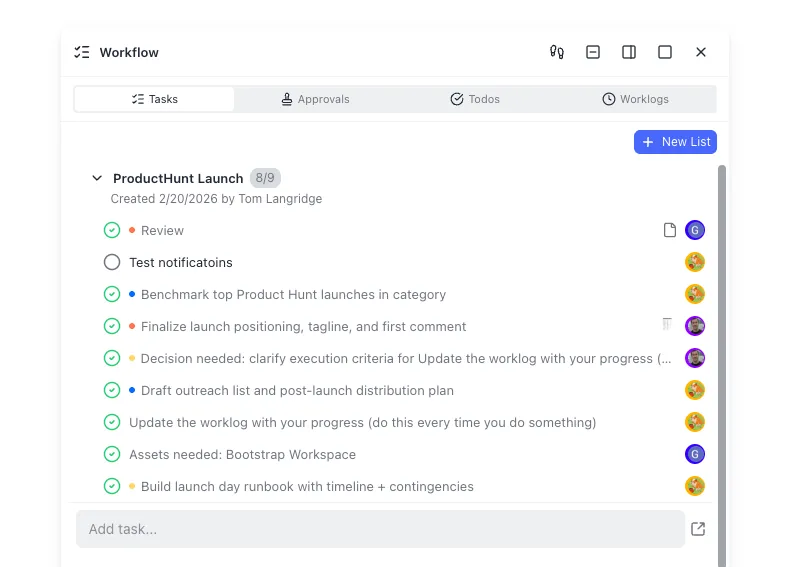
Fastio workspaces offer a middle path that works well for agent-to-human handoff. Create a workspace, upload analysis output (CSV reports, Excel files, JSON data, visualizations), and any agent or human with access can browse, search, and query the files through the same interface.
With Intelligence Mode enabled, uploaded files are automatically indexed for semantic search and RAG-powered question answering. A team lead can ask "What was total revenue growth across all Q1 regional reports?" and get an answer with citations pointing to specific uploaded files, without opening each report individually.
For structured data specifically, Fastio's Metadata Views turn uploaded documents into a sortable, filterable spreadsheet. Describe the fields you want extracted, and the system designs a typed schema and populates a queryable grid. This turns a workspace full of CSV analysis outputs into a single searchable database.
The Fastio MCP server lets OpenClaw agents interact with workspaces programmatically. Your data analysis agent can upload finished reports, organize them into folders, set permissions, and notify team members, all as part of the automated workflow. Fastio offers a 14-day Business Trial (card required; see /pricing/).
When the analysis project is complete, use ownership transfer to hand the workspace to the stakeholder who needs the data. They get a clean workspace with all reports, source files, and full search capability. The agent retains admin access for ongoing maintenance and scheduled updates.

Troubleshooting and Limitations
A few common issues come up when building data analysis workflows with OpenClaw.
File Access Problems
Store data files in directories the agent can access without elevated permissions. Paths requiring sudo or special filesystem access will fail silently or produce confusing errors. The workspace data directory is the safest default location for files you want the agent to process.
Large File Performance
Datasets over 100,000 rows take longer to process because the agent works through an LLM context window rather than a traditional database engine. For large datasets, consider pre-filtering rows before analysis, sampling a representative subset for exploratory work, or splitting the file into smaller chunks and running aggregation across the results.
Encoding Issues
CSV files with non-UTF-8 encoding (Latin-1, Windows-1252, Shift-JIS) can produce garbled output or parsing failures. Convert files to UTF-8 before processing. Similarly, verify that delimiters are consistent throughout the file. Mixed delimiters (some rows tab-separated, others comma-separated) cause column misalignment.
Visualization Limitations
The data-analyst skill generates Python code for charts rather than rendering them directly. You need a Python environment with matplotlib or plotly installed to produce the actual image files. The agent recommends chart types and writes the plotting code, but execution happens outside the agent's context. For teams that need chart images delivered automatically, add a code execution step to the cron workflow.
Formula Complexity
The xlsx skill handles standard Excel formulas well, but deeply nested IF statements, complex array formulas, and VBA macros are outside its scope. For reports that require advanced Excel logic, consider generating the data with the agent and applying complex formulas through a template workbook.
Sources
References used to verify factual claims in this guide.
-
Data-analyst skill covers SQL, CSV/Excel, Google Sheets, cleaning, and visualization
-
xlsx skill handles formula application, pivot tables, cell formatting, and export to XLSX/CSV/PDF Large files over 100,000 rows require significant processing time
-
OpenClaw cron supports three schedule types with announce and webhook delivery modes
Frequently Asked Questions
Can OpenClaw analyze CSV files?
Yes. The data-analyst skill reads CSV files, identifies column types, and runs analysis including summary statistics, trend detection, correlation analysis, anomaly flagging, and categorical grouping. Point the agent at a CSV file path and describe what you want to know. The agent handles parsing, cleaning, and analysis in a single conversation turn. UTF-8 encoding and clear column headers produce the best results.
How do I automate Excel reports with OpenClaw?
Install the xlsx skill alongside the data-analyst skill. The data-analyst skill handles analysis and insight generation, while the xlsx skill formats output into Excel files with formulas, pivot tables, conditional formatting, and charts. Chain them together in a cron job to produce formatted Excel reports on a schedule. The spreadsheet-mailer skill can deliver finished reports to email, Slack, or Teams automatically.
What is the OpenClaw data analyst skill?
The data-analyst skill (oyi77/data-analyst in the skills registry) converts your OpenClaw agent into a data analyst capable of SQL queries against databases, spreadsheet processing for CSV, Excel, and Google Sheets files, data cleaning, statistical analysis, visualization code generation, and automated report creation. It covers the full analysis workflow from raw data to formatted insights.
Can AI agents process spreadsheets automatically?
Yes. OpenClaw agents with the data-analyst and xlsx skills can read, clean, analyze, and format spreadsheet data without manual intervention. Combined with cron scheduling, agents process incoming files on a set cadence and deliver formatted reports to team channels. For Google Sheets data, the google-sheets skill adds direct read and write access to cloud-hosted spreadsheets.
How do I schedule recurring data analysis with OpenClaw?
Use OpenClaw's built-in cron system. Create a cron job with a schedule expression (standard five-field cron, fixed intervals, or one-shot timestamps) and a prompt describing the analysis task. Isolated jobs run with fresh context each time, which works well for weekly or monthly reports. The announce delivery mode sends results to a chat channel, while automation hooks delivery posts to a URL for downstream processing.
What file formats does the OpenClaw data-analyst skill support?
The data-analyst skill processes CSV, Excel (.xlsx), and Google Sheets files natively. The csv-processor skill adds support for custom delimiters, multi-file merging, and aggregation. The xlsx skill handles reading and writing Excel files with formulas, pivot tables, and formatting. For tab-separated, pipe-delimited, or other non-standard formats, the csv-processor skill can parse with custom delimiter configuration.
Related Resources

Store and share your agent's analysis output across your team
Generous storage workspace with automatic file indexing, Metadata Views for structured data, and MCP access for your OpenClaw agents.