How to Set Up Remote InDesign Collaboration for Teams
InDesign collaboration remote lets design teams review layouts from anywhere without chasing file versions through email. Teams upload native INDD files to a shared workspace, where everyone previews pages in the browser and adds contextual comments. This approach cuts review cycles and keeps projects on track, even for large publications.


What remote InDesign collaboration actually means
Remote InDesign collaboration is straightforward: design teams work on .indd files from different locations, uploading to a central platform where teammates and clients preview pages in a browser without needing InDesign installed.
The reason this matters is what InDesign files actually contain. Unlike a Word doc or a Figma frame, an INDD file has linked images, embedded fonts, multi-page spreads, master page logic, bleed settings, and sometimes interactive elements like hyperlinks and buttons. Export it to PDF and you lose most of that. Share the native file and your collaborator needs InDesign on their machine just to open it.
Browser-based preview tools solve this by rendering the native file in situ. Reviewers see the actual layout, zoom into spreads, check color, and comment on specific pages without anything installed. A designer in New York can share a 200-page annual report with a client in London, and the client can mark up specific spreads the same afternoon.
According to FlexJobs, design-related remote work opportunities increased by more than 30% between 2020 and 2023. Whether or not that statistic applies directly to your agency, the workflow pressure is real: distributed teams can't pass USB drives around, and email was never built for 500 MB InDesign packages.
Fastio handles this with its Universal Media Engine, which renders INDD previews directly in the browser. Teams can zoom into spreads, check color profiles, and leave page-specific comments without downloading the source file.
See also: Fastio Workspaces, Fastio Collaboration, Fastio AI.
Related guides
- How to Build a Canva Agency Collaboration WorkflowCanva agency collaboration workflow simplifies design reviews for remote teams. Agencies use Canva Teams for real-time...
- How to Do Concept Art Review CollaborationConcept art review collaboration refers to the structured process of sharing visual concepts for iterative feedback in...
- 7 Best Logo Design Client Feedback Tools for 2026A logo design client feedback tool helps designers share drafts and collect specific client input to cut down revision...
- How to Share ZBrush Sculpt Files with Clients and TeamsZBrush sculpt files (.ztl) often reach multiple gigabytes, so email and regular cloud storage don't work. Pros need...
- How to Set Up an AI Marketing Team Intelligence WorkspaceAI marketing team intelligence workspaces combine semantic search and agent collaboration for files. Marketing teams...
- How to Set Up a Content Marketing Platform for Your TeamA content marketing platform is an integrated workspace where teams create, store, collaborate on, and distribute...
More on this subject: Creative and Marketing Teams (27 guides)
Where InDesign team review breaks down
The file size problem is the first one most teams hit. InDesign packages with embedded high-res images can easily exceed 1 GB. Email is out. Dropbox and Google Drive technically work, but they sync slowly and create version overwrite risks when two people are working concurrently.
The second problem is previews for external reviewers. Clients without InDesign see only static PDFs, which don't show interactive elements and require a separate round-trip through Acrobat for markup. Feedback ends up split across email, Acrobat annotations, and sticky notes on printed pages — none of which connect back to the source file.
Version control is genuinely hard. Designers iterate fast, and without a shared workspace, consolidating feedback from multiple stakeholders means manually reconciling edits across email chains. Creative Cloud doesn't offer granular external reviewer permissions, which means clients often get more access than intended or none at all.
Font and linked asset problems come up constantly in collaborative contexts. If a designer sends a package without packaging fonts correctly, the recipient's InDesign substitutes system fonts, which shifts column widths and line breaks in ways that look fine on the designer's machine but are wrong everywhere else.
For large publications — 300-page catalogs, multi-language books — the old WeTransfer approach collapses. Download links expire after 7 days. Approvals that take two weeks require re-uploading. Every re-upload is a version control event that may or may not get communicated to everyone involved.
The typical pre-platform agency workflow goes: designer finishes draft, exports PDF, emails to client, waits 3-4 days for a reply, incorporates changes, repeats. With contextual comments on a live preview, that same cycle runs in hours.


Ready for Smooth Remote InDesign Reviews?
Set up shared workspaces with native previews and team comments. Seats included in every plan. Built for indesign collaboration remote workflows.
Features that make remote InDesign review actually work
Browser-based INDD preview is table stakes. It needs to show the actual layout with zoom, page thumbnails, overset text indicators, and bleed previews. Reviewers need to see what the designer intended, not a flattened approximation.
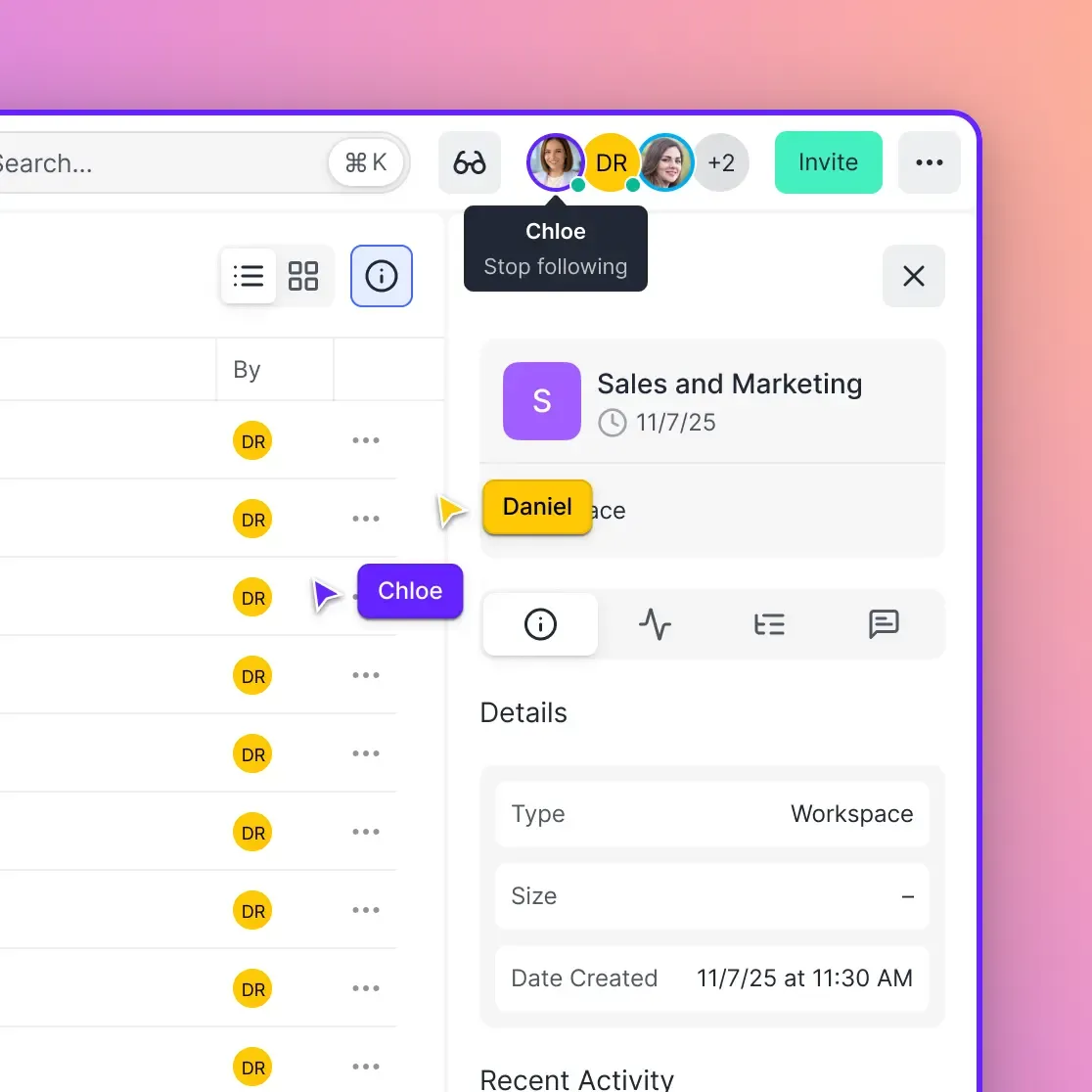
Live presence and follow mode matter more than they might seem. Being able to sync your view to a colleague's during a review call eliminates the "which page are you on?" back-and-forth. Avatars showing who's currently in the file tell you whether feedback is happening without you having to ask.
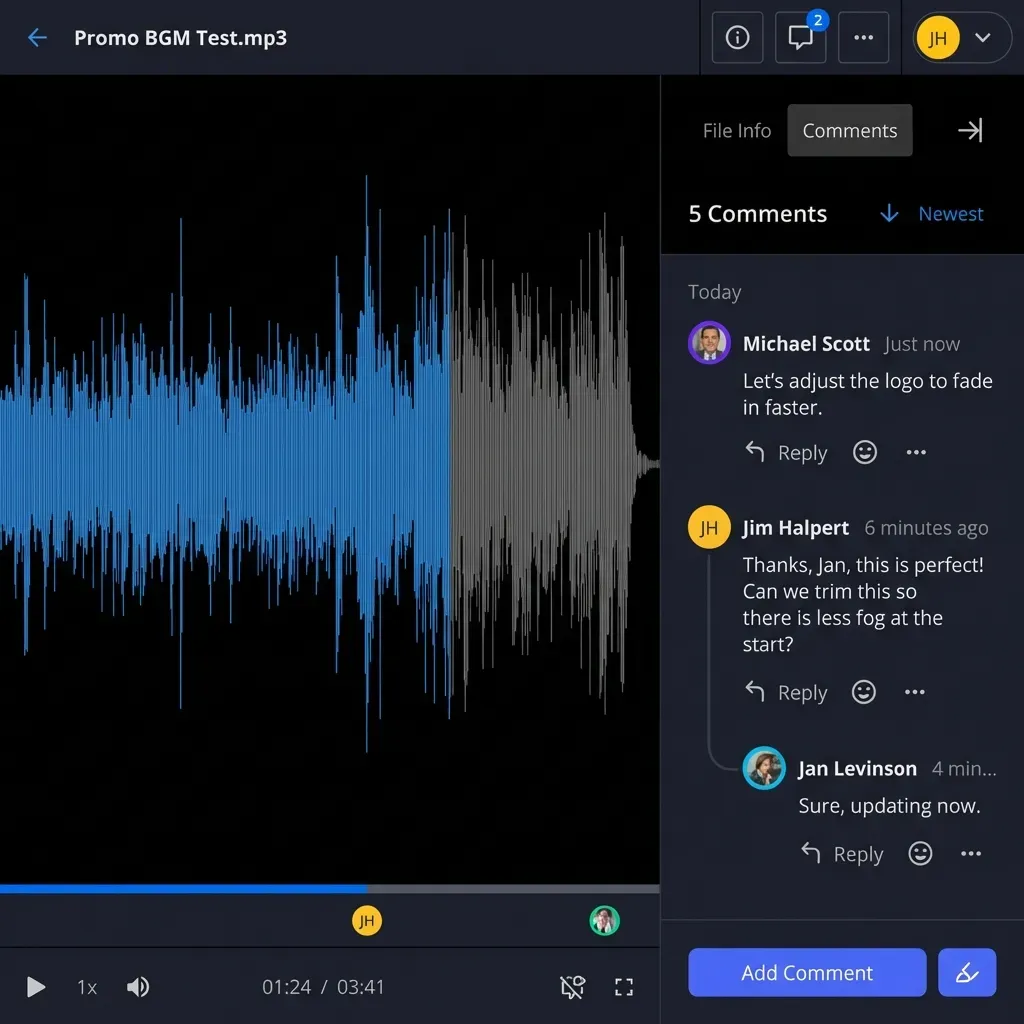
Pinned comments on specific pages or image regions are more useful than general file-level comments. "The headline on page 14 is tracking too loose" means something; "there's a typography issue somewhere" doesn't.
Activity logs serve two purposes: accountability and billing. Knowing who viewed which pages and when is useful for billing clients based on review time, and for proving that a version was delivered and accessed before a deadline dispute.
Granular permissions matter for agencies with multiple clients. External clients should see only their project folder, not other client work. Guest access that doesn't burn seat licenses keeps costs manageable when you have 20+ reviewers on a large project.
Fastio covers all of these through its Universal Media Engine, follow mode, pinned comments, and four-level permission system. External reviewers join as guests without taking a seat.
How to set up a remote InDesign workflow
This process works for a single project; scale it to a portfolio by repeating the workspace structure.
Sign up at Fastio (). Create a workspace named for the project: "ClientX Magazine Q1." Set it to organization-owned so files stay accessible even if a team member leaves. Invite internal designers by email; external clients join via a share link without needing an account.
Before uploading any .indd file, run File > Package in InDesign. This collects linked assets and fonts into a single folder. Upload the packaged folder. If you skip this step, Fastio will still generate a preview, but font substitutions will alter the layout in ways that make the preview unreliable for review.
Organize into subfolders: Drafts/, Assets/, Feedback/, Finals/. Upload supporting files — PSD comps, AI vectors, motion references — alongside the INDD for full campaign context.
Generate a branded share link for the client folder. Set view-only access, an expiration date, and a password if the project is sensitive. Track opens and time spent per page from the activity log.
During review, open the preview in browser. Use page thumbnails to navigate, zoom in to inspect kerning or color. Add comments pinned to the specific page or region in question. Use follow mode to walk a client through a layout on a call without a screen share.
Designer makes changes locally in InDesign, re-uploads to the same folder. The new preview replaces the old one. Resolve comments by marking them done. When approved, export the final PDF, IDML, or print-ready package from InDesign.
Move approved files to Finals/. Download the activity log as CSV for records or billing.
A trade magazine publisher running 11 monthly issues used this folder structure across 5 designers and 3 freelance contributors. The constraint: InDesign's package function must be run before upload — files shared without linked assets render with substituted fonts, which misrepresents column widths and line breaks in the preview. Building a checklist item ("Package before upload") into the designer's handoff routine fixed this within the first week. After rolling out the workspace workflow, the editorial team cut their average round-trip review from 4 days to 1.5 days, and the number of "which version is final?" Slack messages dropped to near zero.
Practices that hold up over time
Name versions with dates, not just numbers: "AnnualReport_v3_2026-03-15.indd" beats "AnnualReport_v3_FINAL.indd" every time. Date-based naming makes it obvious which file is current even when folder sorting is off.
Get reviewers to use in-app comments instead of emailing feedback. This takes one firm conversation at the start of the project, but it pays off immediately — everything is in one place, threaded by page, and visible to the full team.
Assign roles at the start: admin for the lead designer who manages uploads, reviewer for clients and stakeholders, viewer for approvers who only need to sign off. Viewer-only access prevents accidental edits from people who are just looking.
For print preparation, export PDFs from approved INDD files rather than sharing the source. Keep originals in the workspace; they're the source of truth.
For agency-scale work with multiple clients, create one workspace per client. Organization-wide file ownership means projects persist after individual designers roll off.
Embed a short demo video (a 3-minute screen recording works fine) in the workspace before the first client review. Clients who know what to expect leave better comments and fewer "I couldn't figure out how to..." emails.
Intelligence Mode, when enabled, lets you search across comment threads and documents by content. This becomes genuinely useful on long-running projects where you need to find a specific piece of feedback from six weeks ago.
Fixing the common problems
If the preview isn't loading, check whether the linked assets were included in the upload. A missing linked image or font package is the most common cause of broken previews. Refresh the browser; if that doesn't fix it, clear the cache and check that the file upload actually completed.
If comments aren't appearing, check the share link permissions. Viewer-only access means the reviewer can read comments but can't leave new ones. If they need to comment, toggle their role to reviewer or editor temporarily.
If the layout looks wrong in the preview — columns shifted, text reflow, wrong typeface — fonts weren't packaged before upload. Download the workspace copy, package it in InDesign (File > Package), and re-upload.
For slow rendering, desktop Chrome gives the best performance. Mobile browsers work for quick checks but aren't the right environment for detailed layout review.
Never edit the original .indd file in a shared workspace. Make changes in your local InDesign, then re-upload. Editing shared originals creates version conflicts that are tedious to untangle.
If a client can't access a share link, check three things: the link's expiration date, whether it requires a password they weren't given, and whether domain restrictions are blocking their email address. Regenerating the link takes under a minute.
For files over 100 MB, use the desktop app or API rather than browser drag-and-drop. Both support chunked upload for large packages.
How the main tools compare
| Feature | Fastio | Adobe Creative Cloud | Frame.io | Dropbox Replay | |---------|---------|----------------------|----------|---------------| | Native INDD Preview | Yes | Yes (requires app) | No (PDF only) | No | | Contextual Comments | Page/region | Limited | Frame-level (video) | Basic | | Unlimited Guests | 25 to 250 share collaborators by plan | No | Paid | Yes | | File Size Limit | 25 to 100 GB by plan | 100GB/team | 250GB | 2TB | | Pricing | Plans with seats included | Per user/mo | Per user/mo | Per user/mo | | Live Presence | Yes | No | Yes (video) | No | | Best For | Creative agencies | Adobe users | Video teams | General files |
Adobe Creative Cloud is the natural choice for teams already running a full CC stack, but external reviewers need accounts, and INDD preview requires the desktop app. Frame.io is excellent for video review but has no native InDesign support. Dropbox Replay is a decent general-purpose option if you're already on Dropbox, but it treats INDD as a generic file with no layout preview.
Fastio's differentiation is the combination of native INDD rendering, guest access that does not take a seat, and page-level pinned comments. For agencies whose review cycles involve many external stakeholders, that combination reduces friction more than any single feature alone.
Sources
References used to verify factual claims in this guide.
-
design-related remote opportunities increased by more than 30% between 2020 and 2023
Frequently Asked Questions
What are the best remote InDesign tools?
Top options include Fastio for native INDD previews and comments, Adobe Creative Cloud for basic sharing, and Frame.io for PDF markups. Fastio handles large files without software installs.
How do you share InDesign files online?
Upload to a workspace-based platform like Fastio. Generate secure links with previews. Reviewers access via browser without downloading or installing InDesign.
Can teams collaborate on InDesign without Creative Cloud?
Yes. Platforms like Fastio provide independent previews, comments, and sharing. No subscriptions or desktop apps required for reviewers.
What is the file size limit for InDesign sharing?
Fastio handles large files. Upload via browser or API, with chunking for stability.
How to avoid version conflicts in remote InDesign review?
Use shared workspaces with live previews and locked originals. Comments track changes without file edits.
Related Resources

Ready for Smooth Remote InDesign Reviews?
Set up shared workspaces with native previews and team comments. Seats included in every plan. Built for indesign collaboration remote workflows.