How to Transfer Google Drive Files to Another Account or Service
Google Drive transfer is the process of moving files, folders, or entire accounts from Google Drive to another Google account or a different cloud storage service. Google does not offer a native bulk transfer tool for personal accounts, so you will need to use one of four workarounds: ownership transfer, Google Takeout, admin transfer (Workspace only), or migration to a professional platform.

Why Google Drive Transfer Is More Complicated Than It Should Be
Google Drive is one of the world's most popular cloud storage services. Many users eventually need to move files to a different account. Maybe you're leaving a job, consolidating personal accounts, or switching to a business email. Whatever the reason, you'll quickly discover that Google doesn't make this easy. The core problem: Google Drive files are tied to your Google account. Unlike a USB drive where you can just drag files to a new location, cloud files carry ownership, sharing permissions, and account associations that don't transfer automatically. Here's what you're up against:
- No native bulk transfer tool for personal Google accounts
- Ownership transfer only works for files you've shared with the recipient
- Download and re-upload breaks sharing links and loses comments
- The average user stores 5-15GB of files, and manual transfers can take hours
The good news: there are workarounds. The method you choose depends on whether you're moving between personal accounts, within a Workspace organization, or migrating to a different cloud service entirely.
Helpful references: Fastio Workspaces, Fastio Collaboration, and Fastio AI.
Related guides
- How to Transfer Files Between Cloud Storage ServicesCloud-to-cloud file transfer moves files directly between storage providers without downloading to a local device...
- Best Google Drive Alternatives for Business TeamsGoogle Drive dominates cloud storage with 2 billion users, but businesses hit its limits fast: 15GB free storage,...
- How to Consolidate Multiple Cloud Storage Accounts Without Losing FilesMost teams scatter files across Google Drive, Dropbox, OneDrive, and Box without a plan. Over time, duplicate files...
- How to Plan a Cloud Storage Migration: The Complete ChecklistMoving files between cloud providers is straightforward until it isn't. Permission mismatches, broken sharing links,...
- Dropbox vs Google Drive vs OneDrive: Which Cloud Storage Wins in 2026?Dropbox, Google Drive, and OneDrive are the three most popular cloud storage services, each with different strengths:...
- How to Transfer Files Between Computers: Fast, Secure Methods ComparedLearning how to transfer files between computers requires matching data volume and physical proximity to the right...
More on this subject: File Sharing (155 guides)
Method 1: Transfer Ownership (Best for Shared Files)
If you've already shared files with the destination account, you can transfer ownership directly. This is the cleanest method because it preserves the original file without creating duplicates.
Requirements:
- The file must already be shared with the recipient
- Both accounts must be Google accounts (personal or Workspace)
- You can only transfer ownership of files you own
Steps to transfer ownership:
- Open Google Drive and select the file or folder
- Click the Share button (person icon with a plus sign)
- Find the recipient's email in the shared list
- Click the dropdown next to their name and select "Transfer ownership"
- Confirm the transfer
Limitations:
- You cannot bulk-transfer ownership. Each file requires individual action.
- If you haven't shared the file yet, you'll need to share it first, then transfer ownership.
- Transferring a folder doesn't automatically transfer ownership of files inside it. This method works well for a handful of important files, but it's impractical for moving your entire Drive.
Method 2: Google Takeout (Best for Full Account Migration)
Google Takeout lets you download all your Google data, including your entire Drive. This is the official method for moving everything at once.
What you get:
- A complete download of all your Drive files
- Original file formats preserved
- Folder structure maintained in the download
Steps to use Google Takeout:
- Go to takeout.google.com
- Click "Deselect all" to clear the default selections
- Scroll down and check only "Drive"
- Click "Next step"
- Choose your export format (ZIP recommended) and delivery method
- Click "Create export" and wait for the download link
The export can take hours or days depending on your Drive size. Google will email you when it's ready.
After downloading:
- Unzip the archive to your computer
- Sign into the destination Google account
- Upload the files to the new Drive
Limitations:
- Google Docs, Sheets, and Slides convert to Microsoft Office formats (or stay as-is if you choose)
- Sharing settings and comments don't transfer
- You'll have duplicate files until you delete them from the original account
- The upload process is manual and time-consuming

Method 3: Admin Transfer (Workspace Organizations Only)
If you're a Google Workspace administrator, you have more options. Admins can transfer file ownership between users within the same organization.
Requirements:
- Google Workspace (not personal Google accounts)
- Admin privileges in the organization
- Both users must be in the same Workspace organization
Steps for admin transfer:
- Sign into the Google Admin console at admin.google.com
- Go to Apps > Google Workspace > Drive and Docs
- Click "Transfer ownership"
- Enter the current owner's email
- Enter the new owner's email
- Click "Transfer files"
This transfers all Drive files from one user to another. It's commonly used when employees leave the company.
Limitations:
- Cannot transfer to or from accounts outside your organization
- Cannot transfer to personal Google accounts
- Shared Drive files work differently (they're owned by the Shared Drive, not individuals)
Method 4: Migrate to a Team Cloud Platform
Here's what most Google Drive transfer guides don't tell you: if you're moving files for a team or business, transferring between Google accounts might not be your best option. Google Drive was designed for individuals. Its "My Drive" model creates problems as teams grow:
- Ownership problems: Files belong to whoever uploaded them. When someone leaves, their files become orphaned or require admin intervention.
- Messy folders: Everyone organizes differently. "Shared with me" becomes a dumping ground.
- Permission headaches: Who has access to what? Shared links expire or get forwarded to the wrong people. Team cloud platforms solve this by flipping the ownership model. Files belong to the organization, not individuals. When someone leaves, their files stay organized exactly where they were.
What to look for in a migration destination:
- Organization-owned files: Files persist when team members change
- Workspace structure: Projects and clients have their own spaces, not buried in personal folders
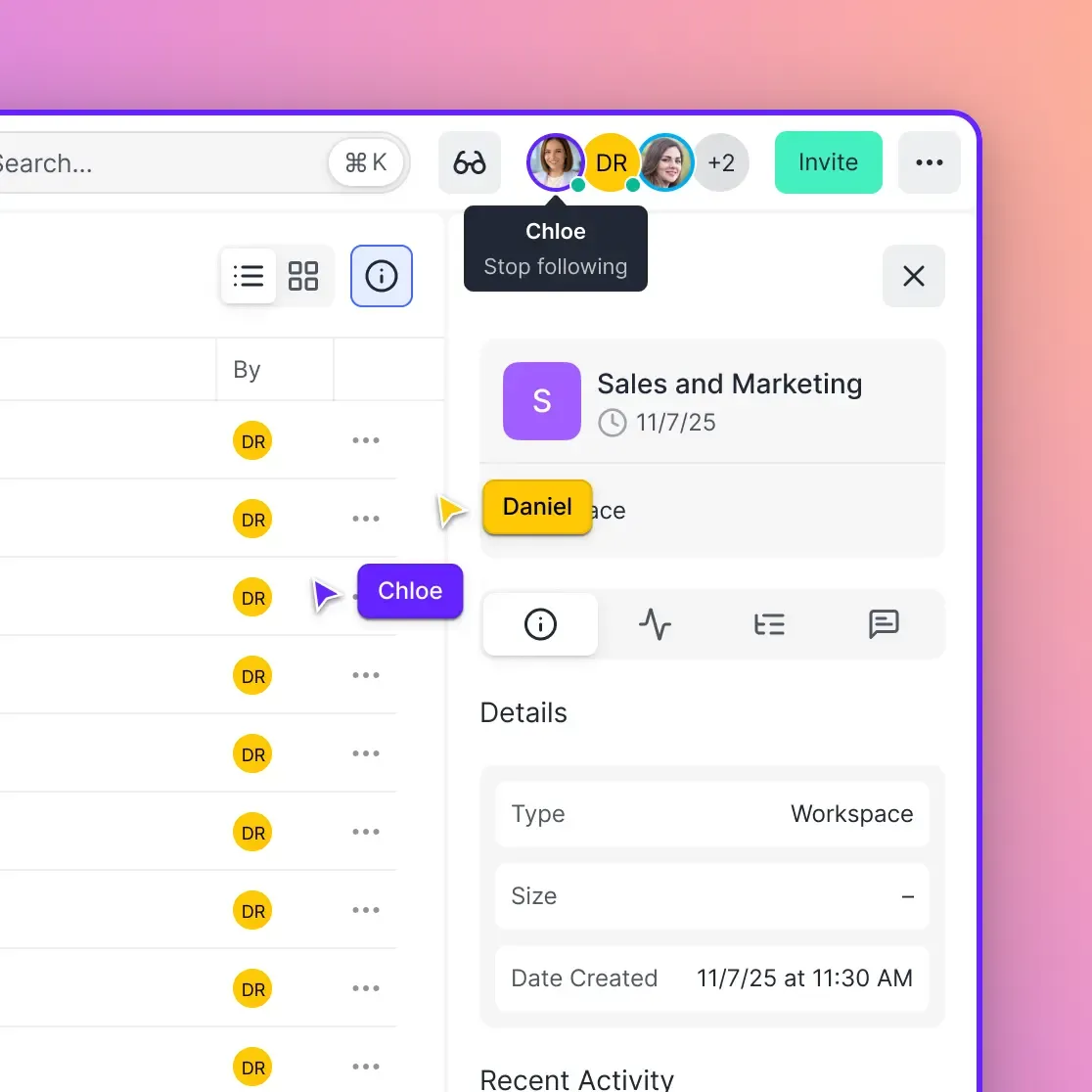
- Real collaboration features: See who's viewing files in real-time, not just who edited last
- Guest access on shares: Clients and contractors can open shares without taking a seat
Fastio is built on this model. Files live in workspaces that belong to your organization. Invite unlimited guests without seat costs. And when you need to share externally, branded portals give clients a professional experience without the "Shared with me" chaos.


Share Large Files on Fastio
Fastio gives your team organized workspaces where files belong to the organization, not individuals. No ownership chaos. Seats included on every plan.
How to Migrate from Google Drive to Fastio
Moving from Google Drive to Fastio is straightforward. Here's the process:
Step 1: Export from Google Drive
Use Google Takeout to download your files (see Method 2 above). For smaller transfers, you can download specific folders directly from Drive.
Step 2: Set up your Fastio workspace
Create a workspace for your team or project. Workspaces replace the "Shared Drive" concept but with better organization. You can create a workspace for each client, project, or department, up to 5, 50 or 200 workspaces depending on plan.
Step 3: Upload your files
Drag and drop files into your workspace. Your folder structure is preserved.
Step 4: Invite your team
Add team members to the workspace. They'll have immediate access to all files without "request access" delays. External collaborators can join specific workspaces without needing full accounts.
What changes after migration:
Your organization owns all files, so nothing gets orphaned when people leave. You can see who's viewing what in real-time. Share files through branded portals instead of raw Google links.
Choosing the Right Transfer Method
Here's a quick decision guide:
Consider migration over transfer if:
- You're spending more time managing permissions than doing actual work
- Files keep getting lost in "Shared with me"
- You've had ownership problems when team members left
- You need professional file sharing for clients
- Your team is growing and per-seat pricing is becoming expensive
Sources
References used to verify factual claims in this guide.
-
Transfer ownership of shared files directly in Google Drive by changing the owner Four options for Google Drive transfer include ownership transfer, Google Takeout download, admin transfer within Workspace organization, and migrate to a team cloud platform like Fastio
-
Google Takeout lets you download all your Google data including your entire Drive for full account migration Use Google Takeout to download your files then upload them to your Fastio workspace
-
Google Workspace administrator can transfer file ownership between users within the same organization using admin transfer
-
Migrate files to a team cloud platform as an alternative when transferring between Google accounts for teams The next step is setting up your Fastio workspace for organized team storage
Frequently Asked Questions
How do I transfer Google Drive to another account?
You have four options: (1) Transfer ownership of individual shared files, (2) Use Google Takeout to download everything and re-upload to the new account, (3) Use admin transfer if both accounts are in the same Workspace organization, or (4) Migrate to a team cloud platform like Fastio. Google does not offer a native bulk transfer tool for personal accounts.
Can I move all my Google Drive files at once?
Not directly within Google Drive. For personal accounts, Google Takeout is the only way to export everything at once. You'll download a ZIP archive of all your files, then upload them to the destination. This process can take several hours for large libraries. Workspace admins can bulk-transfer ownership between users in the same organization.
How do I transfer Google Drive to a new owner?
Open the file in Google Drive, click Share, find the person in the shared list, click the dropdown next to their name, and select 'Transfer ownership.' The recipient must already have access to the file. You can only transfer files you own, and you cannot bulk-transfer ownership of multiple files at once.
Is there a way to transfer Google Drive files without downloading?
For personal accounts, no. Google requires either ownership transfer (one file at a time) or download/upload via Takeout. Workspace admins can transfer files between organization members without downloading. Third-party tools like VaultMe can automate the process, but they still move files through their servers rather than transferring in place.
What happens to shared links after transferring Google Drive files?
It depends on the method. Ownership transfer preserves sharing links. Google Takeout download/upload breaks all existing links since you're creating new files. Admin transfers within Workspace preserve links. If your workflow depends on persistent sharing links, consider migrating to a platform where links don't break when file management changes.
Related Resources

Share Large Files on Fastio
Fastio gives your team organized workspaces where files belong to the organization, not individuals. No ownership chaos. Seats included on every plan.