How to Improve Construction RFI File Sharing and Collaboration
Construction RFI file sharing centralizes attachments for inquiries and responses. Large commercial projects generate hundreds of RFIs, and poor RFI management significantly impacts project schedules. This guide covers how to organize RFI attachments, track document versions, and collaborate with architects and subs through threaded discussions.

Why RFI File Sharing Matters in Construction
Every RFI carries attachments: drawings, specs, photos, calculations. Those files move between GCs, architects, engineers, and subs, sometimes dozens of times on a single inquiry.
Large commercial projects generate hundreds of RFIs. When those pile up without any organization, the practical result is hours of searching for the right file, building from a drawing that was superseded two weeks ago, and responses that arrive so late they've already slowed the schedule.
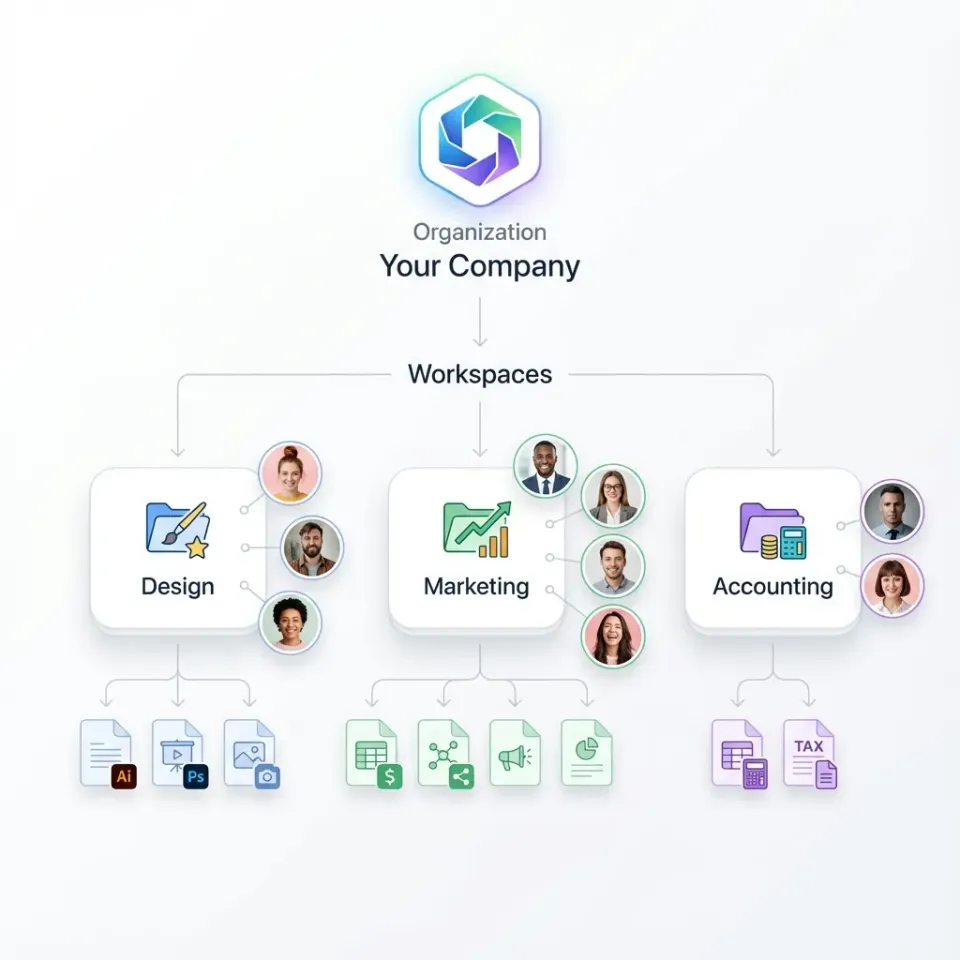
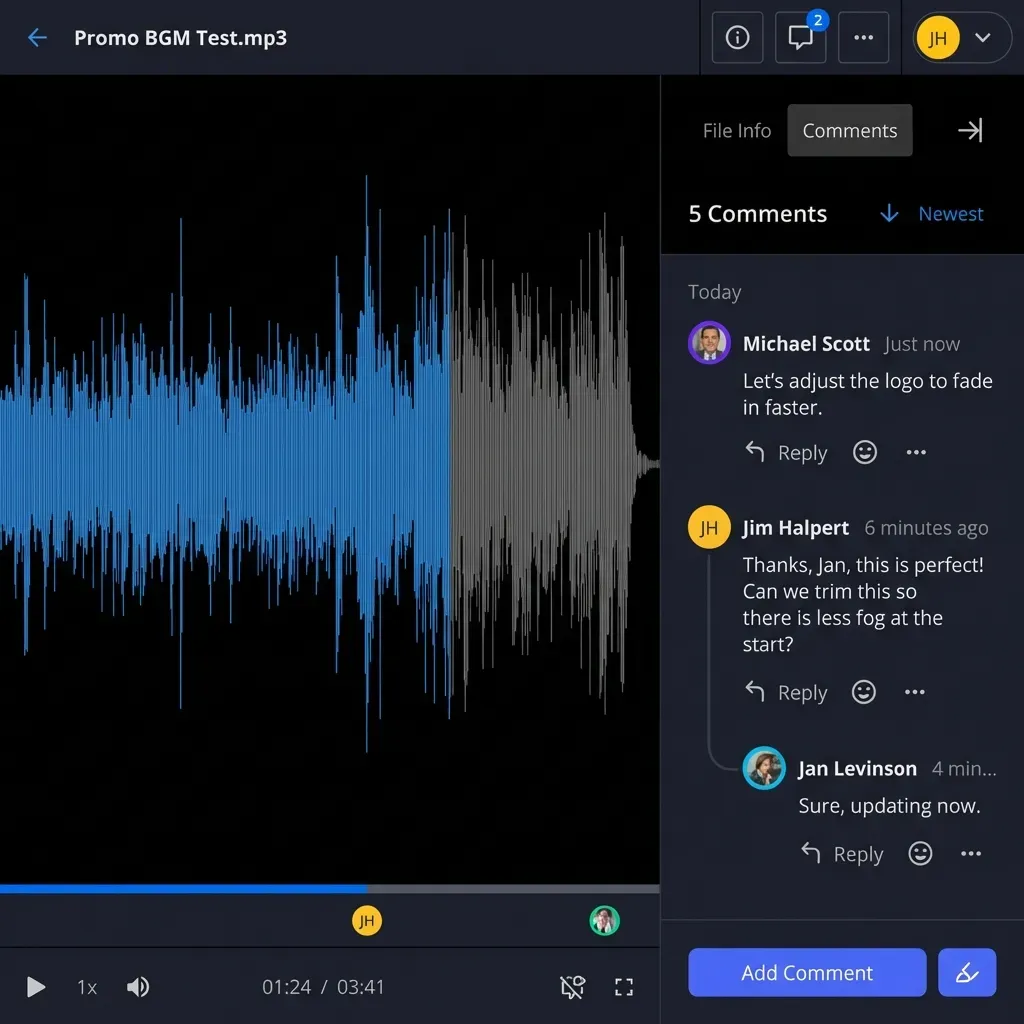
Fastio keeps RFI attachments in workspaces where everything stays tied to the right inquiry. Version history shows what changed. Threaded comments keep the conversation attached to the document rather than scattered across email.
Helpful references: Fastio Workspaces, Fastio Collaboration, and Fastio Construction solutions.

Related guides
- How to Share As-Built Drawings for Construction Closeout**As-built drawings file sharing** helps with construction closeout. These drawings show final built conditions,...
- How to Choose the Best Construction CAD File Sharing SolutionsGuide to construction cad file sharing: Construction teams share .dwg and .dxf files with general contractors, subs,...
- How to Use Construction Photo Sharing Sites for Site ProgressConstruction photo sharing sites let field teams document site progress with timestamps and geotags. Field teams upload...
- How to Share Construction Daily Logs EfficientlyConstruction daily logs sharing keeps subs, owners, and inspectors up to date on site progress. Traditional PDF emails...
- How to Share Construction Progress Photos with Your TeamProgress photos keep everyone aligned on what happened on site. This guide walks through a practical workflow for...
- How to Set Up a Construction Subcontractor File PortalConstruction subcontractor file portals simplify document sharing between general contractors (GCs) and subs. They...
More on this subject: Construction (16 guides)
What Makes RFI File Sharing Effective
RFI files are only useful if people can find them and trust they're looking at the right version. That sounds obvious. It's also the thing that breaks down on almost every project that runs on email.
Every RFI's drawings, specs, and site photos should live with the inquiry itself, not in a separate folder, not attached to an email thread three people forgot to reply-all on. When the response revises a drawing, the new version needs to sit next to the old one with a clear label. Otherwise someone builds from the wrong one.
Responses should nest under the original RFI, not start a new thread. When a follow-up question comes in about the same issue, it belongs in the same place. That chain becomes your audit trail if there's ever a dispute about what was communicated and when.
Architects, subs, and engineers need to view relevant RFIs without getting access to the whole project. Guest links with view-only permissions handle this without seat costs.
And activity tracking matters more than most teams realize until a dispute hits. Knowing exactly when an architect downloaded the latest spec, or when a sub viewed a response, is the difference between a he-said-she-said argument and a documented timeline.
Most GCs still run this on email. It works until the project gets complex, then it stops working and nobody has good records.


Streamline Your RFI Workflow Today
Get organized RFI file sharing with threaded collaboration, version tracking, and unlimited external guest access. Built for construction teams managing hundreds of inquiries.
Building Your RFI File Sharing Workflow
Three levels of organization make RFI files findable across a project's lifecycle: one workspace per project, one folder per RFI number, subfolders by attachment type inside each RFI.
At the project level, create a workspace named with your project code and phase. Invite the PM, superintendent, and key subs. Open workspaces let team members find relevant folders without needing a manual invite for every new RFI.
Within that workspace, create a folder for each RFI. Name them consistently: "RFI-023 - Foundation Drainage Issue." Consistent naming means a search for "RFI-023" returns exactly one result.
Inside each RFI folder, separate by category: Drawings, Specifications, Photos, Calculations, Responses. This sounds like overhead until you're looking for one photo from RFI-047 in a folder containing 200 mixed files.
When a new RFI comes in, upload everything to its folder, share the link, set an expiration tied to project close, and require passwords for anything sensitive. RFI attachments range from a few MB for photos to several hundred MB for CAD files — Fastio handles chunked uploads for large files and lets recipients preview in the browser without downloading.
Here's how it plays out: a GC gets RFI-047 about floor drain placement. They upload the architectural plan, plumbing spec, and site photo to the RFI-047 folder. They share the link to the mechanical sub with a two-week expiration. When the sub has questions, they reply in thread on the same folder. No attachments lost. No separate email chain.

Fastio Features for RFI Management
Workspaces are organized by project. Each workspace supports unlimited members — external subs don't count against any seat limit, which matters when you're coordinating across 20 subcontractors.
Shared folders let you pin specific RFI folders to external teams with view-only permissions. Subs see what they need. They can't touch the originals.
Activity feeds log every view and download with a timestamp. When a dispute comes up about whether the architect received the revised spec, the log answers it.
Comments and annotations attach directly to RFI files. You can pin a note to a specific region of a drawing. The context stays with the document, not buried in a separate email thread that half the team wasn't copied on.
Field supers can pull up RFIs on a tablet from the job site. Browser previews load without requiring a download or a specific app.
Shared links have password protection, expiration dates, and domain restrictions. Download controls prevent a sub from forwarding project documents outside their scope.
Email threads lose attachments and version history. Basic cloud drives have no collaboration layer. Construction-specific platforms like Procore or Autodesk CC solve RFI management but require full platform buy-in. Fastio covers the file-sharing layer on a flat plan without locking you into a larger system.
Step-by-Step: Setting Up RFI File Sharing
Create Project Workspace: Name it with your project code and phase. Example: "Oakridge Tower - Phase 1"
Set Up RFI Template Folders: Create standard folders for new RFIs: Drawings, Specifications, Photos, Calculations, Responses. Duplicate this template for each new RFI.
Invite Team Members: Add internal team first (PM, superintendent, project engineer). Then invite external stakeholders (architect, engineer, key subs) with appropriate roles.
Define Naming Conventions: Enforce consistent naming: "RFI-[Number] - [Subject] - [Date]". This makes search effective across hundreds of RFIs.
Configure Link Settings: Set default expiration for external shares after project close. Enable password protection for specifications.
Establish Upload Process: Assign one team member responsible for uploading new RFI attachments. Document the process so backups exist.
Monitor Activity: Review feeds weekly. Ensure architects are responding. Flag stalled RFIs early.
Start with one active RFI. Test the workflow. Adjust folder structure before processing hundreds of inquiries.
Common RFI File Sharing Mistakes to Avoid
Dumping everything into one project folder is the most common mistake. Once you have 40 or 50 RFIs, a flat folder is useless. One folder per RFI, from the start.
Renaming files instead of versioning them creates duplicates that look identical until you check the date. Use version numbers in filenames: "Floor-Plan-v1.dwg", "Floor-Plan-v2.dwg." Keep all versions in the RFI folder so there's a record.
Emailing the response while the original lives in a drive splits the record in two. Anyone trying to reconstruct the RFI history six months later will be missing half of it. One system, all of it.
Giving subs access to the whole project folder is a common shortcut that exposes bid documents to the wrong people. Share only the specific RFI folder they're involved in.
Logging should be on from day one, not turned on after the first dispute. By then you've already lost the record of who saw what.
Link expiration is easy to forget. A temporary consultant who left the project six months ago shouldn't still have access. Set expiration when you share, not when you remember.
Frequently Asked Questions
How do you share RFI files in construction?
Create a dedicated folder for each RFI within a project workspace. Upload all related attachments (drawings, specs, photos) to that folder. Share the folder link with relevant team members. Set appropriate permissions (view-only for external parties) and link expiration dates.
What are the best RFI collaboration tools?
Fastio provides workspaces, threaded comments, version history, and activity tracking built for RFI workflows. Autodesk Construction Cloud offers RFI modules but costs significantly more. Procore includes RFI management but locks you into their full construction platform.
How many RFIs does the average construction project have?
Large commercial construction projects generate hundreds of RFIs throughout their lifecycle. The exact number varies by project size and complexity, but managing hundreds of inquiries makes organized file sharing essential.
How do RFIs affect construction schedules?
Poor RFI file sharing creates schedule delays by making information harder to find. Teams waste time searching for attachments, and building from outdated documents causes rework. Organized central file storage reduces lookup time and prevents building from outdated documents.
How do you organize RFI attachments effectively?
Organize at three levels: project workspace, individual RFI folder, and attachment type subfolder. Use consistent naming: RFI-[Number] - [Subject]. Keep all versions of modified documents. Link expiration prevents old access from lingering.
Related Resources

Streamline Your RFI Workflow Today
Get organized RFI file sharing with threaded collaboration, version tracking, and unlimited external guest access. Built for construction teams managing hundreds of inquiries.