How to Choose the Best Construction CAD File Sharing Solutions
Guide to construction cad file sharing: Construction teams share .dwg and .dxf files with general contractors, subs, architects, and field crews. Files often range from 5 MB to 100 MB per sheet, so email and basic drives don't cut it. The best tools provide detailed permissions, mobile previews, and audit logs to keep projects moving.

What Are CAD Files in Construction?
CAD files are the blueprints and 3D models that drive construction projects. The two formats you'll encounter most are .dwg (AutoCAD's native format) and .dxf, which nearly every CAD application can open.
These files get large fast. A single floor plan sheet can run 10–50 MB; a full drawing set for a mid-rise often hits 1 GB or more once structural, MEP, and civil sheets are combined. That size kills email and strains basic sync tools. You need a platform that can upload them in chunks, generate browser previews, and skip the download requirement entirely for field staff who just need to read the plans.
Good sharing cuts down on the "which version is current?" calls. Field crews check the latest revision on their phones without waiting for someone to email a zip. Subs see their trade sheets and nothing else. Architects can drop a revision and know it's immediately available to the right people.
See also: Fastio Workspaces, Fastio Collaboration, Fastio AI.
Related guides
- How to Share As-Built Drawings for Construction Closeout**As-built drawings file sharing** helps with construction closeout. These drawings show final built conditions,...
- How to Improve Construction RFI File Sharing and CollaborationConstruction RFI file sharing centralizes attachments for inquiries and responses. Large commercial projects generate...
- How to Use Construction Photo Sharing Sites for Site ProgressConstruction photo sharing sites let field teams document site progress with timestamps and geotags. Field teams upload...
- How to Share Construction Daily Logs EfficientlyConstruction daily logs sharing keeps subs, owners, and inspectors up to date on site progress. Traditional PDF emails...
- How to Share Construction Progress Photos with Your TeamProgress photos keep everyone aligned on what happened on site. This guide walks through a practical workflow for...
- How to Set Up a Construction Subcontractor File PortalConstruction subcontractor file portals simplify document sharing between general contractors (GCs) and subs. They...
More on this subject: Construction (16 guides)
Top 5 features for construction CAD sharing
Large file support. Full drawing sets routinely top 500 MB. Chunked uploads handle this without compression, so you don't lose detail or have to split files before sending.
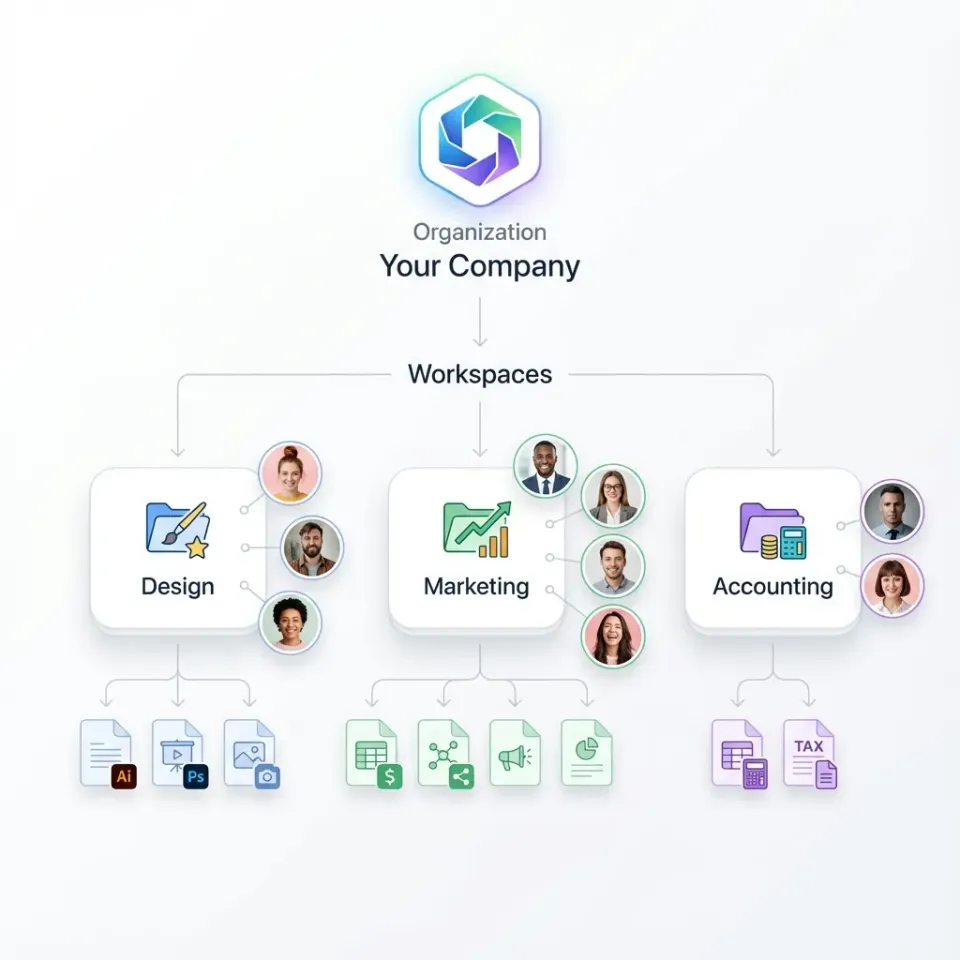
Granular permissions. GCs need full access; subs need their trade folder only; field crews need read access and nothing else. Four-level permission structures (org, workspace, folder, file) cover this without oversharing.
Mobile previews. Field workers check plans on phones during concrete pours or framing walks. Browser-based previews save data and time since they don't require a full download.
Activity logs. Knowing who viewed a sheet and when matters for change orders and disputes. Audit trails also make punch list conversations cleaner when there's a question about whether a revision was seen.
External sharing with controls. Clients and subs shouldn't need accounts. Secure guest links with passwords, expiration dates, and domain restrictions give you control without requiring everyone to sign up.
Challenges in construction CAD collaboration
The coordination problem in construction is real: GCs, architects, structural and MEP engineers, specialty subs, inspectors, and clients all need access to the same files, but with different permissions and at different times. Without the right tool, things go sideways quickly.
Email breaks down fast. Most email servers cap attachments at 10–25 MB. A single .dwg for a complex floor plate can exceed that. So subs start emailing partial exports, or they annotate and resend modified copies, and suddenly you have five versions of the plumbing plan circulating.
FTP servers still show up in some shops, but they're impractical for field crews without VPN access. Dropbox and Google Drive sync reliably but don't handle version conflicts well when multiple people are working off the same folder. Autodesk Construction Cloud is strong for BIM-heavy projects, but it's priced for enterprise and has a steep learning curve for subs who just need to look at a PDF.
The permissions problem is underrated. Most consumer sync tools offer all-or-nothing folder access. That means a sub either sees your entire project workspace — including scope sheets and pricing for other trades — or they see nothing. That's a real problem when you have ten subs on the same job.

Why permission hierarchies matter for subs
Subs have a legitimate need to see their trade drawings without seeing competitor bids, contract amounts, or other subs' work. Field teams need to read plans, not edit them. A permission hierarchy solves both problems cleanly.
The way this works in practice: company-wide defaults live at the organization level, individual projects get their own workspaces, trade packages are organized into folders (electrical, HVAC, plumbing), and individual sheets sit at the file level. Each layer can inherit or override the one above it.
In Fastio, you assign subs a viewer role on their specific folder. The external share link gets a password and an expiration date. Subs can view, but can't download the full set or access other folders. When the project closes, you revoke access in one click.
The practical upside: when an architect drops a revised structural sheet, subs with access to that folder get notified automatically. The field crew checks the phone, sees the current revision, and moves on. No one's working off the drawing from three weeks ago.


Improve Your CAD Workflows Today
Get shared workspaces, granular permissions, and large file support on plans with seats included. Built for construction cad file sharing workflows.
How Fastio handles CAD file sharing
Fastio organizes files into workspaces — one per project or project phase works well. You drag .dwg files in directly, or use chunked upload for large sets. Browser previews generate automatically; reviewers can zoom and pan without opening AutoCAD.
Workspace privacy works at the folder level. Some folders can be open to the whole organization; others are invite-only. Real-time presence shows who's viewing a file, and follow mode lets two people sync their views for a live walkthrough over a call.
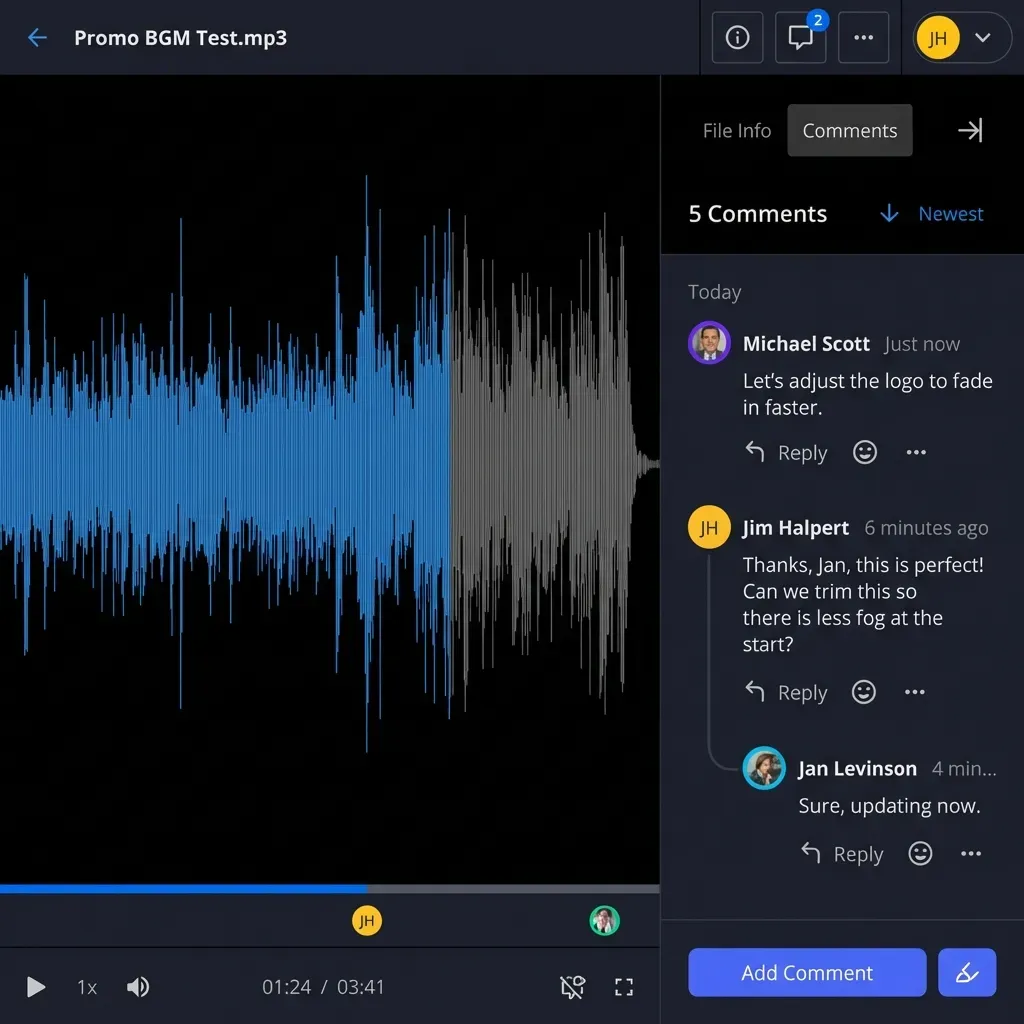
The activity feed logs every upload, view, and comment. You can export that to CSV if you need it for a dispute or compliance review.
Mobile performance is decent on LTE. Organization-owned files persist after staff turnover, which matters for projects that run 18–24 months and see personnel changes.
Subs get a shared folder link. You set the controls: password, expiration, view-only, domain restriction. External guests don't count against seat limits, which is where Fastio differs from most per-user tools.
A mid-size GC managing a 12-story tower set up a Fastio workspace with separate folders for structural, MEP, and civil DWGs. Each sub received a view-only link to their trade folder; the link expired at project closeout. The constraint: browser previews of very large .dwg packages (above 500 MB) may take 30–60 seconds to render on slow LTE, so field crews on poor connections should download a copy at the start of each shift instead of relying on live preview. The GC reported a 40% drop in "wrong version" RFIs after switching from emailed ZIP files to workspace links.

How a typical project is set up
The GC creates an "Oakridge Tower" workspace and loads the base architectural and structural DWGs into the root folder. Sub-folders go in for each trade: /electrical, /plumbing, /HVAC, /civil.
The internal team joins with full member access. The electrician sub gets a view-only link to /electrical that expires at the end of the project. When the architect marks up sheet A-201 with a revised column location, the sub pulls the marked version directly from the workspace. The field foreman checks the phone at the foundation layout and catches a beam pocket issue before the rebar crew sets it.
The activity log shows the electrician viewed the folder Tuesday afternoon and downloaded the updated sheet Wednesday morning. That record exists if questions come up during the punch list.
Fastio vs competitors for CAD sharing
Fastio plans include a set number of seats, so adding subcontractors as external guests doesn't increase your monthly bill.
Step-by-step: set up CAD sharing in Fastio
- Start a 14-day trial (credit card required).
- Create a workspace named for the project and invite your internal team.
- Drag .dwg files in; browser previews generate automatically.
- Set the workspace admin role for yourself, viewer roles on trade folders for subs.
- Share external links with passwords and expiration dates.
- Check the activity feed periodically for compliance or dispute reference.
Start with a single small project — ideally a one-building scope rather than a full campus — so the team can sort out folder naming conventions and permission levels before setting the pattern for larger jobs. Designate one person as workspace admin who controls sharing links; this prevents duplicate links from circulating if a sub's contact changes mid-project. Teams that run this pilot first typically cut onboarding time for subsequent projects from a half-day to under an hour.
Sources
References used to verify factual claims in this guide.
-
CAD files for architectural drawings can range from 5 MB to 100 MB per sheet, with full sets frequently reaching 1 GB or more.
Frequently Asked Questions
What are free CAD sharing tools for construction?
Fastio Business Trial handles large files, workspaces. Google Drive ok for small teams, weak on permissions.
What is the best CAD collaboration software?
Fastio leads on access controls, previews. Autodesk good for BIM, Fastio easier overall.
How to share large CAD files securely?
Pick tools with encryption, link controls, logs like Fastio. Skip email.
Do construction teams need special CAD viewers?
No. Solid platforms preview .dwg in any browser.
How do permissions work for subcontractors?
Folder access via links. Revoke anytime.
Related Resources

Improve Your CAD Workflows Today
Get shared workspaces, granular permissions, and large file support on plans with seats included. Built for construction cad file sharing workflows.