ChatGPT SharePoint Connector Admin Consent: Requirements and Workarounds
Connecting ChatGPT to an enterprise SharePoint library often halts at a Microsoft Entra ID admin consent screen due to broad tenant-wide permissions. While directory administrators can grant consent through the Entra admin center with proper group containment, organizations with strict security policies need alternative architectures. A scoped workspace gateway syncs designated libraries without exposing tenant credentials or full directory trees to third-party AI models.


Why the ChatGPT SharePoint Connector Requires Admin Consent
When an employee attempts to link ChatGPT to an enterprise SharePoint document library, the authentication flow halts at a grey Microsoft Entra ID prompt stating that administrator approval is needed. That block is not an authentication timeout or a broken redirect. It is an intentional identity boundary triggered because the OpenAI multi-tenant application requests broad Microsoft Graph scopes across the corporate tenant.
ChatGPT SharePoint connector admin consent is the Microsoft Entra ID authorization required by an IT administrator before users can link enterprise SharePoint document libraries to ChatGPT.
To understand why this block occurs, IT teams must examine how Microsoft Entra ID governs application permissions. In modern cloud identity architectures, third-party software connects to Microsoft 365 resources using OAuth 2.0 authorization flows. When an application requests access, it specifies exact permission scopes defining what data it can read, write, or inspect.
Microsoft Entra ID distinguishes between two primary consent models:
- User Consent: Standard users authorize an application to access data that belongs strictly to them, such as reading their personal calendar or inspecting basic profile properties.
- Administrator Consent: An authorized administrator grants permission on behalf of the entire organization, or authorizes high-impact permission scopes that could expose shared corporate repositories.
Because corporate document repositories contain confidential business records, intellectual property, and regulated customer records, Microsoft Entra ID tenants are configured by default to restrict standard users from consenting to multi-tenant applications requesting broad organizational scopes. When a user clicks to connect SharePoint inside ChatGPT, the login dialogue identifies high-impact Microsoft Graph scopes and immediately halts the connection, presenting the approval notification.
Microsoft Graph Permission Scopes Requested by ChatGPT
To inspect, summarize, and query enterprise documents, the native ChatGPT SharePoint connector requests a collection of Microsoft Graph API permissions. Depending on the specific connector configuration and whether file modification features are enabled in the OpenAI workspace, the core permission set includes:
Sites.Read.All: Grants the application permission to discover SharePoint site collections, read site properties, and traverse document library hierarchies across the tenant.Files.Read.All: Permits the application to read the binary contents and metadata of files stored across all SharePoint document libraries and shared OneDrive drives accessible to the user.User.Read: Enables the application to sign in the user and retrieve their identity profile properties.offline_access: Allows the application to receive OAuth refresh tokens, maintaining background connectivity without prompting the user to re-authenticate during every session.
These scopes operate as delegated permissions, meaning the application acts on behalf of the signed-in employee and respects their individual access control lists in SharePoint. However, Microsoft Entra ID requires administrator consent for Files.Read.All and Sites.Read.All because the application registration itself must be authorized at the directory level before any individual user can delegate access tokens to it.
The Permission Sprawl Trap and Infosec Objections
While connecting ChatGPT to SharePoint sounds straightforward, enterprise information security teams routinely deny requests for tenant-wide admin consent. This pushback stems from architectural realities in how SharePoint permissions and multi-tenant applications interact.
In Microsoft Entra ID, granting admin consent registers the enterprise application across the entire directory. Unless an administrator configures explicit containment policies, every employee in the tenant gains the ability to authenticate through that application.
The larger concern involves internal over-sharing. Over years of collaboration, enterprise SharePoint environments accumulate significant permission sprawl. Team sites, project folders, and cross-functional channels frequently carry broad read permissions, such as default access granted to broad internal groups. In routine daily work, employees rarely stumble upon confidential documents stored outside their immediate departments.
However, an AI model indexing document libraries changes the discovery process. If an authorized user enters a natural language prompt, the retrieval system can surface and summarize sensitive files that were poorly permissioned in SharePoint, including executive compensation memos, acquisition targets, or unannounced corporate restructurings. Because the data leaves the Microsoft 365 trust boundary to be processed by an external AI provider, security architects often conclude that tenant-level consent introduces unacceptable compliance and governance risks.
Related guides
- ChatGPT SharePoint Connector: Enterprise Setup vs. Fast.io MCP WorkspacesConnecting ChatGPT to SharePoint document libraries gives conversational models access to enterprise knowledge. While...
- ChatGPT SharePoint Connector Limits: 100 MiB File Cap, Throttling, and ArchitectureAs of October 2026, the native ChatGPT SharePoint connector enforces a 100 MiB file ceiling and triggers Microsoft...
- ChatGPT SharePoint Permissions: Admin Setup and Access ControlsChatGPT SharePoint permissions rely on Microsoft Entra ID delegated and application access grants that govern how...
- SharePoint API Permissions Explained: Scopes, Admin Consent, and Scoped ConnectorsSharePoint API permissions control how automated integrations and users interact with files across Microsoft 365....
- How to Connect AnythingLLM to SharePoint Document LibrariesDeploying an AnythingLLM SharePoint connector enables local and team AI workspaces to query Microsoft 365 document...
- Connecting AutoGen Multi-Agent Systems to SharePoint: Architecture and SetupAn AutoGen SharePoint connector enables Microsoft AutoGen agent teams to authenticate against Microsoft Graph and query...
More on this subject: Agent File and Document Workflows (397 guides)
Steps to Grant Admin Consent in the Microsoft Entra Admin Center
For organizations whose security governance approves native third-party AI connections, an administrator can authorize the ChatGPT SharePoint connector directly through the Microsoft Entra admin center.
To complete this authorization, the administrator must hold an account with sufficient directory privileges. Microsoft Entra ID requires the Global Administrator role, or an application management role such as Cloud Application Administrator or Application Administrator.
The primary authorization procedure follows these administrative steps:
- Sign in to the Microsoft Entra admin center at
entra.microsoft.comusing administrative credentials. - In the left navigation menu, select Identity, expand Applications, and select Enterprise applications.
- Locate the ChatGPT enterprise application entry in the application list. Search for OpenAI, ChatGPT, or the custom application name provided by your OpenAI workspace configuration.
- Under the Security heading in the application menu, select Permissions.
- Select Grant admin consent for your organization name. A new authentication window appears displaying the requested Microsoft Graph permissions.
- Review the declared scopes, confirm that the publisher identity is verified, and select Accept to commit the consent grant.
Once accepted, the consent status updates in the portal, permitting assigned users to complete the OAuth connection from within ChatGPT without encountering the approval block.
Enforcing User Assignment and Pilot Containment
Granting admin consent creates a significant security risk if left in its default configuration. By default, Microsoft Entra ID sets the assignment requirement toggle to disabled, which allows every user in the tenant to connect their SharePoint accounts to ChatGPT.
To contain the integration to authorized personnel, administrators must enforce user assignment:
- In the Microsoft Entra admin center, open the ChatGPT entry under Enterprise applications.
- Under Manage, select Properties.
- Locate the toggle labeled Assignment required? and switch it to Yes.
- Select Save at the top of the pane.
- In the left menu, select Users and groups, then click Add user/group.
- Select a specific security group representing your authorized pilot cohort, such as an AI evaluation team or a specific business unit.
- Confirm the assignment.
When standard users outside this security group attempt to connect, Microsoft Entra ID blocks authentication with error code AADSTS50105, preventing unmonitored organizational rollout.
Configuring the Admin Consent Request Workflow
Rather than leaving users stranded when they hit a consent wall, IT organizations can establish a structured request and approval pipeline by enabling the Microsoft Entra admin consent workflow.
This workflow replaces the dead-end error dialogue with a submission form where employees provide a business justification for connecting SharePoint to ChatGPT.
To configure the workflow in the Microsoft Entra admin center:
- Sign in to the admin center as a Global Administrator.
- Navigate to Identity > Applications > Enterprise applications > Consent and permissions.
- Select Admin consent settings.
- Under the heading Admin consent requests, locate Users can request admin consent to apps they are unable to consent to and select Yes.
- In the Who can review admin consent requests field, select the administrators or security groups responsible for evaluating SaaS integrations.
- Configure email notifications and set request expiration windows.
- Select Save to activate the workflow.
When users request access, designated reviewers inspect the submission under Enterprise applications > Admin consent requests and decide whether to approve, deny, or permanently block the application.
Architecting a Scoped Workspace Alternative for Restricted Tenants
When enterprise information security policies strictly forbid tenant-level OpenAI integrations, telling employees to request Global Admin approval leads to a dead end. Security teams will not grant tenant-wide Microsoft Graph scopes to an external AI platform simply so one department can summarize technical manuals or project notes.
The solution is an architectural shift: instead of connecting ChatGPT directly to the Microsoft Entra tenant, organizations establish an intermediary storage gateway using Fastio.
In this model, the enterprise keeps its existing SharePoint and OneDrive document libraries intact. Fastio Cloud Sync connects Google Drive, Dropbox, Box and OneDrive folders to a workspace, with SharePoint document libraries accessed through the OneDrive connector. Sync operations run one-way or two-way, on a schedule or on demand, never real-time.
+--------------------------+       Cloud Sync (Schedule/On-Demand)       +--------------------------+
|  Enterprise SharePoint   | ==========================================> |  Isolated Fastio Space   |
|  Document Libraries      |                                             |  - Workspace Boundary    |
+--------------------------+                                             |  - Role-Based Access     |
                                                                         +--------------------------+
                                                                                       |
                                                                        Remote MCP     | Fastio Plugin
                                                                        StreamableHTTP | Operations
                                                                                       v
                                                                         +--------------------------+
                                                                         |   ChatGPT / Codex AI     |
                                                                         |   - Scoped Index Search  |
                                                                         |   - Citation-Backed RAG  |
                                                                         +--------------------------+
This decoupled gateway provides three immediate security and governance benefits:
- Strict Workspace Isolation: Role-based permissions are set per organization, workspace, and share. The AI assistant receives access only to the documents placed inside the designated workspace. It receives no tenant-level tokens and has no technical mechanism to traverse other SharePoint sites.
- Controlled Synchronization: Documents update from SharePoint to the workspace on a predictable schedule or manual trigger, ensuring that unvetted or draft corporate files are not exposed to AI indexing before review.
- Hybrid Search with Intelligence Mode: When Intelligence Mode is enabled on the workspace, Fastio auto-indexes files for hybrid search combining full-text, semantic meaning, and metadata values. ChatGPT queries specific indexed passages through the Fastio Model Context Protocol (MCP) server instead of pulling whole folders into context.
The connector comparison is published at https://fast.io/benchmarks/.
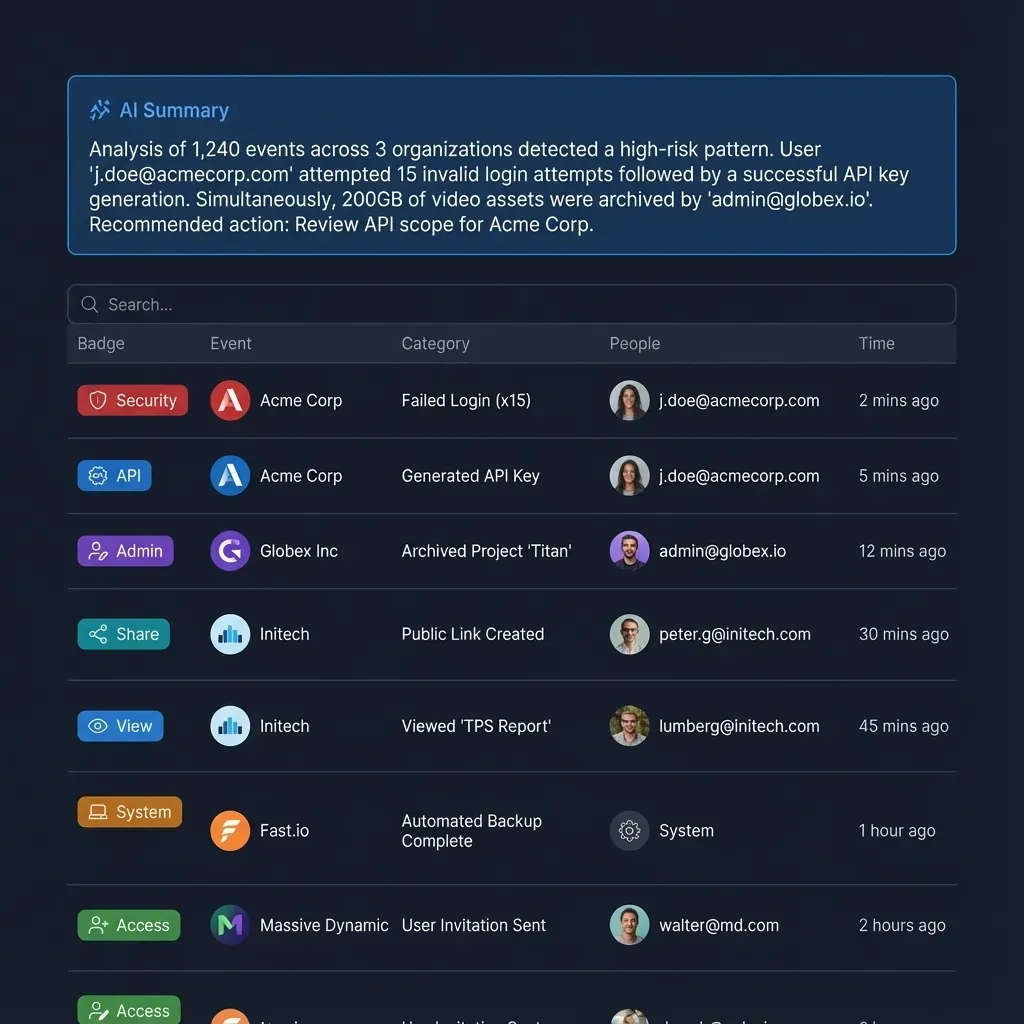
Inside the workspace, governance remains transparent. A detailed activity log records changes across the organization, tracking uploads, edits, moves, deletions, membership changes, and share creation, giving IT administrators complete visibility into file modifications.
Step-by-Step Configuration of the Scoped Sync Gateway
Setting up a scoped sync gateway requires no Microsoft Entra Global Administrator consent grants. Any project team with read access to their target SharePoint document library can deploy the bridge in five practical steps:
- Create an Isolated Fastio Workspace: In the Fastio console, create a dedicated workspace named for your project or business unit, such as Engineering Docs or Research.
- Configure Cloud Sync: Connect your corporate OneDrive account and select the target SharePoint library folder. Choose one-way sync from SharePoint into Fastio, and configure a synchronization schedule or set it to on-demand sync.
- Enable Intelligence Mode: In workspace settings, toggle Intelligence Mode on. Fastio automatically processes uploaded PDFs, Word documents, spreadsheets, presentations, and text files, building a searchable semantic index with citations.
- Connect ChatGPT via MCP:
- ChatGPT Plugin (Preferred): Open the ChatGPT plugin directory at
chatgpt.com/plugins, locate the Fastio plugin, select Install plugin, sign in to your Fastio account in the authorization window, and mention@Fastioin your conversation. - Custom MCP Server (Alternative): If your ChatGPT workspace uses custom developer connections, open Settings, select Security and login, and turn on Developer mode. Go to
chatgpt.com/plugins, select the plus button, name the connection Fastio, enterhttps://mcp.fast.io/mcp/operationsas the MCP server URL, and sign in when prompted.
- ChatGPT Plugin (Preferred): Open the ChatGPT plugin directory at
- Query Documents Safely: In ChatGPT, ask questions against your synced files. ChatGPT searches the indexed workspace through the Fastio MCP server and provides answers backed by source document citations.


Connect ChatGPT to SharePoint files without tenant consent walls
Sync selected SharePoint libraries into an isolated Fastio workspace, enable Intelligence Mode, and query your documents through the Fastio MCP server. Monthly plans start with a 14-day free trial that requires a credit card.
Compare Native Connectors with Scoped Workspaces
Choosing between the native ChatGPT SharePoint connector and a scoped workspace gateway depends on your organization's risk tolerance, identity governance policies, and storage topology.
The following architectural comparison summarizes how the two approaches handle identity, security, and document retrieval:
When to Use the Native Connector
The native ChatGPT SharePoint connector is well suited for smaller organizations, technology startups, or unified Microsoft 365 environments where the following conditions apply:
- A single IT administrator manages both the Microsoft Entra tenant and the ChatGPT Enterprise workspace.
- Document libraries are clean, standardized, and strictly permissioned without legacy over-sharing or unmanaged sharing links.
- The organization uses Microsoft 365 exclusively, with no project files distributed across Dropbox, Google Drive, or Box.
- Information security policies explicitly permit tenant-wide multi-tenant application registrations with Microsoft Graph scopes.
When to Use a Scoped Workspace Gateway
A scoped workspace gateway is necessary when working under stricter operational constraints:
- Strict Infosec Governance: The enterprise security committee or compliance officer has blocked tenant-level OAuth grants for external generative AI platforms.
- Cross-Platform Repositories: Teams store technical documentation in Google Drive, design assets in Box, and contracts in SharePoint. Fastio Cloud Sync connects Google Drive, Dropbox, Box and OneDrive folders into one workspace, unifying retrieval across platforms.
- Controlled AI Exposure: Project managers must ensure that an AI assistant cannot access sensitive corporate records outside an approved project folder under any prompting condition.
- Self-Service Departmental Rollouts: Business units need to deploy AI-assisted search today without waiting months for an enterprise identity review.
Resolving Common Microsoft Entra and SharePoint Authentication Errors
When deploying third-party storage connectors, administrators and users encounter distinct error codes generated by Microsoft Entra ID and SharePoint. Understanding the exact root causes speeds remediation.
The most frequent authentication issues include:
AADSTS65001: Consent Missing or Revoked: This error indicates that the user or administrator has not consented to use the application with ID. It occurs when an employee tries to access the connector before an admin has granted consent, or after an admin has cleared existing OAuth tokens. To fix this, an administrator must open Enterprise applications in Microsoft Entra, locate the app, and select Grant admin consent.AADSTS90094: Administrator Consent Required: This error appears when user consent is disabled across the directory and the application requests scopes requiring administrative review. It resolves when an administrator grants tenant consent or reviews the pending request in the admin consent workflow.AADSTS50105: User Not Assigned to Application Role: When an administrator switches the assignment requirement toggle to enabled on the enterprise application, unassigned users receive this error during sign-in. To resolve it, navigate to the application's Users and groups pane in Microsoft Entra and add the user's security group.- SharePoint
HTTP 401 / 403Access Denied: Even when Microsoft Entra authentication succeeds, SharePoint enforces its own site collection access control lists. If the connecting user account lacks read permissions on the target site collection, queries return empty results. For detailed remediation steps on SharePoint permissions, see Fix ChatGPT SharePoint Not Working. - Purview Sensitivity Label Blocking: If target documents carry Microsoft Purview sensitivity labels with encryption, Microsoft Graph may block third-party API readers from decrypting file payloads. Ensure that documents intended for AI analysis carry labels that permit programmatic extraction.
Revoking Connectors and Managing Disconnection
When an evaluation concludes or an employee leaves a project team, administrators and users should promptly revoke active credentials.
To revoke the native ChatGPT connector in Microsoft Entra ID:
- Open the Microsoft Entra admin center and go to Enterprise applications.
- Select the ChatGPT application.
- In the left menu, select Manage > Properties and click Delete to remove the service principal, or navigate to Security > Permissions and revoke individual OAuth consent grants.
To disconnect the integration inside ChatGPT:
- Open ChatGPT, navigate to Settings, and select Connected apps.
- Locate the SharePoint or Microsoft connector and select Disconnect.
To manage connected MCP devices in Fastio:
- In the Fastio console, open Settings.
- Select Devices & Agents, then navigate to Connected Devices.
- Locate the active session for ChatGPT or Codex and select Revoke.
Monthly plans start with a 14-day free trial that requires a credit card. Review options on the Fast.io pricing page:
Storage beyond the plan is billed in cents per gigabyte, and extra bandwidth is billed per gigabyte without consuming AI credits. Credits meter AI retrieval work, with overage billed in predictable credit increments.
Sources
References used to verify factual claims in this guide.
-
Turning on the admin consent workflow in Microsoft Entra ID requires signing in with the Global Administrator role.
Frequently Asked Questions
Why does ChatGPT need admin approval to connect to SharePoint?
ChatGPT requires admin approval because its connector requests broad Microsoft Graph API permission scopes like Sites.Read.All and Files.Read.All. Microsoft Entra ID classifies these as high-impact scopes that can access organizational repositories beyond an individual user's personal files. In most corporate tenants, user consent policies restrict standard employees from granting third-party multi-tenant applications access to company data, requiring an IT administrator with the Global Administrator or Application Administrator role to authorize the connection.
Can I connect ChatGPT to SharePoint without tenant admin consent?
You cannot connect the native ChatGPT SharePoint connector without Microsoft Entra admin consent if your tenant restricts third-party OAuth app authorizations. However, you can deploy a scoped workspace alternative using Fastio. By setting up Cloud Sync from your specific SharePoint document library into an isolated Fastio workspace, ChatGPT connects to the workspace via the Fastio MCP server or plugin. This provides secure, indexed document search for your team without requiring tenant-wide Entra ID administrative approvals.
How do I grant admin consent for the ChatGPT enterprise connector?
A Global Administrator or Application Administrator grants consent in the Microsoft Entra admin center. Navigate to Identity > Applications > Enterprise applications, locate the ChatGPT or OpenAI service principal, select Permissions under Security, and click Grant admin consent for your organization. To prevent all users in the tenant from accessing the connector, set Assignment required to Yes under application properties and assign only authorized pilot groups under Users and groups.
What Microsoft Graph API permissions does the ChatGPT SharePoint connector require?
The connector primarily requests delegated Microsoft Graph scopes including Sites.Read.All to discover document libraries, Files.Read.All to read file streams and metadata, User.Read to verify user identity, and offline_access to maintain background session persistence via refresh tokens. Depending on whether write actions are enabled in the OpenAI workspace, additional file management permissions may be requested.
Does granting admin consent allow ChatGPT to access all files in our SharePoint tenant?
Granting admin consent authorizes the application registration, but the connector operates using delegated permissions. In theory, ChatGPT can only retrieve files that the individual signed-in user has permission to read in SharePoint. However, if internal sites suffer from over-sharing, the AI model can surface confidential documents that the employee technically has rights to view, creating significant data governance exposure.
How does Fastio isolate SharePoint files for ChatGPT without tenant-wide consent?
Fastio acts as a decoupled storage gateway. Instead of granting an external AI service direct API access to your Microsoft Entra directory, Cloud Sync synchronizes only the specific SharePoint folder or library you designate into an isolated Fastio workspace on a schedule or on demand. Role-based permissions are set per organization, workspace, and share, ensuring the AI model connects via MCP strictly to the documents within that workspace.
What Fastio subscription plan is required for team workspace connections?
Fastio organizations operate on paid subscriptions. Monthly plans start with a 14-day free trial that requires a credit card. Teams can choose between Starter, Business, and Enterprise tiers depending on workspace, storage, and AI credit requirements, as detailed on the pricing page.
Related Resources

Connect ChatGPT to SharePoint files without tenant consent walls
Sync selected SharePoint libraries into an isolated Fastio workspace, enable Intelligence Mode, and query your documents through the Fastio MCP server. Monthly plans start with a 14-day free trial that requires a credit card.