How to Automate User Offboarding with Fastio API
Automating user offboarding with the Fastio API lets you revoke access and transfer file ownership instantly. Manual offboarding leaves orphaned files and creates security gaps. A simple API script lets developers terminate sessions, reassign assets created by agents, and maintain clear audit logs. This guide shows the exact API sequence you need to build a reliable offboarding workflow for both humans and AI agents.

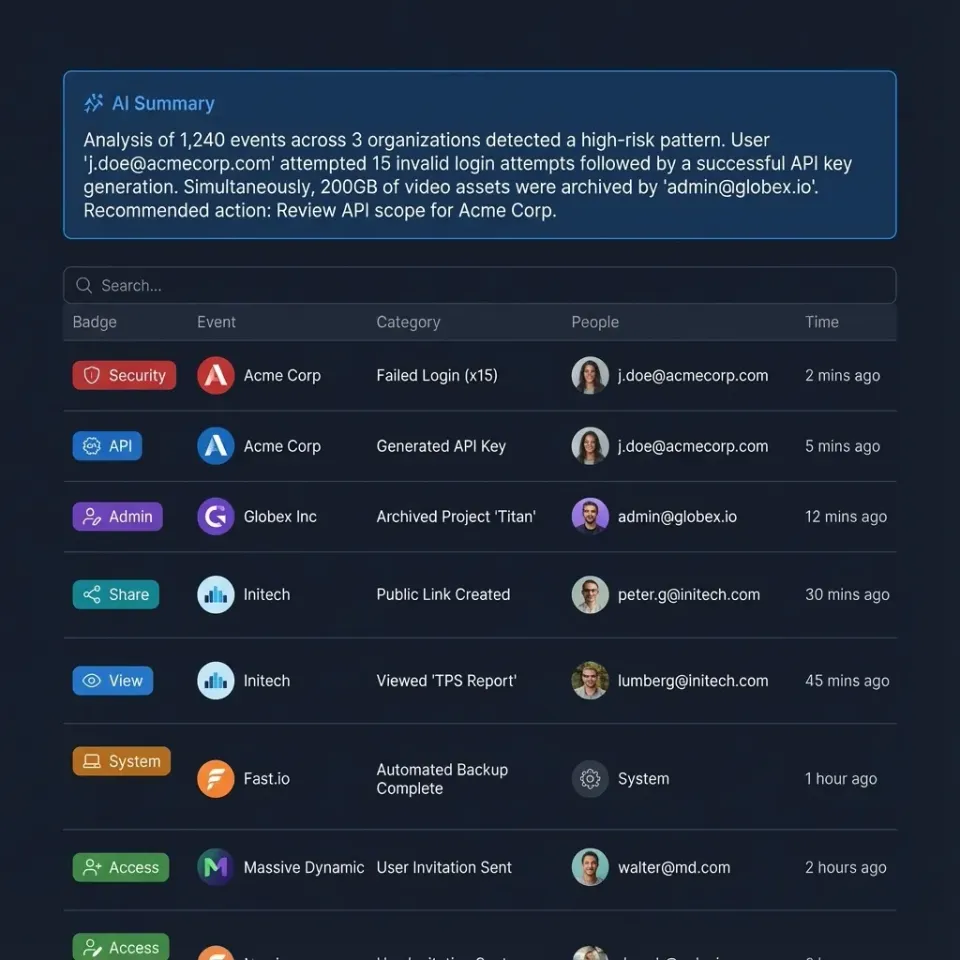
The Security Risks of Manual Offboarding
When employees or contractors leave your organization, you need to revoke their access everywhere at once. Relying on an administrator to manually click through dashboards is risky. It often leaves orphaned API keys and active agent sessions running in the background.
AI agents make this even riskier. Fastio is an intelligent workspace where agents and humans work together. Because Fastio provides a consolidated MCP toolset for agentic workflows, an active token gives full access to your organization's data. If someone forgets to revoke a long-lived API token, a former contractor's automated agents could still access sensitive files.
An automated offboarding script fixes this. By calling a specific sequence of API endpoints, you can ensure every session stops, every token is invalidated, and every file moves to a manager. This approach also leaves a clear trail for compliance audits.
Helpful references: Fastio Workspaces, Fastio Collaboration, and Fastio AI.

Related guides
- How to Automate File Ownership Transfer with Fastio APIAutomating file ownership transfer with the Fastio API lets AI agents securely deliver finished assets to human clients...
- How to Automate the Fastio API Ownership Transfer WorkflowOwnership transfer via the Fastio API enables autonomous agents to securely hand off completed workspaces and files to...
- How to Integrate the Fastio API with n8n WorkflowsGuide to integrate fast api with n8n workflows: Connect n8n workflows to Fastio's API to automate file storage and...
- Fastio API Presigned URLs Implementation GuideFastio API presigned URLs allow your applications to grant secure, time-limited, direct access to files without...
- How to Build a Fastio API Golang ImplementationBuilding a Fastio API Golang implementation allows developers to manage workspaces, upload files concurrently, and...
- How to Build a Fastio API Folder StructureManually creating workspaces slows down development and client onboarding. A Fastio API folder structure creation guide...
More on this subject: Agent Integrations and APIs (192 guides)
Prerequisites for Your Fastio Offboarding Script
Before writing the script, you need to set up your admin environment. You need an organization admin API key with the admin access mode (rwa). Generate this token specifically for your identity provider integration instead of tying it to a personal admin account.
Keep this credential in your secret manager. The script runs a sequence of operations that are hard to reverse. If you remove a user before reassigning their files, those files become orphaned and you have to recover them manually.
You also need a service account or admin user ID to receive the departing user's files. Every Fastio workspace needs an owner. When you remove a workspace, you are actually transferring ownership of that container and its Intelligence Mode index to a new owner.
Step 1: Audit the Target Account
The first step is finding the user's ID and taking stock of what they own. The lockout itself happens in Step 2, which signs the user out everywhere, and Step 4, which removes them from the organization.
First, find out what they own. Call GET /current/org/{org_id}/list/workspaces/ to list the organization's workspaces and note every one the user owns. Save this list in memory since you need these workspace IDs for the transfer phase.
Keep this list as a record of what the user owned before the transfer.


Give Your AI Agents Persistent Storage
Create an intelligent workspace where agents and humans collaborate securely.
Step 2: Revoke API Permissions and Terminate Sessions
Existing sessions might stay active until they expire. To be safe, you need to revoke all active permissions. This means terminating both web sessions and agent connections.
Send a POST request to /current/org/{org_id}/member/{user_id}/sign-out/ (an Enterprise-plan route). It invalidates every session the user has, in every Fastio org and not only yours, though OAuth apps may keep working for up to an hour. If an agent is uploading a large file with the user's credentials, the transfer will fail with an authorization error.
The same call revokes whatever of their API keys and OAuth grants the org is allowed to revoke. List anything left with GET /current/org/{org_id}/credentials/?user_id={user_id} and revoke it with DELETE /current/org/{org_id}/member/{user_id}/credentials/{type}/{credential_id}/. This removes the persistent credentials typically used in local automation scripts or CI/CD pipelines. Together, the sign-out and the credential revokes end the user's current access, and removing them from the organization in Step 4 keeps them out.
Step 3: Transfer Workspace Ownership
To transfer all files from a user, you have to reassign their workspaces. Fastio uses workspaces as the main boundary for humans and AI agents to work together.
Rather than handling each workspace from the first step one at a time, use the bulk access transfer. Send a POST request to /current/org/{org_id}/member/{user_id}/transfer_access/preview/ with the new owner's to_user_id, then send the same to_user_id with the preview's plan_hash to /current/org/{org_id}/member/{user_id}/transfer_access/. It moves every workspace and share membership and ownership the user holds in the org.
This reassigns the workspace and everything inside it. Since Fastio intelligence is built-in, the RAG index and semantic search transfer to the new owner automatically. The workspace storage usage shifts to the new owner's organization quota right away.
Transferring workspaces automatically keeps projects moving. The new admin gets instant access to the files and can invite other people to take over the work.
Step 4: Remove the User and Verify via Audit Logs
The final step is removing the user from your organization entirely. You do this using the organization members endpoint.
Send a DELETE request to /current/org/{org_id}/members/{user_id}/. This removes them from the company directory and revokes any specific access they had to other shared workspaces.
Once the script finishes, you should verify it worked. Query GET /current/events/search/ with the user's ID as user_id. Checking this log confirms the offboarding was successful and gives you a clear record for compliance.
Handling Edge Cases in Agentic Workflows
Agentic workflows create a few operational considerations during offboarding. For example, an agent might be actively reading or writing files via remote MCP or the REST API.
When you revoke a user's sessions and delete their API tokens, all active connections and agent access are terminated immediately. Any advisory file locks held by their agents expire automatically or can be overridden by collaborators with write permissions, while workspace version history preserves all prior revisions.
If your team uses autonomous agents, keep in mind that agent credentials are often tied to human accounts or scoped tokens. When you offboard the human, any agent using their token loses access. Let the new workspace owner know so they can generate fresh credentials for those shared AI assistants.
Building the Offboarding Script in Python
You can build a Python script to handle these API calls. This script becomes your main tool for handling offboarding. Using the standard requests library, you can write the four-step sequence and add basic error handling.
Writing it this way makes it easy to connect the script to your HR systems. When an employee's status changes in your directory, a webhook can trigger your Python code. This revokes their Fastio access at the exact same time they lose access to their email.
Make sure to use exponential backoff for your network requests. If the workspace transfer endpoint times out because of a large file index, your script needs to wait and try again instead of moving on. If you delete the user before transferring their assets, their files will be orphaned.
Automating Offboarding via Identity Provider Webhooks
You can connect your Python script to your identity provider so you don't have to run it manually. Tools like Okta and Entra ID send webhooks when an admin deprovisions an account. Your server catches that event, grabs the user's email, and matches it to their Fastio user ID.
After matching the ID, the server runs your Fastio API sequence. The exact moment a user is marked inactive in your directory, their Fastio sessions end and their workspaces transfer to a manager.
This setup saves your IT team a lot of time. It also ensures the offboarding process runs the same way every time, removing the risks that come with manual checklists.
Why the API Approach is Better Than Manual Updates
Using the API is much more consistent. When an admin handles offboarding manually, they might forget to transfer a workspace or miss a long-lived agent token. The API sequence handles the whole process right away, avoiding the delays of doing it by hand.
Speed matters during security incidents. If you think an account is compromised, a script can sign it out of every session with one call. You can investigate the issue safely, knowing the attacker is locked out of your organization's data.
Also, the API sequence creates structured logs at every step. You get a clear record showing exactly when access was revoked, which makes compliance reporting and security audits much easier.
Sources
References used to verify factual claims in this guide.
-
Fastio provides a consolidated MCP toolset for agentic workflows
-
Fastio Business Trial provides a 14-day evaluation with included credits
Frequently Asked Questions
How to transfer all files from a user in Fastio?
To transfer all files from a user, you must reassign ownership of their workspaces using the Fastio API. Send a POST request to the workspace transfer endpoint with the new owner's user ID. This moves the workspace container, including all files and the Intelligence Mode index, to the new owner.
How to remove a user from Fastio via API?
You can remove a user from your Fastio organization by sending a DELETE request to the organization members endpoint. Before deleting the user, make sure you have transferred their workspaces and revoked their active sessions. Once removed, they lose access to company data right away.
Does revoking a user's access interrupt active AI agent workflows?
Yes, revoking a user's sessions instantly terminates any agent operations running on their API tokens. If an agent is uploading a file or indexing a document, the request will fail with an authorization error. We recommend using dedicated service accounts for critical background agents.
Can I reverse the workspace transfer process if I make a mistake?
You can transfer a workspace back to the original owner by making another transfer API call, as long as the original user hasn't been completely deleted. If the account is already deleted, you have to invite them as a new user before they can own workspaces again.
What happens to active agent sessions when a user is offboarded?
Any active agent sessions or API tokens tied to the offboarded user are terminated immediately when credentials are revoked. This prevents unauthorized access while ensuring workspace data and version history remain intact.
How do I verify that the offboarding API script succeeded?
Query the Fastio audit logs endpoint after your script runs. Filter the logs by the target user ID to see the sequence of events. You can confirm the sign-out, credential revocations and organizational removal there. This log acts as your proof for security compliance.
Related Resources

Give Your AI Agents Persistent Storage
Create an intelligent workspace where agents and humans collaborate securely.