How to Manage Storage and Files in Anthropic Workbench
Anthropic Workbench has specialized storage for prompts and datasets, but it isn't a normal cloud drive. This guide shows you how to upload test cases, version prompts, and manage your data for Claude development.


What is Anthropic Workbench Storage?
Anthropic Workbench storage is built for the development lifecycle of AI applications, not for hosting files. Unlike a regular cloud drive, this storage focuses on versioning prompts and managing "evaluation datasets", which are collections of inputs used to test how Claude responds to different scenarios.
When you work in the Workbench, you aren't just saving files; you are saving state. This includes your prompt text, system instructions, and the specific test cases used to check performance. Knowing this difference is important for using the platform well, especially as you move from simple chat tests to complex prompt engineering.
Helpful references: Fastio Workspaces, Fastio Collaboration, and Fastio AI.

Related guides
- How to Handle Claude Coworking Ownership TransferClaude coworking ownership transfer is the secure process of passing control of files, workflows, or project states...
- How to Manage Large Files in Claude CoworkGuide to claude cowork large file handling: Processing massive datasets in Claude gets difficult due to strict file...
- Anthropic Filesystem MCP Server: Setup, Limitations, and Cloud Storage WorkspacesAnthropic's filesystem MCP server (@modelcontextprotocol/server-filesystem) provides the reference implementation for...
- Claude Code Proxy Setup: Corporate Networks, API Gateways, and ANTHROPIC_BASE_URLCorporate proxy servers, TLS inspection appliances, and API gateways all sit between Claude Code and the Anthropic API....
- How to Build Claude Cowork Persistent StoragePersistent storage in Claude Cowork lets files, outputs, and states survive between agent sessions and deployments....
- Anthropic API Pricing in 2026: Costs Per Model and How to OptimizeAnthropic charges per-token with no monthly minimum across three active model tiers: Opus at $5/$25 per million tokens,...
More on this subject: Claude and Claude Code (280 guides)
How to Upload and Manage Datasets
The main storage task in the Workbench is managing evaluation datasets. These are the "ground truth" examples you use to make sure Claude behaves correctly.
Step 1: Format Your Data
Before uploading, structure your data well. While the Workbench supports manual entry, uploading a CSV file is the standard for bulk operations. Your CSV should have columns for variables in your prompt (e.g., {{customer_email}}, {{inquiry_type}}). For example, if you are building a customer support bot, your CSV might contain columns for ticket_id, customer_query, and ideal_response. The ideal_response column is useful as it allows the Workbench to automatically grade the model's output against the correct answer. Making sure your CSV uses UTF encoding is also an important step to avoid character issues during the import process.
Step 2: Import to Workbench In the Evaluate tab, use the "Import" function to upload your CSV. The Workbench maps your CSV columns to the variables in your prompt.
Step 3: Generate Synthetic Data If you don't have a dataset yet, you can use Claude to generate one. In the Workbench, you can ask Claude to "Generate 10 rows of test data based on this prompt," which is then stored as a temporary dataset for that session. Synthetic data generation is a useful feature for starting your testing pipeline. By describing the persona of your end-users to Claude, you can generate varied scenarios that might not be in your historical data. This helps in finding potential failures before deploying the agent to production.


Give Your AI Agents Persistent Storage
Stop re-uploading datasets. Use Fastio to give your AI agents persistent, unlimited storage they can access via MCP.
Managing Prompt Versions
Prompt engineering is a trial and error process, and the Workbench's storage structure shows this. Every time you click "Save" or "Run," you are likely creating a new version of your prompt.
Versioning Best Practices:
- Named Versions: Don't rely on timestamps. Name your versions based on the change (e.g., "v2-added-chain-of-thought" or "v3-reduced-hallucinations").
- Starring: Use the "Star" feature to mark production-ready prompts. This makes them easier to find later via the API.
- Comparison View: Use the "Evaluate" feature to run two versions side-by-side. The storage backend keeps the results of these runs, allowing you to see past performance without re-running tokens.
When managing versions, you also need to think about the lifecycle of your prompt variables. If you change the variable names in your prompt (e.g., changing {{text}} to {{context}}), you must update your evaluation datasets to match. The Workbench does not automatically refactor your datasets, so keeping prompt versions and test data versions in sync is a manual task you have to do.
Storage Limits and Retention Policies
You need to know the platform's limits. Anthropic says the Files API allows for up to 100 GB of total storage per organization, with a maximum individual file size of 500 MB.
Data Retention Warning: Unlike the stateless API endpoints, data stored in the Workbench (and the Console) is not covered by the Zero Data Retention (ZDR) policy by default. This means prompts and datasets you upload here may be kept for 30 days or longer. For highly sensitive data, consider cleaning datasets before uploading them to the Workbench for testing.
Also, these retention policies can have legal issues for industries with strict rules, such as healthcare or finance. If you are handling PII (Personally Identifiable Information), it is safer to rely on the stateless API for production traffic where ZDR applies, and use the Workbench strictly with anonymized or synthetic data. Always verify the current terms of service as they can change.
Programmatic File Management
For developers building automated pipelines, the Files API lets you manage storage programmatically. This is key for agents that need to upload documents for Claude to analyze (e.g., PDF reports or codebases).
You can use the API to:
claude_file_upload(): Push new reference documents.claude_file_list(): Check what is currently stored in your org.claude_file_delete(): Clean up old test data to stay within the large limit.
Integrating these API calls into your CI/CD pipeline builds a strong 'PromptOps' workflow. For instance, you could trigger a script that uploads a new PDF specification document to Anthropic's storage every time the document is updated in your version control system. This ensures that your agents are always testing against the most current business logic automatically.
The Missing Piece: Persistent Agent Storage
Anthropic Workbench is great for testing, but it isn't designed to be the long-term file system for your autonomous agents. Agents need a place to store files that persists across sessions, holds more than 100 GB, and supports any file type (video, large raw datasets, binaries).
Fastio helps with this. You can use Fastio as the "long-term memory" for your AI agents. Store your master datasets, archival logs, and production assets in Fastio, and have your agent selectively upload only what it needs to Anthropic's context window.
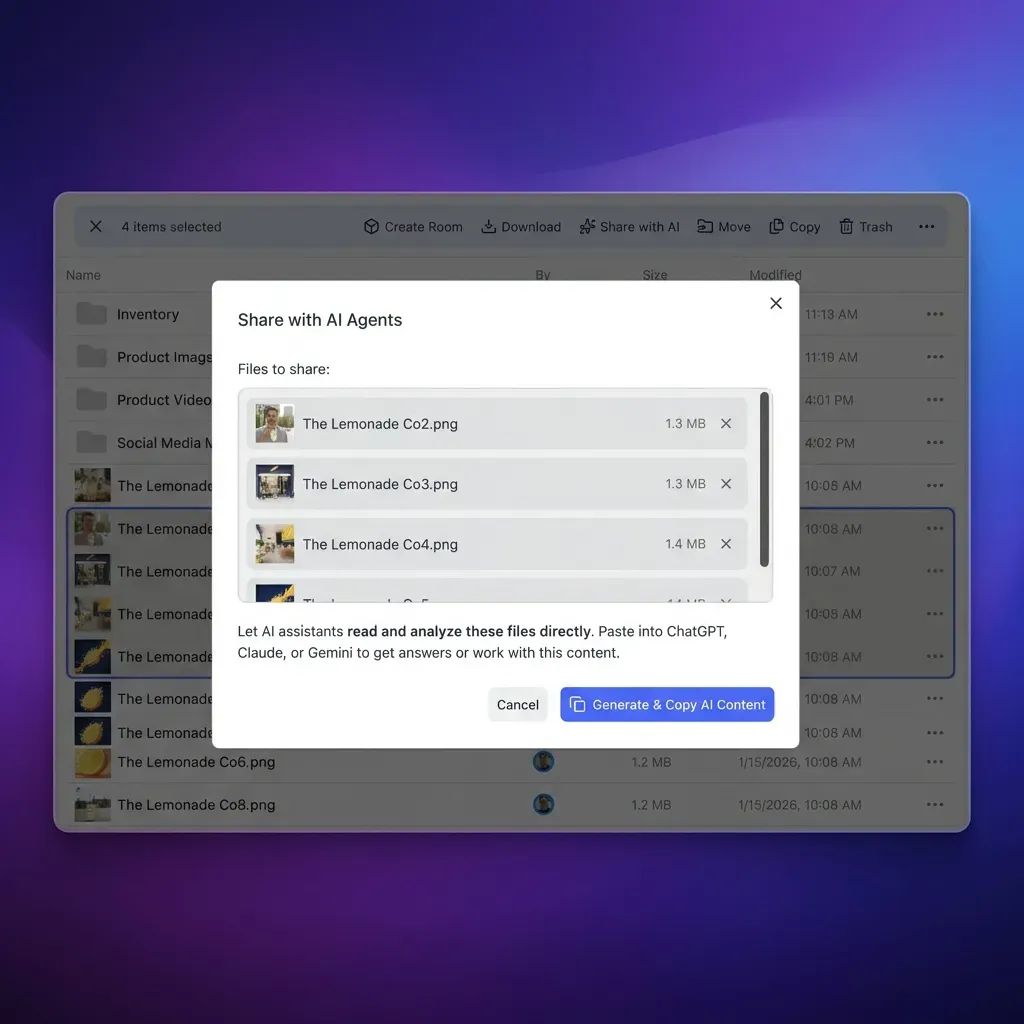
With the Fastio MCP server, your Claude agent can directly read and write to your Fastio storage, giving it unlimited, persistent memory that survives beyond a single conversation or workbench session.
Sources
References used to verify factual claims in this guide.
-
100 GB of total storage per organization, with a maximum individual file size of 500 MB holds more than 100 GB and supports any file type
-
prompts and datasets you upload here may be kept for 30 days or longer Workbench data may be retained for 30 days Anthropic typically doesn't train on commercial API data, Workbench data may be retained for 30 days
-
chat uploads are generally limited to 30 MB per file and 20 files per conversation
-
generate 10 rows of test data based on this prompt
Frequently Asked Questions
How do I upload files to Anthropic Workbench?
In the chat interface, click the paperclip icon or drag and drop files directly. For the Evaluate tab, you can import CSV files containing your test cases. For programmatic access, use the Files API.
What is the storage limit for Anthropic Workbench?
The Files API allows up to 100 GB of storage per organization, with a 500 MB limit per file. Chat uploads are generally limited to 30 MB per file and 20 files per conversation.
Can I share my Workbench prompts with my team?
Yes, Anthropic Workbench supports Projects, which allows team members in the same organization to view and edit shared prompts and evaluation datasets.
Does Anthropic train on my Workbench data?
Data in the Workbench is generally not covered by Zero Data Retention (ZDR). While Anthropic typically doesn't train on commercial API data, Workbench data may be retained for 30 days. Check your specific enterprise agreement for details.
Related Resources

Give Your AI Agents Persistent Storage
Stop re-uploading datasets. Use Fastio to give your AI agents persistent, unlimited storage they can access via MCP.