How to Build AI Agent Video Processing Workflows with MCP
AI agent video processing workflows automate editing, review, and delivery of video files. Agents upload raw footage to Fastio workspaces via MCP tools, generate previews, add frame-accurate annotations, and stream optimized HLS versions to teams. This guide walks developers through building these workflows. You will set up MCP authentication, create video-optimized workspaces, implement processing pipelines, and integrate human review.


What Are AI Agent Video Processing Workflows?
AI agent video processing workflows let agents handle video tasks end to end. An agent receives raw footage, uploads it to a workspace, generates proxies, adds metadata or annotations, and delivers optimized streams or shares to humans.
These workflows matter for production teams. Video files are large, often gigabytes in size. Manual handling slows delivery. Agents cut that time by automating upload, preview generation, and sharing.
Fastio fits because it supports professional video formats with browser previews. Agents use multiple MCP tools to manage files like humans do through the UI. No custom code for storage or previews.
Key components include:
- Upload via MCP
uploadtool - HLS streaming for instant playback
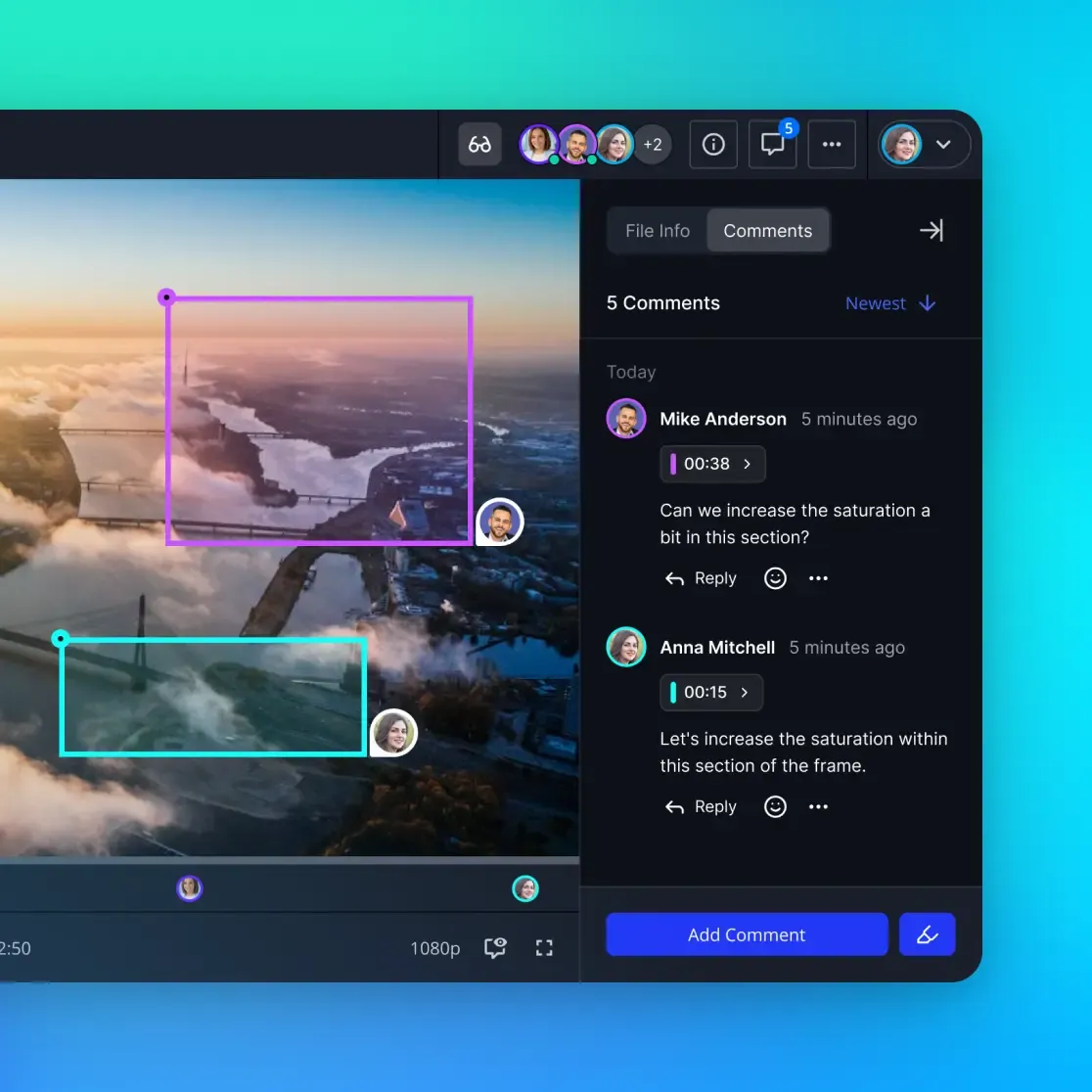
- Frame-accurate comments for feedback
- Shares for client delivery
Helpful references: Fastio Workspaces, Fastio Collaboration, and Fastio AI.
Why Fastio MCP for Agent Video Workflows?
Fastio MCP server provides multiple tools matching every UI feature. Agents access workspaces, storage, AI chat, and shares through Streamable HTTP or SSE.
Video-specific advantages stand out. The universal media engine streams HLS adaptive bitrate video, multiple-multiple% faster load times than progressive download. Scrubbing works smoothly without buffering.
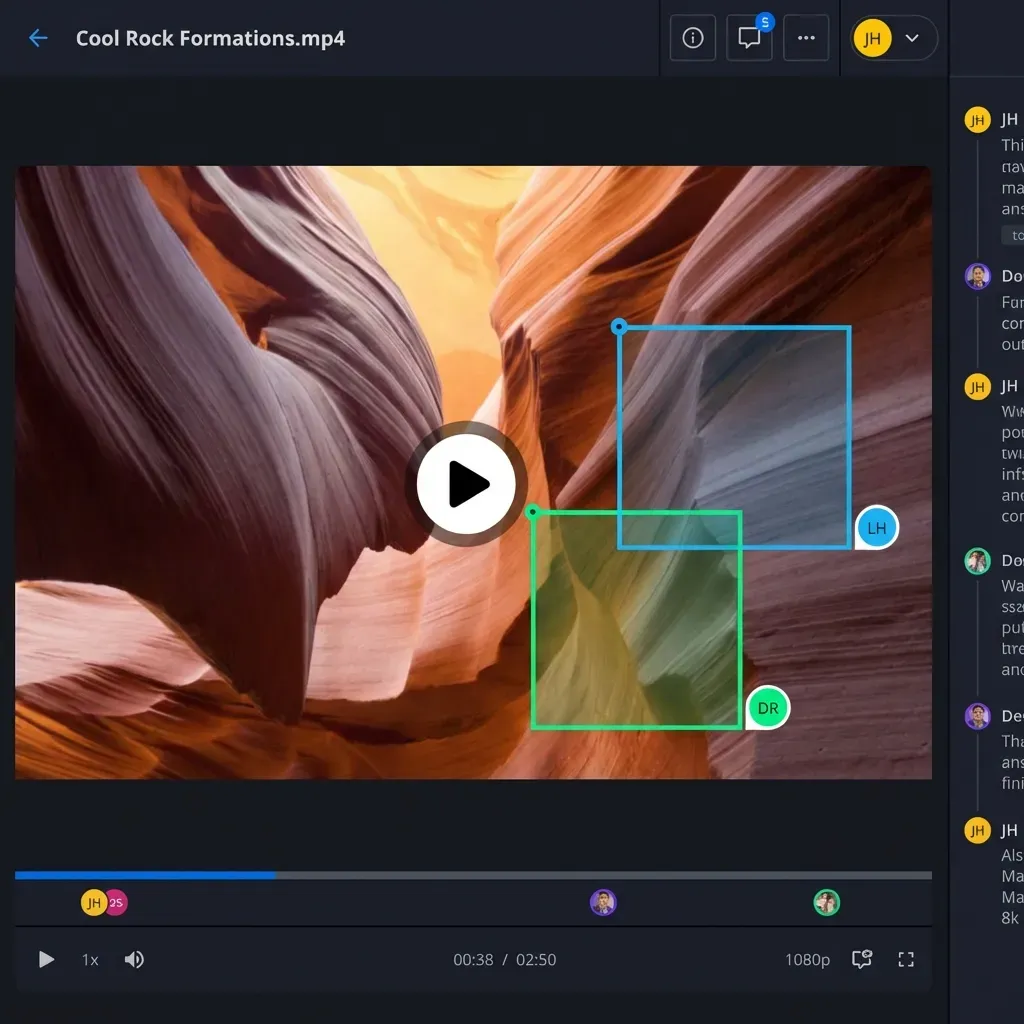
Frame-accurate reviews let agents pin comments to exact timestamps. Useful for dailies or edits. Instant transcoding creates web proxies while originals stay safe.
Fastio workspace plans:
- Starter plan with 250 GB storage, 3 seats, and 100,000 monthly credits
- Business plan with 5 TB storage, 10 seats, and 600,000 credits
- Enterprise plan with 25 TB storage and 30 seats
- 14-day Business Trial (card required; see /pricing/)
Compare to alternatives like S3: Fastio adds previews, comments, RAG indexing, and MCP without infrastructure.


Start Your Video Agent Workflow
Get generous storage and a consolidated MCP toolset. Build, process, and deliver video with agents and humans. Built for agent video processing workflows.
Setting Up MCP and Agent Workspace
Start with authentication. For autonomous agents, sign up via MCP auth tool.
Example MCP tool call for signup:
{
  "tool": "auth",
  "action": "signup",
  "first_name": "VideoAgent",
  "last_name": "One",
  "email": "video-agent@example.com",
  "password": "securepass123"
}
Verify email, then create org and workspace:
{
  "tool": "org",
  "action": "create",
  "billing_plan": "agent"
}
Get org_id from response. Create workspace:
{
  "tool": "org",
  "action": "create-workspace",
  "org_id": "your-org-id",
  "name": "VideoProcessingProject"
}
Enable intelligence for AI summaries and transcripts:
{
  "tool": "workspace",
  "action": "update",
  "workspace_id": "your-ws-id",
  "intelligence": true
}
Test with session status:
{
  "tool": "auth",
  "action": "status"
}
Workspace ready. Uploads generate previews automatically.
Step-by-Step Video Processing Pipeline
Build a pipeline: ingest, process, annotate, deliver.
Step 1: Ingest Raw Video
Use upload tool for chunked upload if >100MB:
{
  "tool": "upload",
  "action": "chunked-start",
  "workspace_id": "your-ws-id",
  "parent_id": "root",
  "name": "raw-footage.mp4",
  "content_type": "video/mp4"
}
Get upload_url, stream chunks, call chunked-complete.
Or simple upload for small files.
Step 2: Generate Proxies and Previews
Automatic. Check details:
{
  "tool": "storage",
  "action": "details",
  "context_type": "workspace",
  "workspace_id": "your-ws-id",
  "node_id": "file-node-id"
}
Preview ready in seconds.
Step 3: AI Analysis
Get transcript via chat:
{
  "tool": "ai",
  "action": "chat-create",
  "context_type": "workspace",
  "type": "chat_with_files",
  "files_attach": "nodeId:versionId",
  "query_text": "Transcribe this video and summarize key scenes."
}
Poll for response.
Step 4: Annotate Frames
Add comment at timestamp:
{
  "tool": "comment",
  "action": "add",
  "profile_type": "workspace",
  "profile_id": "your-ws-id",
  "node_id": "video-node-id",
  "text": "Cut at this reaction shot",
  "reference": {
    "type": "timestamp",
    "timestamp": 125.5
  }
}
Step 5: Stream and Share
Get HLS URL via preview-url, create Send share.
Workflow diagram:
Advanced Features for Video Agents
Use the WebSocket events feed or poll the realtime activity feed for reactive workflows. When new video uploads arrive, agents receive the event and trigger processing immediately without manual delays.
Trigger processing on upload.
Multi-agent: invite agents to workspace.
Ownership transfer when done:
{
  "tool": "org",
  "action": "transfer-token-create",
  "org_id": "your-org-id"
}
Share claim URL with human.
Troubleshooting:
- Chunked upload fails: check content_type.
- No preview: wait 30s, retry details.
- AI not ready: check ai_state.
Define clear tool contracts and fallback behavior so agents fail safely when dependencies are unavailable. This improves reliability in production workflows.
Scaling Video Workflows
For multi-agent teams, use advisory file locks to coordinate access during render or metadata updates. An agent acquires a lock on a video file before writing (via MCP storage actions lock-acquire, lock-status, lock-release), and other agents see who holds the lease. If a holder stops heartbeating, the lock expires or can be taken over. Every edit is safely captured in automatic version history.
URL import from Drive/Box:
{
  "tool": "upload",
  "action": "web-import",
  "workspace_id": "ws-id",
  "parent_id": "root",
  "source_url": "https://drive.google.com/file/..."
}
Production tips: monitor credits with auth status, transfer on low balance.
Sources
References used to verify factual claims in this guide.
-
HLS streaming 50-60% faster
-
Fastio plans include generous storage and monthly credits
Frequently Asked Questions
What are AI agents for video processing?
AI agents handle video tasks like transcription, annotation, and delivery. They upload footage, generate summaries, and share optimized streams using tools like Fastio MCP.
What MCP video tools does Fastio offer?
Fastio MCP has multiple tools including upload, preview-url for HLS, comment for frame annotations, share create for delivery, and ai chat for transcripts.
How fast is Fastio video streaming?
HLS adaptive streaming loads multiple-multiple% faster than progressive download, with instant start and smooth scrubbing.
Can agents collaborate on video projects?
Yes, invite agents to workspaces. Use comments, version history, and real-time presence. Humans see the same previews.
Does Fastio offer a trial for video agents?
Fastio offers a 14-day Business Trial requiring a credit card, with plans starting at Starter $9.99/mo (250 GB); see /pricing/ for details.
Related Resources

Start Your Video Agent Workflow
Get generous storage and a consolidated MCP toolset. Build, process, and deliver video with agents and humans. Built for agent video processing workflows.