How to Proof 3D Print Files with Clients Before Production
Client proofing for 3D print files lets you share models like STL with clients before printing. It helps spot scale errors, thin walls, and other issues early. Skipping proofing leads to reprints that waste materials and time. Proofing cuts errors. Fastio offers browser-based CAD previews, comments, and portals for 3D print proofing. This guide looks at methods, tools, workflows, and tips for sharing STL files with clients.

What Is 3D Print Client Proofing
Client proofing for 3D prints involves sharing print-ready files so clients can review them before production begins. They can view and add notes to STL, OBJ, 3MF, or STEP files without needing special software.
The process usually starts with uploading the model, sharing a link or portal access, collecting feedback on geometry and details, and securing approval for the version. This prevents costly mistakes, such as incorrect scale, missing holes, or overhangs that won't print well.
Studios that make prototypes, architectural models, or custom parts avoid long email threads. Clients get to see exactly what will print, check sizes, and flag issues before any materials go to waste.
Why Client Proofing Matters for 3D Prints
3D printing consumes costly materials and machine time. One failed print from an overlooked issue wastes filament, electricity, and deadlines.
Proofing uncovers typical problems: parts printed at the wrong scale, walls too thin to hold up, overhangs that droop, absent holes or gaps, and orientations that use extra material or create weak spots.
Shops using structured proofing reviews finish revisions faster. One shop reduced waste by having clients sign off on digital previews first. The extra time upfront saves money by skipping reprints.
It also builds client trust. When they see a clear view of the final part, arguments drop.
Methods for Sharing 3D Print Files with Clients
Options for sharing 3D print files range from simple to more advanced, depending on security and features needed.
Email attachments work for small STL files, but not larger ones. File size limits stop them, and clients need slicing software to open.
Consumer cloud storage like Dropbox or Google Drive holds files, but 3D previews are weak. Thumbnails or downloads cause version confusion. See Fastio vs Dropbox alternatives.
Transfer services like WeTransfer handle large files without previews or tracking. Links expire, so resends happen.
3D platforms like Sketchfab let you view models, but shares are often public. Private options require logins and limit annotations for printing.
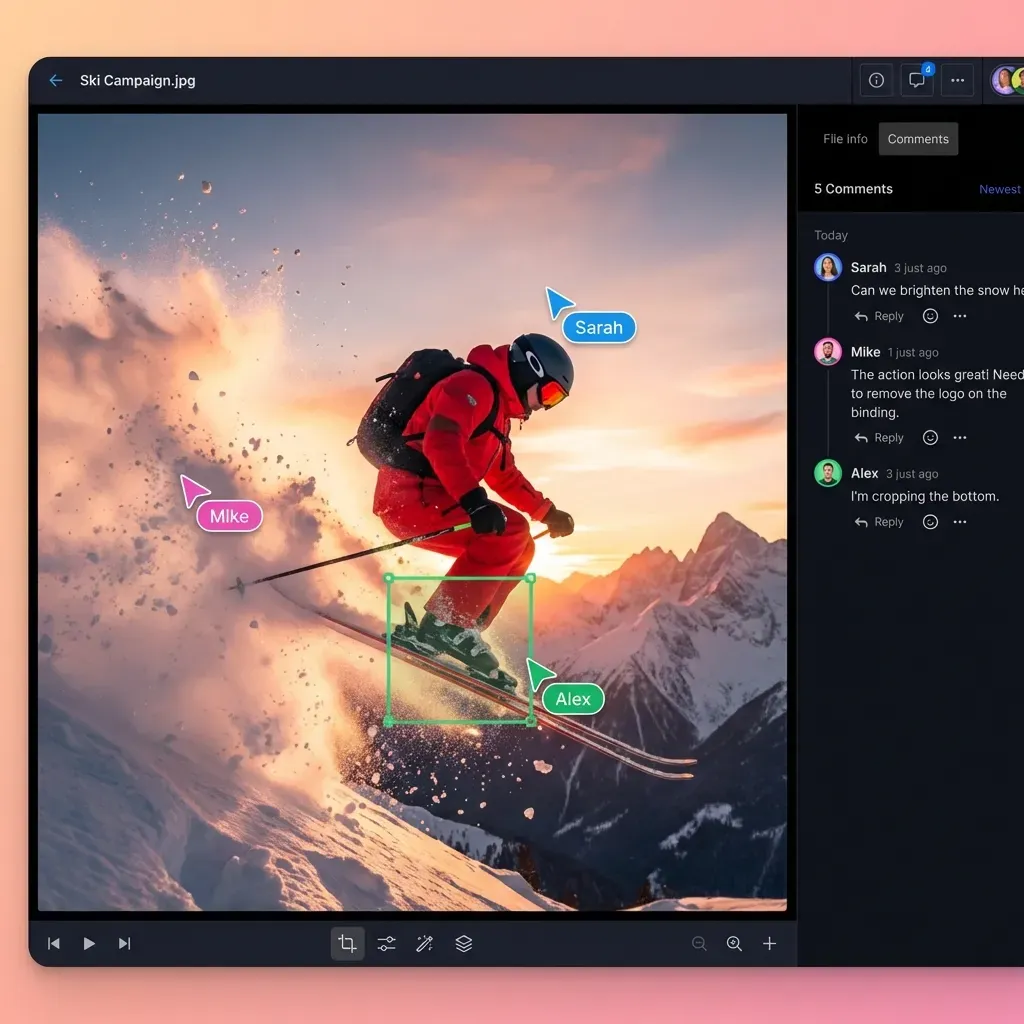
Workspaces like Fastio provide browser previews, client portals, comments, and version tracking. Clients inspect without software, leave precise notes, and access stays open. Check Fastio's creative solutions.
Essential Features for 3D Print Proofing Tools
Good 3D proofing tools include these features to help catch errors quickly.
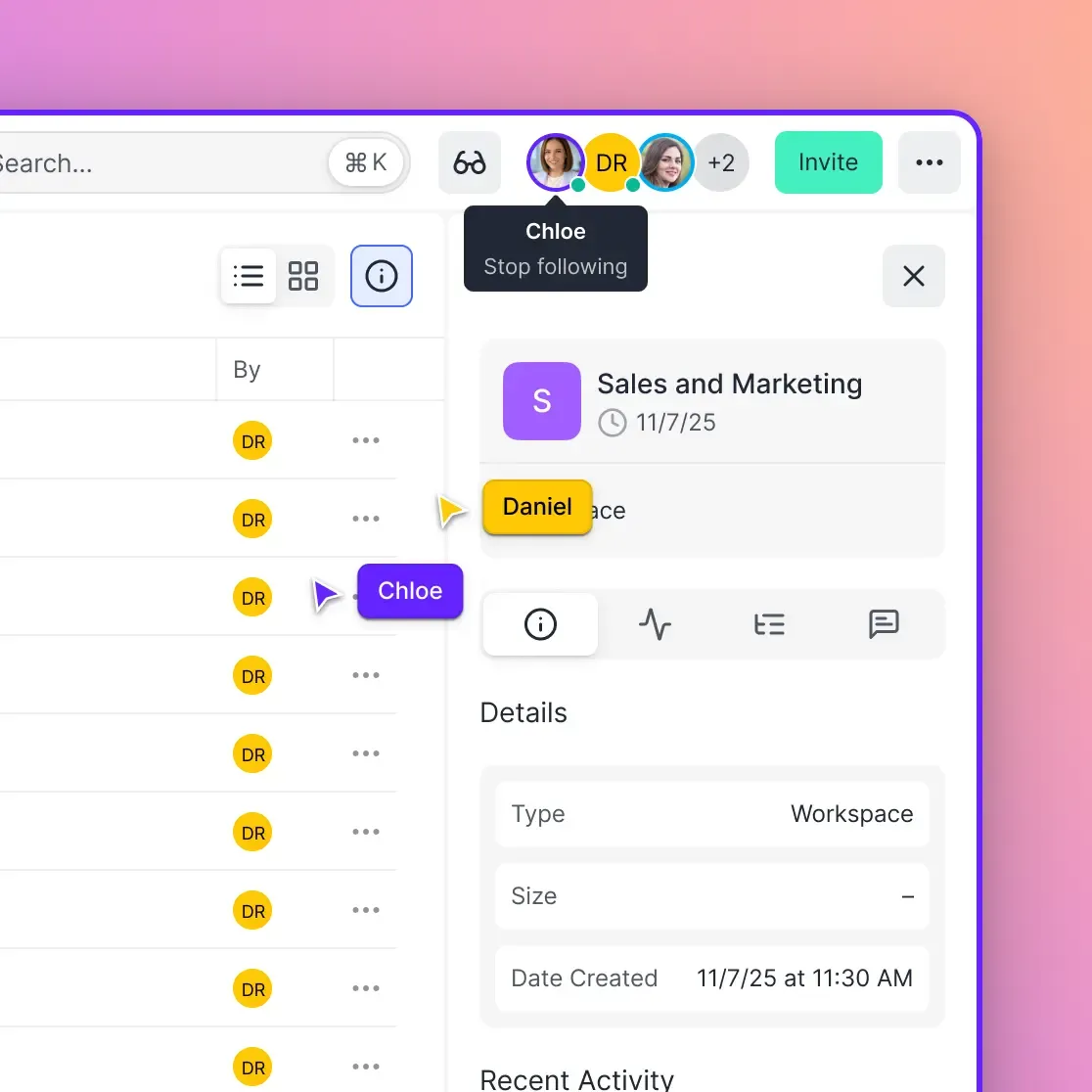
Browser 3D preview: Viewers use WebGL to rotate and zoom STL/OBJ files for checking surfaces, no downloads required.
View-only shares: Clients can comment without changing the original file.
Pinned comments: Feedback sticks to exact spots on the model.
Version history: Compare revisions to confirm the right one.
Access controls: Set passwords, expiration dates, or domain restrictions. Track who views or downloads.
Branded portals: Use your logo and domain for a professional appearance.
A product studio sharing a bracket design, for instance, can pin a comment directly on the overhang and ask "Does this need support material?" rather than describing the location in an email and hoping the client finds it. Worth knowing upfront: browser WebGL viewers render STL as a solid mesh, so internal geometry and hidden channels are invisible without a cross-section view or a slicer preview alongside. Shops that require digital sign-off before queuing a print consistently report fewer reprints from scale and geometry errors than those relying on email confirmation alone.


Proof 3D print files with clients on Fastio
Share STL files securely. Browser previews, portals, and feedback tools. Reviewers need no software. Perfect for print proofing. Built for print file client proofing workflows.
How to Set Up a Client Proofing Workflow
Build a proofing workflow once to speed up approvals and cut errors.
- Prepare files. Export to STL/OBJ with clean meshes. Check geometry, normals, and tolerances. Include scale in the filename.
- Choose a platform. Pick one with 3D previews and easy sharing. Fastio shows STL/OBJ in any browser, no client sign-up needed. See file sharing for creative teams.
- Share the link. Create a view-only link with optional password or expiration.
- Ask targeted questions. Does the size work? Any issues with mounts or finish? Specifics get better responses.
- Record approvals. Note timestamps and track changes in threads.
- Print only after approval. Save the approved version.
Best Practices for 3D Print Client Reviews
These practices make reviews smoother and more productive. Give full context with each share: expected dimensions, material suggestions (like PLA or ABS), print orientation, tolerances, and finishing notes. Clients provide sharper feedback when they know the details. Share views from all angles, top, front, side, isometric, cross-sections. Point out tricky spots like overhangs. Interactive previews let clients explore on their own. Set deadlines: multiple hours for first feedback, multiple for changes. Use notifications or reminders. Delays push back production. Spell out approval: "Approved" needs a comment or email sign-off. List exact changes for revisions. This avoids mix-ups. Stick to version control. Use names like "project-v3-scale1-multiple.stl". Portals with history make side-by-side comparisons easy. For regular clients, share a quick guide or short video on viewing and commenting. Track stats like review times and revision counts. Aim to lower revisions over time.
3D Print Proofing Tools Comparison
Here's how popular tools stack up for 3D print proofing:
Fastio fits creative teams best. Native CAD support, comments on model parts, unlimited file sizes.
Common 3D Printing Errors Proofing Catches
Proofing finds these print problems before you start:
Scale issues: Confirm the part fits, like a 100mm bracket not printing at 50mm. Use measure tools in the viewer.
Thin walls under 1mm: Check cross-sections for spots that won't extrude.
Overhangs over multiple°: Spin the model to see where supports are needed.
Bridges longer than 10mm: Look at top surfaces for sagging risks.
Non-manifold edges: The preview shows holes or overlaps that slicers can't handle.
Bed adhesion problems: Pick flat faces and watch for warping.
Pair it with a slicer preview like Cura or PrusaSlicer. Get client notes on looks too.
Frequently Asked Questions
What is the best way to share 3D print files with clients?
Use platforms with browser-based 3D previews for STL and OBJ files, no software needed. They provide secure links and portals for feedback.
How do I get client approval on 3D prints?
Share a secure link, ask about dimensions and features, and get written confirmation before printing. Timestamp everything for records.
What file formats work for client proofing?
STL and OBJ are standard for printing. Some tools handle 3MF for multi-material or STEP for CAD.
How do I prevent clients from downloading my 3D files?
Set view-only access to block downloads while allowing previews and comments.
Can clients review 3D prints without CAD software?
Yes, web-based viewers let them check STL and OBJ files in the browser without installs.
Related Resources

Proof 3D print files with clients on Fastio
Share STL files securely. Browser previews, portals, and feedback tools. Reviewers need no software. Perfect for print proofing. Built for print file client proofing workflows.