
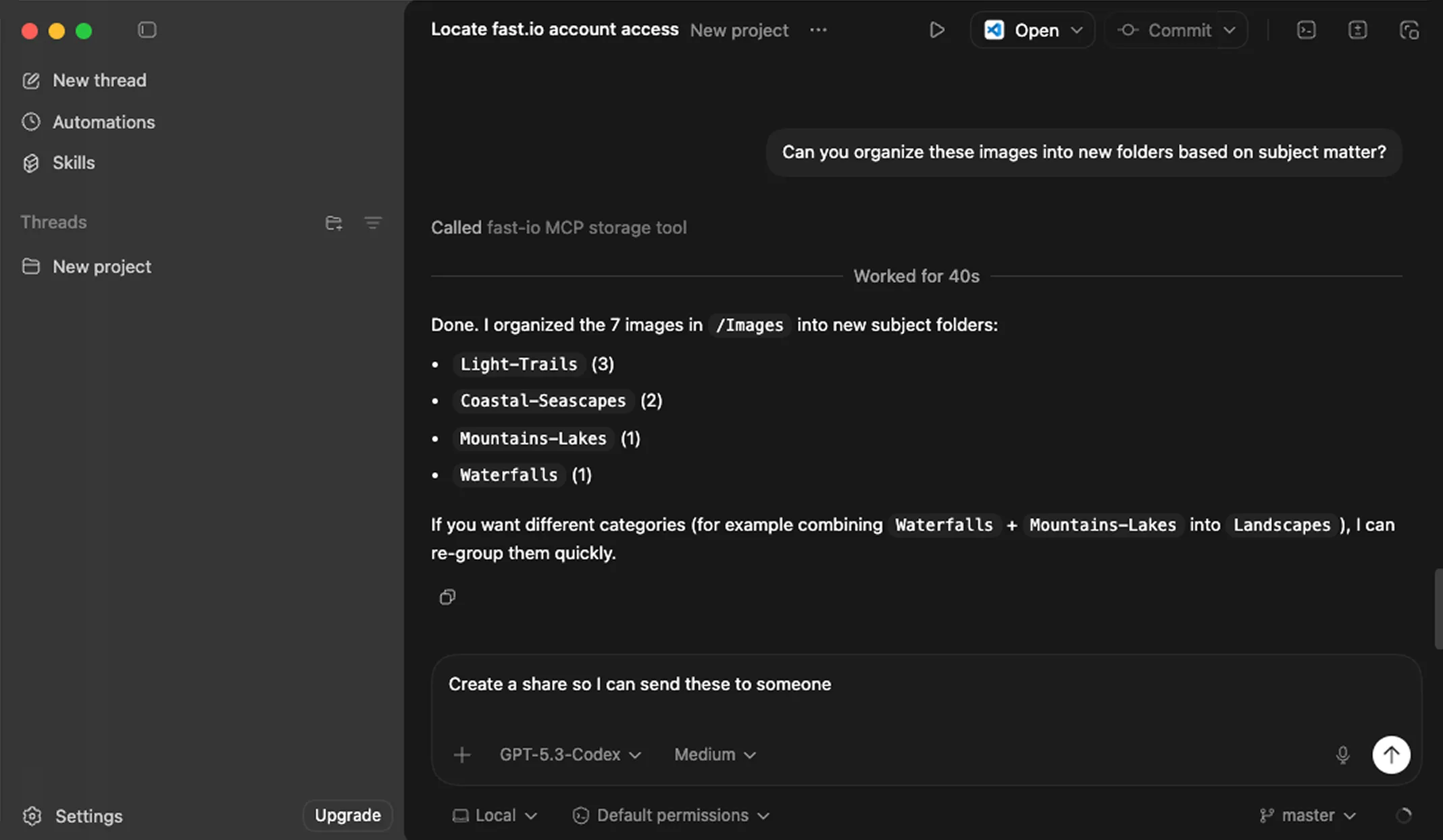
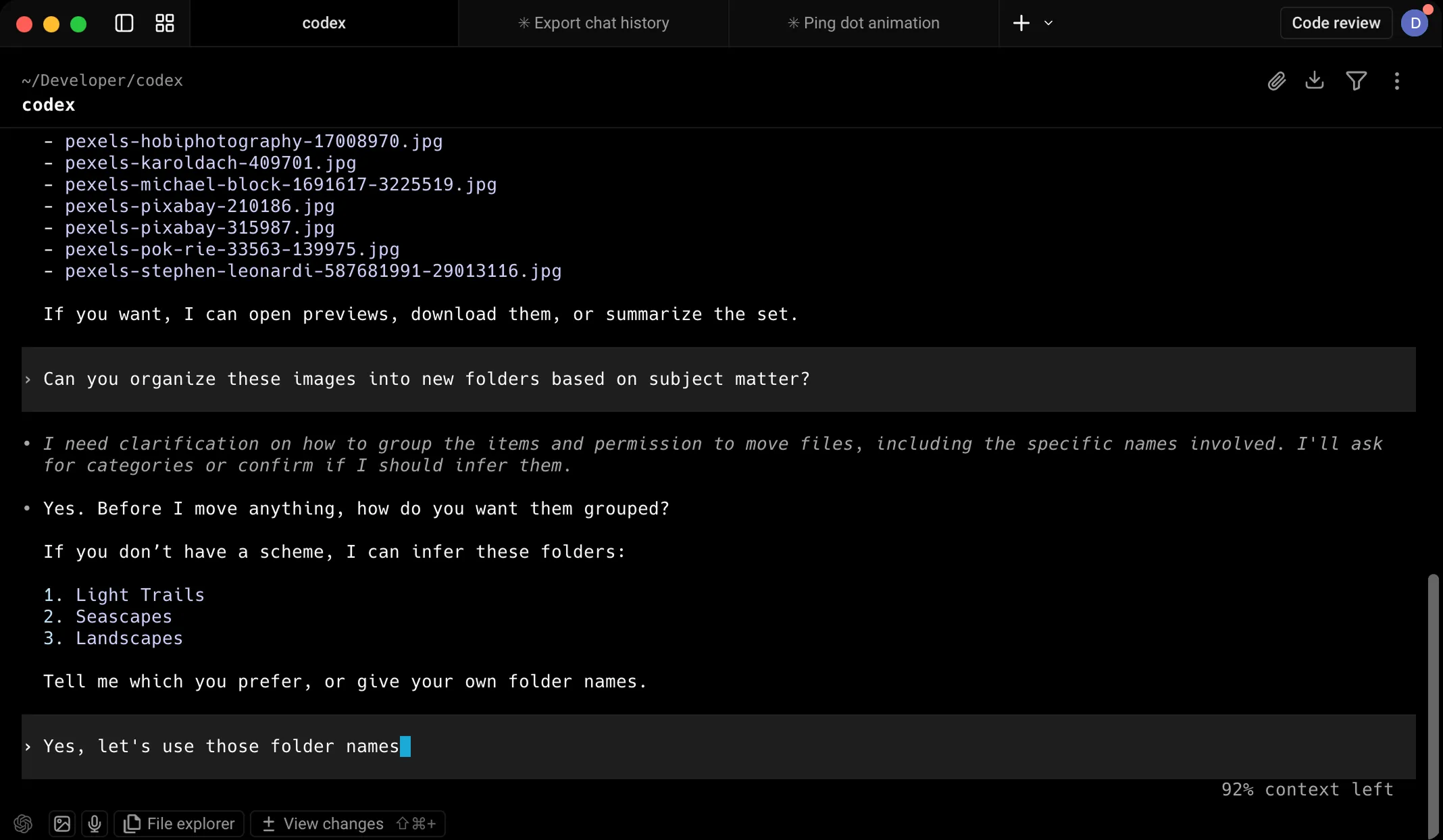
Get started with Codex Desktop
Connect Fastio to Codex Desktop with a custom MCP server.
Open MCP Server settings
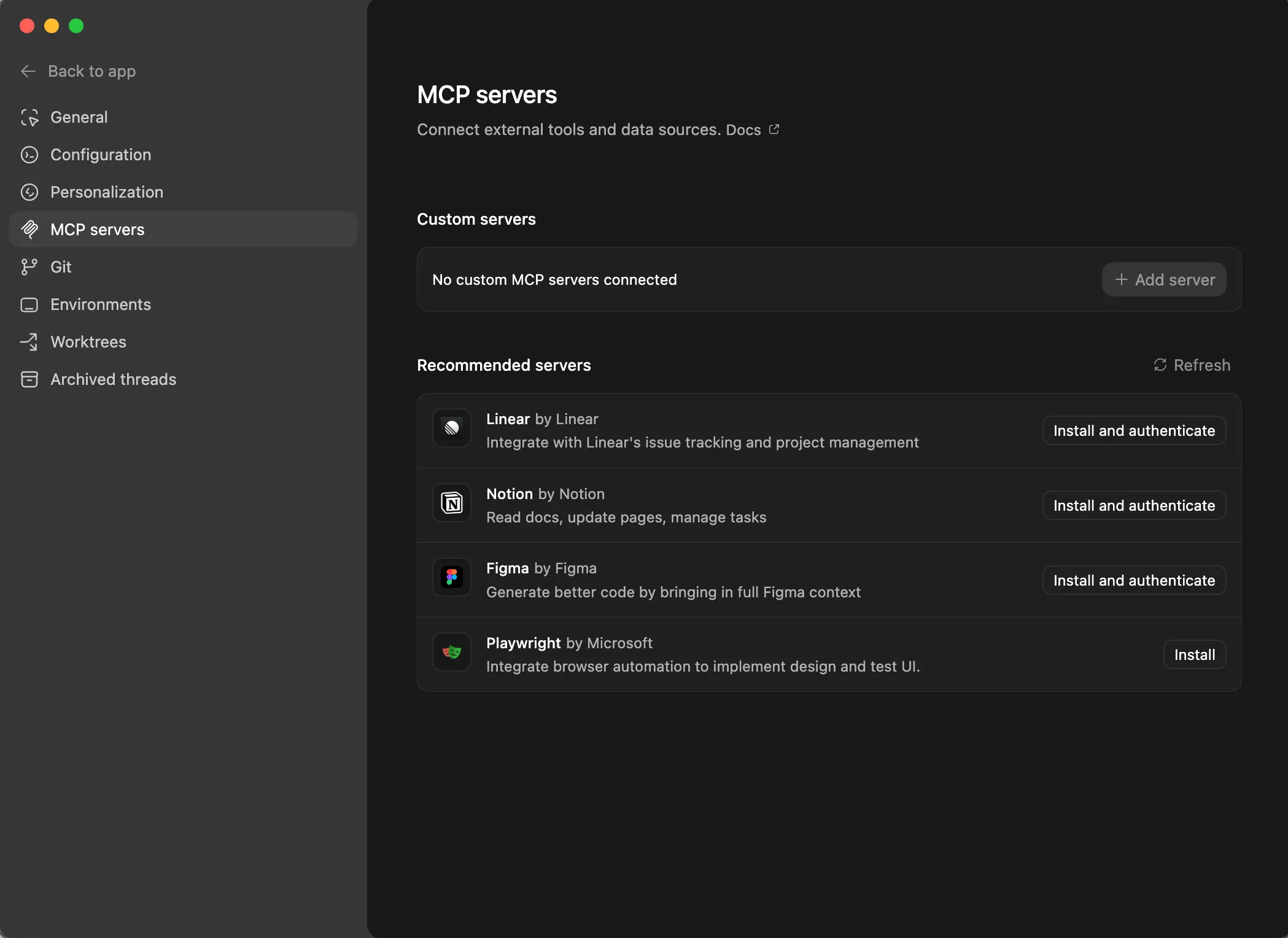
Open Codex Desktop and go to Settings → MCP servers. Under Custom servers, click + Add server.
Add a name and the MCP URL
Enter a name for the server (e.g. "fast-io"), select the Streamable HTTP tab, and paste the MCP URL below into the URL field.
https://mcp.fast.io/mcp 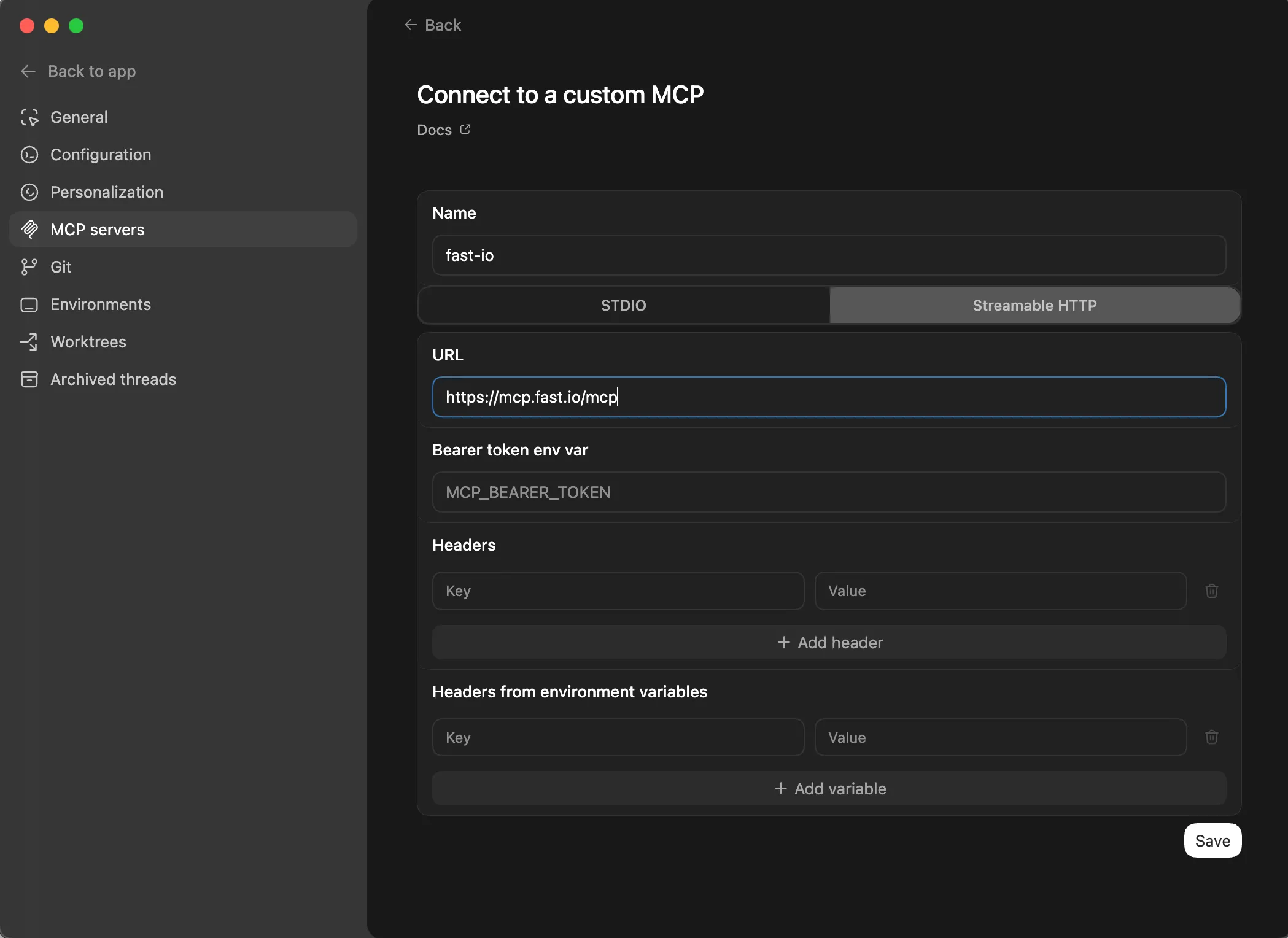
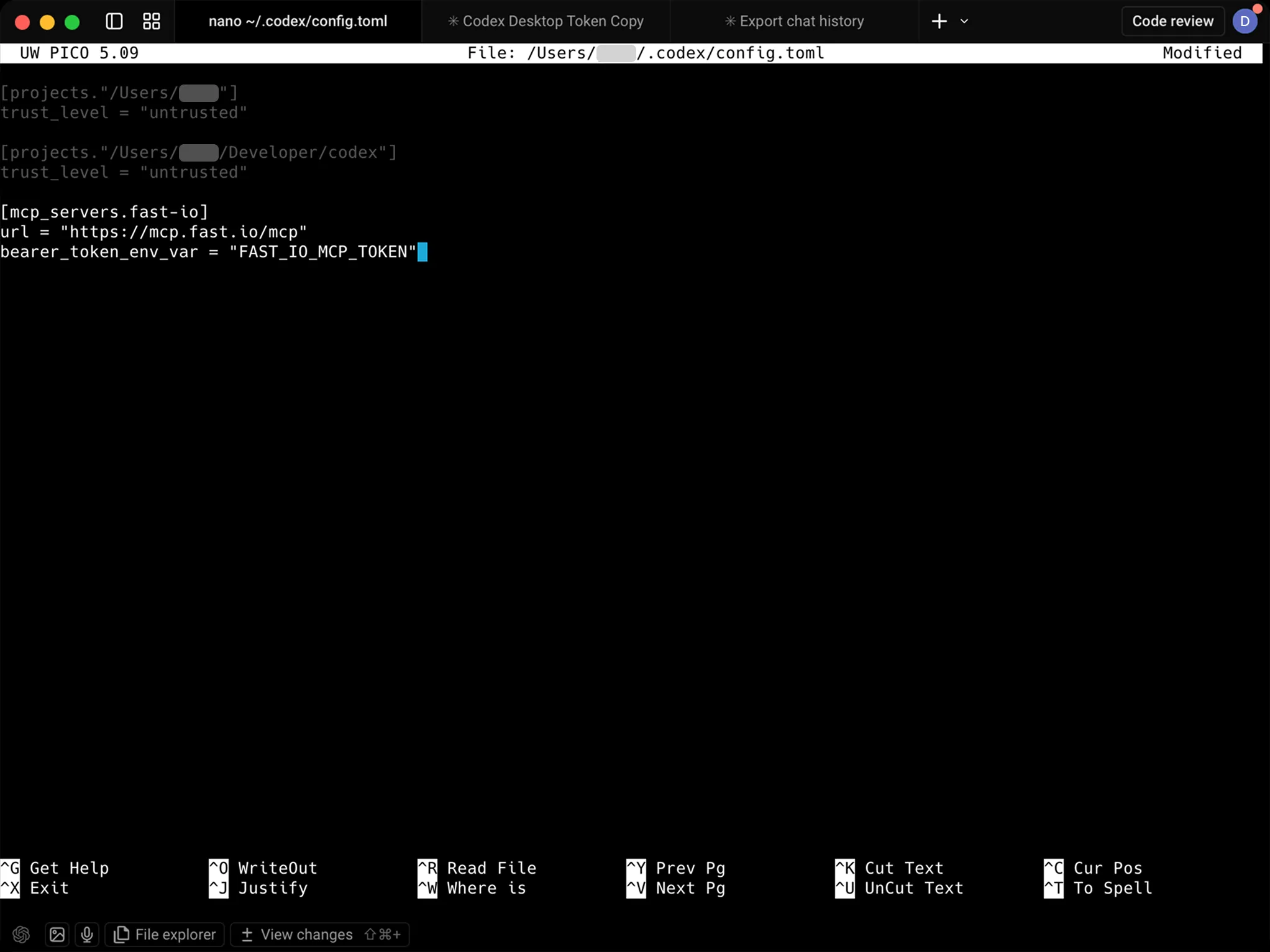
Add a bearer token env var
In the Bearer token env var field, paste the variable name below. Remember this name, you'll use it in a later step. Click Save.
FAST_IO_MCP_TOKEN 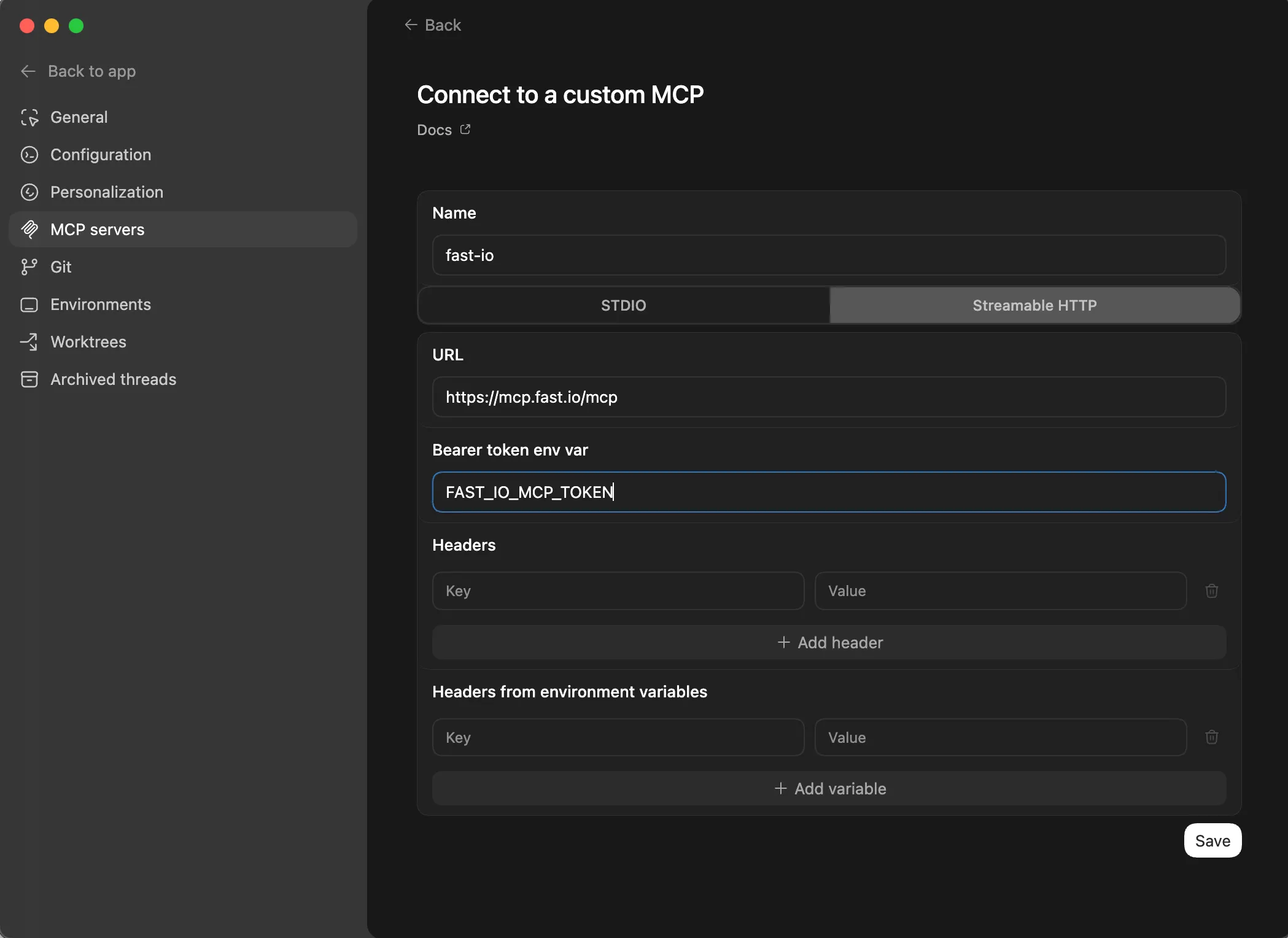
Sign in to Fastio
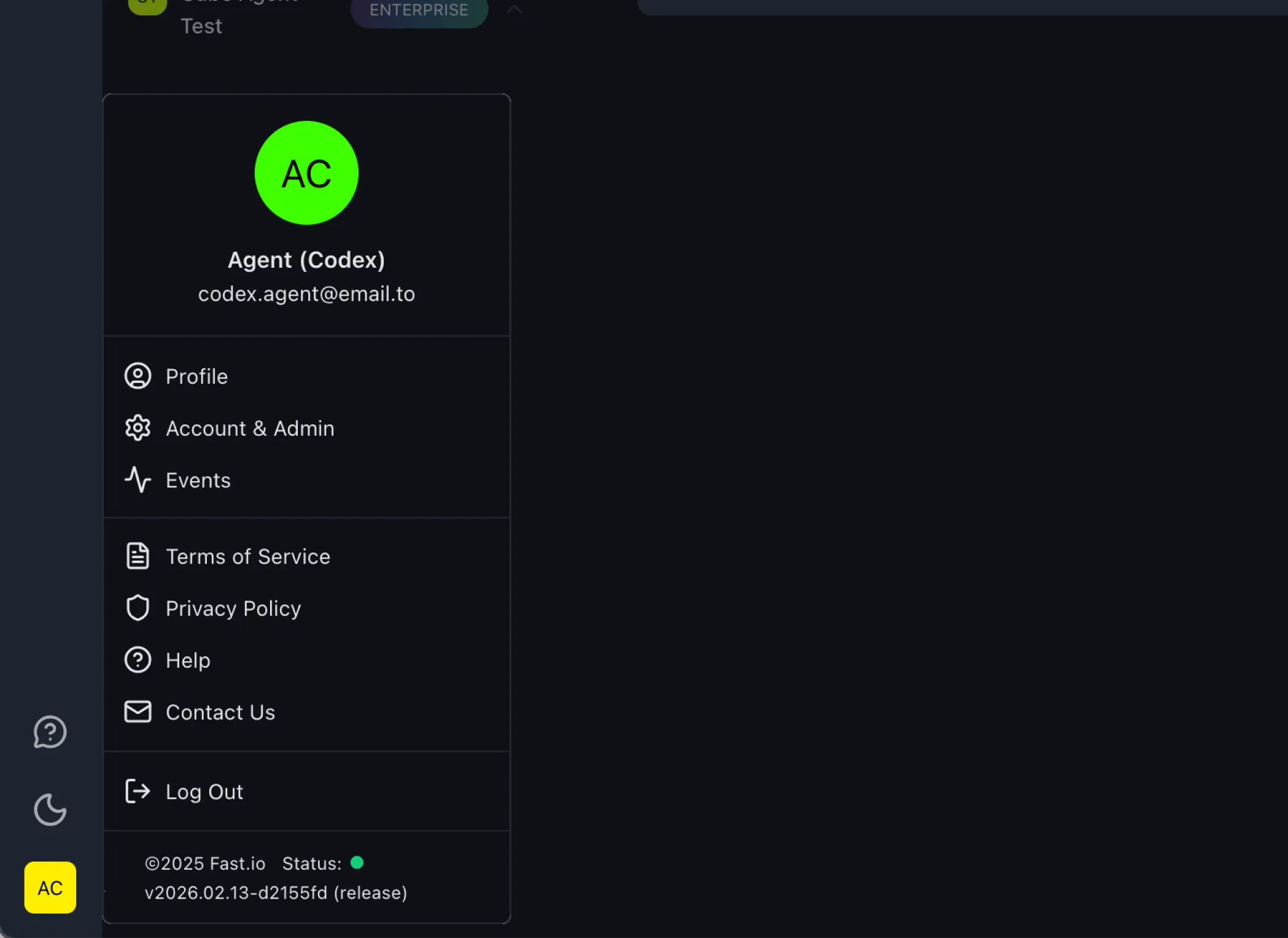
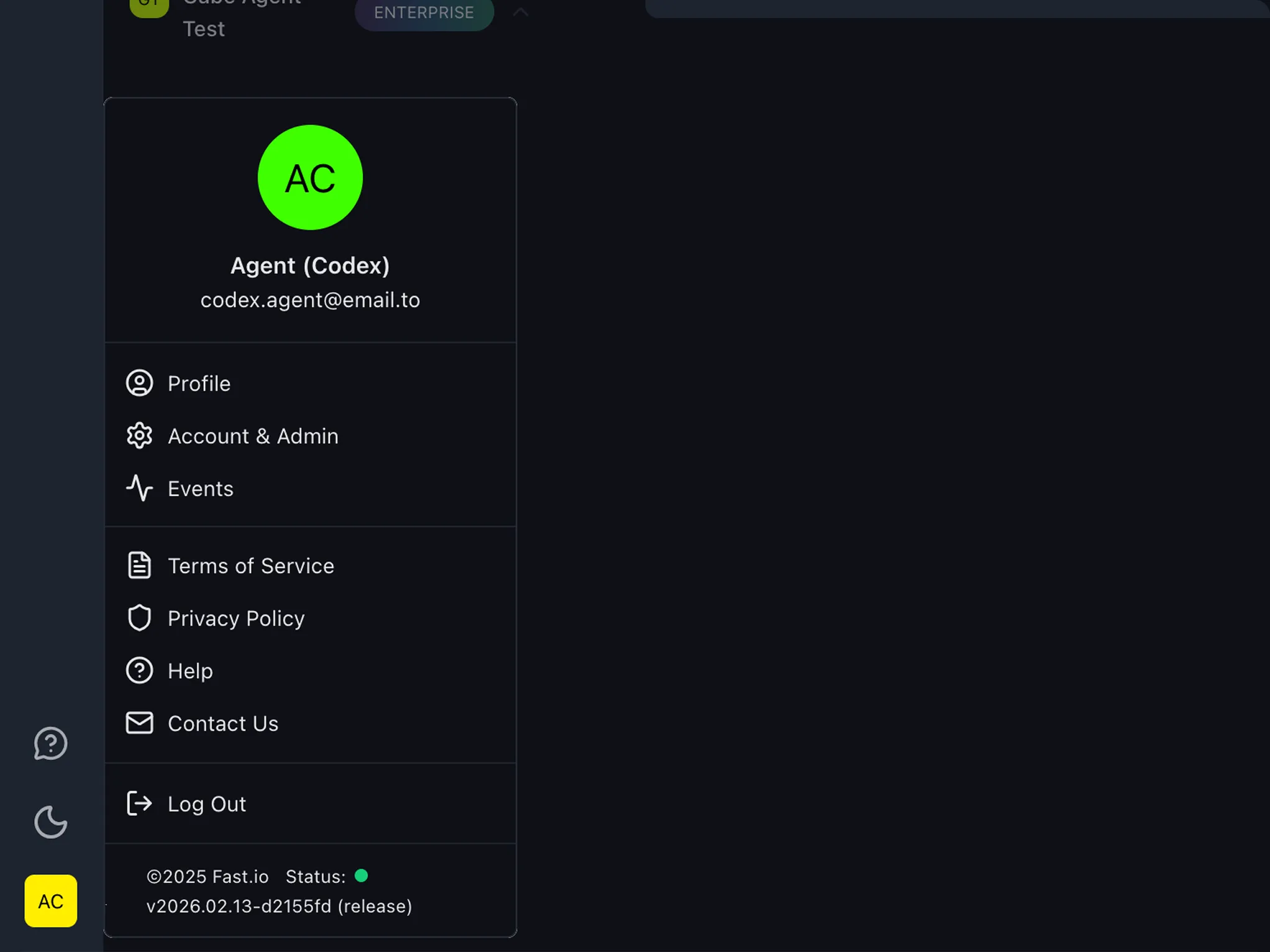
Go to go.fast.io and sign in or create a free account. Click your user icon in the bottom-left corner and select Account & Admin.
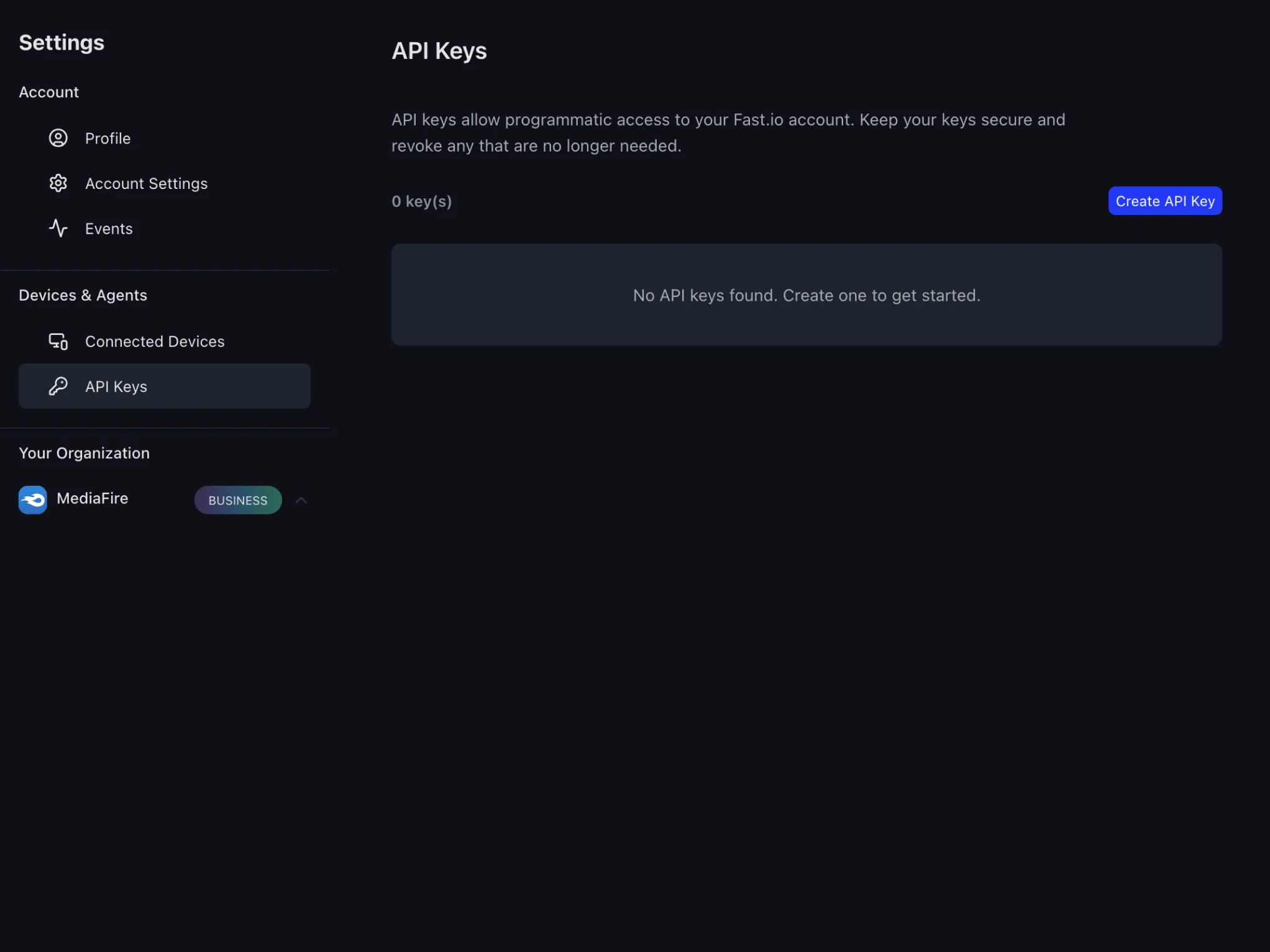
Navigate to API Keys
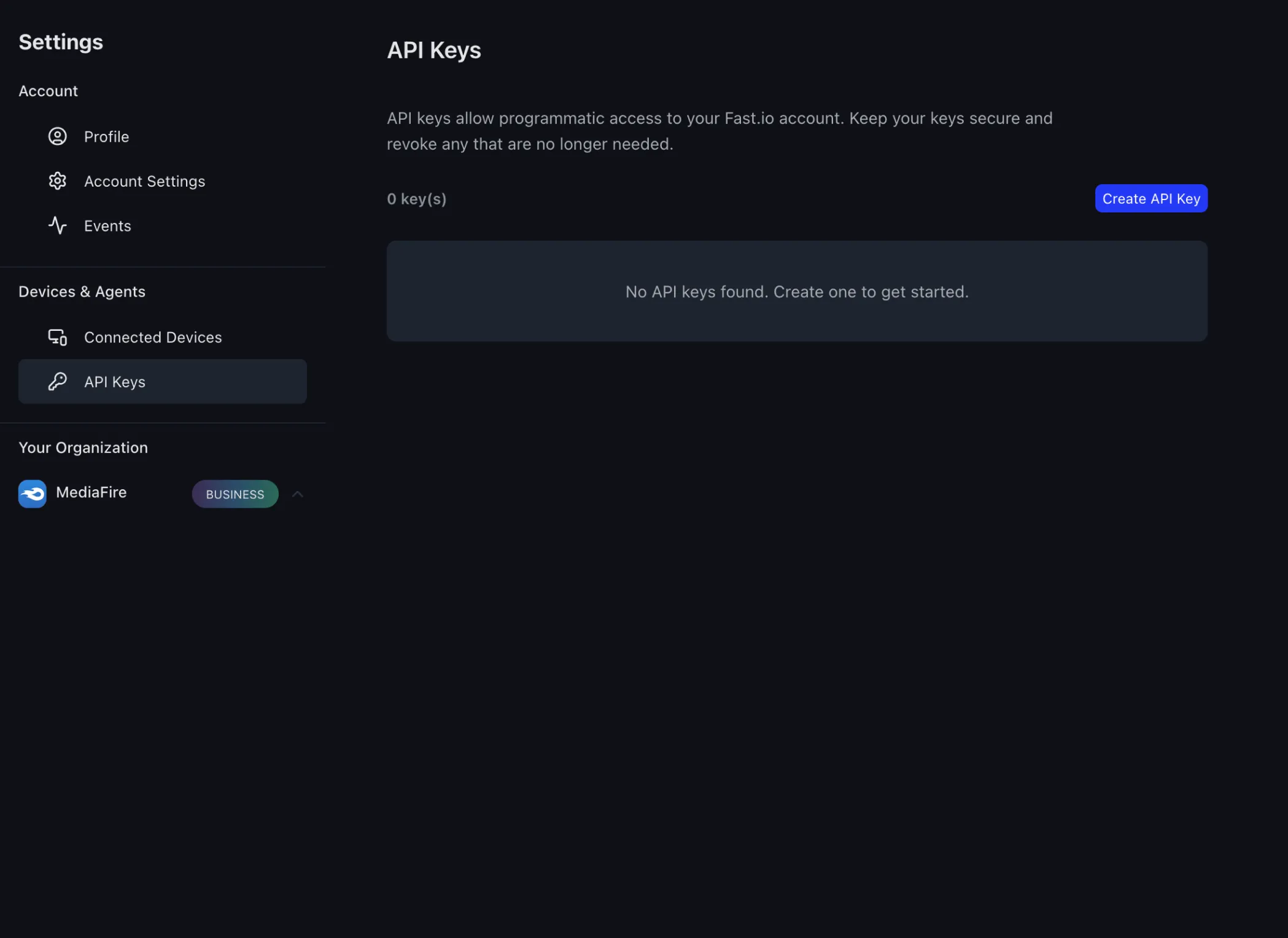
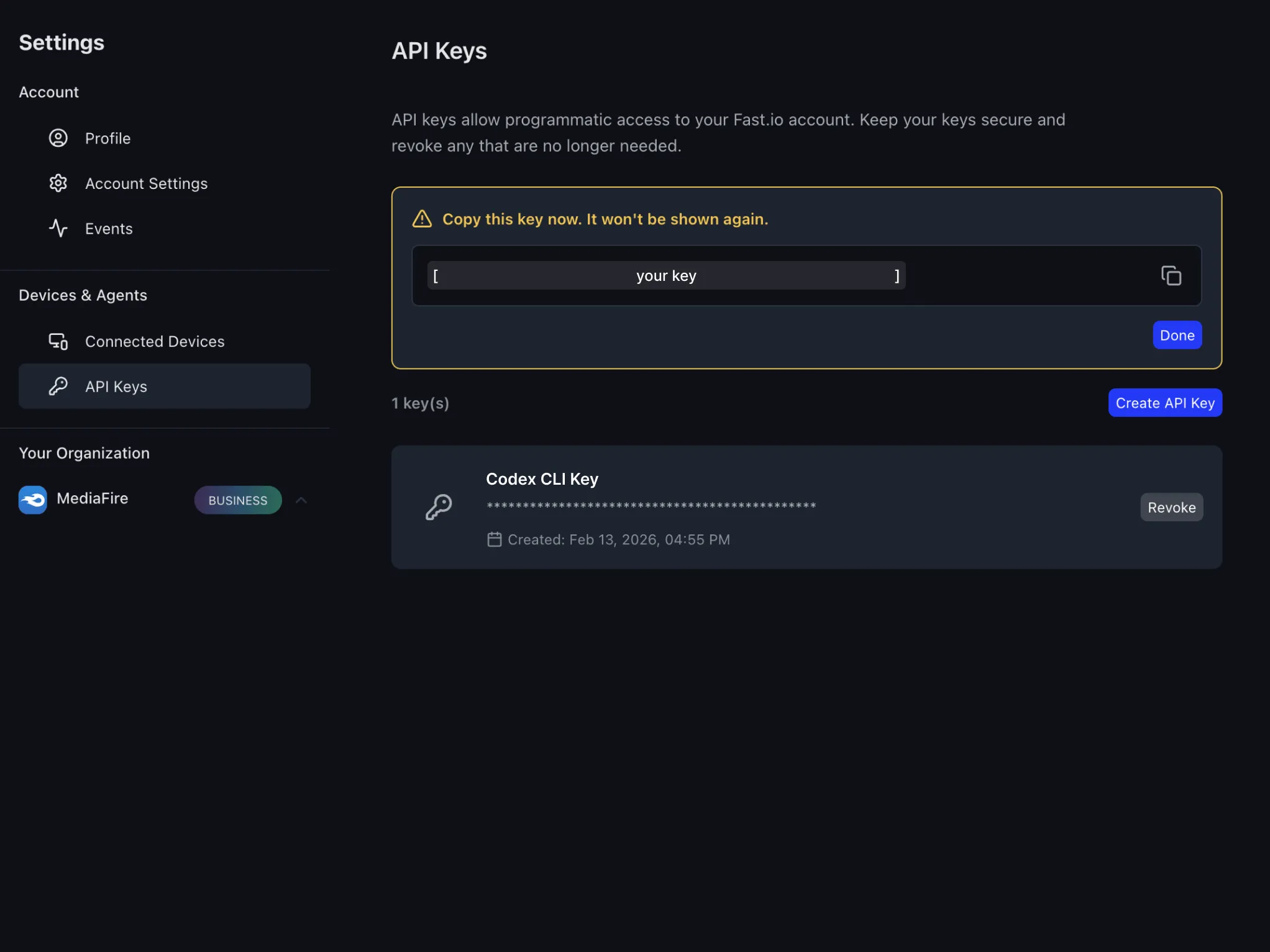
In the Settings sidebar, click API Keys under Devices & Agents. Then click Create API Key.
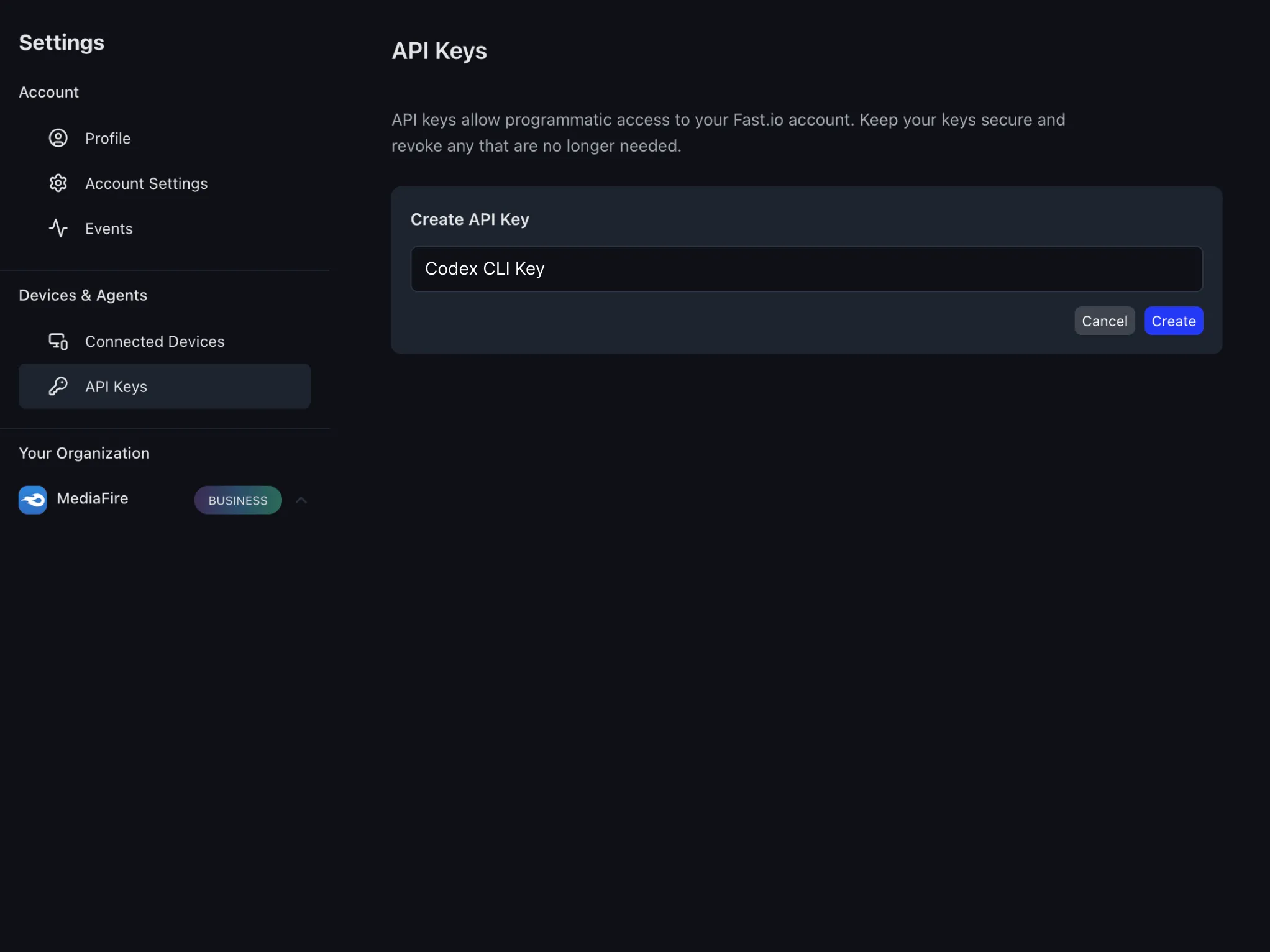
Name your API key
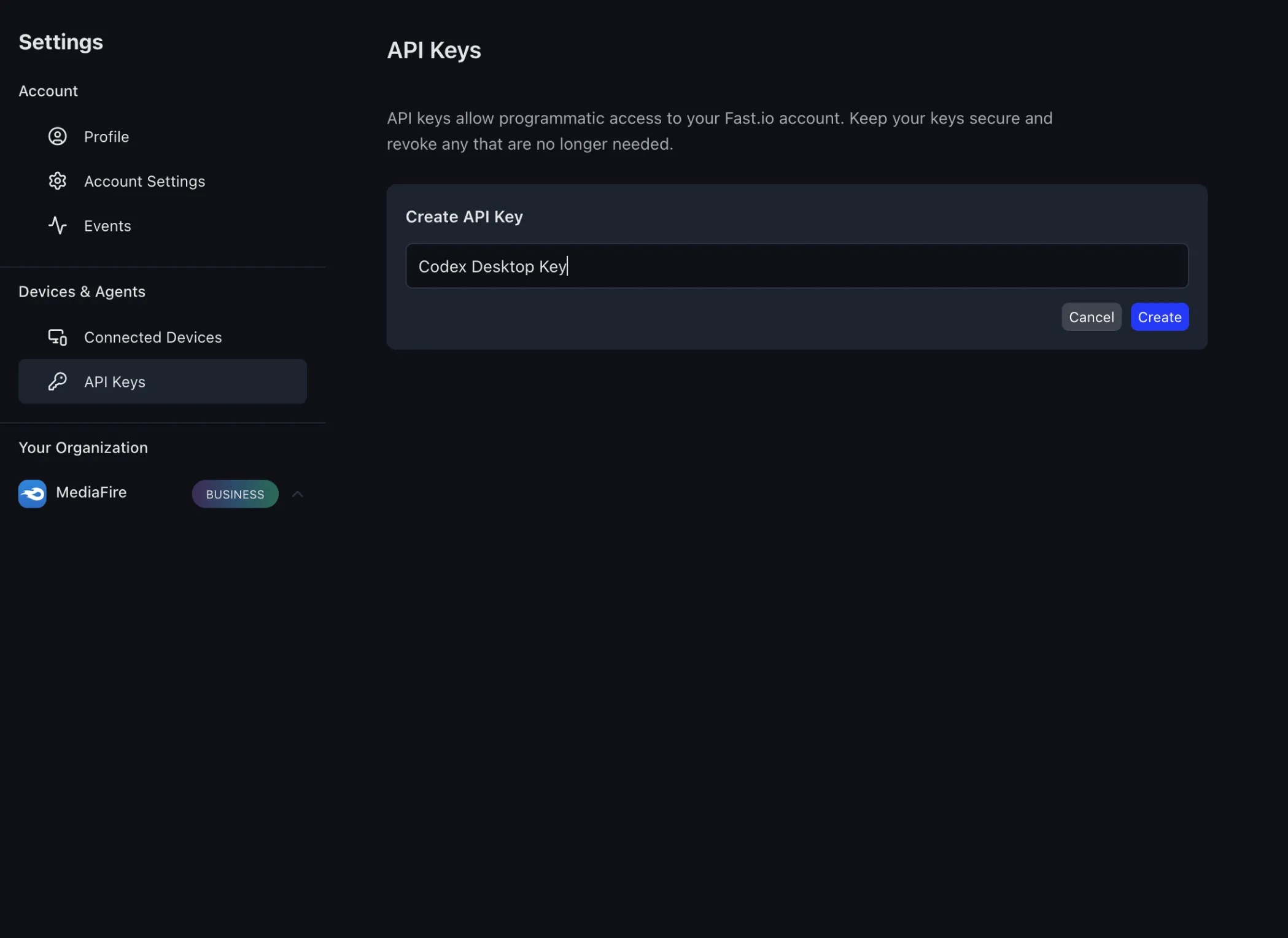
Give the key a descriptive name (e.g. "Codex Desktop Key") and click Create.
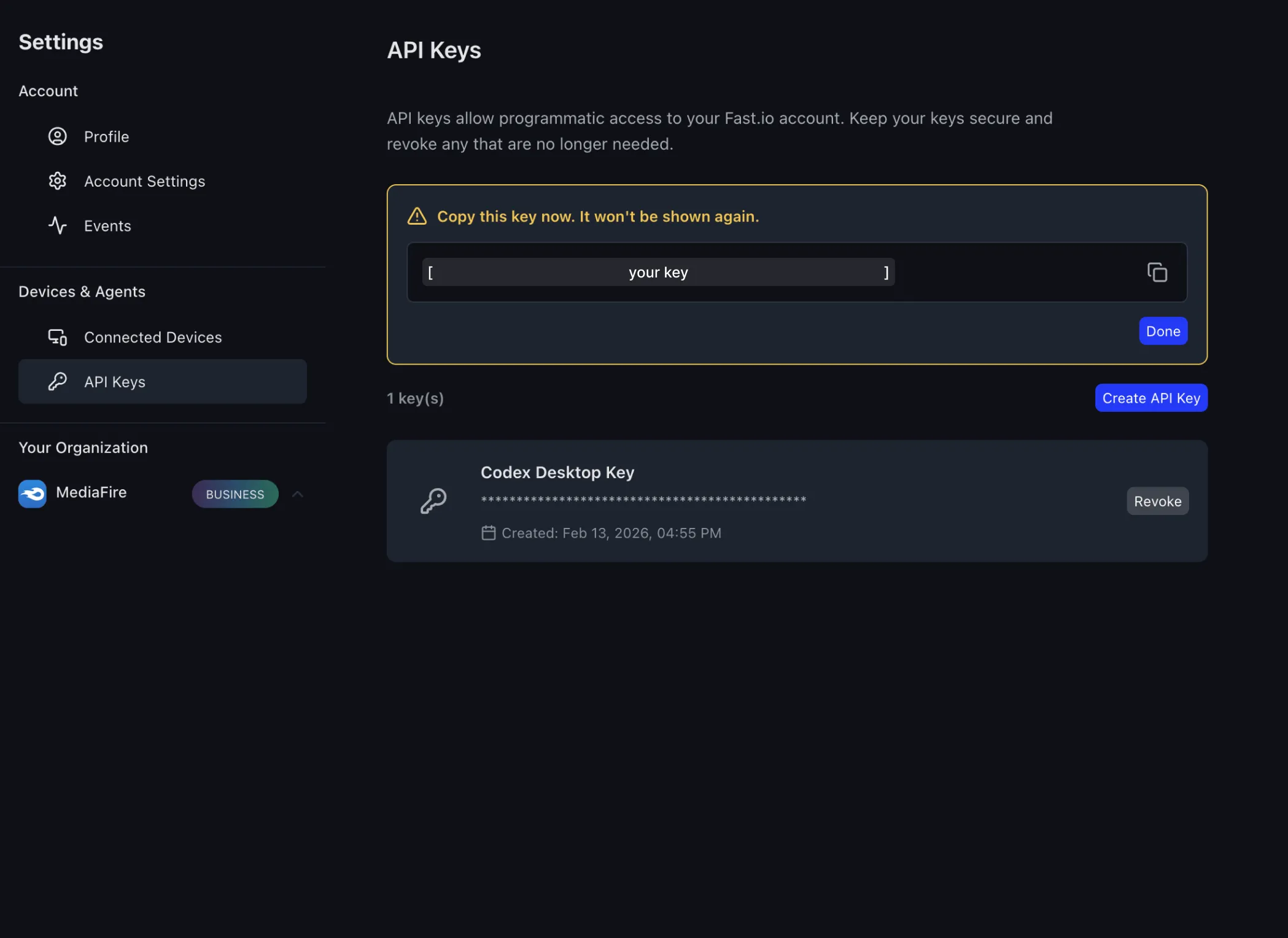
Copy your API key
Copy the API key now since it won't be shown again. Click the copy icon to save it to your clipboard, then click Done.
Set the environment variable
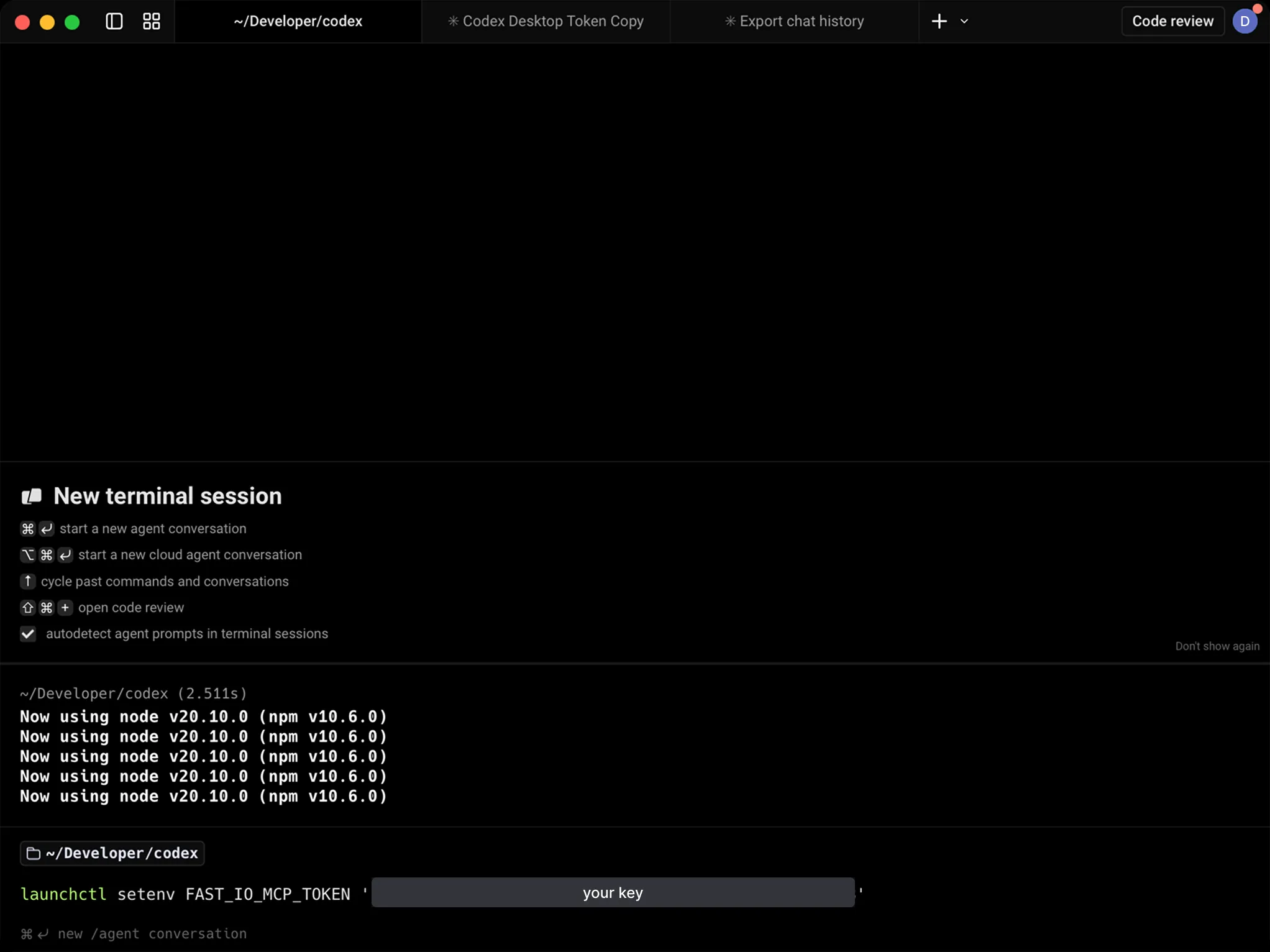
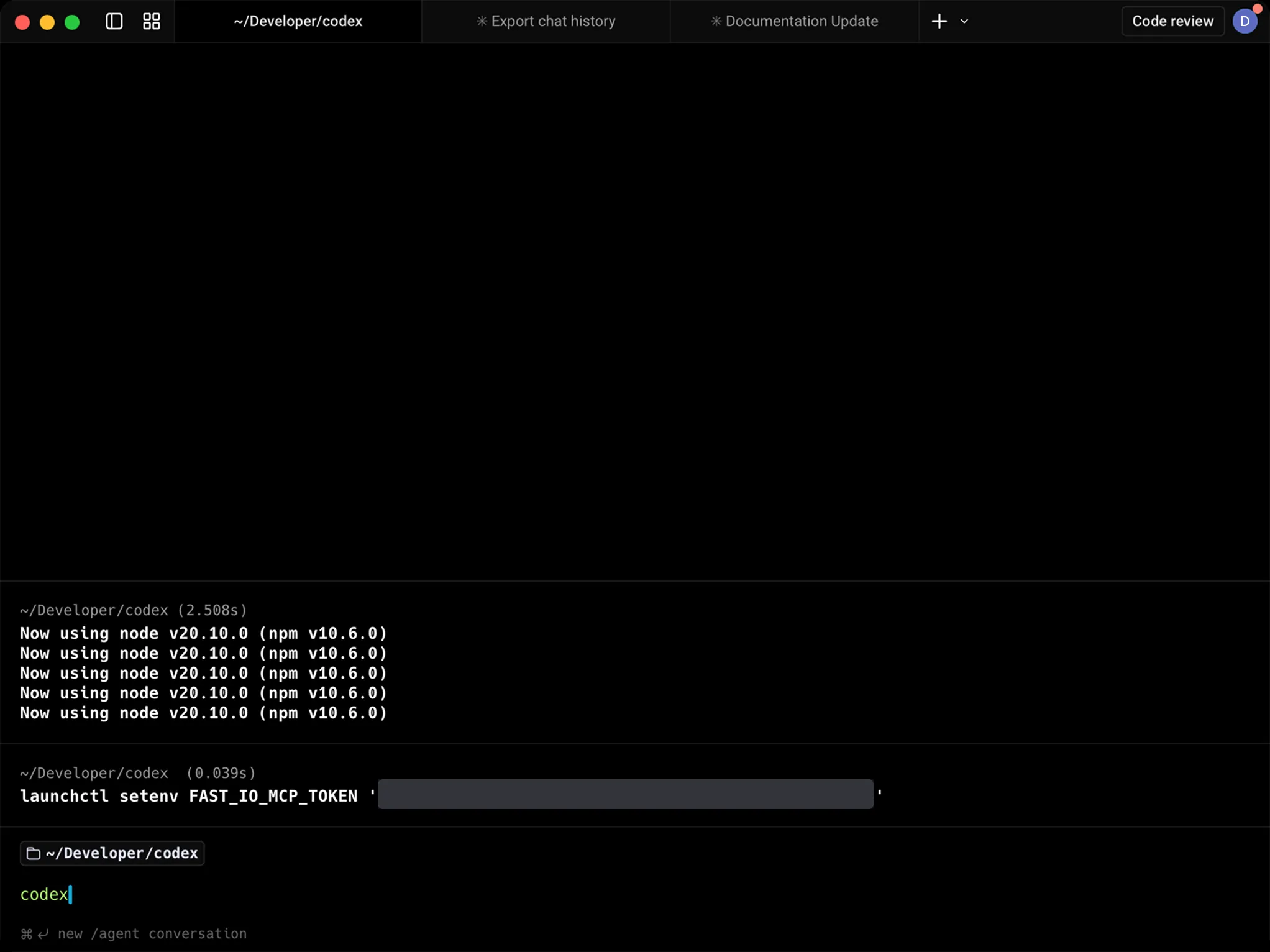
Open a terminal and run the command below
(replace
FAST_IO_MCP_TOKEN with the variable name you chose in step 3 if different).
Paste the API key you just copied between the single
quotes then press
Enter.
launchctl setenv FAST_IO_MCP_TOKEN 'your
API key' 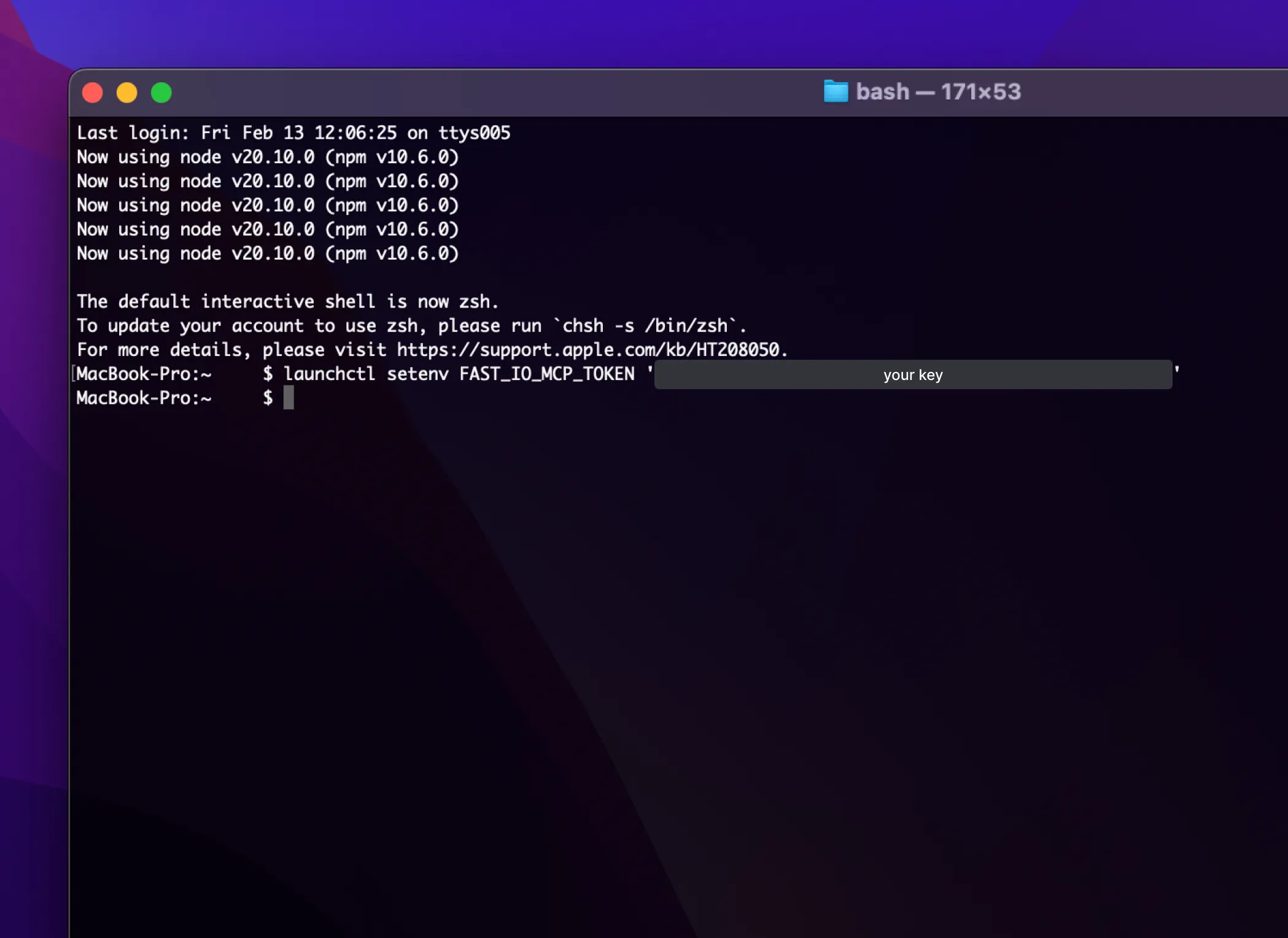
Verify the connection
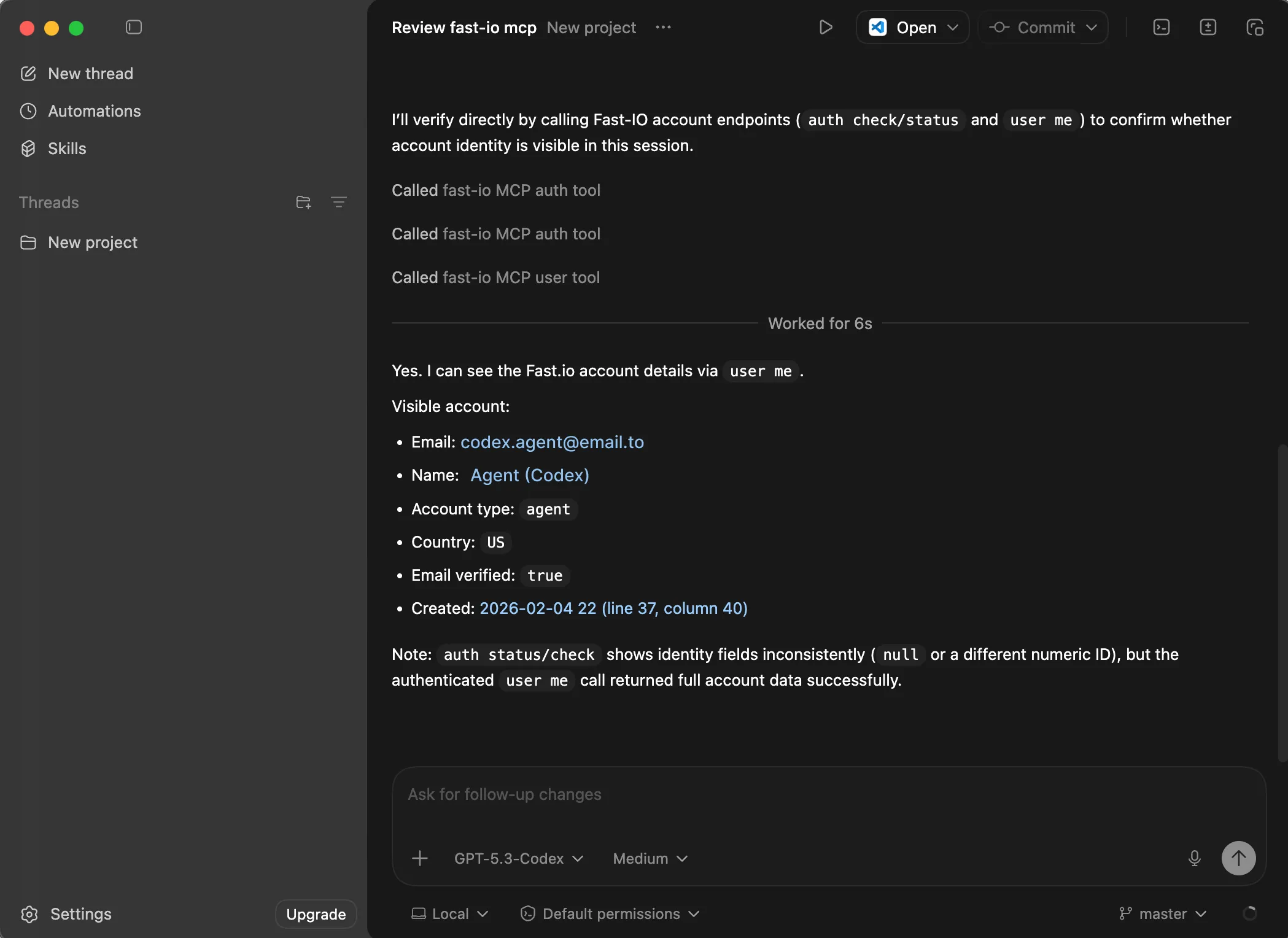
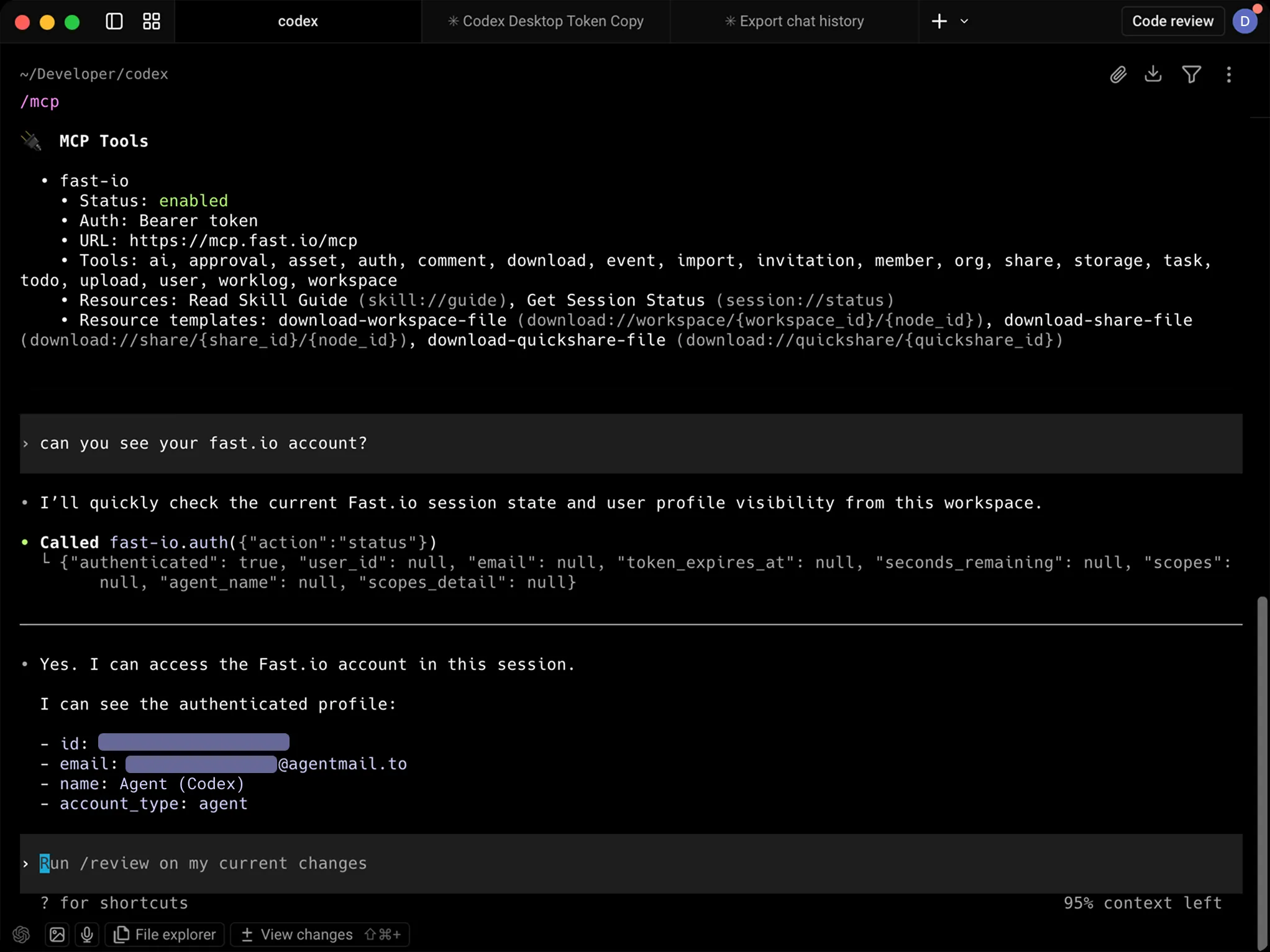
Restart Codex Desktop, then ask something like "can you see your fast.io account?" to confirm the connection is working. Codex should return your account details.
Try these prompts
Copy and paste these into Codex to see Fastio in action.
List all workspaces in this account Create a new folder named "Images" Give me a link to this newly created
folder 
Everything your agents need to get work done
Give Codex a secure space to store, analyze, and share files alongside your team.
API
org-create-workspace Create project-scoped workspaces on demand. Intelligence mode auto-indexes files for RAG.
Files + Folders
workspace-storage-* CRUD, move, copy, versions, locks, previews for 10+ formats. Chunked uploads up to 1GB.
Import
web-upload Import files from any URL. OAuth support for Google Drive, OneDrive, Box, Dropbox. No local I/O.
Semantic Search
workspace-search Find files by meaning, not keywords. "Show me contracts with indemnity clauses" works.
AI Chat (RAG)
ai-chat-create Ask questions across entire workspaces. Auto-summarization, citations, metadata extraction.
MCP Server
mcp.fast.io 251 tools via Streamable HTTP or SSE. Session state persisted in Durable Objects.
Webhooks
webhook-create Real-time notifications for file events. Build reactive workflows without polling.
Ownership Transfer
org-transfer-ownership Build for humans, then hand off. Agent keeps admin access after transfer.
Shares & Content Portals
share-create Three modes: Send (deliver), Receive (collect), Exchange (collaborate). Password protection, expiration, branding.
Comments & Annotations
comments-* Region-anchored feedback on images, timestamps on video/audio, page-specific on PDFs. Threaded replies.
Free forever. No credit card required.
Monthly credits cover storage, bandwidth, and AI operations. Resets every 30 days.
FAQ
What is the Fastio MCP server?
It's a server that provides Codex with 251 workspace tools. By adding it to your config, Codex can upload files, create share links, and query documents using RAG.
How does authentication work?
The first time Codex uses a Fastio tool, it opens a browser tab to sign in or create a free account. Your session persists, so there are no API keys to manage manually.
Can I see what Codex uploads?
Yes. Everything Codex stores is accessible at app.fast.io. You can browse, preview, comment on, and download files from any device.
Does this work with Codex CLI and Codex Desktop?
Yes. It works with both. For Codex Desktop, you add the MCP config in Settings. For Codex CLI, you add it to your ~/.codex/config.toml file.
What happens when I hit the credit limit?
You get 5,000 credits per month. When they run out, new uploads and AI queries pause until the next cycle. Existing files and share links remain accessible.
Can Codex share files with people who don't use Codex?
Yes. Share links are regular web URLs. Recipients open them in a browser and get previews, downloads, and commenting features without needing an account.
The FastIO CLI is also available as a standalone tool for Codex and ChatGPT workflows.
The Fastio CLI gives you the same workspace tools — upload,
search, share — as a standalone command. It also includes a
built-in MCP server via fastio mcp.
npm install --global @vividengine/fastio-cli
Learn more

Give Codex a professional workspace
Enable 251 tools for Codex in minutes. Built-in shared workspaces, RAG search, and file sharing.