How to Add File Storage to Flowise Chatflows
Flowise makes it easy to build AI agents, but managing the files they create or use can be tricky. Most default setups store files on the local disk or inside ephemeral containers, meaning you lose everything if the system restarts. This guide shows you how to connect external storage so your agent documents and outputs stay safe and accessible.


Why Flowise Needs External File Storage
Flowise is an open-source platform for building LLM apps without code. It lets you build chatflows that handle documents, manage knowledge bases, and save agent outputs. However, the default setup uses a local database and the local filesystem for uploads. This causes three main issues for real-world apps:
- Data Loss in Containers: If you run Flowise on Docker, Railway, or Render, the local disk is temporary. When the container restarts, your uploads and files vanish.
- Scaling Issues: Storing big PDFs or datasets on the same server as your app makes the instance heavy and hard to scale.
- Handoff Friction: If an agent generates a report, there is no easy way for a user to find it later. You usually end up with broken download links and no history for the user. Using external storage fixes this by keeping your data separate from the code running your agents.
Helpful references: Fastio Workspaces, Fastio Collaboration, and Fastio AI.

Related guides
- How to Add Persistent Storage to Flowise AI AgentsFlowise AI agents often lose files, especially in containerized deployments where local storage is temporary. This...
- How to Add Persistent Cloud Storage to SuperAGI AgentsSuperAGI agents often run in temporary environments where files are lost after the job finishes. By using Fastio as a...
- How to Integrate Dify File Storage for AgentsDify defaults to local file storage, which limits scalability and agent capabilities.
- How to Set Up File Storage for n8n AI Workflowsn8n AI workflows need persistent file storage to save documents, process AI outputs, and build RAG pipelines. This...
- How to Implement Persistent Storage for AutoGen using Fastio APIAdding persistent storage to AutoGen via Fastio API allows multi-agent conversations to share and modify files reliably...
- Fastio API vs Supabase Storage for Agent WorkspacesPicking the right backend for your AI application shapes your engineering roadmap. Developers often treat all cloud...
More on this subject: Agent Memory and Storage (261 guides)
Native Storage Options: Local vs. S3
Flowise has basic support for external storage through environment variables. You can change where files are saved by updating your config.
Local Storage (Default)
By default, STORAGE_TYPE is set to local. Files go to .flowise/storage on the machine running the app. This is fine for testing on your laptop but risky for anything else.
AWS S3 Integration
You can tell
Flowise to use AWS S3 by setting STORAGE_TYPE=s3 and adding your AWS keys (AWS_ACCESS_KEY_ID, AWS_SECRET_ACCESS_KEY, AWS_REGION, AWS_BUCKET_NAME).
The Good:
- Files stay safe even if the container dies. * Uses a standard industry tool.
The Bad:
- Setting up IAM permissions is a chore. * There is no interface for users to see their files. * You have to write extra code to create shareable links for users.
A More Reliable Option: Fastio for Agent Storage
If your agents need to give files to people (or if people need to send files to agents), Fastio is a better way to handle it. It goes beyond simple storage by providing a branded portal for your users, global speed, and a dedicated MCP server for your agents.
Why use Fastio with Flowise?
- Built-in Delivery Portals: When an agent saves a file, it shows up in a secure, branded portal. You don't have to build a frontend for file downloads. * Simple MCP Connection: Point Flowise at the Fastio MCP server (
https://mcp.fast.io/mcp/tools, with a Bearer header) to give the agent its tools, includingupload,storage,find, andai, plus_managetools for changes. * Workspace Intelligence: Ripley, Fastio's built-in RAG agent, can answer questions about files the chatflow stored. From Flowise, call the MCPai_managetool with actionask. Industry trends suggest enterprise AI workflows increasingly require persistent file handoffs between agents and humans.
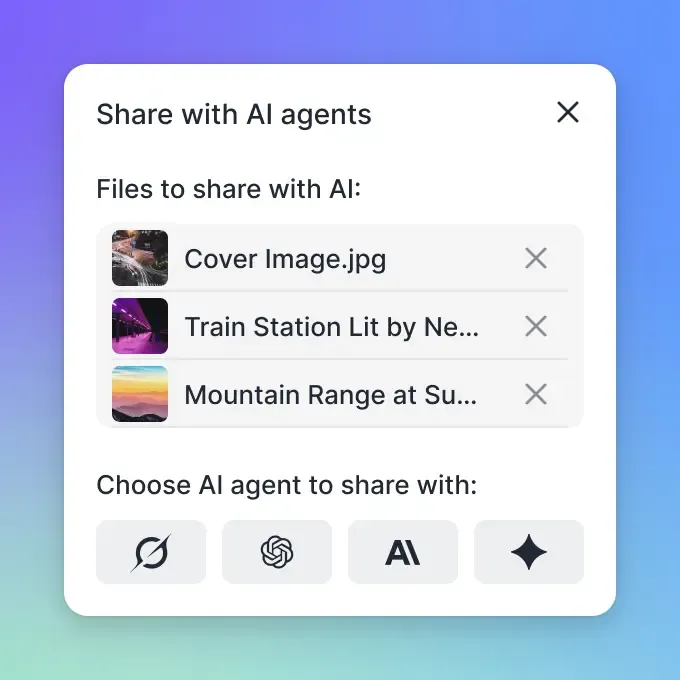


Give Your AI Agents Persistent Storage
Stop losing agent data when your system restarts. Persistent workspace storage with a branded delivery portal for your AI workflows.
Step-by-Step: Connecting Fastio to Flowise
You can connect Flowise to Fastio in two ways: with the HTTP Request Tool (simple) or the MCP Tool (for advanced agents).
Method 1: Using the HTTP Request Node
Use this for simple file uploads.
- Get your API Key: Create a Fastio account, open a workspace, and generate an API key in Settings > Devices & Agents > API Keys, or with
POST /current/user/auth/key/. Workspace IDs are 19-digit numeric strings. - Add HTTP Request Node: Drag an HTTP Request node into your Flowise chatflow.
- Configure the Endpoint:
- URL:
https://api.fast.io/current/upload/ - Method:
POST - Headers:
Authorization: Bearer {api_key} - Body:
multipart/form-datawithname(filename),size(bytes),chunk(the file bytes from the previous node),action=create,instance_id(the workspace ID), andfolder_id=root(or an existing folder node ID).
- URL:
Keep the trailing slash. A successful small upload returns HTTP 201: {"result":true,"id":"<upload_id>","new_file_id":"<node_id>"}. If Flowise already has a public URL for the file, use POST https://api.fast.io/current/web_upload/ instead, with form fields source_url, file_name, profile_id, profile_type (workspace or share), and folder_id.
Fastio MCP Server Method
If your agent needs to search, read, and organize files, use the Model Context Protocol. Official guidance is that agent integrations should use the MCP server.
- Point Flowise at MCP: In Flowise, use the MCP Tool node and set the server URL to
https://mcp.fast.io/mcp/toolsand pass your API key as a Bearer header. - Choose Your Tools: Enable named tools such as
upload,storage,find, andai, plus the_managetools that make changes. Thestoragetool (list,search,details) andstorage_manage(move,copy,delete) requireprofile_typeset toworkspaceorshare. Theai_managetool with actionaskreturns a cited answer from workspace files. - Optional HTTP fallback: An HTTP Request node can POST this JSON-RPC body to
https://mcp.fast.io/mcp/toolswithAuthorization: Bearer {api_key}:
{"jsonrpc":"2.0","id":1,"method":"tools/call",
 "params":{"name":"upload_manage","arguments":{"action":"web-import","url":"https://example.com/report.pdf",
 "profile_type":"workspace","profile_id":"1234567890123456789"}}}
Now the agent can save its work, check for existing files, or look up information from a previous chat.
Example: Document Processing Pipeline
A popular use for Flowise is building an automated document pipeline. Here is how you can set one up with reliable storage:
- Upload: A user drops a PDF into a Fastio Receive share using a branded share link.
- Trigger: Flowise long-polls
GET /current/activity/poll/{entityId}?wait=95&lastactivity={timestamp}, or queriesGET /current/events/search/, then starts the chatflow when a new file appears. - Process:
- The agent reads the PDF with
GET /current/workspace/{workspace_id}/storage/{node_id}/read/, or checks metadata with the MCPstoragetool (details). - The LLM (like GPT-4o or Claude) pulls out the data you need, like invoice dates or totals.
- The agent reads the PDF with
- Save:
- The agent writes the results with
POST /current/upload/(or MCPupload_manage). - The agent moves the original PDF to an archive folder with
POST /current/workspace/{workspace_id}/storage/{node_id}/move/(or MCPstorage_manageactionmove).
- The agent writes the results with
This way, nothing gets lost in the chat window. Everything is stored, logged, and easy to find later.

Security for Agent Files
When agents handle files, security is the top priority. Standard local storage doesn't give you much control over who sees what.
How Fastio secures agent data:
- Full Audit Logs: You can see every time an agent reads or writes a file.
- File Locking: This prevents two agents from trying to edit the same file at the same time, which stops data from getting corrupted.
- Isolation: Your files live in the cloud, separate from your Flowise server. This keeps your data safe even if your agent environment has a security issue. For teams in serious industries, keeping your compute (Flowise) and your storage (Fastio) separate is a key security practice.
Sources
References used to verify factual claims in this guide.
-
Small file upload is POST https://api.fast.io/current/upload/ with multipart fields name, size, chunk, action=create, instance_id, and folder_id. A successful small upload returns HTTP 201 with result, id, and new_file_id. Point Flowise at the Fastio MCP server at https://mcp.fast.io/mcp/tools to give the agent its named tools Agent-facing Fastio integrations should use the MCP server. File activity is read with GET /current/events/search/ or GET /current/activity/poll/{entityId}.
-
Flowise supports the MCP Tool node
Frequently Asked Questions
How do I add file storage to Flowise?
You can add storage by changing the `STORAGE_TYPE` environment variable to `s3`, or by using external APIs like Fastio with the HTTP Request node or MCP tools. We don't recommend using the default `local` storage for production apps.
Can Flowise chatbots save files?
Yes, they can. But they need a place to put them. By default, they save to the local server, which isn't reliable. For a better experience, connect a cloud storage provider so users can access their files later.
What storage options work with Flowise?
Flowise supports Local disks and AWS S3 out of the box. You can also connect to Fastio, Google Drive, or Dropbox by using the Custom Tool or HTTP Request nodes in your workflow.
How do I use Flowise for document processing?
Have the user drop a PDF into a Fastio Receive share. Flowise long-polls GET /current/activity/poll/{entityId}?wait=95&lastactivity={timestamp} (or GET /current/events/search/) for the new file, reads it with GET /current/workspace/{workspace_id}/storage/{node_id}/read/, extracts the fields you need, and writes the result back with POST /current/upload/.
Related Resources

Give Your AI Agents Persistent Storage
Stop losing agent data when your system restarts. Persistent workspace storage with a branded delivery portal for your AI workflows.