AnythingLLM Workspace Storage Limits: Document Ceilings and Vector Tuning
The AnythingLLM workspace storage limit is the threshold of documents and vector embeddings, typically `100MB` per file and practical LanceDB disk boundaries, that a workspace manages without query degradation. While AnythingLLM sets no hard document count cap, desktop hardware encounters latency bottlenecks beyond 500 embedded documents. Offloading file storage and semantic search to cloud workspaces over remote MCP lets teams query large archives without local memory exhaustion.


What Determines AnythingLLM Workspace Storage Limits
When an AnythingLLM workspace begins returning sluggish responses or dropping reference context, the bottleneck is rarely the underlying language model. It is the physical ceiling of local file parsing, vector table overhead, and token context injection on the host machine. Desktop installations handle personal research folders cleanly, but engineering and legal teams regularly watch query speeds drop after importing multi-gigabyte document collections.
The AnythingLLM workspace storage limit is the threshold of documents and vector embeddings, typically 100MB per file and practical boundaries around local LanceDB disk usage, that a workspace can manage without query degradation. Unlike enterprise document management systems with hard quotas, AnythingLLM imposes few artificial software boundaries. Instead, users encounter four practical hardware and architectural boundaries:
Single File Size Ceiling. While the AnythingLLM application code sets no hard payload cap, the desktop document manager recommends keeping uploads under
100MBper file. When running AnythingLLM in Docker behind an Nginx or reverse proxy gateway, unconfiguredclient_max_body_sizedirectives often reject uploads larger than1MBwith HTTP 413 errors. In hosted cloud deployments, CPU constraints limit single-file processing to roughly10,000words on starter instances and50,000words on professional tiers.Document Volume Ceiling. AnythingLLM workspaces support unlimited files in theory, but practical document collection boundaries emerge on standard desktop hardware. When a single workspace exceeds roughly 500 embedded documents, vector distance calculations and SQLite index scans begin competing for workstation memory, causing perceptible query latency during interactive chats.
Vector Store Disk and Memory Footprint. The default embedded vector database, LanceDB, stores vector indices and chunk tables directly on the local filesystem. As workspaces grow, vector embeddings, document caches, and SQLite metadata files in the application data folder expand to several times the size of the original source documents.
Context Injection Token Budgets. Even when thousands of documents sit inside a workspace vector index, an LLM cannot inspect all of them at once. AnythingLLM retrieves a constrained subset of matching passages per query to fit within the active model token limit, meaning retrieval quality depends on chunk relevance rather than total stored volume.
Chat Attachments Versus Workspace Embeddings
Understanding storage boundaries requires distinguishing between the two ingestion pathways in AnythingLLM: direct chat attachments and workspace document embeddings.
When you drag a file directly into the active chat input field, AnythingLLM treats the file as a prompt attachment. The application parses the text and attempts a full-text insertion into the immediate prompt context. This approach works well for quick memos or single-page drafts because the model reads the entire document sequentially. However, files attached in chat are thread-scoped. They remain inaccessible to other conversation threads or other workspace users.
If an attached file exceeds the active model context window, AnythingLLM displays an overflow warning dialog with three choices: Cancel the action, Continue Anyway (which prunes and truncates the file content to fit remaining token headroom), or Embed.
Choosing Embed routes the file into the workspace vector pipeline. The text is split into chunks, converted into vector representations, and written to the underlying vector database. Embedded documents become permanently accessible across all threads and users connected to that workspace.
Related guides
- AnythingLLM Context Window: Configuration, Chunking Limits, and Document ManagementThe AnythingLLM context window determines how many tokens of chat history, system instructions, and vector search...
- How to Configure Claygent RAG Document Storage for GTM ResearchSales intelligence teams struggle to scale automated B2B research because of LLM hallucination rates in agentic...
- How to Choose the Best Vector Database for AI Agents (2026)Vector databases serve as the long-term semantic memory for AI agents, allowing them to recall context across sessions...
- Top 7 Vector Database Alternatives for AI Agents (2026)Vector databases serve as the long-term memory for AI agents, storing semantic embeddings that allow models to retrieve...
- Connecting Azure AI Search to Blob Storage: Indexer Setup & ArchitectureConnecting Azure AI Search to Azure Blob Storage uses automated indexers to extract, chunk, and index unstructured...
- Azure Blob Storage Connector for AI Agents: Architecture and SetupAn Azure Blob Storage connector bridges autonomous AI agents with Microsoft Azure object containers, facilitating...
More on this subject: Agent Memory and Storage (304 guides)
How AnythingLLM Organizes Local Disk Storage: LanceDB, SQLite, and File Caches
AnythingLLM Desktop maintains all application state, embedded vectors, and document caches inside a dedicated local storage directory. The path depends on your operating system:
- macOS:
~/Library/Application Support/anythingllm-desktop/storage - Linux:
~/.config/anythingllm-desktop/storage/ - Windows:
C:\Users\username\AppData\Roaming\anythingllm-desktop\storage
Inside the storage/ directory, AnythingLLM separates runtime assets into specific subdirectories:
lancedb/: Contains the local LanceDB vector database files. Each workspace maps to internal tables storing float vectors, text chunks, and similarity indexes.documents/: Stores the parsed text output of uploaded files. AnythingLLM preserves the extracted text here after document processing completes.vector-cache/: Holds cached representations of previously processed documents, keyed by content hashes to prevent redundant embedding passes when rebuilding workspaces.anythingllm.db: The core SQLite database. It records workspace definitions, system prompts, chat histories, agent skill configurations, and local user accounts.direct-uploads/: Holds files dragged directly into chat threads for prompt-level full-text insertion.models/: Stores locally downloaded GGUF weight files when using built-in local inference or local embedding models.
Why Disk Consumption Expands Beyond Source File Sizes
A common surprise for teams deploying AnythingLLM is how quickly local disk consumption outpaces raw document size. A 50MB collection of technical PDF manuals can generate 200MB or more of on-disk storage across the application directory.
Three compounding factors drive this storage expansion:
First, vector dimensionality creates mathematical bloat. When an embedding model converts a 1,000-character text chunk into a dense vector, it outputs an array of floating-point numbers. An embedding model with 1,536 dimensions requires 6,144 bytes of storage for the vector coordinates alone, excluding the chunk text, source metadata, and index pointers. A 500-page manual split into 2,500 chunks produces over 15MB of raw vector coordinates before indexing overhead.
Second, AnythingLLM retains multiple copies of document data across its pipeline. The original file sits in temporary upload directories, the parsed raw text lives in documents/, the chunked embeddings reside in lancedb/, and the content hash cache lives in vector-cache/. If users also drag the file into a chat thread, an extra copy lands in direct-uploads/.
Third, SQLite metadata tracking grows with every document chunk. The anythingllm.db database manages chunk mappings, workspace assignments, and document status records. On desktop hardware with standard solid-state drives, concurrent reads between SQLite queries and LanceDB vector table scans create disk I/O contention during deep search operations.
Why Switching to Cloud Vector Databases Fails to Solve the Storage Ceiling
When desktop hardware slows down under the weight of hundreds of embedded documents, the standard recommendation in community forums is to switch from embedded LanceDB to an external cloud vector database like Pinecone, Chroma Cloud, Qdrant, Weaviate, or Milvus. While cloud vector databases offload vector math from local memory, they introduce operational constraints that leave the core document challenge unsolved.
The System-Wide Configuration Constraint
AnythingLLM sets the vector database provider system-wide. Unlike Large Language Models, which you can configure independently per workspace, the vector database configuration applies to every workspace in the instance.
This architectural choice creates high migration friction. AnythingLLM does not port existing embeddings when you switch vector database providers. If you configure Pinecone to support a large corporate workspace, you must delete and re-embed every document in every existing workspace. For organizations with dozens of project workspaces, switching vector backends requires re-ingesting the entire corporate knowledge base.
What Cloud Vector Databases Miss
Connecting AnythingLLM to an external vector database fails to address the underlying challenges of managing large corporate libraries:
- No Source File Persistence. Vector databases store numerical embeddings and text fragments. They do not store the original PDFs, spreadsheets, or presentation decks. Your team still needs separate file storage to retain and review source records.
- Local Ingestion Bottlenecks Remain. Even when vectors land in Pinecone or Qdrant, document ingestion still runs on the local workstation or Docker host. Your machine must download the file, parse the layout, extract the text, and generate embedding coordinates before sending vectors over the network.
- Document Drift and Stale Indexes. External vector databases do not track file updates. When a colleague edits a specification document in Google Drive or OneDrive, the vector index in Pinecone remains stale until someone manually uploads the revised file into AnythingLLM.
- Network Latency and SaaS Subscriptions. Querying a hosted vector database introduces network round-trips for every conversation turn. Managed vector databases also charge recurring fees based on index dimensions and vector counts, adding operational cost without providing human-readable file access.
Comparing Storage and Retrieval Architectures
The table below contrasts how local LanceDB, external cloud vector databases, and Fast.io cloud workspaces handle document libraries:
By shifting document storage and indexing to an intelligent workspace layer such as Fast.io workspaces, teams eliminate the tradeoffs of local vector storage.
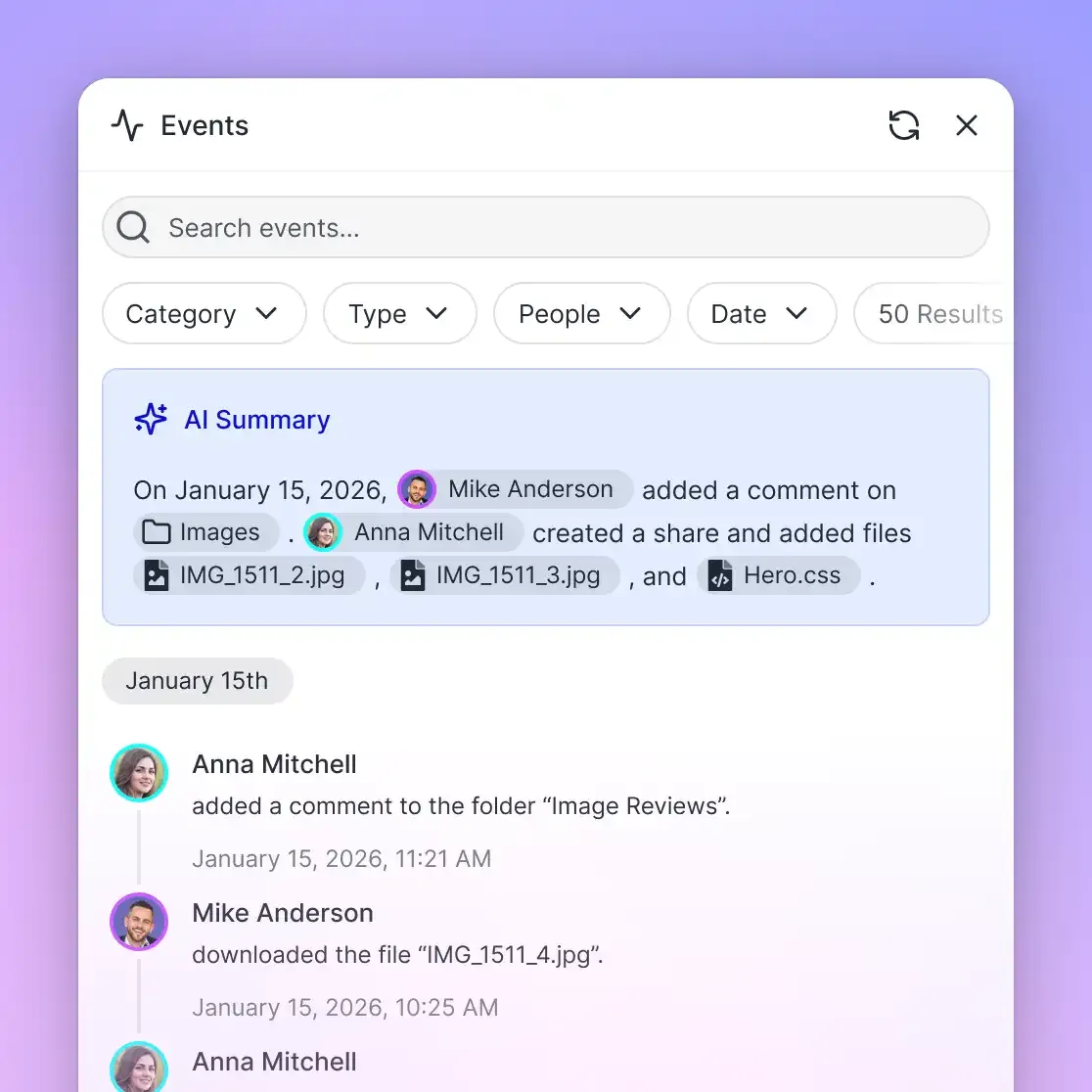


Query Enterprise Document Archives Without Desktop Storage Ceilings
Store large document libraries in cloud workspaces with automatic semantic indexing and remote MCP retrieval. Start your 14-day free trial on monthly plans with a credit card.
How to Tune Document Chunking and Embedder Workloads
If your team runs AnythingLLM locally and needs to maximize workspace capacity within existing hardware limits, fine-tuning text splitting and embedder configurations improves both responsiveness and retrieval accuracy.
You can configure text segmentation rules under Settings, then AI Providers, then Text Splitter & Chunking. Changing these parameters only applies to documents embedded after the update; existing documents retain their original chunk structures until re-embedded.
The Recursive Character Splitting Hierarchy
AnythingLLM uses LangChain RecursiveCharacterTextSplitter as its text segmentation engine across all document types. Rather than cutting text at rigid character intervals, the splitter evaluates boundaries in a descending order of structural priority:
- Paragraph Breaks. The engine first attempts to split text along double line breaks to keep complete conceptual thoughts together.
- Line Breaks. If a paragraph exceeds the target chunk size, the splitter cuts along single line breaks.
- Word Spaces. If a single line remains too long, the engine divides text at whitespace boundaries between words.
- Individual Characters. For continuous data without whitespace, such as long hashes or minified source code, the splitter cuts at the character threshold as a last resort.
Balancing Chunk Size and Chunk Overlap
The default configuration uses a Text Chunk Size of 1,000 characters and a Text Chunk Overlap of 20 characters. Adjusting these values directly impacts workspace storage limits:
- Smaller Chunks (400 to 600 characters). Smaller chunks isolate specific facts, which helps when querying dense reference manuals or legal clauses. However, smaller chunks increase the total number of vectors generated per document. Ingesting a 10MB document with 400-character chunks creates more than double the vector count of the default setting, speeding up table bloat in LanceDB.
- Larger Chunks (1,500 to 2,000 characters). Larger chunks preserve broader context and produce fewer total vectors, reducing disk consumption and speeding up vector searches. However, each chunk consumes more token headroom in the model context window, leaving less room for conversation history.
Offloading the Embedder to Prevent CPU Crashes
The most common failure in AnythingLLM Desktop occurs during document ingestion. When users upload a 200-page document while using the default built-in embedder, the application runs vector transformations on the local host CPU. CPU utilization spikes, memory usage balloons, and the application can freeze or crash with an HTTP 502 error.
To avoid CPU embedding crashes:
- Use an External Embedding Model. Switch the embedder in Settings from the built-in CPU engine to Ollama running on a local GPU, or use an API-based embedding service. Offloading vector calculations prevents desktop lockups during batch ingestion.
- Prune Obsolete Documents. Regularly remove outdated drafts from workspaces. Removing an embedded document deletes its corresponding rows from LanceDB and clears cached references in SQLite.
- Pre-Split Omnibus Manuals. Rather than uploading a 500-page operational manual as a single monolithic PDF, split the file into topical chapters before uploading. Smaller files process reliably and generate tighter semantic boundaries.
How to Scale Document Retrieval with Fast.io Workspaces and MCP
When document collections grow beyond a few hundred files, forcing the entire library into a local desktop vector database becomes counterproductive. A more resilient architecture separates document management from the conversational interface. By storing the primary corpus in an intelligent cloud workspace, AI assistants query indexed documents on demand through the Model Context Protocol (MCP) without maintaining local vector tables.
How Fast.io Intelligent Workspaces Handle Large Corpora
Fast.io provides shared cloud workspaces designed for human teams and AI agents. Instead of running local parsing pipelines and vector stores on desktop laptops, the entire corpus lives in a cloud workspace with built-in indexing:
- High File Capacity. Fast.io supports large files directly. Maximum upload sizes are
25 GBon Starter,50 GBon Business, and100 GBon Enterprise, accommodating massive datasets, disk images, and multimedia archives that local vector tools cannot parse. - Automated Cloud Sync. Cloud Sync connects Google Drive, Dropbox, Box, and OneDrive folders to a workspace, one-way or two-way, on a schedule or on demand. When team members update files in corporate cloud storage, the changes reflect in the workspace without manual exports.
- Intelligence Mode RAG. When Intelligence is enabled on a workspace, files are indexed automatically upon arrival for hybrid search (combining full-text keyword search, semantic meaning, and metadata matching). The workspace acts as a pre-indexed retrieval engine, eliminating the need to configure and pay for external vector databases.
- Detailed Activity Tracking and Versioning. A detailed activity log records changes across the organization, including uploads, edits, moves, deletions, and permission changes. Every file retains complete version history, allowing teams to audit document changes and restore earlier revisions.
- Structured Data Extraction. For structured reporting across large document libraries, Metadata Views extract typed schema fields like dates, counterparties, and totals from PDFs and spreadsheets without OCR templates.
Connecting AI Assistants to Fast.io Over Remote MCP
Rather than embedding thousands of files into a local LanceDB instance, an AI assistant connects to Fast.io through its remote Model Context Protocol server. Fast.io exposes action-based MCP tooling over Streamable HTTP at https://mcp.fast.io/mcp/tools. Setup documentation is available at mcp.fast.io/docs.
When configuring an MCP client to connect with a scoped API key, the configuration specifies the Streamable HTTP transport and endpoint:
{
  "mcpServers": {
    "fast-io": {
      "url": "https://mcp.fast.io/mcp/tools",
      "headers": {
        "Authorization": "Bearer YOUR_FASTIO_API_KEY"
      }
    }
  }
}
In this architecture, when an agent or chat assistant needs information from the document library, it queries the workspace through Fast.io MCP search tools. The workspace returns relevant text snippets with precise document citations. The host machine stores zero vectors locally, memory usage remains stable, and every teammate queries the same synchronized document library.
Sources
References used to verify factual claims in this guide.
-
AnythingLLM retrieves 4 to 6 text chunks from the vector database by default to answer user prompts.
Frequently Asked Questions
How many documents can you put in an AnythingLLM workspace?
AnythingLLM imposes no hard software cap on the number of documents in a workspace. However, when using the default embedded LanceDB vector database on desktop hardware, query performance and vector search speeds typically begin degrading beyond 500 embedded documents. Scaling beyond this threshold requires optimizing chunk sizes, switching to external embedding providers, or offloading the corpus to indexed cloud workspaces.
What is the file size limit for AnythingLLM?
The recommended file size limit for AnythingLLM desktop uploads is `100MB` per file. While the core application code does not enforce a rigid file size ceiling, attempting to embed larger files with the built-in CPU embedder often causes memory exhaustion. In Docker deployments, reverse proxies like Nginx may enforce an independent limit via client_max_body_size. On AnythingLLM Hosted Cloud, limits are measured in text volume, recommending under `10,000` words per file on starter instances and under `50,000` words on professional tiers.
How do you manage large document libraries in AnythingLLM?
To manage large document libraries in AnythingLLM, organize files into topical workspaces rather than one monolithic collection, increase chunk sizes to 1,500 characters to reduce total vector counts, and use an external embedding provider like Ollama on a GPU. For corporate libraries exceeding several gigabytes, connect your AI assistant to a cloud workspace like Fast.io via remote MCP to search pre-indexed files on demand without consuming local disk space.
What happens when an AnythingLLM workspace exceeds local hardware capacity?
When a workspace exceeds local hardware capacity, desktop symptoms include sluggish similarity searches, high CPU and RAM usage, and application freezes. Ingesting large files with the built-in CPU embedder frequently causes process crashes and HTTP 502 errors. Disk space also depletes rapidly as vector indices in storage/lancedb and cached text in storage/documents expand.
Does switching from LanceDB to Pinecone increase document limits in AnythingLLM?
Switching to Pinecone offloads vector math and vector index storage from local disk to the cloud, allowing you to store millions of vectors. However, it does not solve local ingestion bottlenecks. The host machine still has to parse, OCR, and chunk raw documents before uploading vectors. Pinecone also lacks native file storage, meaning source files and version histories must be stored separately.
Can you configure different vector databases for different workspaces in AnythingLLM?
No. AnythingLLM sets the vector database provider system-wide. Every workspace on an AnythingLLM instance shares the same vector database backend. If you change providers from LanceDB to an external database like Chroma or Pinecone, AnythingLLM will not migrate existing vectors. You must delete and re-embed documents across all workspaces.
Where are AnythingLLM workspace files and vector databases stored locally?
AnythingLLM Desktop stores data in an operating system directory: ~/Library/Application Support/anythingllm-desktop/storage on macOS, ~/.config/anythingllm-desktop/storage/ on Linux, and C:\Users\username\AppData\Roaming\anythingllm-desktop\storage on Windows. This directory contains lancedb for vector tables, documents for extracted text, vector-cache for embedding hashes, and anythingllm.db for SQLite metadata.
Related Resources

Query Enterprise Document Archives Without Desktop Storage Ceilings
Store large document libraries in cloud workspaces with automatic semantic indexing and remote MCP retrieval. Start your 14-day free trial on monthly plans with a credit card.