How to Build a Tutorial Video Team Workflow
A tutorial video team workflow organizes the process from planning to publishing, ensuring smooth collaboration among scriptwriters, recorders, editors, and reviewers. Tutorial videos dominate educational content on platforms like YouTube, where creators earn over $100 billion from views and monetization, according to YouTube's official blog. Teams that structure their production pipeline handle multiple versions effectively and deliver content faster.

Why Teams Need a Tutorial Video Workflow
Tutorial video production involves multiple steps and roles. Without a clear workflow, files get lost, feedback loops slow down, and versions multiply chaotically. A defined process cuts confusion and boosts output.
Consider a small team making software tutorials. The writer drafts a script. The host records footage. The editor cuts and adds graphics. Reviewers note changes. Each handoff risks errors if not managed.
Structured workflows address this. They define roles, tools, and timelines. For tutorial videos, focus on handling large raw files, quick reviews, and version tracking. This matters because video files grow fast—4K raw footage can hit gigabytes per minute.
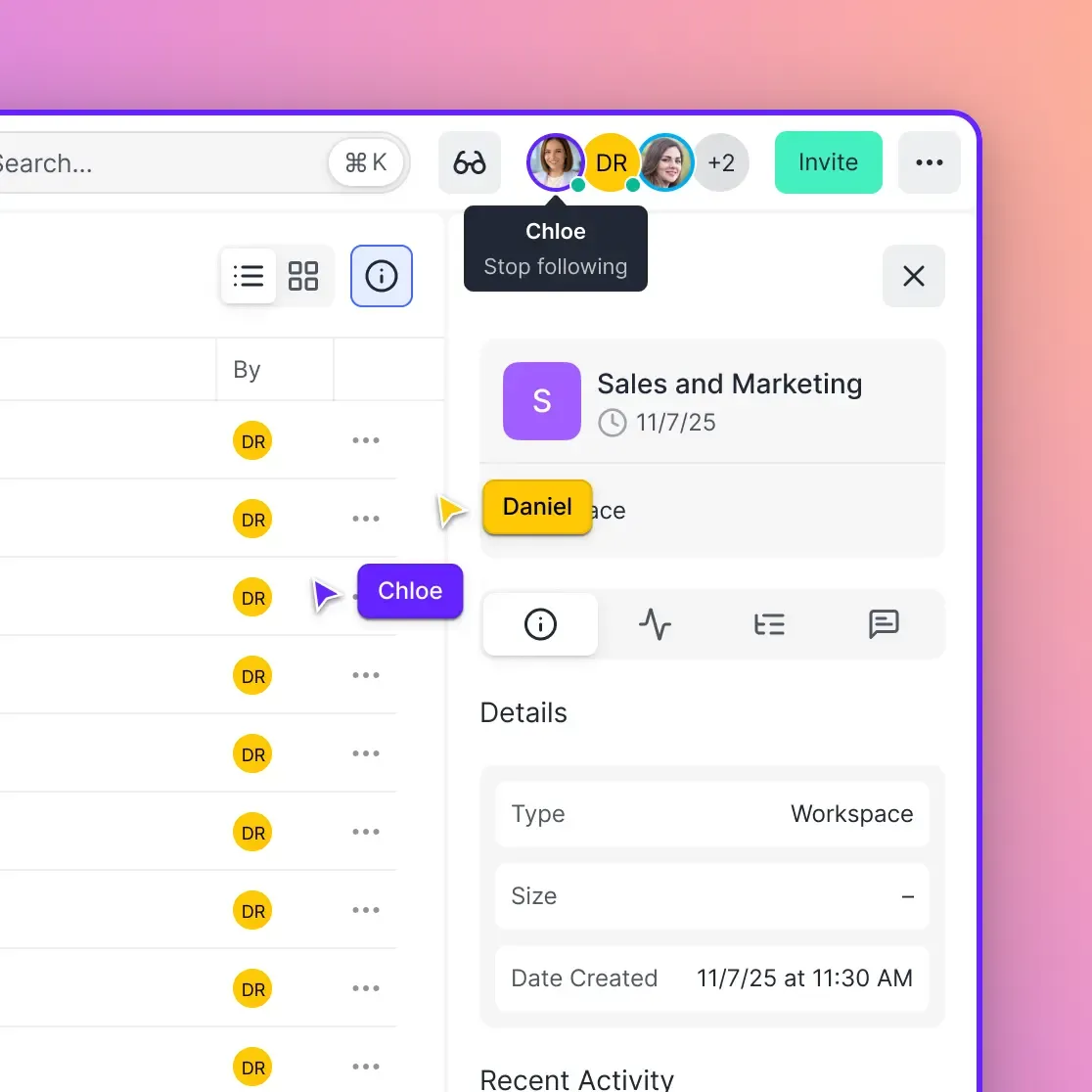
Fastio workspaces keep everything organized. Upload raw clips to a shared space. Everyone accesses the latest cut without emailing ZIPs. Real-time presence shows who is viewing what.
Benefits include fewer errors and faster iterations. One study on creative teams found collaboration platforms reduce review cycles by half. In practice, teams finish projects weeks ahead.
Related guides
- How to Replace Frame.io When Your Video Workflow Runs on AI AgentsFrame.io is excellent for human review, but AI-augmented video production needs a storage layer where agents can...
- MediaInfo Tutorial: How to Extract Video and Audio MetadataMediaInfo is a free, open-source tool that reads technical and tag metadata from video, audio, and container files....
- How to Build Branded Stakeholder Portals for Video Review and ApprovalStakeholder video approval portals are secure, white-labeled web environments where clients and executives can review...
- How to Clean Video Metadata and Remove PII for AI Model TrainingGuide to video metadata cleaning: Video datasets for AI model training often contain hidden personal information and...
- Video Editing Storage Solutions: Best Options for EditorsVideo editing storage solutions are specialized systems designed to handle the massive bandwidth and file sizes...
- 5 Best Blackmagic Cloud Alternatives for Video Teams in 2026Blackmagic Cloud works well if your entire team lives in DaVinci Resolve, but its tight ecosystem lock-in creates...
More on this subject: Video and Media Production (36 guides)
Step 1: Planning and Scripting
Start with planning. Gather ideas, research topics, and outline the tutorial. Use shared docs for brainstorming.
Assign a project lead to create a workspace in Fastio. Add folders for scripts, storyboards, and references. Invite the team.
Write the script in a shared document. Include timestamps for visuals. Reviewers comment inline.
Create a storyboard with sketches or thumbnails. Link images to the script.
Set milestones: script approval by day 2, recording by day 5. Tools like Fastio track activity, so leads see progress.
This phase prevents downstream issues. A good script reduces recording takes by 30 percent.
Tools for Planning
Use Google Docs or Notion for scripts, linked in Fastio. For storyboards, simple tools like Canva work.
Step 2: Recording Raw Footage
Record in a quiet space with good lighting. Use scripts to stay on track.
Capture multiple takes. Name files clearly: "tutorial-module1-take3.mp4".
Upload immediately to the Fastio workspace. No need to compress—Fastio handles large files with instant transcoding for previews.
The universal media engine generates web proxies. Team members preview without downloading terabytes.
Tag files with metadata: scene, take number. This aids editing.
Recording wraps when the host marks "complete" in comments.
Step 3: Editing and Multi-Version Handling
Editors import footage into Premiere or DaVinci Resolve. Export cuts back to Fastio.
Here's where multi-version handling shines, a gap in many tools. Fastio tracks per-file versions automatically. Upload new cuts; old ones stay accessible.
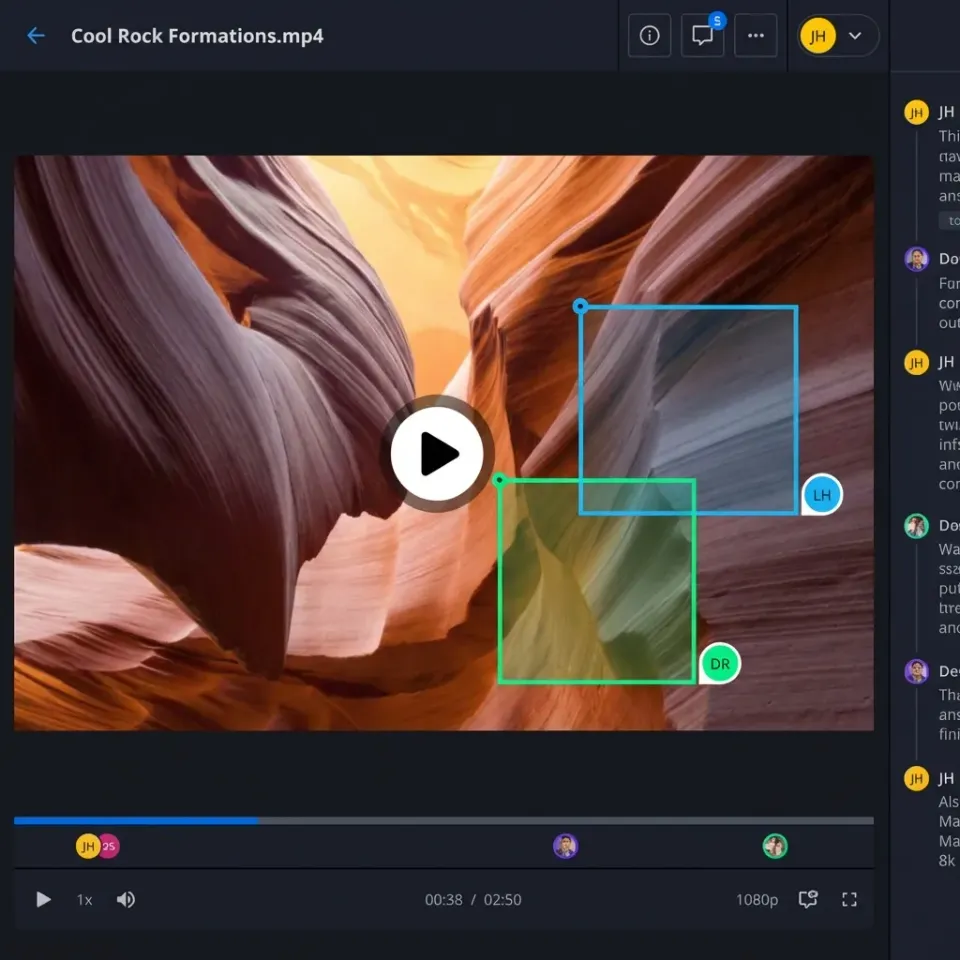
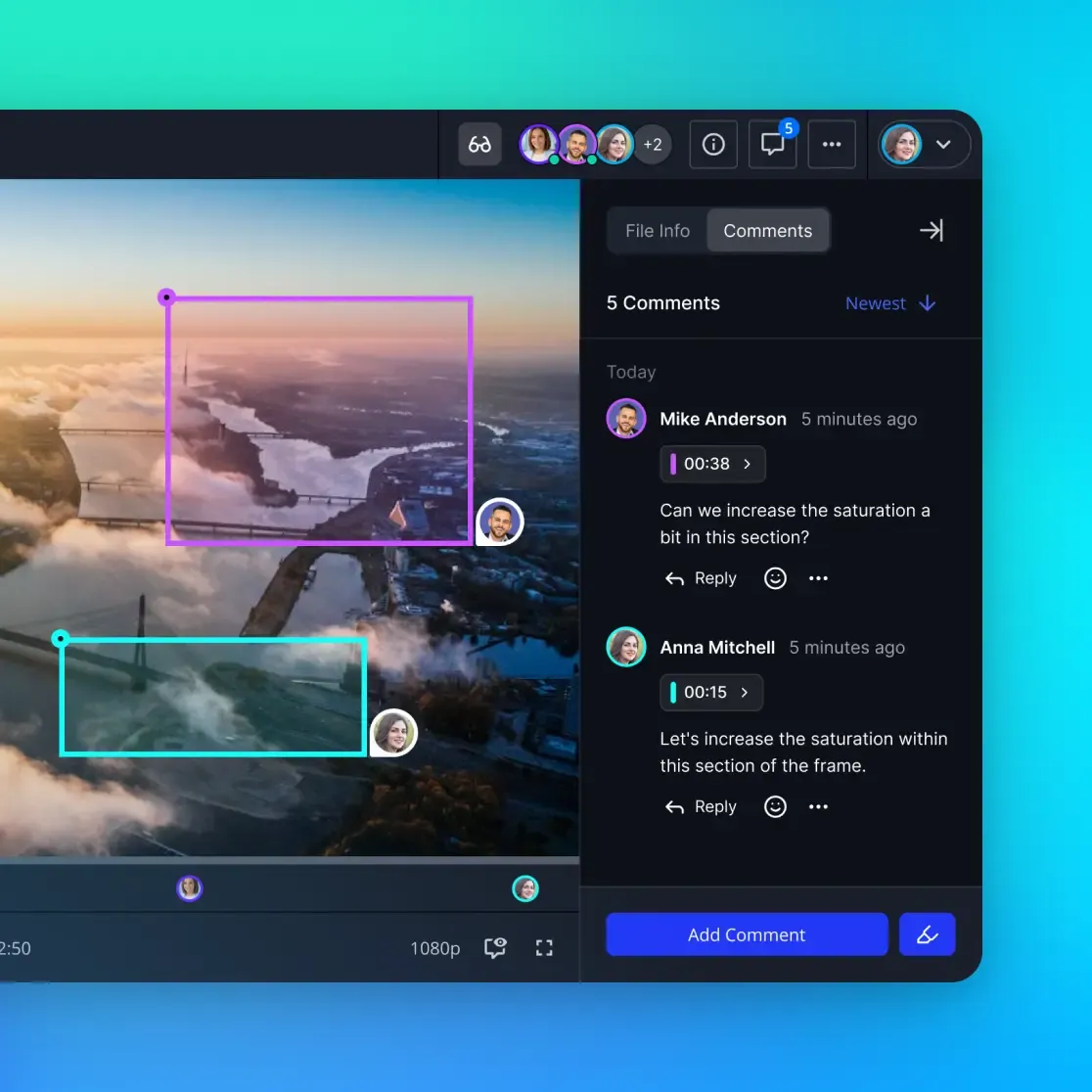
Editors note changes in contextual comments. Pin to specific frames for precision.
Use folders for cuts: "v1-rough", "v2-with-graphics". Activity logs show who edited what.
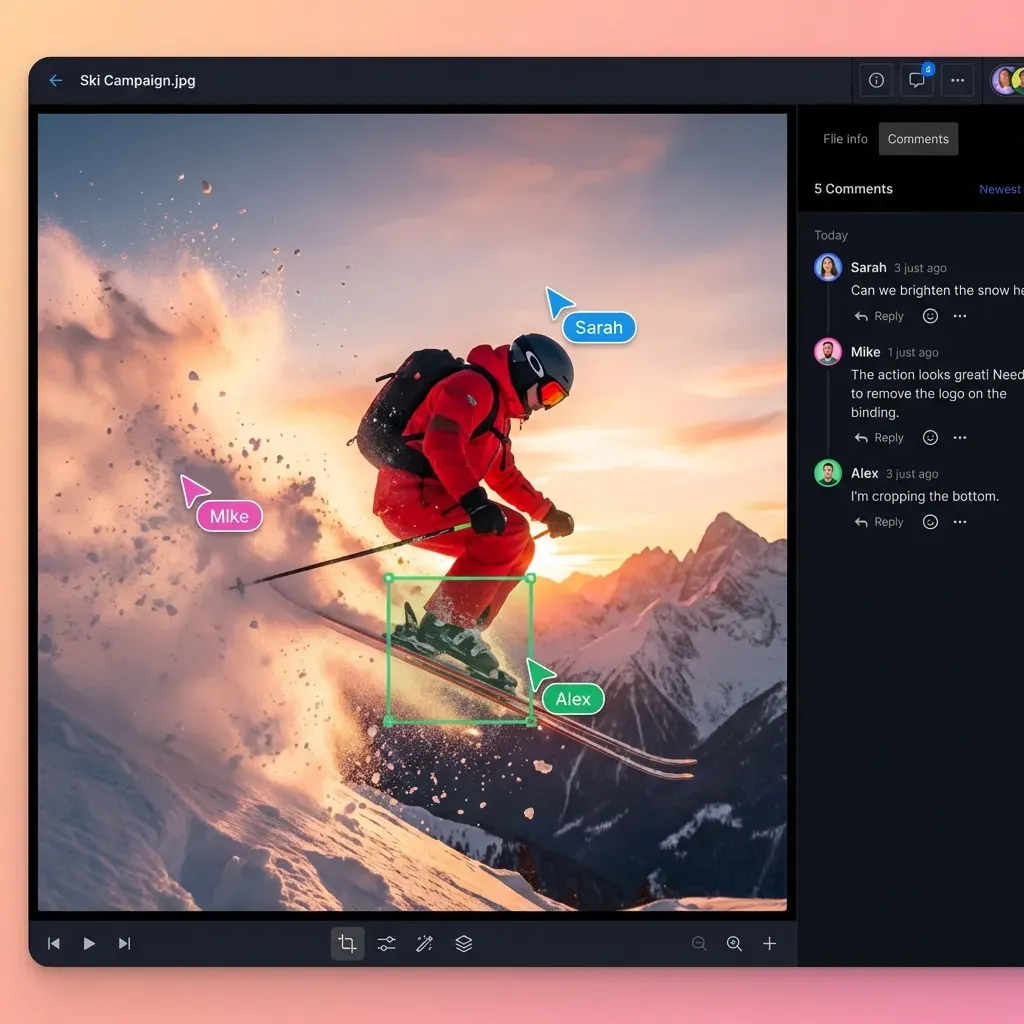
Collaborate live. Multiple editors follow each other in follow mode.
Fastio's HLS streaming loads cuts 50-60 percent faster than progressive downloads. Scrub smoothly without buffering.


Streamline Your Video Team Workflow
Get shared workspaces, fast video streaming, and collaboration tools. Start a 14-day trial.
Step 4: Review and Feedback
Share the cut workspace-wide. Reviewers stream in browser.
Add frame-accurate feedback. Click a timestamp, comment. Threads keep discussions organized.
Real-time presence avoids "are you seeing this?" questions. Follow a reviewer to sync views.
Iterate: editor uploads v2, pings reviewers. Repeat until approved.
For remote teams, this replaces Zoom screen shares. Everyone reviews asynchronously.
Once approved, move to the next phase.
Step 5: Publishing and Archiving
Export final video. Upload to YouTube or Vimeo from Fastio.
Archive the workspace. Keep raw files, cuts, assets. Fastio's organization-owned model ensures files persist.
Analyze performance. Link analytics back to the workspace.
Prep next tutorial. Duplicate workspace as template.
Branded shares let clients download finals securely.
Sources
References used to verify factual claims in this guide.
-
YouTube has paid over $100 billion to creators
-
HLS streaming 50-60% faster
Frequently Asked Questions
What is the best workflow for tutorial videos?
The best workflow starts with planning, moves to recording, editing with version control, review via frame comments, and ends with publishing. Tools like Fastio enable smooth handoffs for large files.
How do teams handle tutorial video production?
Teams divide roles: writer, host, editor, reviewer. Use shared workspaces for files and feedback. Fastio supports this with streaming previews and real-time collab.
What tools improve how-to video collaboration?
Look for HLS streaming, frame comments, version history, and presence indicators. Fastio offers these for video teams.
How to manage versions in video editing?
Upload cuts to a shared space with auto-versioning. Comment on specifics to track changes clearly.
Why use cloud for tutorial video workflows?
Cloud avoids local storage issues, enables instant access, and supports global teams without sync problems.
How long does a tutorial video workflow take?
A 10-minute tutorial takes 1-2 weeks for a small team, depending on iterations. Structured tools cut this time.
Related Resources

Streamline Your Video Team Workflow
Get shared workspaces, fast video streaming, and collaboration tools. Start a 14-day trial.