How to Implement Tool Calling with Persistent File State for AI Agents
AI agents that call tools across multiple LLM invocations need durable file state to avoid losing context, repeating work, or corrupting outputs. This guide covers the architecture patterns, storage options, and practical implementation steps for building agents with persistent file state, including workspace-based approaches that give both agents and humans access to the same files.

Why Stateless Tool Calls Break Multi-Step Agents
Every LLM call starts from scratch. The model receives a prompt, generates a response, and forgets everything. When an agent needs to call tools across multiple invocations, like researching a topic, drafting a document, then revising it based on feedback, each step operates in isolation unless you explicitly persist state between calls.
This creates three concrete problems:
Lost intermediate results. An agent researches pricing data in step one, but step two can't access those findings unless they're stored somewhere durable. The agent either re-does the work or hallucinates the missing data.
Broken multi-tool workflows. A code generation agent writes files in one invocation, then needs to test and refactor them in the next. Without persistent file state, those files vanish between calls.
No crash recovery. If an agent fails mid-workflow, there's no checkpoint to resume from. The entire pipeline restarts, wasting compute and time.
Stateful agents solve this by writing intermediate outputs to durable storage after each tool call. The next invocation reads that state back in, picking up exactly where the previous one left off. The storage layer becomes the agent's working memory.
LLMs with large context windows partially address this by carrying more history forward, but packing all prior state into the prompt is expensive and lossy. Token costs scale linearly, and older context gets compressed or dropped as the window fills. External file state is cheaper and more reliable: the agent reads only what it needs for the current step, and the full history remains intact in storage regardless of context limits.
File State vs. Database State for Agent Persistence
Before choosing a persistence strategy, understand the tradeoff between file-based and database-based approaches.
File-based persistence stores agent state as files on disk or in cloud storage. Think markdown scratchpads, JSON checkpoints, or YAML configuration files. Files are transparent, easy to debug (open them in any editor), and match how LLMs already think about data. Most models understand file operations natively because they were trained on code that reads and writes files.
An Oracle engineering analysis found that filesystems work well as an agent interface because LLMs already know how to use them, and a folder of markdown files gets you surprisingly far when iteration speed matters.
Database persistence stores state in SQLite, PostgreSQL, Redis, or a vector database. Databases handle concurrency better: they won't corrupt data when multiple agents write simultaneously, and they support structured queries that files can't match.
The practical answer for production systems is hybrid. Use file-like interfaces that agents interact with naturally, backed by storage infrastructure that handles concurrency and durability. This is exactly the pattern that cloud workspace platforms follow. Agents read and write files through familiar APIs, while the platform handles versioning, conflict resolution, and access control underneath.
Here's when to pick each approach:
Files only: Single-agent prototypes, scratchpad-style working memory, human-readable audit trails
Database only: High-concurrency multi-agent systems, structured session state, fast key-value lookups
Hybrid (files + workspace storage): Production multi-agent pipelines where both agents and humans need to access the same outputs

Implementing Persistent File State Step by Step
Here's a concrete implementation pattern for adding persistent file state to an agent that uses tool calling.
1. Define a workspace directory structure
Give each agent session its own workspace directory. This isolates state between runs and makes cleanup straightforward.
/workspace/
  /session-abc123/
    /inputs/          # Source files the agent reads
    /scratch/         # Intermediate working files
    /outputs/         # Final deliverables
    /state.json       # Session metadata and checkpoints
2. Checkpoint after every tool call
After each tool invocation, write the result to the scratch directory. This is the single most important pattern for reliability. If the agent crashes between steps three and four, it can resume from the step-three checkpoint instead of starting over.
import json
from pathlib import Path

def checkpoint(session_dir: str, step: str, data: dict):
    checkpoint_path = Path(session_dir) / "scratch" / f"{step}.json"
    checkpoint_path.write_text(json.dumps(data, indent=2))

def resume(session_dir: str, step: str) -> dict | None:
    checkpoint_path = Path(session_dir) / "scratch" / f"{step}.json"
    if checkpoint_path.exists():
        return json.loads(checkpoint_path.read_text())
    return None
3. Pass file references, not file contents
Instead of dumping entire file contents into the LLM context window, pass file paths or URIs. The agent's tools can read the files on demand. This keeps the context window focused and lets you work with files larger than the context limit.
tools = [
    {
        "name": "read_file",
        "description": "Read a file from the workspace",
        "parameters": {
            "path": {
                "type": "string",
                "description": "Relative path within workspace"
            }
        }
    },
    {
        "name": "write_file",
        "description": "Write content to a file in the workspace",
        "parameters": {
            "path": {
                "type": "string",
                "description": "Relative path within workspace"
            },
            "content": {
                "type": "string",
                "description": "File content to write"
            }
        }
    }
]
4. Track tool call history in a manifest
Maintain a state.json file that records which tools were called, what they returned, and which checkpoint files exist. This gives you a complete audit trail and lets the agent understand what happened in previous invocations without re-reading every file.
{
  "session_id": "abc123",
  "created_at": "2026-03-23T10:00:00Z",
  "steps_completed": ["research", "outline", "draft_v1"],
  "current_step": "review",
  "files": {
    "research": "scratch/research.json",
    "outline": "scratch/outline.md",
    "draft_v1": "outputs/draft_v1.md"
  }
}
This four-step pattern works with any LLM and any storage backend. The next section shows how MCP standardizes the tool interface so you can swap storage systems without rewriting agent code.


Give Your Agents Persistent Workspace Storage
Fast.io workspaces let agents and humans share files, version history, and audit trails in one place. 50 GB free storage, MCP server access, no credit card required.
Using MCP for Workspace-Integrated Persistence
The Model Context Protocol (MCP) standardizes how agents connect to external tools and data sources. Anthropic introduced MCP in late 2024, and it has since become the dominant standard for agent-tool communication. For persistent file state, MCP is particularly useful because it gives agents a consistent interface to storage systems without custom API wrappers.
An MCP server that exposes file operations lets any MCP-compatible agent, whether built with Claude, GPT-4, Gemini, or open-source models, read and write files through the same tool interface. The agent doesn't need to know whether files live on local disk, S3, or a cloud workspace. It just calls storage tools through the MCP protocol.
Why workspace-integrated MCP matters
Most guides on agent persistence stop at "write files to disk." That works for single-developer prototypes, but production agent systems need more:
Multiple agents accessing the same files. A research agent writes findings that a writing agent reads. Without file locking and versioning, concurrent writes corrupt data.
Human review of agent outputs. Someone needs to check what the agent produced before it ships. If outputs live in a local directory on a server, sharing them requires extra infrastructure.
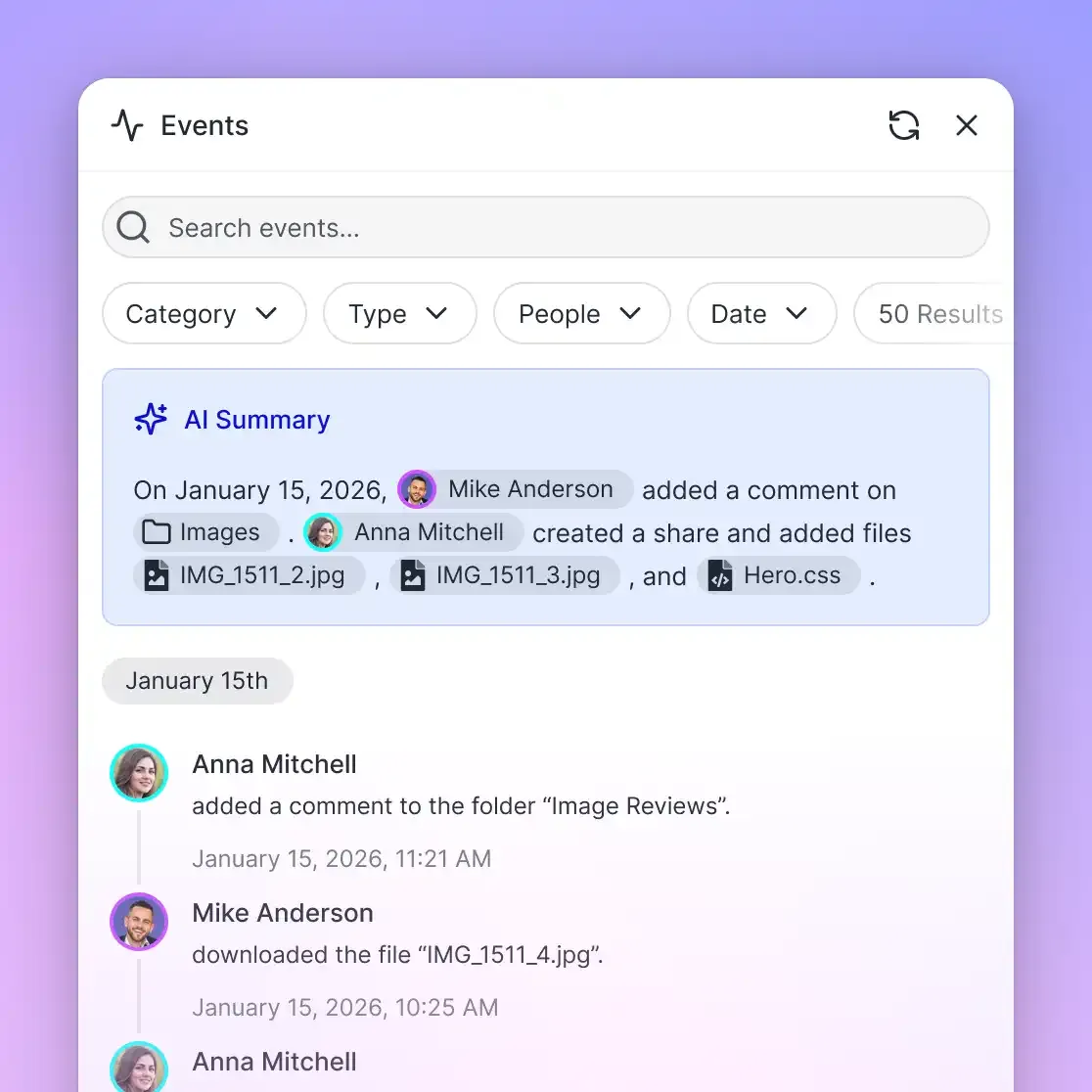
Audit trails. When an agent modifies a file, you need to know which agent changed what, and when.
Fast.io's MCP server addresses this by exposing workspace, storage, and AI operations as MCP tools. Agents connect via Streamable HTTP at /mcp or legacy SSE at /sse. Every file operation is versioned and audited automatically.
Here's what the workflow looks like in practice:
- Agent authenticates with the Fast.io MCP server
- Agent creates or accesses a workspace for the current project
- Tool calls write intermediate files to the workspace using the storage tool
- File locks prevent conflicts when multiple agents access the same workspace
- Humans review outputs through the web UI, seeing exactly what the agent produced
- When the project is complete, ownership transfers from the agent account to a human
The Fast.io MCP skill documentation covers the full tool surface for storage, upload, download, AI chat, and workflow primitives like tasks and approvals. The free agent plan includes 50 GB storage and 5,000 monthly credits with no credit card required, so you can test the full workflow without commitment.
Patterns for Multi-Agent File Coordination
When multiple agents share persistent file state, coordination gets harder. Here are three proven patterns, each suited to a different pipeline shape.
Scratchpad handoff
Each agent in a pipeline writes to a shared scratchpad directory. The next agent in the chain reads from it. Simple and effective for linear pipelines.
Agent A (research) -> writes /scratch/research.md
Agent B (writing)  -> reads /scratch/research.md, writes /scratch/draft.md
Agent C (review)   -> reads /scratch/draft.md, writes /outputs/final.md
The risk here is ordering. If Agent B starts before Agent A finishes, it reads incomplete data. Use a state file or task queue to gate handoffs: Agent B only starts when Agent A marks its step as complete in the shared manifest.
File locking for concurrent access
When agents work in parallel on different parts of the same project, file locks prevent write conflicts. The agent acquires a lock before writing, releases it when done. If the lock is held, the agent waits or works on something else.
Fast.io workspaces support file locks natively through the MCP server. An agent calls the lock tool before modifying a shared file, and other agents see the lock status before attempting writes. This is simpler than building your own locking layer on top of S3 or local disk, where you'd need to implement distributed locks with something like DynamoDB or Redis.
Event-driven state updates
Instead of polling for changes, agents subscribe to file events. When Agent A finishes writing a research file, the system notifies Agent B that new input is available. This eliminates busy-waiting and reduces latency between pipeline stages.
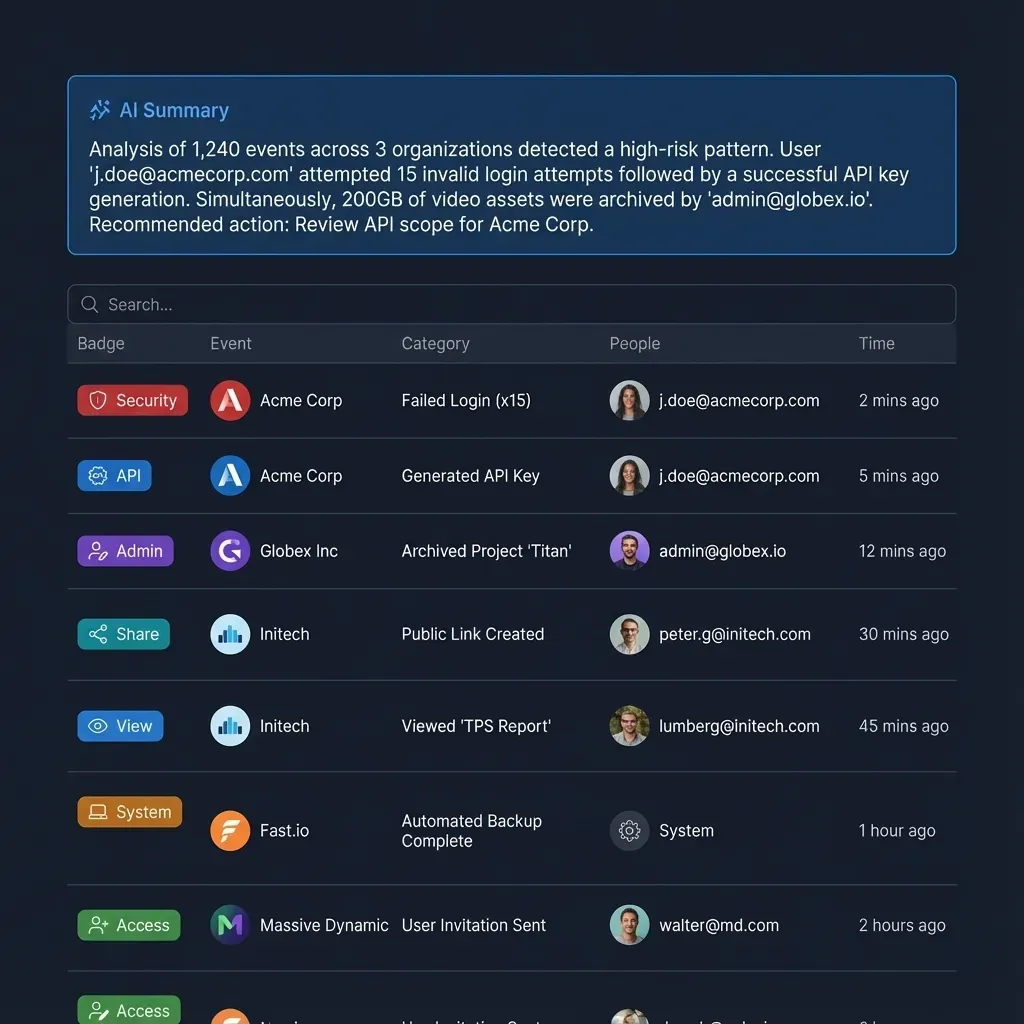
Fast.io's webhook and activity polling features support this pattern. Agents can poll workspace activity or subscribe to events that fire when files are created, modified, or deleted. The event payload includes enough context for the receiving agent to decide whether to act.
Choosing the right pattern
Linear pipelines (A then B then C): scratchpad handoff with state gating
Parallel workers (A and B writing to shared files): file locking
Reactive systems (B triggers when A finishes): event-driven with webhooks
Mixed architectures: combine all three, using locks for shared writes, events for handoffs, and scratchpads for working memory
Common Pitfalls and How to Avoid Them
Building persistent file state for agents sounds straightforward. In practice, these issues trip up most implementations.
Stale state from context window limits
An agent reads a checkpoint from three invocations ago, but the file has been updated since then by another agent or a human reviewer. Always read the latest version of a file before acting on it, not a cached copy from the context window. Treat file reads as the source of truth, not the LLM's memory of what the file contained.
Checkpoint bloat
Writing a checkpoint after every tool call is good for reliability but creates storage overhead over long-running sessions. Implement a retention policy: keep the last N checkpoints per session, archive completed sessions, and delete scratch files after outputs are finalized. For cloud workspaces, set up a cleanup step that runs when the agent marks a task as complete.
File format drift
If
Agent A writes JSON with one schema and Agent B expects a different schema, the pipeline breaks silently. Define explicit schemas for shared files and validate on read. A simple JSON Schema check at the start of each agent invocation catches format mismatches before they cause downstream errors.
import jsonschema

CHECKPOINT_SCHEMA = {
    "type": "object",
    "required": ["session_id", "steps_completed", "current_step"],
    "properties": {
        "session_id": {"type": "string"},
        "steps_completed": {"type": "array", "items": {"type": "string"}},
        "current_step": {"type": "string"},
        "files": {"type": "object"}
    }
}

def validate_checkpoint(data: dict):
    jsonschema.validate(data, CHECKPOINT_SCHEMA)
Missing error context
When a tool call fails, persist the error alongside the checkpoint. The next invocation needs to know not just "step 3 failed" but why it failed, so it can retry with a different approach or escalate to a human.
{
  "step": "api_call",
  "status": "failed",
  "error": "Rate limited by external API, retry after 60s",
  "timestamp": "2026-03-23T10:15:00Z",
  "retry_count": 2
}
No human escape hatch
Fully autonomous agents sometimes get stuck in loops or produce incorrect outputs. Build in a review step where a human can inspect the agent's file state, correct errors, and resume the pipeline. Workspace platforms with both agent API access and human web UIs make this natural. On Fast.io, agents work through the API or MCP server while humans browse the same workspace in their browser, both seeing the same files and version history. Intelligence mode auto-indexes all workspace files, so humans can ask questions about agent outputs using the built-in RAG chat.
Putting It Together: A Complete Persistent Agent Workflow
Here's the full lifecycle for an agent that uses persistent file state to process client deliverables across multiple sessions.
Session initialization
The agent creates a workspace (or connects to an existing one) and writes an initial state file. On Fast.io, agent-created workspaces default to Intelligence enabled, meaning all uploaded files are automatically indexed for semantic search and RAG chat.
{
  "session_id": "client-report-2026-q1",
  "status": "initialized",
  "steps_completed": [],
  "current_step": "data_collection",
  "workspace_id": "ws_abc123",
  "files": {}
}
Data collection and analysis
The agent uses tool calls to gather source files, storing each one in the workspace's inputs directory. After each upload, the state file updates to reflect progress. If the agent is interrupted here, the next invocation reads the state file, sees which files were already collected, and picks up where it left off.
Draft generation and iteration
With source files in place, the agent generates a draft report and saves it to the outputs directory. It writes its reasoning to a scratchpad file so subsequent invocations (or human reviewers) can understand the analysis decisions. Each revision creates a new version rather than overwriting, preserving the full edit history.
Human review and handoff
The agent creates a branded Send share pointing to the outputs folder. The human reviewer opens the share link, reviews files with inline previews, and leaves comments anchored to specific sections. The agent polls for new comments, incorporates feedback, and updates the draft.
When the project wraps, the agent generates an ownership transfer token. The human claims the organization, gaining full control of all workspaces and files. The agent retains admin access for future maintenance or follow-up work.
This entire workflow runs on Fast.io's free agent plan: 50 GB storage, 5,000 monthly credits, five workspaces, and no credit card. For teams running larger pipelines, paid plans scale storage and credits without changing the underlying architecture.
Frequently Asked Questions
How do you persist state in LLM tool calls?
Write intermediate results to durable storage after each tool call. Use a checkpoint file (JSON or YAML) that records which steps completed, what each step produced, and where output files live. The next LLM invocation reads this checkpoint to understand prior context. Cloud workspaces like Fast.io combine file persistence with versioning and audit trails, so you get durability without building custom infrastructure.
What is the best storage for agent tool chains?
It depends on your concurrency needs. For single-agent prototypes, local files work well since they are transparent and easy to debug. For multi-agent production systems, use a cloud workspace or database that handles concurrent writes, versioning, and access control. Fast.io workspaces provide file-based persistence with built-in locking, audit trails, and both API and web UI access for agents and humans.
Can multiple AI agents share the same persistent file state?
Yes, but you need coordination. File locks prevent write conflicts when agents access shared files simultaneously. A state manifest tracks which agent modified which file and when. Cloud workspaces handle locking natively, while local file systems require custom locking logic that's easy to get wrong under concurrency.
How does MCP help with persistent file state?
The Model Context Protocol standardizes how agents interact with external tools, including file storage. An MCP server that exposes read, write, and lock operations gives any compatible agent consistent file access regardless of the underlying storage system. This means you can swap storage backends without rewriting agent code.
What happens to agent state when the LLM context window fills up?
When context fills up, older messages get dropped, including prior tool call results. Persistent file state prevents data loss because results live in durable storage, not in the context window. The agent reads files on demand through tool calls instead of relying on the LLM's memory of previous outputs.
How do you handle agent crashes during multi-step tool calling?
Checkpoint after every significant step. Write the current state, completed steps, and intermediate files to durable storage. When the agent restarts, it reads the last checkpoint and resumes from where it left off. Include error context in checkpoints so the agent understands why a previous attempt failed and can adjust its approach.
Related Resources

Give Your Agents Persistent Workspace Storage
Fast.io workspaces let agents and humans share files, version history, and audit trails in one place. 50 GB free storage, MCP server access, no credit card required.