How to Choose a Team Large File Collaboration Platform
Team large file collaboration platforms let remote teams work together on large files. Examples include multiple videos over multiple, high-res RAW photos, and complex CAD assemblies. Teams share, preview, and annotate them in real-time. Common problems include long waits for downloads, mismatched versions from emails, and quality loss from compression. Buffer's 2023 report shows 91% of remote workers have positive experiences, but file handling often falls short. This comparison breaks down top platforms, key features, and setup tips to find the best fit for your workflow.
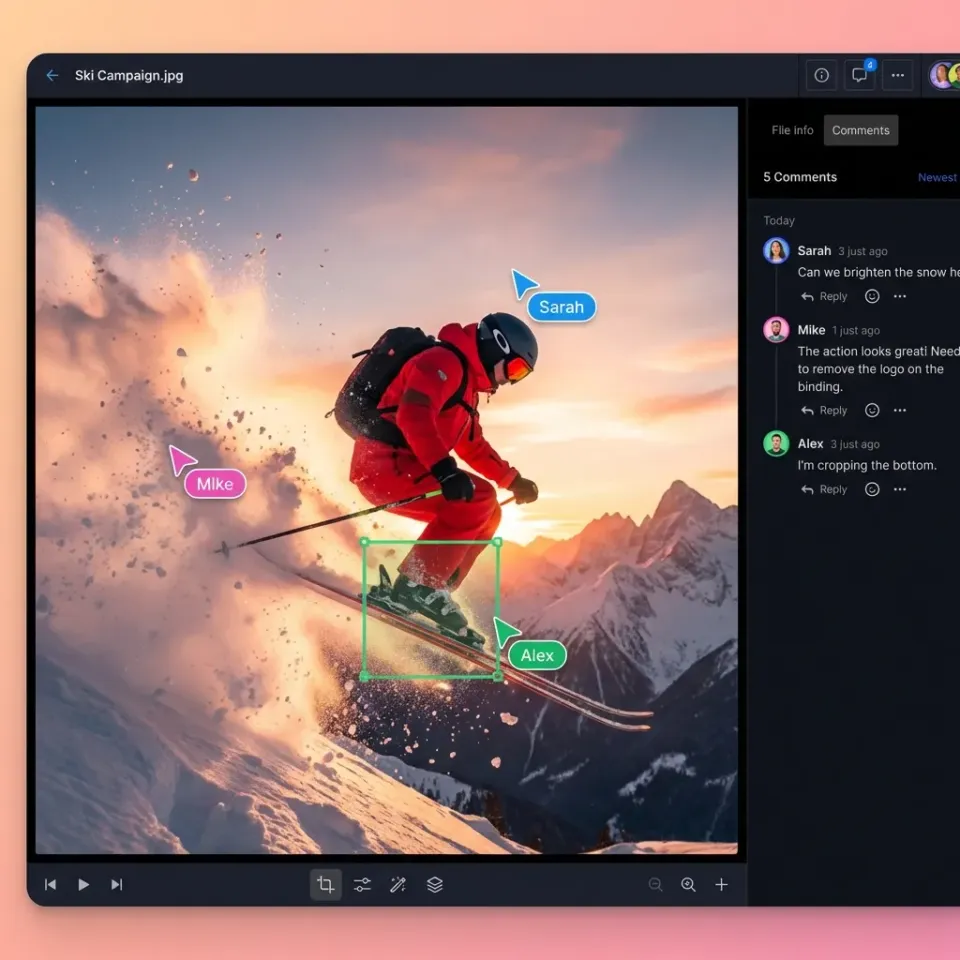
What Is a Team Large File Collaboration Platform?
A team large file collaboration platform provides shared access to hefty files for group editing and review. Examples include multiple ProRes footage for video editors, multiple architectural BIM models, or multiple datasets for engineers working with simulations and raw data exports.
Basic cloud drives like consumer Google Drive or Dropbox cap uploads at multiple-multiple and force full downloads before previewing. This wastes bandwidth, slows reviews, and frustrates teams working on deadline. Professional workflows demand in-browser scrubbing for videos without downloading terabytes, pixel-perfect zooms for layered PSDs, and frame-specific annotation that ties feedback to exact timestamps or coordinates.
Full audit trails track who viewed what and when. They're important for billing hours in agencies or compliance in legal and medical fields. Without this, teams resort to workarounds: multiple versions emailed around, feedback lost in long email chains, and hours rebuilding from outdated files because no one knew which was the latest.
Purpose-built platforms solve these problems. They stream files without full downloads. Edit locks avoid conflicts. Discussions attach directly to files. Using one shared file speeds up work and cuts mistakes.
The shift matters because remote and hybrid work now dominates. Teams span time zones and continents, making real-time collaboration a must. They let teams access large files from anywhere.
Helpful references: Fast.io Workspaces, Fast.io Collaboration, and Fast.io AI.
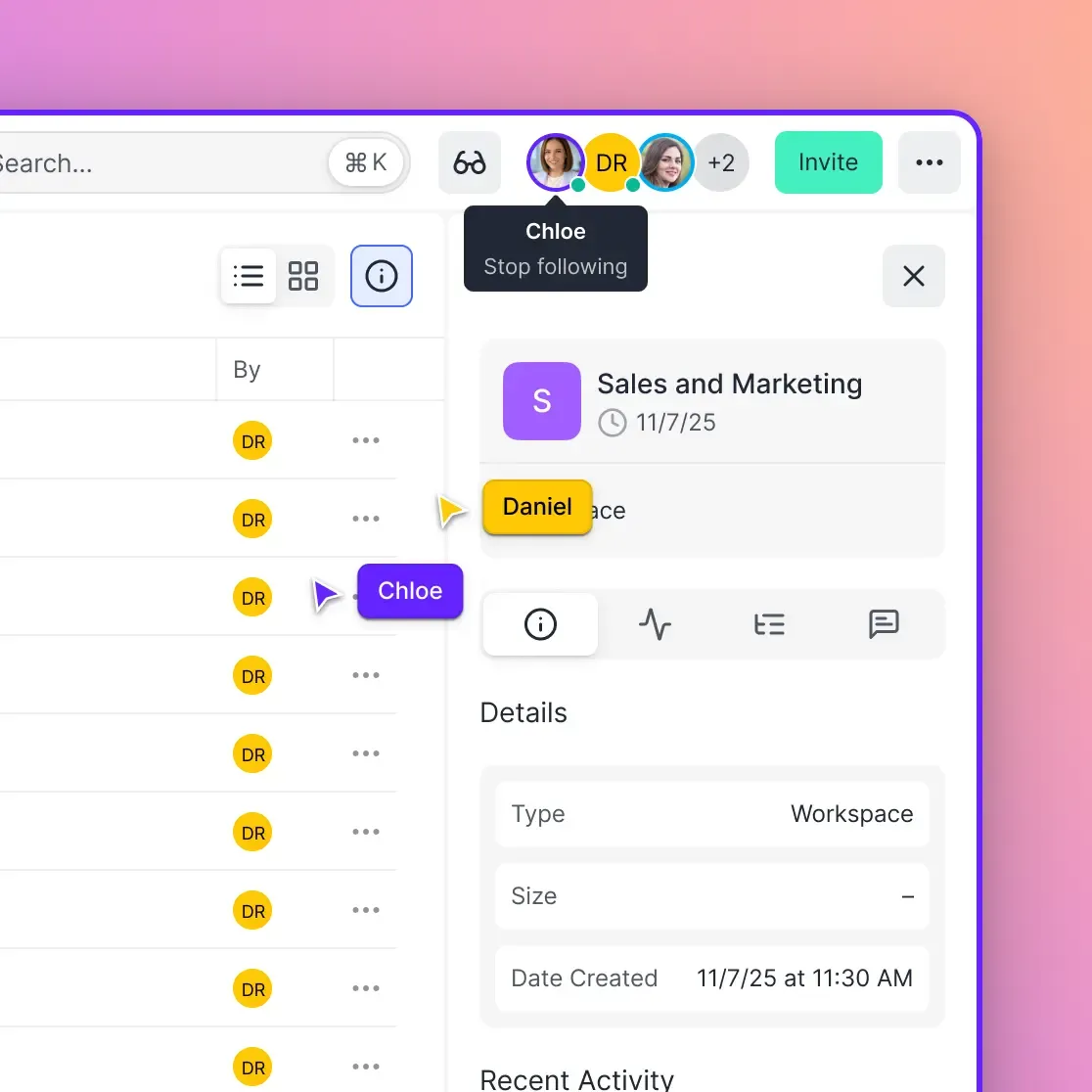
Why Remote Teams Need Them
Video production houses exchange dailies nightly with editors, directors, and colorists spread across Los Angeles, London, and Tokyo. Architecture firms circulate complex Revit files between architects, engineers, and clients. Manufacturing teams review exploded assembly renders with suppliers overseas. Each scenario involves files too large for email and too visual for simple cloud storage.
Buffer's 2023 State of Remote Work shows 91% positive experiences with remote work. Good collaboration tools cut down on version conflicts and communication problems. Only multiple% report difficulties (Buffer). But file sharing is still a pain point for many. When a multiple video takes hours to download, or a client can't preview a design without specialized software, the workflow breaks down.
The right platforms offer live feeds to see who's viewing files, threaded discussions on specific assets, and instant notifications for new feedback. Team members see updates right away instead of digging through email or Slack for the latest version. This reduces back-and-forth and keeps projects on schedule.
Industry-Specific Use Cases
Creative agencies handle the largest files regularly. A single minute of multiple ProRes footage runs multiple-multiple, while a feature film's daily renders can hit multiple or more. Post-production teams need frame-accurate comments so editors know exactly which shot needs revision.
Architecture and engineering firms share CAD files, BIM models, and renders. These files contain layered data that standard preview tools often can't read. Teams need native support for formats like Revit, AutoCAD, and Navisworks without conversion.
Legal and financial services handle sensitive documents requiring strict access controls. Data rooms provide secure environments where external parties can view materials without downloading, maintaining document security while enabling collaboration.
Healthcare and research institutions share medical imaging and large datasets. Files must remain secure and compliant, but researchers across institutions need access for collaborative analysis.
Key Features for Large File Work
Start with high upload limits for uncompressed media files. Chunked resumable uploads prevent failures on spotty connections. When a connection drops mid-upload, the system resumes from where it left off instead of starting over. Teams on unstable connections or mobile devices need this.
In-browser streaming plays files without buffering the entire file first. HLS (HTTP Live Streaming) technology adapts bitrate to available bandwidth, starting playback in seconds rather than minutes. This works across devices from mobile phones to desktop workstations without specialized apps.
Live presence shows avatars and cursors, with a follow button to mirror views during walkthroughs. When a director says "look at this frame," teammates see the cursor move to that exact location. Follow mode lets one person guide others through a complex file without screen sharing software.
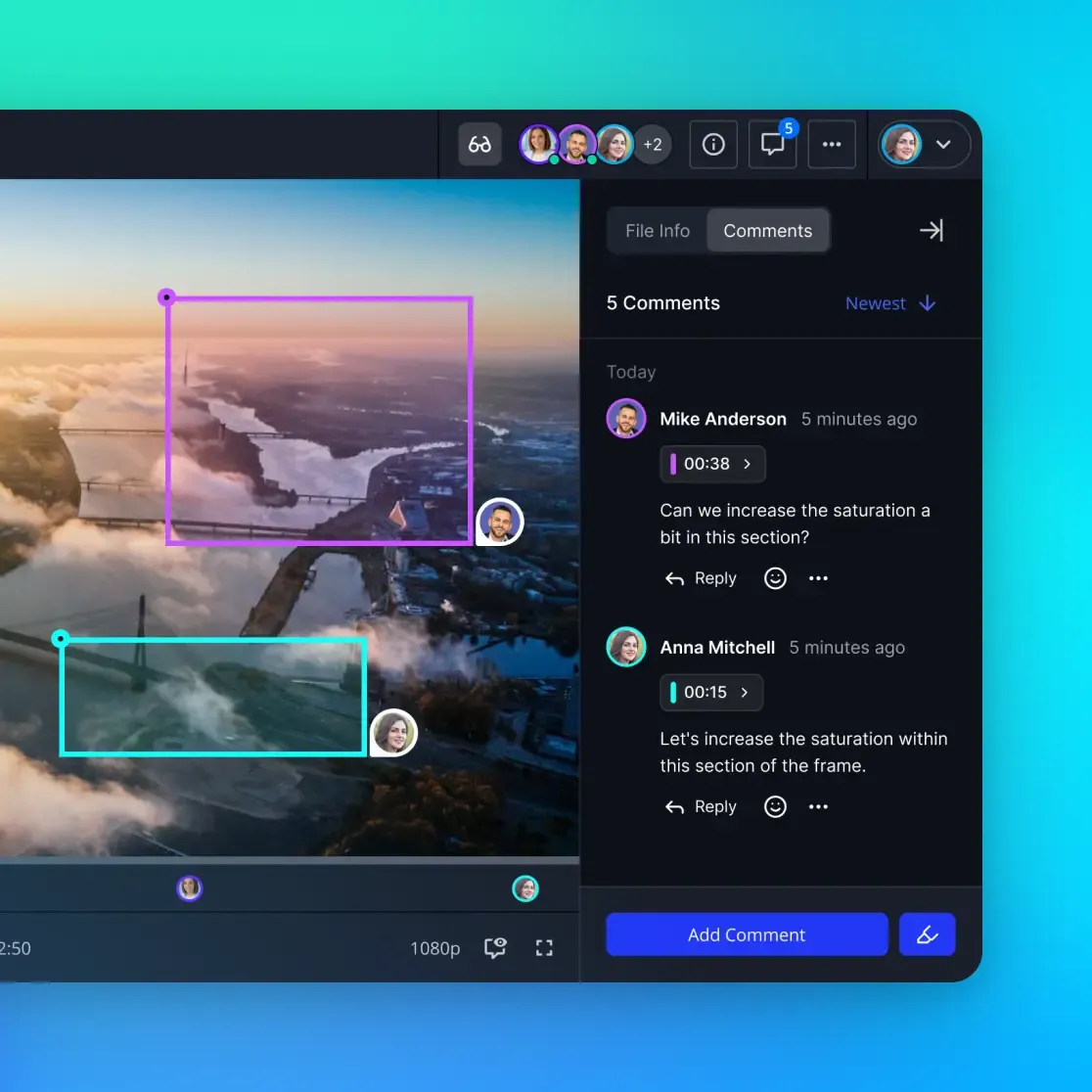
Pin comments to exact seconds in audio stems or regions in layered PSDs. Instead of "the color looks off," feedback becomes "the highlight at pixel coordinates multiple, multiple reads too bright." This precision eliminates ambiguity and revision cycles.
Role-based permissions range from view-only for external clients to full admin for project leads. Granular controls let teams restrict downloading, commenting, or sharing on a per-folder basis. This balances security with usability.
Pick usage-based or flat pricing over per-seat plans, particularly when inviting external reviewers. If an agency has multiple internal staff but works with multiple freelance reviewers on a project, per-seat pricing multiplies costs artificially. Unlimited guest access avoids this trap.
Detailed logs capture downloads, edits, and session times for compliance. Audit trails matter for legal work, billable hours, and security reviews. Every action should be traceable to a specific user at a specific time.
Preview and Streaming Support
Reviewers scrub timelines or pan hi-res images without plugins or heavy apps. The platform should handle professional formats: video codecs like ProRes and DNxHD, image formats like PSD, AI, RAW, and TIFF, plus document formats including PDF and Office files.
Support extends to CAD previews, waveform audio navigation, and lossless frame grabs. When reviewing a video, users need frame-by-frame stepping. When reviewing audio, waveform visualization shows where silence, music, and speech occur.
Bitrate-adaptive streams kick in seconds, scaling from mobile data to fiber. A reviewer on a train can preview a draft while a colleague in the office sees the full-quality version. Both work without downloading the full asset.
For teams with specialized needs, look for support across the file types you actually use. A video team needs more than PDF support, while an architecture firm needs CAD formats. Verify format support before committing.
Collaboration and Feedback Tools
Comments linked to exact spots in files beat vague email feedback. They attach right to the file or specific areas inside it. Pin a comment to frame multiple of a video timeline or the upper-left quadrant of a design mockup.
Threaded discussions keep conversations organized. Replies nest under original comments, creating conversation threads that are easy to follow. This beats searching email inboxes for feedback on specific files.
Notifications keep everyone informed without constant checking. Email or in-app alerts when someone comments on your file, mentions you, or uploads a new version. Configurable preferences let power users mute low-priority updates.
Version history shows every change with timestamps and authors. When something goes wrong, roll back to a previous version. Compare versions side-by-side to see exactly what changed between iterations.
Security and Access Control
Files use encryption at rest and in transit to protect against unauthorized access. Multi-factor authentication adds a layer of protection beyond passwords.
Link controls manage external sharing. Password protection ensures only intended recipients access shared files. Expiration dates auto-revoke access after projects end. View-only modes prevent downloading sensitive materials.
Domain restrictions limit sharing to approved email addresses. Watermarking discourages screen captures of confidential content. These controls matter for legal, financial, and healthcare teams handling sensitive data.
Single sign-on (SSO) integration lets teams use existing identity providers. Rather than managing separate credentials, users authenticate through Okta, Azure AD, or Google. This simplifies administration and improves security.
Comparison of Leading Platforms
This table summarizes core specs from vendor sites. Pricing assumes base business plans for multiple users; actual costs vary with add-ons, storage consumption, and contract terms.
Fast.io fits creative teams with large file support, HLS adaptive streaming, and real-time presence including cursor tracking and follow mode. Business pricing starts at $multiple plus usage and includes multiple seats with large storage.
Box suits enterprises needing strong governance and compliance, but the price adds up fast for smaller teams.
Dropbox remains familiar to many users with strong brand recognition. However, its sync-heavy architecture creates local copies that consume storage, and preview capabilities lag behind specialized solutions. Video replay exists but only for video files.
Google Workspace integrates tightly with Docs, Sheets, and Slides but lacks specialized media handling. File size limits are generous at multiple, but preview quality for design files and video is basic.
ShareFile, backed by Citrix, emphasizes security and compliance features. Approval workflows suit regulated industries, but the interface feels dated compared to modern alternatives.
Box Pros: Strong governance tools, extensive enterprise integrations.
Cons: Per-user pricing scales poorly, higher total cost of ownership.
Dropbox Pros: Brand familiarity, large user base.
Cons: Sync-based model creates storage bloat, preview limitations for professional media.
Google Pros: Integrated productivity suite, generous storage.
Cons: Not optimized for creative workflows, limited media preview capabilities.
ShareFile Pros: E-signature integration, compliance focus.
Cons: Dated user interface, premium pricing.
When to Choose Each Platform
Choose Fast.io for video production, creative agencies, and teams handling large media files regularly. Streaming previews, real-time presence, and flat pricing make it a solid choice for media-heavy work.
Choose Box for enterprise deployments requiring enterprise security standards compliance and deep IT integration. The higher cost makes sense when governance and security features drive purchasing decisions.
Choose Dropbox when team familiarity matters more than advanced features. The learning curve stays low because many users already know the interface.
Choose Google Workspace for organizations already invested in Google productivity tools. The tight integration between Drive, Docs, and Gmail creates a cohesive ecosystem.
Choose ShareFile for regulated industries needing e-signatures and approval workflows baked into the file sharing experience.
How Fast.io Handles Large File Teams
Fast.io runs fully cloud-native. Assets stream via HLS for quick playback and scrubbing on any device. Chunked uploads handle drops reliably, with support for files up to multiple on Business plans. The system automatically resumes interrupted uploads, avoiding the frustration of starting over after a connection hiccup.
Multiplayer presence displays avatars and cursors across the workspace. Click follow to sync views for guided tours or pair programming on designs. This replaces expensive screen sharing software for visual collaboration. Team members see exactly what colleagues see, in real time.
Region-anchored comments thread on video frames, image crops, or document pages. Pin feedback to specific timestamps in a multiple-hour edit or exact coordinates in a layered comp. Contextual comments eliminate the "which part are you referring to?" back-and-forth that slows down reviews.
The universal media engine previews PSD layers, RAW histograms, AI vectors, and even CAD wireframes in-browser. Designers don't need to open Photoshop just to show clients a mockup. Clients don't need specialized software to review deliverables. Everyone sees the same quality, regardless of their installed tools.
Ownership sits at the org level, so files persist beyond employee turnover. When someone leaves, their work stays with the team. No frantic transfers, no lost assets, no risk of project delays due to personnel changes.
Pricing stays flat: Business at published pricing includes multiple seats and large storage. 25-person teams pay 87% less than Dropbox Business (published pricing). Guests count free, scaling client reviews and external collaborations without per-user fees.
Usage-based pricing means you pay for what you use rather than per-seat. External reviewers, clients, and contractors don't inflate bills. This matters for agencies that work with fluctuating freelance pools across projects.
Real-World Workflow
Picture a post house: editors drop large dailies into a shared workspace each morning. Directors in one city and colorists in another join as guests, no accounts needed, no friction. The team follows the director's cursor through rough cuts, seeing exactly which frame is under discussion. Feedback pins to multiple:multiple:multiple for color notes or multiple:multiple:multiple for VFX tweaks. The editor knows exactly what needs changing without deciphering vague comments. Every upload, view, and reply logs in the activity feed, providing billable hour documentation for client invoices or internal time tracking. Another scenario: an architecture firm shares a multiple Revit model with a contractor overseas. The contractor previews the model in-browser without downloading, rotates views to understand the design, and leaves specific comments on structural elements. The architect sees feedback the next morning, makes changes, and uploads a new version, all without file transfers that used to take hours.
Fast.io vs Competitors
Unlike Dropbox's sync-heavy model that fills local drives with copies, Fast.io streams on demand. No storage limits on workstations, no sync conflicts when multiple people work offline.
Compared to Box, Fast.io offers similar enterprise features at a fraction of the cost. Both support SSO, audit logs, and granular permissions, but Fast.io's pricing doesn't multiply with team size the way Box's does.
Against Google Workspace, Fast.io excels at media handling. Google's preview capabilities work well for documents but fall short for creative formats. Video playback requires full download in Google Drive.
ShareFile's strength lies in e-signatures and approvals, making it suitable for document-heavy workflows. Fast.io focuses on media and creative workflows where visual feedback drives the process.


Ready for Smooth Large File Team Work?
Fast.io delivers real-time collab and media previews with low costs. Free plan starts with 50GB. Built for team large file collaboration platform workflows.
Avoid These Common Pitfalls
Ditch compression-forcing services that reduce quality for convenience. Professional workflows require original files intact. Videos need full resolution for color grading. Images need full resolution for cropping and retouching. Compression artifacts are irreversible and compromise final output.
Per-seat pricing models explode when projects expand. A multiple-person core team might need to collaborate with multiple external reviewers on a campaign. Per-seat pricing multiplies costs artificially. Look for platforms with unlimited guest access or usage-based models that don't charge per collaborator.
Always trial with your exact file types. TIFF stacks, EXR sequences, and multi-layer PSDs reveal preview limitations that don't show up with simple test files. Upload a real project, try to navigate the timeline, and leave a comment. If the preview fails or the interface lags, the platform won't work for your workflow.
Verify unlimited guests before committing. Some platforms advertise collaboration but charge per external user. Agencies working with multiple freelancers and clients get hit with unexpected fees. Fast.io includes unlimited guest access on all plans.
Confirm mobile apps work offline if your team reviews on-site. Construction supervisors, real estate agents, and field technicians need access without reliable connectivity. Look for offline viewing, background sync, and conflict resolution when reconnecting.
Ignore uptime promises without SLAs. A platform that claims high availability but offers no service credit for downtime provides no recourse when issues occur. Enterprise agreements should include documented SLAs with measurable commitments.
Watch for hidden transfer fees. Some platforms charge for bandwidth or downloads. Teams that share large files frequently can face significant overage charges. Understand the complete pricing model before committing.
Red Flags to Watch For
Watch for sync-based architectures that require local copies. These consume workstation storage and create sync conflicts when multiple people work offline. Cloud-native streaming works better for large files.
Avoid platforms with limited format support. If your workflow depends on specific video codecs, image formats, or CAD files, verify support before signing up. Some platforms support only common formats.
Be cautious of platforms that lock features behind premium tiers. Core collaboration features like comments or basic previews should be available, not reserved for expensive plans.
Question per-file versioning limits. Some platforms limit version history, making it hard to track changes over time or recover from mistakes.
Steps to Set Up Large File Collaboration
Follow these steps to implement large file collaboration for your team. Adjust based on your organization's size and workflow complexity.
Step 1: Audit Your Needs List the top file formats your team uses, their typical sizes, and user count. Include external collaborators like clients and freelancers. Map out your workflow: who creates files, who reviews them, and how feedback moves through the system.
Step 2: Shortlist by Specifications Use comparison tables to filter options by your requirements. Key criteria include maximum file size, preview support for your file types, pricing model, and guest access policies. Narrow to multiple-multiple candidates that meet minimum thresholds.
Step 3: Conduct a Proof of Concept Upload real assets from your workflow, not sample files. Test multi-user sessions: can two people comment simultaneously? Does follow mode work? Verify streaming performance on various network speeds. Check mobile apps if your team works on phones or tablets.
Step 4: Onboard with a Demo Run a team huddle to demonstrate presence, comments, and sharing. Show how to leave frame-accurate feedback. Walk through the notification system. Record a quick reference video for new team members.
Step 5: Roll Out with Template Permissions Create templates for different access levels: view-only for clients, comment access for reviewers, full edit for core team members. Apply these templates consistently as projects launch. This prevents permission sprawl and security gaps.
Step 6: Monitor and Iterate Review activity logs weekly initially. Identify bottlenecks: are comments getting responses? Are uploads failing? Gather team feedback and adjust workflows. As usage settles, move to monthly reviews.
Pro Tips:
- Pilot with one project workspace before rolling out organization-wide
- Set up branded portals for client-facing interfaces
- Configure webhooks to connect with project management tools
- Enable data rooms for sensitive projects requiring extra security

Frequently Asked Questions
What is the best collaboration platform for large files?
Platforms like Fast.io excel with multiple limits, streaming, and real-time tools. They suit teams over basic storage.
How do team platforms differ from storage services?
Storage focuses on holding files. Platforms add live collab, comments, and previews. Storage alone misses feedback loops.
What file sizes do pro teams handle?
Videos hit multiple-multiple, designs multiple-multiple. Need chunked uploads and fast previews.
Why real-time presence matters for remote teams?
It shows who's viewing what. Cuts 'wrong version' errors during reviews.
Are guest users free on these platforms?
Most yes, like Fast.io unlimited. Avoid per-guest fees.
How to reduce version conflicts?
Use locks, activity logs, and pinned comments. Cloud-native beats local sync.
Related Resources

Ready for Smooth Large File Team Work?
Fast.io delivers real-time collab and media previews with low costs. Free plan starts with 50GB. Built for team large file collaboration platform workflows.