How to Choose a Smash File Sharing Alternative for Your Team
Guide to smash file sharing: Smash (fromsmash.com) is a file transfer service popular with creative professionals for its generous free tier and clean download pages. But transfer services have limits. This guide covers what Smash does, where it falls short for teams, and how to pick an alternative when you need more than one-off file sends.

What Smash File Sharing Actually Offers
Smash launched in 2017 out of Paris and built a following among designers, video editors, and freelancers who needed to send large files without jumping through hoops. The pitch is straightforward: upload files, get a styled download link, send it.
The free tier lets you send up to 2GB per transfer with no account required. Files stay available for 7 days. Larger files technically go through on free accounts, but they sit in a queue behind paid transfers and can take longer to process.
Smash's paid plans expand the limits:
- Pro: 250GB per transfer, 30-day retention, password protection, custom branding on download pages
- Team: Up to 10 users, 1TB transfers, custom subdomains, team management
The service runs on AWS infrastructure with regional servers and uses AES-256 encryption for files in transit and at rest. Smash also undergoes security audits by Synacktiv, a French cybersecurity firm. For a transfer tool, the security posture is solid.
Where Smash earns its reputation is the download experience. Recipients get a branded page with a preview of what they're receiving, not a generic link. For creative professionals sending client deliverables, that presentation matters.
Helpful references: Fast.io Workspaces, Fast.io Collaboration, and Fast.io AI.
Where Smash Breaks Down for Teams
The transfer model works for isolated sends. You have a file, someone needs it, you send it. But the moment your workflow involves repeat collaboration, ongoing projects, or file organization, transfer services create friction.
Files disappear. Free transfers expire after 7 days. Pro gives you 30 days. Even on premium plans, your files eventually get deleted from Smash's servers. There is no "keep forever" option. For teams managing client deliverables across months-long projects, this means re-uploading the same assets repeatedly.
No file organization. Every Smash transfer exists in isolation. There are no folders, no workspaces, no way to group related files into a project. You can't browse what you sent last month or find that asset you shared with a specific client.
One-way only. Smash handles the "I send, you download" workflow. It doesn't support the reverse: having clients upload files back to you in an organized way. No comments on files, no approval workflows, no feedback loops.
Per-transfer thinking. Each upload creates a separate event with its own link and its own expiration clock. Teams that share files regularly end up managing dozens of links across email threads, Slack messages, and project management tools.
These aren't flaws in Smash. The service does what it was designed to do. But many teams start with Smash for quick sends and then realize they need something that treats files as ongoing assets, not disposable packages.


Ready to Outgrow Expiring File Transfers?
50GB free, no credit card. Workspaces, collaboration, and video streaming included.
What to Look for in a Smash Alternative
If you're outgrowing Smash, the replacement depends on what specifically isn't working. Here's what separates transfer tools from workspace platforms:
Permanent Storage vs. Expiring Transfers
Transfer services treat uploads as temporary. You send a file, it lives on a server for a set period, then it's gone. Workspace platforms store files permanently. You upload once, organize into folders, and share links that work indefinitely. No re-uploading, no expired links, no "can you resend that?" emails from clients.
File Organization
Look for workspaces or project-based containers. You should be able to group files by client, project, or campaign and navigate back to them weeks or months later. This seems basic, but most transfer tools skip it entirely.
Two-Way Collaboration
Sending files is half the workflow. Receiving files back from clients, collecting feedback, and managing review cycles is the other half. A good alternative supports both directions: you share deliverables out, clients send assets or approvals back.
Access Control
Transfer links are all-or-nothing: anyone with the link can download. For professional work, you need granular permissions. Who can view, download, upload, or comment? Can you revoke access to a specific person without breaking the link for everyone else?
Video Handling
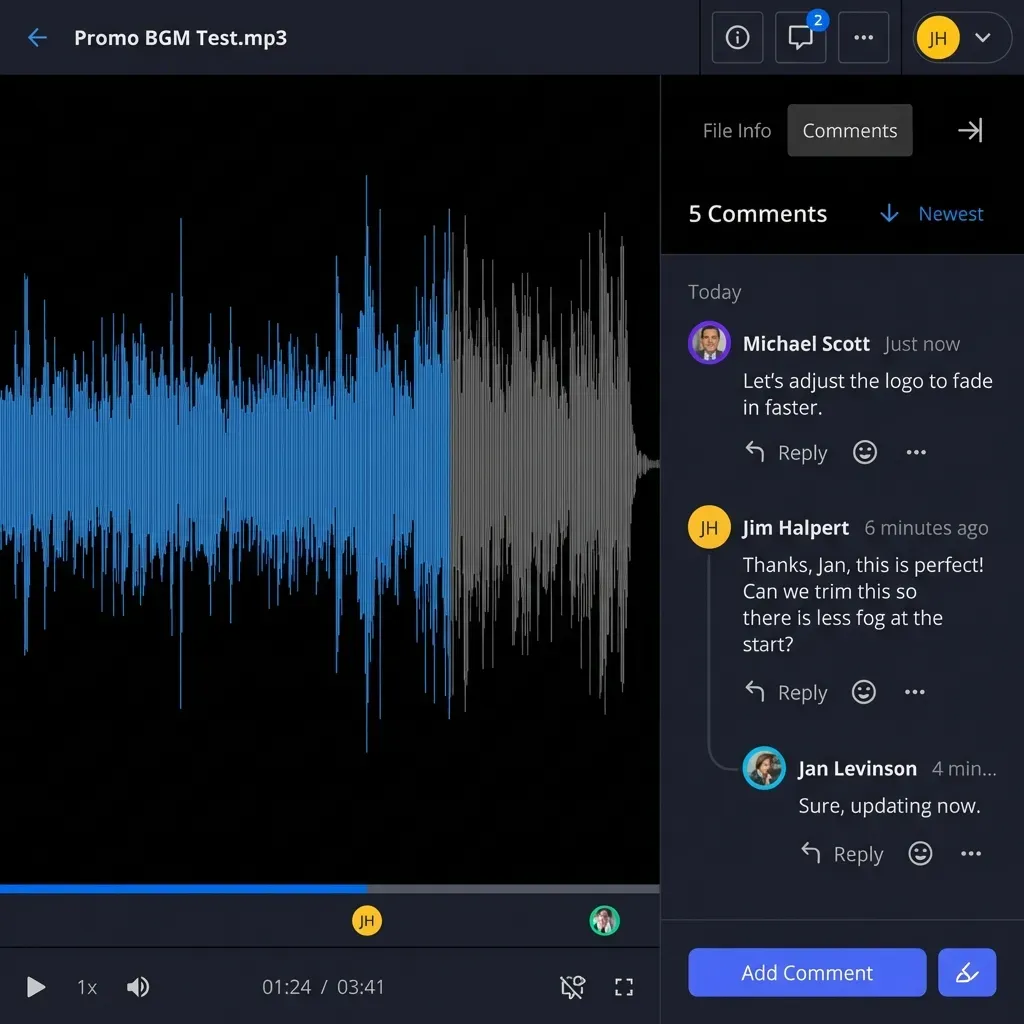
If you work with video, how files are delivered matters. Download-first workflows force recipients to wait for multi-gigabyte files before they can watch anything. Streaming playback with timeline-based comments changes the review process entirely.
Comparing Smash to Alternative Platforms
Here's how Smash stacks up against the most common alternatives for team file sharing.
Smash vs. WeTransfer
WeTransfer is the closest comparison. Both focus on transfer links with clean download pages. WeTransfer's free tier also caps at 2GB with 7-day expiration. WeTransfer Pro offers 200GB transfers and a portal for collecting incoming files. The main difference: WeTransfer has broader brand recognition and a wider ecosystem of creative tools, while Smash offers slightly larger transfer limits on paid plans and customizable download pages.
Neither solves the core problem: files still expire, and there's no real file management.
Smash vs. Dropbox
Dropbox gives you permanent storage and file sync, which solves the expiration issue. But Dropbox charges per seat, which gets expensive when you add external collaborators. Sharing with clients means either giving them a Dropbox account (costly) or using shared links with limited control. Dropbox is strong for internal team sync but weaker for client-facing delivery.
Smash vs. Google Drive
Google Drive offers permanent storage and solid real-time collaboration on Google-native formats (Docs, Sheets, Slides). For file delivery to external clients, it's clunky. Sharing permissions are confusing, the interface isn't branded, and large file downloads can be unreliable. Video playback is basic with no review tools.
Smash vs. Fast.io
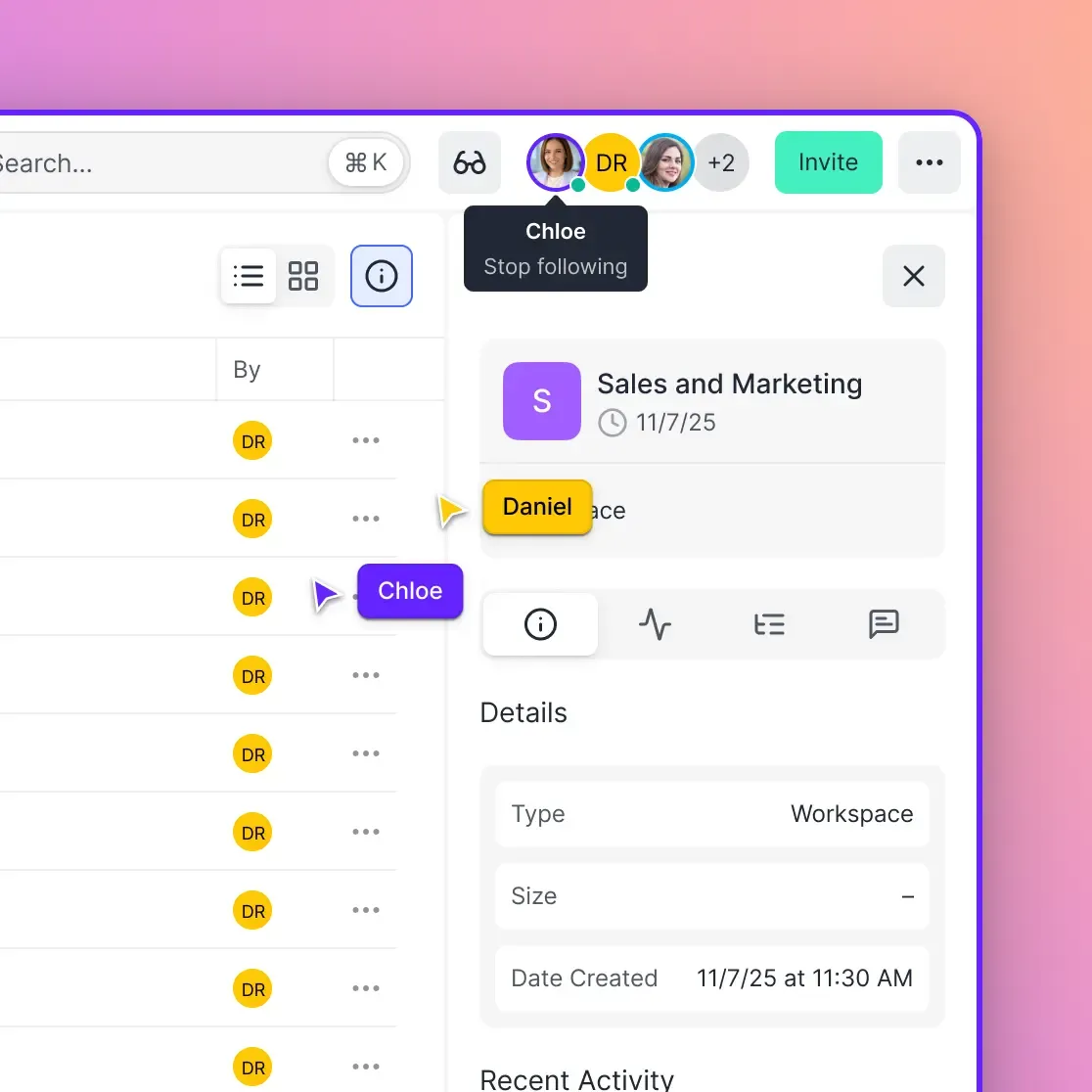
Fast.io approaches file sharing differently from all of these. Instead of transfer links or synced folders, it uses shared workspaces with purpose-built sharing modes.
What stands out:
- Files are stored permanently in organized workspaces, not as expiring transfers
- Three sharing modes (Send, Receive, Exchange) handle different workflow directions
- Video files transcode automatically to HLS for instant streaming, with frame-accurate commenting for review
- Guest access lets clients view and upload without consuming paid seats
- Usage-based pricing means you pay for storage and bandwidth, not per person
- Branded client portals replace generic download pages
For teams that started with Smash for quick sends and now need persistent project storage with collaboration tools, Fast.io fills the gap between "transfer tool" and "full enterprise platform." The free tier includes 50GB of storage with no credit card required, so you can test the workspace model without commitment.
Smash for Creative Teams: When to Stay and When to Switch
Smash built its user base in creative industries, and that audience has specific needs worth addressing directly.
When Smash Still Works
Freelancers with rotating clients. If you work with a different client each week and never revisit past deliverables, Smash's per-transfer model fits naturally. Send finals, get paid, move on.
Quick internal sends. Need to get a large file to a colleague right now? Smash's no-account upload is faster than setting up a shared folder.
One-time large file transfers. Smash handles files over 2GB on paid plans with no fuss. For occasional large sends where you don't need the file stored afterward, it works.
When to Look for Alternatives
Repeat client work. If you deliver files to the same clients regularly, re-uploading and managing new links each time wastes effort. A workspace you share once and update ongoing saves hours.
Video review cycles. Download-and-email feedback loops add days to review timelines. Streaming playback with pinned comments collapses that cycle. Fast.io transcodes uploaded videos to HLS automatically, so clients watch immediately and leave feedback at specific frames.
Client file collection. Smash is outbound only. If you need clients to send you raw footage, brand assets, or documents, you need a receive workflow. Fast.io's Receive shares let clients upload directly to a workspace you control.
Team asset libraries. As project files accumulate, they become an asset library that future work builds on. Transfer tools delete those assets. Workspace platforms preserve them.
Creative teams often bridge this gap with multiple tools: Smash for delivery, Google Drive for storage, email for feedback. Consolidating into a single workspace eliminates the context switching and the risk of losing files when links expire.
Moving from Smash to a Workspace Platform
If you decide Smash isn't enough, the migration is straightforward because Smash doesn't hold your files long-term. You're not extracting data from a legacy system. You're setting up a new home for files that would otherwise expire.
Plan Your Workspace Structure
Before uploading anything, think about how you want to organize. One workspace per client works well for agencies. One workspace per project suits production teams. Create the structure first so files land in the right place from day one.
Set Up Sharing Workflows
Replace
Smash links with persistent shares. For outbound deliveries, create Send shares with your branding and download controls. For inbound collection, set up Receive shares so clients upload to you directly. Exchange shares handle back-and-forth workflows where both sides upload and download.
Invite Collaborators
Add team members to workspaces with appropriate permissions. For clients, use guest access so they see only what you share with them. On Fast.io, guests don't count toward your plan limits.
Build the Habit
The hardest part of switching is changing the reflex. Instead of "upload to Smash, copy link, paste in email," the workflow becomes "drag to workspace, share the workspace." It takes a few days to adjust, but the payoff is never re-uploading a file and never fielding a "can you resend?" request again.
If your files involve AI workflows or semantic search, Fast.io's Intelligence feature auto-indexes uploaded files. Enable it on a workspace and your files become searchable by meaning, not just filename. Useful if you're building a reference library from past project deliverables.

Frequently Asked Questions
Is Smash file sharing free?
Smash offers a free tier that lets you send up to 2GB per transfer without creating an account. Files remain available for 7 days. You can technically send larger files for free, but they enter a queue behind paid transfers and take longer to process. Paid plans start at around €5/month for Pro (250GB transfers, 30-day retention) and €12/month for Team (up to 10 users).
What is the limit on Smash file transfer?
Free accounts can send up to 2GB per transfer with priority processing. Pro accounts get 250GB per transfer. Team accounts support up to 1TB per transfer. Enterprise plans remove size limits entirely. All plans allow unlimited numbers of transfers per month.
Is Smash safe for file sharing?
Smash uses AES-256 encryption for files at rest and SSL/TLS for data in transit. The service runs on AWS infrastructure with regional servers and undergoes security audits by Synacktiv. Paid plans add password protection for transfers. For a transfer service, the security is above average, though files are automatically deleted after the retention period ends.
What is better than Smash for large files?
For one-off large sends, Smash is hard to beat on simplicity. For ongoing large file workflows, workspace platforms like Fast.io offer permanent storage (files never expire), HLS video streaming (no download required for playback), organized project folders, and collaboration features. The best choice depends on whether you need a transfer tool or a file management platform.
Can I use Smash for team collaboration?
Smash's Team plan supports up to 10 users and adds team management and custom subdomains. But the service remains a transfer tool at its core. There are no shared folders, no comments on files, no approval workflows, and no way to organize transfers into projects. For team collaboration on files, you'll need a workspace platform alongside or instead of Smash.
Does Smash work for video file sharing?
Smash handles video file transfers well, with no file type restrictions and large size limits on paid plans. However, recipients must download the full video file before watching. There's no streaming playback, no video preview, and no way to leave timestamped feedback. For video review workflows, platforms with built-in streaming and commenting (like Fast.io's HLS playback with frame-accurate comments) speed up the feedback cycle.
Related Resources

Ready to Outgrow Expiring File Transfers?
50GB free, no credit card. Workspaces, collaboration, and video streaming included.