How to Implement Generative UI File Uploads with Fast.io API
Guide to implementing generative file uploads with fastio api: Generative UI file uploads use LLMs to dynamically render interactive upload components backed by the Fast.io API based on user intent. This approach is rapidly replacing static forms in AI-native applications, allowing developers to handle binary files smoothly within conversational interfaces. This guide covers the complete implementation flow, from configuring the AI SDK to securely routing file streams directly to Fast.io workspa
What Are Generative UI File Uploads?
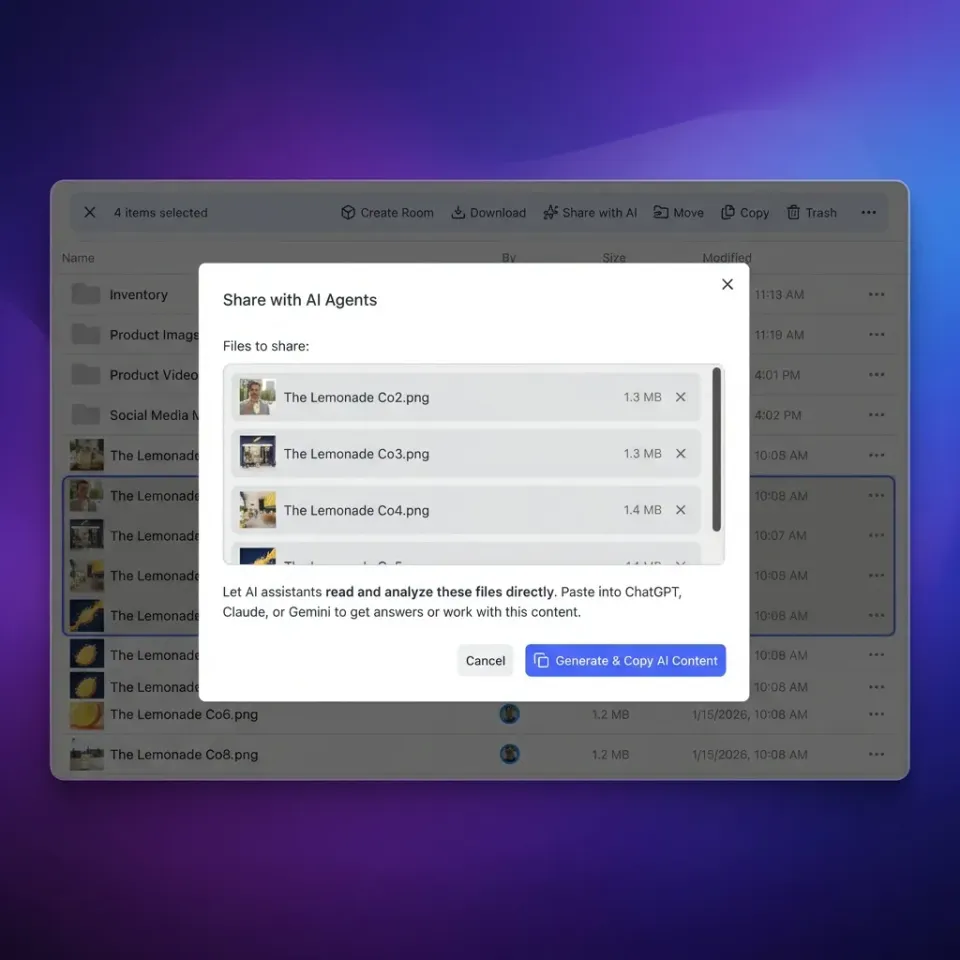
Generative UI file uploads use LLMs to dynamically render interactive upload components backed by the Fast.io API based on user intent. Instead of navigating to a static upload page or digging through complex nested menus, the user tells the AI assistant, "I need to analyze this quarterly report." The LLM then streams back a specialized upload widget directly within the conversational interface.
This approach is rapidly replacing static forms in AI-native applications. Embedding the upload mechanism precisely when and where the user requests it reduces workflow friction. Interactive generative components generally improve task completion rates compared to traditional modal windows because users stay focused on their objective. For AI agents, getting the file into the workspace quickly is the first step toward actual processing.
Pairing a generative UI with a storage layer like Fast.io brings more benefits. The moment a user drops a file into the dynamically rendered zone, the file is not just stored. It is ingested, indexed, and made immediately available for semantic search and programmatic access via Model Context Protocol (MCP) tools.
Helpful references: Fast.io Workspaces, Fast.io Collaboration, and Fast.io AI.
The Challenge of Binary Files in AI Interfaces
Few resources explain how to handle binary files within generative UI components. It is technically complex. Text generation is easy, but routing binary data from a dynamically rendered client component through a server-side AI runtime into persistent storage requires careful planning.
Traditional file uploads rely on predictable <form> submissions with multipart/form-data encoding to a known server endpoint. In a generative UI environment, the upload component renders as an interactive widget in response to a specific tool call from the language model. The challenge lies in capturing the selected file on the client, securely bypassing the LLM provider's payload limits, and streaming the binary data directly to the storage destination.
Passing a large PDF or video file directly through the LLM's context window via string-based text encoding causes the request to fail due to token limits and strict size constraints. This encoding also inflates file sizes, wasting bandwidth and processing power.
This is where Fast.io provides a major advantage. Instead of wrestling with temporary serverless function storage or building custom chunking logic, you can route the file stream directly from the client to a persistent Fast.io workspace using secure, short-lived credentials.
Architecting the Fast.io API Upload Flow
To implement generative UI file uploads well, you need to separate the interface generation from the actual binary payload routing. The language model renders the component, but the Fast.io API handles the file ingestion.
The best architecture follows a specific sequence. First, the user prompts the AI with a request that requires an external file. Second, the LLM calls an ask_for_file tool, which yields a customized upload component to the client interface. Third, when the user drops a file into that generated component, the client uploads the file directly to the Fast.io API. This bypasses the LLM entirely and retrieves a secure file ID. Finally, the client submits that Fast.io reference back to the chat thread as a completed tool result, allowing the AI to process the file using its available MCP tools.
This approach ensures your application remains responsive and cost-effective. The Fast.io free agent tier supports large file size limits. This accommodates big datasets, video clips, and long documents without overwhelming your serverless infrastructure or hitting LLM provider limits.


Give Your AI Agents Persistent Storage
Get ample free storage and immediate access to hundreds of MCP tools. Start building interactive generative UI components backed by an intelligent workspace. Built for implementing generative file uploads with fastio api workflows.
Phase One: Configuring the Fast.io Workspace
Before rendering the UI, you need an intelligent workspace ready to receive the uploaded files. Fast.io is an intelligent workspace, not just storage. Intelligence is native. Files are auto-indexed, searchable by meaning, and queryable through chat immediately upon upload.
You must authenticate your application using a Fast.io API key. We recommend creating a dedicated, isolated workspace for each specific AI session. This helps maintain security boundaries and prevents data leakage between conversations.
import { FastIO } from '@fastio/sdk';

const fastio = new FastIO({ apiKey: process.env.FASTIO_API_KEY });

// Create a temporary workspace for the generative session
const workspace = await fastio.workspaces.create({
  name: `Chat Session ${sessionId}`,
  intelligenceMode: true
});
By enabling Intelligence Mode upon workspace creation, any file uploaded into this directory is automatically processed by Fast.io's built-in RAG capabilities. You do not need to configure a separate vector database to make the uploaded documents searchable for your AI agent.
Phase Two: Defining the Upload Tool for the LLM
The next phase involves instructing the LLM when to render the upload UI. You achieve this by defining a specific tool that the model can call when it detects the user needs to provide a file to continue the workflow.
Using modern AI SDKs like the Vercel AI SDK, you define a tool schema that yields a React component. This informs the model of its capabilities without requiring it to understand the underlying React code.
import { tool } from 'ai';
import { z } from 'zod';
import { FileUploadWidget } from './components/FileUploadWidget';

export const uploadTool = tool({
  description: 'Request a file from the user to analyze or process.',
  parameters: z.object({
    fileType: z.string().describe('The expected file type, e.g., application/pdf'),
    reason: z.string().describe('A friendly message explaining why the file is needed')
  }),
  generate: async ({ fileType, reason }) => {
    return <FileUploadWidget expectedType={fileType} promptReason={reason} />;
  }
});
When the LLM decides it needs a spreadsheet to complete a financial calculation, it triggers this tool. The client then displays the FileUploadWidget, tailored to the requested file type and displaying the reasoning to the user.
Phase Three: Rendering the Upload Component in the Client
The generative UI component needs to be reliable and accessible. Because this component is rendered dynamically, it has to handle its own state independently of the main chat stream.
A well-designed file upload widget will include drag-and-drop support, visual progress indicators, and clear error messaging. It should integrate visually with the surrounding chat interface so the user does not feel redirected to a different context.
The component must know which Fast.io workspace it is targeting. It needs to know where to send the binary data once the user selects a file. This usually happens by passing the Fast.io workspace identifier as a property to the component during the server-side generation phase. The component uses this identifier to request a secure, time-limited upload URL from your backend application.
Phase Four: Handling the Client-Side Binary Stream
The most important step in implementing generative UI file uploads with the Fast.io API happens on the client. The dynamically rendered component must capture the file and transmit it securely without interrupting the chat experience.
Do not send the binary data back through the chat message stream. Instead, upload the file directly to Fast.io using a presigned URL. Then, return the resulting file identifier to the AI context.
const handleUpload = async (file) => {
  setUploading(true);
  try {
    // Get upload authorization for the Fast.io workspace
    const { uploadUrl, fileId } = await getPresignedUrl(workspaceId, file.name);

    // Stream the binary file directly to Fast.io
    await fetch(uploadUrl, {
      method: 'PUT',
      body: file,
      headers: { 'Content-Type': file.type }
    });

    // Notify the AI that the file is ready in the workspace
    submitToolResult({
      success: true,
      fastioFileId: fileId,
      message: `File uploaded successfully and is ready for analysis.`
    });
  } catch (error) {
    handleError(error);
  } finally {
    setUploading(false);
  }
};
This architectural separation keeps the chat stream lightweight while using Fast.io's ingestion pipeline to handle the file processing.
Security Considerations for AI-Driven Uploads
When building generative UI file uploads, security is a priority. Because the LLM dynamically requests files, you need validation to ensure users cannot upload malicious executables or exceed storage quotas.
First, always validate file types on both the client and the server. Even if the LLM requests a PDF and the generative UI component sets the accepted MIME types, a malicious actor could bypass the client-side restrictions. Your backend endpoint that generates the Fast.io presigned URL must verify the file extension and type before granting upload authorization.
Second, use Fast.io's built-in file locks for concurrent multi-agent access. If multiple AI agents or background processes are analyzing the uploaded file at the same time, acquiring a lock prevents destructive modifications or race conditions. Fast.io's architecture ensures permissions are enforced at the workspace level, keeping your generative UI uploads secure and isolated from unauthorized access.
Managing State and Error Recovery
Generative UI uploads introduce specific state management challenges. If a file upload fails due to network instability, handle the error within the dynamically rendered component. Do not return a raw error string to the LLM.
A solid implementation includes automatic retries for transient network failures. If an upload fails, the generative UI component should display an error message to the user with a retry button. The LLM does not need to know about these intermediate failures. It should only receive the final result when the file is secured in the Fast.io workspace, or if the user cancels the operation.
This encapsulation of state prevents the chat history from being polluted with technical error logs, maintaining a conversational experience for the user.
Extending the Workflow with Fast.io MCP Tools
Once the file is in the Fast.io workspace, agents and humans can share the exact same workspaces, toolsets, and underlying intelligence.
Fast.io provides multiple MCP tools via Streamable HTTP and SSE, giving your AI agent programmatic access to the dynamically uploaded file. If the generative UI upload captured a video file, the agent can immediately use an MCP tool to extract the audio transcript. If the user uploaded a dataset, the agent can read the data, execute a script to generate a visualization, and write a summary report back to the exact same workspace.
Because Fast.io supports ownership transfer, an agent can build a secure data room and orchestrate generative UI uploads from multiple external clients into that workspace. It can then transfer administrative ownership of the directory back to a human project manager. This turns the generative UI into an automated workflow engine that connects AI generation and human collaboration.
Frequently Asked Questions
How to build file uploads in generative UI?
To build file uploads in generative UI, define an AI tool that yields an interactive component to the chat stream. When the user selects a file, the component must upload the binary data directly to a storage service like the Fast.io API using a presigned URL, rather than attempting to send it through the LLM's raw message payload.
Can LLMs render file upload forms?
Yes, modern LLMs can render file upload forms using tool calling frameworks like the Vercel AI SDK. The LLM outputs a structured JSON response that your application intercepts and replaces with a functional client-side upload widget. This allows users to provide files when the AI requests them.
What is the maximum file size for generative UI uploads via Fast.io?
The Fast.io platform supports large file uploads, far exceeding the typical payload limits of an LLM request. This capacity allows developers to build generative interfaces that handle high-resolution images, large technical PDFs, and big datasets without writing custom client-side chunking logic.
Do I need a vector database to search the uploaded files?
No, you do not need a separate vector database. When you use Fast.io's Intelligence Mode, uploaded files are automatically indexed the moment they arrive in the workspace. The AI agent can immediately query the semantic contents of the files using Fast.io's built-in RAG capabilities.
Related Resources

Give Your AI Agents Persistent Storage
Get ample free storage and immediate access to hundreds of MCP tools. Start building interactive generative UI components backed by an intelligent workspace. Built for implementing generative file uploads with fastio api workflows.