How to Set Up a Document Upload Portal
A document upload portal is a secure web page where external parties submit files directly to your organization without needing an account or software installation. This guide covers the five steps to create one, the features that separate useful portals from frustrating ones, and how to handle the full workflow from branded upload page to automatic folder routing and audit trail.

What Is a Document Upload Portal?
A document upload portal is a dedicated, secure web page where people outside your organization can submit documents directly to you. Clients, vendors, applicants, or partners visit a link, upload their files, and those files land in a structured location you control. No email threads. No shared passwords. No "can you resend that?" follow-ups.
The distinction between a document upload portal and a generic file sharing tool matters. File sharing is bidirectional: you send files out, others send files in. A document upload portal is purpose-built for inbound collection. It answers one question: "How do I get documents from people who aren't in my system?"
That question comes up constantly. Accounting firms collect tax returns and receipts during filing season. Law firms gather evidence packages and signed agreements. HR departments receive offer letters, background check forms, and I-9 documentation. Insurance companies collect claims paperwork. Real estate agencies need inspection reports and mortgage documents. In each case, the organization needs a reliable way to receive documents without adding the sender to internal systems.
Businesses collect an average of 15 documents per client onboarding, according to research from document workflow providers. When that collection happens over email, delays compound. Email attachment failures, including bounced messages, spam filter blocks, and size limit rejections, account for roughly 23% of delayed document collection. A portal eliminates that entire failure mode.

Why Email Falls Short for Document Collection
Email works for short messages. It was never designed to be a document collection system, and using it as one creates four predictable problems.
Size limits block the documents you actually need. Most email providers cap attachments at 25MB. Corporate mail servers sometimes cap lower. When a client tries to send a scanned contract package, a batch of inspection photos, or a video walkthrough, the message bounces. The client calls confused. You explain the limit. They try splitting the files across multiple emails or signing up for a transfer service. What should have been a two-minute task turns into a 30-minute runaround.
Files scatter across inboxes and threads. A single client onboarding might generate dozens of emails over several weeks. Tax documents arrive in one thread, signed contracts in another, ID verification in a third. Finding the right version of the right document means searching through conversations, comparing dates, and hoping you grabbed the correct attachment. Multiply that by 20 clients and document retrieval becomes a part-time job.
Attachments lack audit trails. When a compliance question comes up, you need to know exactly when a document was received, who sent it, and whether anyone modified it. Email gives you a timestamp on the message, but nothing about what happened to the attachment after download. Did someone forward it? Was it the original or a re-sent version? Email provides no answers.
Spam filters eat legitimate files. Certain file types, especially ZIP archives, password-protected PDFs, and files with macros, trigger aggressive filtering. The sender sees "message sent." You never receive it. Nobody discovers the gap until a deadline passes.
A document upload portal solves all four problems. Files transfer over HTTPS with no size surprises. Everything lands in one location instead of scattering across inboxes. Every upload gets logged with a timestamp and sender identity. And nothing touches a spam filter because the transfer happens outside email entirely.
Five Steps to Create a Document Upload Portal
Setting up a document upload portal doesn't require custom development. Most cloud workspace platforms offer the building blocks. Here's the process from start to finish.
1. Choose Your Portal Platform
You have three broad options: build a custom upload form, use a dedicated document collection tool, or use a workspace platform with built-in portal features.
Custom forms (using something like Dropzone.js or Uppy) give you full control but require development time and ongoing maintenance. You'll need to handle storage, security, and notifications yourself.
Dedicated collection tools like Content Snare or FileInvite focus specifically on document requests. They work well for structured collection where you need specific documents from specific people.
Workspace platforms like Fast.io, SharePoint, or Box include portal features alongside broader file management. The advantage is that collected documents live in the same system where your team works on them, rather than in a separate tool that needs syncing.
For most teams, a workspace platform strikes the right balance. The documents arrive where you already work, and you get storage, permissions, and collaboration without stitching together multiple tools.
2. Set Up Your Receiving Workspace
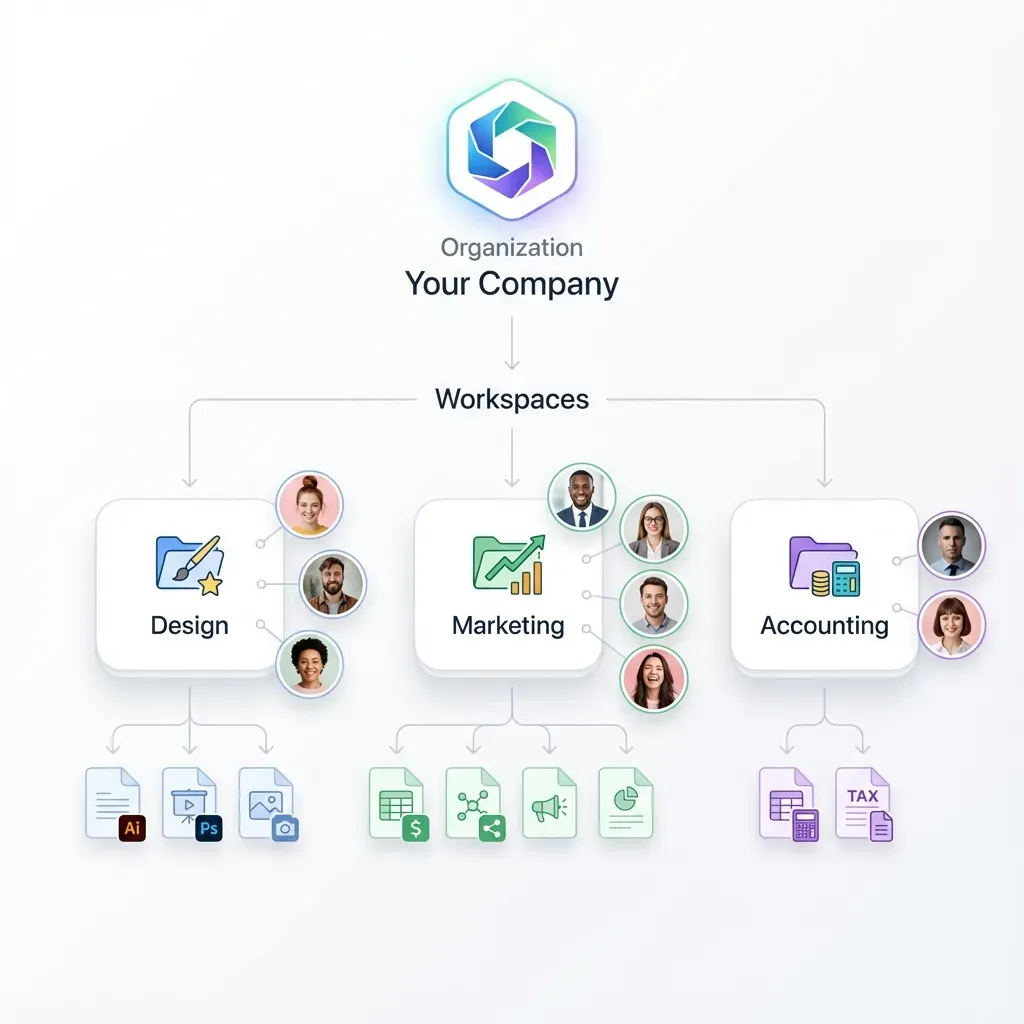
Before creating the portal itself, organize where uploaded documents will land. Create a folder structure that matches your workflow.
For client-facing businesses, that usually means one folder per client or one folder per project. For application-based workflows, organize by submission date or category. The structure should make it obvious where to find a specific document without searching.
On Fast.io, you'd create a workspace and set up folders inside it. Each folder can have its own permissions, so team members only see the clients or projects relevant to them. Enable Intelligence on the workspace and uploaded documents get automatically indexed for search and AI-powered Q&A, which makes retrieval faster as your document library grows.
3. Create the Upload Portal
This is where the external-facing page gets built. The portal needs to do three things: accept files, identify the sender, and confirm the upload.
On Fast.io, create a Receive share pointed at your target workspace folder. Receive shares are purpose-built for inbound file collection. Guests visit a branded page, upload documents, and those files appear in your workspace. No account creation required for the uploader. You can add your logo, brand colors, and a custom background to make the portal feel professional rather than generic.
Set upload parameters based on your needs: accepted file types, maximum file size, and whether you want to require an email address from uploaders. Password protection adds another layer if the portal shouldn't be publicly accessible.
4. Configure Notifications and Routing
A portal without notifications is a drop box nobody checks. Set up alerts so the right people know when documents arrive.
At minimum, configure email notifications for new uploads. Better yet, route notifications to the team member responsible for that client or project. Some platforms support webhook integrations that can trigger actions in your project management or CRM tools when files land.
Fast.io supports audit trails and activity tracking on workspaces, so you can see exactly when files were uploaded and by whom. For teams that want automated workflows, webhooks can notify downstream systems the moment a document arrives.
5. Share the Portal Link with Clients
The final step is distribution. Send clients a direct link to their upload portal. Include brief instructions, though a well-designed portal shouldn't need much explanation.
Some tips for getting clients to actually use it:
- Send the link in your first communication with a new client, before they default to email
- Include the upload link in email signatures and onboarding packets
- Frame it as a benefit to them ("upload on your schedule, no size limits") rather than a requirement
- For recurring document collection, bookmark the link in your client communication template
Auto-expiring links work well for time-sensitive collections. Set an expiration date so the portal closes after a deadline passes, which prevents late submissions and reduces your surface area.


Stop chasing clients for documents
Set up a branded document upload portal on Fast.io in minutes. Clients upload without accounts, files land in your workspace organized and indexed, and every upload is tracked with a full audit trail. Free plan includes 50 GB storage.
Features That Separate Good Portals from Frustrating Ones
Not every upload portal delivers the same experience. The difference between "clients actually use it" and "clients ignore it and email you anyway" comes down to a few specific capabilities.
No Account Required for Uploaders
This is non-negotiable. If your portal requires clients to create an account, remember a password, or download an app before uploading a document, adoption drops sharply. The best portals work like a web form: visit the link, upload the file, done. Fast.io's guest access means clients upload without signing up, and they don't count against your seat limits.
Branded Experience
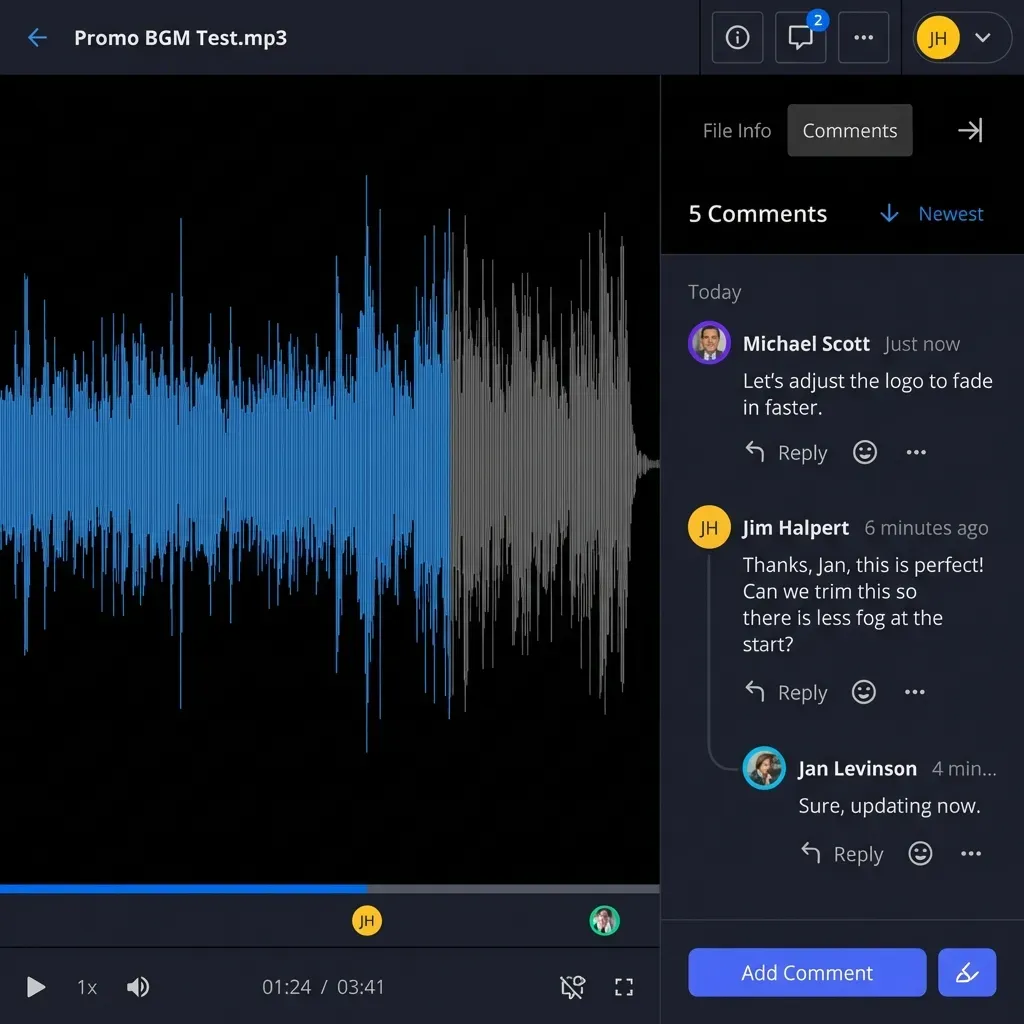
A portal that looks like your company builds trust. A generic upload widget does not. Clients who see your logo and colors feel confident they're sending documents to the right place. This matters especially when you're collecting sensitive materials like financial records or legal documents. Fast.io's Content Portals support custom logos, colors, and background images.
Large File Support
Document collection isn't just PDFs. Engineering firms receive CAD files. Video production companies collect raw footage. Architecture firms get BIM models. Your portal needs to handle files that email never could. Fast.io uses chunked uploads to handle large files reliably, with plan-dependent size limits up to 40 GB.
Audit Trail
Every upload should be logged with a timestamp, sender identity, file name, and file size. When a client claims they submitted something and you need to verify, the audit trail is your source of truth. This also matters for regulated industries where you need to demonstrate chain of custody for received documents.
Folder Organization
Documents should land in a logical location, not a single flat dump. Folder-per-client or folder-per-project structures keep things findable. On Fast.io, you can point different Receive shares at different workspace folders, so documents from Client A and Client B never mix.
Automatic Indexing
Once documents are uploaded, finding specific information inside them is the next challenge. Platforms with built-in search and AI indexing let you ask questions across your entire document library instead of opening files one by one. With Fast.io's Intelligence enabled, uploaded documents are automatically indexed for semantic search and AI chat with citations to specific pages and passages.
Security Considerations for Document Upload Portals
When you ask clients to upload sensitive documents, you're accepting responsibility for those files. The portal's security posture directly affects client trust and your legal exposure.
Encryption in transit is the baseline. Every upload should happen over HTTPS, encrypting files between the client's browser and your storage. This prevents interception during transfer, which is the primary vulnerability that email attachments create.
Access controls determine who can see uploaded documents. Granular permissions, at the workspace, folder, and file level, prevent team members from accessing documents they shouldn't see. A junior team member working on Project A shouldn't browse files from Project B's clients. Fast.io provides granular permissions at the organization, workspace, folder, and file level.
Two-factor authentication protects the admin side. Even if someone compromises a team member's password, 2FA prevents unauthorized access to your document collection. Fast.io supports 2FA for sign-in and sensitive operations.
Auto-expiring access limits the window of exposure. Set portal links to expire after a deadline passes so the upload page isn't accessible indefinitely. For one-time document collection, a short expiration window reduces risk.
Activity logging creates accountability. Every upload, download, and access event should be recorded. If a question arises about when a document was received or who accessed it, the activity log provides the answer. Fast.io logs file operations, membership changes, and access events in workspace audit trails.
One important note: if your industry requires specific compliance certifications like HIPAA or SOC 2, verify that your portal platform holds those certifications before using it for regulated documents. Security features and compliance certifications are different things.
Making Document Collection Part of Your Workflow
A portal is only useful if it connects to how your team actually works. Isolated upload tools that require manual download-and-reupload create friction that erodes the time savings.
Integrate with your existing workspace. The strongest setup is one where uploaded documents land directly in the same system your team uses for collaboration. On Fast.io, Receive shares deposit files into workspace folders. Your team accesses them in the same interface where they manage projects, leave comments, and run approvals. No export step required.
Use templates for recurring collection. If you collect the same types of documents regularly (quarterly tax filings, monthly compliance reports, annual renewals), create portal templates. Set up the folder structure, permissions, and branding once, then duplicate for each collection cycle.
Set clear expectations with clients. Include a brief description on the portal page explaining what documents are needed and any format preferences. A checklist on the upload page ("please include signed W-9, voided check, and proof of insurance") reduces back-and-forth.
Review and acknowledge quickly. When a client uploads documents, confirm receipt within 24 hours. Automated confirmation emails handle the basics, but a brief personal note ("Got your tax documents, reviewing this week") builds the relationship.
Track completion across clients. When you're collecting documents from dozens of clients simultaneously, you need visibility into who has submitted and who hasn't. Workspace activity summaries and folder-level views help you spot gaps without checking client by client.
For teams exploring AI-assisted document workflows, Fast.io's Intelligence feature indexes uploaded documents automatically. Once indexed, you can ask questions across your entire document library. "Which clients haven't submitted their insurance certificates?" becomes a search query instead of a manual audit, as long as you've organized documents with consistent folder naming.
Frequently Asked Questions
How do I create a document upload portal?
Choose a platform that supports inbound file collection (like Fast.io's Receive shares), create a workspace with an organized folder structure, configure a portal with your branding, set up notifications for new uploads, and share the link with clients. Most platforms let you set this up in under 30 minutes without any coding.
What is the most secure way to collect documents online?
Use a portal that encrypts files in transit over HTTPS, provides granular access controls so only authorized team members see uploaded files, supports two-factor authentication for admin access, and logs every upload with timestamps and sender identity. Avoid email attachments, which lack encryption between mail servers and provide no audit trail.
Can clients upload documents without creating an account?
Yes, on platforms that support guest uploads. Fast.io's Receive shares let clients visit a branded page and upload documents without creating an account, remembering a password, or installing software. This removes the friction that causes clients to fall back to email.
What file size limits do document upload portals have?
It depends on the platform. Email caps attachments at 25MB, which blocks most large documents. Dedicated upload portals handle much larger files. Fast.io supports chunked uploads with plan-dependent limits up to 40 GB, which covers everything from scanned contracts to video evidence and CAD drawings.
How do I organize documents from multiple clients in one portal?
Create a folder structure in your workspace with one folder per client or per project. Point each client's upload portal at their specific folder using separate Receive shares. This keeps documents organized without manual sorting and ensures one client's files never mix with another's.
Related Resources

Stop chasing clients for documents
Set up a branded document upload portal on Fast.io in minutes. Clients upload without accounts, files land in your workspace organized and indexed, and every upload is tracked with a full audit trail. Free plan includes 50 GB storage.