How to Set Up MCP Servers in Cursor
Cursor MCP server setup is the process of connecting Model Context Protocol servers to the Cursor AI code editor, giving its built-in AI agent access to external tools and data sources. This guide walks through every step from opening the settings UI to editing `mcp.json` by hand, with real config examples for cloud storage, databases, GitHub, and more.
What Is a Cursor MCP Server?
A Cursor MCP server is a program that exposes specific capabilities to Cursor's built-in AI agent through the Model Context Protocol. MCP is an open standard (now maintained under the Linux Foundation's Agentic AI Foundation) that lets AI assistants talk to external systems. Without MCP, Cursor's agent can only work with files open in your editor. With MCP servers connected, the agent can query a PostgreSQL database to understand your schema, search your company's documentation, manage cloud storage, or call any API you configure. Cursor , and MCP support is a big reason why. It turns the editor from a code-completion tool into a connected development environment where the AI has real access to your infrastructure.
What MCP servers can do in Cursor:
- Read and write files on local or cloud storage
- Run database queries (PostgreSQL, SQLite, MongoDB)
- Interact with GitHub repos, issues, and pull requests
- Search the web or fetch documentation
- Manage cloud services like AWS, Vercel, or file hosting platforms

Prerequisites
Before adding MCP servers, confirm these requirements. Most setup failures trace back to outdated software or missing runtimes.
1. the latest version of Cursor
MCP support is available. Check your version in Cursor > About Cursor (Mac) or Help > About (Windows/Linux). Update if needed.
2. Node.js v18+
Most MCP servers run as Node.js processes. Run node --version in your terminal. If it's below v18, download the LTS release.
3. Python 3.10+ (optional)
Python-based MCP servers (built with fastmcp or the official Python SDK) need Python 3.10 or later. The uv package manager is the recommended way to run them.
4. Network access (for remote servers) SSE and Streamable HTTP servers need outbound HTTPS access. If you're behind a corporate firewall or VPN, make sure HTTPS ports and any custom ports aren't blocked.
How to Add an MCP Server to Cursor
Cursor gives you two ways to add MCP servers: the settings UI and direct config file editing. The UI method is faster for a single server. Config file editing is better when you need to share settings across a team or set up multiple servers at once.
Method 1: Settings UI
Step 1. Open Cursor Settings with Cmd + , (Mac) or Ctrl + , (Windows). Navigate to Features > MCP in the sidebar.
Step 2. Click + Add New MCP Server. A dialog appears with three fields:
- Name: A label for this server (e.g., "fastio", "postgres", "github").
- Transport Type: Choose
stdiofor local servers orsse/streamable-httpfor remote servers. - Command or URL: For
stdio, enter the shell command to launch the server. Forsseorstreamable-http, enter the server's endpoint URL.
Step 3. Click Save. Cursor will attempt to connect. A green dot next to the server name means it's running. A red dot means the connection failed.
Step 4. Test the connection. Open a new Composer session (Agent mode) and ask: "What tools do you have access to?" The agent should list the tools provided by your new server.
Method 2: Edit mcp.json Directly
Open the config file by clicking Edit Config in the MCP settings page, or navigate to it manually:
- Global (all projects):
~/.cursor/mcp.json - Project-specific:
.cursor/mcp.jsonin your project root
Here's a minimal example with a local SQLite server:
{
  "mcpServers": {
    "sqlite": {
      "command": "uvx",
      "args": ["mcp-server-sqlite", "--db", "./data/app.db"]
    }
  }
}
Save the file, then restart Cursor or click the Reload button in MCP settings.
Transport Types: stdio vs SSE vs Streamable HTTP
Cursor supports three MCP transport types. Picking the right one depends on where your server runs and whether you need streaming responses.
stdio (Standard Input/Output) The simplest option. Cursor spawns the MCP server as a child process and communicates through stdin/stdout. Best for local tools like filesystem access, local databases, and git operations. No network configuration needed. ```json { "command": "npx", "args": ["-y", "@modelcontextprotocol/server-filesystem", "/Users/dev/projects"] }
**SSE (Server-Sent Events)**
Connects to a remote HTTP server that streams responses using the SSE protocol. Good for cloud-hosted MCP servers and shared team tools. Requires the server to be running and accessible over the network. ```json
{
  "url": "https://mcp.example.com/sse"
}
Streamable HTTP The newest transport option. Uses standard HTTP POST/GET requests with optional SSE streaming for long-running operations. Supports multiple concurrent client connections and is the direction the MCP spec is heading. According to the MCP specification, Streamable HTTP replaces the older HTTP+SSE approach. ```json { "url": "https://mcp.example.com/mcp", "transport": "streamable-http" }
**When to use which:**
- Local dev tools (filesystem, database, git) → `stdio`
- Cloud services with established SSE endpoints → `sse`
- New or custom remote servers → `streamable-http`


Give Your AI Agents Persistent Storage
Connect the Fast.io MCP server to give your AI agent 50GB of free cloud storage and 251 file management tools. No credit card, no trial period.
Connecting Cloud Storage for AI Agents
Giving your Cursor agent persistent cloud storage is one of the best uses for MCP. Local filesystem access works for single-machine workflows, but cloud storage lets you share context between editors, agents, and teammates.
Why cloud storage matters for Cursor agents:
- Files persist across sessions and machines
- Multiple agents (Cursor, Claude Code, API-based) can access the same workspace
- Built-in search and organization beats dumping everything in a local folder
- You can hand off outputs to clients or teammates without zipping and emailing
Example: Connecting Fast.io
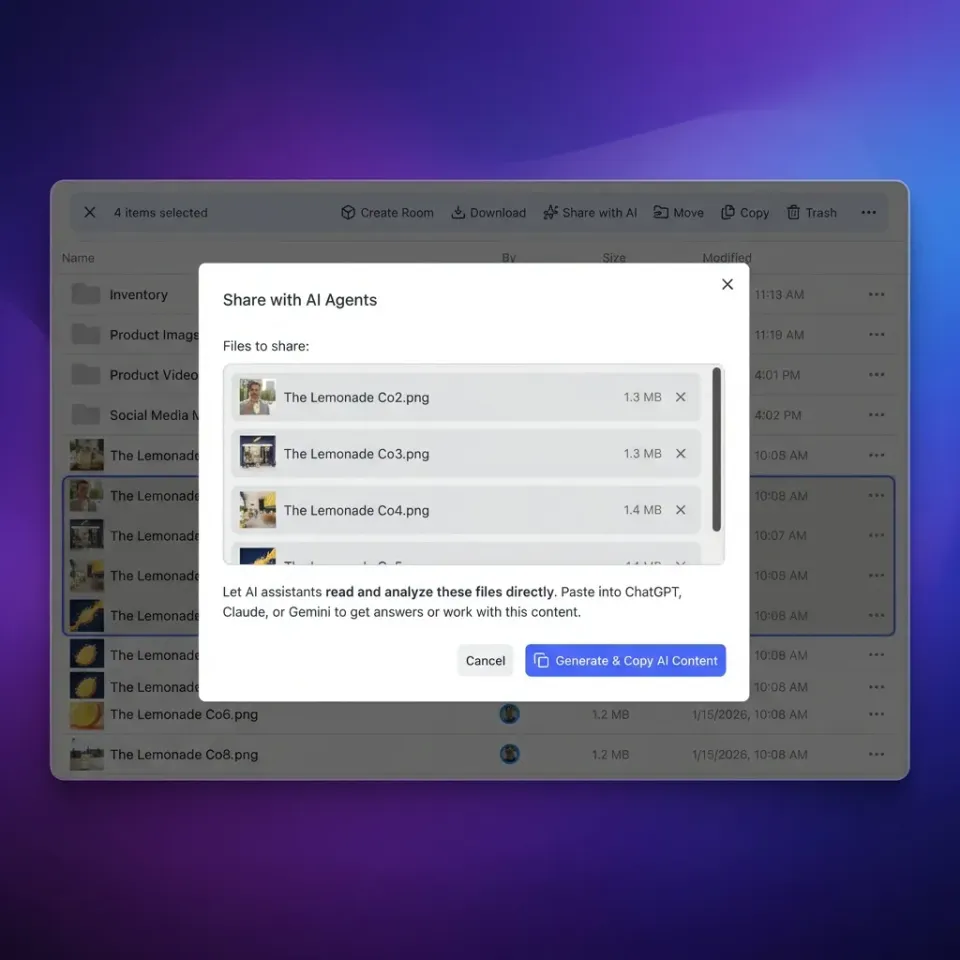
Fast.io offers an MCP server with 251 tools covering file upload, download, search, folder management, and built-in RAG for querying documents. The free agent tier includes 50GB of storage, no credit card required. Add it to your .cursor/mcp.json:
{
  "mcpServers": {
    "fastio": {
      "url": "/storage-for-agents/"
    }
  }
}
Cursor will prompt you to authenticate through your browser the first time you use a Fast.io tool. After that, you can ask the agent things like:
- "Upload this refactored component to my 'Frontend-Library' workspace"
- "Search my 'Design-Docs' workspace for the auth flow diagram"
- "Create a share link for the latest build artifacts"
The agent handles all file operations through the MCP connection. No manual downloads or uploads needed.
Multi-Server Configuration Examples
Most developers end up running multiple MCP servers at once. Cursor loads all servers defined in your config and makes their tools available to the agent simultaneously.
Full-stack development setup:
{
  "mcpServers": {
    "filesystem": {
      "command": "npx",
      "args": ["-y", "@modelcontextprotocol/server-filesystem", "/Users/dev/projects"]
    },
    "postgres": {
      "command": "npx",
      "args": ["-y", "@modelcontextprotocol/server-postgres"],
      "env": {
        "DATABASE_URL": "postgresql://user:pass@localhost:5432/myapp"
      }
    },
    "github": {
      "command": "npx",
      "args": ["-y", "@modelcontextprotocol/server-github"],
      "env": {
        "GITHUB_TOKEN": "ghp_your_token_here"
      }
    },
    "fastio": {
      "url": "/storage-for-agents/"
    }
  }
}
With this setup, your Cursor agent can read local files, query your database schema before writing migrations, create GitHub issues for bugs it finds, and save outputs to cloud storage.
Tips for multi-server setups:
- Start with a few servers and add more as needed. Too many servers can bloat the agent's context window.
- Use project-specific configs (
.cursor/mcp.json) for database and project-specific tools. Keep general tools (GitHub, cloud storage) in the global config (~/.cursor/mcp.json). - Environment variables with secrets should live in the config file, not in your shell profile. Cursor reads env vars from the config at spawn time.
- Cursor's January 2026 update improved how its agent handles multiple servers, using dynamic context to load tool descriptions on demand instead of stuffing them all into the prompt.
Troubleshooting Common Issues
When an MCP server fails to connect, Cursor can be frustratingly quiet about the reason. Here's how to debug the most common problems.
"Server failed to start" or no green dot
Open the Output panel (Cmd + Shift + U on Mac, Ctrl + Shift + U on Windows) and select MCP from the dropdown. This shows the raw server logs including startup errors.
stdio server crashes silently
Test the command outside Cursor first. Copy the command and args from your config and run them in a terminal:
npx -y @modelcontextprotocol/server-filesystem /Users/dev/projects
If it crashes here, the issue is with the server itself (missing dependencies, wrong path, etc.), not Cursor.
SSE "Connection Refused" The remote server isn't reachable. Check that:
- The URL is correct (including the
/ssepath if required) - Your network allows outbound HTTPS connections
- The server is actually running (try opening the URL in a browser)
Environment variables not loading
Cursor reads env values from mcp.json at process spawn time. If you added env vars after starting Cursor, restart the editor. Also check that values don't have trailing whitespace or quotes around them in the JSON.
"Too many tools" warning Some MCP servers expose dozens or hundreds of tools. If the agent's responses become slow or inconsistent, try using a server that exposes fewer tools, or check if the server supports tool filtering.
Config not loading
Make sure your JSON is valid. A missing comma or bracket will cause the entire config to fail silently. Use cat ~/.cursor/mcp.json | python3 -m json.tool to check for syntax errors.
Frequently Asked Questions
How do I add an MCP server to Cursor?
Open Cursor Settings (Cmd/Ctrl + ,), navigate to Features > MCP, and click '+ Add New MCP Server.' Enter a name, choose a transport type (stdio for local, sse for remote), and provide the command or URL. Click Save and test the connection by asking the agent what tools it has access to.
Where is the MCP config file in Cursor?
The global MCP configuration file is at `~/.cursor/mcp.json` on macOS/Linux and `%USERPROFILE%\.cursor\mcp.json` on Windows. For project-specific servers, create `.cursor/mcp.json` in your project root. Cursor loads both files and merges the server lists.
What MCP servers work with Cursor?
Cursor works with any MCP server that uses the stdio, SSE, or Streamable HTTP transport. Popular options include the official filesystem, GitHub, PostgreSQL, and SQLite servers from the MCP project, plus third-party servers like Fast.io (cloud storage with 251 tools), Brave Search, Puppeteer, and Slack.
How do I connect Cursor to cloud storage?
Add a cloud storage MCP server to your `.cursor/mcp.json` file. For example, Fast.io's server uses SSE transport: add `{"url": "/storage-for-agents/"}` under a server name in your config. After saving and restarting Cursor, the agent can upload, download, search, and organize files in your cloud workspace.
What is the difference between stdio and SSE transport in Cursor?
Stdio runs the MCP server as a local child process, communicating through standard input/output. It's best for local tools like databases and filesystem access. SSE (Server-Sent Events) connects to a remote HTTP endpoint and supports streaming responses, which is better for cloud services and shared team tools.
Related Resources

Give Your AI Agents Persistent Storage
Connect the Fast.io MCP server to give your AI agent 50GB of free cloud storage and 251 file management tools. No credit card, no trial period.