How to Set Up MCP in Claude Desktop
Claude Desktop MCP enables the local Claude app to interact with external tools and data sources via the Model Context Protocol. This guide walks through every setup method, from editing the claude_desktop_config.json file manually to installing one-click Desktop Extensions. It also covers connecting cloud storage like Fast.io and fixing the connection issues that trip up most developers.
What Is Claude Desktop MCP?
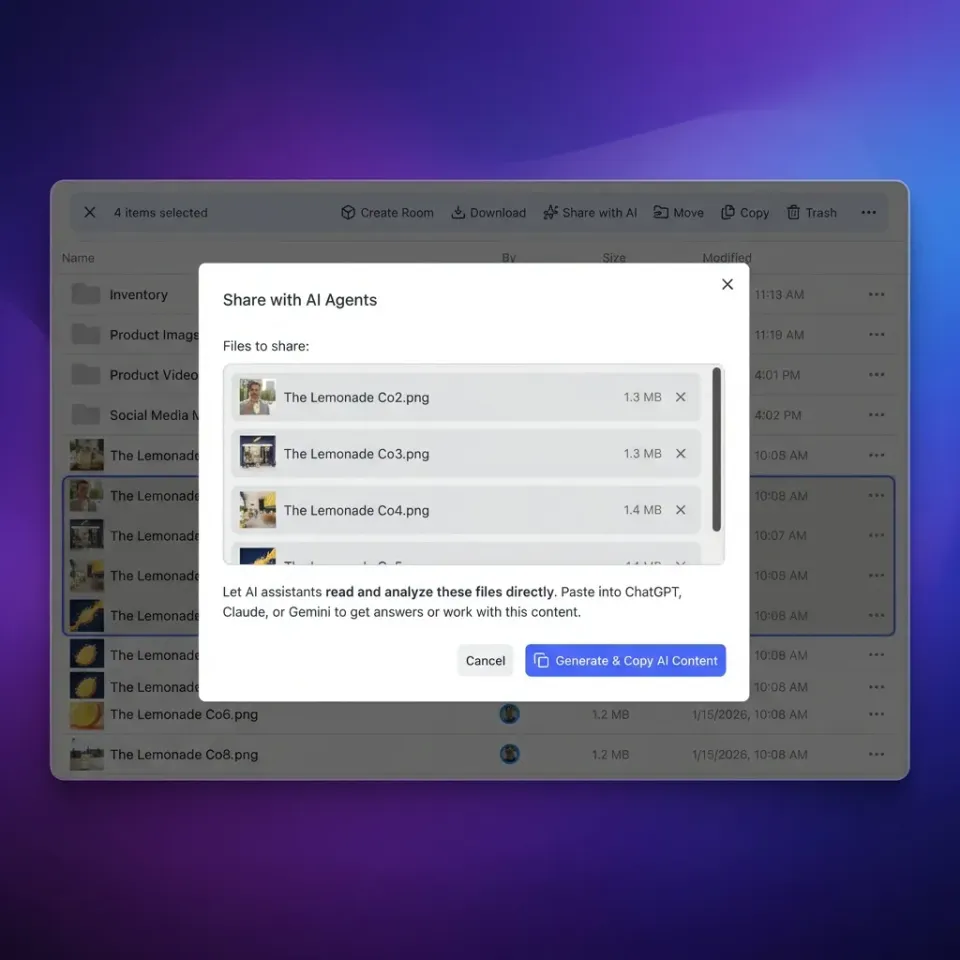
Claude Desktop MCP is the integration layer that lets the Claude desktop app talk to external tools through the Model Context Protocol. Without MCP, Claude can only work with text you paste into the chat window. With MCP, Claude can read local files, query databases, call APIs, and manage cloud storage during a conversation. MCP works through a client-server architecture. Claude Desktop acts as the MCP client. You configure one or more MCP servers that expose specific capabilities (called "tools") to Claude. When you ask Claude to do something that requires an external tool, it routes the request to the right server. For example, if you connect a filesystem MCP server pointed at your project directory, Claude can read your source files, search for patterns, and suggest edits based on the actual code. Connect a cloud storage server like Fast.io, and Claude can upload files, run semantic searches, and share documents with your team. Anthropic designed MCP as an open standard, so it works the same way across different AI tools. A server you configure for Claude Desktop also works with Cursor, Windsurf, VS Code, and other MCP-compatible clients.
Prerequisites
Before you start, make sure your environment is ready.
Claude Desktop App (required) Download the standalone desktop app from Anthropic's website. MCP does not work in the web browser version of Claude. Check for updates by clicking the Claude menu and selecting "Check for Updates" to make sure you have the latest build.
Node.js (required for most servers)
Most MCP servers are JavaScript/TypeScript packages distributed via npm. Install Node.js v18 or newer from nodejs.org. After installing, verify it works by running node -v in your terminal.
A text editor You will edit a JSON configuration file. VS Code, Sublime Text, or any editor that highlights JSON syntax errors works fine. VS Code is especially helpful because it underlines invalid JSON with red squiggles before you save.
Docker Desktop (optional) If you prefer containerized MCP servers, Docker Desktop includes an MCP Toolkit that handles server management and connects directly to Claude Desktop.
How to Add MCP Servers to Claude Desktop
There are three ways to connect MCP servers. Pick the one that fits your comfort level.
Method 1: Edit the Config File (Most Control)
Claude Desktop reads MCP server definitions from a JSON configuration file.
Step 1: Find the config file
- macOS:
~/Library/Application Support/Claude/claude_desktop_config.json - Windows:
%APPDATA%\Claude\claude_desktop_config.json
You can also get there from the app itself: open Settings, click Developer, then click "Edit Config."
If the file does not exist yet, create it in that directory.
Step 2: Add a server entry
Open the file and add your server inside the mcpServers object. Here is a working example that gives Claude access to a local directory:
{
  "mcpServers": {
    "filesystem": {
      "command": "npx",
      "args": [
        "-y",
        "@modelcontextprotocol/server-filesystem",
        "/Users/yourname/Projects"
      ]
    }
  }
}
The -y flag is important. Without it, npm will prompt you to confirm the package installation, and that prompt will hang silently because Claude cannot respond to it.
Step 3: Add more servers You can define multiple servers in the same file. Each gets its own key:
{
  "mcpServers": {
    "filesystem": {
      "command": "npx",
      "args": ["-y", "@modelcontextprotocol/server-filesystem", "/Users/yourname/Projects"]
    },
    "github": {
      "command": "npx",
      "args": ["-y", "@modelcontextprotocol/server-github"],
      "env": {
        "GITHUB_PERSONAL_ACCESS_TOKEN": "ghp_your_token"
      }
    }
  }
}
Step 4: Restart Claude Desktop Quit the app completely (not just close the window) and relaunch it. Claude reads the config file at startup, so changes only take effect after a restart. After restarting, click the "+" button at the bottom of the chat box, then select "Connectors." You should see your servers listed with their available tools.
Method 2: Desktop Extensions (Easiest)
Desktop Extensions bundle an MCP server with all its dependencies into a single installable package (.mcpb file). No config editing required. 1. Open Claude Desktop and go to Settings, then Extensions 2. Click "Browse extensions" to see reviewed extensions from Anthropic's directory 3. Click "Install" on any extension you want 4. The server starts automatically, no restart needed
If you have a .mcpb file from a developer, click "Install Extension" and select the file directly.
Method 3: Docker MCP Toolkit
Docker Desktop includes a built-in MCP Toolkit that manages servers in containers. 1. Open Docker Desktop 2. Go to Settings and enable the MCP Toolkit 3. Click "MCP Toolkit" in the left sidebar 4. Click "Connect" under Claude Desktop
Docker handles server lifecycle, isolation, and updates. This is the best option if you want to run servers without installing Node.js globally or worrying about dependency conflicts.
Connecting Cloud Storage with Fast.io
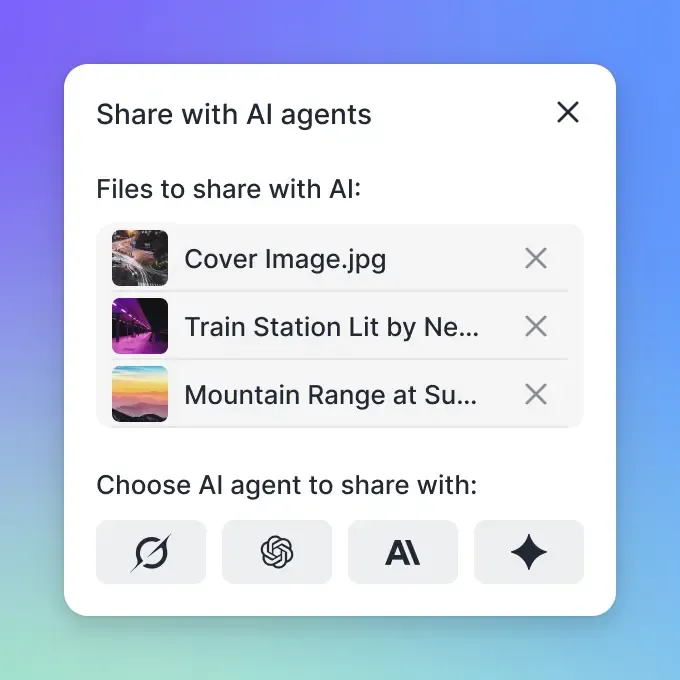
Local filesystem access is useful for development, but cloud storage gives Claude persistent memory that survives between sessions and works across machines. Fast.io's MCP server provides 251 tools for file management, search, sharing, and AI-powered document analysis. Your agent gets its own storage account with 50GB free, no credit card needed, and no expiration date.
What Claude can do with cloud storage:
- Upload, download, and organize files in persistent cloud workspaces
- Search documents by meaning using built-in semantic search (Intelligence Mode)
- Ask questions about your files and get answers with source citations
- Share files through branded portals with password protection and expiration
- Import files from Google Drive, OneDrive, Box, and Dropbox without downloading locally
The server supports both Streamable HTTP and SSE transport, so it works with Claude Desktop and every other MCP-compatible client. Cloud storage also means your files are accessible to collaborators and other agents you invite to your workspace, which local filesystem servers can't do. The free agent tier includes 5,000 monthly credits that cover storage, bandwidth, AI token usage, and document ingestion. Files up to 1GB are supported per upload.


Give Your AI Agents Persistent Storage
Fast.io gives teams shared workspaces, MCP tools, and searchable file context to run claude desktop mcp workflows with reliable agent and human handoffs.
Troubleshooting MCP Connection Issues
MCP setup fails silently more often than it errors out. If your servers do not appear after restarting Claude, work through this checklist.
Server Not Showing Up
Check your JSON syntax. A single missing comma or extra bracket breaks the entire config file. Paste your config into a JSON validator or open it in VS Code to catch syntax errors.
Use absolute paths. Relative paths like ./Documents will not resolve correctly. Always use the full path: /Users/yourname/Documents on macOS or C:\Users\yourname\Documents on Windows.
Verify the command works manually. Open your terminal and run the same command from your config to see if the server starts:
npx -y @modelcontextprotocol/server-filesystem /Users/yourname/Projects
If this fails, the problem is with the server package or your Node.js installation, not Claude.
Server Connects but Tools Do Not Work
Check the MCP logs. Claude writes server-specific logs to files named mcp-server-SERVERNAME.log. Check Developer settings in Claude Desktop to find and review these logs for error messages.
Verify environment variables. Servers that need API keys (GitHub, Slack, database connectors) require those keys in the env block of your config. Missing or expired tokens cause silent failures. ```json
"github": {
"command": "npx",
"args": ["-y", "@modelcontextprotocol/server-github"],
"env": {
"GITHUB_PERSONAL_ACCESS_TOKEN": "ghp_your_token"
}
}
### Node.js Issues

Run `node -v` in your terminal. If the version is below 18, upgrade before trying again. On macOS, the Homebrew version and the installer version sometimes conflict. Check `which node` to make sure you are running the version you expect. If `npx` commands hang, your npm cache might be corrupted. Run `npm cache clean --force` and try again.

### Config File Not Found

If

Claude does not seem to read your config at all, double-check the file location. A common mistake on macOS is saving to `~/Library/Application Support/Claude/` when the `Claude` directory does not exist yet. Create it first, then save the config file inside it.
Tips for a Better MCP Setup
Scope filesystem access narrowly. Giving Claude access to your entire home directory is convenient but risky. Point filesystem servers at specific project directories instead. If you need broader access, use a cloud workspace with permissions you can revoke.
Use cloud storage for persistence. Local MCP servers lose context between sessions. Files in cloud workspaces like Fast.io persist indefinitely and can be shared with teammates or other AI tools.
Combine multiple servers. MCP gets much more useful when Claude has access to several tools at once. A typical setup: a filesystem server for your current project, a GitHub server for repository management, and a cloud storage server for persistent file operations.
Keep servers updated. MCP servers get frequent updates. Run npx -y (which always fetches the latest version) rather than pinning old versions. For Desktop Extensions, check the Extensions panel for updates periodically.
Review tool permissions. When Claude lists available tools from a connected server, look at what each tool can do. Some servers include write and delete operations alongside read operations. Know what you are authorizing before using it in production workflows.
Frequently Asked Questions
Where is the Claude Desktop config file?
On macOS, the file is at ~/Library/Application Support/Claude/claude_desktop_config.json. On Windows, it is at %APPDATA%\Claude\claude_desktop_config.json. If the file does not exist, create it manually in that directory. You can also reach it from Claude Desktop by going to Settings, then Developer, then Edit Config.
Do I need a paid Claude plan to use MCP?
No. MCP works on both free and paid Claude Desktop accounts. The protocol itself has no cost. However, your usage limits for Claude's AI model still depend on your account tier. Some third-party MCP servers may have their own pricing, but the protocol connection is free.
Can I use MCP with Claude in the browser?
MCP requires the Claude Desktop application. The web version of Claude at claude.ai does not support MCP connections because it cannot maintain the persistent local server processes that MCP requires. Download the desktop app to use MCP.
How many MCP servers can I connect at once?
There is no hard limit on the number of MCP servers you can configure. Most developers run 2 to 5 servers covering different capabilities like filesystem access, GitHub, and cloud storage. Each server runs as a separate process, so adding many servers increases memory usage on your machine.
What is the difference between MCP servers and Desktop Extensions?
They do the same thing but differ in how you set them up. MCP servers require manual JSON configuration and a Node.js environment. Desktop Extensions (.mcpb files) bundle the server and its dependencies into a single installable package, so you click install and it works. Extensions are easier but the selection is smaller than the full ecosystem of open-source MCP servers.
Related Resources

Give Your AI Agents Persistent Storage
Fast.io gives teams shared workspaces, MCP tools, and searchable file context to run claude desktop mcp workflows with reliable agent and human handoffs.