AI Agent File Permissions: How to Control What Agents Can Read, Write, and Share
AI agent file permissions define what files an autonomous agent can read, write, delete, or share, using role-based or attribute-based access controls to prevent unauthorized data access and enforce least-privilege principles. This guide covers how to secure agentic workflows through sandboxing, per-task scoping, and granular access levels.

What to check before scaling ai agent file permissions
As organizations move from simple chatbots to autonomous AI agents, the risk of unauthorized data access increases. Unlike human users who operate within a social and legal framework, AI agents follow code and prompts. If an agent is given broad access to a file system, it may inadvertently leak sensitive data, delete critical assets, or move files into public shares without oversight.
According to industry research, 73% of AI security incidents involve excessive file access. This happens when developers grant agents generic API keys with administrative privileges rather than scoping permissions to the specific task. Implementing least-privilege agent permissions reduces data exposure by up to 80%, ensuring that even if an agent behaves unexpectedly, the potential damage is contained.
Effective access control for AI agents is not just about security. It is about reliability. When an agent knows exactly which files it can touch, it is less likely to hallucinate or pull irrelevant context into its reasoning loop. In a professional workspace, agents must be treated as digital employees with defined roles and restricted boundaries.
Helpful references: Fast.io Workspaces, Fast.io Collaboration, and Fast.io AI.
The 5 Permission Levels for AI Agent File Access
To implement a secure agentic workflow, you must move beyond binary "allow or deny" logic. Modern AI agent workspaces, like Fast.io, allow for granular permission levels. Understanding these levels is the first step in winning the featured snippet for AI security and ensuring your agents operate safely.
Here are the five essential permission levels for agent file access:
- Read-Only (Context-Only Access): The agent can read files to extract information but cannot modify or delete anything. This is ideal for research agents or RAG (Retrieval-Augmented Generation) systems that only need to "know" things.
- Write-Only (Output-Only Access): The agent can create new files but cannot read existing ones in the same directory. This is useful for data collection agents that shouldn't see historical data.
- Read-Write (Restricted Access): The agent can read and modify files within a specific folder or workspace. This is the standard for creative or coding agents working on a defined project.
- Full Access (Sandboxed): The agent has complete control (Create, Read, Update, Delete) but only within a strictly isolated environment. This allows for complex operations without risking the broader organization.
- Admin/Owner (Management Access): The agent can manage permissions, invite users, and create new workspaces. This level is reserved for orchestrator agents that build environments for other agents or humans.
Most agents should start at the lowest possible level and escalate only when the task requires it. This "step-up" permission model is a core tenet of agent security.


Give Your AI Agents Persistent Storage
Get 50GB of free, isolated storage for your AI agents. No credit card required. Start building secure, sandboxed workspaces in seconds.
How to Sandbox AI Agent File Operations
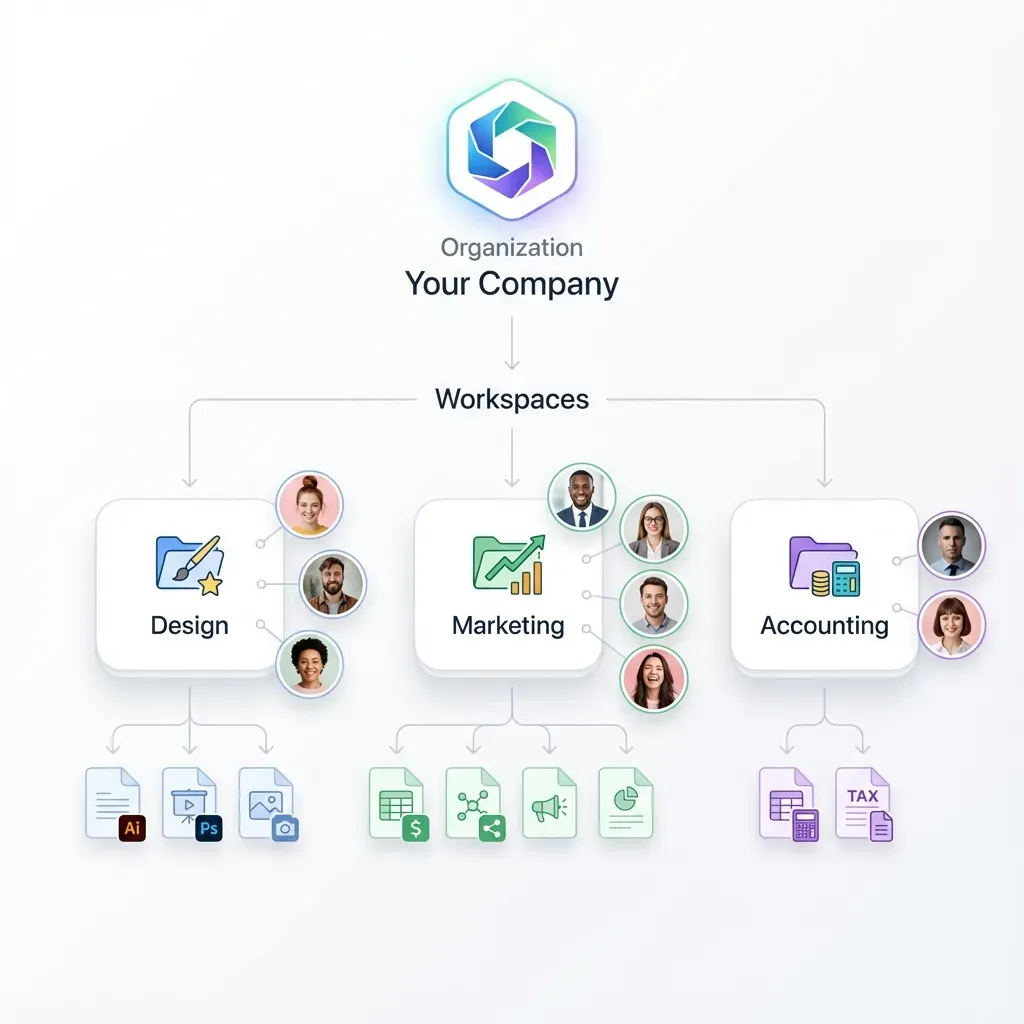
Sandboxing is the practice of isolating an AI agent within a dedicated workspace where it cannot see or touch anything outside its boundaries. In traditional cloud storage, this is difficult to manage because permissions are often tied to a single user account. In an intelligent workspace like Fast.io, sandboxing is native.
To sandbox an agent, follow these steps:
Create a Dedicated Workspace: Instead of inviting an agent to your main team folder, create a workspace specific to the agent's project. 2. Use Agent-Specific Credentials: Never share your own API keys. Use the Fast.io Free Agent Tier to give the agent its own account with 50GB of isolated storage. 3.
Limit Tool Access: If using the Model Context Protocol (MCP), only enable the specific tools the agent needs. For example, if the agent only needs to summarize documents, do not give it the delete_file tool.
4.
Toggle Intelligence Mode: Only enable RAG indexing on the folders the agent actually needs to search. This prevents "context leakage" where the agent pulls information from unrelated documents.
Sandboxed environments provide a safety net. If an agent encounters a recursive loop or a prompt injection attack, it only has the power to affect its own sandbox, leaving the rest of your organization's data safe and untouched.
Per-Task Scoping: Just-in-Time Permissions
One of the advanced patterns in AI agent security is per-task scoping, also known as Just-in-Time (JIT) permissions. Instead of giving an agent persistent access to a project, you grant access only for the duration of a single task.
When an agent receives a job, the orchestrator identifies the specific files required. It then generates a temporary access token or moves those files into a "hot" workspace for the agent. Once the agent submits its output, the access is revoked or the workspace is archived.
This approach is particularly effective for agents that handle sensitive client data. By ensuring that the agent only "sees" the data for a few minutes while processing, you minimize the window of risk. Fast.io facilitates this through webhooks and API-driven workspace management, allowing you to build reactive workflows where agents are summoned, given specific files, and then dismissed.
Monitoring Agent Behavior with Audit Logs
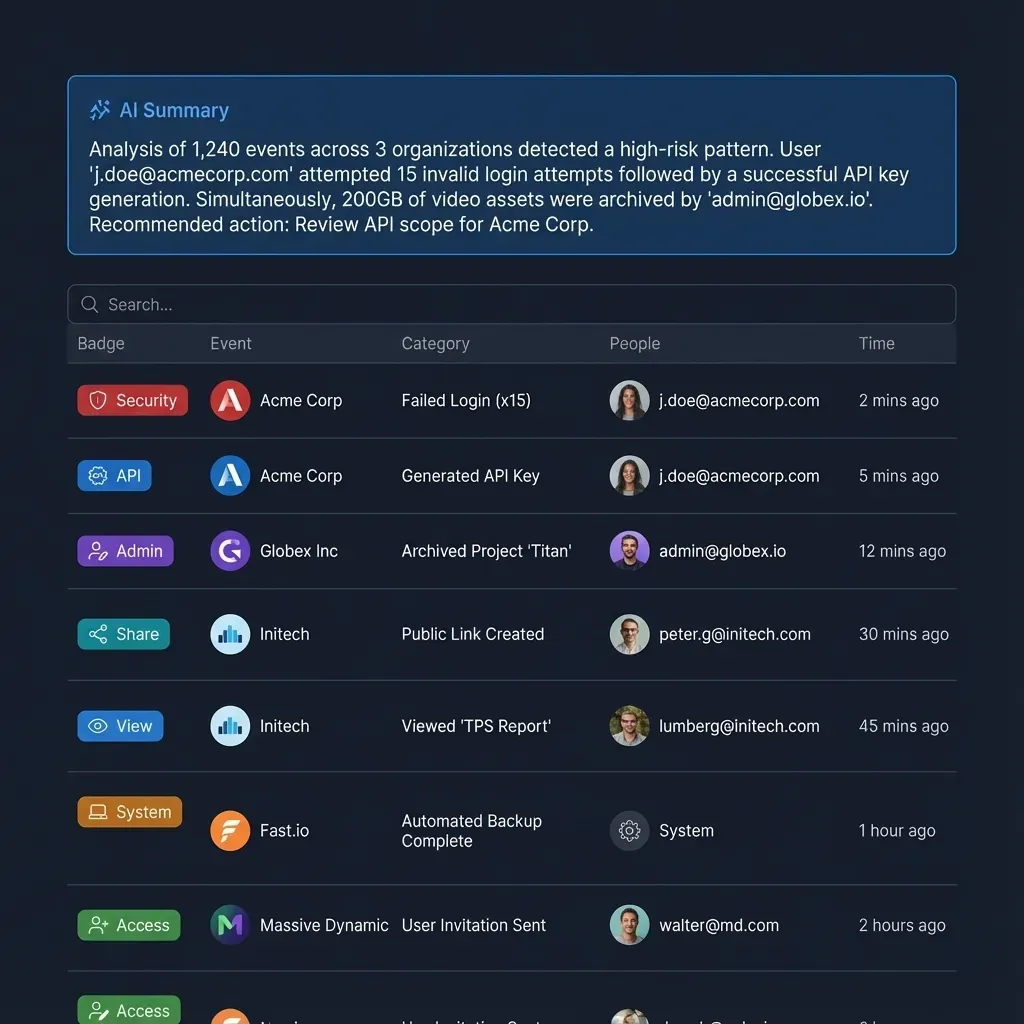
Permissions are only half of the security equation. The other half is visibility. You must be able to verify that your agents are following the rules you set. AI audit logs provide a detailed history of every action an agent takes, including every file view, upload, and modification.
In a professional environment, your audit logs should track:
- Authentication Events: When and where the agent logged in.
- File Access: Exactly which files were read and when.
- Metadata Changes: Any edits to file tags, descriptions, or names.
- Permission Escalations: Any attempts by the agent to change its own access or invite others.
Fast.io's AI-native audit logs allow humans to review agent behavior in real-time. If an agent starts accessing files it shouldn't, or if it begins deleting data at an unusual rate, you can revoke its credentials instantly. This level of oversight is mandatory for any organization deploying autonomous agents at scale.
Human-Agent Collaboration and Ownership Transfer
A unique challenge in agent permissions is the "handoff." What happens when an agent finishes building a project? In many systems, the files are trapped in the agent's account. Fast.io solves this with Ownership Transfer.
An agent can create a workspace, organize a set of deliverables, and then transfer the ownership of that workspace to a human client or team member. The agent can retain admin access to continue its work, but the human becomes the ultimate authority. This ensures that the agent's work becomes a permanent organizational asset rather than a temporary file in a developer's private account.
This model supports a smooth transition from AI-led creation to human-led review. For example, a research agent could gather 500 reports, summarize them, and build a structured data room. Once the human is notified via webhook, they take ownership, review the logs, and finalize the project.
Protecting Against Multi-Agent Conflicts with File Locks
In multi-agent systems, file permissions must also account for concurrency. If two agents have write access to the same document, they might overwrite each other's work, leading to data corruption.
To prevent this, use file locks. Fast.io provides 251 MCP tools that include locking mechanisms. An agent can "acquire" a lock on a file before editing it, signalling to other agents (and humans) that the file is currently being modified. Once the operation is complete, the agent "releases" the lock.
This is a critical part of agent etiquette and security. Without file locks, permissions alone cannot prevent agents from clashing. In an intelligent workspace, these locks are respected by both the API and the UI, ensuring a harmonious environment for teams that combine human expertise with AI speed.
Frequently Asked Questions
How do you restrict AI agent file access?
You restrict AI agent file access by using a combination of dedicated workspaces, granular API scopes, and tool-specific permissions. Use a separate account for each agent and ensure it only has access to the specific folders required for its current task. Fast.io's 251 MCP tools allow you to enable or disable specific operations like deletion or sharing at the protocol level.
What file permissions should AI agents have?
AI agents should follow the principle of least privilege. Most agents only need Read-Only access to context files and Write-Only access to an output directory. Grant Read-Write access only to specific project folders and avoid giving agents administrative permissions unless they are orchestrating other systems.
How do you sandbox AI agent file operations?
To sandbox AI agent operations, create an isolated workspace for each agent. This prevents the agent from seeing or touching any files outside that workspace. In Fast.io, you can use the Free Agent Tier to create separate organizations for your agents, providing a hard boundary between agent data and sensitive team data.
Can AI agents accidentally delete files?
Yes, if granted broad permissions, an AI agent can accidentally delete files due to a prompt injection attack or a logic error. To prevent this, you should disable the 'delete' tool in your MCP configuration or use a Read-Only permission level for the agent's primary source of data.
How does role-based access control (RBAC) work for agents?
RBAC for agents works by assigning each agent a specific role, such as 'Researcher' or 'Editor,' with a predefined set of permissions. Instead of managing permissions for each agent individually, you manage the roles. When an agent joins a workspace, it inherits the permissions of its assigned role, making security management at scale much simpler.
Related Resources

Give Your AI Agents Persistent Storage
Get 50GB of free, isolated storage for your AI agents. No credit card required. Start building secure, sandboxed workspaces in seconds.