How to Build a Client Portal in WordPress
A WordPress client portal is a password-protected area on your WordPress site where clients access shared files, project updates, and deliverables. This guide walks through the plugin approach, compares it with external portal services, and covers the security tradeoffs most guides skip.

What Is a WordPress Client Portal?
A WordPress client portal is a restricted section of your WordPress site where clients log in to access files, review project status, and communicate with your team. Instead of sending attachments through email or sharing Google Drive links, you give each client a dedicated login with access only to their files.
WordPress powers roughly 43% of all websites, which makes it a natural starting point for businesses that already run their site on WP. The idea is appealing: keep everything in one system, avoid paying for another platform, and use familiar tools.
In practice, building a client portal in WordPress means choosing between two approaches:
- Plugin-based portals: Install a WordPress plugin that adds login pages, file areas, and client dashboards directly inside your WP install
- External portal services: Use a dedicated portal platform and connect it to your WordPress site through an embed, link, or SSO bridge
Both work. But they carry different costs, security profiles, and maintenance burdens. Most guides only cover the plugin route, so this article covers both and helps you decide which fits your situation.
Helpful references: Fast.io Workspaces, Fast.io Collaboration, and Fast.io AI.
Top WordPress Client Portal Plugins
Client portal plugins for WordPress range from lightweight file-sharing add-ons to full CRM suites. Here are the most established options, based on active installs and review history in the WordPress plugin directory.
WP-Client
WP-Client is a dedicated client portal plugin that adds branded login areas, file sharing, invoicing, and project management directly inside WordPress. Clients get their own dashboard with access restricted to their files and conversations. The plugin supports white-label branding, so your agency name appears instead of the plugin's.
Best for: Agencies that want a native WordPress portal without leaving the WP ecosystem.
Key features:
- White-label branded client login
- File sharing with download tracking
- Built-in invoicing and project management
- Custom client dashboards
Pricing: Premium plugin with tiered licensing.
WP Customer Area WP Customer
Area takes a modular approach. The core plugin is free and covers basic private content areas. Add-ons like the conversations module, file attachments, and advanced access controls are sold separately at $30 to published pricing each. This lets you pay only for what you use, but costs add up if you need several features.
Best for: Freelancers or small teams that need a simple, lightweight file-access portal.
Key features:
- Free core with private content areas
- Pay-per-feature add-on model
- Client-specific content restrictions
- File attachment and download modules
Pricing: Free core; add-ons from published pricing each.
SuiteDash
SuiteDash is technically an external
SaaS platform, not a native WordPress plugin. The WordPress "plugin" is actually an SSO bridge that lets clients log in through your WP site and get redirected to SuiteDash's hosted dashboard. Client data lives on SuiteDash's servers, not your WordPress database.
Best for: Businesses that want CRM, invoicing, file sharing, and project management in one platform, with a WordPress login page.
Key features:
- Full CRM with client records
- File sharing, invoicing, e-signatures
- White-label branding and custom domain
- Appointment scheduling and drip campaigns
Pricing: published pricing (Start), published pricing (Thrive), published pricing (Pinnacle).
Project Panorama Project
Panorama focuses on visual project tracking. Clients see progress bars, task lists, and file attachments for each project. It doesn't try to be a CRM or invoicing tool, which makes it focused but limited.
Best for: Teams that primarily need to share project status with clients.
Key features:
- Visual progress dashboards
- Task tracking with file attachments
- Client-facing project snapshots
- Lightweight and focused scope
Pricing: Premium plugin with annual licensing.
Jetpack CRM
Jetpack CRM turns
WordPress into a full customer relationship management system. It includes client records, quotes, invoices, and transaction history. The portal feature is part of a broader CRM, so it's most useful if you want to manage the entire client lifecycle inside WordPress.
Best for: Small businesses that want a CRM-first approach with portal features included.
Client portal plugins in the WordPress directory average around 4.2 stars, though ratings vary widely by plugin. The higher-rated options tend to be those with active development and regular security patches.

Security Risks of WordPress Client Portals
WordPress itself is reasonably secure when properly maintained. The problems start when you add plugins that handle sensitive client data.
Every plugin expands your attack surface
Each
WordPress plugin is a separate codebase maintained by a separate team. A client portal plugin that handles file uploads, user authentication, and payment data introduces multiple points where security vulnerabilities can appear. In 2025, SiteGuarding documented authentication bypass vulnerabilities in popular WordPress plugins that could grant attackers full admin access.
For a client portal holding contracts, invoices, or confidential project files, a single plugin vulnerability could expose all client data simultaneously.
Abandoned plugins stop getting patches
The WordPress plugin ecosystem has a maintenance problem. Developers abandon plugins, move to new projects, or stop issuing security updates. If your client portal plugin loses active development, you're left with unpatched code handling client authentication and file access. There's no warning when this happens. The plugin keeps working, it just stops getting security fixes.
You own the infrastructure
With a plugin-based portal, you're responsible for:
- WordPress core updates
- Plugin updates (portal plugin plus every other plugin on the site)
- Theme compatibility after updates
- Server security, backups, and uptime
- PHP version management
- Database security for client data
This isn't necessarily a dealbreaker, but it's a cost that most "how to build a client portal" guides don't mention. Every update cycle carries the risk of plugin conflicts that break your portal, and you need to test before deploying updates to a system your clients depend on.
Plugin conflicts are common
WordPress sites typically run 20 to 30 plugins. A client portal plugin needs to coexist with your security plugin, caching plugin, page builder, contact forms, and everything else. Plugin conflicts cause broken login pages, missing file uploads, and intermittent errors that are difficult to diagnose. The more plugins you add, the more likely you are to hit compatibility issues after an update.


Skip the plugin maintenance and give clients a portal that works
Fast.io Content Portals are branded, secure, and take minutes to set up. 50 GB free storage, no credit card, no WordPress plugin conflicts. Built for client portal wordpress workflows.
The External Portal Alternative
The security and maintenance concerns above are why a growing number of agencies skip the WordPress plugin approach entirely. Instead, they use a dedicated portal platform and link to it from their WordPress site.
The setup is straightforward. You sign up for a portal service, brand it with your logo and colors, upload client files, and add a "Client Portal" link in your WordPress navigation that points to the external platform. Clients click the link, land on your branded portal, and access their files without ever touching your WordPress install.
What you gain Security becomes the vendor's responsibility. The portal platform handles authentication, file storage, encryption, and security patches. You don't need to worry about WordPress plugin vulnerabilities exposing client data.
No plugin conflicts. The portal runs on its own infrastructure. WordPress updates, theme changes, and other plugin updates can't break your client portal.
Purpose-built features. Dedicated portal platforms are built from the ground up for client file sharing. They typically offer better file handling, more granular permissions, and features like video streaming and AI-powered search that WordPress plugins can't match.
Scales without affecting your site. A hundred clients uploading files to your WordPress server can slow down your public website. An external portal keeps that load separate.
What you give up
Two systems to manage. Your website and your portal are separate platforms. You'll have two logins, two billing relationships, and two sets of settings.
Less WordPress integration. If you want the portal to feel like a smooth part of your WordPress site, an external service requires more design work to match the look and feel.
Cost. Some external portal services charge $50 to published pricing or more, while a WordPress plugin might cost $50 to $200 for a one-time license.
For most agencies and service businesses, the tradeoff favors the external approach. The security and maintenance savings outweigh the cost of a separate platform, especially once you're managing more than a handful of clients.
5 Steps to Set Up a Client Portal in WordPress
Whether you choose the plugin route or an external service, here's the practical setup process.
Step 1. Define your portal requirements
Before installing anything, list what your clients actually need:
- File downloads (deliverables, reports, assets)
- File uploads (source materials, feedback, approvals)
- Project status visibility
- Invoicing or payment processing
- Messaging or comments
Most businesses start with file sharing and add features later. Don't over-build on day one.
Step 2. Choose your approach
Pick one of three paths based on your requirements and technical comfort:
Plugin-only: Install WP-Client, WP Customer Area, or similar. Everything runs inside WordPress. Best if you have a simple portal need and strong WordPress admin skills.
Hybrid (SaaS with WP bridge): Use SuiteDash or Clinked with their WordPress SSO plugin. Clients log in through your WP site but access the portal on the vendor's infrastructure. Best if you want the appearance of a WordPress-native portal with external hosting.
External with link: Use a dedicated platform like Fast.io, Clinked, or another portal service. Add a navigation link in WordPress that points to your branded portal. Best if you want the cleanest separation of concerns and least maintenance burden.
Step 3. Configure branding and permissions
Whichever approach you choose, set up branding first:
- Upload your logo and set brand colors
- Configure a custom domain or subdomain if the platform supports it
- Create folder structures that match your client organization
- Set up permission levels so each client sees only their files
For plugin-based portals, create a WordPress user role for clients with restricted access. Don't give clients the default "Subscriber" role and try to restrict it later. Start with minimal permissions and add access as needed.
Step 4. Test with a real client scenario
Before inviting clients, run through the complete workflow yourself:
- Log in as a test client and verify you can only see that client's files
- Upload a file and confirm the client account can download it
- Test on mobile, since many clients check portals from their phone
- Verify that email notifications trigger correctly
- Check that the portal login works after clearing your browser cache
Common issues at this stage include cached login redirects, missing file permissions, and broken mobile layouts. Fix these before going live.
Step 5. Onboard your first clients
Start with two or three clients before rolling out broadly. Send each client:
- A direct login link (not instructions to find it on your website)
- A brief walkthrough of where to find their files
- Contact information for portal issues
Gather feedback from these first clients. They'll tell you what's confusing, what's missing, and what works well. Adjust before scaling to your full client list.
Using Fast.io as Your WordPress Client Portal
Fast.io is a workspace platform built for file sharing and client collaboration. It works well as an external portal connected to a WordPress site because it handles the parts that WordPress plugins struggle with.
Setting it up with WordPress: Create a Fast.io account, set up a branded Content Portal with your logo, colors, and background image, then add a "Client Portal" link in your WordPress menu pointing to your portal URL. Clients click through and land on a fully branded experience.
What makes it practical for client portals:
- Branded Content Portals with custom logos, colors, backgrounds, and vanity URLs. Clients see your brand, not Fast.io's
- Guest access without accounts. Clients access portals through auto-expiring links. No signup required, no password to remember
- Portal AI (Ripley) answers client questions about shared documents directly inside the portal. Instead of emailing you to ask where something is, clients can search and ask questions about their files
- File versioning keeps every revision available. Clients always see the latest deliverable, but previous versions stay accessible
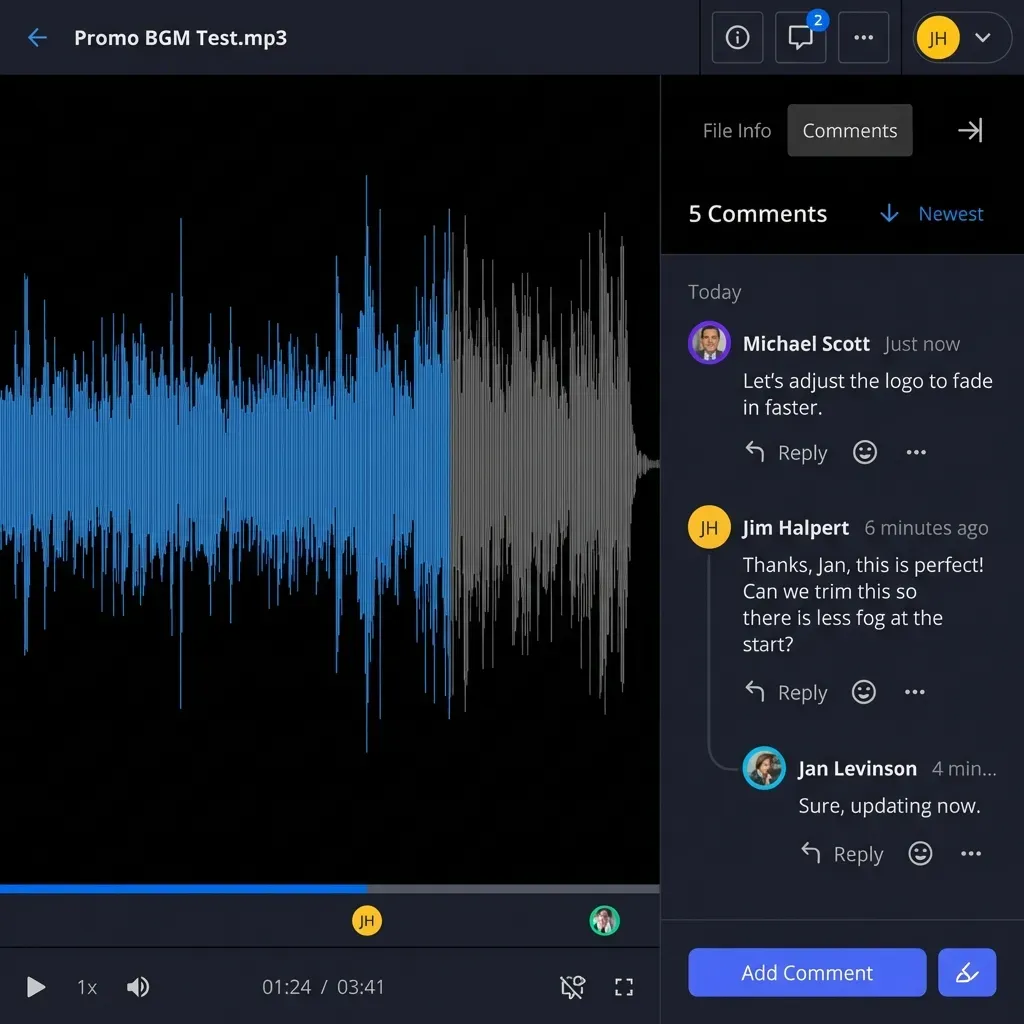
- Audit trails track who viewed, downloaded, or commented on every file. Useful for compliance and for knowing which clients actually reviewed their deliverables
- Receive and Exchange workflows let clients upload files back to you through the portal, replacing the "email me the assets" workflow
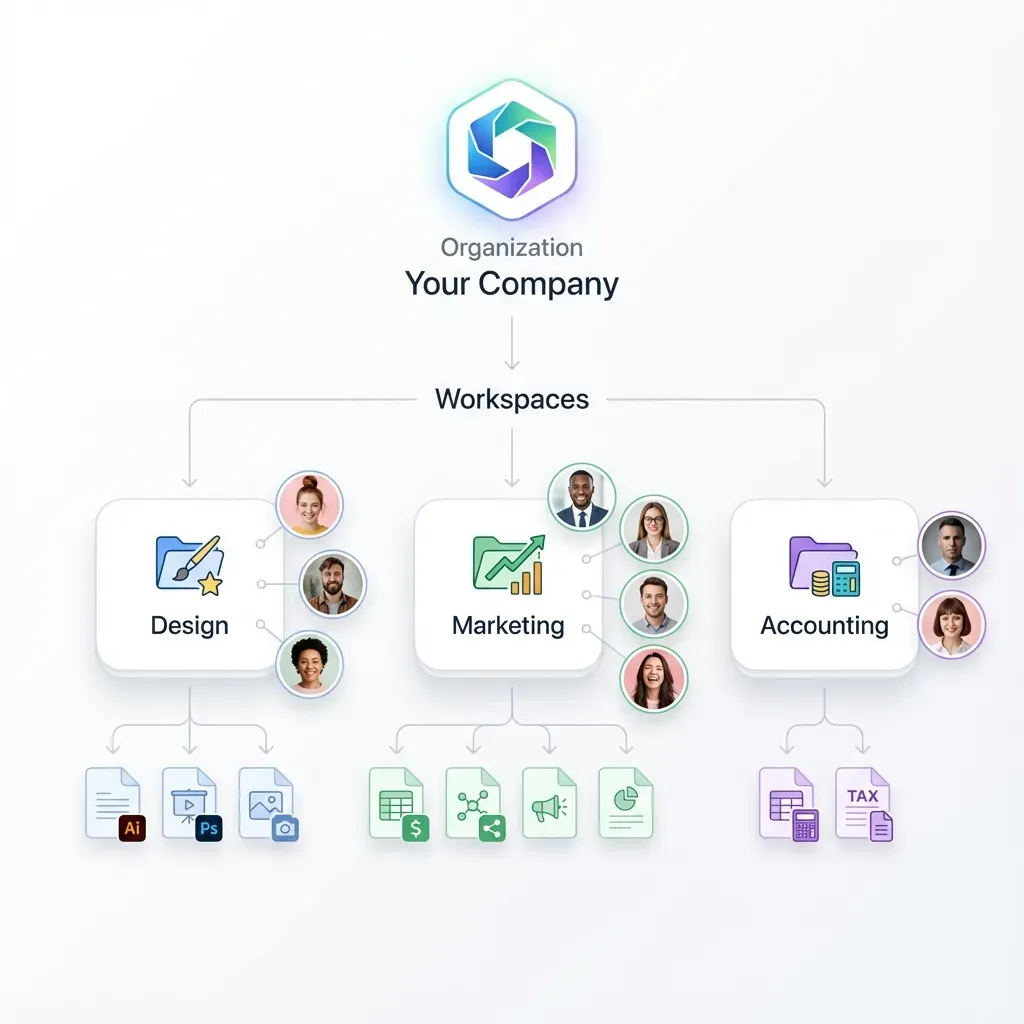
- Granular permissions at the organization, workspace, folder, and file level. Different clients see different files, and different stakeholders within the same client can have different access
The free plan includes 50 GB of storage, 5 workspaces, and 50 shares with no credit card required. That's enough to run portals for several clients before deciding whether it fits your workflow.
If you're building portals at scale, agents can create and configure workspaces through the Fast.io API or MCP server, then transfer ownership to a human team member when setup is complete.
Frequently Asked Questions
Can you build a client portal in WordPress?
Yes. You can install a client portal plugin like WP-Client or WP Customer Area that adds password-protected client areas directly inside WordPress. You can also use an external portal service and link to it from your WordPress site. The plugin approach keeps everything in WordPress but adds maintenance and security overhead. The external approach is cleaner but means managing two platforms.
What is the best WordPress client portal plugin?
WP-Client is the most full-featured native WordPress client portal plugin, with branded logins, file sharing, invoicing, and project management built in. WP Customer Area is a good lightweight alternative with a free core and paid add-ons. SuiteDash offers the most features overall but technically runs as an external service with a WordPress login bridge, not a true WordPress plugin.
Is WordPress secure enough for a client portal?
WordPress core is reasonably secure, but client portal plugins introduce additional risk. Each plugin is a separate codebase that needs its own security patches, and abandoned plugins stop receiving updates. If your portal handles sensitive files like contracts, financial documents, or confidential project work, consider whether an external portal service with dedicated security infrastructure might be a better fit.
How much does a WordPress client portal cost?
WordPress client portal plugins range from free (WP Customer Area core) to $200 or more for premium licenses. External SaaS portals like SuiteDash start at published pricing. Factor in the hidden costs of the plugin approach, including time spent on updates, troubleshooting conflicts, and managing server security. External services shift that maintenance burden to the vendor.
Can I use an external portal service with WordPress?
Yes. Add a "Client Portal" link in your WordPress navigation that points to your external portal URL. Services like Fast.io let you brand the portal with your logo and colors so it feels consistent with your WordPress site. Clients click through from your site and land on the portal without needing to know it's a separate platform.
Related Resources

Skip the plugin maintenance and give clients a portal that works
Fast.io Content Portals are branded, secure, and take minutes to set up. 50 GB free storage, no credit card, no WordPress plugin conflicts. Built for client portal wordpress workflows.