How to Work Around Claude's File Upload Limits
Claude.ai caps file uploads at 30MB per file and 20 files per conversation. This guide breaks down the exact limits for each file type, explains why you hit "context overflow" errors even with small files, and covers three practical workarounds: Claude Projects, file splitting, and external storage with MCP.

Claude's file upload limits at a glance
Claude.ai caps files at 30MB each in the chat interface. You can attach up to 20 files per conversation, and images max out at 8,000 x 8,000 pixels. Full breakdown by access method:
- Claude.ai chat: 30MB per file, 20 files per conversation
- Claude Projects (Pro/Team): 30MB per file, unlimited files in the project knowledge base
- Files API (developer beta): Up to 500MB per file, stored server-side and referenced by ID
- Images: JPEG, PNG, GIF, WebP up to 30MB and 8,000 x 8,000 pixels
- PDFs: Under 100 pages for full visual analysis (text + charts + images)
These limits apply across all Claude models, including Claude Sonnet 4.6, Claude Opus 4.6, and Claude Haiku 4.5. If you need to work with larger files or more documents, see Storage for AI Agents for a workaround that removes these limits entirely, or check out the Claude-specific setup guide to connect Claude to external cloud storage via MCP.
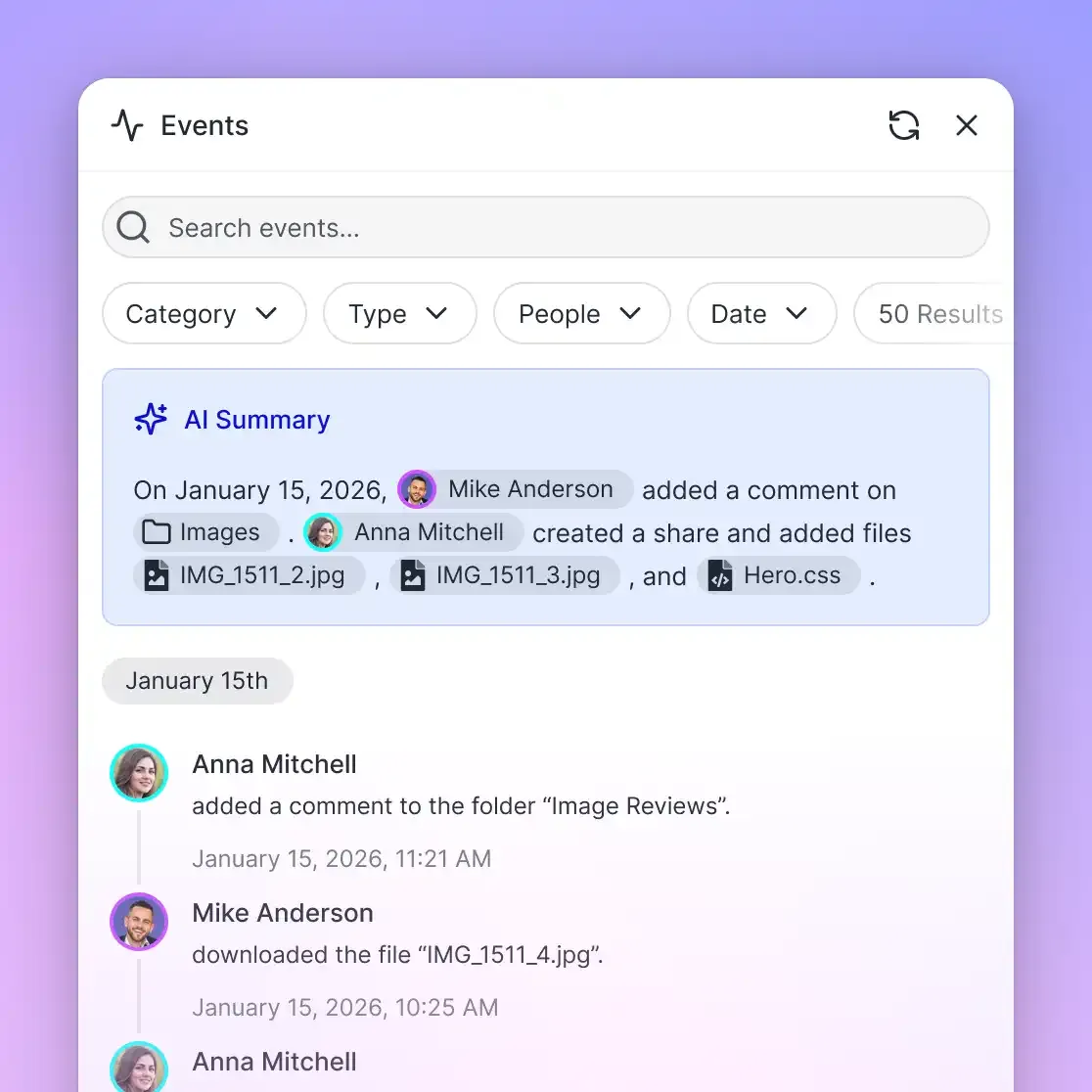


Stop hitting Claude's file size cap
Fast.io gives Claude direct access to your files via MCP — no upload size limits, no re-uploading between sessions, and built-in RAG indexing. Free tier includes 50GB storage and no credit card.
Supported file types
Claude accepts 10 document formats and 4 image formats. Here's the full list to save you a failed upload.
Documents:
- PDF (.pdf), including scanned documents with OCR
- Microsoft Word (.docx)
- Excel spreadsheets (.xlsx)
- CSV (.csv)
- Plain text (.txt)
- Markdown (.md)
- HTML (.html)
- OpenDocument Text (.odt)
- Rich Text Format (.rtf)
- EPUB (.epub)
- JSON (.json)
Images:
- JPEG (.jpg, .jpeg)
- PNG (.png)
- GIF (.gif)
- WebP (.webp)
Code files (.py, .js, .ts, .html, .css, and similar) are treated as plain text and fall under the same 30MB limit. One practical tip: if you have an Excel file with multiple sheets, converting it to CSV before uploading usually gives Claude better results. CSV strips out formatting overhead and reduces token consumption, so you get more useful analysis per file.
Why you get context overflow errors
The 30MB limit is just the first gate. Even if every file is under 30MB, you can still hit errors because of how Claude processes text internally. Claude converts every uploaded file into tokens. A dense 5MB PDF full of text can generate more tokens than a 20MB PDF packed with images. The model's context window holds roughly 200,000 tokens (about 150,000 words), and that space gets shared between your uploaded files, your conversation history, and the model's responses. When you exceed this window, Claude drops the oldest information to make room. You'll notice this when the AI "forgets" details from files you uploaded earlier in the conversation. This is context overflow, and it's the real bottleneck for anyone working with large document sets. The math: if you upload five 25MB text-heavy PDFs, the combined token count could easily exceed 200,000 tokens. Claude will process the request, but it silently loses access to the earlier files.
Workaround 1: Claude Projects for persistent files
If you're on Claude's Pro or Team plan, Projects let you build a persistent knowledge base. Files stay available across multiple conversations without re-uploading. The 30MB per-file limit still applies, but you can have far more than 20 files in a single Project. One thing to understand: Claude only pulls relevant sections from Project files into its context window at query time. It can't read the entire knowledge base at once.
Projects work well for reference documentation you query repeatedly, code repositories with many small files, and research papers you want to cross-reference. They don't help with files larger than 30MB, datasets that need to be analyzed as a whole, or binary files like video and audio.
Workaround 2: Split and compress before uploading
For files that exceed 30MB, the simplest fix is to break them into smaller pieces before uploading.
PDFs: Use Smallpdf or Adobe Acrobat to split by page range. Upload the sections across separate messages or add them to a Project.
CSV and JSON: Split by row count. A 50MB CSV with 500,000 rows becomes two 25MB files of 250,000 rows each. Python's pandas library handles this in a few lines:
import pandas as pd
df = pd.read_csv("large_file.csv")
df.iloc[:250000].to_csv("part1.csv", index=False)
df.iloc[250000:].to_csv("part2.csv", index=False)
Images: Compress before uploading. Claude's vision capabilities work fine at 1080p. Downscaling a 4K image from 15MB to 2MB rarely affects analysis quality. This approach works for occasional large files, but gets tedious if you're regularly dealing with document bundles above the limit.
Workaround 3: Use external storage with MCP
For a more permanent solution, keep your files in external cloud storage and let Claude access them through the Model Context Protocol (MCP). Instead of uploading files into the chat, you store them on a remote platform and give Claude direct read access via MCP tools. The model pulls only the text it needs at query time, which removes the file size cap and the 20-file limit entirely.
Cloud storage options that work for this pattern:
- AWS S3 + MCP — Flexible, durable, widely supported. Requires AWS account and credentials setup. Multiple MCP servers exist for S3 access.
- Google Drive — Easy to set up. Claude can access Drive files via MCP with the right server configured.
- Fast.io — Storage built specifically for AI agent workflows. Files up to 1GB on the free agent tier, 251 MCP tools, Intelligence Mode for automatic RAG indexing.
How to set up Fast.io for this:
- Create a free agent account on Fast.io (50GB storage, no credit card)
- Upload your files to a workspace and enable Intelligence Mode for automatic RAG indexing
- Connect Claude to the Fast.io MCP server (supports Streamable HTTP and SSE)
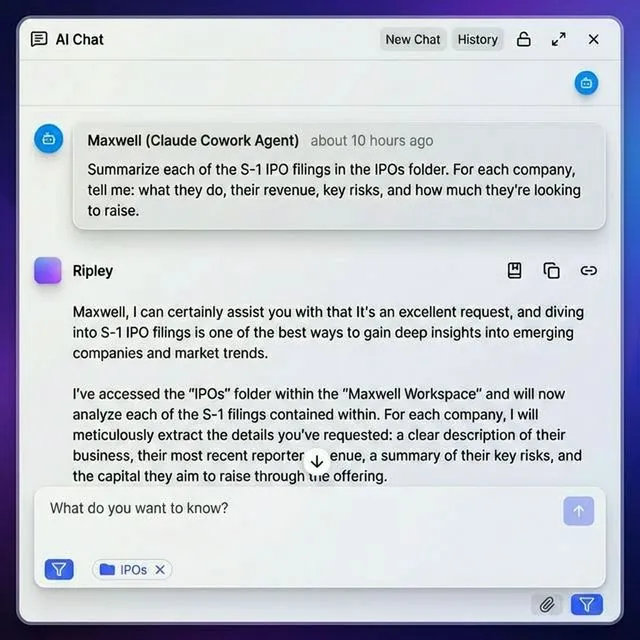
- Ask Claude questions about your files — the MCP integration handles retrieval, and Intelligence Mode returns answers with source citations
Any MCP-compatible model can query the same files, so the same setup works with GPT-4, Gemini, or other models that support MCP.
Which workaround should you use?
Use Claude Projects if you have many small files (under 30MB each) that you query repeatedly and you're already on a Pro or Team plan. No extra setup required.
Use file splitting if you occasionally need to analyze a single large file that can be logically divided — a multi-chapter PDF, a big CSV — and you'd rather not set up additional infrastructure.
Use external storage with MCP if you regularly work with files over 30MB, need a persistent knowledge base across sessions, want the same files to work with multiple AI models, or are building agents that need programmatic file access.
For most developers doing serious document work, external storage ends up being the right answer. It removes the upload bottleneck and adds semantic search capabilities that Claude's native file handling doesn't have.
Frequently Asked Questions
What is the file size limit for Claude Sonnet?
Claude Sonnet 4.6 has the same 30MB per-file limit as all other Claude models on the web interface. You can upload up to 20 files per conversation. For larger files, use the Files API (up to 500MB) or host files externally and access them through MCP.
How do I upload large files to Claude?
You have three options. First, split the file into chunks under 30MB and upload them separately. Second, use Claude Projects to build a persistent knowledge base of smaller files. Third, store files on an external platform like Fast.io and connect Claude via MCP for direct access without size restrictions.
Why is my file too big for Claude?
Claude's web interface rejects any file over 30MB. If your file is under 30MB but still causes errors, the issue is likely context overflow. Claude's 200,000-token context window is shared between your files and conversation, so multiple text-heavy files can exceed this limit even if each individual file is small.
Can Claude read Excel files?
Yes, Claude supports .xlsx files up to 30MB. For better results with data analysis, convert Excel files to CSV format first. CSV files use fewer tokens because they strip out formatting, formulas, and embedded objects, giving Claude more room to process the actual data.
Related Resources

Stop hitting Claude's file size cap
Fast.io gives Claude direct access to your files via MCP — no upload size limits, no re-uploading between sessions, and built-in RAG indexing. Free tier includes 50GB storage and no credit card.