How to Automate Document Analysis with Claude Cowork
Document analysis in Claude Cowork uses your shared workspace to let agents autonomously extract, summarize, and organize data. This guide covers how to set up an automated pipeline while keeping humans in control. Whether you need to pull indemnification terms from legal contracts or compile quarterly data from financial reports, moving the AI agent directly into your file system means your team and your language models work in the same place.

What is agentic document analysis?
Traditional document analysis involves reading through files to manually extract information. Adding AI agents means letting models like Claude handle this work directly inside your file system. You no longer have to copy and paste chunks of text into an isolated chat window. You can point an autonomous agent at a specific folder and tell it what to look for when new files arrive.
Consider analyzing twenty financial reports. Normally, an analyst opens each file, finds the right tables, extracts numbers into a spreadsheet, and writes a short summary. With Claude Cowork, the agent performs these steps in the background. It reads the files, pulls the required data points, and saves a formatted summary right next to the originals.
The biggest change is removing the copy-paste process. Claude handles long documents and understands both the text and the visual layout because of its multimodal capabilities. Legal, financial, and compliance teams can skip the manual extraction phase. They can review the final summaries instead of building them from scratch.
This approach moves away from "chatting with an AI" to managing an AI coworker. The agent becomes a functional part of the team that handles unstructured data processing. This setup lets human experts focus on strategy, review, and making decisions based on the extracted data.
Helpful references: Fast.io Workspaces, Fast.io Collaboration, and Fast.io AI.
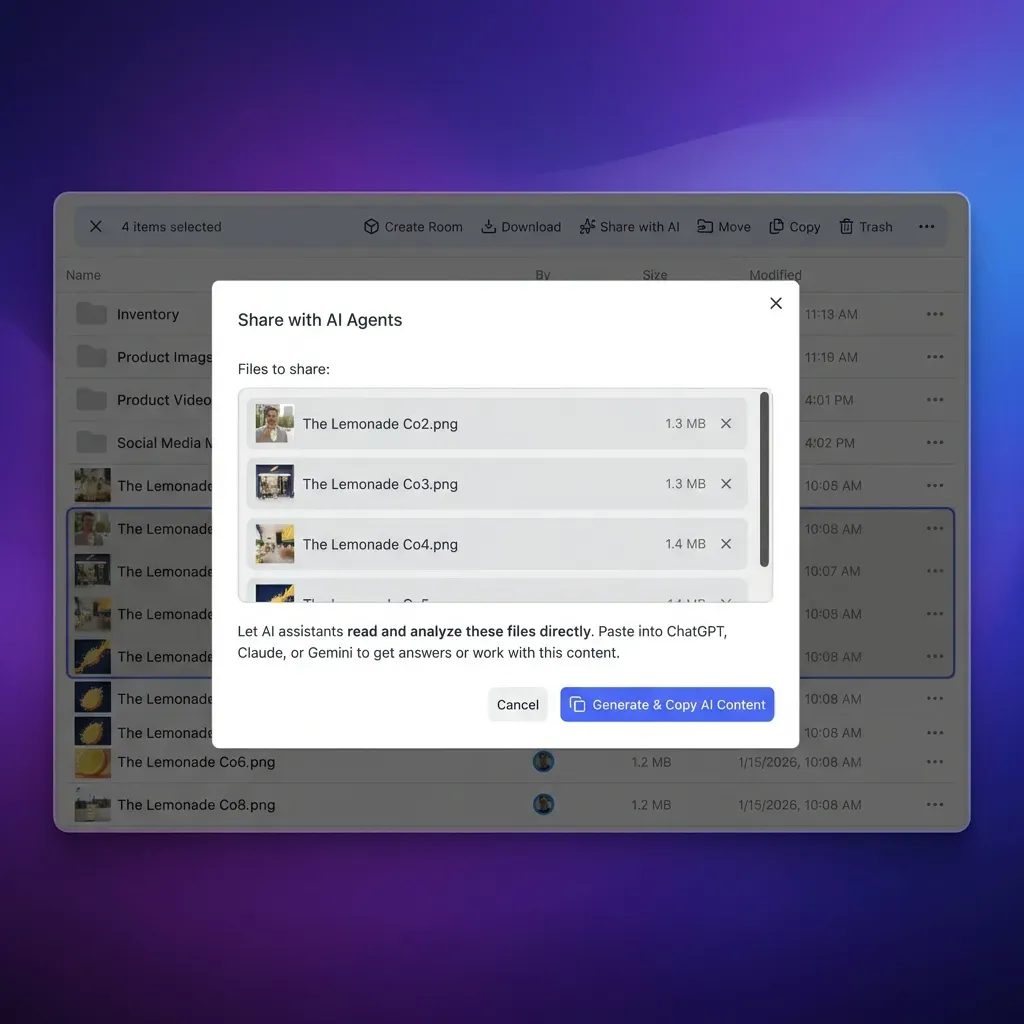
Why move agents into the workspace?
Most organizations still use isolated chat windows for AI. That approach traps your work in a private conversation history that nobody else on your team can see or verify. We built Claude Cowork so the analysis happens in a shared folder, right where your team already manages their daily work.
When an agent runs natively in a workspace, you can monitor what it is doing at all times. If Claude is pulling liability clauses from fifty vendor agreements, you watch the summary document update in real time. If the agent misinterprets a specific legal term, you can stop the process, refine the prompt instructions, and restart without losing the work it already finished.
Standalone chatbots do not allow for this type of shared review. Bringing the agent directly into Fast.io means it operates like another junior team member. You can check the audit log, verify its exact document citations, and ensure it handles sensitive internal data properly. We also give the agents 251 Model Context Protocol (MCP) tools for file operations, allowing them to move, read, write, and organize files without human intervention.


Automate your document analysis
Connect Claude Cowork to your shared workspaces. Let agents process files while your team maintains oversight. Built for secure claude cowork document analysis workflows.
Setting up your analysis pipeline
You do not need to write Python scripts to automate document analysis, but you do need to organize your workspace folders carefully. Structuring the environment well makes the difference between a reliable pipeline and a messy file system. Here is a four-step process for setting up automated document analysis.
1. Isolate the input files Create a dedicated workspace or folder just for the raw, unprocessed files. You do not want an autonomous agent digging through unrelated project folders or drafting documents. Set the directory permissions so your team or your clients can drop files in freely. Ensure the agent only has read access to these source documents, which prevents accidental deletion of original data.
2. Write specific extraction instructions Tell Claude exactly what you want it to do. Do not just use a vague prompt like "summarize this contract." Instead, instruct the agent to extract the effective date, the termination clause, the governing law, and the liability limits from every PDF placed in the folder. Provide the agent with a template, such as a Markdown table or a JSON schema, so the output formatting stays consistent across hundreds of documents.
3. Separate the output directory Make a different folder for the agent's results. Tell the agent to write its summaries, extraction tables, and spreadsheets only to this destination. Mixing raw source files and processed AI outputs in the same directory becomes confusing. It makes it hard for reviewers to know what needs their attention.
4. Require human review and validation An expert still needs to verify the agent's work. We use the native file lock feature to manage this collaboration safely. When a human reviewer opens the agent's output document to check the facts, Fast.io automatically locks the file. The agent waits until the human is finished before making new changes or adding extractions. This prevents the AI from overwriting manual corrections and ensures the final document is accurate.
Processing complex legal and financial files
Long and structurally complex documents often break simple text extraction tools. Claude handles them better because its large context window allows it to read hundreds of pages at once without losing the thread. If you feed the agent a quarterly earnings report, it can check the raw balance sheet numbers against the management discussion section to find mismatches or conflicting statements.
Legal contracts are difficult to parse because of heavily nested clauses. Critical terms might be defined fifty pages away from where they are actually used. Claude tracks these cross-references naturally and maintains the context of defined terms throughout the entire document. During due diligence, this means the agent is less likely to miss an exception just because it was buried in an appendix.
On the finance and accounting side, agents do a good job turning messy receipts, tax forms, and unstructured invoices into clean, standardized CSV files. Because the agent has direct file system access through its MCP tools, it creates the spreadsheet and saves it to the shared team folder. The accounting team can open the organized file and start working, skipping manual data entry.
If you want better accuracy on technical or proprietary documents, drop your company's internal glossary or style guide into the workspace. The agent reads the reference material and matches your internal terminology. This helps the output align with your corporate standards.
Advanced Data Extraction Workflows
Once you have the basic pipeline running, you can start building multi-step extraction workflows. For example, some teams use multiple agents coordinating within the same workspace. The first agent acts as a dispatcher. It reads incoming files, classifies them as NDAs, employment agreements, or vendor contracts, and then moves the files into specific subfolders.
A specialized agent then takes over. If the file is placed in the vendor contract folder, this agent runs a prompt designed only for vendor agreements to extract pricing tiers and SLA commitments. This modular approach keeps prompts focused and reduces the chance of hallucination compared to using one large instruction set for every document type.
You can also use webhooks to trigger these workflows instantly. Instead of the agent polling the folder every hour, a Fast.io webhook can notify the agent the moment a new file finishes uploading. This reactive architecture means your document analysis happens faster, delivering insights when your team needs them without constantly polling the system.
Searching with Intelligence Mode
Fast.io workspaces include built-in file indexing. If you turn on Intelligence Mode for a workspace, we automatically parse and index the files you upload. You do not have to build a vector database, manage chunking strategies, or wire up a custom RAG pipeline yourself.
This lets Claude search your repository by semantic meaning instead of just exact keyword matches. You can instruct the agent to find contracts in the archive that require non-standard indemnification or contain unfavorable termination clauses. The agent queries the index, pulls the relevant files, and grabs the contextual text you need to make a decision.
The semantic index supports complex PDFs, Word files, Markdown, and plain text. It stays current without manual updates. If a team member drops a newly revised contract into the folder, the index updates in the background. The agent works from the most recent information instead of outdated document versions.
Many enterprise teams use this capability for legacy data migration. Rather than paying analysts to spend weeks sorting through years of disorganized archives, they move the old files into an intelligent workspace and let the agent categorize, tag, and organize them based on what the documents contain.
Handling file conflicts and edge cases
Agentic workflows can run into issues when you do not plan for edge cases. Having human experts and AI models editing the same files requires some basic traffic control.
The most common problem is an agent accidentally overwriting human edits because both tried to save a file at the same time. Fast.io's file locks solve this synchronization issue. If you open a document to fix a mistake, the system locks the file. The agent pauses its background work and waits for you to finish before it writes new extractions.
Poor quality source files present another frequent issue. If you upload a compressed or poorly scanned legacy PDF, Claude might struggle to read the text. It could skip sections if the contrast is too low. If you notice agents failing on specific types of scanned files, try running those documents through a dedicated OCR tool before adding them to the input workspace.
When automation pipelines fail, you can check the workspace audit logs. These logs show the files the agent touched, when it moved them, and where permission or read errors occurred. This visibility is helpful if you want to trust the system to run without constant supervision.
What the Metrics Show: Document Processing Benchmarks
When organizations move document analysis out of isolated chat interfaces and into workspaces, the time savings become measurable. According to industry analysis from Anthropic, modern language models like Claude can process complex documents with its advanced multimodal capabilities, reducing the time required to review dense materials.
In a typical enterprise deployment, an agentic workflow handles manual data entry and repetitive copy-pasting. For example, instead of a paralegal spending ten minutes locating and extracting indemnity clauses from a vendor agreement, the agent performs this task across fifty documents simultaneously. The human role shifts from raw extraction to high-level verification.
Because Fast.io provides 251 Model Context Protocol (MCP) tools for file operations, the agent interacts with the file system exactly as a human would. It reads the source PDF, compiles the findings, and writes a finalized CSV or Markdown report to the designated output folder. This direct integration removes the need to move data between applications, ensuring that the final workflow reflects a parallel process.
Frequently Asked Questions
Can Claude analyze multiple documents at once?
Yes. If you tell the agent to read a folder, it processes the files together. It can cross-reference data between documents and write a single summary covering everything it found in the workspace.
How do you build a document analysis agent?
You need a shared workspace with separate input and output folders. Give the agent exact instructions on what to extract. Using tools like OpenClaw connects the agent directly to your file system without extra custom coding.
Are agents safe for confidential legal files?
Yes, as long as you use an access-controlled workspace. Fast.io restricts file access with standard enterprise permissions and logs every action the agent takes, so you know who or what viewed your data.
Which file formats work best for agent analysis?
Claude Cowork handles PDFs, Word documents, Excel spreadsheets, plain text, and markdown files natively. Make sure any scanned images or legacy documents are clear enough for standard OCR to read the text.
What happens if an agent makes a mistake during extraction?
Because the agent works in a shared folder, human reviewers can see the output immediately. You can correct the mistake directly in the output file. Fast.io's file locks ensure the agent will not overwrite your corrections while you edit.
Related Resources

Automate your document analysis
Connect Claude Cowork to your shared workspaces. Let agents process files while your team maintains oversight. Built for secure claude cowork document analysis workflows.