How to Build Effective Workspace Collaboration for Your Team
Workspace collaboration refers to shared digital environments where teams can organize, access, and work on files and projects together. This guide covers how to structure workspaces, choose the right tools, and avoid the common mistakes that turn shared storage into disorganized chaos.
What Is Workspace Collaboration?
Workspace collaboration is the practice of using shared digital environments where team members can organize, access, and work on files together. Unlike personal cloud storage where everyone maintains their own folder structure, collaborative workspaces establish a common system that the whole team uses. The difference matters. When files live in personal accounts, you get:
- Siloed information: Only the owner knows where things are
- Access friction: Every file needs manual sharing
- Departure chaos: Files leave when employees do
- Version confusion: Multiple copies across accounts
Shared workspaces flip this model. Files belong to the team or organization, not individuals. New members can browse and find what they need. When someone leaves, their work stays accessible. Teams using shared workspaces spend less time searching for files compared to teams relying on personal storage accounts. That time savings compounds. If your team has ten people and each saves an hour per week on file hunting, you're recovering hundreds of hours annually.
Helpful references: Fast.io Workspaces, Fast.io Collaboration, and Fast.io AI.
Why Traditional Folder Sharing Falls Short
Most teams start with what they know: creating a folder in Dropbox or Google Drive and sharing it with colleagues. This approach hits limitations quickly.
The "My Drive" Problem
Personal cloud storage was designed for individuals. When you share a folder, it appears in two places: your drive and theirs. Each person can move, rename, or reorganize files. There's no single source of truth. Google Drive calls this "My Drive" chaos. You've experienced it if you've ever:
- Searched for a file someone "shared" but can't find
- Discovered three versions of the same document with different names
- Lost access to files when a colleague left the company
- Wasted a meeting asking "are you looking at the same version I am?"
Sync Conflicts
Sync-based tools like
Dropbox create local copies of files on each user's computer. When two people edit the same file, conflicts arise. The system creates duplicate files with conflict markers. Someone has to manually reconcile the differences. For large files like video projects or design files, sync also consumes local storage. Large project folders consume significant local storage on every team member's computer, whether they need those files or not.
Permission Sprawl
Traditional sharing means managing permissions file by file or folder by folder. Over time, access becomes unpredictable. You end up with:
- Folders shared with people who left years ago
- Sensitive files accessible to the wrong groups
- No clear audit trail of who has access to what
This isn't a technology problem you can solve with better organization. The underlying model, personal storage with ad-hoc sharing, doesn't match how teams actually work.
How Effective Workspace Collaboration Works
Modern collaborative workspace tools use a different model: organization-first architecture where the team or company owns the storage, and individual users get access to relevant parts.
Organization-Owned Files
Files belong to the organization, not individual users. This single change eliminates most folder-sharing headaches:
- Onboarding: New team members access existing workspaces immediately
- Offboarding: Files stay when employees leave. No transfer needed
- Discovery: Browse open projects without requesting access
- Centralization: One source of truth, not scattered copies
Workspace Structure
Effective collaboration platforms organize files into workspaces (sometimes called channels, teams, or projects). Each workspace has:
- Defined scope: One project, one client, one department
- Clear ownership: Someone responsible for organization
- Appropriate access: Public to the org, or private with invitations
- Activity history: Timeline of uploads, edits, and comments
The key difference from folders: workspaces are entities you join, not just containers you peek into. When you're part of a workspace, you see activity, get notifications, and understand context.
Mixed Privacy Levels
Not everything should be visible to everyone. Good workspace tools support granular privacy:
- Open workspaces: Anyone in the organization can browse and join
- Private workspaces: Invitation-only access for sensitive projects
- External folders: Clients access specific content without full workspace access
This flexibility matters for teams handling confidential deals, HR documents, or client work that shouldn't cross-pollinate.


Ready for better workspace collaboration?
Fast.io gives your team shared workspaces with real-time presence, granular permissions, and unlimited guest access. No per-seat fees for external collaborators.
Choosing Workspace Collaboration Tools
There are dozens of collaboration tools now. Making the right choice depends on understanding what different categories actually do.
Communication vs. File Collaboration Most "collaboration tools" articles mix together communication platforms (Slack, Microsoft Teams, Zoom) with file collaboration platforms (Google Workspace, Dropbox, Box). These serve different purposes:
Communication tools handle conversations: chat, video calls, quick decisions. They're great for real-time coordination but poor at organizing files. Searching for a document shared in Slack six months ago is painful.
File collaboration tools handle assets: documents, designs, videos, data. They need strong organization, version control, and search. Conversation features are secondary. For file-centric collaboration, especially with large files or media, look for:
- Cloud-native storage: Files stream from the cloud rather than syncing to devices
- Preview capabilities: View files without downloading or special software
- Real-time presence: See who's viewing what, right now
- Granular permissions: Control access at workspace, folder, and file levels
What Sets Platforms Apart
Fast.io uses the workspace-first approach. Files belong to the organization, workspaces are discoverable, and real-time presence shows exactly who's looking at what. If your team keeps asking "which Dropbox folder is that in?", this model solves the root problem.
Setting Up Your Workspace Structure
The way you organize workspaces determines whether collaboration improves or just relocates the chaos. Here's how to structure things from the start.
Start with Work Units, Not Departments
The temptation is to mirror your org chart: Marketing workspace, Sales workspace, Engineering workspace. This creates the same silos you're trying to escape. Instead, organize around how work actually flows:
- Projects: "Q1 Product Launch" includes marketing, sales, and product files together
- Clients: "Acme Corp" contains everything related to that relationship
- Processes: "Content Production" holds templates, assets, and works-in-progress
Cross-functional organization means people find files where the work happens, not where the department sits.
Workspace Naming Conventions
Names should be scannable and sortable. Avoid:
- Vague names: "Stuff", "Misc", "Archive"
- Date prefixes that push active projects down the list
- Acronyms only insiders understand
Good pattern: [Client/Project] - [Description]
Examples: "Nike - 2026 Campaign", "Product - API Documentation", "HR - Onboarding Materials"
Folder Structure Within Workspaces
Keep it shallow. Two levels deep is usually enough:
Workspace: Nike 2026 Campaign
├── Briefs
├── Creative Assets
│   ├── Images
│   └── Video
├── Client Deliveries
└── Internal Reviews
Deep nesting (five or six levels) makes files unfindable. If you need complex organization, use search and tags rather than folder hierarchy.
Who Owns What Every workspace needs an owner, someone responsible for:
- Maintaining the folder structure
- Managing access requests
- Archiving completed projects
- Answering "where does this file go?"
Without clear ownership, workspaces accumulate clutter. Set this expectation when creating new workspaces.
Real-Time Collaboration Features
Static file storage is the baseline now. Real-time features turn workspaces from simple file repositories into active collaboration spaces.
Presence Indicators
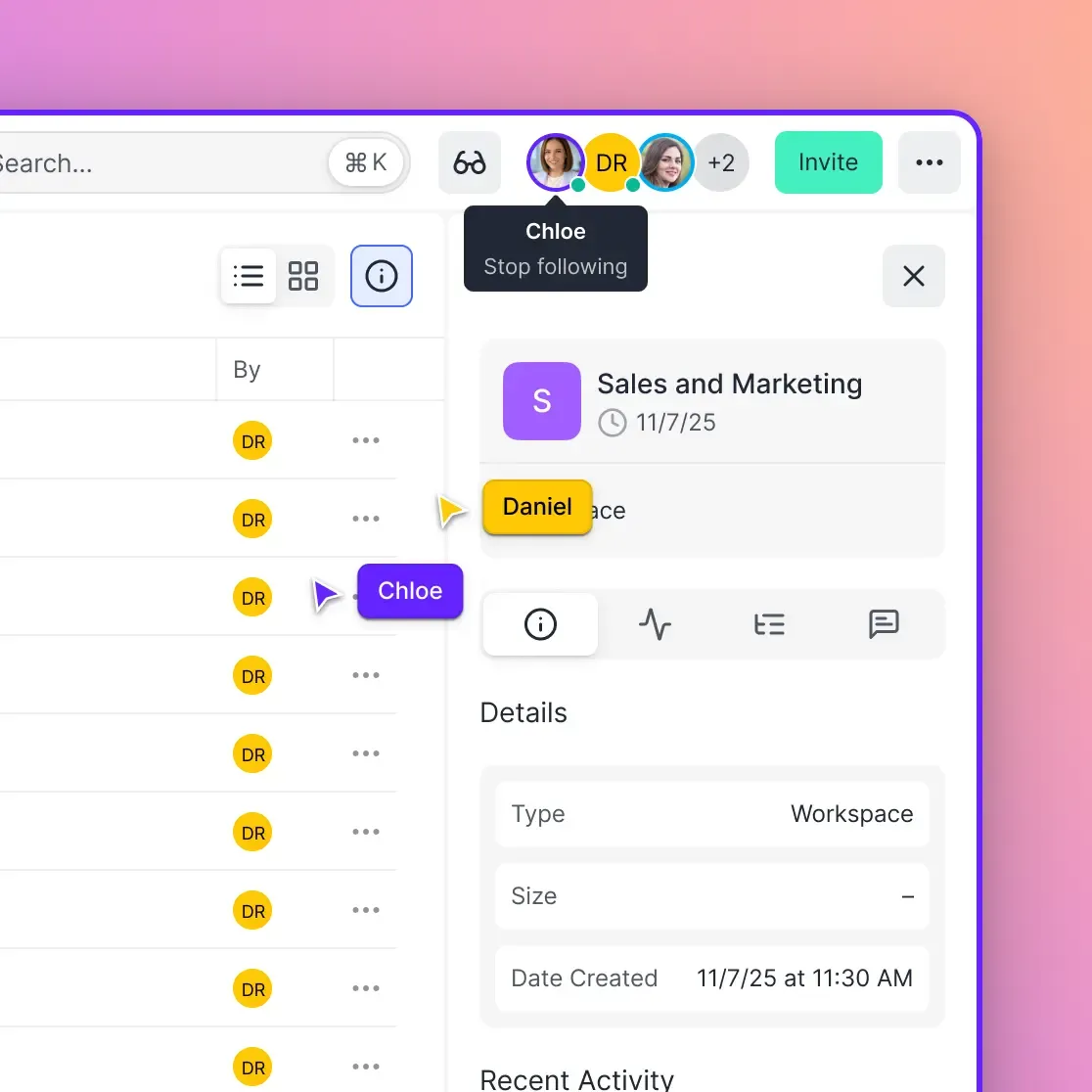
Knowing who's online in a workspace changes how you work. Instead of sending "are you looking at this?" messages, you can see:
- Who's currently viewing the workspace
- What specific file they have open
- Whether they're actively engaged or idle
This context eliminates coordination overhead. When you see a colleague in the same workspace, you can jump on a quick call knowing you're both looking at the same thing. Fast.io shows multiplayer presence with avatars indicating who's viewing what in real-time. For design reviews or video feedback sessions, this visibility prevents the classic "wait, which file are we on?" confusion.
Follow Mode
Some collaboration tools let you sync your view with a colleague's. Click to follow someone, and you see exactly what they see as they navigate. Use cases:
- Onboarding: Walk new hires through project organization
- Presentations: Guide stakeholders through a review without screen sharing
- Training: Show processes step by step
This feature eliminates screen share lag and the "can you see my cursor?" dance. Both people are looking at the actual files, not a video stream of files.
Contextual Comments
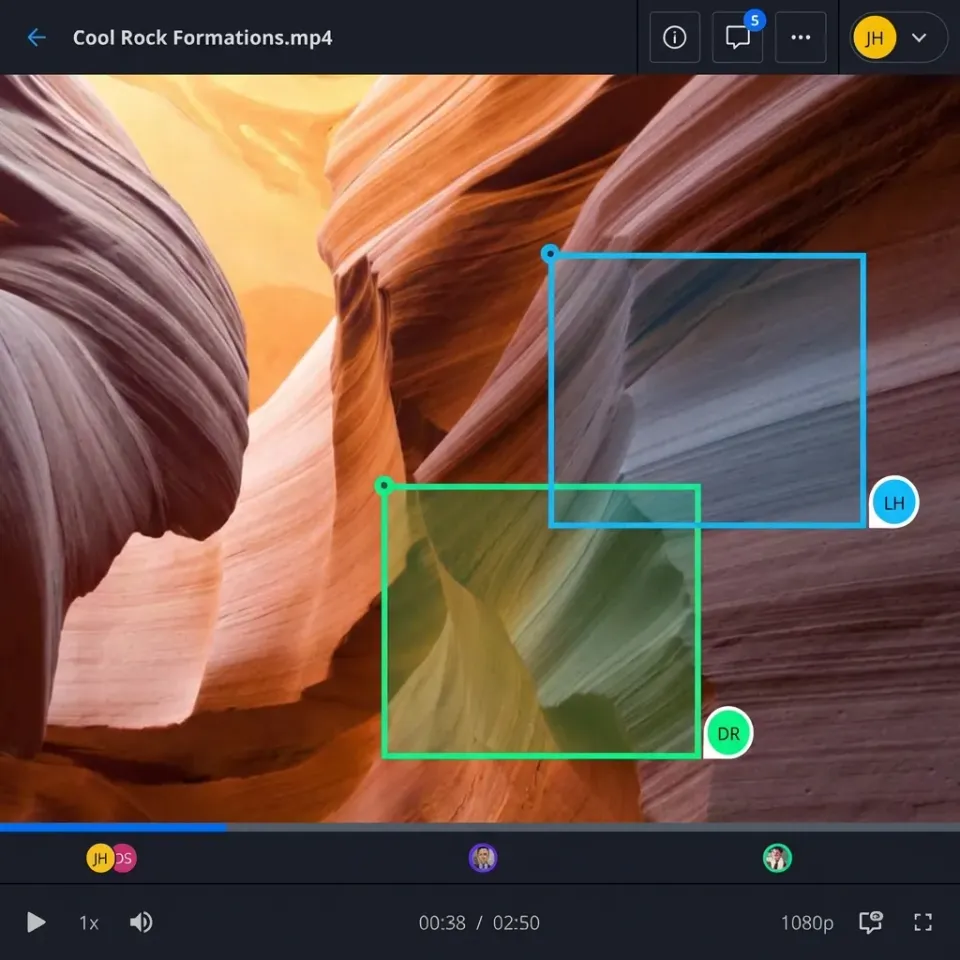
Comments attached to specific files (or specific parts of files) keep feedback organized. Instead of a separate email thread that loses context, discussions happen where the work lives. For visual work like video or design, comments can attach to frames or regions. "The color feels off here" with a pin on the exact spot is better than "around the two-thirty mark maybe."
Fast.io supports threaded comments on files, folders, and specific regions within media. Comments follow files through moves and renames, so feedback stays connected to what it's about.

Managing External Collaborators
Most teams work with people outside their organization: clients, contractors, partners, vendors. How you include them in workspaces matters for both security and cost.
The Guest Access Problem
Per-seat pricing punishes external collaboration. If your tool charges per-user monthly fees and you work with many clients, those costs multiply just for client access. Many of those people might log in once. Look for platforms that handle guests differently:
- Free guest access: External users don't count against seat limits
- Portal-based sharing: Branded interfaces for client-facing content
- Link-based access: View without account creation
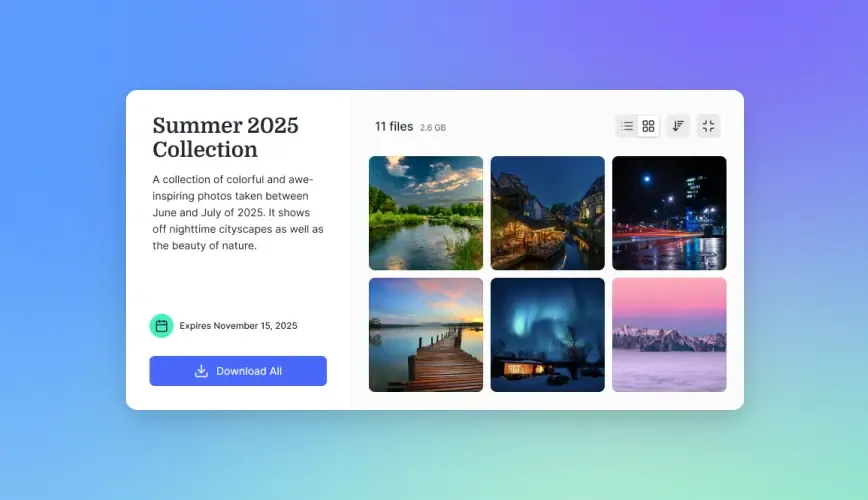
Fast.io includes unlimited guest access. Clients don't need Fast.io accounts and don't count against your seat allocation. You can share individual files or entire folders with external users through branded portals that show your logo and colors.
External Shared Folders
For ongoing client relationships, dedicated external folders work better than link-by-link sharing. Create a folder specifically for what clients should see:
- Drag deliverables there when ready
- Client sees only that folder, not your internal workspaces
- Activity logs show when they viewed and downloaded
This model keeps internal work internal while maintaining a clear handoff point.
Security Controls
External sharing needs guardrails:
- Password protection: Add a layer for sensitive content
- Expiration dates: Links that auto-disable after delivery
- View-only access: Prevent downloads for review-only shares
- Domain restrictions: Limit access to specific email domains
- Watermarking: Track who shared leaked content
Choose platforms that offer these controls at the link level, so you can match security to sensitivity.
Measuring Collaboration Effectiveness
How do you know if your workspace collaboration is actually working? Look at these indicators:
Time to Find Files
Track (informally) how long it takes to locate things. If people regularly can't find files or ask others for help, your structure needs work. Collaboration tools with activity tracking can show search patterns and highlight frequently accessed content.
Version Confusion Incidents
Count how often someone works on the wrong version or duplicates effort. This drops dramatically with proper workspace organization. If it's still happening, you have either a tool problem or a habit problem.
External Collaboration Friction
Monitor how smoothly client interactions flow. Are you spending time troubleshooting access? Creating one-off sharing links constantly? Getting complaints about slow downloads? These friction points signal tool limitations.
Activity Visibility
Can team leads see what's happening without asking? Good workspace tools provide activity feeds showing uploads, edits, comments, and access. If you're relying on status meetings to understand project state, you're missing visibility.
Storage Efficiency
With cloud-native tools, you shouldn't have files duplicated across personal accounts. Check whether your total storage reflects actual content or includes redundant copies scattered across user drives. Collaboration tools increase productivity according to industry research. But that gain only shows up if the tools are actually used well. Measurement helps you identify whether you're getting the benefit.
Frequently Asked Questions
What is a collaborative workspace?
A collaborative workspace is a shared digital environment where team members can organize, access, and work on files together. Unlike personal cloud storage where each person maintains their own folders, collaborative workspaces establish a common system owned by the team or organization. Files are discoverable, access is managed centrally, and activity is visible to relevant team members.
How do you improve team collaboration?
Improve team collaboration by moving from personal file storage to shared workspaces, establishing clear organization conventions, and using tools with real-time presence and activity tracking. Specific steps include organizing workspaces around projects rather than departments, assigning workspace owners to maintain structure, setting up external folders for client collaboration, and using tools that show who's working on what in real-time.
What tools do teams use to collaborate?
Teams use a combination of communication tools (Slack, Microsoft Teams, Zoom) and file collaboration platforms (Google Workspace, Dropbox, Fast.io). For file-centric collaboration, especially with large files or media, look for cloud-native storage, preview capabilities without downloads, real-time presence indicators, and granular permissions. Fast.io combines these features with usage-based pricing that doesn't charge per-seat for external collaborators.
What's the difference between file sharing and workspace collaboration?
File sharing is the act of giving someone access to a specific file or folder. Workspace collaboration is an ongoing environment where teams work together. File sharing is transactional: here's this file. Workspace collaboration is contextual: here's where our project lives, who's involved, what's happening, and how to participate. The shift from sharing to collaboration means less access management and more productive work.
How do you organize team workspaces effectively?
Organize workspaces around work units (projects, clients, processes) rather than departments. Keep folder structures shallow, two levels maximum. Use clear naming conventions that are scannable and sortable. Assign an owner to each workspace responsible for maintaining organization. Review and archive completed projects regularly to prevent clutter from accumulating.
Related Resources

Ready for better workspace collaboration?
Fast.io gives your team shared workspaces with real-time presence, granular permissions, and unlimited guest access. No per-seat fees for external collaborators.