How to Manage Video Files Like a Production Pro
Video file management encompasses the systems, workflows, and tools used to ingest, organize, store, share, and archive video content throughout its lifecycle. This guide breaks down the five pillars that separate chaotic productions from smooth ones, with practical advice for production teams handling terabytes of active footage.
What Is Video File Management?
Video file management is the practice of systematically handling video assets from the moment they're captured until they're archived or deleted. It covers five core areas: ingest, organize, store, share, and archive. Global video content creation grew 80% between 2020 and 2024. Production teams now routinely manage terabytes of active video files. Without a system, that's a recipe for lost footage, version confusion, and missed deadlines. Most file management advice focuses on documents and images. Video is different. A single Ultra HD project can eat through hundreds of gigabytes before lunch. Files come from multiple cameras, formats, and frame rates. And everyone from editors to clients needs access without downloading massive files.
Helpful references: Fast.io Workspaces, Fast.io Collaboration, and Fast.io AI.
What to check before scaling video file management
Every video workflow, whether you're a solo creator or a 50-person post house, needs these five pillars:
- Ingest - Getting footage off cards and into your system with consistent naming and metadata
- Organize - Structuring projects so anyone can find what they need in seconds
- Store - Keeping active projects accessible without breaking the bank
- Share - Sending files to editors, colorists, clients, and stakeholders
- Archive - Moving completed projects to long-term storage for future retrieval
Most production teams are strong in one or two areas but weak in others. A team might have perfect folder structures but terrible archiving practices. Or great local storage but no way to share rushes with remote editors. The goal isn't perfection in each pillar. It's having a system that covers all five without gaps.
First Pillar: Ingest Video Files Correctly
Ingest is where most video management problems start. You're tired after a shoot, cards are filling up, and the temptation is to dump everything into a folder called "New Footage" and sort it later. Don't. Later never comes, and months later you'll have dozens of folders full of mystery clips.
Use Consistent File Naming
Rename files during ingest, not after. A good naming convention includes:
- Project name or code
- Shoot date (YYYY-MM-DD format sorts chronologically)
- Camera identifier (A-cam, B-cam, drone)
- Scene or setup number
Example: ProjectX_DATE_ACam_Scene03.mov
This takes just moments per card during ingest. It saves hours of searching later.
Add Metadata Immediately
Most camera footage arrives with technical metadata (codec, resolution, frame rate) but no context. During ingest, add:
- Scene description
- Talent names
- Location
- Take ratings (if known)
This metadata becomes searchable. When you need "the interview with Sarah from the Chicago office," you'll find it in seconds instead of scrubbing through hours of footage.
Second Pillar: Organize Projects for Team Access
Folder structure debates can get heated. Some editors swear by date-based organization. Others prefer shot-type folders. The truth is that consistency matters more than structure. Pick a system and stick to it across all projects.
A Practical Folder Template
Here's a structure that works for most production teams:
Project_Name/
├── 01_Raw_Footage/
│   ├── A_Cam/
│   ├── B_Cam/
│   └── Audio/
├── 02_Selects/
├── 03_Project_Files/
│   ├── Premiere/
│   └── After_Effects/
├── 04_Graphics/
├── 05_Exports/
│   ├── Drafts/
│   └── Finals/
└── 06_Deliverables/
The numbered prefixes keep folders sorted in logical order rather than alphabetically.
Workspaces vs. Folders
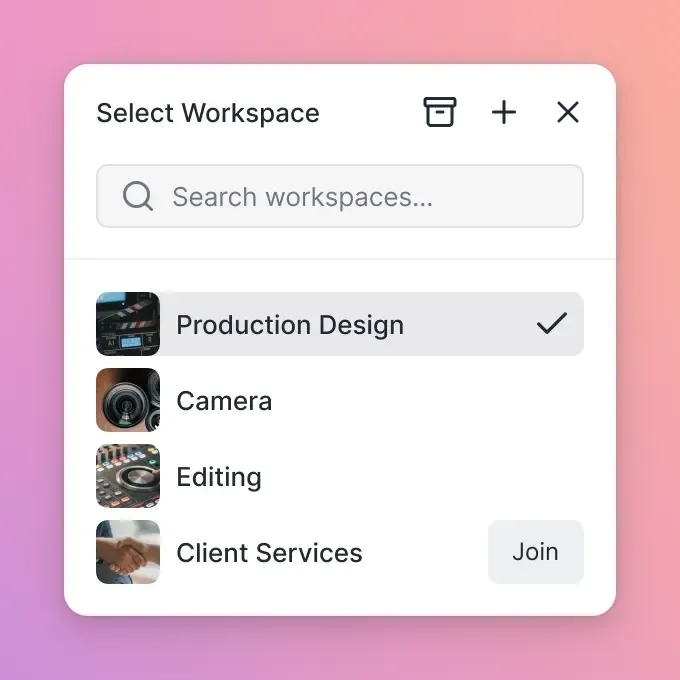
Traditional folder systems break down when multiple people need access. You end up with sync conflicts, "Copy of Final_v3 REAL.mov" nightmares, and files scattered across personal drives. Cloud-native workspaces solve this. Instead of syncing copies to everyone's machine, files live in a central location and stream on demand. Everyone works from the same source. No duplicates, no confusion about which version is current. Fast.io takes this approach with organization-owned workspaces. Files belong to the project, not individual team members. When someone leaves the team, their work stays in place.


Run Manage Video Files Like A Production Pro workflows on Fast.io
Stop losing files and waiting on downloads. Fast.io gives production teams cloud-native storage, instant video streaming, and organization-owned workspaces.
Third Pillar: Store Video Without Going Broke
Video storage costs add up fast. A single Ultra HD project can consume hundreds of GB to multiple TB. Multiply that by active projects and you're looking at serious infrastructure.
The Storage Tier Strategy
Smart teams use three tiers:
Hot storage (fast, expensive) - Current projects you're actively editing. NVMe drives, high-speed NAS, or cloud storage with fast throughput. You need instant access, and you're willing to pay for speed.
Warm storage (moderate speed, moderate cost) - Recent projects that might need revisions. Client could come back for changes. Keep these accessible but don't need instant playback.
Cold storage (slow, cheap) - Archived projects. LTO tape, AWS Glacier, or similar. Retrieval takes hours or days, but monthly costs drop to pennies per gigabyte.
Cloud vs. Local for Active Projects
Local storage gives you speed. External drives and NAS setups work well when everyone's in the same building. But production teams are increasingly distributed. Remote editors, overseas colorists, clients who need to review from home. Cloud storage makes collaboration possible without shipping drives or waiting for uploads. The catch with most cloud storage is sync. Dropbox and Google Drive want to copy everything to local machines, which defeats the purpose when files are tens of GB each. Cloud-native platforms stream files instead of syncing them. You preview and work from the cloud. Download only when you need local copies for editing software that requires it.
Fourth Pillar: Share Video Without Destroying Quality
Sharing video files creates two problems: file size and viewing experience. A short Ultra HD clip can run several hundred MB to over a GB depending on codec. Email can't handle that. Most file transfer services compress your uploads or make recipients wait for downloads to complete before watching.
The Download Problem
When you share via download link, your client or collaborator has to:
- Click the link
- Wait for the download (minutes to hours)
- Find the file on their machine
- Open it in a video player
- Hope they have the right codec support
Every step is a chance for things to go wrong. Files get buried in Downloads folders. Codecs fail. And if they want to review on mobile, forget it.
Stream Instead of Download
Modern video sharing uses HLS (HTTP Live Streaming), the same technology Netflix and YouTube rely on. Video starts playing instantly. The platform adapts quality based on connection speed. Viewers scrub through timelines without waiting. The original file stays safe on the server. Viewers watch a transcoded proxy optimized for playback. They don't need your codec. They don't need to wait. For client reviews, this changes everything. Send a link, they click, video plays. Feedback arrives the same day instead of next week.
Frame-Accurate Feedback
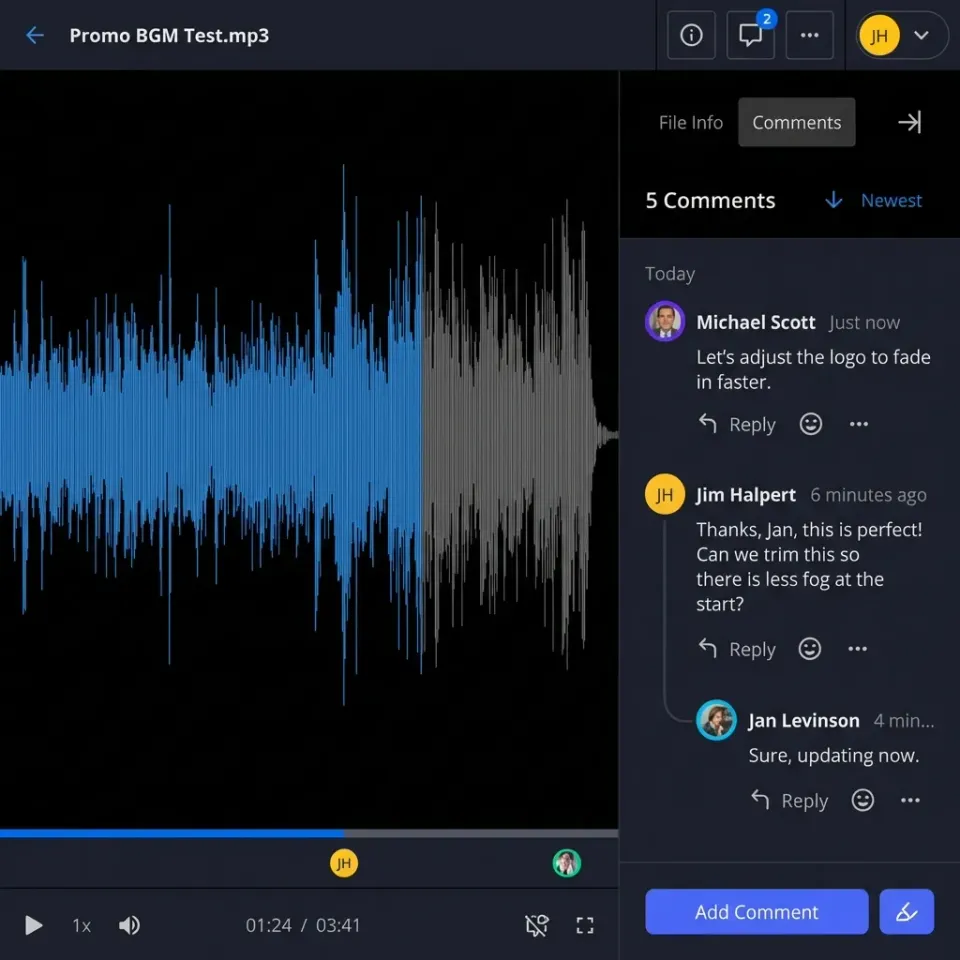
Generic comments like "the transition is weird" waste everyone's time. Which transition? At what timestamp? Tools that let reviewers pin comments to specific frames eliminate this ambiguity. The editor sees exactly what the client means. Revisions happen faster with fewer rounds.
Fifth Pillar: Archive Footage for the Long Term
Archiving isn't just copying files to a backup drive and forgetting about them. Digital media degrades (bit rot is real), storage technologies evolve, and metadata can get lost if you're not careful.
What to Archive
Not everything deserves archive space. A practical approach:
- Always archive: Final deliverables, raw footage with creative potential, project files
- Sometimes archive: B-roll, alternate takes with distinct value
- Rarely archive: Test footage, duplicates, rejected takes
Be ruthless about duplicates. If you have the same clip in Raw Footage, Selects, and three timeline versions, you only need the original.
Archive Format Considerations
Codecs come and go. A format that's universal today might be obscure in ten years. For long-term archives:
- Keep camera original files when possible (they're the most future-proof)
- Create ProRes or DNxHD transcodes as an insurance policy
- Export project files to interchange formats (AAF, XML) alongside native saves
- Store codec and technical documentation with the archive
Verification and Integrity Checks
Create checksums for archived files and verify them periodically. A corrupt archive file is worse than no archive at all because you won't discover the problem until you need the footage. Schedule annual archive spot-checks. Pull a random project, verify files open correctly, and confirm playback quality matches expectations.
Building Your Video File Management System
You don't need to overhaul everything at once. Start with the pillar that's causing the most pain. If you're constantly searching for footage, focus on ingest naming conventions and metadata. If clients complain about slow reviews, improve your sharing workflow. If you've lost files because someone left the team, move to organization-owned storage.
Minimum Viable System
For small teams (2-5 people), start here:
- Ingest: Consistent naming convention with date and camera
- Organize: Shared folder template everyone follows
- Store: Central cloud storage with version history
- Share: Streaming links instead of download links
- Archive: Quarterly exports to separate storage
This isn't perfect. But it's infinitely better than no system.
Scaling Up
As teams grow, add:
- Automated ingest tools that apply naming and metadata
- Media asset management (MAM) software for searchable libraries
- Tiered storage with automated lifecycle policies
- Client portals with branded review interfaces
- LTO or cloud archive with verified checksums
The jump from chaos to basic system is the hardest part. Improving an existing system is much easier.
Frequently Asked Questions
What is video file management?
Video file management is the practice of systematically handling video assets throughout their lifecycle. It includes five pillars: ingest (getting footage into your system), organize (structuring projects for findability), store (keeping files accessible), share (distributing to collaborators and clients), and archive (preserving completed work for the future).
How do professionals manage video files?
Professional video teams use consistent naming conventions during ingest (project code, date, camera, scene), standardized folder structures across all projects, cloud-native storage that streams rather than syncs large files, HLS-based sharing for instant client playback, and tiered archive strategies with hot, warm, and cold storage. The key difference from amateur workflows is having systems documented and followed consistently.
How do you manage video content for a team?
Team video management requires organization-owned storage where files belong to the project rather than individual users. This prevents files from disappearing when team members leave. Use workspaces or project-based organization instead of personal folders, set clear permissions for who can edit versus view, and establish handoff protocols for files moving between editors, colorists, and reviewers.
What's the best folder structure for video projects?
A proven structure uses numbered top-level folders: 01_Raw_Footage (with subfolders per camera), 02_Selects, 03_Project_Files (NLE and motion graphics), 04_Graphics (assets and elements), 05_Exports (drafts and finals), and 06_Deliverables. The numbered prefixes maintain logical order. Consistency across projects matters more than the specific structure you choose.
Should I store video files locally or in the cloud?
Use both. Local storage (fast drives or NAS) gives you the speed needed for active editing. Cloud storage enables collaboration with remote team members and clients. The ideal setup is cloud-native storage that streams files on demand rather than syncing copies to every machine. This avoids the duplicate-file chaos of traditional cloud sync while keeping everything accessible from anywhere.
Related Resources

Run Manage Video Files Like A Production Pro workflows on Fast.io
Stop losing files and waiting on downloads. Fast.io gives production teams cloud-native storage, instant video streaming, and organization-owned workspaces.