How to Use a Video Annotation Tool for Faster Feedback Cycles
A video annotation tool lets reviewers pin comments, drawings, and markup directly to specific video frames. This eliminates vague feedback like "that part in the middle looks off" and replaces it with precise, actionable notes. Teams using frame-accurate annotation reduce review cycles compared to email-based feedback loops.
What Is Video Annotation?
Video annotation is the practice of adding timestamped comments, visual markup, and labels directly onto video frames. Reviewers click on a specific frame and leave feedback that stays anchored to that exact moment in the timeline. Unlike email chains where someone might write "the transition around the middle feels jarring," video annotation lets you click on a specific frame, draw a circle around the problem area, and type "the color grading shifts too abruptly here."
Video annotation serves two distinct purposes:
- Creative review and approval: Teams providing feedback on video edits, motion graphics, commercials, or film projects
- Machine learning training: Data scientists labeling video frames with bounding boxes for object detection and AI model training
This guide focuses on creative review workflows. If you need ML annotation for computer vision projects, tools like CVAT offer specialized features for dataset labeling at scale.
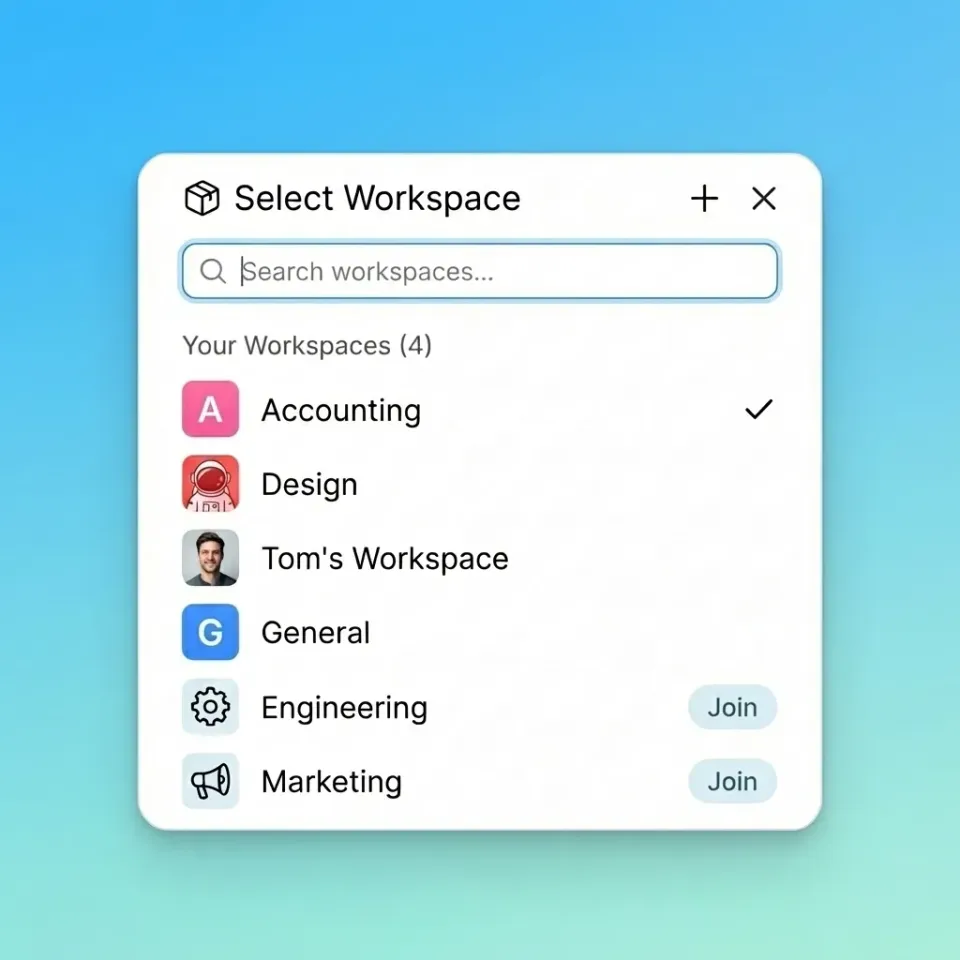
Helpful references: Fast.io Workspaces, Fast.io Collaboration, and Fast.io AI.
Why Frame-Accurate Comments Matter
Video projects typically require multiple revision rounds before final approval. Each round that relies on vague, text-based feedback adds unnecessary back-and-forth. Consider a typical email thread: "The cut at the start of a scene feels abrupt, and can we make the logo bigger at the end?" The editor now has to scrub through the timeline, guess which cut the client means, and figure out where "the end" actually is. Frame-accurate annotation removes this friction. The reviewer clicks the exact frame, the tool captures the timecode, and the comment stays pinned to that moment. Editors jump directly to the flagged frame without interpretation. The difference in efficiency is measurable. Teams that switch from email-based feedback to frame-accurate annotation report faster review cycles. That time savings compounds across projects, especially for agencies juggling multiple clients. Three capabilities separate professional annotation tools from basic commenting:
- Timecode precision: Comments lock to specific frames, not approximate timestamps
- Visual markup: Freehand drawing, arrows, shapes, and text overlays on the frame itself
- Threaded discussions: Replies and resolutions stay grouped with the original note
Essential Features of Video Annotation Software
Not all annotation tools offer the same capabilities. When evaluating options, focus on these features:
Frame-by-Frame Navigation
The tool should let reviewers step through footage frame by frame, not just scrub along a timeline. This matters for VFX work, color correction notes, and any feedback that requires precision.
Drawing and Markup Tools
Basic comments are a start, but visual markup communicates faster. Look for:
- Freehand drawing with pen/brush tools
- Shapes like rectangles, circles, and arrows
- Text overlays directly on the frame
- Color options to differentiate feedback from multiple reviewers
Version Control
Video projects evolve through multiple cuts. The annotation tool should track which version each comment applies to and show whether feedback has been addressed in subsequent revisions.
Access Without Software Installation
External clients rarely have editing software. The best annotation tools work entirely in the browser, requiring only a link to view and comment on footage. No downloads, no accounts, no friction.
Playback Quality
Reviewers need to see the video . Adaptive bitrate streaming (like HLS) ensures smooth playback regardless of connection speed, while maintaining enough quality for color and detail feedback.
How Video Annotation Fits Your Review Workflow
A typical video review workflow using annotation tools looks like this:
1. Upload the cut
The editor exports a draft and uploads it to the annotation platform. Cloud-native tools start processing immediately, generating streaming-optimized versions while preserving the original file.
2. Share with reviewers
The editor sends a secure link to clients, directors, or stakeholders. Browser-based review means recipients click and start watching, no software required.
3. Gather frame-specific feedback
Reviewers pause at any moment, click on the frame, and add their notes. They can draw directly on the image to highlight specific areas. All feedback automatically captures the exact timecode.
4. Review and address notes
The editor opens the project and sees all comments as markers on the timeline. Clicking a marker jumps to that frame and shows the associated feedback. Notes can be marked as resolved once addressed.
5. Upload the next version
The tool tracks revisions, showing which notes were added to which cut. Reviewers can compare versions and confirm their feedback was incorporated.

Comparing Video Annotation Tools
The video annotation market splits into two categories: standalone review tools and full-featured collaboration platforms.
Standalone Review Tools
Tools like Frame.io, Filestage, and Ruttl specialize in review and approval. They excel at:
- Frame-accurate commenting
- Simple sharing with external reviewers
- Approval workflows with sign-off tracking
The limitation is that once feedback is gathered, you still need a separate system for file storage, project organization, and version management.
Collaboration Platforms with Annotation
Platforms like Fast.io include annotation as part of a broader workspace. You get:
- Frame-accurate comments on video
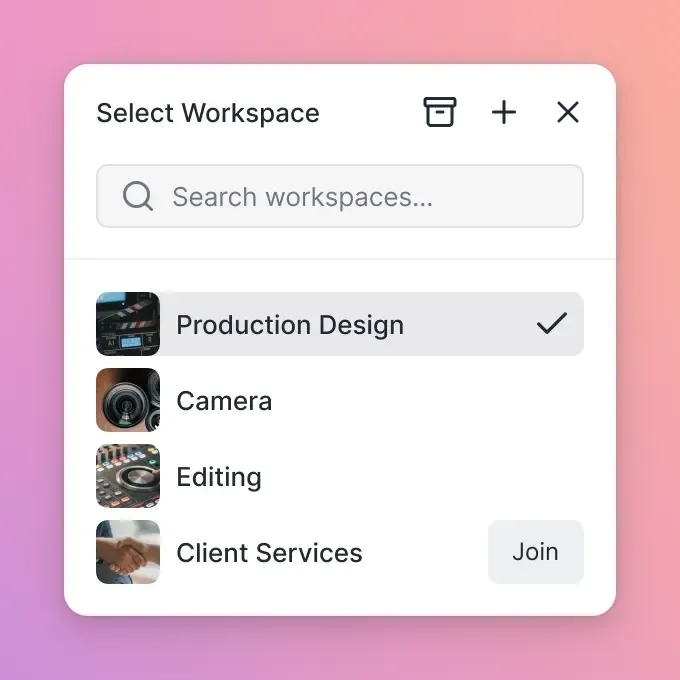
- Persistent workspaces for all project files (not just review links)
- HLS streaming for instant playback (no buffering)
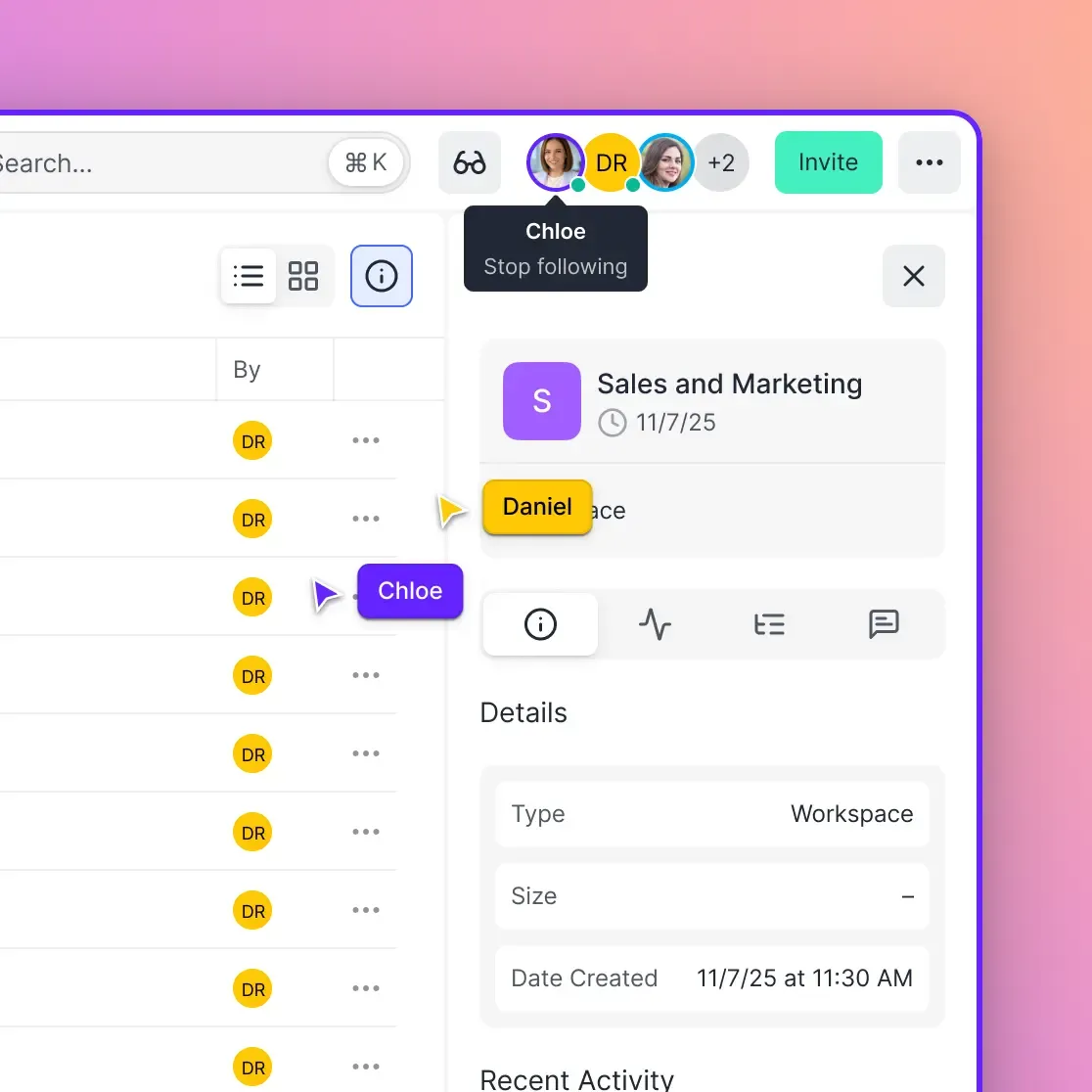
- Real-time presence showing who else is viewing
- Secure external sharing with password protection and expiration
The advantage is keeping feedback, files, and collaboration in one place. When the client asks "where's the final cut?", everyone knows where to look.
What Most Tools Miss
Many annotation tools focus narrowly on feedback but neglect:
- Secure sharing: Sending password-protected links with expiration dates
- Version control: Tracking which file is the current approved version
- Organization: Keeping all project assets together, not scattered across links
- Access management: Controlling who can view, comment, or download
If your workflow involves sensitive content or external clients, these gaps matter.
Setting Up Your Video Annotation Workflow
Getting started with video annotation requires minimal setup. Here's a practical approach:
Choose Your Platform
If you only need occasional review links, a standalone tool works. For ongoing projects with clients, a workspace-based solution keeps everything organized.
Establish Naming Conventions
Label uploads : ProjectName_v01_roughcut.mp4, ProjectName_v02_colorgrade.mp4. When reviewers see multiple versions, the naming makes the timeline obvious.
Set Expectations with Reviewers
Send clients a brief guide: "Click anywhere on the video to pause and add a comment. Draw on the frame to highlight specific areas. Your feedback will be timestamped automatically."
Create a Review Workflow
Decide who reviews in what order. A typical flow:
- Internal team reviews first, addresses obvious issues
- Client receives cleaner cut, provides substantive feedback
- Final approval round with minimal revisions
Monitor and Iterate
Track how many rounds each project takes. If revision counts stay high despite annotation tools, the issue might be unclear creative briefs rather than feedback mechanics.
Common Mistakes in Video Review
Even with good tools, teams make avoidable mistakes:
Too Many Cooks
Sending a review link to everyone creates conflicting feedback. Designate a single point of contact who consolidates stakeholder input before submitting notes.
Vague Annotation
"Make it pop more" pinned to a frame isn't better than the same note in an email. Train reviewers to be specific: "increase saturation on the product shot" or "extend this hold by a few frames."
Ignoring Version Context
Comments on an early version might not apply to a later version. Clear version labeling and tools that track which notes apply to which cut prevent confusion.
Skipping the Summary
After gathering feedback, the editor should write a brief summary: "notes total, with some addressed and others needing clarification." This prevents the "did you get my comment about..." follow-ups.
No Approval Gate
Without a formal sign-off step, projects drift in revision purgatory. Set a clear approval milestone: "Client will provide final approval by clicking the Approve button on the latest version."
Frequently Asked Questions
What is video annotation?
Video annotation is the practice of adding timestamped comments, drawings, and markup directly to specific video frames. Reviewers click on a frame and leave feedback that stays anchored to that exact timecode, eliminating vague notes like 'around the middle' in favor of specific, frame-level notes.
How do you annotate a video?
Upload your video to an annotation platform, then share a link with reviewers. They click anywhere in the video to pause, then add comments or draw directly on the frame. The tool automatically captures the timecode, so editors can jump directly to each piece of feedback.
What is the best video markup tool?
The best tool depends on your workflow. For simple review and approval, Frame.io and Filestage are popular standalone options. For teams that need persistent project workspaces, secure external sharing, and HLS streaming alongside annotation, Fast.io combines feedback tools with full collaboration features.
Do reviewers need special software to annotate videos?
No. Modern video annotation tools work entirely in the browser. Reviewers click a shared link and can immediately view the video and add comments. No downloads, no account creation, no editing software required.
How do video annotation tools handle large files?
Good annotation platforms transcode uploaded videos into streaming-optimized formats while preserving originals. This means reviewers can watch instantly without downloading multi-gigabyte files, while editors still have access to full-resolution source material when needed.
Related Resources

Run Use A Video Annotation Tool For Faster Feedback Cycles workflows on Fast.io
Frame-accurate annotation with secure sharing and HLS streaming. Give your team and clients a better way to review video.