How to Set Up Temporary Video Hosting for Review and Approval
Temporary video hosting lets teams share video files for a limited time, making it ideal for review cycles, client approvals, and draft sharing. This guide walks through setting up expiring video links, collecting frame-accurate feedback, and managing access without permanent storage costs.
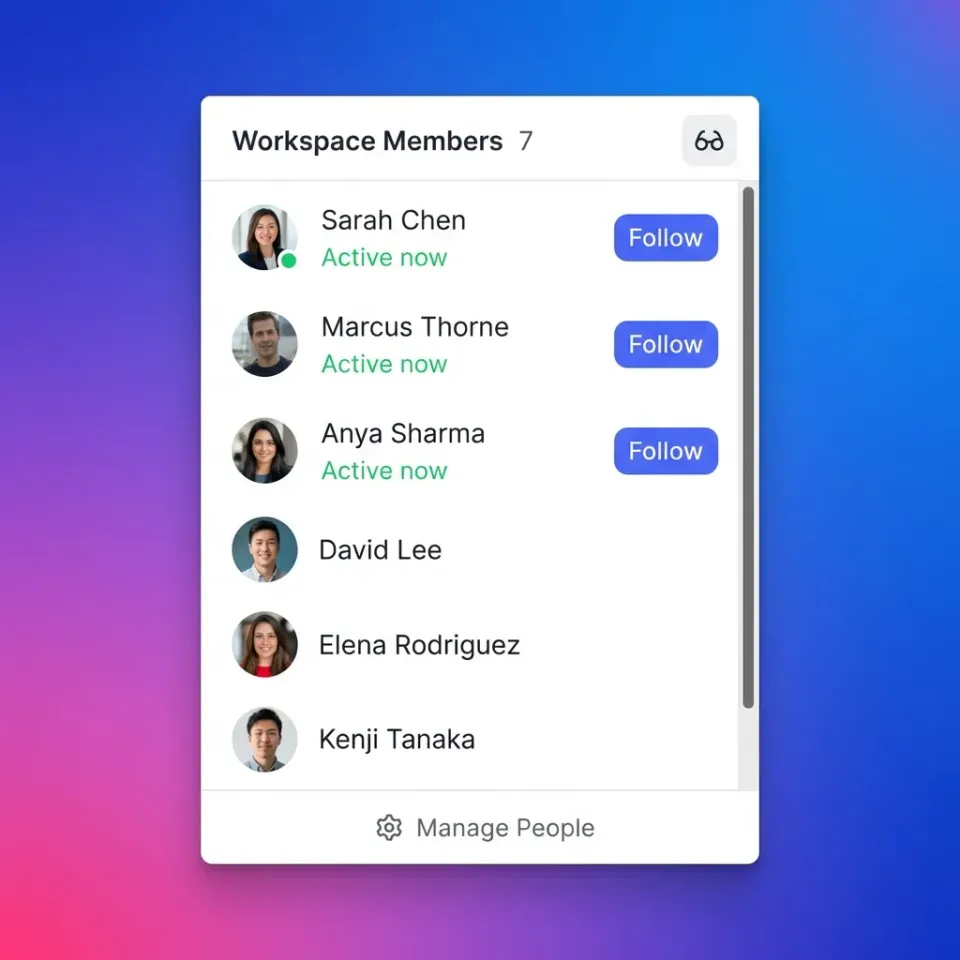
What Is Temporary Video Hosting?
Temporary video hosting is the practice of sharing video files through links that automatically expire after a set period. Unlike permanent hosting on YouTube or Vimeo, temporary hosting is designed for project-based workflows where videos need to be reviewed, revised, and replaced. Common use cases include:
- Client review rounds - Share rough cuts with clients for feedback, then disable access after approval
- Internal team reviews - Circulate work-in-progress edits among editors, directors, and stakeholders
- Vendor collaboration - Send footage to colorists, sound designers, or VFX artists with controlled access
- Compliance and legal - Share sensitive content for review without creating permanent records
Video projects typically go through several rounds of revisions. Using temporary links for each round reduces the risk of outdated versions circulating after a project wraps.
Helpful references: Fast.io Workspaces, Fast.io Collaboration, and Fast.io AI.
Why Use Expiring Links Instead of Permanent Hosting
Permanent video hosting makes sense for published content, but review workflows have different requirements. Here's why temporary links work better for approvals:
Reduce unauthorized resharing. When links expire, recipients can't forward them weeks later. This matters for unreleased content, confidential projects, or client work under NDA. Expiring links reduce unauthorized resharing compared to permanent URLs.
Eliminate version confusion. Nothing derails a review cycle faster than feedback on an old cut. Temporary links ensure reviewers always see the current version because old links stop working.
Lower storage costs. Permanent hosting charges you forever, even for videos that only needed to exist for a two-week review cycle. Temporary hosting keeps costs tied to actual project timelines.
Improve compliance posture. Auto-expiring content helps teams meet data retention policies. When a project ends, access ends automatically without manual cleanup.


Run Set Up Temporary Video Hosting For Review And Approval workflows on Fast.io
Share video files with expiring links, collect frame-accurate feedback, and keep every version organized.
How to Set Up Temporary Video Hosting Step by Step
Setting up temporary video hosting takes about five minutes with the right platform. Here's the process:
Step 1: Upload Your Video
Upload your video file to a platform that supports expiring links. Look for services that preserve original quality rather than re-encoding your footage. For review purposes, you want reviewers to see exactly what you see.
Step 2: Generate a Share Link
Create a shareable link for your video. Most platforms let you configure sharing options at this stage:
- Expiration date - Set when the link stops working (common options: one day, one week, one month, or custom date)
- Password protection - Add a password for an extra layer of security
- View-only access - Prevent downloads so reviewers can only stream the video
Step 3: Configure Access Controls
For sensitive projects, add additional restrictions:
- Domain restrictions - Limit access to specific email domains (e.g., only @clientcompany.com)
- Watermarking - Add visible watermarks to discourage screen recording
- View limits - Cap the number of times a link can be accessed
Step 4: Share and Track
Send the link to your reviewers. A good temporary hosting platform will show you who viewed the video and when, giving you visibility into the review process.
Step 5: Collect Feedback
The best review platforms let reviewers leave comments directly on the video timeline. This eliminates the back-and-forth of referencing approximate timestamps because feedback is pinned to specific frames.
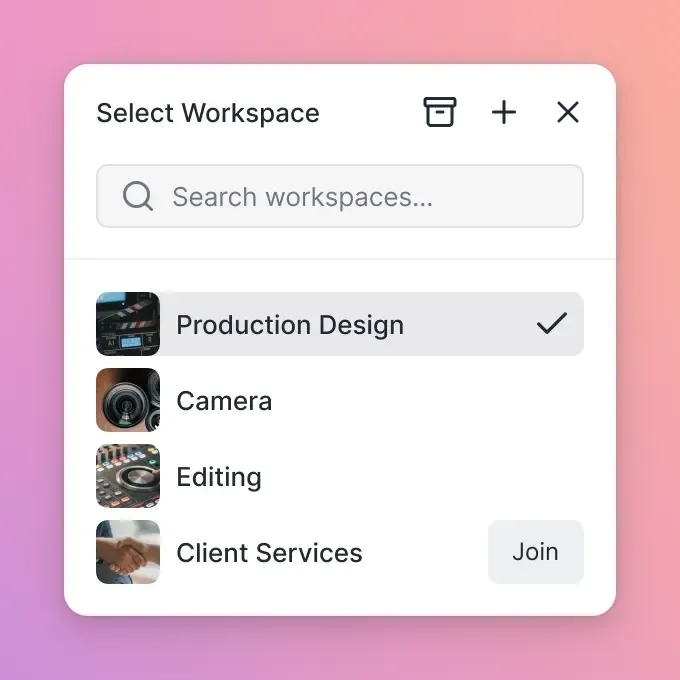
Essential Features for Video Review Hosting
Not all video hosting platforms are built for review workflows. Here's what to look for:
Streaming Quality
Your reviewers need smooth playback without buffering. Look for platforms using HLS (HTTP Live Streaming), which adapts video quality to network conditions. This is the same technology Netflix uses. Progressive download (the older approach) forces viewers to wait for buffering on large files.
Frame-Accurate Comments
Generic file-sharing tools let you comment on a video as a whole. Review-focused platforms let you pin comments to specific frames. When a director says "the color feels off here," you know exactly which frame they mean.
Version Control
Review cycles generate multiple versions. Your hosting platform should track version history so you can compare cuts, reference old feedback, and know exactly which version received approval.
Audit Trails
For professional projects, you need to prove who saw what and when. Audit logs track every view, download, and comment, which matters for client billing, legal compliance, and resolving disputes about approval timelines.
Mobile Access
Stakeholders review video everywhere, not just at their desks. Make sure your platform works well on phones and tablets without requiring app downloads.
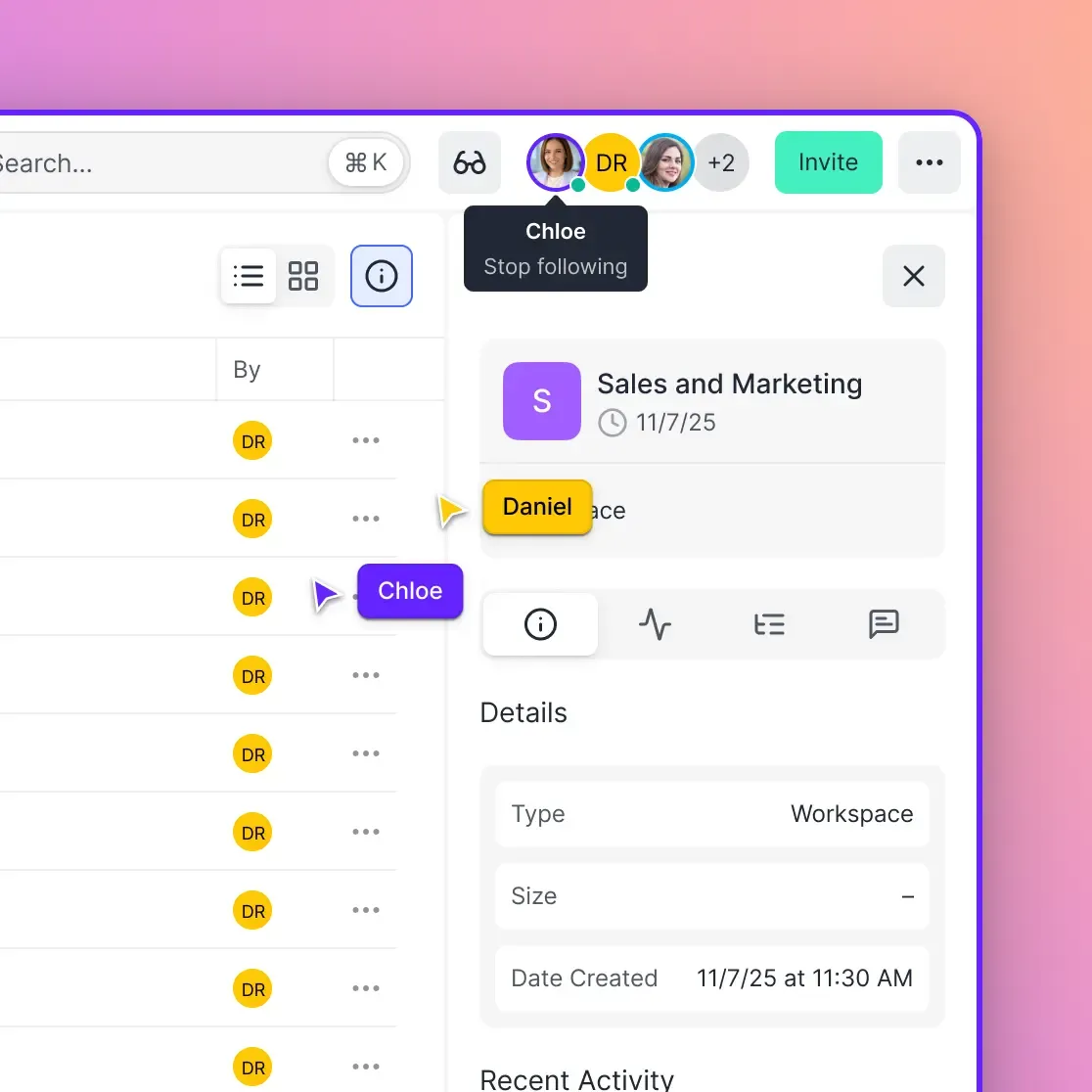
Managing Multiple Review Rounds
Most video projects go through several review cycles. Here's how to keep them organized:
Create separate links for each round. Don't reuse the same link when you upload a new version. Generate a fresh link so old feedback doesn't get mixed with new feedback.
Set appropriate expiration windows. For internal reviews, one week is usually enough. For client reviews, consider two to four weeks to accommodate slower approval processes. You can always extend if needed.
Archive approved versions. Once a round is approved, save that version before moving to the next. If the project needs to roll back, you'll have the exact file that received sign-off.
Summarize feedback between rounds. Before uploading a new cut, document what changed based on the previous round's feedback. This helps reviewers focus on new issues rather than re-checking resolved notes.
Close out old links. When a project wraps, revoke any remaining active links. This prevents outdated content from surfacing later and keeps your access controls tight.
Security Best Practices for Temporary Video Sharing
Temporary hosting reduces risk, but smart practices reduce it further:
Match expiration to project timeline. Don't set a long expiration for a short review. Shorter windows mean smaller risk windows.
Use passwords for external sharing. When sharing with clients or vendors outside your organization, always add password protection. Send the password through a different channel than the link itself.
Restrict downloads for sensitive content. View-only mode prevents reviewers from keeping copies after the link expires. This is especially important for unreleased commercials, film content, or confidential corporate videos.
Monitor access logs. Check who's viewing your videos. Unexpected access patterns (like views from unfamiliar locations) can indicate a shared link that shouldn't have been forwarded.
Revoke immediately when needed. If a reviewer leaves the project or you discover unauthorized sharing, revoke access right away rather than waiting for the expiration date.
Frequently Asked Questions
How do I share a video temporarily?
Upload your video to a hosting platform that supports expiring links. When generating the share link, set an expiration date (such as one week or one month). Share the link with your reviewers. After the expiration date, the link stops working automatically.
Can I make a video link expire after a certain date?
Yes. Most professional video hosting platforms let you set custom expiration dates when creating share links. Common options include one day, one week, one month, or a specific calendar date. Some platforms also let you set view limits instead of or in addition to time limits.
What is the best way to share video for review?
Use a platform with frame-accurate commenting so reviewers can pin feedback to specific moments in the video. Combine this with expiring links to keep old versions from circulating. Look for HLS streaming to ensure smooth playback, and audit logs to track who has viewed the content.
How do I prevent reviewers from downloading my video?
When generating your share link, enable view-only mode (sometimes called download protection). This allows reviewers to stream the video but prevents them from saving a copy. Note that determined users can still screen-record, so add watermarking for highly sensitive content.
Can multiple people review the same temporary video link?
Yes. A single temporary link can be shared with multiple reviewers. They can all view and comment on the video until the link expires. For better tracking, some teams prefer generating individual links per reviewer so audit logs show exactly who accessed what.
Related Resources

Run Set Up Temporary Video Hosting For Review And Approval workflows on Fast.io
Share video files with expiring links, collect frame-accurate feedback, and keep every version organized.