How to Replace Your Synology NAS with Cloud Storage
A Synology alternative replaces self-hosted NAS infrastructure with cloud-based file storage and sharing. Cloud options eliminate hardware maintenance, provide remote access without VPN configuration, and scale storage on demand. This guide compares the trade-offs between keeping your NAS and migrating to cloud storage.
Why Teams Leave Synology NAS
Synology makes good hardware. The problem isn't the NAS itself. It's the work that comes with self-hosted infrastructure.
Hardware costs add up fast. A decent Synology NAS typically costs from several hundred to several thousand dollars depending on the model. Add drives, a UPS for power protection, and you're looking at a significant capital expense before storing your first file. Compare that to cloud storage where you pay monthly based on what you actually use.
Remote access is painful to set up. Synology QuickConnect works for basic access, but teams with security requirements often need VPN configuration. IT departments spend hours troubleshooting connection issues when employees work from home or travel.
Someone has to maintain it. Firmware updates, drive failures, RAID rebuilds, backup verification. Self-hosted systems need ongoing attention. For small teams without dedicated IT staff, this maintenance becomes a distraction from actual work.
Scaling requires hardware purchases. When you run out of space, you either replace drives or buy another unit. Cloud storage scales instantly, no waiting for hardware delivery or migration planning.
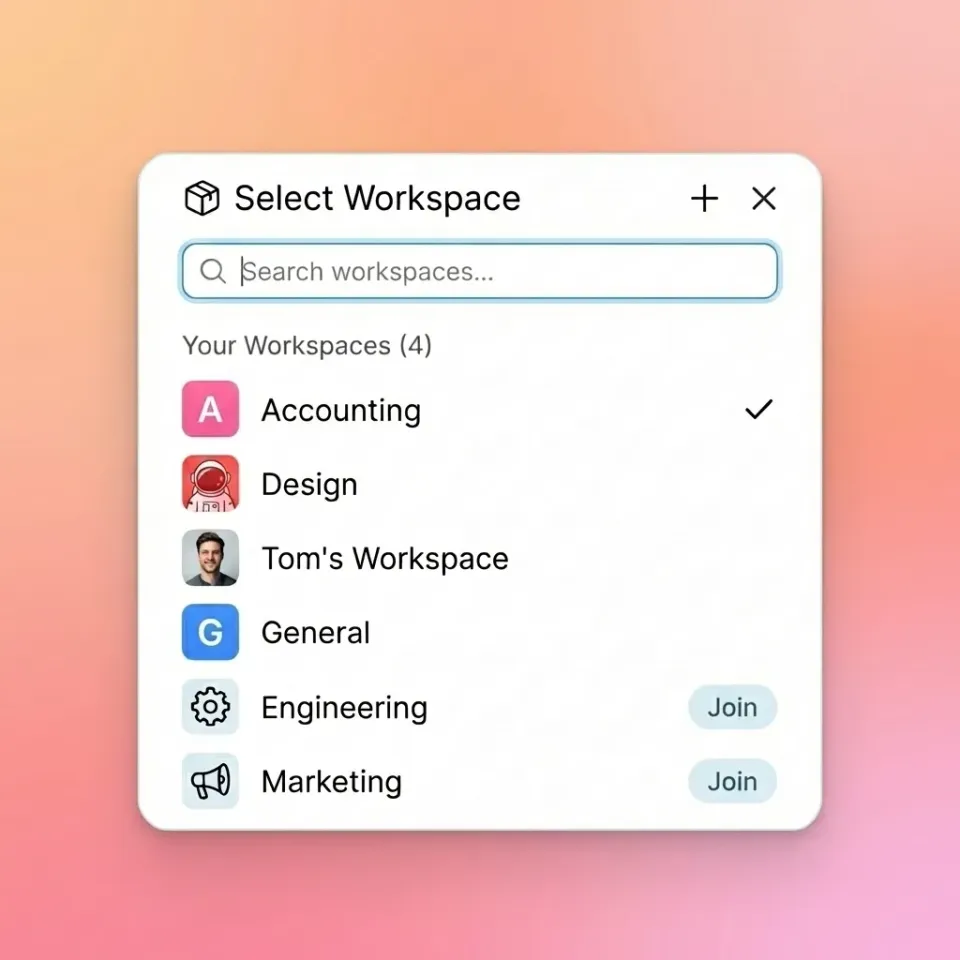
Helpful references: Fastio Workspaces, Fastio Collaboration, and Fastio AI.
NAS vs Cloud: The Core Trade-Offs
Before deciding, understand what you're trading.
Cost structure flips. NAS requires substantial upfront hardware costs, plus ongoing electricity and maintenance. Cloud storage costs $0 upfront but charges monthly based on storage and bandwidth.
Remote access works differently. NAS needs VPN setup or QuickConnect configuration. Cloud storage works anywhere by default, no IT intervention required.
Reliability depends on who manages it. Your NAS uptime depends on your infrastructure, power backup, and maintenance schedule. Cloud providers typically deliver 99.9%+ uptime because it's their core business.
Control vs convenience. NAS gives you complete control over hardware, software, and data location. Cloud storage means accepting provider policies, but in exchange, you never deal with RAID rebuilds or firmware updates.
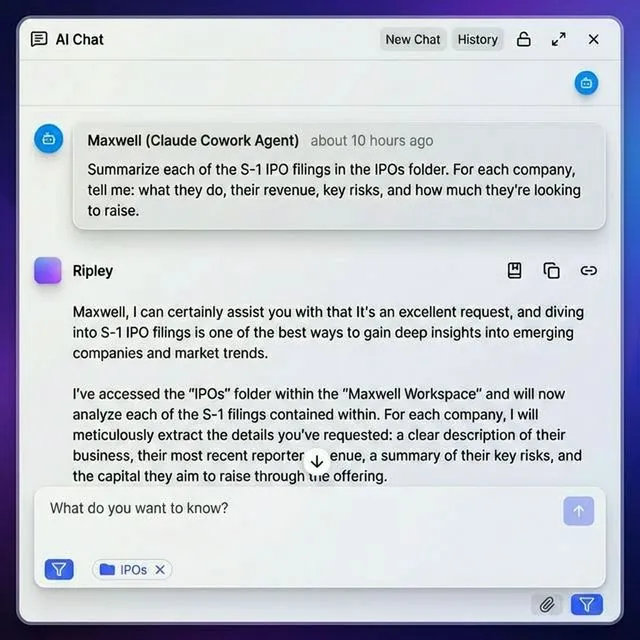
Collaboration capabilities differ. NAS offers basic folder sharing. Cloud storage adds real-time presence, commenting, and version history designed for team workflows. The decision often comes down to one question: Is managing infrastructure part of your job, or a distraction from it?


Start with synology alternative on Fastio
Fastio gives you cloud storage built for large files and team collaboration. No hardware to maintain, no VPNs to configure.
When to Keep Your NAS
Cloud migration isn't always the right move. Synology still makes sense in specific situations:
You work with massive datasets locally. Video editors working with terabytes of raw footage benefit from direct-attached or local network storage. Cloud upload and download speeds become a bottleneck when scrubbing through high-resolution timelines.
Regulatory requirements demand on-premises storage. Some industries require data to stay within specific geographic or physical boundaries. A NAS in your own facility satisfies these requirements in ways cloud storage might not.
You already have IT staff maintaining the infrastructure. If someone's job already includes server maintenance, adding a NAS to their responsibilities costs less than a new cloud subscription.
Internet reliability is poor. Remote locations with inconsistent connectivity need local storage as a primary system, not just a backup.
When Cloud Storage Wins
For most modern teams, cloud storage solves problems that NAS creates:
Remote and hybrid teams. When your team works from multiple locations, cloud storage provides instant access without VPN hassles. The shift to remote work is the number one reason teams migrate from NAS to cloud.
Growing storage needs. Cloud storage scales in minutes. No capacity planning, no hardware purchases, no migration weekends.
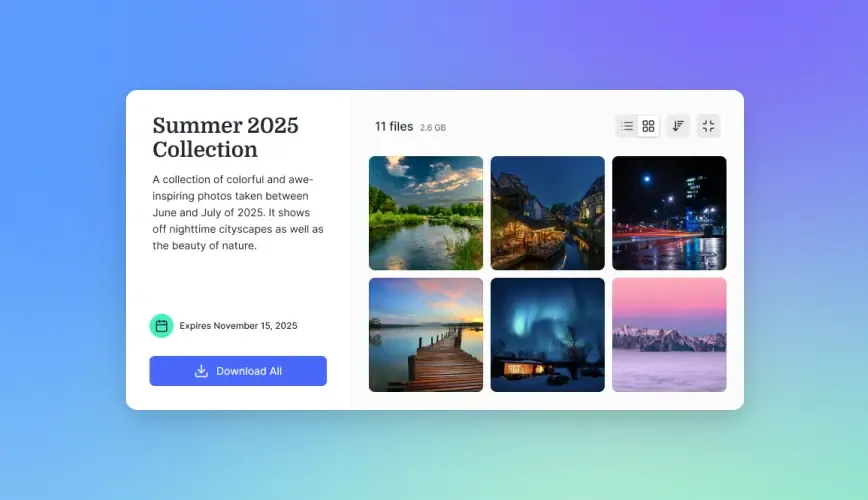
Client and external collaboration. Sharing files with people outside your organization is simpler with cloud storage. No firewall rules, no guest accounts on your NAS, no security concerns about exposing your local network.
Media-heavy workflows. Cloud services built for video and large files offer streaming previews and frame-accurate commenting. You can scrub through footage without downloading the whole file. Synology's built-in media features don't compare.
Best Synology Alternatives by Use Case
Different cloud services fit different workflows:
For Creative Teams and Video Production
Teams working with large media files need more than basic cloud storage. Look for:
- Streaming video previews (not progressive download)
- Frame-accurate commenting for review cycles
- No file size limits or painful upload restrictions
- Client portals for external review
Fastio handles video files up to 250GB with HLS streaming, so reviewers can scrub through footage without downloading the full file first.
For General Business Use
Standard office workflows need:
- Microsoft 365 or Google Workspace integration
- Mobile access for field workers
- Simple sharing with external partners
- Basic version history
Dropbox, Google Drive, and OneDrive all work here. The differences come down to pricing model and which ecosystem you're already in.
For Regulated Industries
Legal, healthcare, and financial services need:
- Detailed audit logs
- Fine-grained access controls
- Data rooms for sensitive transactions
- SSO integration with identity providers
Check actual security features rather than marketing claims. Look for encryption at rest and in transit, audit trails, and permission controls. Compliance badges alone don't tell you much.
Migrating from Synology to Cloud Storage
A successful migration takes planning. Here's how to do it:
1. Audit What You Actually Have
Before migrating, understand your current storage:
- Total data volume (check Synology Storage Manager)
- File types and sizes (video, documents, archives)
- Access patterns (who uses what, how often)
- Current permission structure
2. Choose Your Migration Path
Gradual migration: Keep the NAS running while moving teams to cloud storage one department at a time. Lower risk, longer timeline.
Full migration: Move everything at once during a planned maintenance window. Faster, but requires more coordination.
Hybrid approach: Keep large archives on the NAS while moving active projects to cloud storage. This works well for creative teams with massive media libraries.
3. Handle the Data Transfer
For small datasets (under 500GB), direct upload works fine. For larger migrations, consider:
- Synology's Hyper Backup to supported cloud targets
- Third-party migration tools like MultCloud or CloudSync
- Physical drive shipping for massive datasets
4. Redirect Users and Update Workflows
The technical migration is the easy part. Changing habits takes longer:
- Update bookmarks and shortcuts
- Retrain on new sharing workflows
- Document new procedures
- Run both systems in parallel until everyone's comfortable
What to Look for in a NAS Replacement
When evaluating cloud alternatives, prioritize these features:
Organization-owned files. Files should belong to the company, not individual users. When someone leaves, their files shouldn't go with them or require IT intervention to transfer.
No per-seat pricing traps. Many cloud services charge per user. For teams that need to share with clients or contractors, this gets expensive fast. Look for pricing based on storage and usage, not headcount.
Real collaboration features. Basic folder sharing isn't collaboration. Look for:
- Real-time presence (see who's viewing what)
- Commenting on specific files or sections
- Version history with easy rollback
- Activity logs for accountability
Media handling for creative work. If you work with video, audio, or design files, generic cloud storage falls short. You need streaming previews, broad format support, and feedback tools built for media review.
Client-facing portals. External sharing should look professional, not "here's a link to my Google Drive folder." Branded portals with customizable permissions make clients take you more seriously.
Frequently Asked Questions
Is there an alternative to Synology?
Yes. Cloud storage services like Fastio, Dropbox, Google Drive, and Box replace Synology NAS for most use cases. The main advantages are zero hardware maintenance, automatic scaling, and built-in remote access. The trade-off is ongoing subscription costs instead of upfront hardware purchases.
Is Synology NAS worth it?
Synology NAS makes sense if you have IT staff to maintain it, need complete control over your data, or work with massive local datasets. For remote teams, growing businesses, or anyone who wants to avoid hardware maintenance, cloud storage typically provides better value.
What is the best NAS alternative?
The best alternative depends on your workflow. For creative teams with large media files, Fastio offers streaming video, frame-accurate comments, and client portals. For general business use, Dropbox and Google Drive integrate well with productivity tools. For enterprise deployments, Box and Egnyte provide advanced security controls.
Can I use cloud storage and a NAS together?
Yes. Many teams use a hybrid approach: active projects live in cloud storage for collaboration and remote access, while large archives stay on a NAS for cost-effective long-term storage. Synology's Cloud Sync can automatically back up NAS data to cloud services.
How much does it cost to replace Synology with cloud storage?
Cloud storage costs vary by provider and usage. Fastio's Pro plan includes 25 seats and charges based on storage, not per user. For a team of 25 storing 5TB, expect around published pricing, compared to published pricing for equivalent Dropbox seats. Factor in eliminated hardware costs, maintenance time, and electricity savings when calculating total cost.
Related Resources

Start with synology alternative on Fastio
Fastio gives you cloud storage built for large files and team collaboration. No hardware to maintain, no VPNs to configure.