How to Share a Premiere Pro Project with Your Team
Sharing a Premiere Pro project involves packaging the project file (.prproj) along with all linked media assets so collaborators can open and edit without missing files. This guide covers four methods: Project Manager for complete archives, Team Projects for real-time collaboration, Productions for large-scale workflows, and cloud storage for remote teams. This guide covers share premiere pro project with practical examples.

Why Premiere Pro Projects Are Hard to Share
Premiere Pro projects don't work like a Word document you can email. A .prproj file is essentially a database of pointers, linking to video, audio, and graphics files scattered across your drives. Send just the .prproj file, and your collaborator sees a mess of red "Media Offline" errors. The numbers tell the story: Premiere Pro projects become quite large when you include all the linked media. Missing media is a leading collaboration issue for video teams. You can't just zip up a project folder and call it done. Before you share anything, you need to decide what kind of collaboration you actually need:
- One-time handoff: You're sending the project to someone who will work independently
- Real-time co-editing: Multiple editors working on the same timeline simultaneously
- Long-term team project: A production that will pass between editors over weeks or months
Each scenario calls for a different approach. Let's break down your options.
Helpful references: Fast.io Workspaces, Fast.io Collaboration, and Fast.io AI.
What to check before scaling share premiere pro project
Project Manager is Premiere Pro's built-in tool for packaging projects with their media. It collects every file your project references and copies them into a single folder you can zip and transfer.
Step-by-Step Project Manager Process
- Open your project in Premiere Pro
- Go to File > Project Manager
- Select the sequences you want to include
- Choose your collection settings:
- Collect Files and Copy to New Location: Keeps original media quality
- Consolidate and Transcode: Converts to a common format, reducing size
- Enable Include Handles to include extra padding for editing flexibility
- Click Calculate to see the final size
- Choose your destination folder and click OK
Size Reduction Tips
Project Manager can reduce package size if you use handles wisely. Here's how:
- Use shorter handles for rough cuts and longer ones for projects needing more flexibility
- Exclude unused sequences from the collection
- Transcode to ProRes LT or DNxHD if your collaborator doesn't need the original codec
- Remove any unused media from bins before running Project Manager
The downside: Project Manager creates a static snapshot. Once you send it, you're working on separate copies. Any changes your collaborator makes won't sync back to your original project.
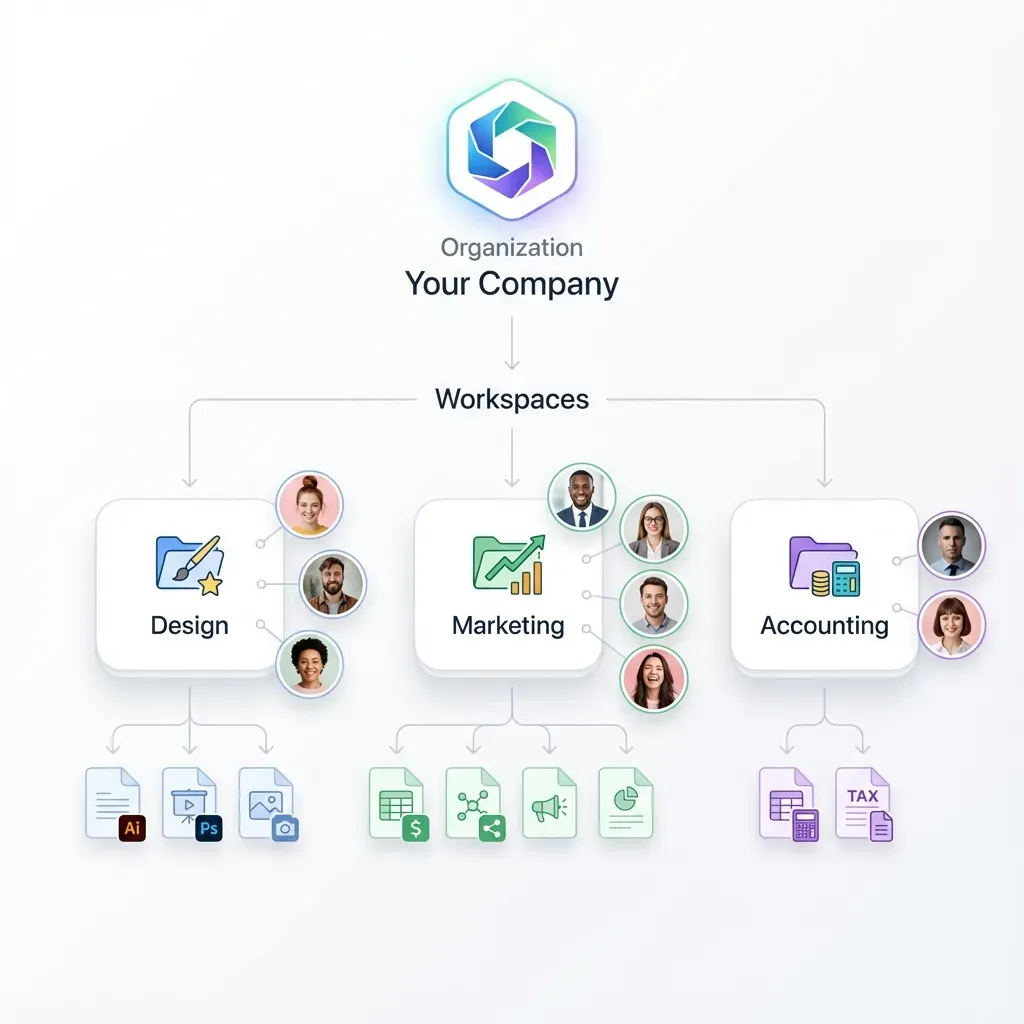
Enable Real-Time Collaboration with Team Projects
Team Projects is Adobe's answer to Google Docs-style collaboration for video editing. Multiple editors can work on the same timeline simultaneously, with changes syncing automatically through Creative Cloud.
Setting Up a Team Project
- From Premiere Pro, select File > New > Team Project
- Name your project and set the frame rate
- Add collaborators by email address through the Edit Collaborators dialog
- Each collaborator receives an invitation in their Creative Cloud desktop app
To convert an existing project: Edit > Team Project > Convert Project to Team Project
The Media Requirement
Here's the catch that Adobe's documentation glosses over: Team Projects only syncs the project file, not the media. Every collaborator needs access to the exact same media files at the exact same file paths. For this to work, your team needs shared cloud storage. The project file syncs through Creative Cloud, but the gigabytes of footage need to live somewhere everyone can access it.


Run Share A Premiere Pro Project With Your Team workflows on Fast.io
Fast.io handles large media files with HLS streaming, no compression, and no file size limits. Preview footage in the browser before downloading.
Use Productions for Large-Scale Projects
Productions are designed for feature films, TV series, and other projects too big for a single .prproj file. A Production is a container that holds multiple projects, each potentially with different editors.
When to Use Productions
- Projects with large volumes of footage
- Multiple editors working on different episodes or acts
- Long-term productions spanning months
- Projects that need to break into separate deliverable pieces
Setting Up a Production
- Go to File > New > Production
- Save the Production folder to shared storage that all editors can access
- Create individual projects within the Production for each editor or segment
- Each project can reference shared media from a common location
Productions work best on shared network storage or cloud-connected drives. The Production folder must be accessible to everyone, and the media needs to be organized in a structure all editors can reach.
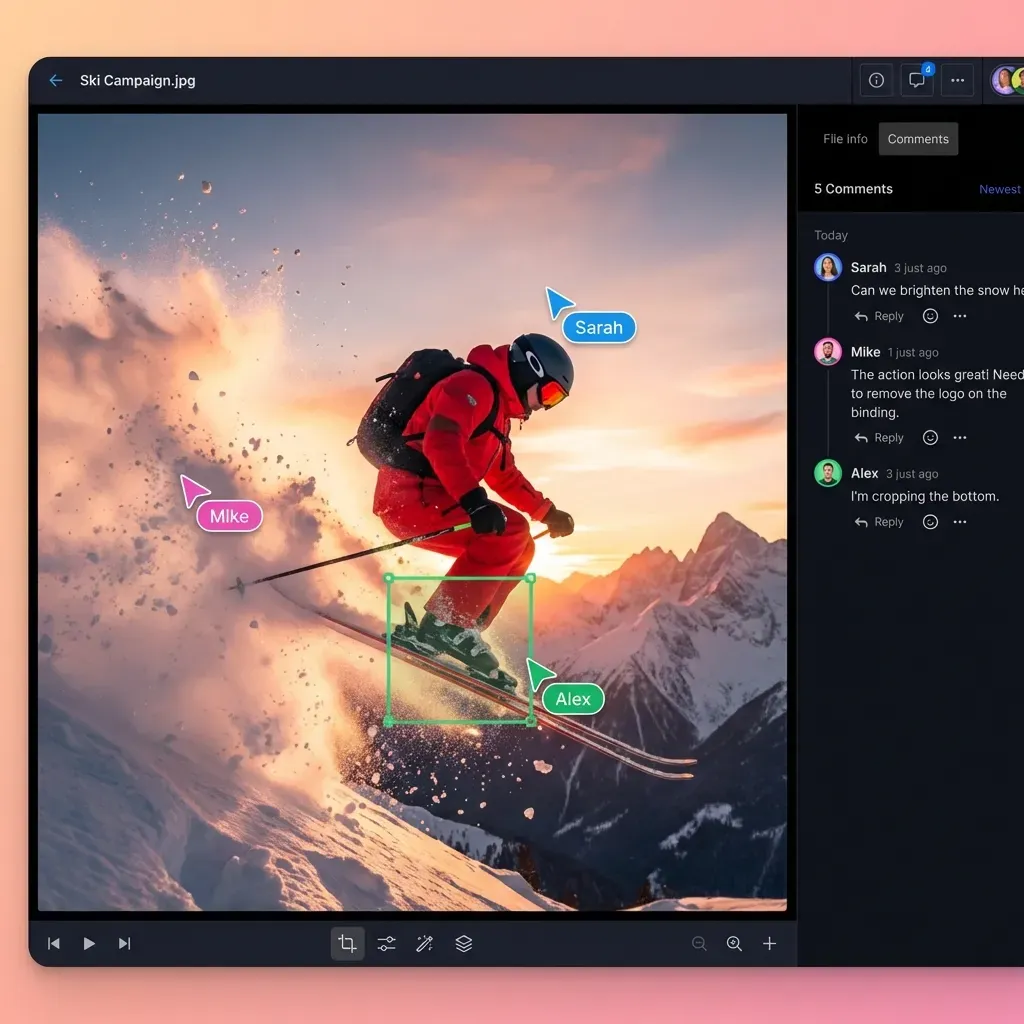
Cloud Storage for Remote Teams
Distributed teams need cloud storage. But not all cloud storage works well for video production.
What Video Teams Need from Cloud Storage
- Large file support for massive individual video files
- No compression: Services that compress uploads destroy video quality
- Streaming preview: Review footage without downloading everything
- Persistent links: Files don't expire or disappear after sharing
Generic file sharing services weren't built for this. They compress uploads, impose file size limits, or require downloading entire projects before you can open them.
Setting Up Cloud Storage for Premiere Projects
The workflow looks like this:
- Upload your organized media folder to cloud storage
- Share access with your collaborators
- Each editor either streams directly (if supported) or syncs to a local folder
- Use Project Manager to collect the .prproj file with relative paths
- Share the project file separately
Good cloud storage lets your team preview footage in the browser, leave comments at specific timecodes, and download only what they need.
Avoiding the Media Offline Error
The "Media Offline" error shows up when Premiere can't find the files your project references. File paths changed during transfer, or media wasn't included in the package.
Common Causes and Fixes
Different drive letters or mount points
Mac and Windows handle paths differently. A file at /Volumes/Media/Footage/ on Mac becomes E:\Footage\ on Windows. Use relative paths and keep media in the same folder structure as the project file.
Missing linked files After opening a project with offline media, right-click on a red clip and select Link Media. Premiere will search for matching files by name. If your folder structure is consistent, it can often reconnect everything at once.
Network path issues
Mapped network drives can disconnect or change letters. Use UNC paths (\\server\share\folder) on Windows or mount consistently on Mac.
The Best Prevention
Keep your project file and media in the same parent folder structure. Run Project Manager before any transfer to make sure all links are relative and all files are collected.
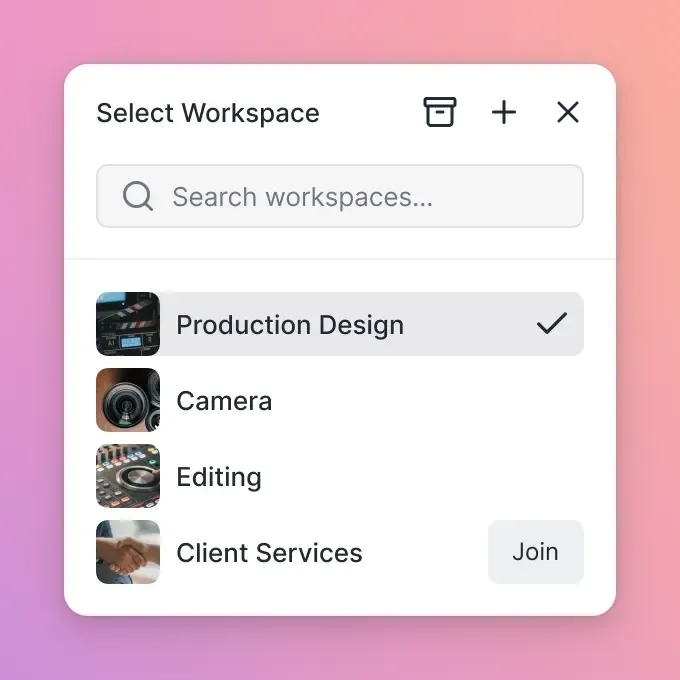
Choosing the Right Method for Your Team
Match your collaboration method to your actual workflow:
Project Manager works best when:
- You need to hand off a project permanently
- Collaborators work independently and won't need to sync changes
- You're archiving a completed project
- File size is manageable after collection
Team Projects works best when:
- Multiple editors need real-time access to the same timeline
- You have shared storage everyone can access
- The project is small enough to avoid major conflicts
- All collaborators have Creative Cloud subscriptions
Productions works best when:
- The project is too large for a single .prproj file
- Different editors own different segments
- You need to manage deliverables as separate projects
- The production spans months with changing team members
Cloud storage works best when:
- Your team is geographically distributed
- You need to share large media files without shipping drives
- Reviewers need to preview footage without editing software
- You want a persistent location for project assets
Many teams combine methods. Cloud storage holds the media. Team Projects syncs the timeline. Project Manager creates the final archive.
Frequently Asked Questions
How do I share a Premiere Pro project with someone?
Use Project Manager (File > Project Manager) to collect your project and all linked media into a single folder. Enable 'Collect Files and Copy to New Location,' select your sequences, and choose a destination. This creates a self-contained package you can zip and transfer through cloud storage or file sharing.
Can you collaborate on Premiere Pro in real-time?
Yes. Team Projects allows multiple editors to work on the same timeline simultaneously through Creative Cloud. Go to File > New > Team Project or convert an existing project via Edit > Team Project > Convert Project to Team Project. Each collaborator needs access to the same media files through shared storage.
How do I send a Premiere Pro project without media offline errors?
Always use Project Manager before sending a project. It collects all linked files and maintains the correct path relationships. Keep the project file in the same folder structure as the collected media. When the recipient opens the project, all paths will resolve correctly.
How do I package a Premiere Pro project?
Open your project, go to File > Project Manager, select the sequences to include, choose 'Collect Files and Copy to New Location,' set an appropriate handle length, click Calculate to preview the size, then click OK. The result is a complete folder ready for transfer.
What's the difference between Team Projects and Productions?
Team Projects syncs a single project file through Creative Cloud for real-time collaboration. Productions are containers for multiple separate projects, designed for large-scale work like TV series. Team Projects is for shared timelines; Productions are for shared media across independent projects.
Related Resources

Run Share A Premiere Pro Project With Your Team workflows on Fast.io
Fast.io handles large media files with HLS streaming, no compression, and no file size limits. Preview footage in the browser before downloading.