How to Share 3D Models with Clients and Teams
Sharing 3D models requires handling large file sizes, multiple formats (OBJ, FBX, STL), and ensuring clients can view your work without specialized software. This guide covers the best methods for delivering 3D assets securely and professionally, from format selection to client-ready delivery portals.

Why Sharing 3D Files Is Different from Other File Types
3D modeling workflows produce some of the largest files in the creative industry. A single high-fidelity character model or architectural visualization can exceed 2GB on its own. When you add texture maps at 4K or 8K resolution, uncompressed geometry data, simulation caches, and animation files, project folders often grow to hundreds of gigabytes.
But size is only part of the challenge. The real problem is accessibility. You might work in Blender, Maya, Cinema 4D, or SolidWorks every day, but your clients probably don't have these applications installed. Sending a raw .blend or .ma file to a marketing director or project manager is essentially useless to them. They cannot open it, preview it, or confirm that the work meets their expectations.
Successful 3D file delivery means solving three distinct problems at once. First, you need to transfer massive amounts of data without hitting upload limits or experiencing slow speeds. Second, you need to protect proprietary designs from unauthorized access or accidental leaks. Third, you need to provide a way for non-technical stakeholders to actually see and review the work. Missing any one of these requirements creates friction that slows down projects and frustrates clients.
Most standard file sharing tools were not built with 3D workflows in mind. Email attachments cap out at 25MB. Consumer cloud storage services throttle download speeds and impose storage limits that creative projects exceed within weeks. This is why 3D artists often resort to external hard drives shipped overnight, which introduces its own delays and risks.
Understanding 3D File Formats and When to Use Each
Before choosing a transfer method, you need to understand what you are actually sending. Different 3D formats serve different purposes, and picking the wrong one creates headaches for everyone involved.
OBJ and FBX are the industry standards for geometry exchange. OBJ is the simpler of the two. It stores mesh data and basic material references, and nearly every 3D application can read it. The tradeoff is that OBJ does not support animation, rigging, or complex scene hierarchies. FBX is more capable. It handles animation, skeletal rigs, and multi-object scenes, which makes it the go-to format for game development and motion graphics. When you are sending files to another 3D artist who needs to continue working on the model, these formats are usually the right choice.
STL exists primarily for 3D printing. It contains only surface geometry defined as triangles, with no color, texture, or material information. If your client is sending a model to a 3D printer or CNC machine, STL is what they need. For anything else, it is too limited.
GLTF and GLB are newer formats designed specifically for web viewing and augmented reality. Think of GLB as the "JPEG of 3D." These files are lightweight, load quickly in web browsers, and support materials, textures, and basic animation. When you want to send something that a client can preview instantly in their browser or AR app, without downloading or installing anything, GLTF/GLB is the answer.
Native files like .blend (Blender), .max (3ds Max), or .c4d (Cinema 4D) should only be shared with other artists who use the same software and need to edit the source. These files tend to be enormous and are prone to version conflicts when software updates change internal file structures.
Common Methods for Sharing 3D Models
There is no single "best" way to share 3D files. The right approach depends on whether you need collaboration features, browser-based viewing, or simple file delivery.
3D Web Viewers like Sketchfab and Marmoset Viewer let you upload a model and send a link. The recipient can rotate, zoom, and inspect the model directly in their browser without installing anything. This works well for portfolio display, quick visual feedback, and public showcases. The downside is that these platforms are not designed for secure, private delivery of raw production assets. Public viewing is often the default, and private links usually require paid subscriptions. You are also limited by whatever compression the platform applies to uploaded files.
General cloud storage services like Google Drive and Dropbox are what many teams default to. You upload files to a synced folder and share a link. This approach works for internal teams with synced drives and established folder structures. The problems appear when you start working with external clients. Storage limits fill up quickly with 3D projects. Sharing links often look unprofessional, especially when clients see a cluttered folder structure. Download speeds can be throttled, particularly for large files. And you have limited control over who accesses what after the link goes out.
Professional client portals like Fast.io solve the delivery problem specifically. Instead of sending clients to a generic cloud folder, you present files through a branded interface that looks like part of your own website. The client experience is polished and professional, with custom branding, organized file presentation, and fast download speeds. Because files stream directly from cloud storage, there are no file size limits choking your 50GB photogrammetry scans or detailed architectural scenes.
How to Prepare 3D Files Before Sending Them
Sending a messy folder filled with unused assets, broken references, and confusing filenames is a recipe for confusion and wasted time. Proper preparation before delivery makes you look professional and prevents the inevitable "I can't open this" emails.
Clean your scene before export. Delete unused nodes, construction history, hidden geometry, and orphaned materials. In Blender, run "Recursive Unused Data-Block" cleanup from the Outliner. In Maya, use "Optimize Scene Size" from the File menu. In 3ds Max, use the Scene Explorer to find and delete unused objects. This cleanup step alone can reduce file sizes by 20 to 30 percent and eliminates confusion about what the client should actually be looking at.
Package your textures correctly. Most 3D formats like OBJ do not embed textures. They reference external files. If you send just the OBJ file, the recipient will see a grey, untextured model. Always zip the model file together with its texture folder, maintaining the relative folder structure. Alternatively, use formats like GLB or FBX with "Embed Media" enabled to bake textures directly into the file. Test your packaged file by unzipping it on a different computer and opening it. If textures appear correctly, you are ready to send.
Include a preview render. Always include a low-resolution JPG render showing the model from a few angles, or a PDF turntable with key views. This lets the client confirm what the file should look like before they attempt to open the 3D file itself. If something looks wrong after they open it, they know the problem is on their end. This simple addition prevents hours of troubleshooting.
Write a readme file. Include a brief text file explaining what software and version you used, what formats are included in the package, and any special instructions for opening the files. Clients will appreciate not having to guess.
Protecting Proprietary 3D Work During Delivery
Proprietary automotive designs, unreleased game assets, architectural IP, and prototype product models all require protection. Sending these files through insecure channels creates real business risk. Leaked designs can result in lost competitive advantage, broken NDAs, and damaged client relationships.
Email attachments are inherently insecure. Files sit unencrypted on mail servers, can be forwarded to anyone, and leave no audit trail showing who accessed what. Public file transfer links are similarly risky. Once a link is out there, you have no way to control who downloads the files or how many times they get copied.
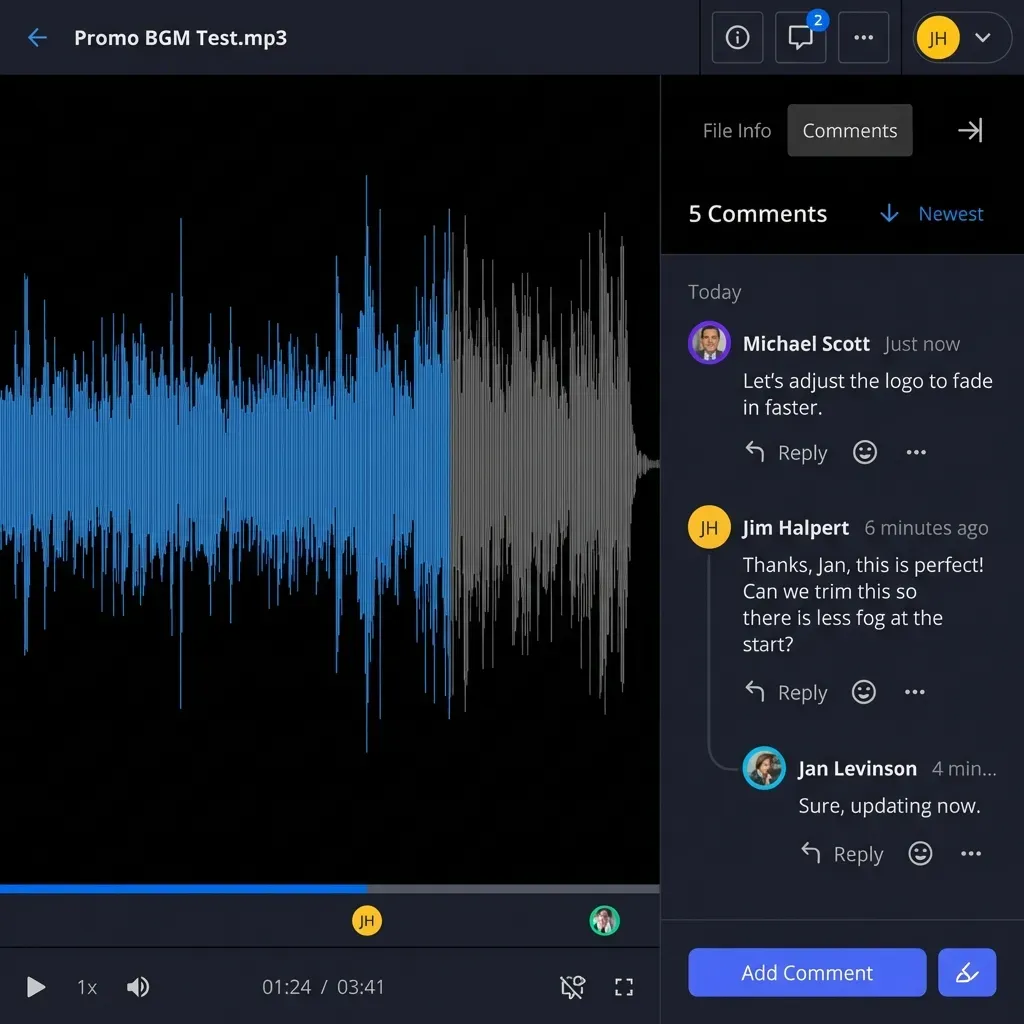
Proper security for 3D asset delivery includes several components. Password protection ensures that only people with the password can access the download. Expiration dates automatically disable links after a set period, limiting the window of exposure. View-only permissions let clients preview files without downloading the full source. Audit logs record exactly when files were accessed and by whom, creating accountability.
Fast.io provides all of these controls through its link settings. When you share a project folder, you can set passwords, configure expiration dates, and review access logs showing download activity. Because files stream directly from your cloud storage rather than being copied to third-party servers, your original assets stay under your control. If you need to revoke access instantly, you can disable a shared link with one click.
For high-stakes deliveries like venture pitch materials or pre-announcement product reveals, consider using Fast.io's data room features. Data rooms add another layer with deal intelligence that tracks how long viewers spend on each file, which pages they view, and whether they downloaded anything. This insight helps you understand client engagement and identify serious interest.
Setting Up a Client Delivery Portal
The difference between sending a generic cloud link and presenting files through a branded portal is the difference between looking like an amateur and looking like a professional studio. Clients notice these details.
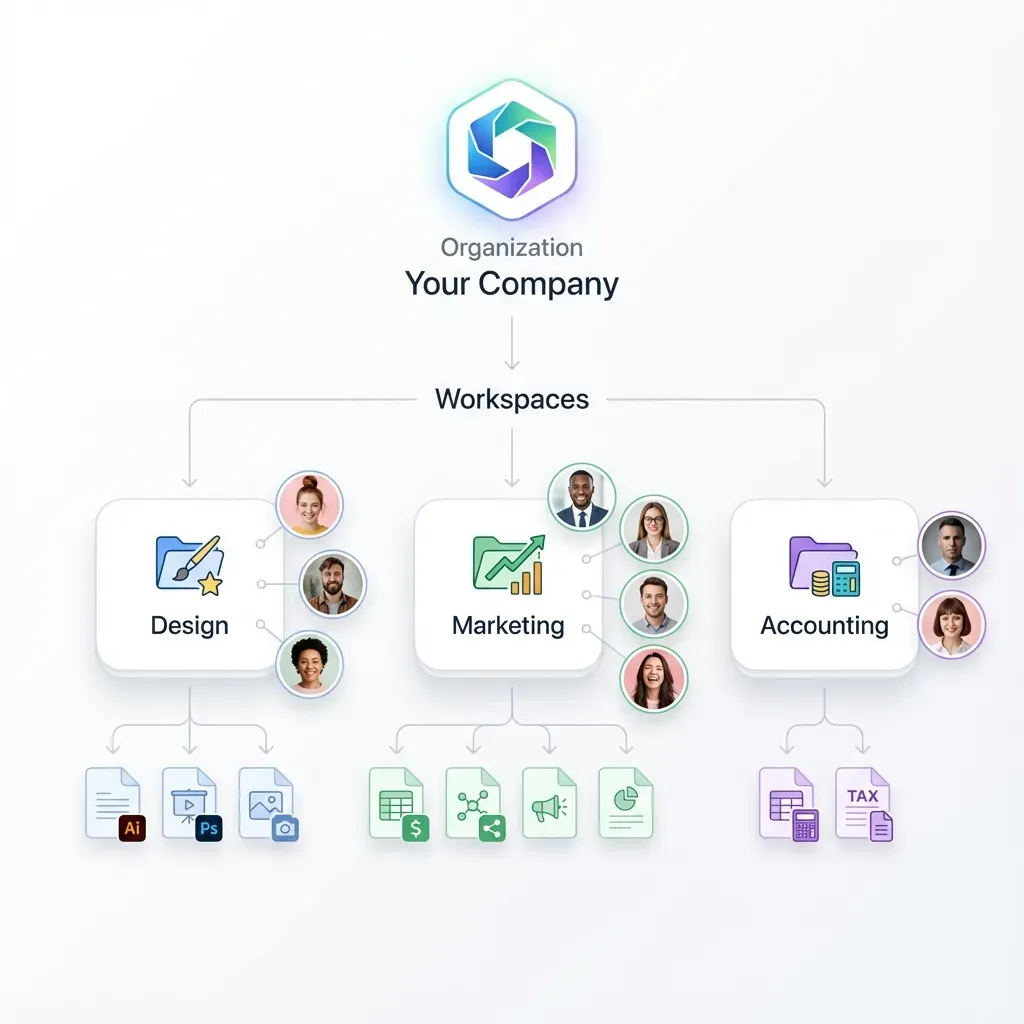
A dedicated delivery portal provides a consistent, polished experience. Instead of asking clients to navigate through folder structures or figure out which version of a file is current, you present exactly what they need in a clean interface. Your branding appears on the page. Files are organized logically. The client can preview supported formats directly in the browser, add comments, and download what they need without friction.
Fast.io makes setting up a client portal straightforward. Create a workspace for each client or project. Upload your 3D files, renders, and supporting documentation. Configure sharing settings including access permissions and any password requirements. Generate a shareable link that takes clients directly to their portal.
For ongoing client relationships, you can maintain persistent workspaces that clients return to throughout a project. Upload new versions as work progresses. Clients always know where to find the latest files without hunting through email threads or multiple download links. Activity tracking shows when clients access the portal, so you know they have received your deliverables without needing to ask for confirmation.
The pricing model also works in your favor. Fast.io charges based on usage rather than per-seat licensing, so inviting external clients does not increase your costs. Clients do not need to create accounts or install anything. They simply click the link and access their files.
Optimizing Large 3D Files for Faster Transfers
When you are dealing with files in the tens or hundreds of gigabytes, transfer speed becomes a real concern. Waiting hours for an upload or download interrupts workflows and can miss deadlines.
Compression helps, but has limits. ZIP compression reduces file sizes for geometry data, but provides minimal benefit for files that are already compressed like JPGs or video previews. For raw 3D data, expect 10 to 40 percent size reduction from zipping. Tools like 7-Zip with LZMA compression can squeeze a bit more. The tradeoff is that high compression ratios take longer to compress and decompress, so you are trading transfer time for processing time.
Use proxy files for review. Instead of sending the full-resolution model for feedback, create a lightweight preview version. Reduce polygon counts, use lower-resolution textures, and export to a web-friendly format like GLB. The client can review this version in their browser instantly. Once they approve the work, send the full-resolution files.
Split very large archives. Some transfer services choke on extremely large single files. If you have a 100GB archive, consider splitting it into 10GB chunks using your compression tool's spanning feature. This also provides a natural checkpoint if transfers are interrupted.
Choose transfer services built for large files. Fast.io streams files directly from cloud storage without size limits, so you avoid the upload-wait-download cycle of traditional transfer services. Connect your existing cloud storage, share a link, and the client downloads directly at maximum speed. There is no intermediate server creating bottlenecks.
Frequently Asked Questions
What is the best format to send a 3D model to a client?
For simple viewing without special software, GLB (GLTF binary) is best because it opens directly in Windows, macOS, and web browsers. For 3D printing, send STL. If the client needs to use the model in other 3D software, FBX or OBJ are the safest standards for cross-platform compatibility.
How can I send a 3D file larger than 2GB?
Avoid email entirely for large files. Use a file transfer service designed for large files. Fast.io has no file size limits because it streams directly from your cloud storage, making it practical for 50GB or larger project files. Alternatively, split archives into smaller chunks if using a service with size restrictions.
Can I password protect my 3D model download?
Yes. Professional file transfer tools let you add password protection and expiration dates to shared links. In Fast.io, configure these options when creating the share link. Only recipients with the password can access your intellectual property.
How do I share 3D files without the client needing special software?
Export a web-friendly version in GLB or GLTF format. These formats open directly in web browsers. Alternatively, upload to a viewing platform like Sketchfab for interactive 3D preview. For professional delivery, use a portal service that generates browser previews automatically.
What is the fastest way to transfer large 3D project folders?
Direct cloud-to-cloud transfers are fastest because they skip intermediate uploads. Services like Fast.io connect to your existing cloud storage and let clients download directly, avoiding the slow upload step. For very large projects, this can save hours compared to traditional upload-then-share workflows.

Better 3D File Delivery Starts Here
Deliver massive 3D models and textures to your clients with a professional, branded experience. No file size limits, just fast transfers and complete access control.