How to Send 4K Video Files Without Losing Quality
Sending 4K video files requires specialized transfer methods because these files typically range from 10GB to 100GB+ per hour of footage. Most messaging apps and email services compress uploads automatically, destroying the quality you worked to capture. This guide covers five methods to transfer 4K footage without losing quality.
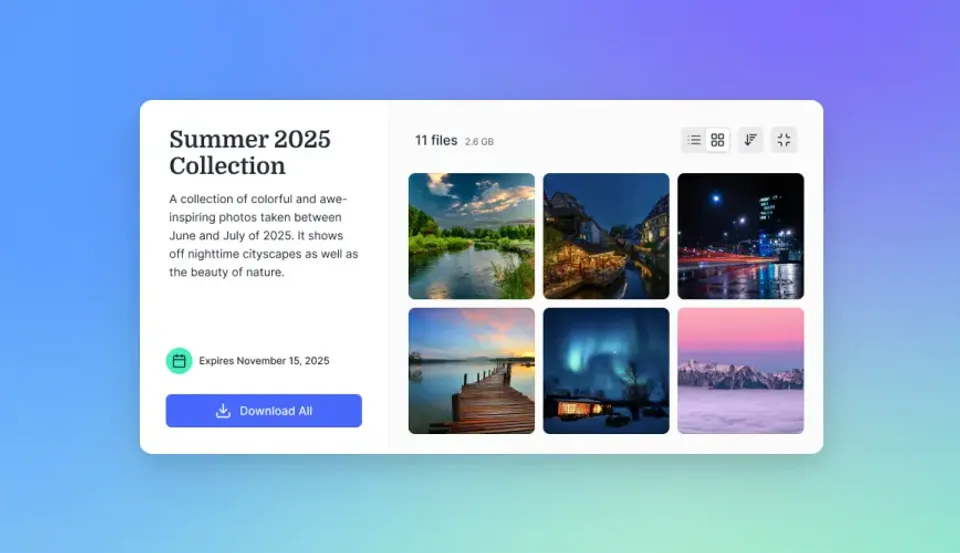
Why 4K Video Files Are Hard to Send: send 4k video
4K video files are roughly 4x larger than 1080p footage. A 10-minute 4K video can range from 3GB to 6GB depending on the codec and bitrate. Professional footage shot in ProRes or RAW can easily exceed 50GB for just a few minutes of content. Most file sharing methods fail because they either:
- Compress on upload: WhatsApp, iMessage, and Messenger all re-encode video to save bandwidth
- Have size limits: Email caps out at 25MB, and many cloud services limit free uploads
- Require downloads: Recipients must download the entire file before viewing
For professionals delivering dailies, sending footage for color grading, or sharing final cuts with clients, these limitations are deal-breakers.
Helpful references: Fast.io Workspaces, Fast.io Collaboration, and Fast.io AI.
What to check before scaling send 4k video
Cloud storage services like Google Drive, Dropbox, and OneDrive upload files without re-encoding, preserving original quality. The recipient downloads the exact file you uploaded.
Pros:
- Original quality preserved
- Files stay available indefinitely
- Easy sharing via link
Cons:
- Free tiers are limited (2-15GB)
- Recipients must download before viewing
- No streaming preview for large files
- Per-seat pricing gets expensive for teams
Google Drive offers 15GB free, Dropbox starts with 2GB, and OneDrive provides 5GB. For regular 4K transfers, you'll likely need a paid plan. Cloud storage architecture matters more than most people realize. Sync-based platforms require local copies of every file, consuming disk space and creating version conflicts. Cloud-native platforms stream files on demand, so your team accesses what they need without downloading entire folder trees.
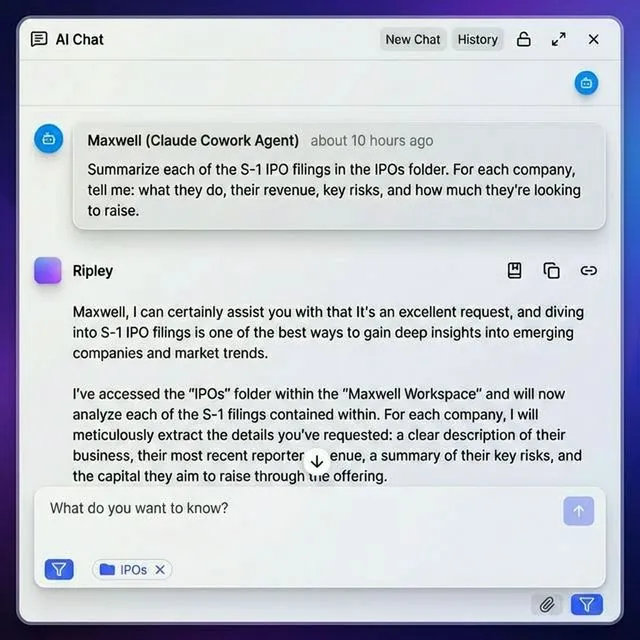
Method 2: File Transfer Services
Transfer services like WeTransfer and Smash focus purely on moving files, not storing them. Upload your video, get a link, send it to recipients.
WeTransfer allows files up to 2GB on free accounts and 200GB on paid plans. Files expire after 7-28 days depending on your plan.
Smash has no file size limits on free uploads, though speeds are throttled without a subscription.
Pros:
- No account needed for recipients
- Simple, focused experience
- No compression
Cons:
- Files expire (not persistent storage)
- No collaboration features
- Must re-upload for each new recipient
- No preview or streaming
These work well for one-off transfers but become tedious for ongoing projects.
Method 3: AirDrop for Apple Users
If both sender and recipient use Apple devices, AirDrop transfers files locally via Bluetooth and Wi-Fi Direct. There's no file size limit and no compression.
Best for:
- Quick transfers in the same room
- On-set sharing between crew members
- Moving footage from iPhone to Mac
Limitations:
- Apple ecosystem only
- Requires physical proximity (about 30 feet)
- Not practical for remote collaboration
Consider how this fits into your broader workflow and what matters most for your team. The right choice depends on your specific requirements: file types, team size, security needs, and how you collaborate with external partners. Testing with a free account is the fast way to know if a tool works for you.
Method 4: Physical Drives
Sometimes the fast way to send a 4K video is to copy it to a USB drive or external SSD and ship it. A 1TB NVMe drive can hold around 10 hours of 4K ProRes footage.
When physical makes sense:
- large projects (500GB+)
- Poor internet on either end
- Sensitive content requiring chain of custody
The math: Uploading 500GB on a 100Mbps connection takes about 11 hours. Overnight shipping takes 12-18 hours. For massive transfers, physical media often wins. Consider how this fits into your broader workflow and what matters most for your team. The right choice depends on your specific requirements: file types, team size, security needs, and how you collaborate with external partners. Testing with a free account is the fast way to know if a tool works for you.


Send 4K video without compression
Fast.io preserves original quality while letting recipients stream instantly. No downloads required.
Method 5: Team Storage with Streaming Preview
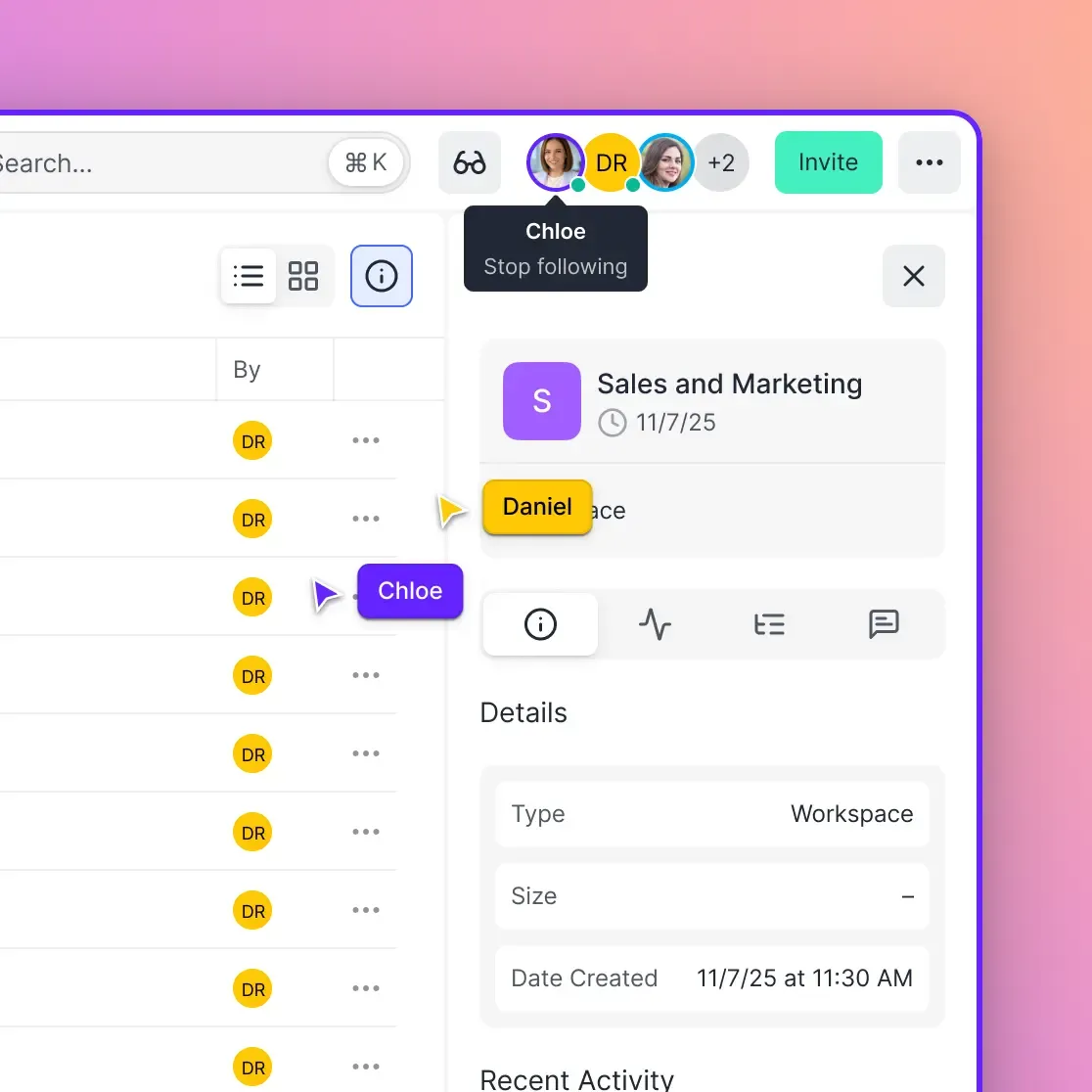
For video professionals who regularly share 4K footage, dedicated team storage with built-in streaming solves multiple problems at once. Fast.io uses HLS (HTTP Live Streaming), the same technology Netflix uses, to let recipients preview 4K videos instantly without downloading. The original file stays untouched while a lightweight streaming proxy handles playback.
Key features for video teams:
- Instant playback: Recipients watch immediately, no download required
- Frame-accurate comments: Pin feedback to specific timecodes
- Persistent storage: Files don't expire like transfer services
- Unlimited guests: Clients view without needing accounts
- Branded portals: Deliver work with your logo and colors
This works well for client reviews, stakeholder approvals, and projects where the same files get shared multiple times.
Choosing the Right Method
Match your transfer method to your situation:
What to Avoid
Never use these for 4K video:
- Email attachments (25MB limit, often compressed)
- WhatsApp or Messenger (heavy compression)
- YouTube or Vimeo uploads (re-encoded, not original quality)
- SMS/MMS (severely compressed)
Video platforms like YouTube are fine for streaming to viewers, but they re-encode uploads. Your recipient gets a watchable version, not your original file.
Tips for Faster 4K Transfers
Choose the Right Codec
Your source codec affects file size :
- H.265/HEVC: Best compression without visible quality loss, about half the size of H.264
- H.264: Universal compatibility but larger files
- ProRes: Professional editing codec, large but lossless
- RAW: Uncompressed sensor data, enormous files
If quality allows, encoding to H.265 before transfer can cut upload time in half.
Use Wired Connections
Wi-Fi speeds vary wildly. A wired ethernet connection gives consistent speeds and prevents the frustration of failed uploads on large files.
Transfer During Off-Peak Hours
If you're on shared internet (office, apartment building), uploading overnight often gives faster speeds when neighbors aren't streaming.
Frequently Asked Questions
How do I send a 4K video without losing quality?
Use a file transfer method that doesn't re-encode uploads. Cloud storage (Google Drive, Dropbox), transfer services (WeTransfer, Smash), or team storage platforms like Fast.io all preserve original quality. Avoid messaging apps like WhatsApp, iMessage, or Messenger, which compress video automatically.
Can you email a 4K video?
Not directly. Email attachments are typically limited to 25MB, and a single minute of 4K video can be 300MB to 600MB. Instead, upload your video to cloud storage and share the link via email.
What is the best way to share 4K footage?
For one-time transfers, WeTransfer or similar services work well. For ongoing projects or client reviews, team storage with streaming preview lets recipients watch instantly without downloading. For large transfers, shipping a physical drive is sometimes faster than uploading.
How long does it take to upload a 4K video?
Upload time depends on file size and internet speed. A large file on a 100Mbps connection takes about 13 minutes. On a 10Mbps connection, the same file takes over 2 hours. For reference, 10 minutes of 4K H.264 footage is typically 3-6GB.
Does compressing a 4K video reduce quality?
Yes. Any re-encoding process loses some quality, even if the loss isn't visible. For archival or professional delivery, always transfer the original file. If you must compress for faster transfer, H.265/HEVC offers the best quality-to-size ratio.
Related Resources

Send 4K video without compression
Fast.io preserves original quality while letting recipients stream instantly. No downloads required.