How to Send a 100GB File: Methods That Actually Work
Guide to send 100gb file: Guide to send large file: Sending a large file requires specialized file transfer services as most consumer tools have size limits too small for large files. This guide covers five methods that actually handle large files, from free options to professional services built for video production and enterprise workflows. This guide covers send large file with practical examples. This guide covers send large file with practical examples. This guide covers send
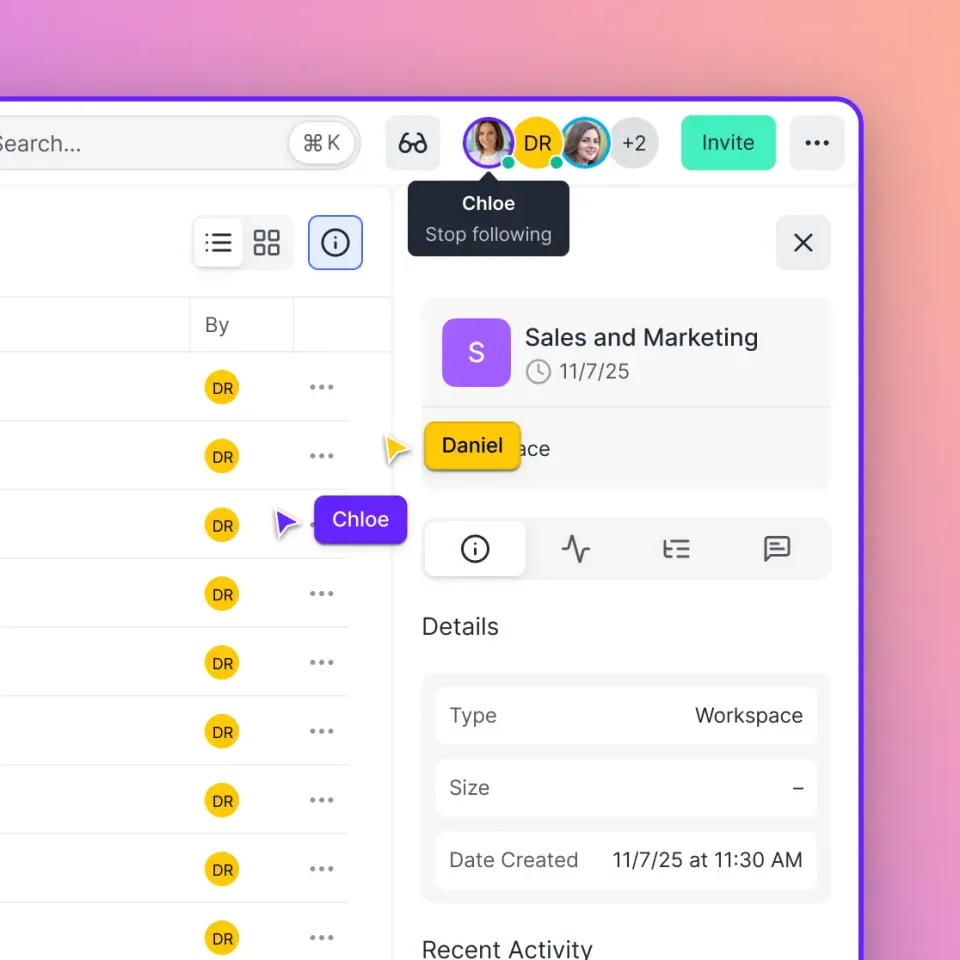
Why Most File Sharing Tools Fail at 100GB: send large file: send large file: send large file: send large file: send large file: send large file
Most file sharing services were designed for documents and photos, not the massive files that video editors, engineers, and researchers work with daily. Here's where common tools hit their limits:
- Email attachments: Gmail caps at 25MB, Outlook at 20MB
- WeTransfer free: large limit per transfer
- Google Drive uploads: Works for 100GB but has a large storage cap and charges per user
- Dropbox: Progressive download (not streaming) makes large video files painful to preview
The math on upload time matters too. At a typical home connection of 100Mbps upload speed, a large file takes roughly 2.5 hours to upload. At 25Mbps, you're looking at 10+ hours. Any service you choose needs to handle interrupted uploads gracefully.
Helpful references: Fast.io Workspaces, Fast.io Collaboration, and Fast.io AI.
Method 1: Large File Transfer Services
Dedicated file transfer services exist specifically for massive files. Unlike general cloud storage, they focus on one thing: getting big files from point A to point B quickly.
Top options for 100GB+ transfers:
- MASV: No file size limits. Uses multi-connection uploads to maximize bandwidth. In benchmarks, MASV transfers at roughly 2x the speed of WeTransfer. Pay-per-use pricing at about $0.25/GB.
- TransferNow: Free tier allows up to 250GB per transfer. Files expire after 7 days on the free plan, 28 days on paid.
- Smash: Unlimited file sizes even on the free tier. Pro tier at around published pricing adds faster speeds and longer file retention.
- TransferXL: Up to 200GB on the free tier with a 7-day expiration.
When to use transfer services: One-off deliveries where you don't need the recipient to have ongoing access. Sending final video exports to a client, delivering research datasets to a collaborator, or sharing a project archive.
Method 2: Cloud Storage with Direct Links
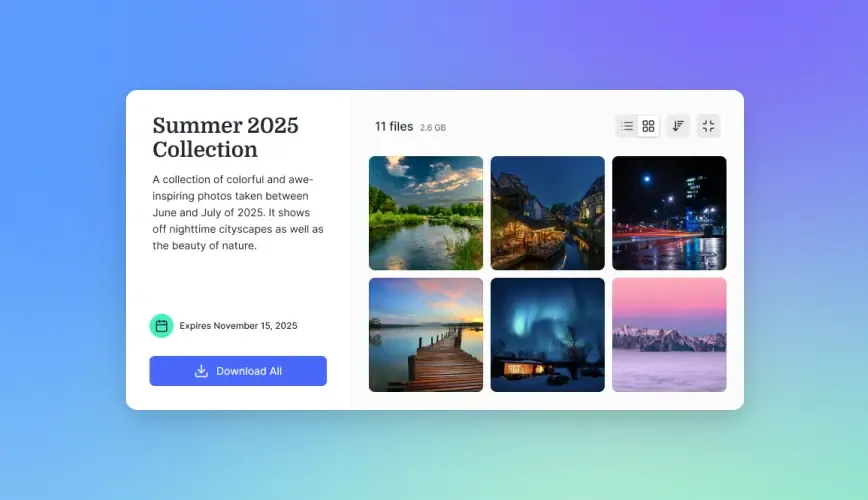
If you already use cloud storage for your files, you can often share large files directly without re-uploading to a separate transfer service.
Google Drive: Upload limit is 5TB per file. Create a shareable link and anyone can download. The free tier gives you 15GB of storage, so you'll need a paid plan ($2.99/month for 100GB or $9.99/month for 2TB).
Dropbox: Supports files up to 2GB on the free plan, 2TB on Plus. The main issue with Dropbox for large video files is that it uses progressive download rather than streaming. Recipients must download the entire file before they can watch it.
OneDrive: Supports large files. If you already use Microsoft 365, this is an easy choice. Consumer plans start at published pricing for 100GB.
The main limitation: General cloud storage platforms charge per seat. If you need to share with multiple team members or clients, costs add up quickly. A team of 25 people on Dropbox runs about published pricing at published pricing.


Run Send A 100gb File Methods That Actually Work workflows on Fast.io
Fast.io handles 100GB files. Stream video for instant review, share with unlimited collaborators, and keep files organized in persistent workspaces.
Method 3: Persistent Workspaces (For Ongoing Collaboration)
Transfer services and cloud storage both have trade-offs. Transfer services delete files after days or weeks. Cloud storage charges per user and creates sync conflicts with huge files. Persistent workspace platforms solve both problems. Files live in the cloud permanently, you share access to workspaces rather than individual files, and there's no local syncing of massive files clogging up hard drives.
How workspace-based sharing works:
- Upload your large file once to a shared workspace
- Invite team members or external clients to that workspace
- They access files through their browser without downloading everything
- Large video files stream instantly rather than requiring full downloads
This approach works well for video production teams, creative agencies delivering to clients, and any workflow where multiple people need access to the same large files over time. Fast.io works this way. Files belong to the organization, not individuals, so nothing disappears when contractors finish a project or employees leave. Video files stream using adaptive bitrate (like Netflix), so collaborators can review footage without waiting for a 100GB download.

Method 4: Physical Drives (When Internet Speed Isn't Enough)
Sometimes the fast file transfer is a hard drive in a shipping box. At slow upload speeds, physical transfer wins on pure time:
When physical makes sense:
- Low upload speeds
- You're transferring multiple terabytes
- The recipient needs to work offline
- You're in a location with unreliable internet
Practical tips:
- Use USB 3.0/3.1 external SSDs for faster copy times
- Ship with tracking and insurance
- Keep a backup before shipping
- Consider services like AWS Snowball for massive datasets (petabyte-scale)
Method 5: Self-Hosted Options (For Technical Teams)
If you have technical resources and want full control, you can run your own file transfer infrastructure.
FTP/SFTP servers: The classic approach. Tools like FileZilla make setup simple enough. Main downside: recipients need FTP client software, and there's no web-based preview.
Nextcloud: Open-source, self-hosted cloud storage. You control the server, the storage limits, and the data. Requires server administration knowledge and ongoing maintenance.
Syncthing: Peer-to-peer sync without a central server. Good for syncing between your own devices, less practical for sharing with external parties.
Rclone: Command-line tool for transferring files between cloud providers and local storage. Power users can script automated transfers. These options give you full control but require technical setup and ongoing maintenance. For most teams, managed services make more sense unless you have compliance requirements that demand on-premises infrastructure.
Choosing the Right Method for Your Workflow
Pick based on your actual use case, not just file size:
One-time delivery to a client or collaborator Use a transfer service like MASV or Smash. Upload once, send the link, done. Files expire after the job is complete.
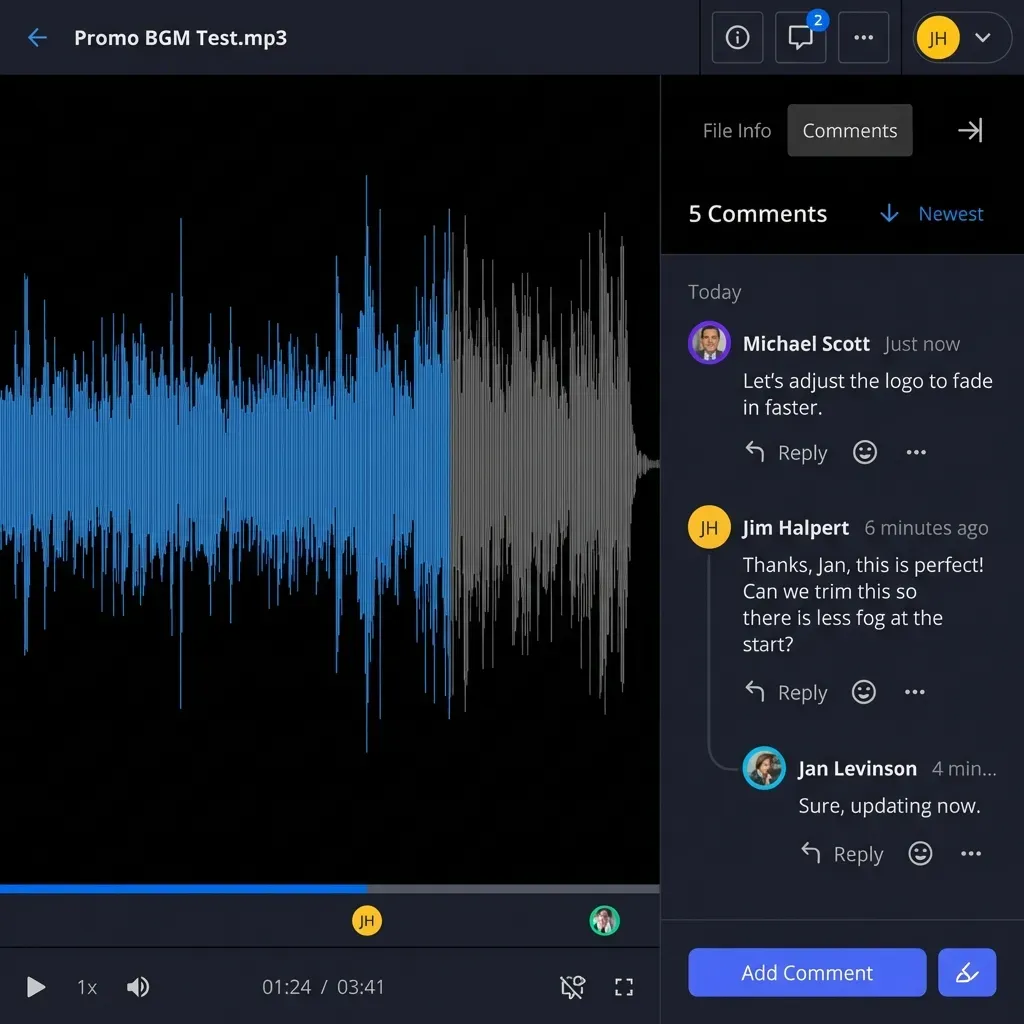
Ongoing collaboration on large media files Use a workspace-based platform. Video production teams, creative agencies, and any group that needs to review and comment on large files over time will save hours compared to re-uploading for every revision.
Sending to non-technical recipients Avoid FTP and self-hosted options. Use something with a simple download link and browser-based preview.
Tight budget with occasional large transfers TransferNow (250GB free) or Smash (unlimited free tier) work for infrequent transfers. Upgrade when you need faster speeds or longer file retention.
Enterprise security requirements Look for services with audit logs, access controls, and encryption. General consumer transfer services often lack the visibility businesses need.
Frequently Asked Questions
How can I send a large file for free?
Several services offer free 100GB+ transfers. TransferNow allows up to 250GB per transfer for free (files expire after 7 days). Smash offers unlimited file sizes on its free tier. TransferXL supports up to 200GB free. The trade-off is usually file expiration times and transfer speeds compared to paid plans.
How long does it take to upload 100GB?
Upload time depends on your internet speed. At 100 Mbps upload, a large file takes about 2.5 hours. At 25 Mbps, expect 9-10 hours. At 10 Mbps (common for residential connections), you're looking at 22+ hours. Many transfer services support resume-on-disconnect, which is essential for uploads this long.
What is the best way to transfer large files?
For one-time transfers, dedicated services like MASV or TransferNow optimize for speed and reliability. For ongoing collaboration where multiple people need access, workspace-based platforms like Fast.io avoid repeated uploads and let recipients stream video files without downloading. For massive datasets (multi-terabyte), physical drives shipped overnight can be faster than internet transfer.
Can I send a large file through email?
Not directly. Email attachment limits are typically 20-25MB. Most email providers automatically convert large attachments to cloud storage links (Gmail uses Google Drive, Outlook uses OneDrive). You can share a link to your large file via email, but you'll need to upload it to a cloud service first.
What internet speed do I need to upload large files?
Faster is always better, but decent upload speeds are workable for occasional large transfers. With slow upload speeds, consider overnight uploads or physical drives for large files. Business fiber connections often provide 500+ Mbps upload speeds, which can transfer 100GB in about 30 minutes.
Related Resources

Run Send A 100gb File Methods That Actually Work workflows on Fast.io
Fast.io handles 100GB files. Stream video for instant review, share with unlimited collaborators, and keep files organized in persistent workspaces.