How to Send Files Larger Than 25MB in Gmail
Gmail's 25MB attachment limit blocks billions of file transfers every day. Whether you're sending video footage, design files, or project archives, this guide covers reliable methods to bypass Gmail limits: Google Drive integration, file compression, and professional file sharing platforms built for teams. This guide covers gmail file size limit with practical examples.
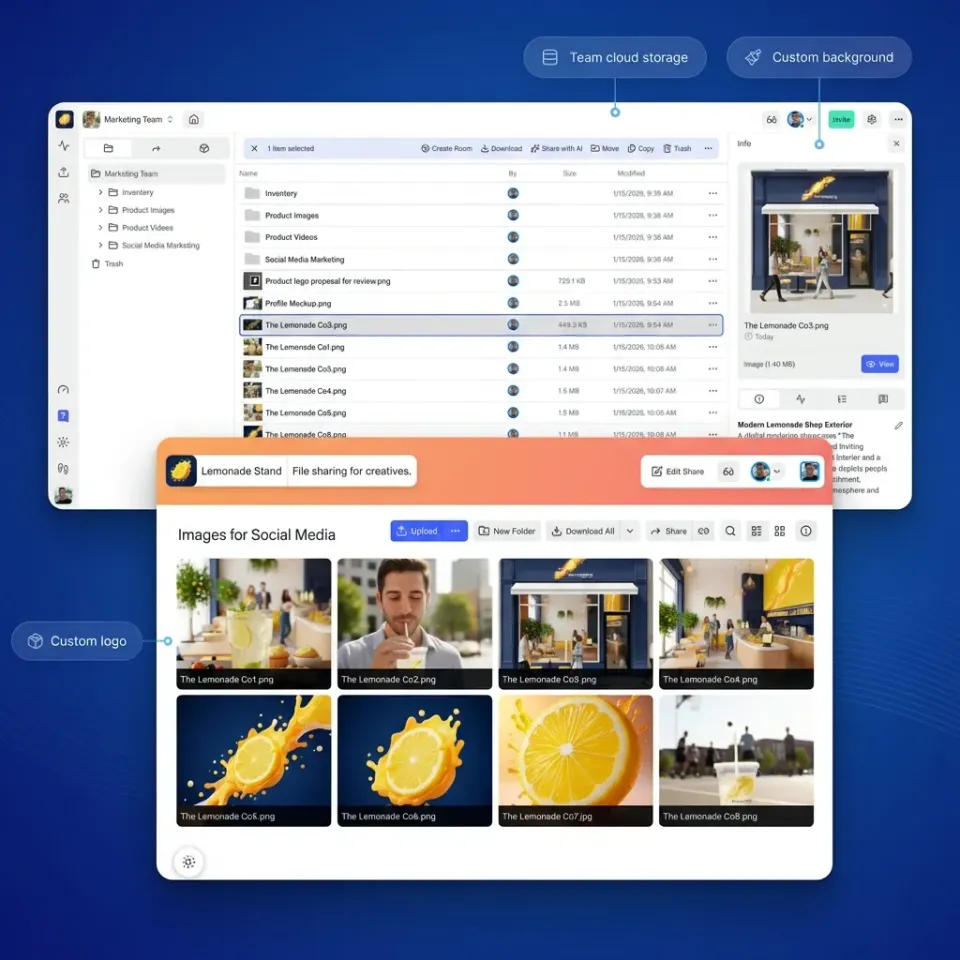
Understanding the Gmail 25MB Attachment Limit: gmail file size limit
Gmail enforces a strict 25MB limit on email attachments. This limit applies to the total size of your message, including the email body, all attached files, and any inline images combined. If you attach three files at 10MB each, Gmail will reject the message entirely. The limit exists for practical infrastructure reasons. Email servers were never designed to handle large binary files. When you attach a file to an email, it gets encoded in Base64 format, increasing the data size further, which is why Gmail's 25MB limit feels even more restrictive in practice. For individual users sending the occasional document, this limit rarely causes problems. But for professionals working with video files, high-resolution images, CAD drawings, or project archives, 25MB is nowhere near sufficient. Even a single high-resolution video clip or layered Photoshop file easily exceeds the threshold. Even a compressed ZIP of project assets often lands well above the threshold. When you try to attach a file larger than 25MB, Gmail displays a prompt: "Large files must be shared with Google Drive." This automatic redirect sounds helpful, but it introduces a new set of challenges around permissions, storage quotas, and branding that we'll address in the following sections.
Helpful references: Fast.io Workspaces, Fast.io Collaboration, and Fast.io AI.
Why the 25MB Limit Matters for Professional Teams
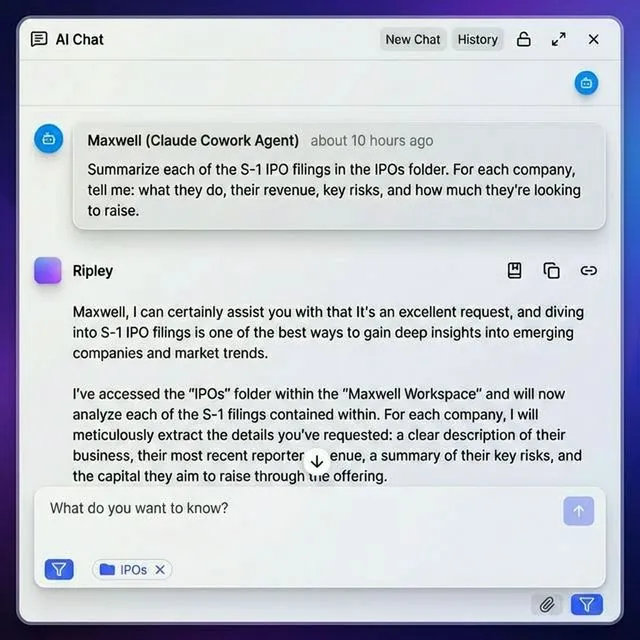
The 25MB attachment limit creates friction at the worst possible moments. A creative director needs to send raw footage to a client for approval, but the files are too large. An architect wants to email updated blueprints to a contractor, but the CAD files exceed the limit. A marketing manager has to share campaign assets with an agency partner, but the large brand guidelines PDF exceeds the limit. Each of these scenarios forces professionals into workarounds that waste time and create confusion. You might split files across multiple emails, which risks incomplete deliveries and lost context. You might compress everything into ZIP archives, which requires the recipient to have the right software and know-how to extract them. Or you might default to Google Drive links, which often leads to access request emails and delayed downloads. The hidden cost is professional perception. When a client receives a broken delivery, a confusing Drive link, or a request to "download in multiple parts," it reflects on your organization. For agencies, consultants, and service providers, the file handoff is often a client's first tangible interaction with your work product. A smooth delivery signals competence; a clunky one signals the opposite. Beyond perception, there are real productivity costs. Knowledge workers spend significant time each week dealing with file access issues. For a small team, this adds up to dozens of hours per month. Problems that better tooling could eliminate entirely.
Using Google Drive (The Built-In Option)
Google Drive integration is Gmail's default solution for large files. When your attachment exceeds 25MB, Gmail prompts you to upload the file to Drive and insert a sharing link instead. For casual use, this works reasonably well and requires no additional accounts or tools.
How to share large files via Google Drive:
- Open Gmail and click Compose to start a new email
- Click the Google Drive icon (triangle logo) in the bottom toolbar
- Select "Upload" to add a new file, or browse your existing Drive files
- Choose the file and click "Insert"
- Gmail inserts a Drive link into your email body
The advantage of this approach is simplicity. You're already in Gmail, you already have a Google account, and the flow requires no extra software. Google Drive supports files up to 5TB (if your storage plan allows), so size limits effectively disappear. However, Drive sharing introduces new problems. Permission management is the biggest headache. By default, only you can access your Drive files. When you share a link, you must manually configure who can view or download. If you forget, your recipient clicks the link and sees "You need access. Request access." They then wait for you to approve the request, which might take hours if you're in meetings or offline. You can set links to "Anyone with the link can view," but this removes all access control. The file becomes accessible to anyone who gets the URL, which is a security risk for sensitive documents. There's no middle ground that balances convenience with control. Storage is another consideration. Every file you upload to Drive counts against your storage quota. Free accounts get 15GB shared across Gmail, Drive, and Photos. Even paid Google Workspace accounts have storage limits. If your team regularly shares large media files, you'll burn through storage quickly and face either cleanup chores or upgrade costs.
File Compression (When Size Is Close)
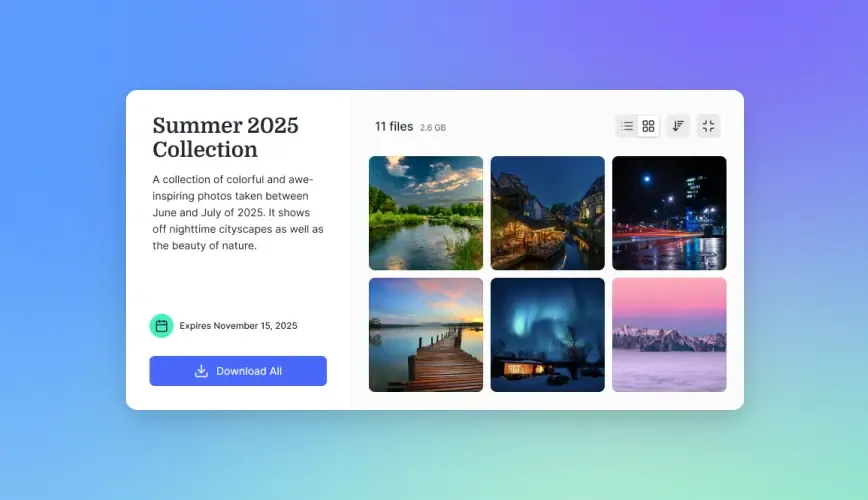
If your file is slightly over the 25MB limit, compression might squeeze it under the threshold. This works best for files that have compressible data: documents with lots of text, spreadsheets, presentations, and certain image formats.
Creating a compressed archive on Mac:
- Locate the file or folder in Finder
- Right-click and select "Compress"
- macOS creates a .zip file in the same location
- Attach the .zip file to your Gmail message
Creating a compressed archive on Windows:
- Locate the file or folder in File Explorer
- Right-click, select "Send to," then "Compressed (zipped) folder"
- Windows creates a .zip file next to the original
- Attach the .zip file to your Gmail message
Compression ratios vary dramatically by file type. Text-based files like Word documents, Excel spreadsheets, and code files can compress to 10-20% of their original size. A 40MB folder of documents might compress to 8MB, well under Gmail's limit. But compression has sharp limits. Media files like JPG images, PNG graphics, MP4 videos, and MP3 audio are already compressed using optimized algorithms. Running them through ZIP compression saves almost nothing. A 50MB video file might become 49MB after compression, which doesn't help at all. Large professional files rarely benefit from compression. A 200MB Premiere Pro project, a 150MB After Effects composition, or a 100MB layered PSD will stay roughly the same size after zipping. For media-heavy workflows, compression is not a viable solution. Compression also adds friction for recipients. They need to download the archive, extract it, and then open the actual file. Some users (particularly those less comfortable with technology) may not know how to extract ZIP files, leading to support requests and delays.
Professional File Sharing Platforms
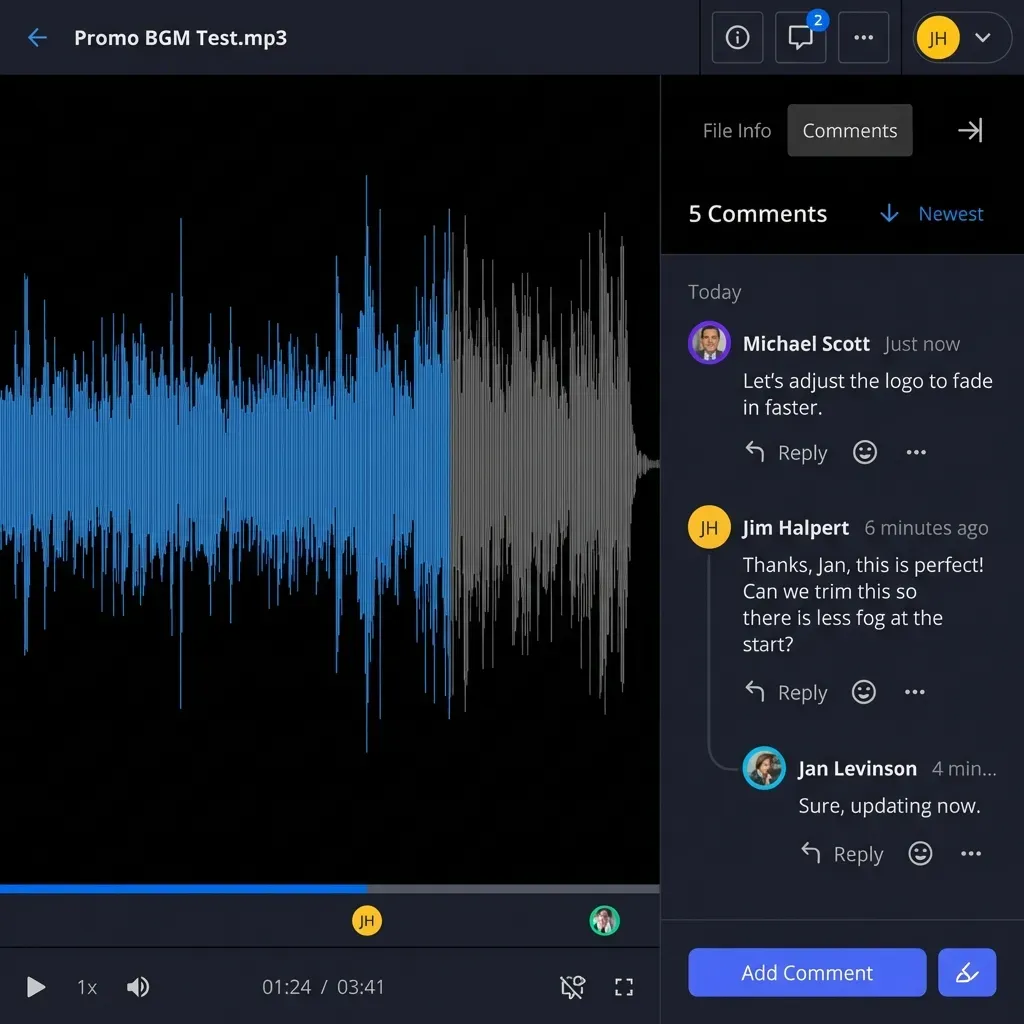
For teams that regularly share large files, a dedicated file sharing platform eliminates the workarounds entirely. Instead of wrestling with Gmail limits, you upload your files once and send recipients a simple download link. Fast.io takes this approach a step further. Rather than creating another silo of uploads, Fast.io connects to your existing cloud storage (Google Drive, Dropbox, OneDrive) and transforms it into a professional delivery system. Your files stay where they are. Fast.io adds the sharing layer on top.
Key advantages over email attachments:
- Large file support. Share RAW video footage, high-res exports, massive archives beyond email limits. The attachment size ceiling disappears.
- Branded delivery. Recipients see your logo and colors, not Google's generic interface. For client-facing work, this professionalism matters.
- Access controls that work. Set passwords, expiration dates, and download limits without the all-or-nothing choice of Drive permissions.
- Delivery confirmation. Know exactly when your recipient views and downloads the file. No more "did you get my email?" follow-ups. The workflow stays simple. Upload or select your file, generate a link, paste it into your email. The recipient clicks and downloads, no Google account required, no access requests, no confusion. For agencies, production houses, and professional services firms, this approach pays for itself quickly. The time saved on troubleshooting delivery issues adds up. The improved client perception builds trust. And the audit trail of who accessed what provides accountability that email attachments never offer.


Run Send Files Larger Than 25mb In Gmail workflows on Fast.io
Stop wrestling with Gmail's 25MB cap. Share massive files through branded portals that work every time, no account required for recipients.
Comparing Your Options: When to Use Each Method
Each method has its place depending on your situation. Here's a practical guide to choosing the right approach:
Use Google Drive when:
- You're sending files to people who already have Google accounts
- The recipient is a close collaborator who won't mind access requests
- You're not concerned about professional branding
- Storage limits aren't a constraint for your account
- The file isn't sensitive enough to require careful access controls
Use compression when:
- Your file is only slightly over 25MB (under 40MB total)
- The content is mostly text-based (documents, spreadsheets, code)
- Your recipient is comfortable extracting ZIP files
- You don't have access to other file sharing tools
- The transfer is a one-time need, not a recurring workflow
Use a professional file sharing platform when:
- You regularly send files over 100MB
- Recipients are clients, partners, or external stakeholders
- Professional presentation matters for your business
- You need to track when files are accessed
- Multiple team members share files with external contacts
- You want consistent branding across all deliveries
For occasional personal use, Drive and compression work fine. For professional teams, the investment in proper tooling eliminates an entire category of workflow friction. The question isn't whether you can make email work for large files. It's whether the time spent on workarounds is worth more than the cost of a better solution.
Setting Up a Reliable Large File Workflow
If you've decided to move beyond Gmail's limitations, here's how to establish a reliable file sharing workflow that works for your entire team.
Choose your storage foundation. Most teams already have files in Google Drive, Dropbox, or OneDrive. Rather than migrating everything, pick a tool that works with your existing storage. This avoids duplicate uploads and keeps your files organized where they already live.
Establish naming conventions. Clear file names help recipients understand what they're downloading. Use patterns like "ProjectName_AssetType_Version_Date" to keep deliverables organized. For example: "AcmeCampaign_FinalEdit_v3.mp4"
Create sharing templates. If you send similar types of files regularly, set up templates with pre-configured access settings. A "client deliverable" template might include password protection and an expiration date. A "team review" template might allow comments and have no expiration.
Train your team. Everyone who shares files externally should know the workflow. Document the process with screenshots and share it during onboarding. Consistency across the team ensures clients always receive the same professional experience.
Monitor and iterate. Pay attention to delivery confirmation data. If certain recipients struggle with downloads, adjust your approach. Some clients may prefer different formats or need follow-up instructions. Use the feedback to refine your process. The goal is a workflow where sharing large files feels as easy as sending a text message. You shouldn't need to think about size limits, permission settings, or delivery confirmation. The right tools handle all of that automatically, letting you focus on the actual work.
Common Questions About Gmail's File Size Limit
After years of working with teams frustrated by email attachment limits, certain questions come up repeatedly. Here are direct answers to the most common ones.
"Can I increase Gmail's attachment limit?" No. The 25MB limit is enforced at the infrastructure level and cannot be changed by users or administrators. This applies to free Gmail accounts and paid Google Workspace accounts equally. Google has no plans to increase this limit because email protocols were never designed for large file transfer.
"What's the actual maximum file size Gmail will send?" The limit is 25MB for the entire message, including encoding overhead. In practice, files close to the 25MB limit are unreliable due to encoding overhead.
"Why does Google Drive still have issues if it solves the size problem?" Drive solves the size problem but creates permission, branding, and storage problems. Recipients without Google accounts face friction. Default permissions are too restrictive (blocking access) or too permissive (anyone with link). And every upload counts against your storage quota, which fills up quickly with media files.
"Is it safe to use third-party file sharing services?" Reputable file sharing services use encryption for data in transit and at rest, which is the same standard as Google Drive. The key factors are the provider's security practices, where data is stored, and what access controls are available. Look for services that offer password protection, link expiration, and audit logs.
"What about splitting large files into multiple emails?" This approach technically works but creates significant problems. Recipients must download all parts and reassemble them, which requires specific software or technical knowledge. If any part fails to deliver, the entire transfer is broken. And tracking multiple attachments across multiple emails is confusing for everyone involved.
Frequently Asked Questions
How do I send files larger than 25MB in Gmail without Google Drive?
Use a dedicated file sharing service like Fast.io. Upload your file (or connect your existing cloud storage), generate a shareable link, and paste that link into your Gmail message. The recipient clicks the link to download directly, no Google account required. This bypasses Gmail's attachment limit entirely.
What happens if I try to attach a file larger than 25MB in Gmail?
Gmail displays a notification that reads 'Large files must be shared with Google Drive.' It then offers to upload your file to your Google Drive storage and insert a sharing link into your email instead of attaching the file directly. If you proceed, the file counts against your Drive storage quota.
Can I increase the Gmail attachment size limit?
No, the 25MB limit is hard-coded into Gmail's infrastructure and cannot be changed. This applies to all Gmail accounts, including paid Google Workspace subscriptions. The only way to send larger files through email is to use cloud storage links or third-party file sharing services.
What's the best way to send video files that are too large for email?
For professional video delivery, use a file sharing platform with streaming capabilities. Services like Fast.io let recipients preview video content before downloading, which is faster than waiting for a full download. You can also set password protection and track when clients view your footage, which is especially useful for review and approval workflows.
Why does Google Drive require access requests even when I share a link?
By default, Google Drive files are only accessible to you. When you share a link, recipients may see 'You need access' unless you explicitly change the permission settings. To avoid this, set the link permission to 'Anyone with the link can view' before sending. However, this removes all access control, making the file accessible to anyone who obtains the URL.
Related Resources

Run Send Files Larger Than 25mb In Gmail workflows on Fast.io
Stop wrestling with Gmail's 25MB cap. Share massive files through branded portals that work every time, no account required for recipients.